Shopify カスタム統合設定
このページでは、カスタムストアフロントを使用して、Shopify Hydrogen ストアやヘッドレス Shopify ストアとBrazeを統合する方法を説明します。
このガイドでは、Shopifyの Hydrogen フレームワークを例にしています。ただし、ブランドが「ヘッドレス」フロントエンド設定でストアのバックエンドに Shopify を使用している場合も、同様のアプローチをとることができます。
Shopify のヘッドレスストアをBrazeと統合するには、以下の2つの目標を達成する必要があります。
- Braze Web SDKを初期化してロードし、オンサイトトラッキングを有効にする
手動で Shopify Webサイトにコードを追加して、Brazeオンサイトトラッキングを有効にします。Shopify ヘッドレスストアにBraze SDKを実装することで、セッション、匿名のユーザー行動、チェックアウト前のショッパーアクション、そして開発チームと一緒に選択したカスタムイベントやカスタム属性を含むオンサイトアクティビティをトラッキングできます。また、アプリ内メッセージやContent Cardsなど、SDKがサポートするチャネルを追加することもできます。
- BrazeのShopify統合をインストールする
ShopifyストアをBrazeに接続すると、Shopify webhookを通じて顧客、チェックアウト、注文、商品データにアクセスできるようになります。

統合を開始する前に、Shopify ストアフロントのチェックアウトサブドメインが正しく設定されていることを確認してください。詳細については、Migrate from the online store to Hydrogen を参照してください。
この設定が正しく行われないと、BrazeはShopifyチェックアウトwebhookを処理できません。また、ローカルの開発環境で統合をテストすることもできません。ストアフロントとチェックアウトページ間の共有ドメインに依存しているためです。
これらの目標を達成するには、以下のステップに従ってください。
Braze Web SDKの初期化と読み込み
ステップ1:Web サイトアプリを選択し、SDKの認証情報をコピーする
Hydrogen ストアフロントにコードを追加する前に、Shopify ストアを接続し、カスタム設定のオンボーディングを開始します。ストアをまだ接続していない場合は、Shopify ストアを接続するを完了してから、Braze SDKを有効にするに進み、カスタム設定を選択します。
カスタム設定フローでは、ヘッドレスストアフロント用の Web サイトアプリを選択するよう Braze から求められます。
- 既存の Web サイトアプリを選択するか、新しいアプリを作成します。アプリには任意の名前を付けられますが、Shopify は標準の Shopify 統合用に Braze が予約しているため使用できません。
- Braze は、選択したアプリの API キーとベース URL (SDKエンドポイント) をオンボーディングステップに表示します。各値のコピーを選択します。設定 > アプリ設定を開く必要はありません。
- コピーした API キーを
BRAZE_API_KEYとして、SDKエンドポイントをBRAZE_API_URLとして、Shopify の環境変数で使用します (ステップ2)。
ストアを接続した後は、設定 > アプリ設定で選択した Web サイトアプリの名前を変更できます。Shopify 統合に接続されている間は、アプリを削除できません。

オンボーディング中に選択した Web サイトアプリの API キーを使用してください。Hydrogen 環境で、Shopify 統合に接続されているものとは異なる API キーを使用すると、Braze で重複ユーザーが作成され、SDKのメソッドが想定どおりに動作しない場合があります。
ステップ2:サブドメインと環境変数を追加する
- Shopify のサブドメインを設定して、オンラインストアから Hydrogen にトラフィックをリダイレクトします。
- ログイン用のコールバック URI を追加します。(URI はドメインを追加すると自動的に追加されます。)
- Shopify の環境変数を設定します。
- ステップ1 のカスタム設定オンボーディング中にコピーした API キーと SDKエンドポイントを使用して、2つの環境変数を作成します。
BRAZE_API_KEYBRAZE_API_URL
ステップ3:オンサイトトラッキングを有効にする
最初のステップは、Braze Web SDKを初期化することです。NPM パッケージをインストールして初期化することをおすすめします。
npm install --save @braze/web-sdk@6.8.0
# or, using yarn:
# yarn add @braze/web-sdk
サポートされている Braze Web SDKの最小バージョンは5.4.0です。Shopify のカスタム統合 (ヘッドレスストアフロントを含む) では、新しい SDKバージョンが利用可能になると通知が届きますが、アップグレードはお客様側で管理していただく必要があります。ストアフロントのコードと統合設定の SDKバージョンの両方を更新してください。
次に、vite.config.js ファイルのトップレベルキーとしてこの設定を含めます。
optimizeDeps: {
exclude: ['@braze/web-sdk']
}
NPM パッケージをインストールした後、Layout コンポーネント内の useEffect フックで SDKを初期化する必要があります。Hydrogen のバージョンによって、このコンポーネントは root.jsx ファイルまたは layout.jsx ファイルのいずれかにあります。
// Add these imports
import * as braze from "@braze/web-sdk";
import { useEffect } from 'react';
export function Layout({children}) {
const nonce = useNonce();
// @type {RootLoader}
const data = useRouteLoaderData('root');
// Add useEffect call to initialize Braze SDK
useEffect(() => {
if(!braze.isInitialized()) {
braze.initialize(data.brazeApiKey, {
baseUrl: data.brazeApiUrl,
});
braze.openSession()
}
}, [data])
return (...);
}
data.brazeApiKey と data.brazeApiUrl の値は、ステップ2 で作成した環境変数を使用して、コンポーネントローダーに含める必要があります。
export async function loader(args) {
// Start fetching non-critical data without blocking time to first byte
const deferredData = loadDeferredData(args);
// Await the critical data required to render initial state of the page
const criticalData = await loadCriticalData(args);
const {storefront, env} = args.context;
return {
...deferredData,
...criticalData,
publicStoreDomain: env.PUBLIC_STORE_DOMAIN,
// Add the two properties below to the returned value
brazeApiKey: env.BRAZE_API_KEY,
brazeApiUrl: env.BRAZE_API_URL,
shop: getShopAnalytics({
storefront,
publicStorefrontId: env.PUBLIC_STOREFRONT_ID,
}),
consent: {
checkoutDomain: env.PUBLIC_CHECKOUT_DOMAIN,
storefrontAccessToken: env.PUBLIC_STOREFRONT_API_TOKEN,
withPrivacyBanner: false,
// Localize the privacy banner
country: args.context.storefront.i18n.country,
language: args.context.storefront.i18n.language,
},
};
}

コンテンツセキュリティポリシー (通常は Hydrogen の entry.server.jsx ファイルにあります) は、ローカル環境と本番環境の両方で Braze スクリプトの機能に影響を与える可能性があります。Oxygen またはカスタムデプロイを通じて Shopify に送信したプレビュービルドでテストすることをおすすめします。問題が発生した場合は、JavaScript が機能するように CSP を設定する必要があります。
ステップ4:Shopify アカウントログインイベントを追加する
買い物客がアカウントにサインインしたタイミングを追跡し、ユーザー情報を Braze に同期します。これには、changeUser メソッドを呼び出して、Braze の external ID で顧客を識別する処理が含まれます。
現在、カスタムの Braze external ID をサポートするためのガイダンスはありません。現時点で統合にこれが必要な場合は、カスタマーサクセスマネージャーにお問い合わせください。
始める前に、Hydrogen 内で顧客ログインが機能するようにコールバック URI を設定していることを確認してください。詳細については、Using the Customer Account API with Hydrogen を参照してください。
- コールバック URI を設定した後、Braze SDKを呼び出す関数を定義します。新しいファイル (
Tracking.jsxなど) を作成し、コンポーネントからインポートします。
import * as braze from "@braze/web-sdk";
export function trackCustomerLogin(customerData, storefrontUrl) {
const customerId = customerData.id.substring(customerData.id.lastIndexOf('/') + 1)
const customerSessionKey = `ab.shopify.shopify_customer_${customerId}`;
const alreadySetCustomerInfo = sessionStorage.getItem(customerSessionKey);
if(!alreadySetCustomerInfo) {
const user = braze.getUser()
// To use Shopify customer ID as Braze External ID, use:
// braze.changeUser(customerId)
// To use Shopify customer email as Braze External ID, use:
// braze.changeUser(customerData.emailAddress?.emailAddress)
// To use hashing for email addresses, apply hashing before calling changeUser
// To use your own custom ID as the Braze External ID, pass that value to the changeUser call.
user.setFirstName(customerData.firstName);
user.setLastName(customerData.lastName);
if(customerData.emailAddress.emailAddress) {
user.setEmail(customerData.emailAddress?.emailAddress);
}
if(customerData.phoneNumber?.phoneNumber) {
user.setPhoneNumber(customerData.phoneNumber?.phoneNumber);
}
braze.logCustomEvent(
"shopify_account_login",
{ source: storefrontUrl }
)
sessionStorage.setItem(customerSessionKey, customerId);
}
}
- Braze SDKを初期化するのと同じ
useEffectフック内に、この関数の呼び出しを追加します。
import { trackCustomerLogin } from './Tracking';
export function Layout({children}) {
const nonce = useNonce();
// @type {RootLoader}
const data = useRouteLoaderData('root');
useEffect(() => {
if(!braze.isInitialized()) {
braze.initialize(data.brazeApiKey, {
baseUrl: data.brazeApiUrl,
enableLogging: true,
});
braze.openSession()
}
// Add call to trackCustomerLogin function
data.isLoggedIn.then((isLoggedIn) => {
if(isLoggedIn) {
trackCustomerLogin(data.customerData, data.publicStoreDomain)
}
})
}, [data])
app/graphql/customer-account/CustomerDetailsQuery.jsファイルにある Customer API の GraphQL クエリで、顧客のメールアドレスと電話番号を取得します。
export const CUSTOMER_FRAGMENT = `#graphql
fragment Customer on Customer {
id
firstName
lastName
emailAddress {
emailAddress
}
phoneNumber {
phoneNumber
}
defaultAddress {
...Address
}
addresses(first: 6) {
nodes {
...Address
}
}
}
fragment Address on CustomerAddress {
id
formatted
firstName
lastName
company
address1
address2
territoryCode
zoneCode
city
zip
phoneNumber
}
`;
- 最後に、ローダー関数で顧客データを読み込みます。
// Add import for GraphQL Query
import { CUSTOMER_DETAILS_QUERY } from './graphql/customer-account/CustomerDetailsQuery';
export async function loader(args) {
// Start fetching non-critical data without blocking time to first byte
const deferredData = loadDeferredData(args);
// Await the critical data required to render initial state of the page
const criticalData = await loadCriticalData(args);
const {storefront, env} = args.context;
// Add GraphQL call to Customer API
const isLoggedIn = await deferredData.isLoggedIn;
let customerData;
if (isLoggedIn) {
const { data, errors } = await args.context.customerAccount.query(
CUSTOMER_DETAILS_QUERY,
);
customerData = data.customer
} else {
customerData = {}
}
return {
...deferredData,
...criticalData,
publicStoreDomain: env.PUBLIC_STORE_DOMAIN,
brazeApiKey: env.BRAZE_API_KEY,
brazeApiUrl: env.BRAZE_API_URL,
// Add the property below to the returned value
customerData: customerData,
shop: getShopAnalytics({
storefront,
publicStorefrontId: env.PUBLIC_STOREFRONT_ID,
}),
consent: {
checkoutDomain: env.PUBLIC_CHECKOUT_DOMAIN,
storefrontAccessToken: env.PUBLIC_STOREFRONT_API_TOKEN,
withPrivacyBanner: false,
// Localize the privacy banner
country: args.context.storefront.i18n.country,
language: args.context.storefront.i18n.language,
},
};
}
ステップ5:商品閲覧イベントとカート更新イベントのトラッキングを追加する
商品閲覧イベント
Tracking.jsxファイルに次の関数を追加します。
export function trackProductViewed(product, storefrontUrl) {
const eventData = {
product_id: product.id.substring(product.id.lastIndexOf('/') + 1),
product_name: product.title,
variant_id: product.selectedOrFirstAvailableVariant.id.substring(product.selectedOrFirstAvailableVariant.id.lastIndexOf('/') + 1),
image_url: product.selectedOrFirstAvailableVariant.image?.url,
product_url: `${storefrontUrl}/products/${product.handle}`,
price: product.selectedOrFirstAvailableVariant.price.amount,
currency: product.selectedOrFirstAvailableVariant.price.currencyCode,
source: storefrontUrl,
type: ["price_drop", "back_in_stock"],
metadata: {
sku: product.selectedOrFirstAvailableVariant.sku
}
}
braze.logCustomEvent(
"ecommerce.product_viewed",
eventData
)
}
- ユーザーが商品ページにアクセスするたびに前述の関数を呼び出すには、
app/routes/products.$handle.jsxファイル内の Product コンポーネントにuseEffectフックを追加します。
import { trackProductViewed } from '~/tracking';
import { useEffect } from 'react';
export default function Product() {
// @type {LoaderReturnData}
// retrieve storefrontUrl to be passed into trackProductViewed
const {product, storefrontUrl} = useLoaderData();
// Add useEffect hook for tracking product_viewed event
useEffect(() => {
trackProductViewed(product, storefrontUrl)
}, [])
return (...)
}
- 「storefrontUrl」の値を追加します (デフォルトではコンポーネントローダーに含まれていないため)。
async function loadCriticalData({context, params, request}) {
const {handle} = params;
const {storefront} = context;
if (!handle) {
throw new Error('Expected product handle to be defined');
}
const [{product}] = await Promise.alll([
storefront.query(PRODUCT_QUERY, {
variables: {handle, selectedOptions: getSelectedProductOptions(request)},
}),
// Add other queries here, so that they are loaded in parallel
]);
if (!product?.id) {
throw new Response(null, {status: 404});
}
return {
product,
// Add this property to the returned value
storefrontUrl: context.env.PUBLIC_STORE_DOMAIN,
};
}
カート更新イベント
この連携では、BrazeがWebhookを正しいユーザープロファイルに一致させるために、ユーザーエイリアスは以下の形式を使用する必要があります。
alias_label:shopify_cart_${cartToken}alias_name:shopify_cart_token
cart_updatedイベントをトラッキングし、カートトークンを設定するための関数を定義します。
export function trackCartUpdated(cart, storefrontUrl) {
const eventData = {
cart_id: cart.id,
total_value: cart.cost.totalAmount.amount,
currency: cart.cost.totalAmount.currencyCode,
products: cart.lines.nodes.map((line) => {
return {
product_id: line.merchandise.product.id.toString(),
product_name: line.merchandise.product.title,
variant_id: line.merchandise.id.toString(),
image_url: line.merchandise.image.url,
product_url: `${storefrontUrl}/products/${line.merchandise.product.handle}`,
quantity: Number(line.quantity),
price: Number(line.cost.totalAmount.amount / Number(line.quantity))
}
}),
source: storefrontUrl,
metadata: {},
};
braze.logCustomEvent(
"ecommerce.cart_updated",
eventData
)
}
export function setCartToken(cart) {
const cartId = cart.id.substring(cart.id.lastIndexOf('/') + 1)
const cartToken = cartId.substring(0, cartId.indexOf("?key="));
if (cartToken) {
const cartSessionKey = `ab.shopify.shopify_cart_${cartToken}`;
const alreadySetCartToken = sessionStorage.getItem(cartSessionKey);
if (!alreadySetCartToken) {
braze.getUser().addAlias("shopify_cart_token", `shopify_cart_${cartToken}`)
braze.requestImmediateDataFlush();
sessionStorage.setItem(cartSessionKey, cartToken);
}
}
}
- Braze がプロパティにアクセスできるように、フェッチャーアクションから
cartオブジェクトを返します。app/routes/cart.jsxファイルを開き、action関数に次のコードを追加します。
export async function action({request, context}) {
const {cart} = context;
...
switch (action) {
case CartForm.ACTIONS.LinesAdd:
result = await cart.addLines(inputs.lines);
break;
...
}
const cartId = result?.cart?.id;
const headers = cartId ? cart.setCartId(result.cart.id) : new Headers();
const {cart: cartResult, errors, warnings} = result;
const redirectTo = formData.get('redirectTo') ?? null;
if (typeof redirectTo === 'string') {
status = 303;
headers.set('Location', redirectTo);
}
return data(
{
cart: cartResult,
// Add these two properties to the returned value
updatedCart: await cart.get(),
storefrontUrl: context.env.PUBLIC_STORE_DOMAIN,
errors,
warnings,
analytics: {
cartId,
},
},
{status, headers},
);
}
Remix のフェッチャーの詳細については、useFetcher を参照してください。
- Hydrogen ストアでは通常、カートオブジェクトの状態を管理する
CartFormコンポーネントを定義しており、カート内の商品の追加、削除、数量変更の際に使用されます。AddToCartButtonコンポーネントに別のuseEffectフックを追加し、フォームのフェッチャーの状態が変化するたび (ユーザーのカートが更新されるたび) にtrackCartUpdated関数を呼び出すようにします。
// Add imports
import { trackCartUpdated, setCartToken } from '~/tracking';
import { useEffect } from 'react';
import { useFetcher } from '@remix-run/react';
export function AddToCartButton({
analytics,
children,
disabled,
lines,
onClick,
}) {
// Define a new Fetcher to be used for tracking cart updates
const fetcher = useFetcher({ key: "cart-fetcher" });
// Add useEffect hook for tracking cart_updated event and setting cart token alias
useEffect(() => {
if(fetcher.state === "idle" && fetcher.data) {
trackCartUpdated(fetcher.data.updatedCart, fetcher.data.storefrontUrl)
setCartToken(fetcher.data.updatedCart);
}
}, [fetcher.state, fetcher.data])
// Add the fetcherKey prop to the CartForm component
return (
<CartForm route="/cart" inputs= fetcherKey="cart-fetcher" action={CartForm.ACTIONS.LinesAdd}>
{(fetcher) => (
<>
<input
name="analytics"
type="hidden"
value={JSON.stringify(analytics)}
/>
<button
type="submit"
onClick={onClick}
disabled={disabled ?? fetcher.state !== 'idle'}
>
{children}
</button>
</>
)}
</CartForm>
);
}
- カート内の既存の商品を更新するアクションにも、同じ
fetcherKeyを使用します。CartLineRemoveButtonコンポーネントとCartLineUpdateButtonコンポーネント (デフォルトではapp/components/CartLineItem.jsxファイルにあります) に次のコードを追加します。
function CartLineRemoveButton({lineIds, disabled}) {
// Add the fetcherKey prop to the CartForm component
return (
<CartForm
fetcherKey="cart-fetcher"
route="/cart"
action={CartForm.ACTIONS.LinesRemove}
inputs=
>
<button disabled={disabled} type="submit">
Remove
</button>
</CartForm>
);
}
function CartLineUpdateButton({children, lines}) {
// Add the fetcherKey prop to the CartForm component
return (
<CartForm
route="/cart"
fetcherKey="cart-fetcher"
action={CartForm.ACTIONS.LinesUpdate}
inputs=
>
{children}
</CartForm>
);
}
Braze Shopify 統合をインストールする
ステップ1:Shopify ストアを接続する
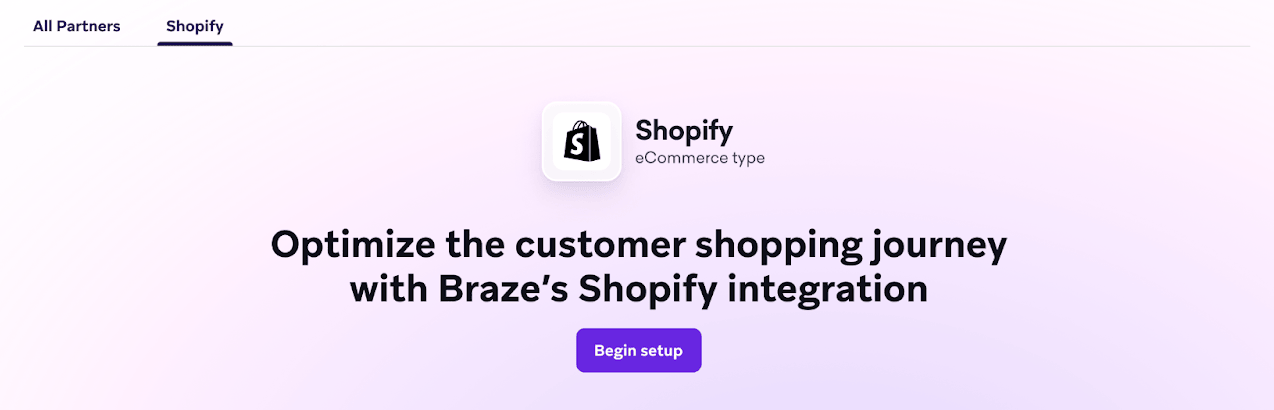
Shopify パートナーページに移動して設定を開始します。まず、セットアップを開始を選択して、Shopify App Store から Braze アプリをインストールします。ガイドに従ってインストールを完了してください。
ステップ2:Braze SDKを有効にする
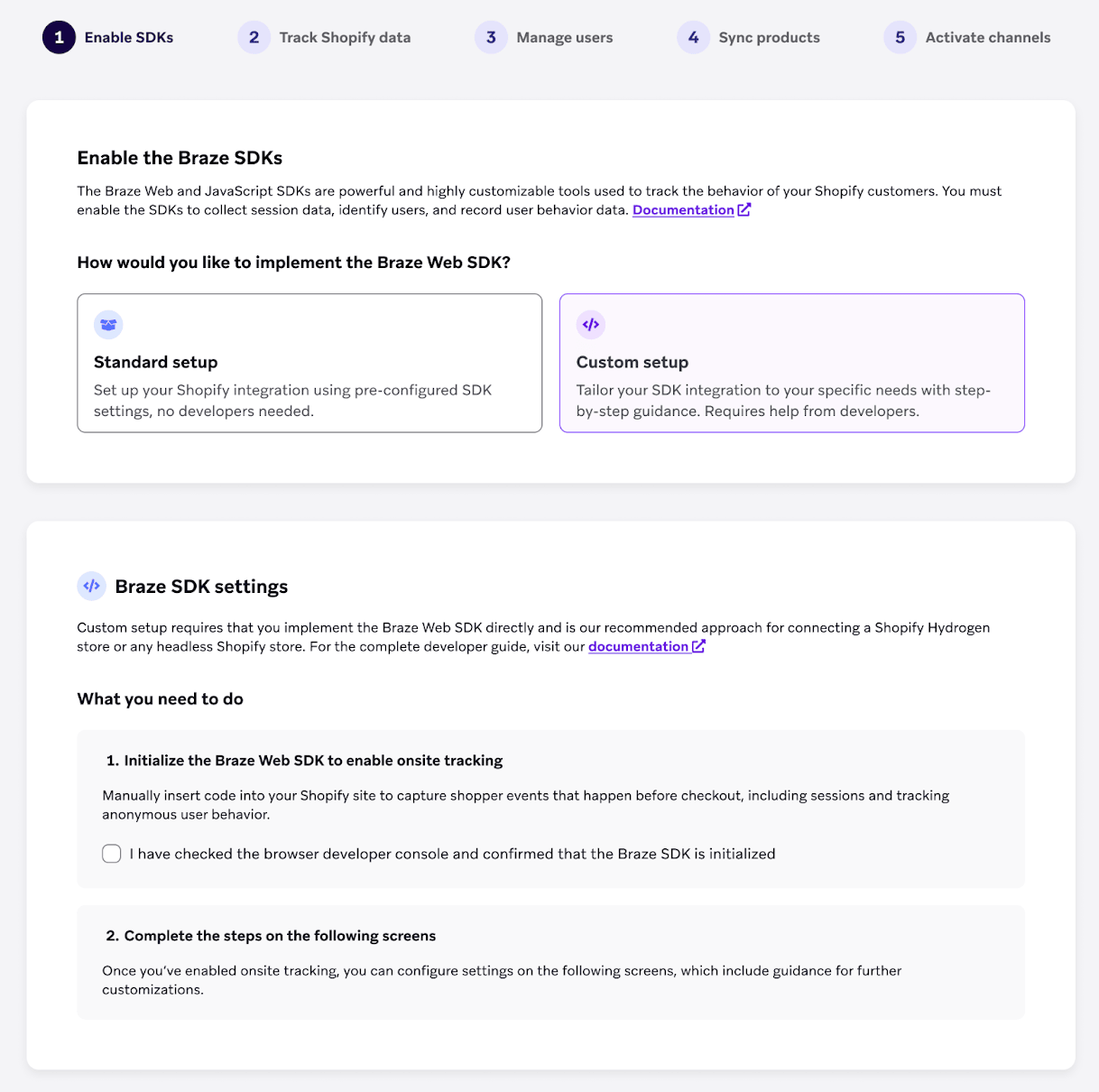
Shopify Hydrogen またはヘッドレスストアの場合は、カスタム設定オプションを選択します。
カスタム設定には、Web サイトアプリの選択機能が含まれています。ストアフロントを支えるアプリを選択または作成し、オンボーディングステップに表示される API キーと SDKエンドポイントをコピーします。詳しくは、ステップ1:Web サイトアプリを選択して SDK 認証情報をコピーするを参照してください。
オンボーディングプロセスを続行する前に、これらの認証情報を使用して Shopify の Web サイトに Braze SDKを追加したことを確認してください。
ステップ3:Shopify データをトラッキングする
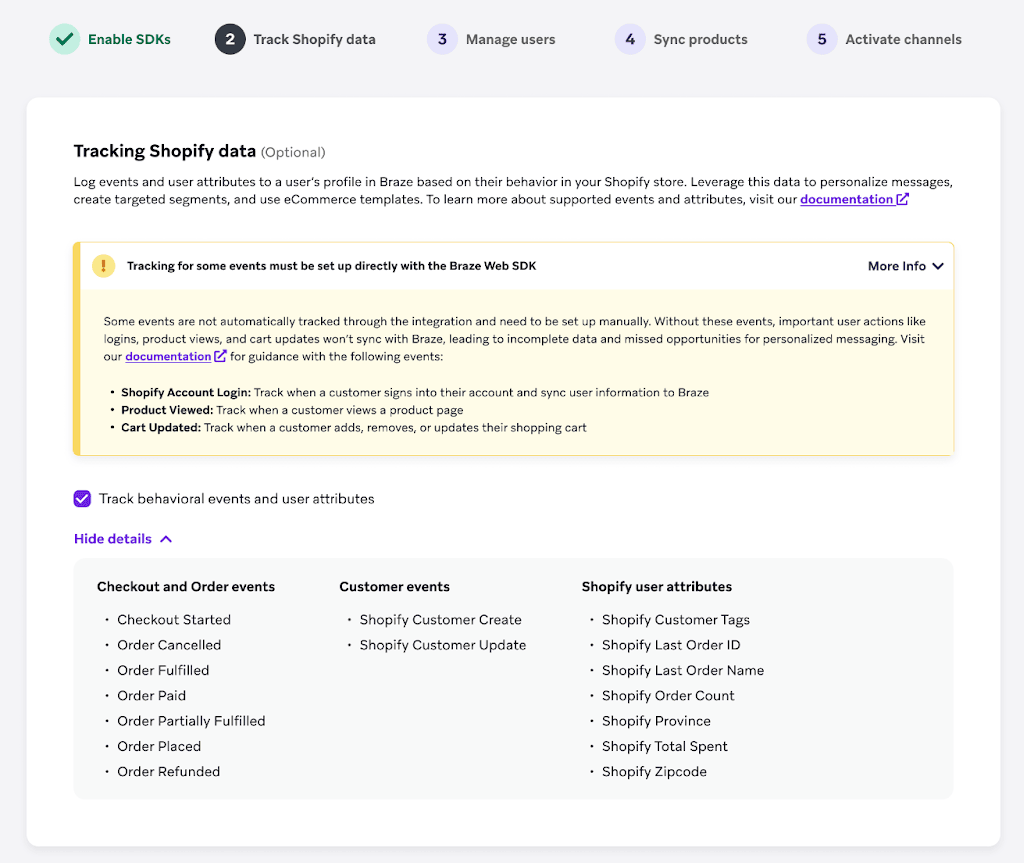
Shopify の Webhook によって提供される Shopify のイベントや属性を追加して、統合を強化しましょう。この統合でトラッキングされるデータの詳細については、Shopify のデータ機能を参照してください。
ステップ4:履歴バックフィル (オプション)
カスタム設定では、オプションで標準統合と同じ Shopify の履歴データの読み込みを含めることができます。
履歴バックフィルをオンにするを選択し、注文の期間 (過去90日間、過去1年間、または過去2年間) と顧客プロファイルの期間 (過去1年間、過去2年間、または全期間) を選択します。これらの選択内容は、設定完了後に変更できません。
バックフィルを後で実行したい場合は、今は初期設定を完了しておき、後でこのステップに戻ることができます。

初期読み込みに含まれるデータの全リスト、収益レポートの動作、同期のモニタリングについては、履歴バックフィルを参照してください。
ステップ5:カスタムデータトラッキングの設定 (上級)
Braze SDKを使用すると、この統合でサポートされているデータを超えるカスタムイベントやカスタム属性をトラッキングできます。カスタムイベントは、次のようなストア内の独自のインタラクションをキャプチャします。
| カスタムイベント | カスタム属性 |
|---|---|
|
|
イベントやカスタム属性をログに記録するには、ユーザーのデバイスで SDKが初期化されている (アクティビティをリッスンしている) 必要があります。カスタムデータのログ記録の詳細については、User オブジェクトと logCustomEvent を参照してください。
ステップ6:ユーザーの管理方法を設定する (オプション)
ドロップダウンから external_id のタイプを選択します。
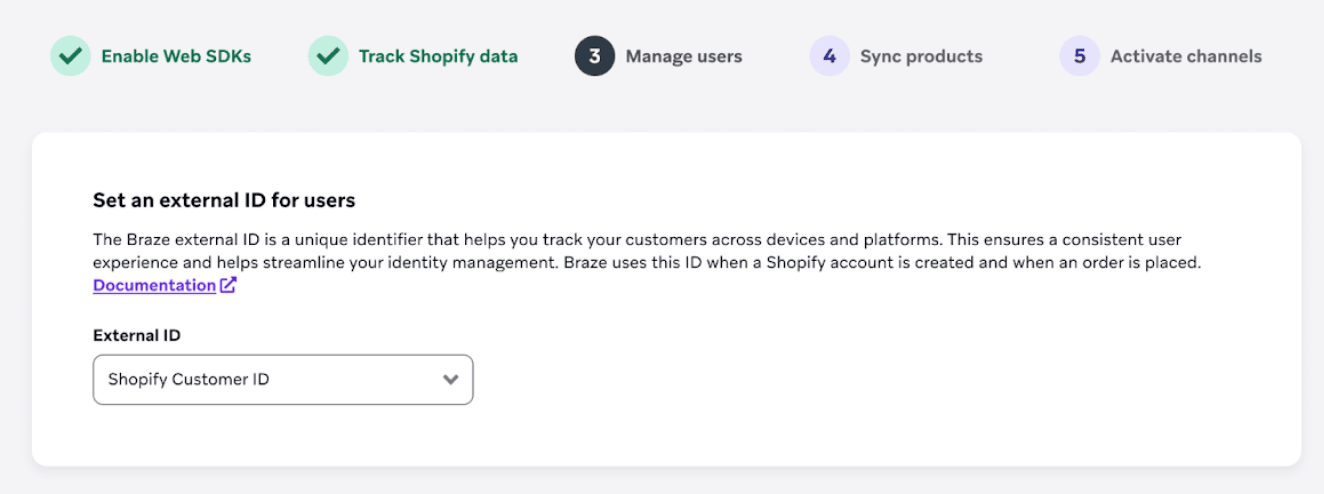
メールアドレスまたはハッシュ化されたメールアドレスを Braze の external ID として使用すると、データソース間の ID 管理を簡素化できます。ただし、ユーザーのプライバシーとデータセキュリティに対する潜在的なリスクを考慮することが重要です。
- 推測可能な情報: メールアドレスは簡単に推測できるため、攻撃に対して脆弱です。
- 悪用のリスク: 悪意のあるユーザーが Web ブラウザーを改ざんして、他人のメールアドレスを自分の external ID として送信した場合、機密性の高いメッセージやアカウント情報にアクセスされる可能性があります。
デフォルトでは、Braze は Shopify から取得したメールを小文字に自動変換してから external ID として使用します。メールまたはハッシュ化されたメールを external ID として使用している場合は、external ID として割り当てる前、または他のデータソースからハッシュ化する前に、メールアドレスも小文字に変換されていることを確認してください。これにより、external ID の不一致を防ぎ、Braze で重複したユーザープロファイルが作成されるのを回避できます。
次のステップは、external ID の選択内容によって異なります。
- カスタム external ID タイプを選択した場合: ステップ6.1—6.3を完了して、カスタム external ID の設定を行います。
- Shopify の顧客 ID、メール、またはハッシュ化されたメールを選択した場合: ステップ6.1—6.3をスキップして、ステップ6.4に直接進みます。
ステップ6.1:braze.external_id メタフィールドを作成する
- Shopify管理画面で、設定 > メタフィールドに移動します。
- 顧客 > 定義を追加を選択します。
- 名前空間とキーに
braze.external_idと入力します。 - タイプでIDタイプを選択します。
メタフィールドを作成したら、顧客ごとに値を入力します。次の方法をお勧めします。
- 顧客作成の Webhook をリッスンする:
customer/createイベントをリッスンする Webhook を設定します。これにより、新しい顧客が作成されたときにメタフィールドを書き込むことができます。 - 既存の顧客をバックフィルする: Admin API または Customer API を使用して、以前に作成された顧客のメタフィールドをバックフィルします。
ステップ6.2:external ID を取得するエンドポイントを作成する
Braze が external ID を取得するために呼び出せるパブリックエンドポイントを作成する必要があります。これにより、Shopify が braze.external_id メタフィールドを直接提供できない場合でも、Braze が ID を取得できるようになります。
エンドポイントの仕様
メソッド: GET
Braze は次のパラメーターをエンドポイントに送信します。
| パラメーター | 必須 | データ型 | 説明 |
|---|---|---|---|
| shopify_customer_id | はい | String | Shopify の顧客 ID。 |
| shopify_storefront | はい | String | リクエストのストアフロント名。例: <storefront_name>.myshopify.com |
| email_address | いいえ | String | ログインしているユーザーのメールアドレス。 一部の Webhook のシナリオでは、このフィールドが欠落している場合があります。エンドポイントのロジックでは、null 値を考慮する必要があります (たとえば、内部ロジックで必要な場合は shopify_customer_id を使用してメールを取得します)。 |
エンドポイントの例
GET https://mystore.com/custom_id?shopify_customer_id=1234&[email protected]&shopify_storefront=dev-store.myshopify.com
想定されるレスポンス
Braze は、external ID の JSON を返す 200 ステータスコードを想定しています。
{
"external_id": "my_external_id"
}
検証
shopify_customer_id と email_address (存在する場合) が Shopify の顧客の値と一致することを検証することが重要です。Shopify Admin API または Customer API を使用して、これらのパラメーターを検証し、正しい braze.external_id メタフィールドを取得できます。
失敗時の動作とマージ
200 以外のステータスコードはすべて失敗とみなされます。
- マージへの影響: エンドポイントが失敗した場合(非
200を返すかタイムアウトした場合)、Brazeはexternal IDを取得できません。その結果、ShopifyユーザーとBrazeユーザープロファイルのマージはその時点では行われません。 - リトライロジック: Brazeは標準的な即時ネットワークリトライを試みる場合がありますが、失敗が続く場合、マージは次の該当イベント(例えば、ユーザーが次にプロファイルを更新するかチェックアウトを完了するとき)まで延期されます。
- サポート性: タイムリーなユーザーマージをサポートするために、エンドポイントの高可用性を確保し、オプションの
email_addressフィールドを適切に処理するようにしてください。
ステップ6.3:external ID を入力する
ステップ6を繰り返し、Braze の external ID タイプとしてカスタム external ID を選択した後、エンドポイント URL を入力します。
考慮事項
- Brazeがエンドポイントにリクエストを送信した時点でexternal IDが生成されていない場合、
changeUser関数の呼び出し時にShopifyの顧客IDがデフォルトで使用されます。このステップは、匿名ユーザープロファイルと識別済みユーザープロファイルを統合するために重要です。その結果、ワークスペース内に異なるタイプのexternal IDが一時的に共存する期間が発生する場合があります。 braze.external_idメタフィールドでexternal IDが利用可能になると、インテグレーションはこのexternal IDを優先的に割り当てます。- Shopifyの顧客IDが以前Brazeのexternal IDとして設定されていた場合、
braze.external_idメタフィールドの値に置き換えられます。
- Shopifyの顧客IDが以前Brazeのexternal IDとして設定されていた場合、
ステップ6.4:Shopify からメールまたは SMS のオプトインを収集する (オプション)
メール、SMS、またはWhatsAppチャネルを使用している場合、Shopifyのメール、SMS、WhatsAppのマーケティングオプトイン状態をBrazeに同期できます。
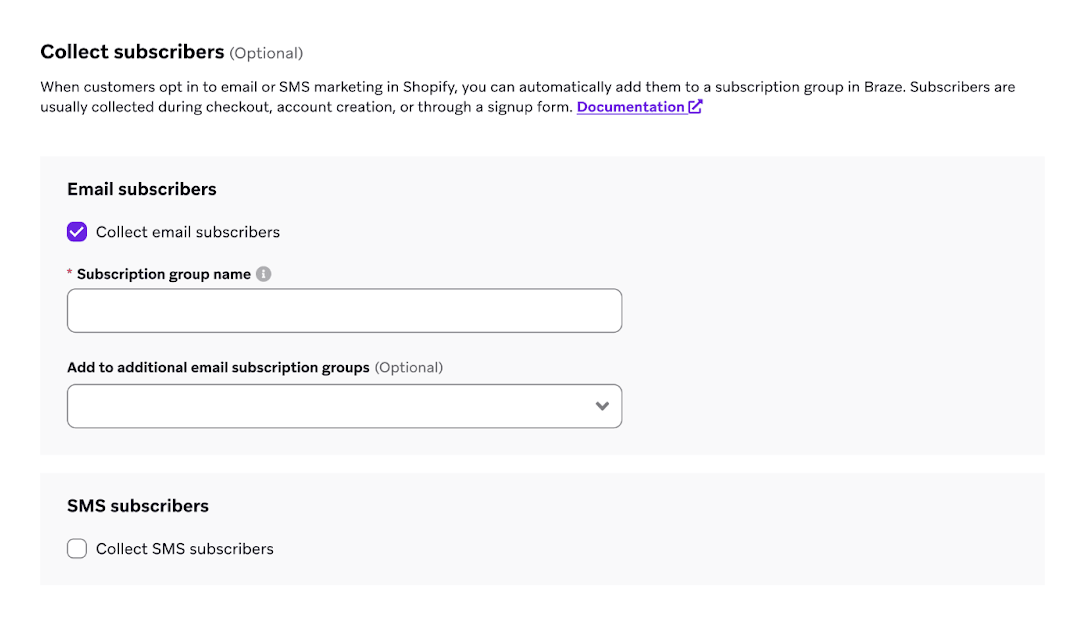
Shopifyからメールマーケティングのオプトインを同期すると、Brazeはその特定のストアに関連付けられたすべてのユーザーを対象とするメール購読グループを自動的に作成します。この購読グループには一意の名前を設定する必要があります。
Shopifyの概要で述べたように、サードパーティのキャプチャフォームを使用する場合、開発者がBraze SDKコードを統合する必要があります。これにより、フォーム送信からメールアドレスとグローバルメール購読ステータスをキャプチャできるようになります。具体的には、以下のメソッドをtheme.liquidファイルに実装してテストする必要があります。
- setEmail: ユーザープロファイルにメールアドレスを設定します
- setEmailNotificationSubscriptionType: グローバルメール購読ステータスを更新します
SMSダブルオプトインを使用すると、Shopifyの確認メールの代わりに、Brazeを通じてブランド独自の確認テキストを送信できます。SMSダブルオプトインを有効にするには、以下の手順を実行します。
- Shopify管理画面で、設定 > 通知 > 顧客通知に移動します。
- SMSのマーケティングダブルオプトインをオフにします。
- チェックアウト時のSMSをシングルオプトインに設定します。
- BrazeのSMS設定で、Use Braze SMS double opt-inを選択します。
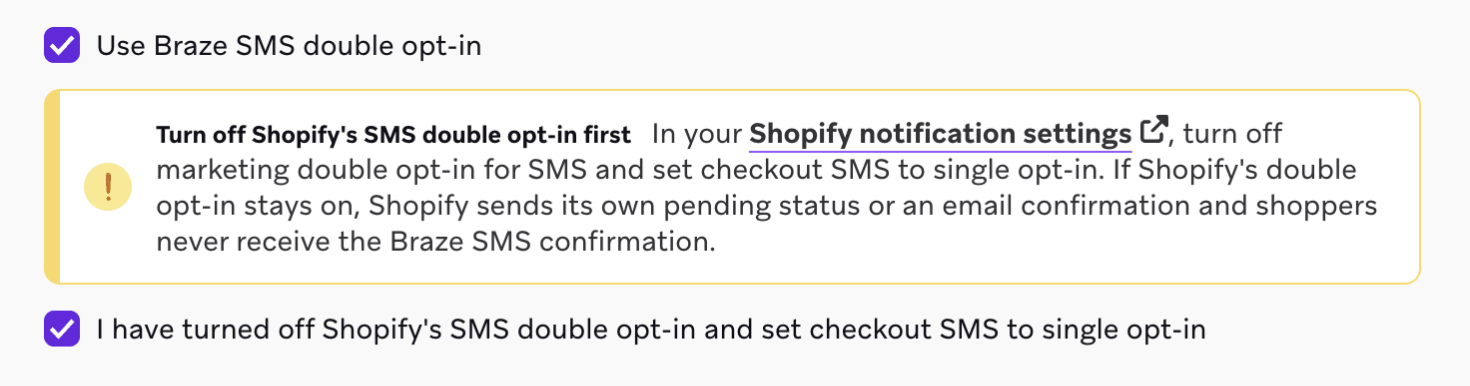
BrazeのSMSダブルオプトインと購読者フローの詳細については、Shopifyの概要を参照してください。
Brazeを通じてWhatsAppメッセージを送信している場合は、ShopifyからWhatsAppマーケティングのオプトインも同期できます。Collect WhatsApp subscribersを選択し、同期先のWhatsApp購読グループを選択します。
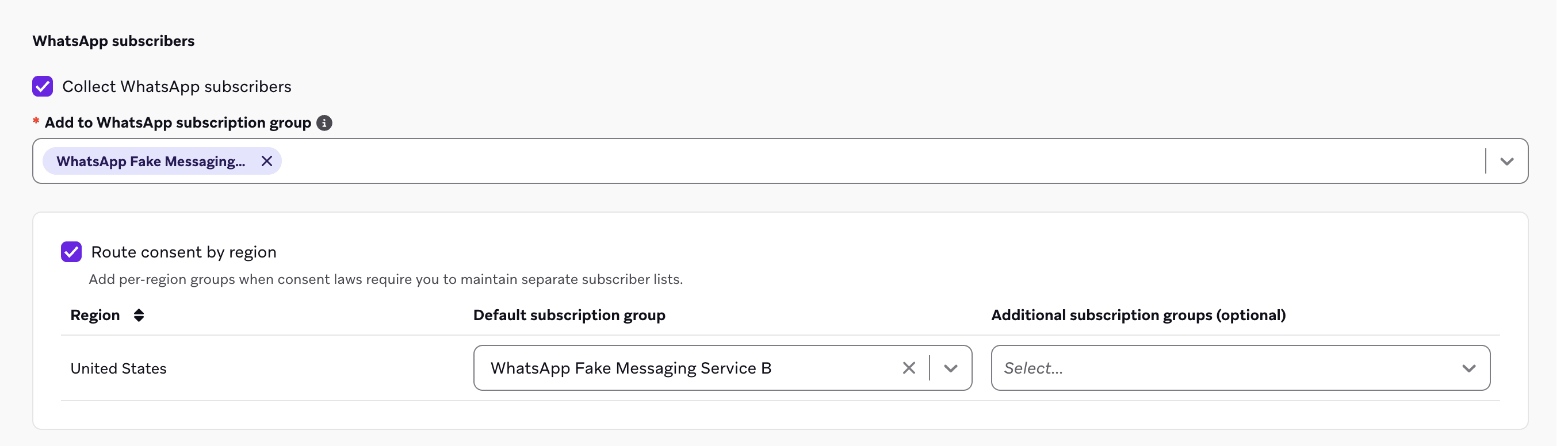
WhatsApp購読グループを使用するには、ワークスペースにWhatsApp Businessアカウントが接続されている必要があります。テクノロジーパートナー > WhatsAppで接続してください。
Brazeは、Shopifyが顧客ごとに保存しているWhatsAppの同意のみを同期します。SMSやメールのオプトインによって、顧客がWhatsAppを購読した状態になることはありません。また、WhatsAppにはダブルオプトインはありません。詳細については、WhatsAppマーケティングオプトインを参照してください。
ステップ7:商品を同期する (オプション)
Shopify ストアのすべての商品を Braze カタログに同期して、メッセージングのパーソナライゼーションをさらに強化できます。自動更新はほぼリアルタイムで行われるため、カタログには常に最新の商品詳細が反映されます。詳しくは、Shopify 商品の同期を参照してください。
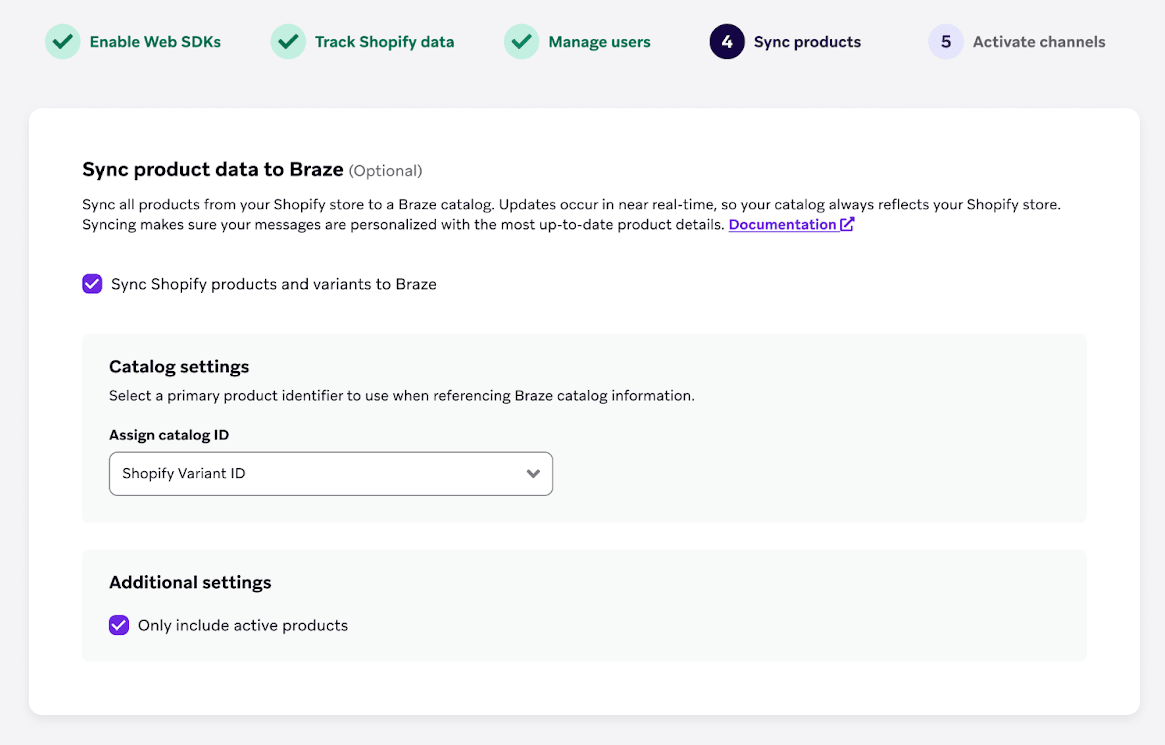
ステップ8:チャネルを有効にする
Shopify の直接統合を使用してアプリ内メッセージ、バナー、フィーチャーフラグを有効にするには、各チャネルを SDK に追加します。各チャネルについて、以下のドキュメントリンクに従ってください。
- アプリ内メッセージ: リード獲得フォームのユースケースでアプリ内メッセージを有効にするには、アプリ内メッセージを参照してください。
- バナー: Shopify ストアフロントのパーソナライゼーションのユースケースでバナーを有効にするには、バナーを参照してください。
- フィーチャーフラグ: Shopify ストアフロントの実験のユースケースでフィーチャーフラグを有効にするには、フィーチャーフラグを参照してください。
ステップ9:セットアップを完了する
すべてのステップを完了したら、セットアップを完了を選択してパートナーページに戻ります。次に、表示されるバナーの指示に従って、Shopify の管理ページで Braze のアプリ埋め込みを有効にします。

コード例
shopify-hydrogen-example は、前述のステップで説明したすべてのコードを含む Hydrogen アプリの例です。