IAM Studio
IAM Studio is a no-code message personalization platform that allows you to create personalized, rich in-app experiences and deliver them through Braze.
This integration is maintained by IAM Studio.*s.
About the integration
With the Braze and IAM Studio integration, you can easily insert customizable in-app message templates into your Braze in-app messages, offering image replacement, text modification, deep link settings, custom attributes, and event settings. Using IAM Studio, you can reduce message production time and dedicate more time to content planning.
Prerequisites
| Requirement | Description |
|---|---|
| IAM Studio account | A IAM Studio account is required to take advantage of this partnership. |
Use cases
- Encouraging the purchase of goods
- User information collection
- Increasing membership registration
- Coupon issuance information
Integration
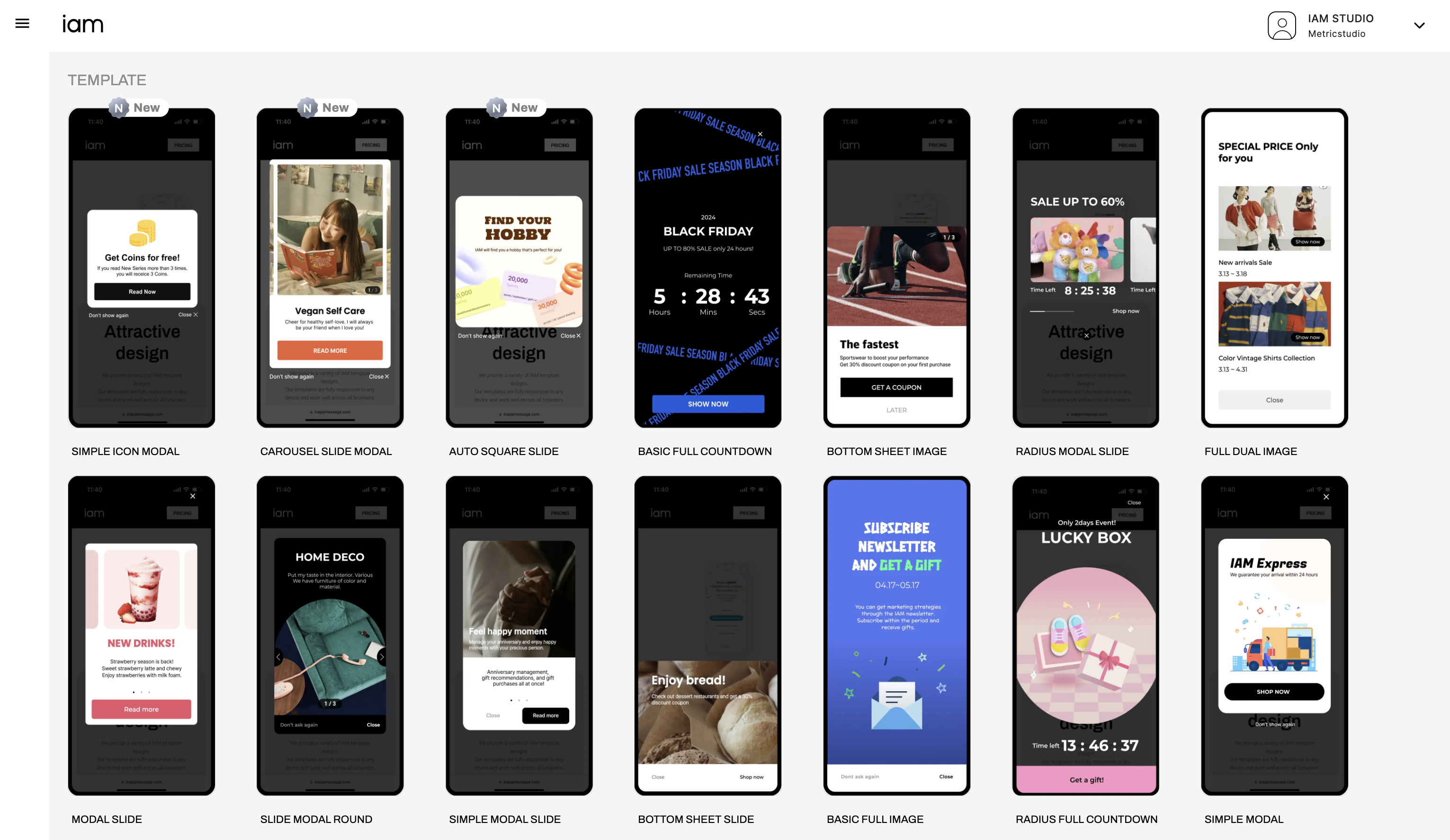
Step 1: Choose a template
인앱 메시지 템플릿 갤러리에서 사용하려는 인앱 메시지 템플릿을 선택하세요
2단계: Customize the template
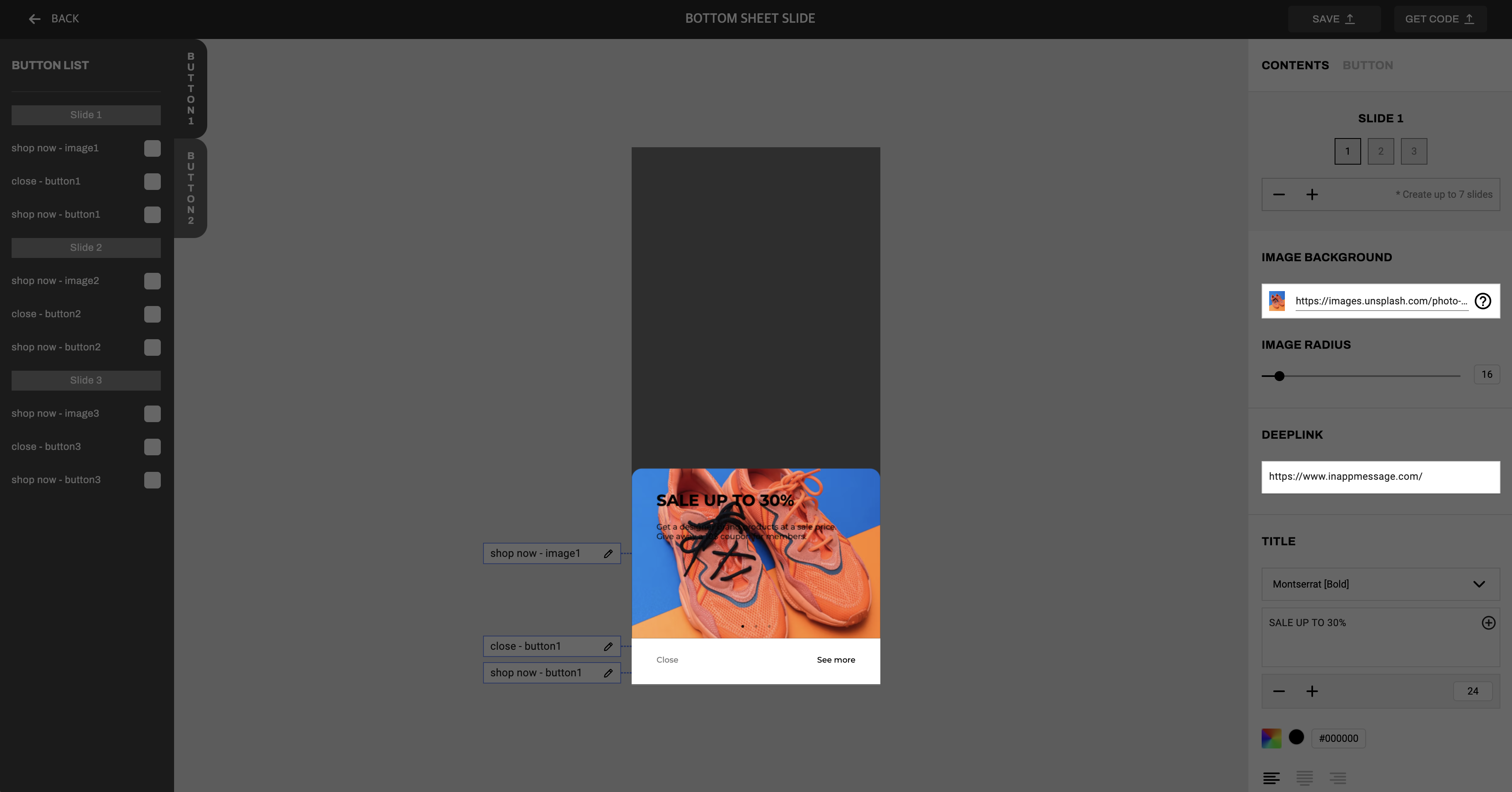
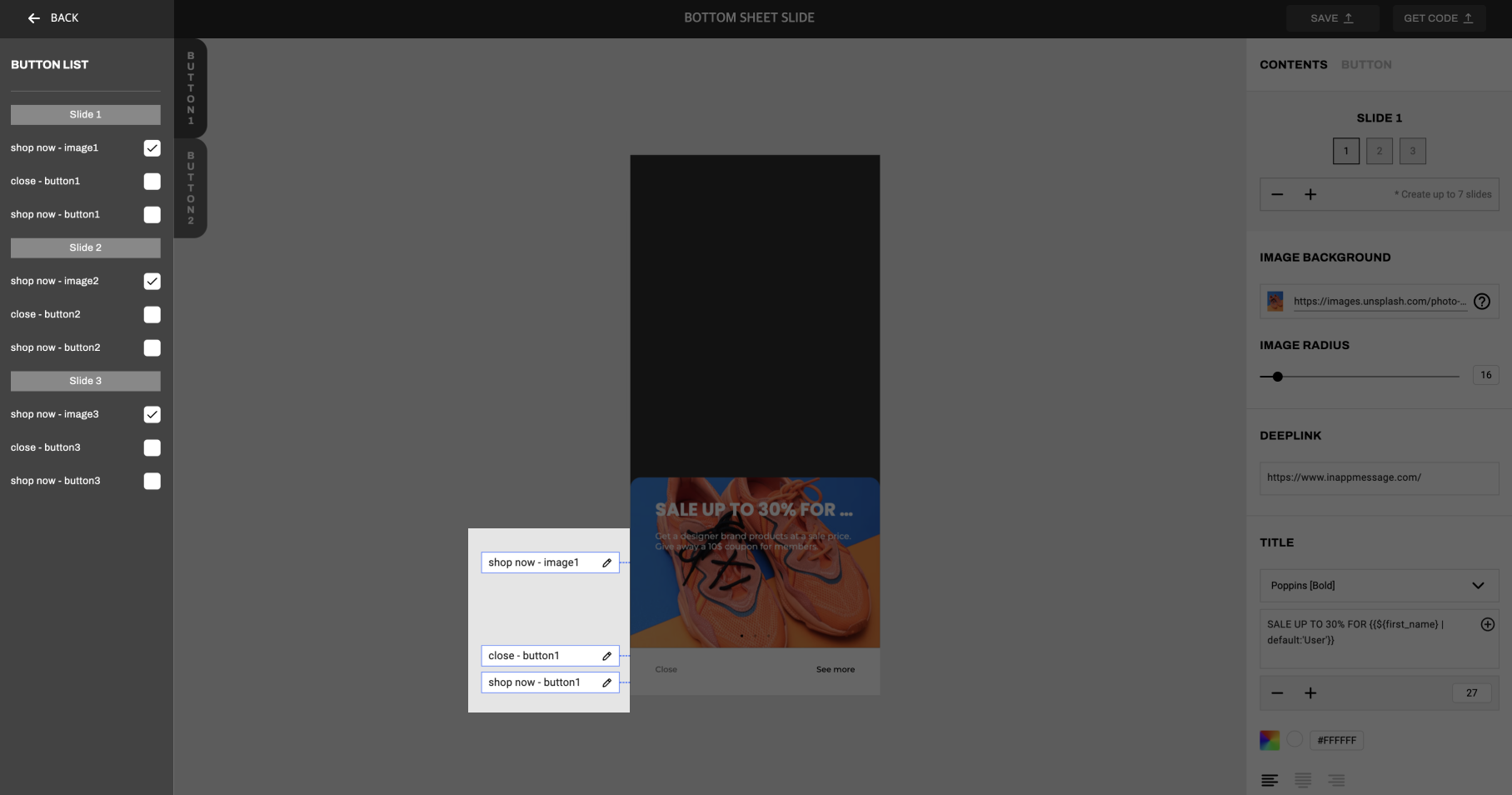
First, customize the image, text, and button for your content. Be sure to connect Deeplink for the image and button.
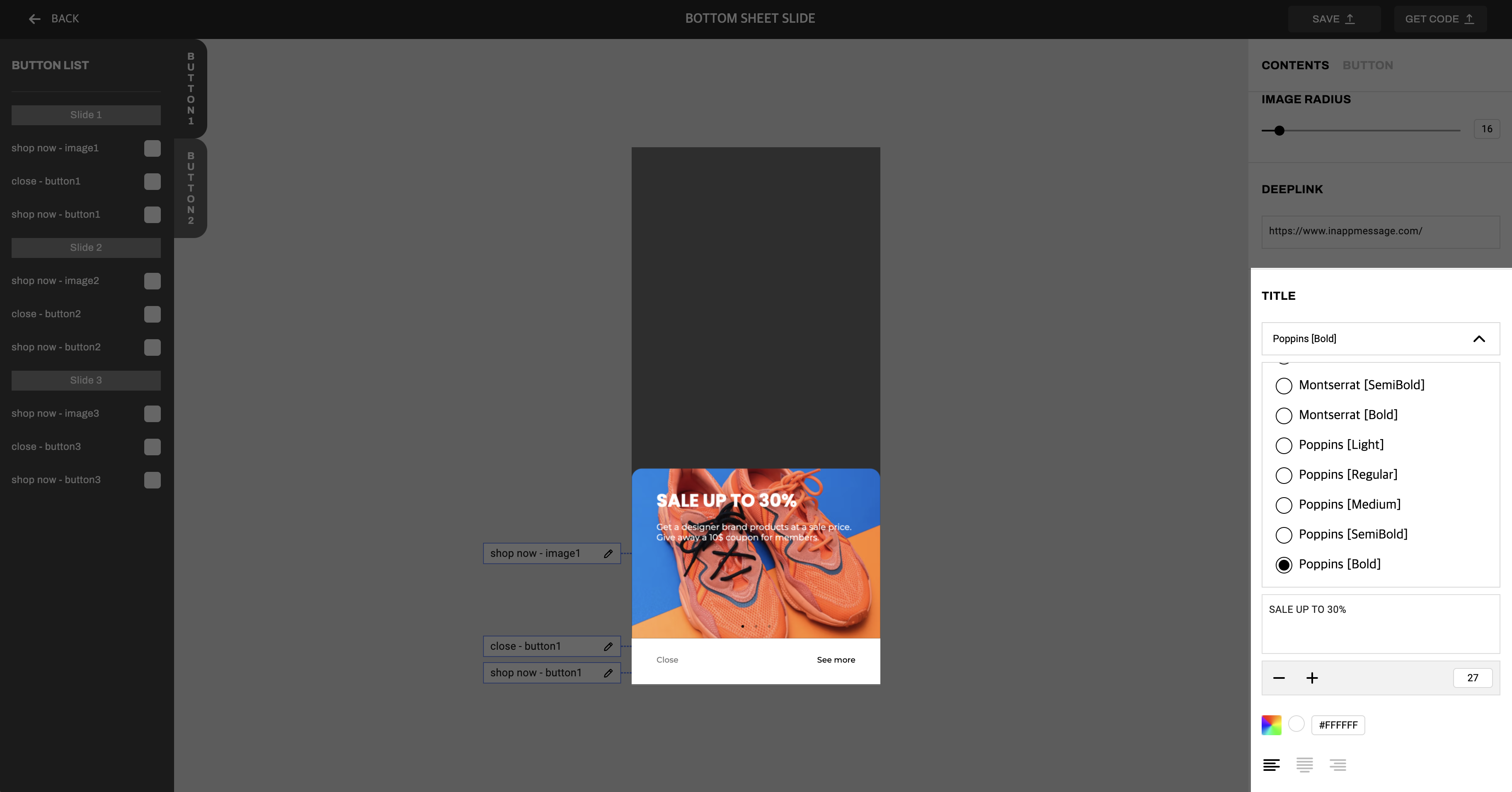
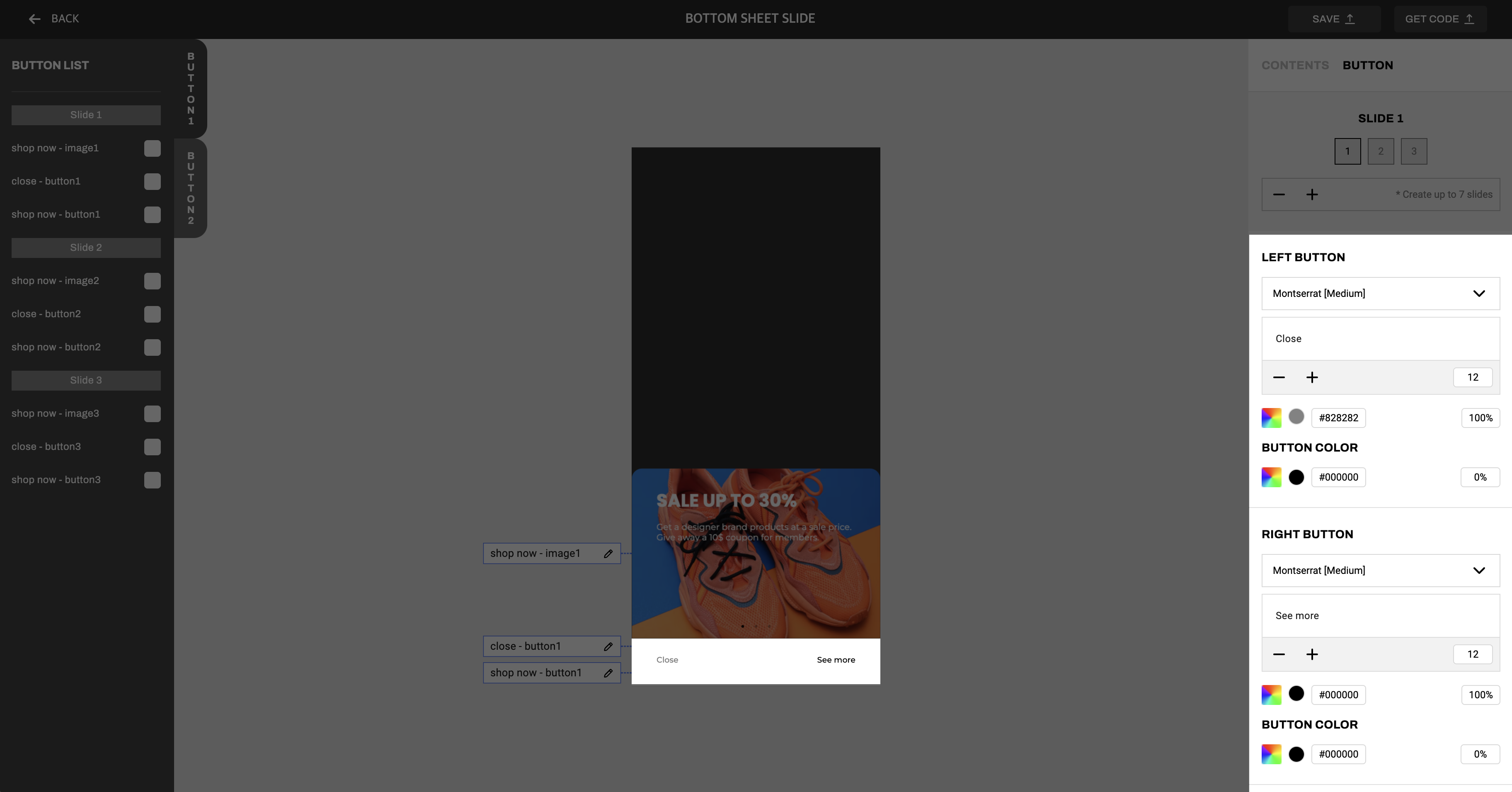
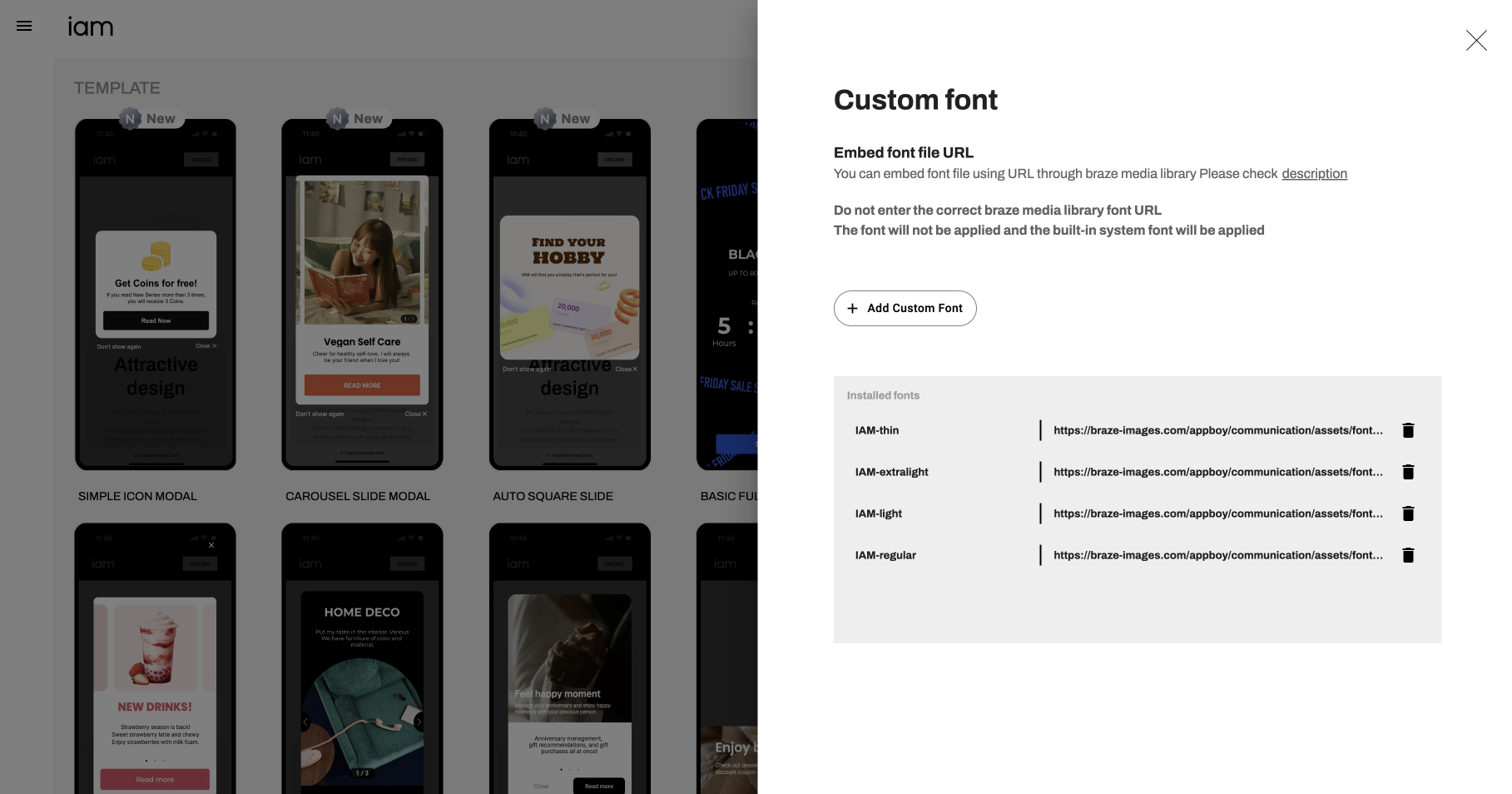
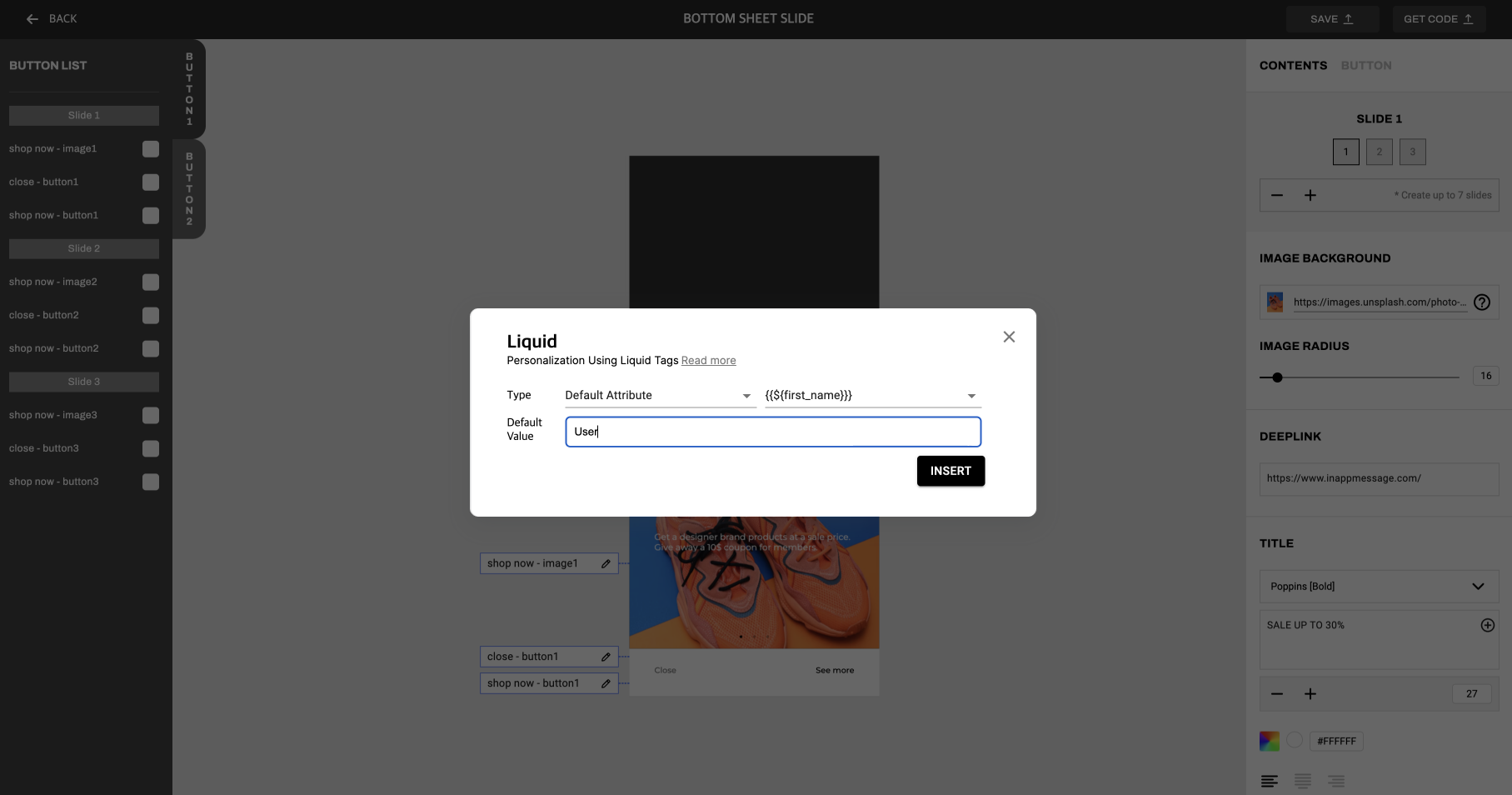
Next, create your personalized in-app message by adding custom fonts and using Liquid tags. To enable logging and tracking, select Log data and track user behavior.
Step 3: Export the template
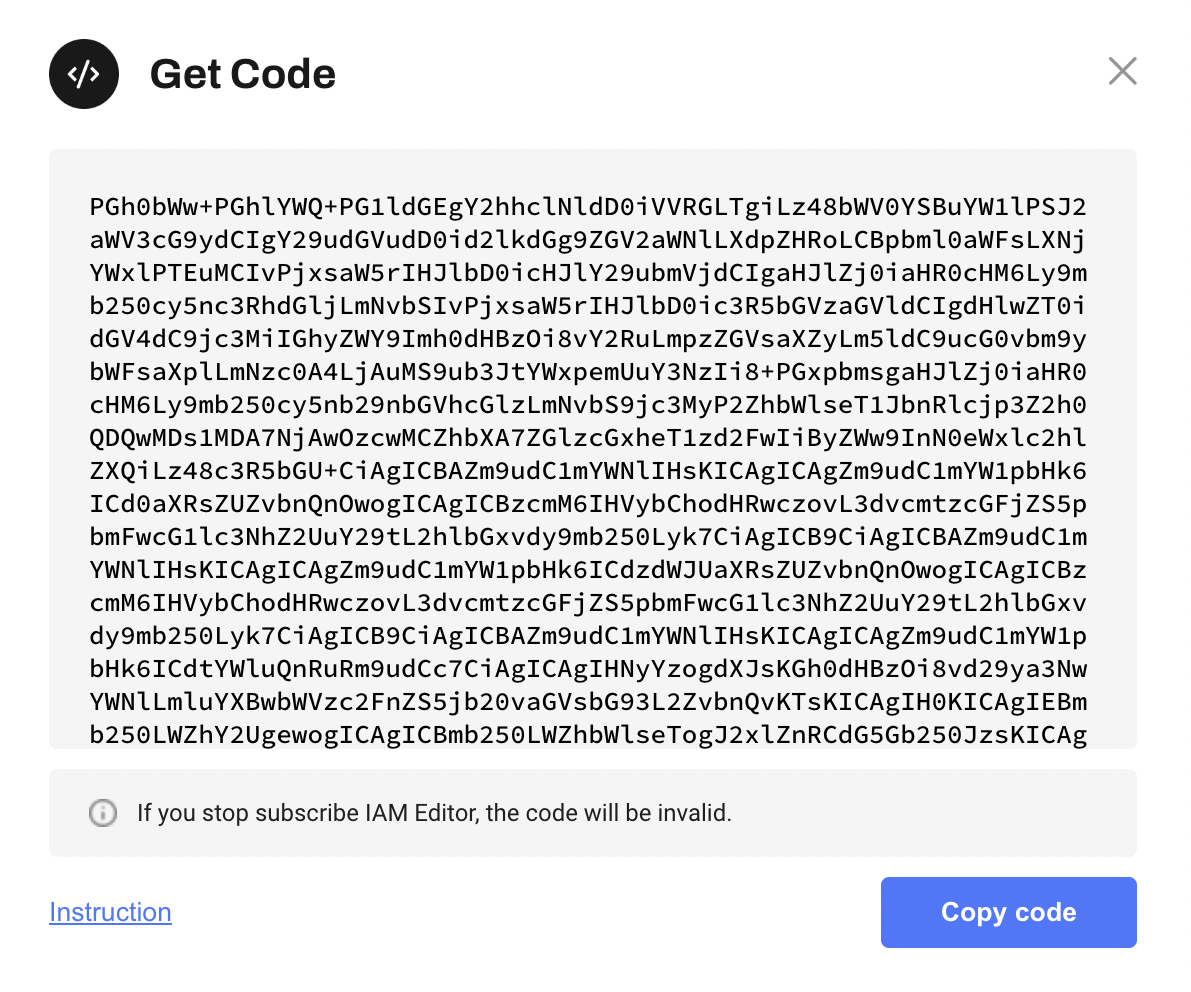
Once all editing has been completed, export the template by clicking Export. After exporting, the in-app message HTML code will be generated. Copy this code by clicking the Copy code button.
4단계: Use code in Braze
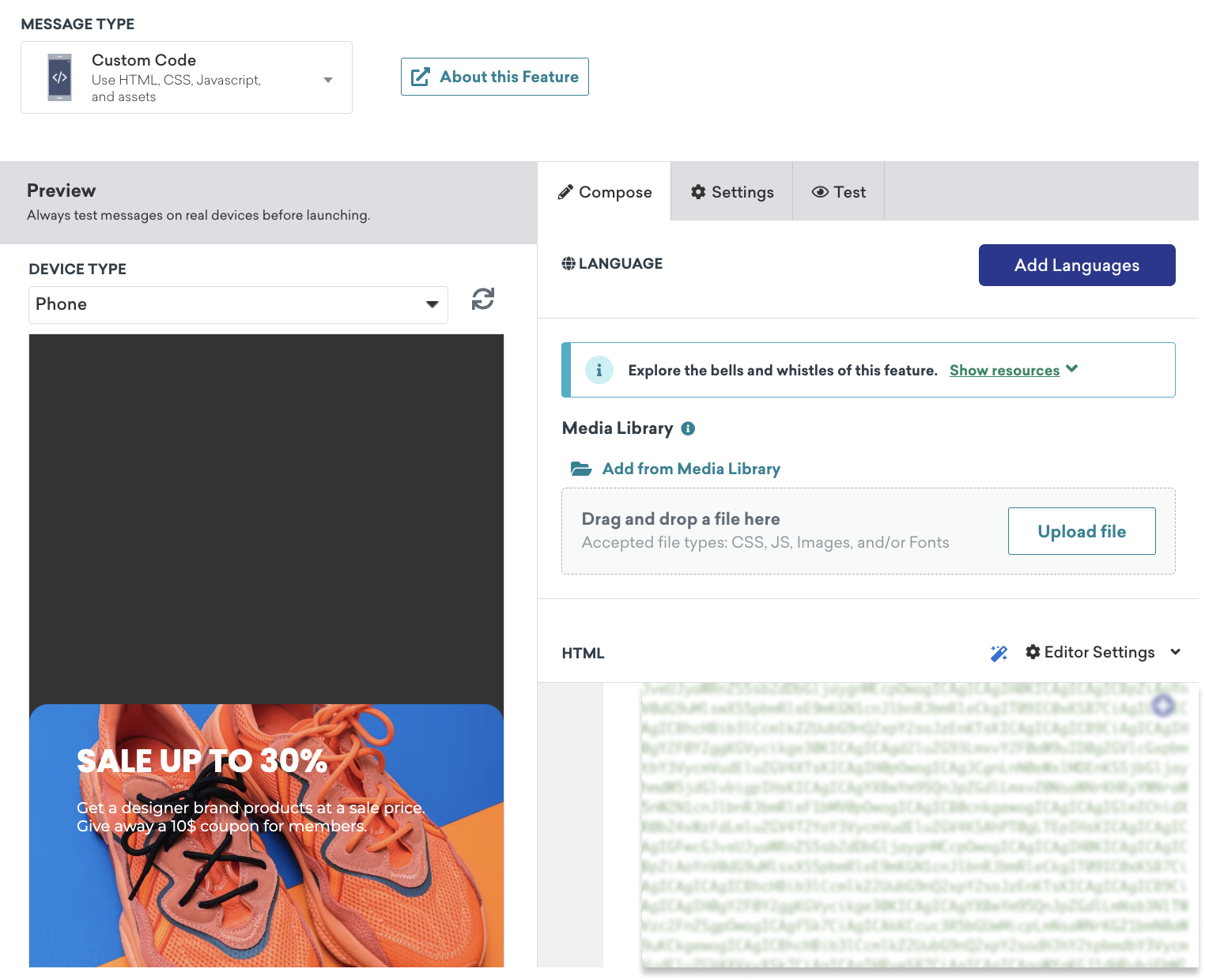
Navigate to Braze, and in your in-app message, paste the custom code in the HTML Input box. Make sure to test your message to check it is displaying correctly.
 GitHub 에서 이 페이지를 편집합니다.