mParticle by Rokt
mParticle의 고객 데이터 플랫폼은 데이터를 더 효과적으로 활용할 수 있도록 지원합니다. 정교한 마케터들은 mParticle을 사용하여 전체 성장 스택에서 데이터를 오케스트레이션하여 핵심 고객 여정 순간에서 성과를 거둘 수 있습니다.
Braze와 mParticle 통합을 통해 두 시스템 간의 정보 흐름을 원활하게 제어할 수 있습니다:
- mParticle 오디언스를 Braze에 동기화하여 Braze 캠페인 및 캔버스 세분화에 활용합니다.
- 두 플랫폼 간에 데이터를 공유합니다. 이는 mParticle 키트 통합 및 서버 간 통합을 통해 수행할 수 있습니다.
- 커런츠를 통해 Braze 사용자 상호작용을 mParticle로 전송하여 전체 성장 스택에서 활용할 수 있도록 합니다.
필수 조건
| 요구 사항 | 설명 |
|---|---|
| mParticle 계정 | 이 파트너십을 활용하려면 mParticle 계정이 필요합니다. |
| Braze 인스턴스 | Braze 인스턴스는 API 개요 페이지에서 확인할 수 있습니다(예: US-01 또는 US-02). |
| Braze 앱 식별자 키 | 앱 식별자 키입니다. 이것은 Braze 대시보드의 설정 관리 > API 키에서 찾을 수 있습니다. |
| 워크스페이스 REST API 키 | (서버 간) Braze REST API 키 이것은 Braze 대시보드의 개발자 콘솔 > API 설정 > API 키에서 생성할 수 있습니다. |
통합
오디언스
Braze와 mParticle의 파트너십을 사용하여 통합을 구성하고 mParticle 오디언스를 Braze로 직접 가져와 리타겟팅에 활용하여 한 시스템에서 다른 시스템으로의 완전한 데이터 루프를 만들 수 있습니다.
설정한 모든 통합은 데이터 포인트를 기록합니다. Braze 데이터 포인트의 세부 사항에 대한 질문이 있는 경우, Braze 계정 매니저가 답변해 드릴 수 있습니다.
오디언스 전달
mParticle는 “세그먼트로 전송” 구성 설정으로 제어되는 세 가지 코호트 멤버십 속성 설정 방법을 제공합니다. 각 옵션의 처리에 대해서는 다음 섹션을 참조하세요:
- 단일 문자열 속성
- 단일 배열 속성
- 세그먼트당 하나의 속성
- 단일 배열 속성과 단일 문자열 속성 모두
- 단일 배열 속성과 세그먼트당 하나의 속성 모두
- 단일 문자열 속성과 세그먼트당 하나의 속성 모두
- 단일 배열 속성, 단일 문자열 속성, 세그먼트당 하나의 속성
단일 문자열 속성
mParticle은 SegmentMembership이라는 단일 커스텀 속성을 생성합니다. 이 속성의 값은 사용자와 일치하는 mParticle 오디언스 ID의 쉼표로 구분된 문자열입니다. 이러한 오디언스 ID는 mParticle 대시보드의 Audiences에서 찾을 수 있습니다.
예를 들어, mParticle 오디언스 “Ibiza dreamers”의 오디언스 ID가 “11036”인 경우, SegmentMembership — matches regex — 11036 필터로 이 사용자들을 세분화할 수 있습니다.
이것이 mParticle의 기본 옵션이지만, 대부분의 사용자는 Braze에서 세그먼트를 생성할 때 필터링 경험을 위해 단일 배열 속성을 사용하는 것을 선호합니다.
오디언스가 몇 개 이상인 경우 이 솔루션은 권장되지 않습니다. 커스텀 속성은 최대 255자까지 가능하므로 이 방법을 사용하면 고객 프로필에 수십 또는 수백 개의 오디언스를 저장할 수 없습니다. 사용자당 코호트 수가 많은 경우 “세그먼트당 하나의 속성” 구성을 강력히 권장합니다.

단일 배열 속성
mParticle은 각 사용자에 대해 Braze에 SegmentMembershipArray라는 단일 커스텀 배열 속성을 생성합니다. 이 속성의 값은 사용자와 일치하는 mParticle 오디언스 ID의 배열입니다.
예를 들어, 사용자가 오디언스 ID “13053”, “13052”, “13051”을 가진 세 개의 mParticle 오디언스의 멤버인 경우, SegmentMembershipArray — includes value — 13051 필터로 해당 오디언스 중 하나와 일치하는 사용자를 세분화할 수 있습니다.
Braze 배열 속성의 최대 길이는 25입니다. 사용자가 25개 이상의 오디언스의 멤버인 경우, 멤버십 정보가 Braze에 의해 잘립니다. 이를 해결하려면 Braze 담당자에게 연락하여 최대 배열 길이 임계값을 늘려주세요.
세그먼트당 하나의 속성
mParticle은 사용자가 속한 각 오디언스에 대해 부울 커스텀 속성을 생성합니다. 예를 들어, mParticle 오디언스가 “Possible Parisians”인 경우, In Possible Parisians - equals - true 필터로 이 사용자들을 세분화할 수 있습니다.

단일 배열 속성과 단일 문자열 속성
mParticle은 단일 배열 속성과 단일 문자열 속성 모두에 설명된 대로 속성을 전송합니다.
단일 배열 속성과 세그먼트당 하나의 속성
mParticle은 단일 배열 속성과 세그먼트당 하나의 속성 모두에 설명된 대로 속성을 전송합니다.
단일 문자열 속성과 세그먼트당 하나의 속성
mParticle은 단일 문자열 속성과 세그먼트당 하나의 속성 모두에 설명된 대로 속성을 전송합니다.
단일 배열 속성, 단일 문자열 속성, 세그먼트당 하나의 속성
mParticle은 단일 배열 속성, 단일 문자열 속성, 세그먼트당 하나의 속성에 설명된 대로 속성을 전송합니다.
1단계: mParticle에서 오디언스 생성
mParticle에서 오디언스를 생성하려면:
- Audiences > Single Workspace > + New Audience로 이동합니다.
- Braze를 오디언스의 출력으로 연결하려면 다음 필드를 제공해야 합니다:
| 필드 이름 | 설명 |
|---|---|
| API 키 | Braze 대시보드의 설정 > API 키에서 찾을 수 있습니다. 이전 탐색을 사용하는 경우 개발자 콘솔 > API 설정에서 API 키를 찾을 수 있습니다. |
| API 키 운영체제 | Braze API 키가 해당하는 운영체제를 선택합니다. 이 선택은 오디언스 업데이트 시 전달되는 푸시 토큰 유형을 제한합니다. |
| 세그먼트로 전송 | 오디언스를 Braze로 전송하는 방법입니다. 자세한 내용은 오디언스 전달 섹션을 참조하세요. |
| 워크스페이스 REST API 키 | 전체 권한이 있는 Braze REST API 키입니다. Braze 대시보드의 설정 > API 키에서 생성할 수 있습니다. |
| 외부 ID 유형 | Braze에 외부 ID로 전달할 mParticle 사용자 ID 유형입니다. 기본값인 Customer ID로 두는 것을 권장합니다. |
| 이메일 ID 유형 | Braze에 이메일로 전달할 mParticle 사용자 ID 유형입니다. |
| Braze 인스턴스 | Braze 데이터가 전달될 클러스터를 지정합니다. |
- 마지막으로 오디언스를 저장합니다.
몇 분 내에 오디언스가 Braze에 동기화되기 시작합니다. 오디언스 멤버십은 external_ids가 있는 사용자(즉, 익명 사용자가 아닌)에 대해서만 업데이트됩니다. Braze mParticle 오디언스 생성에 대한 자세한 내용은 mParticle 설명서의 구성 설정을 참조하세요.
2단계: Braze에서 사용자 세분화
Braze에서 이러한 사용자의 세그먼트를 생성하려면 참여 아래의 세그먼트로 이동하여 세그먼트 이름을 지정합니다. 다음은 세그먼트로 전송에서 선택한 옵션에 따른 두 가지 세그먼트 예시입니다. 각 옵션에 대한 자세한 내용은 오디언스 전달을 참조하세요.
- 단일 배열 속성:
SegmentMembershipArray를 필터로 선택합니다. 다음으로, “값 포함” 옵션을 사용하고 원하는 오디언스 ID를 입력합니다.
- 세그먼트당 하나의 속성: 커스텀 속성을 필터로 선택합니다. 다음으로, “같음” 옵션을 사용하고 적절한 논리를 선택합니다.

저장한 후에는 사용자 타겟팅 단계에서 캔버스 또는 캠페인을 생성하는 동안 이 세그먼트를 참조할 수 있습니다.
연결 비활성화 및 삭제
mParticle는 Braze에서 세그먼트를 직접 유지 관리하지 않기 때문에, 해당 mParticle 오디언스 연결이 삭제되거나 비활성화될 때 세그먼트를 삭제하지 않습니다. 이 경우 mParticle은 각 사용자에서 오디언스를 제거하기 위해 Braze의 오디언스 사용자 속성을 업데이트하지 않습니다.
삭제 전에 Braze 사용자에서 오디언스를 제거하려면, 오디언스를 삭제하기 전에 오디언스 필터를 조정하여 오디언스 크기를 0으로 만드세요. 오디언스 계산이 완료되고 0명의 사용자를 반환한 후 오디언스를 삭제합니다. 그러면 오디언스 멤버십이 단일 속성 옵션의 경우 Braze에서 false로 업데이트되거나, 배열 형식에서 오디언스 ID가 제거됩니다.
데이터 매핑
mParticle을 통해 모바일 및 웹 앱을 Braze에 연결하려면 임베디드 키트 통합을 사용하여 데이터를 Braze에 매핑할 수 있습니다. 서버 간 API 통합을 사용하여 서버 측 데이터를 Braze로 전달할 수도 있습니다.
어떤 접근 방식을 선택하든 Braze를 출력으로 설정해야 합니다:
Braze 출력 설정 구성
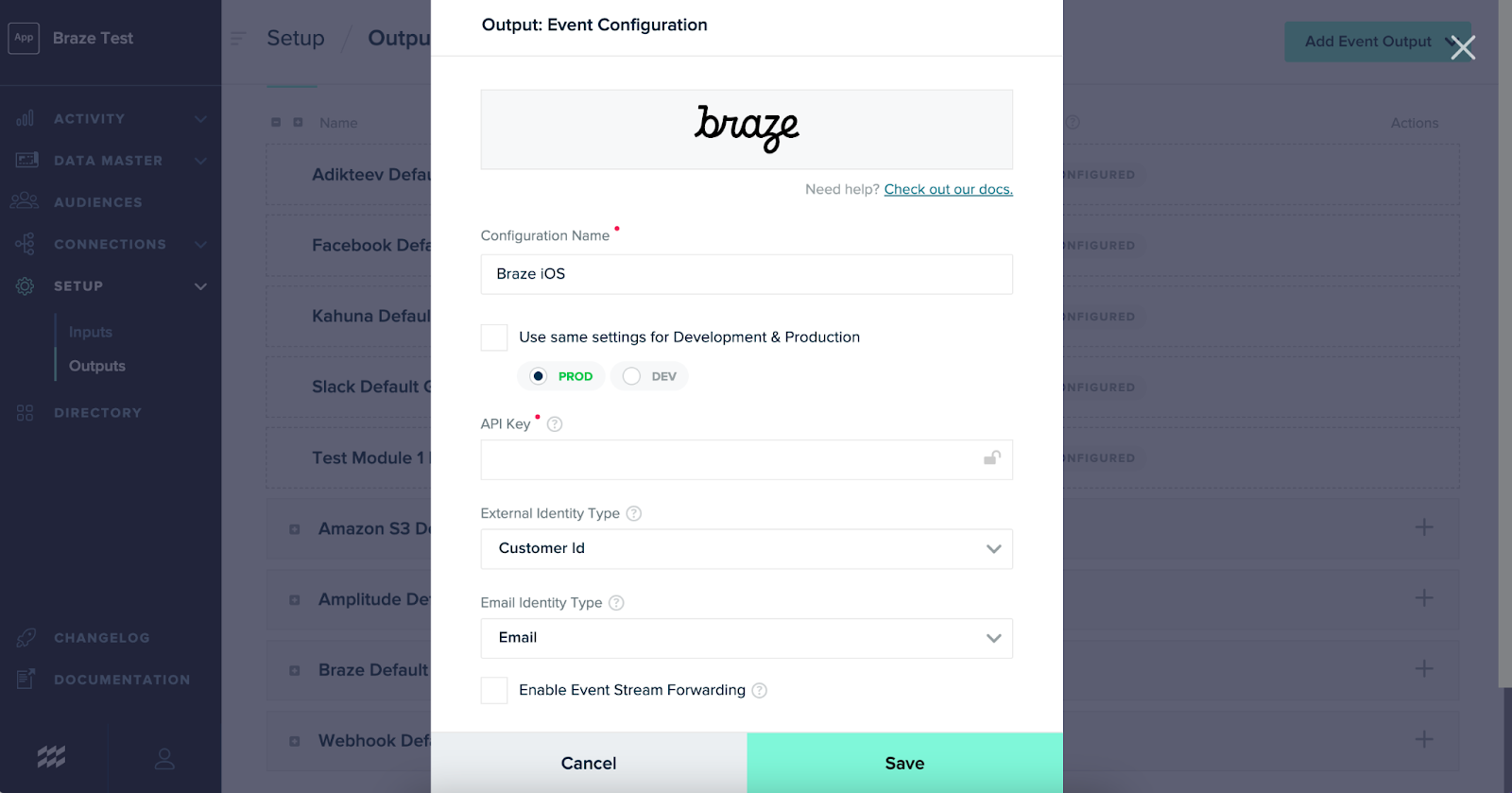
mParticle에서 Setup > Outputs > Add Outputs로 이동하고 Braze를 선택하여 Braze 키트 구성을 엽니다. 완료되면 저장합니다.
| 설정 이름 | 설명 |
|---|---|
| Braze 앱 식별자 키 | Braze 앱 식별자 키는 Braze 대시보드의 설정 > API 키에서 찾을 수 있습니다. API 키는 각 플랫폼(iOS, Android, Web)마다 다릅니다. |
| 외부 ID 유형 | Braze에 외부 ID로 전달할 mParticle 사용자 ID 유형입니다. 기본값인 Customer ID로 두는 것을 권장합니다. |
| 이메일 ID 유형 | Braze에 이메일로 전달할 mParticle 사용자 ID 유형입니다. 기본값인 Email로 두는 것을 권장합니다. |
| Braze 인스턴스 | Braze 데이터가 전달될 클러스터입니다. 대시보드가 있는 클러스터와 동일해야 합니다. |
| 이벤트 스트림 전달 활성화 | (서버 간) 활성화하면 모든 이벤트가 실시간으로 전달됩니다. 그렇지 않으면 모든 이벤트가 일괄로 전달됩니다. 이벤트 스트림 전달을 활성화할 때 Braze에 전달하는 데이터가 사용량 제한을 준수하는지 확인하세요. |
임베디드 키트 통합
mParticle 및 Braze SDK는 임베디드 키트 통합을 통해 애플리케이션에 존재합니다. 그러나 직접적인 Braze 통합과 달리, mParticle이 대부분의 Braze SDK 메서드 호출을 대신 처리합니다. 사용자 데이터를 추적하는 데 사용하는 mParticle 메서드는 자동으로 Braze SDK 메서드에 매핑됩니다.
mParticle SDK에 대한 이러한 매핑은 Android, iOS, Web에 대해 오픈 소스이며 mParticle의 GitHub 페이지에서 찾을 수 있습니다.
임베디드 키트 SDK 통합을 통해 전체 기능 모음(푸시, 인앱 메시지 및 모든 관련 메시지 분석 추적)을 활용할 수 있습니다.
콘텐츠 카드 및 커스텀 인앱 메시지 통합의 경우 Braze SDK 메서드를 직접 호출하세요.
1단계: mParticle SDK 통합
플랫폼 요구 사항에 따라 적절한 mParticle SDK를 앱에 통합합니다:
2단계: mParticle의 Braze 이벤트 키트 통합 완료
이 mParticle 통합을 위해 Braze SDK를 웹사이트나 앱에 직접 포함할 필요는 없지만, 앱에서 Braze로 데이터를 전달하려면 다음 mParticle Appboy Kit을 설치해야 합니다.
mParticle의 Braze 이벤트 키트 통합 가이드에서 메시징 요구 사항(푸시, 위치 추적 등)에 따른 커스텀 mParticle 및 Braze 정렬 지침을 안내합니다.
3단계: Braze 출력에 대한 연결 설정
mParticle에서 Connections > Connect > [원하는 플랫폼] > Connect Output으로 이동하여 Braze를 출력으로 추가합니다. 그런 다음 저장을 선택합니다.
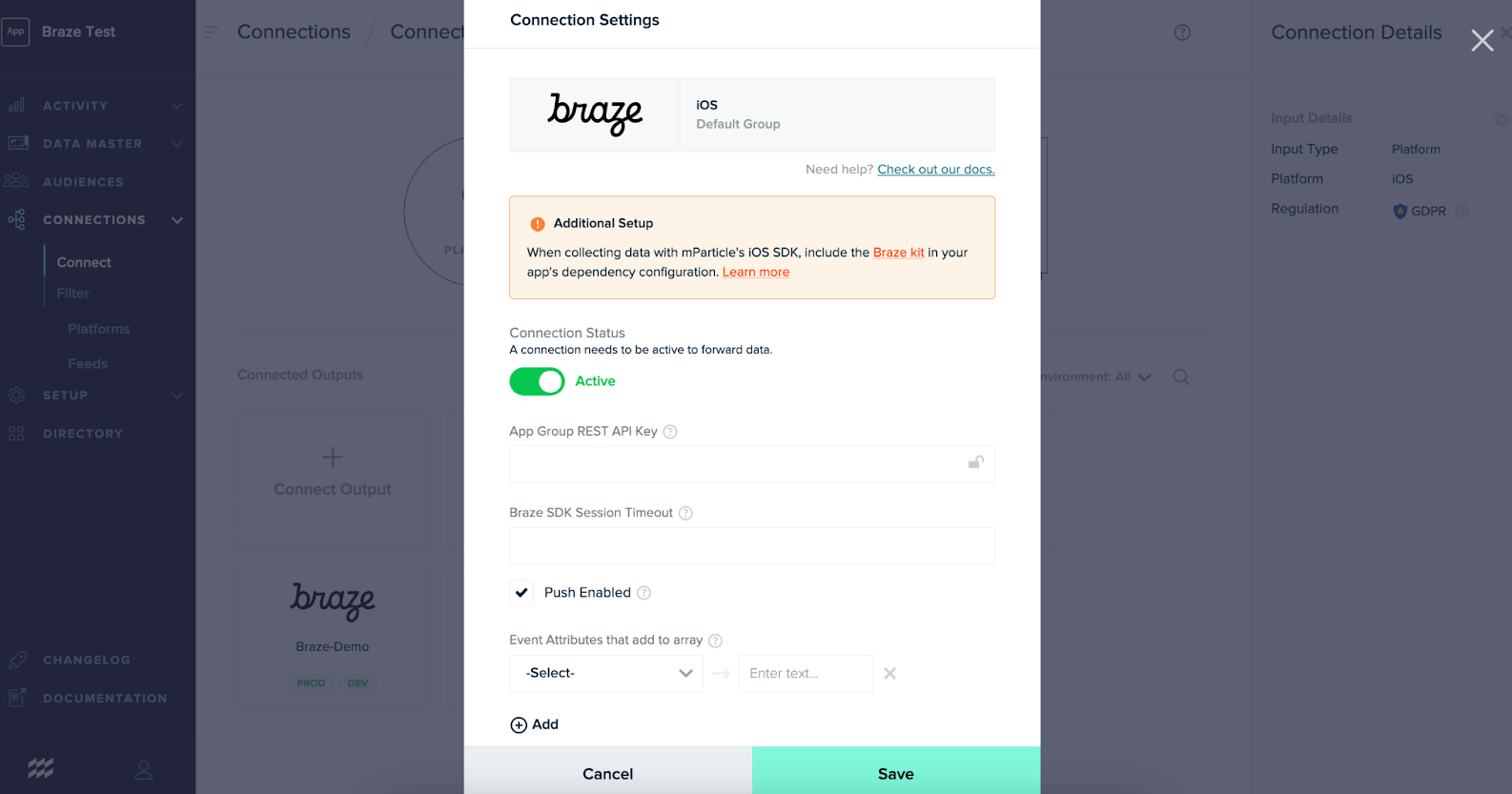
모든 연결 설정이 모든 플랫폼 및 통합 유형에 적용되는 것은 아닙니다. 연결 설정 및 적용되는 플랫폼에 대한 자세한 내용은 mParticle 설명서를 참조하세요.
서버 API 통합
mParticle의 서버 측 SDK(예: Ruby, Python 등)를 사용하는 경우 백엔드 데이터를 Braze로 라우팅하기 위한 추가 기능입니다. Braze와의 서버 간 통합을 설정하려면 mParticle 설명서를 따르세요.
서버 간 통합은 인앱 메시지, 콘텐츠 카드 또는 푸시 알림과 같은 Braze UI 기능을 지원하지 않습니다. 또한 이 방법을 통해 사용할 수 없는 기기 수준 필드와 같은 자동 캡처 데이터도 있습니다.
이러한 기능을 사용하려면 병렬 통합을 고려하세요.
서버 측 데이터가 Braze로 전달되려면 external_id를 포함해야 합니다. 익명 사용자는 전달되지 않습니다.
Braze 출력에 대한 연결 설정
mParticle에서 Connections > Connect > [원하는 플랫폼] > Connect Output으로 이동하여 Braze를 출력으로 추가합니다. 완료되면 저장합니다.

모든 연결 설정이 모든 플랫폼 및 통합 유형에 적용되는 것은 아닙니다. 연결 설정 및 적용되는 플랫폼에 대한 자세한 내용은 mParticle 설명서를 참조하세요.
“Enriched User Attributes” 또는 “Enriched User Identities”를 활성화하기 전에 데이터 포인트 초과를 검토하여 이러한 설정이 데이터 포인트 사용량에 미치는 영향을 파악하는 것을 권장합니다.
데이터 매핑 세부 정보
데이터 유형
두 플랫폼 간에 모든 데이터 유형이 지원되는 것은 아닙니다.
- 커스텀 이벤트 등록정보는 문자열, 숫자, 부울 또는 날짜 오브젝트를 지원합니다. 배열이나 중첩 오브젝트는 지원하지 않습니다.
- 커스텀 속성은 문자열, 숫자, 부울, 날짜 오브젝트 및 배열을 지원하지만 오브젝트나 중첩 오브젝트는 지원하지 않습니다.
Braze는 Time 유형 커스텀 속성에서 0년 이전 또는 3000년 이후의 타임스탬프를 지원하지 않습니다. Braze는 mParticle에 의해 전송될 때 이러한 값을 수집하지만, 값은 문자열로 저장됩니다.
데이터 매핑
| mParticle 데이터 유형 | Braze 데이터 유형 | 설명 |
|---|---|---|
| 사용자 속성(예약) | 표준 속성 | 예를 들어, mParticle의 $FirstName 예약 사용자 속성 키는 Braze의 first_name 표준 속성 필드에 매핑됩니다. |
| 사용자 속성(기타) | 커스텀 속성 | mParticle에 전달된 사용자 속성 중 예약 사용자 속성 키에 해당하지 않는 것은 Braze에서 커스텀 속성으로 기록됩니다. 사용자 속성은 문자열, 숫자, 부울, 날짜 및 배열을 지원하지만 오브젝트나 중첩 오브젝트는 지원하지 않습니다. |
| 커스텀 이벤트 | 커스텀 이벤트 | mParticle 커스텀 이벤트는 Braze에서 커스텀 이벤트로 인식됩니다. 이벤트 속성은 커스텀 이벤트 등록정보로 전달됩니다. 이벤트 등록정보로 Braze에 전달되는 이벤트 속성은 문자열, 숫자, 부울 또는 날짜 오브젝트를 지원하지만 배열이나 중첩 오브젝트는 지원하지 않습니다. |
| 구매 커머스 이벤트 | 구매 이벤트 | 구매 커머스 이벤트는 Braze 구매 이벤트에 매핑됩니다. 커머스 이벤트 데이터 번들 설정 값을 토글하여 주문 수준 또는 제품 수준에서 구매를 기록합니다. 예를 들어, false인 경우 두 개의 고유 제품, 프로모션 또는 노출 횟수가 있는 단일 수신 이벤트는 최소 두 개의 발신 Braze 이벤트를 생성합니다. true로 설정하면 각각 중첩된 제품, 프로모션 또는 노출 횟수 배열이 있는 단일 발신 이벤트를 생성합니다.기록될 추가 커머스 필드에 대한 자세한 내용은 mParticle 설명서를 참조하세요. “커머스 이벤트 데이터 번들”을 false로 설정할 때 구매 이벤트 등록정보로 Braze에 전달되는 제품 속성은 문자열, 숫자, 부울 또는 날짜 오브젝트를 지원하지만 배열이나 중첩 오브젝트는 지원하지 않습니다. |
| 기타 모든 커머스 이벤트 | 커스텀 이벤트 | 기타 모든 커머스 이벤트는 커스텀 이벤트에 매핑됩니다. 커머스 이벤트 데이터 번들 설정 값을 토글하여 주문 수준 또는 제품 수준에서 구매를 기록합니다. 예를 들어, false인 경우 두 개의 고유 제품, 프로모션 또는 노출 횟수가 있는 단일 수신 이벤트는 최소 두 개의 발신 Braze 이벤트를 생성합니다. true로 설정하면 각각 중첩된 제품, 프로모션 또는 노출 횟수 배열이 있는 단일 발신 이벤트를 생성합니다.특정 기본 커머스 값 외에도 제품 속성은 Braze 이벤트 등록정보로 기록됩니다. 기록될 추가 커머스 필드에 대한 자세한 내용은 mParticle 설명서를 참조하세요. “커머스 이벤트 데이터 번들”을 false로 설정할 때 이벤트 등록정보로 Braze에 전달되는 제품 속성은 문자열, 숫자, 부울 또는 날짜 오브젝트를 지원하지만 배열이나 중첩 오브젝트는 지원하지 않습니다. |
사용자 ID 매핑
각 mParticle 출력에 대해 Braze에 external_id로 전송할 외부 ID 유형을 선택할 수 있습니다. 기본값은 고객 ID이지만, MPID와 같은 다른 ID를 매핑하여 Braze에 external_id로 전송하도록 선택할 수 있습니다. 고객 ID 외의 식별자를 선택하면 Braze에서 데이터가 전송되는 방식에 영향을 미칠 수 있습니다.
예를 들어, MPID를 Braze external_id에 매핑하면 다음과 같은 영향이 있습니다:
- MPID가 할당되는 특성상 모든 사용자에게 세션 시작 시
external_id가 할당됩니다. - MPID와
external_id간의 데이터 유형 차이로 인해 커런츠 설정에 추가 매핑이 필요할 수 있습니다.
삭제 요청 전달(데이터 주체 요청)
데이터 주체 요청 출력을 Braze로 구성하여 삭제 요청을 Braze에 전달합니다. Braze에 삭제 요청을 전달하려면 mParticle 설명서를 따르세요.
잠재적 데이터 포인트 초과
보강된 사용자 속성
보강된 사용자 속성/ID 활성화(서버 간 전용)
mParticle 연결 설정에서 Braze는 Include Enriched User Attributes를 끄는 것을 권장합니다. 활성화하면 mParticle이 기록된 각 이벤트에서 기존 프로필의 모든 사용 가능한 사용자 속성(표준 속성, 커스텀 속성, 계산된 속성 등)을 Braze에 전달합니다. 이로 인해 mParticle이 각 호출에서 동일한 변경되지 않은 속성을 Braze에 전송하므로 데이터 포인트 소비가 높아집니다.
예를 들어, 사용자가 첫 번째 세션 중에 이름, 성 및 전화번호를 추가하고 나중에 뉴스레터에 가입하면서 동일한 정보와 이메일을 추가하여 뉴스레터 가입 이벤트를 트리거하는 경우:
- 활성화된 경우(기본값), 5개의 데이터 포인트가 발생합니다. (가입 이벤트, 이메일 주소, 이름, 성, 전화번호)
- 비활성화된 경우, 2개의 데이터 포인트가 발생합니다. (가입 이벤트 및 이메일 주소)
이 설정을 끄면 변경된 데이터를 확인하지 않습니다. 그러나 원래 인바운드 배치에서 수신되지 않았거나 이벤트의 속성으로 명시적으로 설정되지 않은 사용자 프로필의 모든 사용자 속성을 통합에서 전송하는 것을 방지합니다. 델타만 Braze에 전달되는지 확인하는 것이 여전히 중요합니다.
보강된 사용자 속성 비활성화 시 고려 사항
Include Enriched User Attributes를 끌 때 알아야 할 몇 가지 고려 사항이 있습니다:
- 서버 간 통합은 mParticle 이벤트 API를 사용하여 Braze에 이벤트를 전송합니다. 각 요청은 이벤트에 의해 트리거됩니다. 이메일 주소 업데이트와 같이 사용자 속성이 변경되었지만 특정 이벤트(예: 프로필 업데이트 커스텀 이벤트)와 연결되지 않은 경우, 새 값은 사용자가 트리거한 다음 이벤트의 페이로드에서 “보강된 속성”으로만 Braze와 같은 출력에 전달됩니다. Include Enriched User Attributes가 꺼져 있으면 특정 이벤트와 연결되지 않은 이 새 속성 값은 Braze에 전달되지 않습니다.
- 이를 해결하려면 업데이트된 특정 사용자 속성만 Braze에 전송하는 별도의 “사용자 속성 업데이트” 이벤트를 생성하는 것을 권장합니다. 이 접근 방식을 사용하면 “사용자 속성 업데이트” 이벤트에 대해 추가 데이터 포인트가 기록되지만, 기능이 활성화된 상태에서 모든 호출마다 모든 사용자 속성을 전송하는 것보다 데이터 포인트 사용량이 훨씬 적습니다.
- 계산된 속성은 보강된 사용자 속성으로 Braze에 전달되므로, “Enriched User Attributes”가 꺼져 있으면 더 이상 Braze에 전달되지 않습니다. “Enriched User Attributes”가 꺼져 있을 때 계산된 속성을 Braze에 전달하려면 모든 속성을 푸시하지 않고도 계산된 속성 피드를 사용할 수 있습니다. 이 피드는 계산된 속성이 변경될 때 Braze에 다운스트림 업데이트를 실행합니다.
문제 해결
Braze 이벤트 키트를 사용한 iOS 푸시 알림 문제 해결
iOS에서 Braze 이벤트 키트(임베디드 키트 통합)를 사용할 때 푸시 알림이 작동하지 않는 경우 다음을 확인하세요:
- 푸시 토큰 전달: mParticle이 Braze에 푸시 토큰을 전달하고 있는지 확인합니다. mParticle 대시보드에서 Braze 키트 연결에 푸시가 활성화되어 있고 올바른 Apple 푸시 자격 증명이 Braze 대시보드에 구성되어 있는지 확인하세요.
- 키트 초기화 순서: Braze 키트는 앱이 푸시 권한을 요청하기 전에 초기화되어야 합니다. 키트가 활성화되기 전에 푸시 권한이 요청되면 푸시 토큰이 Braze에 전달되지 않을 수 있습니다. mParticle SDK가 앱 수명 주기 초기에 시작되는지 확인하세요.
- 메서드 스위즐링: mParticle Apple 키트는 메서드 스위즐링을 사용하여 푸시 토큰을 자동으로 전달하고 푸시 알림 이벤트를 처리합니다. 스위즐링을 비활성화했거나 다른 SDK가 간섭하는 경우 푸시 토큰이 Braze에 도달하지 않을 수 있습니다. mParticle 구성에서 스위즐링이 활성화되어 있는지 확인하세요.
- 수동 토큰 처리: 푸시 토큰을 수동으로 관리하는 경우(예:
application:didRegisterForRemoteNotificationsWithDeviceToken:구현), 푸시 알림 토큰 속성에 토큰을 할당하여 mParticle에 전달하고 있는지 확인하세요. 예:MParticle.sharedInstance().pushNotificationToken = deviceToken. 그러면 키트가 이를 Braze에 전달합니다. - 환경 불일치: APNs 자격 증명 환경(개발 vs. 프로덕션)이 앱의 빌드와 일치하는지 확인하세요. 자세한 내용은 iOS 푸시 문제 해결을 참조하세요.
Braze에 불필요하거나 중복된 데이터 전송
Braze는 값이 변경되지 않더라도 속성이 Braze에 전달될 때마다 데이터 포인트를 계산합니다. 이러한 이유로 Braze는 Braze 내에서 조치를 취하는 데 필요한 데이터만 전달하고 속성의 델타만 전달되도록 하는 것을 권장합니다.
 GitHub 에서 이 페이지를 편집합니다.