Zendesk Chat
Zendesk Chat uses webhooks from each platform to set up a two-way SMS conversation. When a user requests support, a ticket is created in Zendesk. Agent responses are forwarded to Braze through an API-triggered SMS campaign, and user replies are sent back to Zendesk.
Prerequisites
| Prerequisite | Description |
|---|---|
| A Zendesk account | A Zendesk account is required to take advantage of this partnership. |
| A Zendesk Basic Authorization Token | Zendesk 기본 인증 토큰은 Braze에서 Zendesk로 아웃바운드 웹훅 요청을 만드는 데 사용됩니다. |
| A Braze REST API Key | A Braze REST API key with campaigns.trigger.send permissions. This can be created in the Braze dashboard from Settings > API Keys. |
Use cases
Enhance customer support efficiency by combining Braze SMS capabilities with Zendesk live agent responses to address user inquiries with human support promptly.
Integrating Zendesk Chat
Step 1: Create a webhook in Zendesk
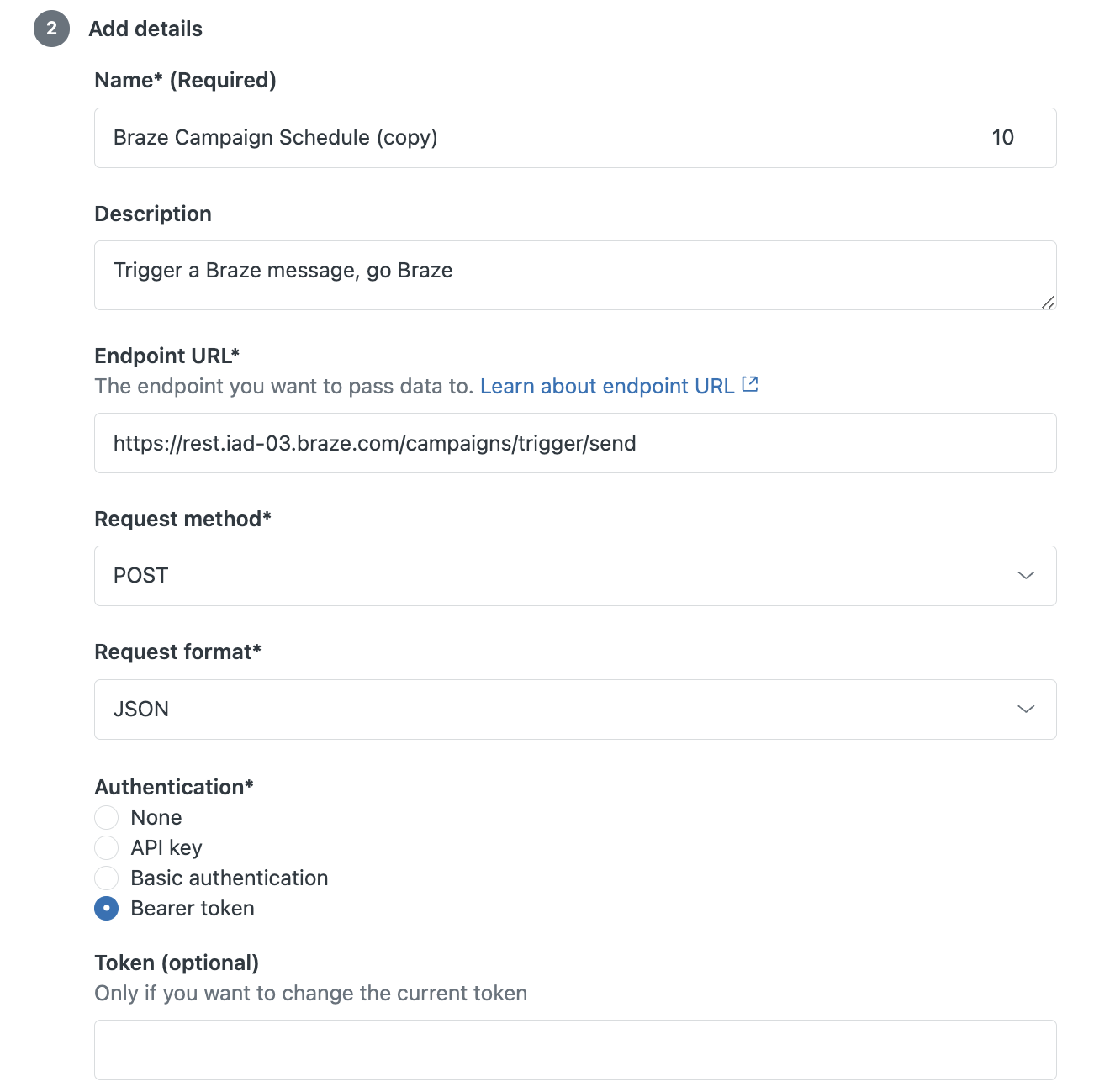
- In the Zendesk developer console, go to webhooks:
https://{{url}}.zendesk.com/admin/apps-integrations/webhooks/webhooks - Under Create Webhook, select Trigger or automation.
- 엔드포인트 URL에 /캠페인/트리거/전송 엔드포인트를 추가합니다.
- Under Authentication, select Bearer token and add the Braze REST API key with
campaigns.trigger.sendpermissions.
2단계: Create an outbound SMS campaign
Next, you’ll create an SMS campaign that will listen for webhooks from Zendesk and send a custom SMS response to your customers.
2.1 단계: Compose your message
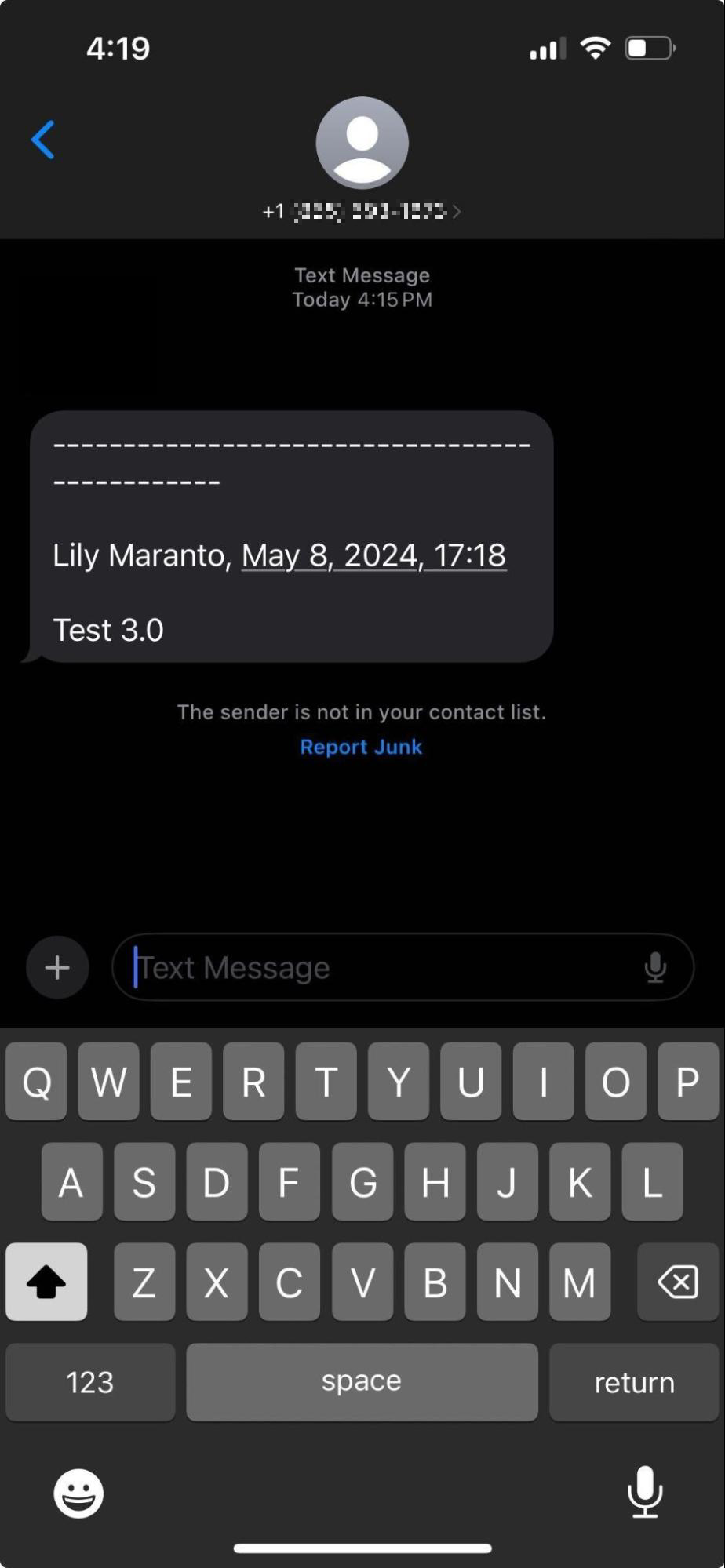
When Zendesk sends the content of a message through the API, it comes in the following format:
1
**----------------------------------------------\n\n{Replier Name}, {Replier Date}\n\n{Message}**
따라서 이 문자열에서 원하는 세부 정보를 추출하여 메시지에 표시해야 하며, 그렇지 않으면 사용자에게 모든 세부 정보가 표시됩니다.
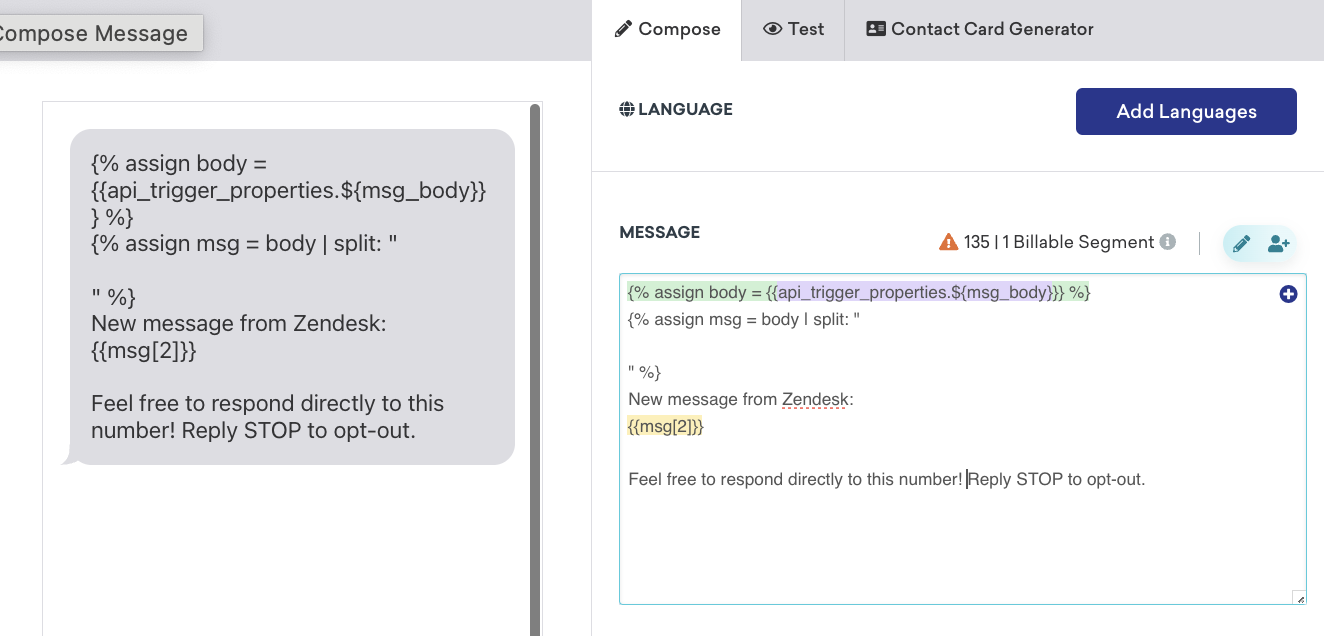
메시지 텍스트 상자에 다음 Liquid 코드와 옵트아웃 언어 또는 기타 정적 콘텐츠를 추가합니다:
1
2
3
4
5
6
7
{% assign body = {{api_trigger_properties.${msg_body}}} %}
{% assign msg = body | split: "
" %}
New message from Zendesk:
{{msg[2]}}

Feel free to respond directly to this number!
2.2 단계: Schedule the delivery
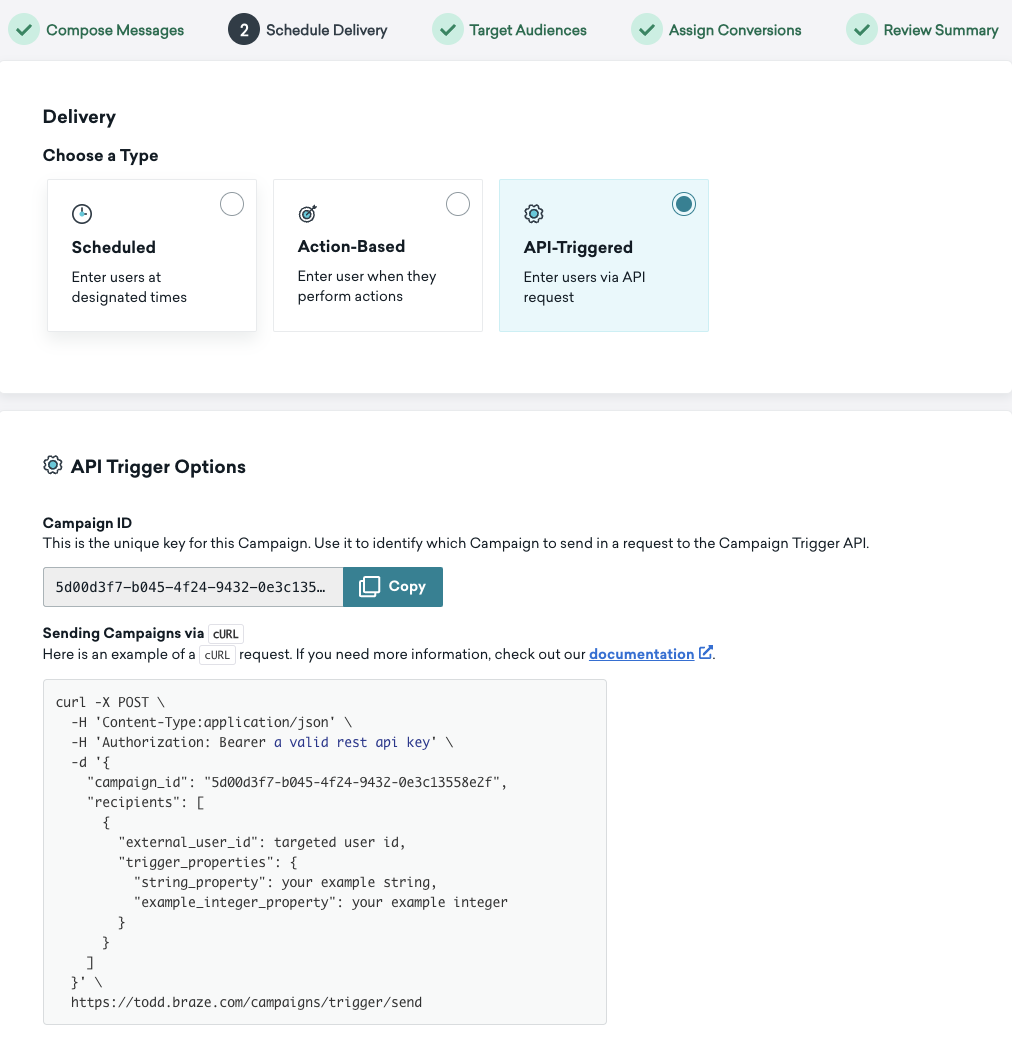
전달 유형으로 API-트리거된 전달을 선택한 다음, 다음 단계에서 사용되는 캠페인 ID를 복사합니다.
마지막으로 배달 관리에서 다시 자격을 설정합니다.

3단계: Create a trigger in Zendesk to forward agent replies to Braze
Go to Objects and rules > Business rules > Triggers.
- Create a new category (for example, Trigger a message).
- Create a new trigger (for example, Respond via SMS Braze).
- Under Conditions, select:
- Ticket>Comment is Present and requester can see comment so that the message is triggered whenever a new public comment is included in a ticket update
- Ticket>Update is not Web service (API) so that when a user sends a message from Braze, it isn’t forwarded back to their cell phone. Zendesk에서 오는 메시지만 전달됩니다.
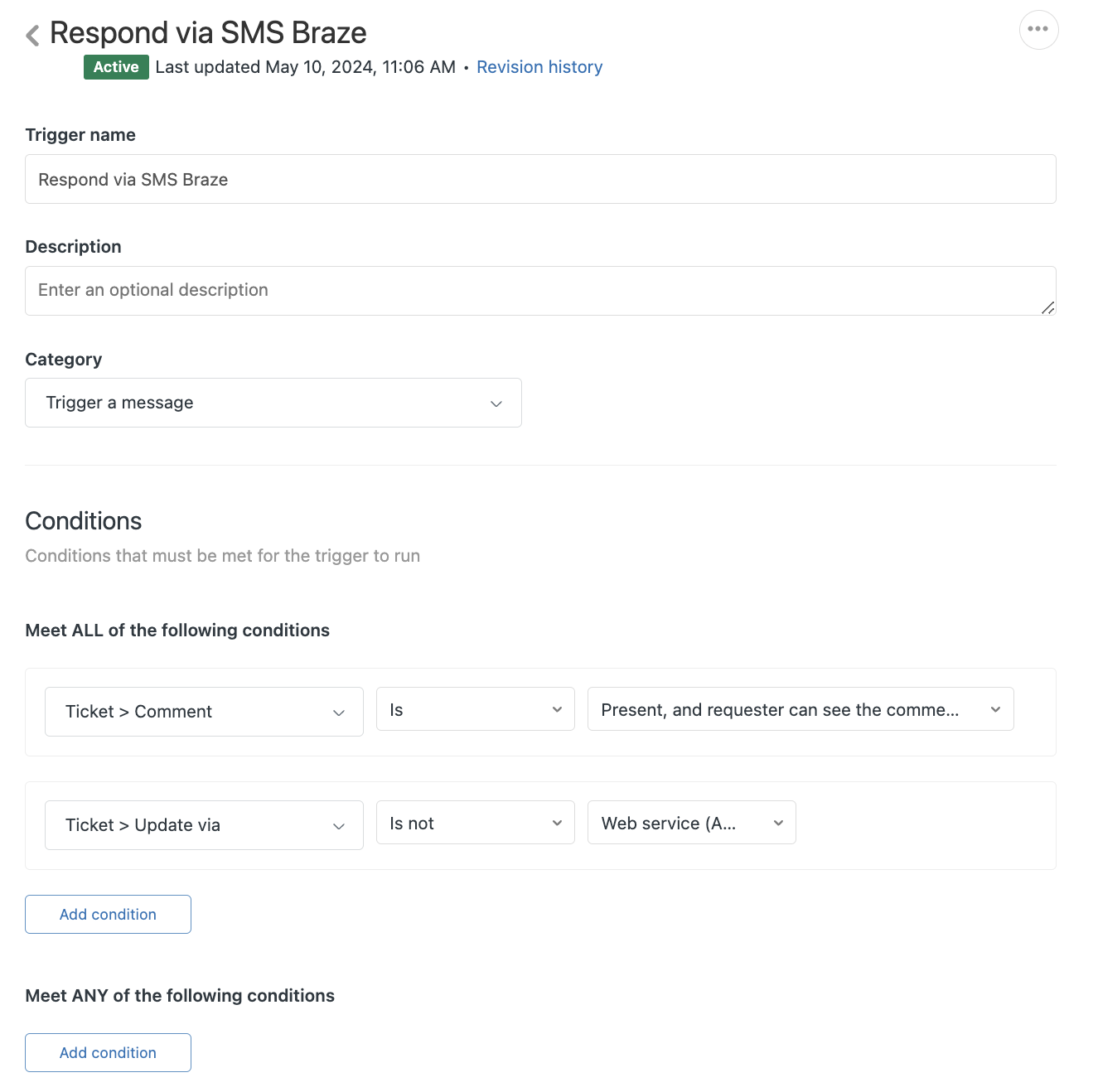
작업에서 웹훅으로 알림을 선택하고 1단계에서 만든 엔드포인트를 선택합니다. Next, specify the body of the API call. 2.2단계의 campaign_id 을 요청 본문에 입력합니다.
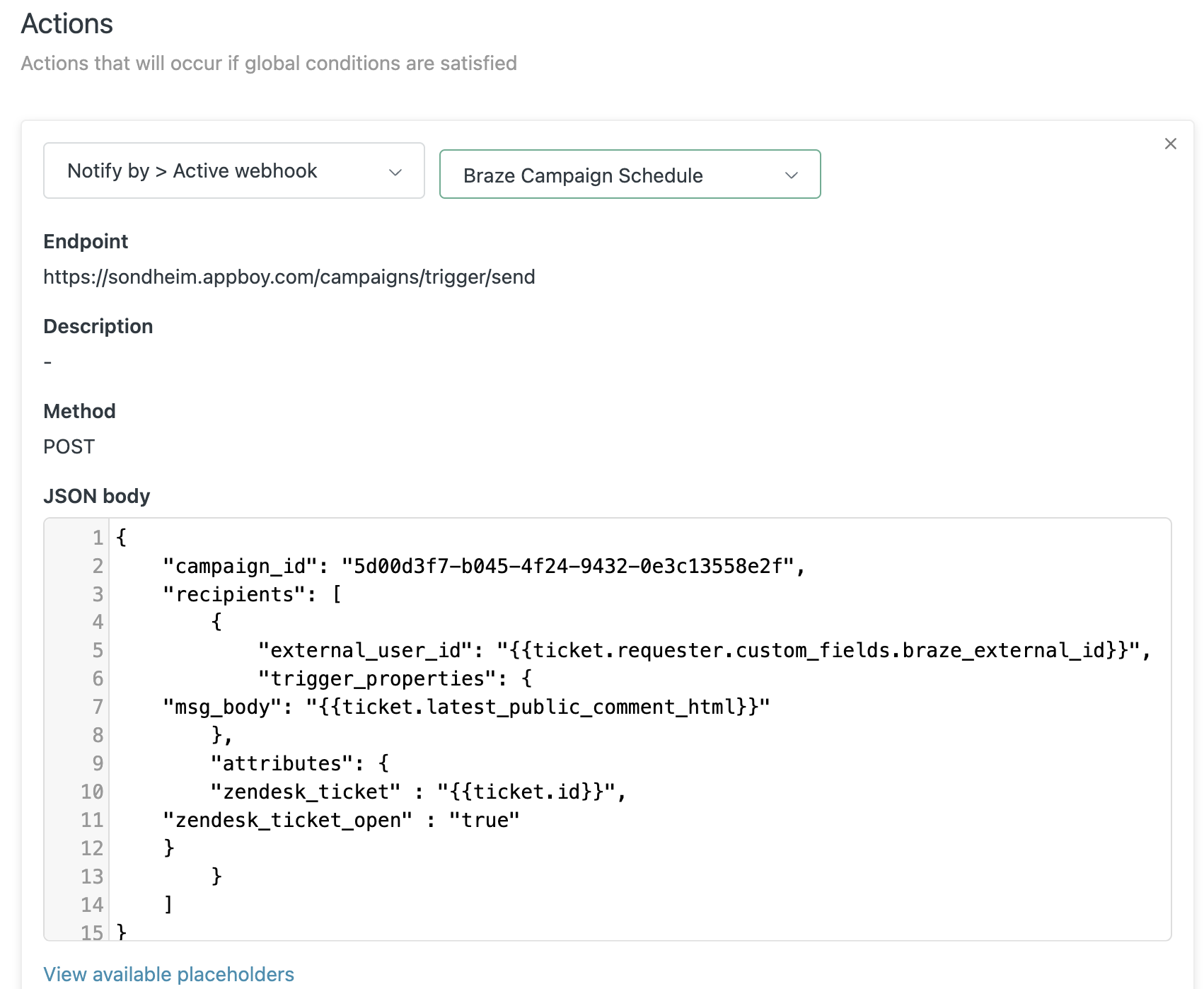
1
2
3
4
5
6
7
8
9
10
11
12
13
14
15
{
    "campaign_id": "{{YOUR_CAMPAIGN_ID}}",
    "recipients": [
        {
            "external_user_id": "{{ticket.requester.custom_fields.braze_external_id}}",
			"trigger_properties": {
    "msg_body": "{{ticket.latest_public_comment_html}}"
		},
		"attributes": {
        "zendesk_ticket" : "{{ticket.id}}",
	"zendesk_ticket_open" : "true"
    }
        }
    ]
}
Step 4: Create a trigger in Zendesk to update a user when a ticket is closed
사용자에게 티켓이 종료되었음을 알리려면 Braze에서 템플릿 응답 본문으로 새 캠페인을 만드세요.
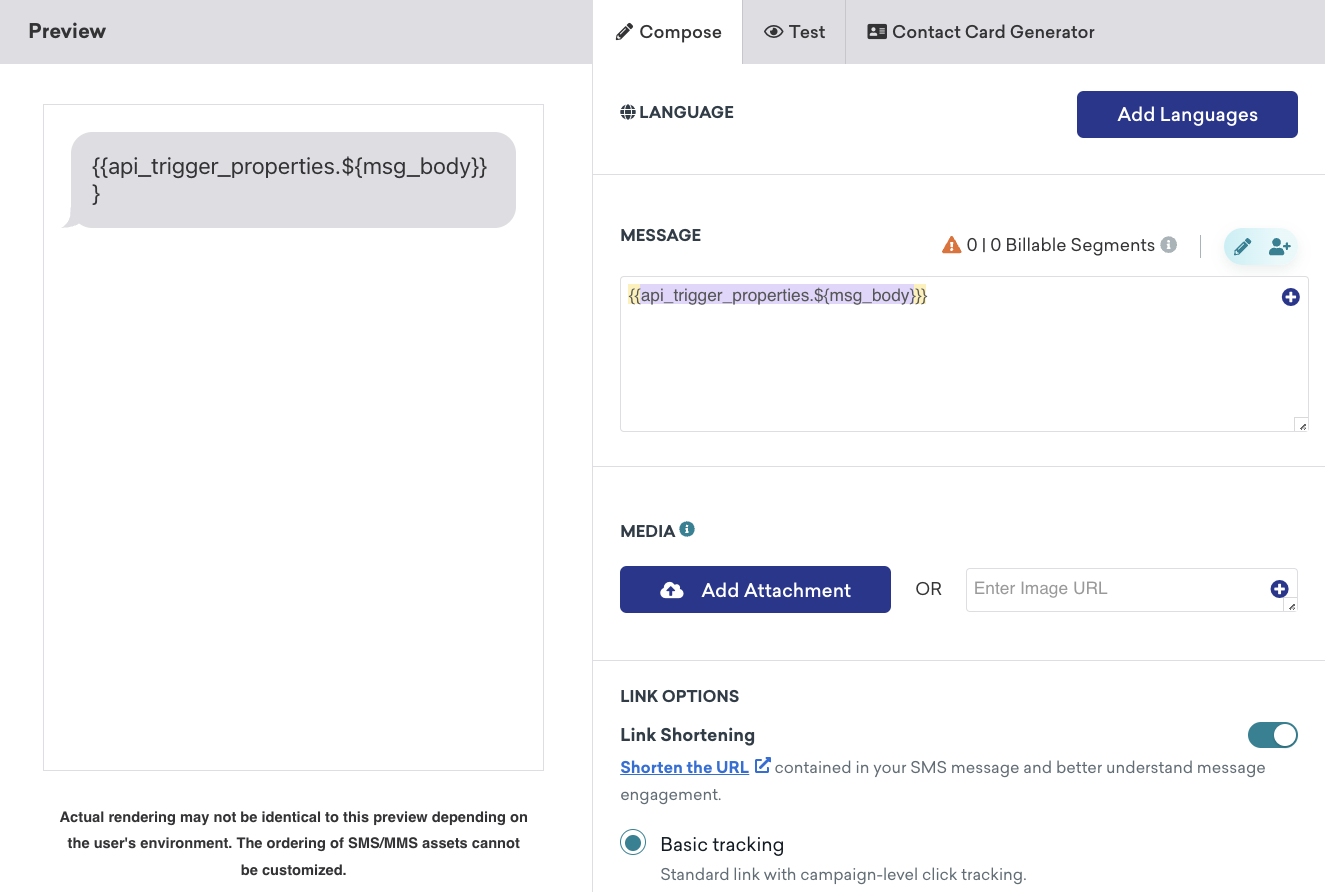
API 트리거 전송을 선택하고 캠페인 ID를 복사합니다.
Next, set up a trigger to notify Braze when the ticket is closed:
- Category: Trigger a message
- 조건에서 티켓>티켓 상태를 선택하고 해결됨으로 변경합니다.
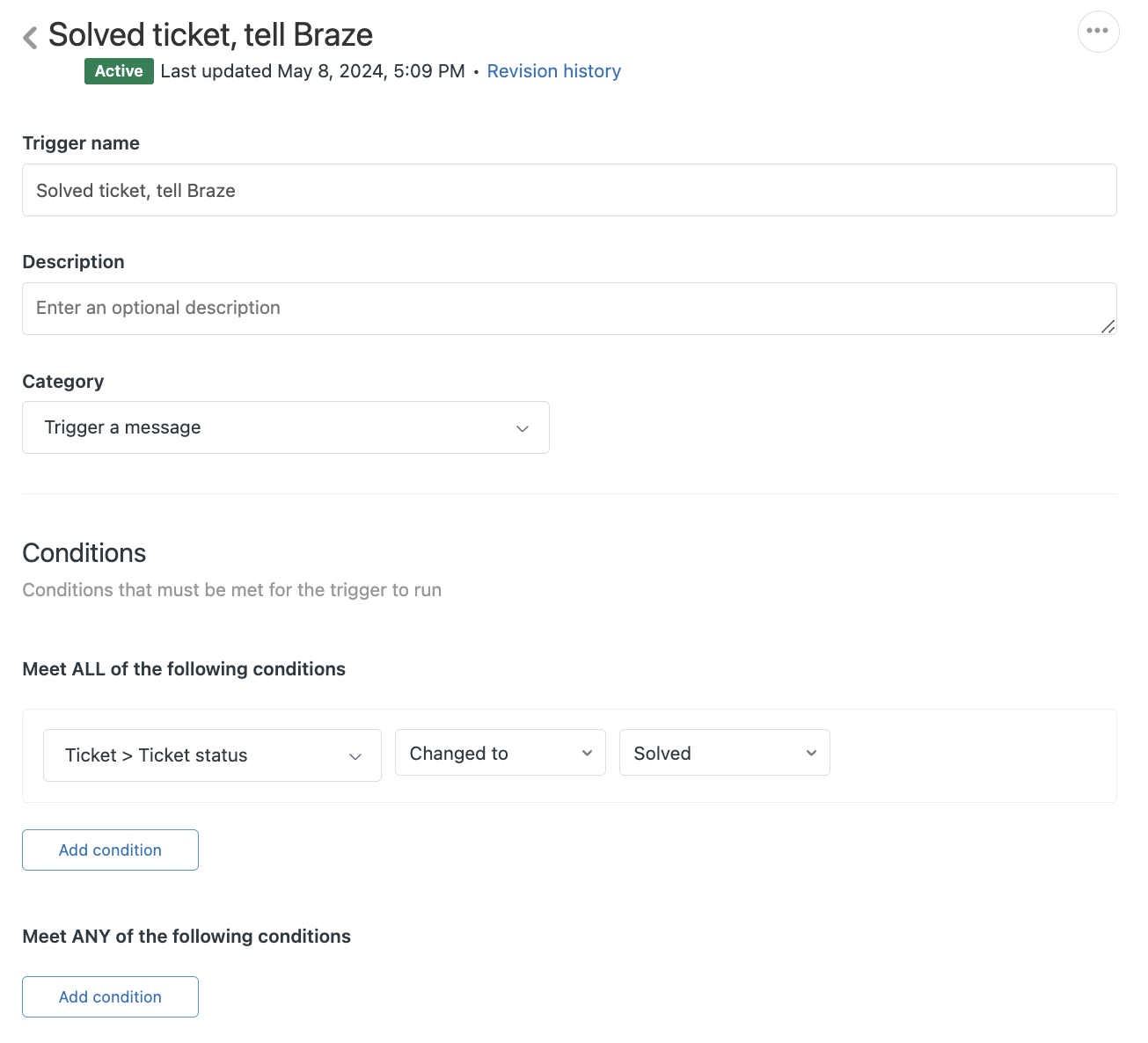
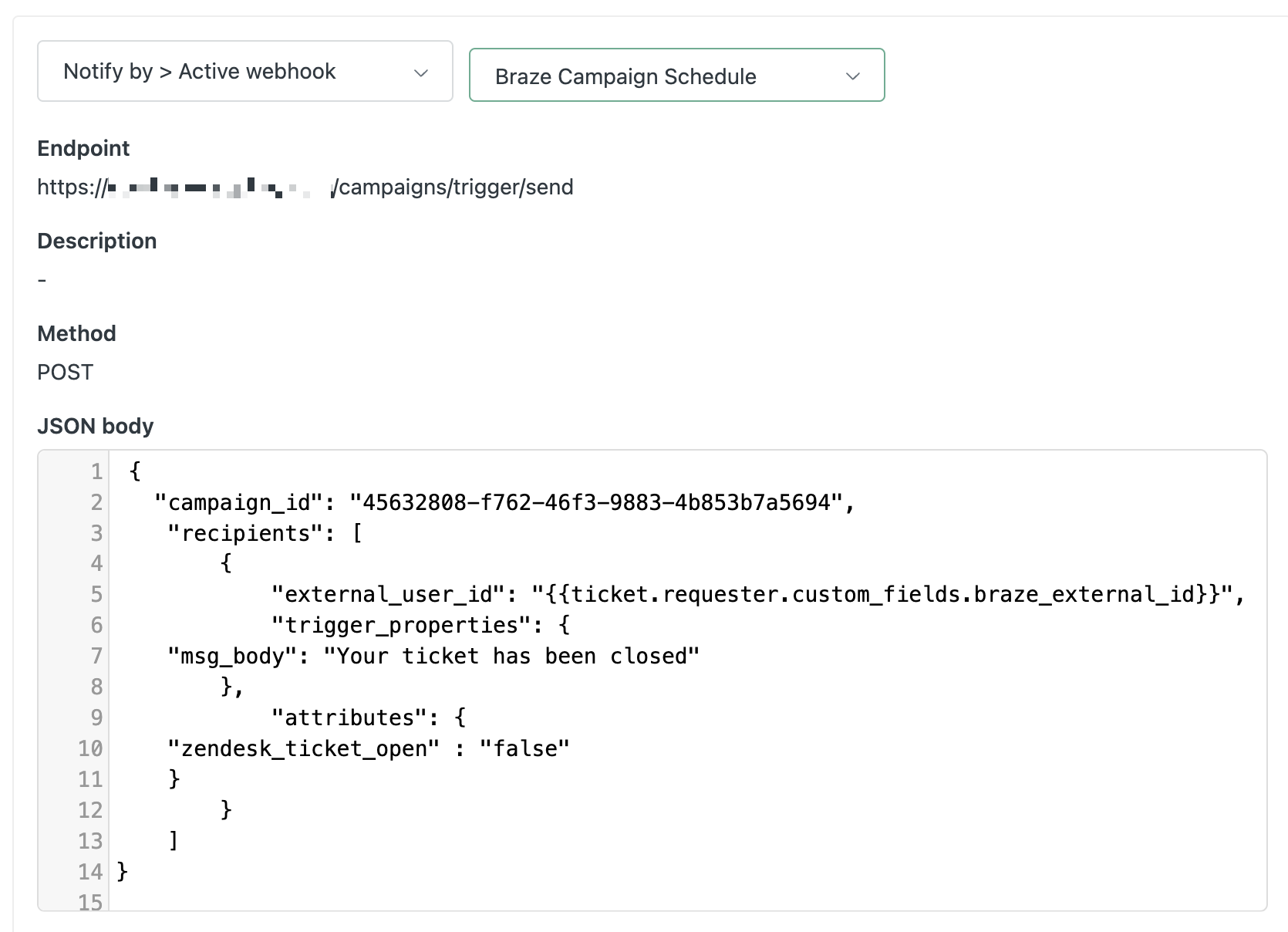
작업에서 웹훅으로 알림을 선택하고 방금 만든 두 번째 엔드포인트를 선택합니다. 거기에서 API 호출의 본문을 지정해야 합니다:
1
2
3
4
5
6
7
8
9
10
11
12
13
14
15
{
    "campaign_id": "{{YOUR_API_KEY}}",
    "recipients": [
        {
            "external_user_id": "{{ticket.requester.custom_fields.braze_external_id}}",
"trigger_properties": {
    "msg_body": "Your ticket has been closed"
		},
,
			"attributes": {
	"zendesk_ticket_open" : "false"
    }
        }
    ]
}
5단계: Add a custom user field in Zendesk
In the Admin Center, select People in the sidebar, then select Configuration > User fields. Add the custom user field braze_external_id.
Step 6: Set up inbound-SMS forwarding
Next, you’ll create two new webhook campaigns in Braze so you can forward inbound SMS from customers to the Zendesk inbox.
| Campaign | Purpose |
|---|---|
| Webhook campaign 1 | Creates a new ticket in Zendesk. |
| Webhook campaign 2 | Forwards all conversational SMS responses sent inbound from the customer to Zendesk. |
Step 6.1: Create an SMS keyword category
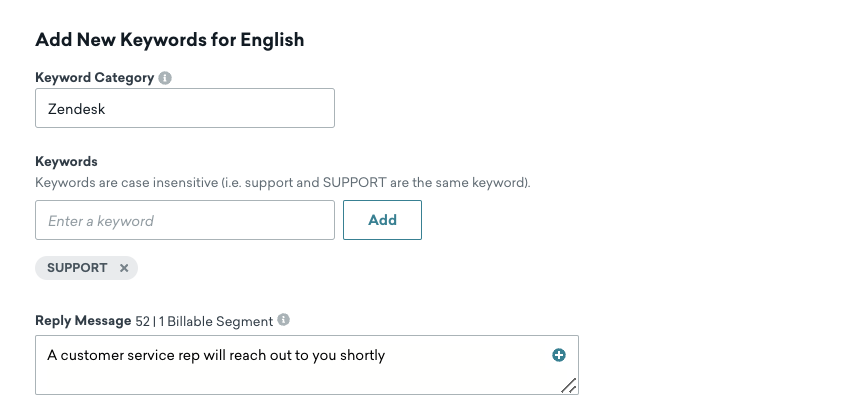
In the Braze dashboard, go to Audience, choose your SMS subscription group, then select Add Custom Keyword. Fill out the following fields to create an exclusive SMS keyword category for Zendesk.
| Field | Description |
|---|---|
| Keyword Category | The name of your keyword category, such as ZendeskSMS1. |
| Keywords | Your custom keywords, such as SUPPORT. |
| Reply Message | 키워드가 감지될 때 전송되는 메시지, 예를 들어 “고객 서비스 담당자가 곧 연락드릴 것입니다.” |
6.2단계: Create your first webhook campaign
In the Braze dashboard, create your first webhook campaign. This message will signal to Zendesk that support is being requested.
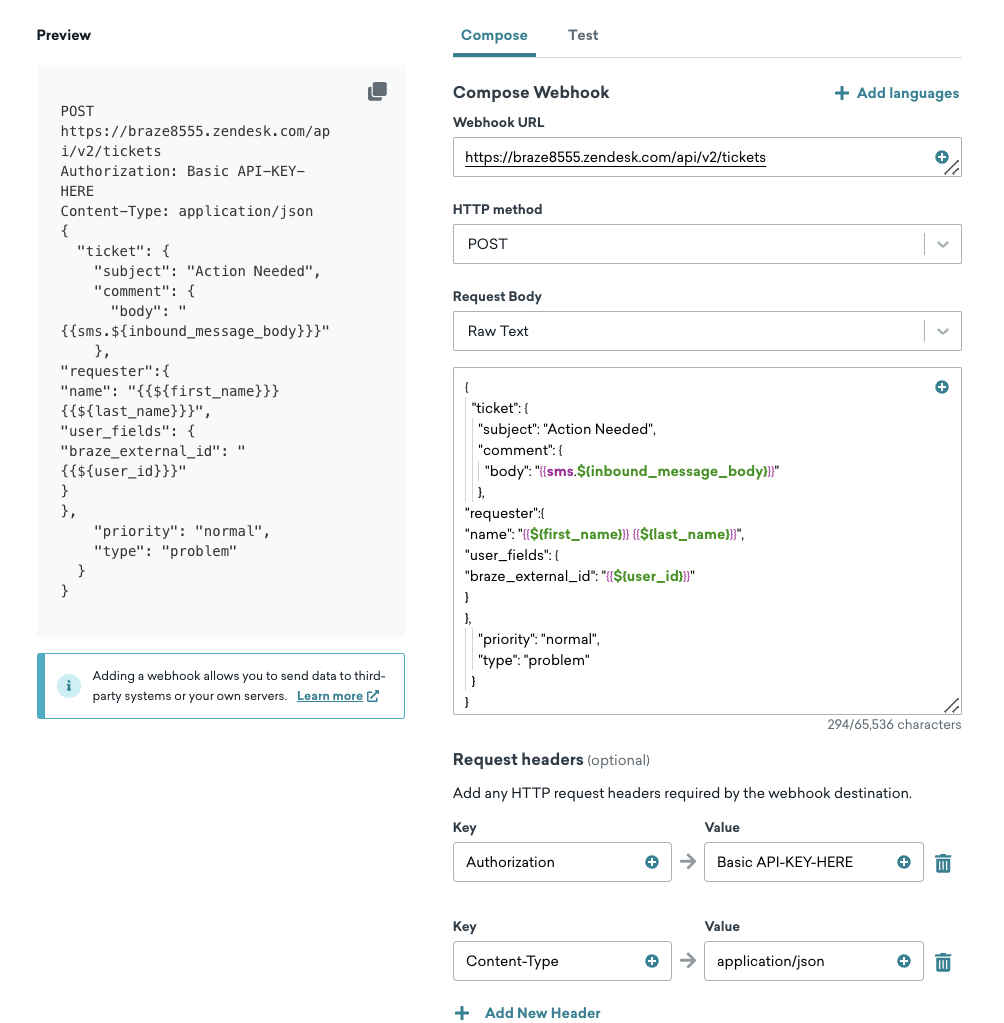
In the webhook composer, fill out the following fields:
- 웹훅 URL: https://{{url}}.zendesk.com/api/v2/tickets
- HTTP Method: POST
- Request Headers:
- Content-Type: application/json
- Authorization: Basic
- Request body:
1
2
3
4
5
6
7
8
9
10
11
12
13
14
15
16
{
  "ticket": {
    "subject": "Action Needed",
    "comment": {
      "body": "{{sms.${inbound_message_body}}}"
    },
"requester":{
"name": "{{${first_name}}} {{${last_name}}}",
"user_fields": {
"braze_external_id": "{{${user_id}}}"
}
},
    "priority": "normal",
    "type": "problem"
  }
}
6.3단계: Schedule the first delivery
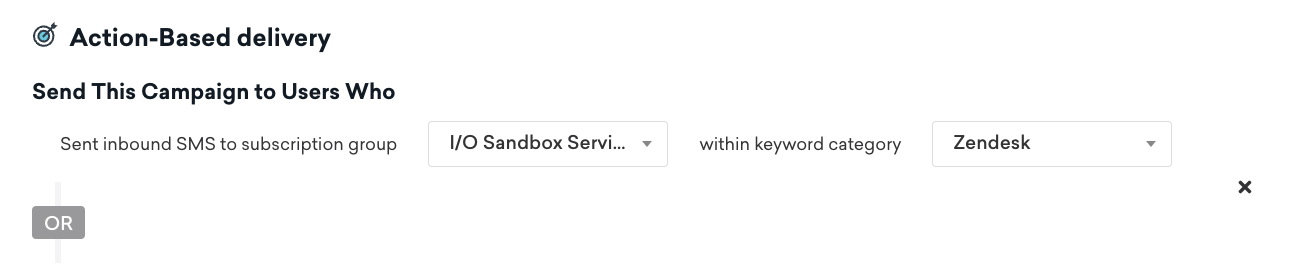
For Schedule Delivery, select Action-Based Delivery, then choose Send an SMS Inbound Message for your trigger type. 또한 이전에 설정한 SMS 수신 그룹 및 키워드 카테고리를 추가합니다.
배달 관리에서 다시 자격을 설정합니다.

6.4단계: Create your second webhook campaign
Set up a webhook campaign to forward remaining SMS messages from the user to Zendesk:
Because Zendesk sends the ticket ID as a string, create a Content Block to convert the string to an integer so you can use it in Zendesk’s webhook.
1
{% assign var = {{custom_attribute.${zendesk_ticket}}} | to_i %}{{var}}
In the webhook composer:
- 웹훅 URL: https://{{url}}.zendesk.com/api/v2/tickets/{{content_blocks.${to_int}}}.json
- Request: PUT
- KVPs:
- Content-Type:application/JSON
- Authorization: Basic
Sample Body:
1
2
3
4
5
6
7
{
  "ticket": {
    "comment": {
      "body": "Inbound message from {{${first_name}}} {{${last_name}}}: {{sms.${inbound_message_body}}}"
    }
}
}
Step 6.5: Complete second webhook campaign setup
- Set up an action-based trigger for users who send an inbound message in the category “Other”.
- Set up re-eligibility criteria.
- 적용 가능한 청중을 추가합니다(이 경우, 사용자 정의 속성 zendesk_ticket_open은 true입니다).
 GitHub 에서 이 페이지를 편집합니다.