Surveys
Braze surveys let you collect first-party feedback directly from your users and act on it in follow-up messaging, without leaving the Braze dashboard. Use surveys to understand user sentiment, capture preferences, and build segments and triggers from the responses you collect.
Channel availability
Surveys are available on landing pages and in-app messages. On either channel, select Survey as your message type on the message composition page before opening the editor to switch into survey mode. You can also collect an NPS score from email by linking an email NPS Survey block to a published survey landing page. Each channel page covers the channel-specific create flow, composition, and reporting location, while this page covers the concepts and capabilities that apply across channels.
| Channel | Build surveys in |
|---|---|
| Landing pages | Landing page surveys |
| In-app messages | In-app message surveys |
| Email NPS survey block (links score clicks to a landing page survey) |
Surveys page
Go to Messaging > Surveys to find surveys across landing pages, campaigns, and Canvases in one place. Use it as your entry point for reviewing survey performance across channels.

If you don’t see Surveys under Messaging, contact your Braze account manager.
Analytics
Every survey question type includes enhanced reporting by default, so you can review response data without building a segment or exporting to a separate tool first.
Top-level analytics include:
- All responses: Total complete and incomplete responses
- Completed: Users who completed all required questions
- Partially complete: Users who submitted some data, but did not complete all required questions
- Unique impressions: Total page views
Partial submissions have a six-hour grace period before they appear in results, so users can finish the rest of the survey. A response can stay partially complete until the user selects the final submit control—even when the only question is an NPS rating, such as a score recorded from an email NPS Survey block.
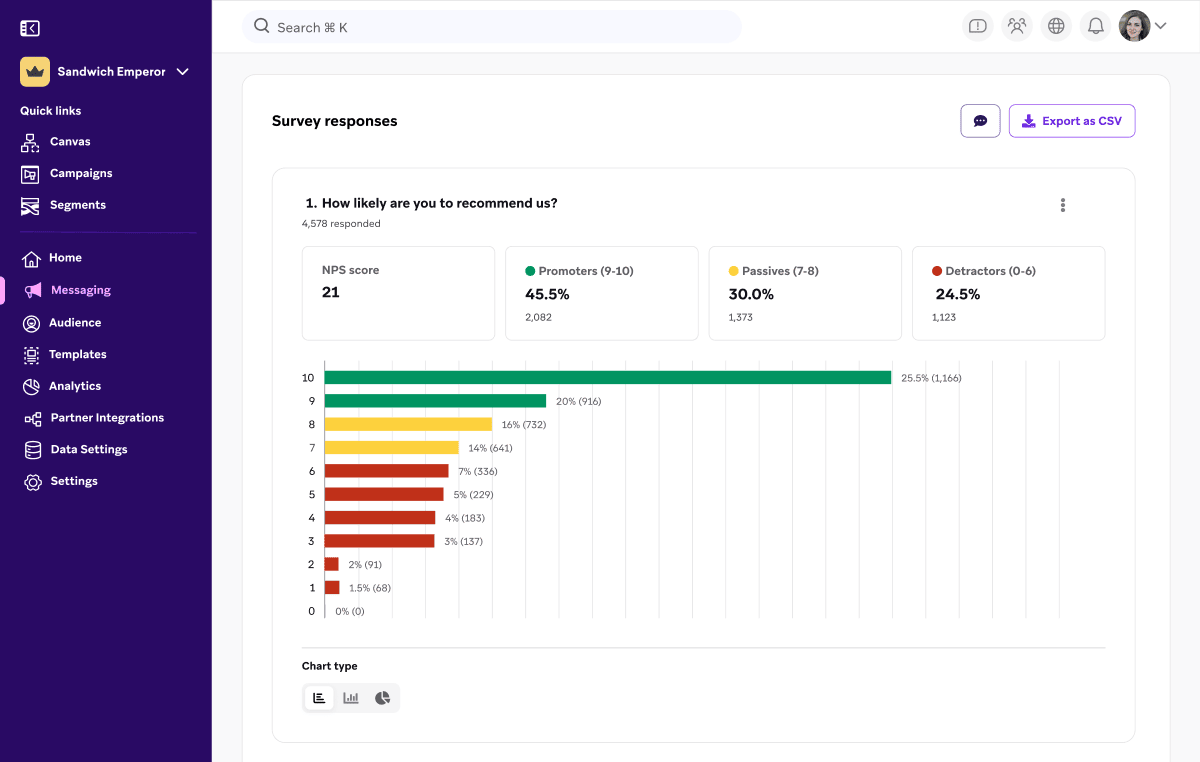
Chart types
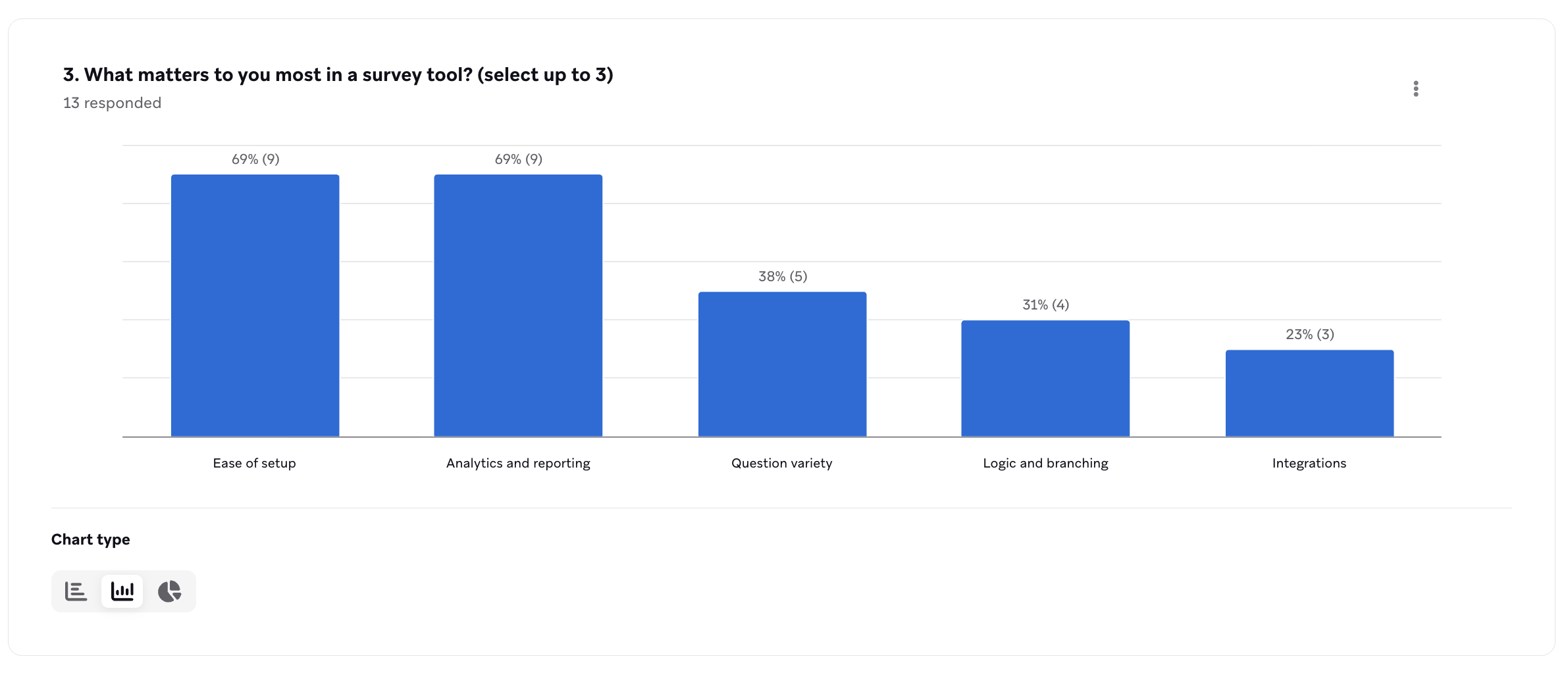
For radio button, dropdown, and checkbox form blocks, you can choose among three chart types in the survey analytics view. This gives you more flexibility to interpret and share insights without exporting to a third-party tool.
| Chart type | Best for |
|---|---|
| Bar chart | The default horizontal view of response counts and percentages. |
| Column chart | A vertical view of response counts and percentages. Use this chart to compare responses side by side, especially for multi-select questions or questions with more answer options. |
| Pie chart | A proportional breakdown of responses. Use this chart for single-select questions when you want to see how responses are distributed across options. |
Each chart shows real-time data as responses come in. You can switch chart types at any time without affecting the underlying data.
Multi-step landing page forms
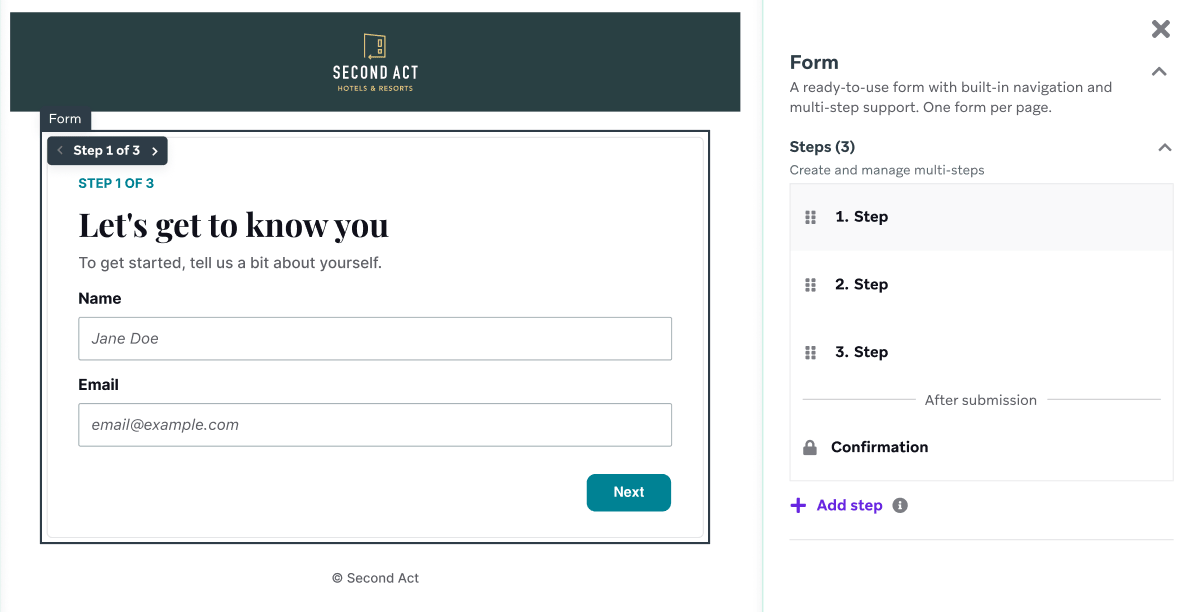
Build a survey as a single landing page with multiple steps that are automatically linked together, instead of creating multiple standalone landing pages and linking them manually. For example, you can define separate steps for each survey question, plus a confirmation step at the end.
This capability is specific to the landing pages channel. In-app message surveys also support a page manager for moving between steps; see Compose an in-app message survey for details.
Question and form blocks
Landing pages and in-app messages support all their standard form blocks in surveys too, including radio button group, checkbox, checkbox group, dropdown, phone capture, email capture, and short text capture. This section highlights the three form blocks with reporting built specifically for surveys: NPS, number scale, and long-form text.
Standalone NPS block
The NPS block is a separate form block from the Rating (number scale) block, not a configuration option within it. Add it to a survey to ask the standard Net Promoter Score question (0–10) and get reporting built specifically for that use case.
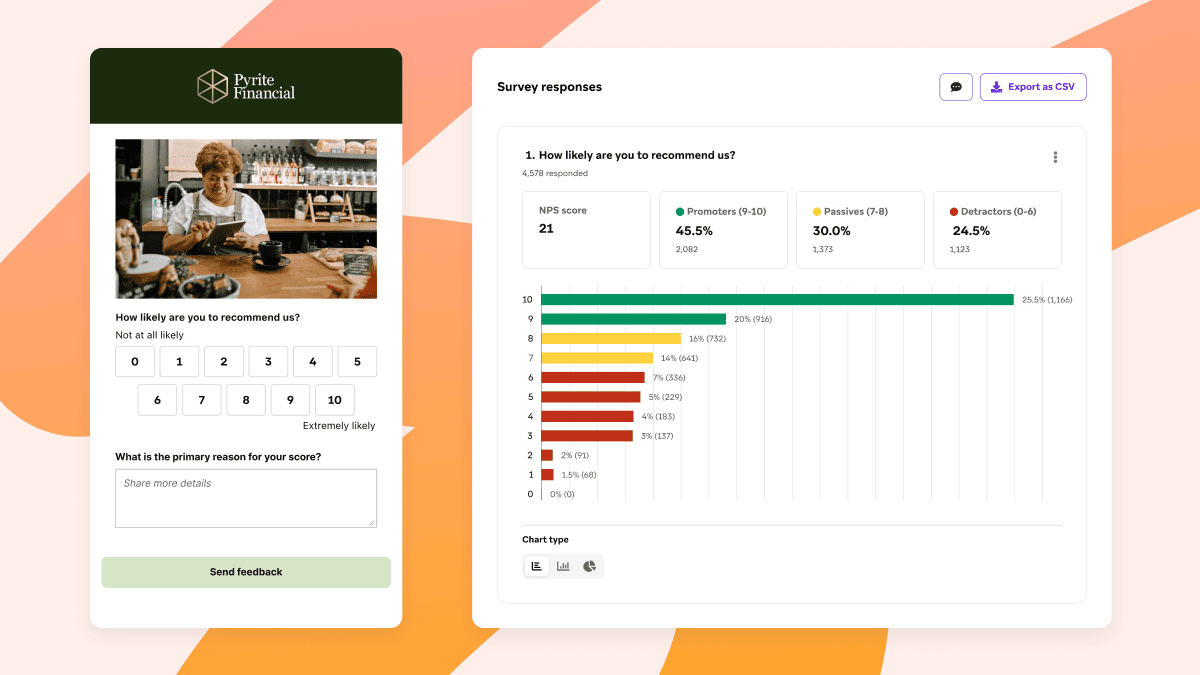
The NPS block gives you better dashboard reporting than a plain rating question used for the same purpose. Instead of a flat count of responses per number, Braze automatically groups responses into promoters (9–10), passives (7–8), and detractors (0–6) and surfaces those segments—and the resulting NPS score—directly in the survey analytics view.
Currents exports the numeric score (and, if added, the free-text feedback field) on the Survey Response event. Promoter, passive, and detractor segments aren’t separate Currents fields.
Number scale questions
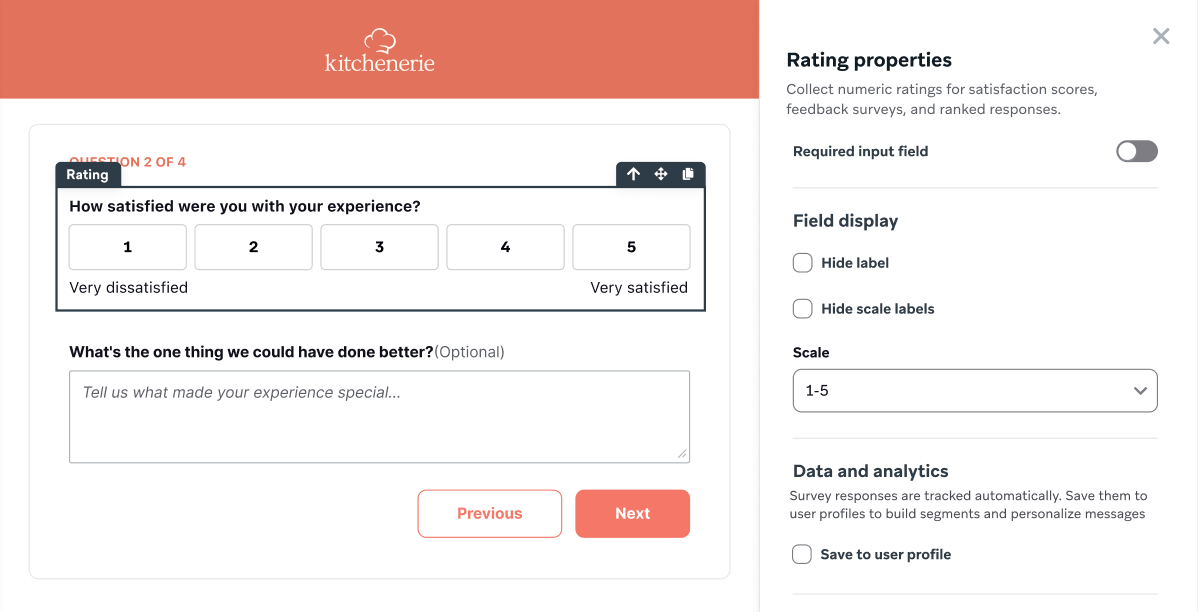
Also called a rating scale on the channel pages; both terms refer to the same Rating form block. Capture 1–5, 1–10, or 0–10 number-scale questions to fit different survey and reporting needs, from simple satisfaction ratings to likelihood-to-recommend scores. For channel-specific composition screenshots, see the Rating scale section on the landing page surveys or in-app message surveys page.
You can collect a rating as a survey response, log it as an integer custom attribute, or both. Pair a number scale question with a long-form text capture block to collect a numeric score alongside qualitative feedback in the same survey.
Long-form text capture
Long-form text capture is useful for qualitative feedback. You can configure the minimum and maximum character count (up to 1,000 characters), whether to show the character limit during composition, the text area height, and placeholder text.
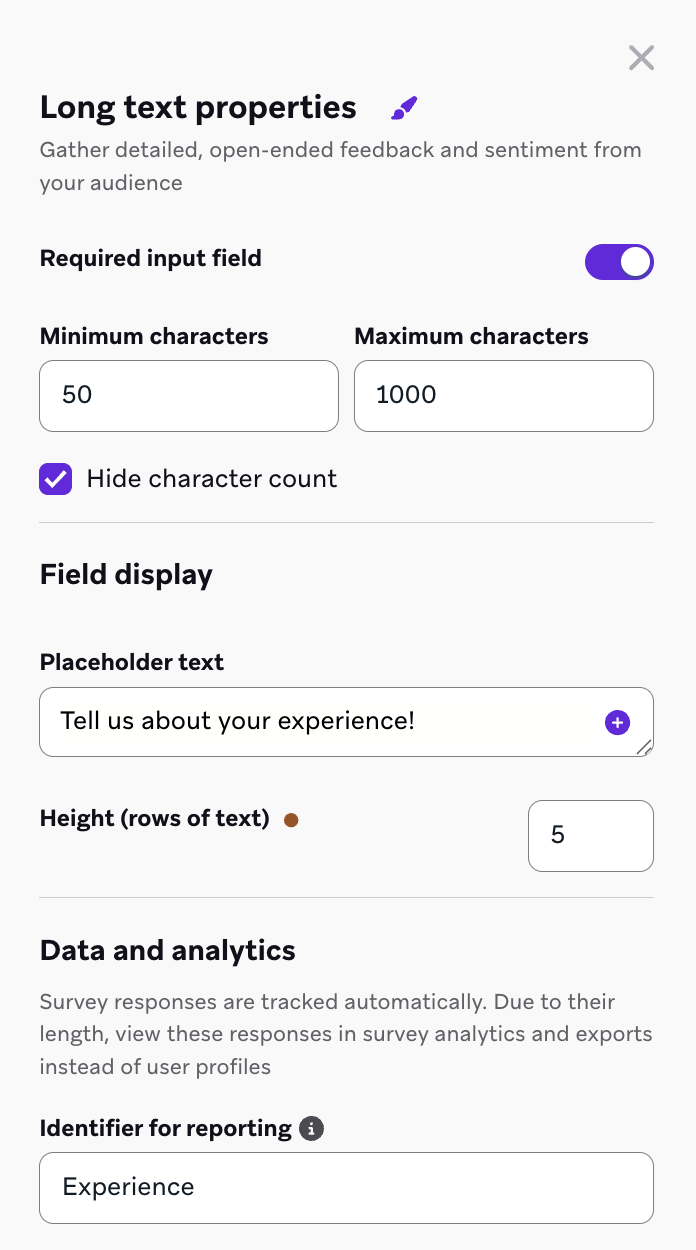

Long-form text fields in iOS in-app message surveys are temporarily limited to 250 characters. This limitation is being addressed in a future iOS SDK update. For now, consider keeping your maximum character count at or below 250 for surveys shown to iOS users.
Long text responses are available in reporting and exports, but they can’t be logged as user profile custom attributes—so you can’t segment users by a long-form response value directly. See Limitations on either channel page for details.
In Currents, long-form responses use answer_type = 'free_form_text' with the text in answer_long_string.
Randomized choice order
Radio button group, checkbox group, and dropdown blocks support randomized answer choices. Turn on Randomize choice order to shuffle the choices each time the survey loads, which reduces order bias when the same first option could otherwise skew responses.
Randomization changes only the display order for each survey respondent. Reporting labels and values stay mapped to the choices you configured, so analytics, CSV exports, and segmentation use the same response data regardless of the order a given user saw.
Survey templates
Save a survey as a template from the landing page or in-app message template library so builders can start from it instead of recreating the same questions and form blocks each time. When survey templates are enabled for your workspace, filter the library by Survey to find and reuse saved survey structures across campaigns, Canvases, and landing pages.
Survey Response events
Survey responses flow into Braze Currents so you can export survey data to your data warehouse or a third-party BI tool for analysis, joins with other engagement data, and custom reporting that goes beyond the dashboard’s built-in analytics.
Braze exports individual survey answers through the Survey Response event (users.messages.survey.Response). Each event represents one respondent’s answer to one survey question. For the full field reference, see Survey Response events in the Currents event glossary.
The same data is available as the USERS_MESSAGES_SURVEY_RESPONSE_SHARED SQL table in Query Builder, SQL Segment Extensions, and Snowflake Data Sharing. The examples in the following tabs use that table. For column details, see the SQL table reference.
The answer_type value matches the survey question type from the composer—for example, single_choice, multiple_choice, free_form_text, nps, single_boolean, or single_number. Use that value (not a separate response-shape enum) when filtering these queries.
Use survey_completion_status to see how many survey sessions were completed versus left incomplete for a given survey.
SELECT
survey_id,
COUNT(DISTINCT survey_session_id) AS total_sessions,
COUNT(DISTINCT CASE WHEN survey_completion_status = 'complete' THEN survey_session_id END) AS completed_sessions,
COUNT(DISTINCT CASE WHEN survey_completion_status = 'incomplete' THEN survey_session_id END) AS incomplete_sessions
FROM USERS_MESSAGES_SURVEY_RESPONSE_SHARED
GROUP BY survey_id;
Use answer_single_string for radio button, dropdown, and other single-choice responses (answer_type = 'single_choice'). Group by question_reporting_id rather than display position, because randomized choice order doesn’t affect how responses are reported.
SELECT
question_reporting_id,
answer_single_string AS choice,
COUNT(*) AS response_count
FROM USERS_MESSAGES_SURVEY_RESPONSE_SHARED
WHERE answer_type = 'single_choice'
GROUP BY question_reporting_id, answer_single_string
ORDER BY question_reporting_id, response_count DESC;
Use answer_multiple_strings for checkbox group responses where a respondent can select more than one choice (answer_type = 'multiple_choice'). Selected values are stored as a JSON array string (for example, ["Option A","Option C"]).
SELECT
question_reporting_id,
answer_multiple_strings,
COUNT(*) AS response_count
FROM USERS_MESSAGES_SURVEY_RESPONSE_SHARED
WHERE answer_type = 'multiple_choice'
GROUP BY question_reporting_id, answer_multiple_strings;
Use answer_single_boolean for single checkbox blocks (answer_type = 'single_boolean').
SELECT
question_reporting_id,
answer_single_boolean,
COUNT(*) AS response_count
FROM USERS_MESSAGES_SURVEY_RESPONSE_SHARED
WHERE answer_type = 'single_boolean'
AND question_reporting_id = 'REPLACE_WITH_YOUR_QUESTION_REPORTING_ID'
GROUP BY question_reporting_id, answer_single_boolean;
NPS block responses use answer_type = 'nps' with the score in answer_single_number (and optional free-text feedback in answer_single_string). Rating (number scale) questions use answer_type = 'single_number' with the score in answer_single_number.
Promoter, passive, and detractor segments appear in the survey analytics dashboard. They aren’t separate fields in the SQL table—derive them from the 0–10 score when you need them in Query Builder or Snowflake:
SELECT
question_reporting_id,
CASE
WHEN answer_single_number >= 9 THEN 'promoter'
WHEN answer_single_number >= 7 THEN 'passive'
ELSE 'detractor'
END AS nps_segment,
COUNT(*) AS response_count
FROM USERS_MESSAGES_SURVEY_RESPONSE_SHARED
WHERE answer_type = 'nps'
AND question_reporting_id = 'REPLACE_WITH_YOUR_NPS_QUESTION_REPORTING_ID'
GROUP BY question_reporting_id, nps_segment;
Use answer_long_string for long-form text capture responses (answer_type = 'free_form_text'). These are free-text values, so consider your own PII handling policy before exporting them.
SELECT
survey_id,
question_id,
question_reporting_id,
response_id,
answer_long_string AS response_text,
time
FROM USERS_MESSAGES_SURVEY_RESPONSE_SHARED
WHERE answer_type = 'free_form_text'
AND question_reporting_id = 'REPLACE_WITH_YOUR_QUESTION_REPORTING_ID';
Landing page survey responses include a populated landing_page_api_id. In-app message survey responses use campaign or Canvas identifiers (campaign_api_id or canvas_api_id and related variation and step fields) instead.
SELECT
CASE WHEN landing_page_api_id IS NOT NULL THEN 'landing_page' ELSE 'in_app_message' END AS channel,
COUNT(DISTINCT survey_session_id) AS sessions
FROM USERS_MESSAGES_SURVEY_RESPONSE_SHARED
GROUP BY 1;
Landing page events
Landing page surveys also generate Landing Page Impression and Landing Page Click events for page views and tracked clicks. Completing a landing page survey writes a Survey Response event; it doesn’t also fire the generic Landing Page Form Submission event, which is for standard (non-survey) landing page forms. For the full field reference for these events, see the Currents event glossary.
Landing Page Impression events are anonymous, so you can’t join them to Survey Response or Landing Page Form Submission on user_id to calculate response or conversion rates.
Braze exports a Landing Page Click event (users.messages.landingpage.Click) each time a user clicks a tracked element or form field on a landing page. The target field identifies which element was clicked—not just that a click happened—so you can compare click volume by element. For the full field reference, see Landing Page Click events.
SELECT
landing_page_name,
target,
COUNT(*) AS clicks
FROM USERS_MESSAGES_LANDINGPAGE_CLICK_SHARED
GROUP BY landing_page_name, target
ORDER BY clicks DESC;
Use this query to compare click volume across tracked elements on the same page—for example, to see that one call-to-action earns several times the clicks of another—or to feed target values into a CDP or ad platform to retarget users who clicked a specific offer.
Braze exports a Landing Page Form Submission event (users.messages.landingpage.FormSubmission) when a user completes a standard (non-survey) landing page form. This event records that a form was submitted, not the individual field values, so treat it as a conversion event rather than a source of response data. Survey completions use Survey Response instead.
SELECT
landing_page_name,
COUNT(*) AS submissions
FROM USERS_MESSAGES_LANDINGPAGE_FORMSUBMISSION_SHARED
GROUP BY landing_page_name
ORDER BY submissions DESC;
Sync submitters to a CRM or email service provider as leads, or use the event to trigger a follow-up welcome or nurture flow as soon as someone submits.
Frequently asked questions
How do I start a survey, including NPS or CSAT?
On the message composition page for a landing page or in-app message, select Survey as your message type before you open the editor. NPS, CSAT, and other feedback surveys all use that same entry point into survey mode—there isn’t a separate create flow per survey type. Then add the form blocks you need (for example, the standalone NPS block) in the editor.
Where do I find surveys across channels?
Go to Messaging > Surveys to review surveys across landing pages, campaigns, and Canvases. If you don’t see that page, contact your Braze account manager.
Related articles
- Landing page surveysCreate flow, composition, and reporting for the landing pages channel
- In-app message surveysCreate flow, composition, and reporting for the in-app messages channel
- Email NPS survey blockCollect NPS scores from drag-and-drop email and finish on a landing page survey
- Drag-and-drop editor blocksFull reference for the form blocks you can add to a survey
- Braze CurrentsSet up data export to your warehouse or BI tool