Message Prioritization
Message Prioritization is an optional layer on top of frequency capping. When multiple opted-in messages compete for the same user, prioritization decides which message sends.
Why use Message Prioritization?
Users can only receive so many messages before volume becomes a problem. The messages that reach them should be the ones that matter most to your business.
Most teams control volume with frequency caps. Frequency capping limits how many messages a user receives and sends whatever is due first. Frequency caps don’t decide which of those messages matter most. After a user hits their cap, send timing decides what gets through. A promotion that sends earlier can use up the room in the cap that a loyalty reward or time-sensitive message would have needed later that day.
Message Prioritization makes business importance, not send time, decide which opted-in messages win that limited space.
Benefits
Message Prioritization offers several benefits:
- Define what matters once: Use categories and ranked rules to encode your priorities—for example, “Loyalty” over “Paid Partnerships.”
- Forward-looking evaluations: Braze predicts what a user may receive later. It can hold back a lower-priority message to preserve cap space for a higher-priority one.
- Works across message types and channels: Scheduled campaigns, action-based campaigns, and Canvas Message steps compete in one ranked pool when they share a frequency cap.
- Retry windows: When configured, a message that isn’t selected to send is ranked again each day within the window, so a lower-priority message can still send later.
The result is the same capped send volume among opted-in messages, allocated to the messages that matter most.
How it works
Use Message Prioritization to create categories and prioritization rules to rank which messages send.
To manage these settings, go to Settings > Message Prioritization. Users need the “View Message Prioritization Settings” permission to view settings in this section, the “Edit Message Prioritization Settings” permission to edit them, and the “Delete Message Prioritization Settings” permission to delete them.
At send time, Braze compares the message that’s about to send against other messages the user may receive that are opted in to prioritization, are assigned a category, and count toward the same frequency capping rule within the same frequency capping window. If sending the current message would prevent a higher-priority message from sending later, the lower-priority message isn’t selected to send. If it has a retry window, Braze tries it again the next day. If it doesn’t, it’s aborted. For how to decide those categories and rankings before you configure, see Plan your setup.
Message Prioritization can evaluate:
- Scheduled campaigns
- Action-based campaigns
- Canvases
API-triggered campaigns and API-triggered Canvases aren’t supported and don’t participate in prioritization.
Braze uses its prediction of when each message is expected to send when evaluating whether sending one message now could prevent a higher-priority message from sending later. For more information on how Braze predicts future send timing for campaigns and Canvases, see How does Braze predict when a future message sends?.
Supported message channels
Message Prioritization supports the same channels as frequency capping:
- Push notifications
- SMS, MMS, and RCS
- Webhooks
- LINE
- KakaoTalk
For prioritization and frequency capping, the following are each treated as one shared channel:
- iOS push, Android push, web push, and other push notification platforms
- SMS, MMS, and RCS (appears in the dashboard as SMS or SMS/MMS/RCS, depending on whether MMS is enabled for the workspace)
These channels are not eligible for Message Prioritization because they aren’t subject to frequency capping:
- Content Cards
- In-app messages
- Banners
In-app messages and Banners use their own priority settings when evaluating which message displays when multiple messages compete for the same trigger or placement. For in-app messages, see Choose a priority. For Banners, see Banner priority.
If a campaign or Canvas Message step uses only ineligible channels, it won’t participate in prioritization. Campaigns that send on more than one channel can’t be opted in to Message Prioritization. In an opted-in Canvas, a Message step that sends on more than one channel isn’t ranked and sends as usual, even if only one of those channels is supported, such as push plus an in-app message. All push platforms count as one channel.
Plan your setup
Before you start configuring, three questions can help shape your setup:
- Which messages share a frequency cap? Only opted-in messages that count toward the same cap compete for priority. Start by identifying the frequency-capped campaigns and Canvases that could send to the same user within the same frequency capping window.
- How do those messages rank by business value? Group them into tiers. A useful framing: if a user can receive only one message today, which one should it be? Work from your most important sends down.
- Which messages must always attempt to send? Transactional messages, legal notifications, and any campaign that must never be held back should have frequency capping turned off before you configure prioritization. For how to opt out, see How can I make sure a message always attempts to send?.
With those decisions made, creating categories and prioritization rules maps directly to the hierarchy you’ve already identified.
For example, a beauty brand managing email promotions for paid partnerships and loyalty programs starts by asking those three questions. Their frequency-capped emails include loyalty rewards, seasonal promotions, and partner-sponsored campaigns—all counting toward the same daily email cap. When they ask which message should send if a user can only receive one that day, loyalty rewards for long-term members come first. Partner campaigns rank second.
The brand creates two categories and ranks them in this order:
- Loyalty
- Paid Partnerships

During the holiday season, when frequency caps fill quickly, a loyalty reward and a partner promotion are both scheduled for the same user on the same day, and the cap allows only one of them. Braze sends the loyalty reward, and the partner campaign isn’t selected to send. If a retry window is configured, Braze can try the partner campaign again later. For other send-time patterns, see Examples.
Categories
Prioritization rules are based on a ranking of categories, which are labels you can assign to a given campaign or Canvas (similar to a tag). For the number of categories you can create, see Plan tiers.
To add a new category:
- Go to Settings > Message Prioritization > Categories.
- Select Create new category.
- Give the category a name and an optional description.
- Select Create category.
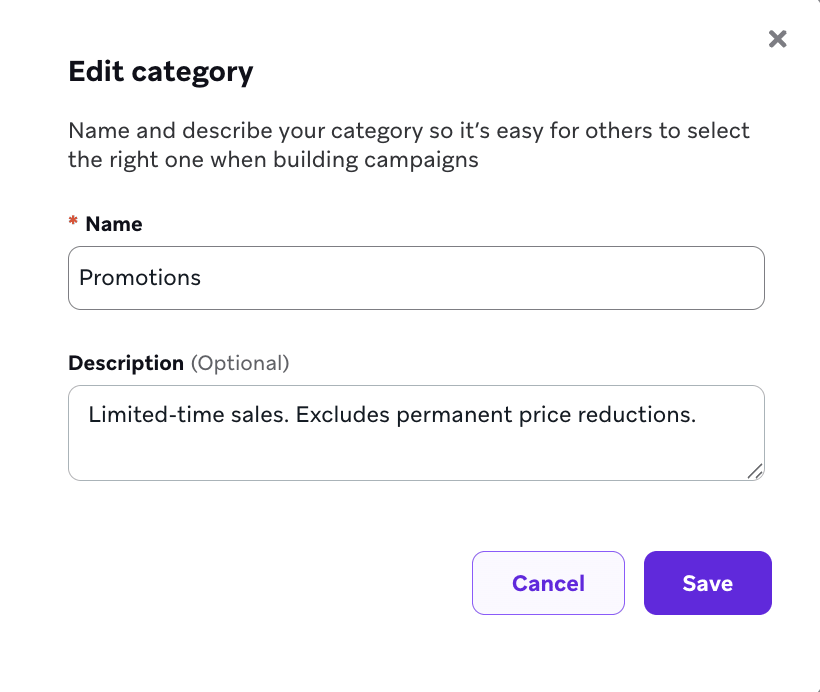
To edit or delete a category, select the menu.
A Canvas has one category for all steps. You can’t rank a welcome email over a later promotion inside the same opted-in Canvas.
Prioritization rules
After your categories are set up, you can rank them in a set of prioritization rules. Prioritization rules are ranked in order: the first rule has the highest priority. For the number of prioritization rules you can create, see Plan tiers.
- Go to Settings > Message Prioritization > Prioritization Rules to configure your rules.
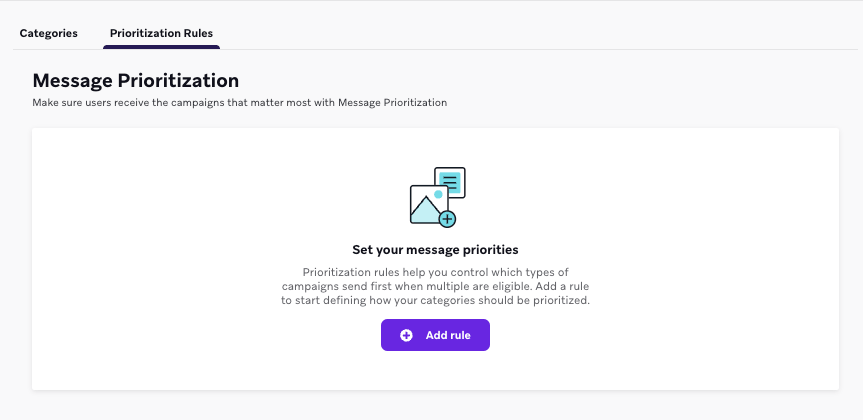
- Select Add rule.
- Select a category from the dropdown.
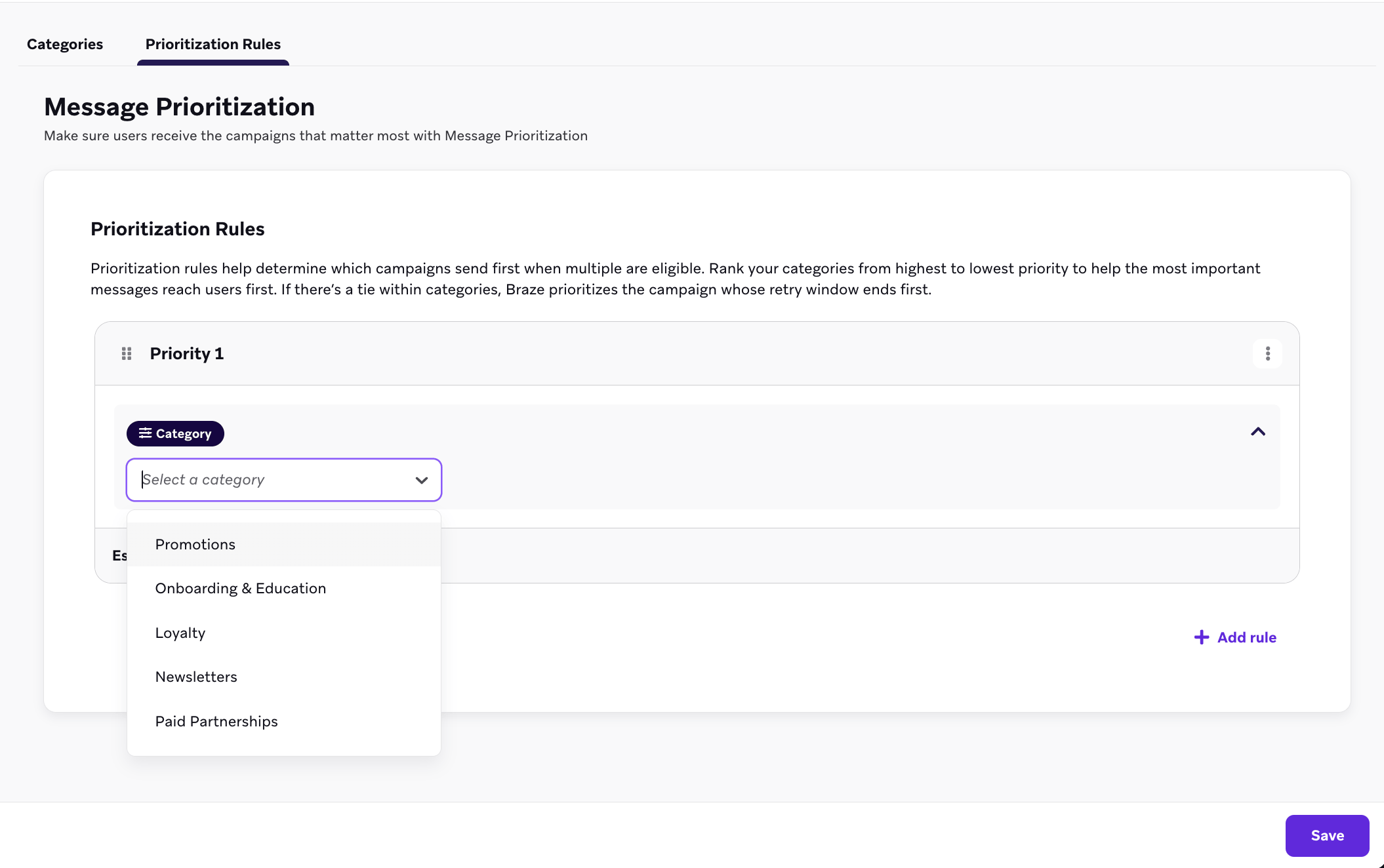
- Continue to add rules by selecting + Add rule under your last rule.
To reorder rules, select and drag the icon on a rule. To delete a rule, select the menu and then Delete Rule.
Select Save for your updates to apply.
Frequency capping rules
Message Prioritization works within your existing frequency capping rules. An opted-in campaign or Canvas Message step is prioritized only if it uses a supported channel, has frequency capping turned on, and matches at least one frequency capping rule. For must-send messages, see Plan your setup and How can I make sure a message always attempts to send?.
An opted-in message can send only if:
- The relevant frequency capping rule has not been reached yet for that user, and
- Sending that message would not cause the user to hit a cap before a later, higher-priority message can send.
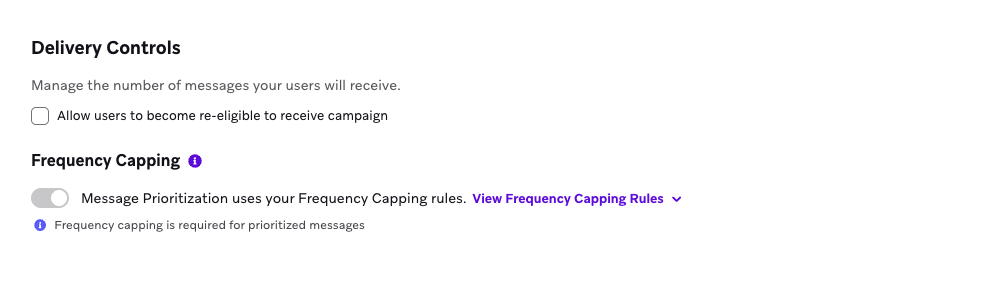
You can use channel-specific frequency capping rules, tag filters, rules filtered by category, or rules that apply to any channel. Message Prioritization works with whichever frequency capping rules apply to your opted-in messages.
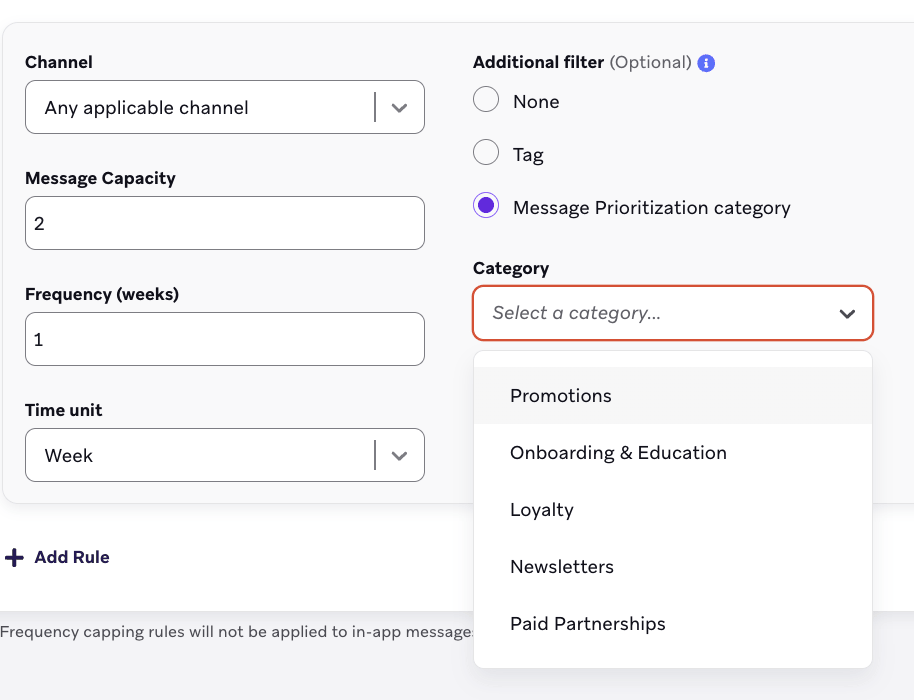
Filtering a frequency capping rule by category limits how many messages a user receives from that category. This helps prevent a high-priority category from sending too many messages. To add this filter, select Message prioritization category under Additional filters, and select a category from the dropdown.
Opted-in and not opted-in messages
Message Prioritization ranks only messages that are opted in, assigned a category, and counting toward the same frequency cap. These messages form the ranked pool. A higher-priority opted-in message can win the ranking and still fail to send if an earlier message that is not opted in already used the last of the room in that cap.
Messages that are not opted in still attempt to send on their schedule or trigger. If frequency capping applies to them, they still count toward the same frequency caps as opted-in messages. Because they are outside the ranked pool, Message Prioritization can’t save room in the cap for a later opted-in message.
For example, a promotion campaign follows frequency capping rules but is not opted into Message Prioritization. It sends at 9 am and uses the last email the user’s cap allows for the day. A loyalty campaign is opted in at Priority 1 and scheduled for 3 pm. Loyalty ranks first among opted-in messages, but it cannot send because the promotion already used the cap.
If campaigns and Canvas Message steps should compete on priority for that cap, opt them in to Message Prioritization. If a message should send without using room in the cap that opted-in messages need, opt it out of frequency capping by selecting Don’t count this Campaign toward the frequency capping send limit (or Don’t count this Canvas toward the frequency capping send limit for Canvases).
Opting in
To put a campaign or Canvas into the ranked pool, opt it in to Message Prioritization and assign a category. Messages you don’t opt in to Message Prioritization still attempt to send and, if frequency capping applies to them, still count toward frequency caps. For how that interaction works, see Opted-in and not opted-in messages.
Campaign opt-in
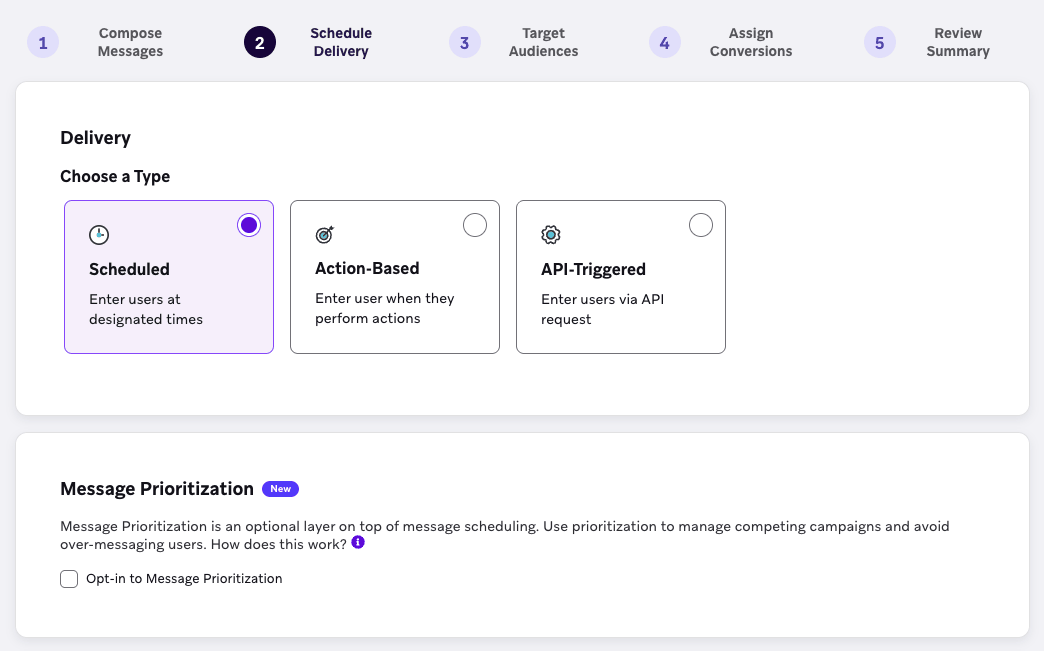
To opt a campaign into prioritization, select the Opt-in to Message Prioritization checkbox in the campaign’s delivery settings.
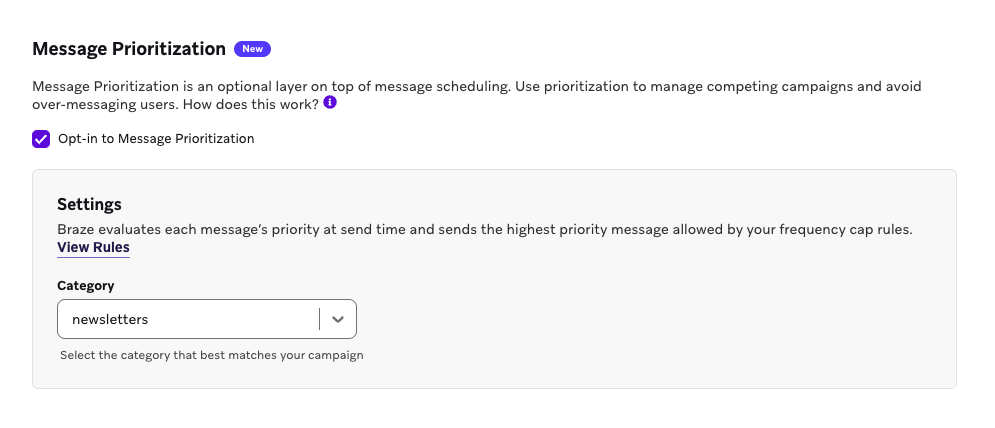
Next, assign the campaign to a category by selecting one from the Category dropdown.
Message Prioritization supports scheduled campaigns and action-based campaigns. API-triggered campaigns aren’t supported.
Canvas opt-in
Canvas opt-in works similarly to campaigns. To opt a Canvas into Message Prioritization, enable Message Prioritization in the Canvas settings and assign the Canvas to a category. All steps in the Canvas share that category and the same priority level, which means you can’t set priority individually by step.
Message Prioritization supports scheduled Canvases and action-based Canvases. API-triggered Canvases aren’t supported.
Best practices
After your categories and rules are set, the most common gaps are incomplete opt-ins on messages that follow frequency capping rules, and timing and delivery edge cases.
Opt in every message that should compete
Opt in every frequency-capped campaign and Canvas that should compete for the same cap. A high-volume promotion that stays frequency-capped but not opted in to Message Prioritization can send earlier and use the last of the room in the cap. Ranking then applies only among the remaining opted-in messages, so a later Priority 1 send can still miss the cap. For details, see Opted-in and not opted-in messages.
Avoid Liquid aborts and last-minute audience drops on prioritized messages
Message Prioritization is evaluated in real time when each message attempts to send. At this point, Braze checks the current message against a predicted list of higher-ranked messages, and doesn’t select it to send if sending now would block any of them.
Avoid abort_message Liquid on opted-in messages, and keep audience membership stable through send time.
If the higher-ranked message doesn’t end up sending to the user (for example, if Liquid abort logic or an audience change stops delivery), this does not automatically and immediately trigger a retry for the lower-priority message that wasn’t selected to send. However, if retry windows are configured, the message retries daily until it sends or the retry window ends.
For how this affects later ranking, see My message was selected to send but aborted last-minute.
Set a retry window only if a late send is acceptable
A retry window is the only way a message that isn’t selected to send can send later. Without one, that send is aborted for this occurrence. Set a window only when a delayed send is acceptable.
Retry windows are not available for:
- Action-based campaigns that use exception events
- Content Optimizer steps, because retrying would interfere with the experiment
For configuration details, see Retry windows.
Treat quiet hours, rate limits, and Liquid as separate send-time gates
Message Prioritization decides which opted-in messages send within a frequency cap. Quiet hours, rate limits, and Liquid still apply at send time. Ranking does not bypass those gates. If a ranked message is delayed by rate limiting, Braze still treats it as sent at the originally scheduled time when ranking other messages. See My message was scheduled to send already, but it hasn’t yet because of rate limiting.
Intelligent Timing
With Intelligent Timing, Braze sends a message at each user’s optimal send time, so the same campaign or Canvas Message step can reach different users at different times. Message Prioritization takes this into account: instead of assuming the message sends to everyone at its scheduled time, it ranks a user’s competing messages using that user’s optimal send time.
For campaigns and Canvas Message steps that use Intelligent Timing, Braze predicts send timing on a best-effort basis until it calculates each user’s per-user send time. For campaigns, Message Prioritization uses that user’s optimal send time for the current occurrence when comparing the campaign against the user’s other eligible opted-in messages. For recurring Intelligent Timing campaigns, Braze uses the optimal send time chosen for that occurrence.
For Canvas Message steps, Braze updates this prediction after the user enters the step and Braze calculates that user’s optimal send time for the step. Message Prioritization uses that calculated send time for the current step. On deterministic paths (paths with no branching, where the step sequence is fixed), Braze also reflects that updated timing in the following Message steps when determining their expected send times.
Retry windows
When a message isn’t selected to send, it doesn’t send at its scheduled time. Without a retry window, it’s aborted and Braze doesn’t attempt it again.
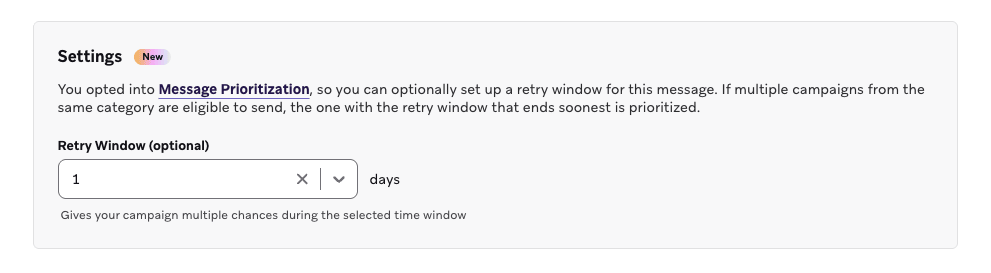
A retry window schedules later ranking attempts for a limited number of days. A retry is another attempt, not a send. That attempt can lose ranking again. If a retry attempt is selected to send, Braze records a normal send. There is no separate sent-after-retry event.
The maximum retry window is one day on the free tier and three days on the paid tier. For more information, see Plan tiers. On each subsequent day, at the same time the message was originally scheduled or triggered to send, Braze attempts the message again. After the last day in the retry window, if the message still has not sent, it’s aborted and logged as a Message Prioritization abort.
For recurring scheduled campaigns, the retry window must be shorter than the minimum time between sends for that campaign. Retries always happen one day at a time from the original send time, even if the campaign is not normally scheduled to send on that day. For example, if you have a campaign that sends every Monday and Wednesday, the retry attempt occurs on Tuesday, so the retry window must be set to one day. If you have a campaign that sends every Monday, Wednesday, and Friday, and the Friday send is retried with a one-day retry window, the retry attempt occurs on Saturday, not Monday.
For action-based campaigns, retries are based on the time the triggered message was originally expected to send.
Action-based campaigns that use exception events do not support retry windows.
Retry windows for Canvas messages are configured at the step level. If a Canvas Message step isn’t selected to send and has a retry window configured, Braze can retry that step later within its retry window.
How Braze evaluates messages

You don’t need to understand everything in this section to use Message Prioritization. After you set your categories and rules and opt your messages in to Message Prioritization, Braze evaluates and prioritizes messages automatically and does its best to send the ones that matter most. The details here are for when you want to understand how those evaluations are made.
When a user is eligible for multiple opted-in messages, Braze evaluates opted-in campaigns and eligible Canvas Message steps together on supported channels.
For campaigns, this includes eligible scheduled and action-based sends.
For Canvases, this includes:
- Future scheduled Canvases that the user is eligible to enter
- Canvases that the user is currently in
Canvas prioritization is not all-or-nothing. A higher-priority campaign can keep one Canvas Message step from being selected to send while later eligible steps in that same Canvas can still send, depending on category ranking, send timing, and frequency capping rules.
Braze compares opted-in messages only when they share the same applicable frequency capping rule. For example, two email campaigns that count toward the same email frequency capping rule can be prioritized against each other, but a higher-priority SMS message can’t hold back a lower-priority email campaign unless both count toward the same frequency capping rule. Messages that are not opted in still share these frequency cap limits. For how that can block an opted-in send, see Opted-in and not opted-in messages.
Braze evaluates campaigns and Canvases differently because a Canvas can branch and unfold over time.
Evaluate campaigns
Braze compares each eligible campaign message using the time that message is expected to send.
Evaluate Canvases
To evaluate a Canvas, Braze performs a look-ahead: it traverses the Canvas from a starting point to predict which future messages a user may receive, and when. The look-ahead starts from:
- Canvas entry, for future scheduled Canvases
- The user’s current step, if the user is already in the Canvas
As it looks ahead, Braze treats each type of Canvas step differently. The step type determines whether the look-ahead counts it, skips it, stops at it, or splits across multiple paths:
| Step category | Effect on the look-ahead |
|---|---|
| Messaging steps | Counted as eligible messages for prioritization |
| Continuation steps | Skipped; the look-ahead passes through them |
| Boundary steps | The look-ahead stops until the user passes the step |
| Branching steps | The look-ahead follows every possible path |
Messaging steps
These steps are counted toward prioritization and added to the set of eligible messages when they send on a single channel and that channel is supported. Steps that send on more than one channel aren’t ranked. For details, see Supported message channels.
- Message step
- Content Optimizer step
Continuation steps
These steps are ignored for prioritization and do not affect the look-ahead.
- Context Update step
- User Update step
- Audience Sync step
- Feature Flag step
- Delay step with a fixed delay
Boundary steps
Braze stops the look-ahead at these steps until the user actually progresses through them in the Canvas.
- Delay step with a personalized delay
- Delay step that follows a branching step
- Action Paths step
- Experiment step
Branching steps
These steps split the Canvas into multiple possible paths.
- Decision Split step
- Audience Path step
When a prioritization path contains branching steps, Braze assumes all paths are viable and considers all parallel Message steps on supported channels for prioritization. Because frequency capping rules can be channel-specific, parallel Message steps are de-duplicated by channel when needed.
For example, if one branch can send email and another branch can also send email, Braze treats those as a single possible email send during the look-ahead. If another branch can send push, Braze also considers that possible push send separately.
For Canvas Message steps that use Intelligent Timing, Braze uses each user’s calculated send time after the user reaches the step. For details, see Intelligent Timing.
Retry windows don’t apply to Content Optimizer steps, because retrying would interfere with the experiment. Other Canvas Message steps can use retry windows. Canvas steps on unsupported channels do not participate in Message Prioritization.
Examples
Higher-priority campaign versus lower-priority campaign
Suppose a user is eligible for two email campaigns on the same day, both campaigns count toward the same frequency capping rule, and the cap allows only one of them. If the higher-priority campaign is expected to send later that day, Braze can hold back the lower-priority campaign now so the higher-priority campaign can send instead. If the lower-priority campaign has a retry window, Braze can try it again later. See Plan your setup for an example that uses this pattern for a loyalty reward versus a partner promotion.
Higher-priority action-based campaign versus lower-priority message
Suppose a user triggers a higher-priority action-based campaign that is set to send two hours later. During that delay, Braze can consider that upcoming action-based campaign when deciding whether another opted-in message should send now. This helps prevent a lower-priority message from sending now if the higher-priority action-based campaign is expected to send soon.
Higher-priority Canvas versus lower-priority campaign
Suppose a user is eligible for a lower-priority campaign, but is also expected to receive a higher-priority Canvas message later that day, and the cap allows only one of them. If Braze can already evaluate that future Canvas message, it can hold back the lower-priority campaign now so the higher-priority Canvas message can send instead.
Higher-priority Canvas with a boundary step versus lower-priority campaign
Suppose a higher-priority Canvas includes an Action Paths step, an experiment, or a personalized delay before its next Message step. Until the user reaches and moves past that step, Braze does not look ahead to the downstream higher-priority Canvas message. In that case, a lower-priority campaign may still send and count toward the cap.
Higher-priority branching Canvas versus lower-priority message
Suppose a higher-priority Canvas can send different messages depending on which branch a user follows. Braze evaluates those possible future paths conservatively when comparing messages. This helps prevent a lower-priority message from sending now if a higher-priority Canvas branch could use that same frequency cap later.
Canvas step with Intelligent Timing and downstream steps
Suppose a user enters a higher-priority Canvas Message step that uses Intelligent Timing. After Braze calculates that user’s send time for the step with Intelligent Timing, Message Prioritization uses that per-user send time for the current step and for later Message steps on the same deterministic path. This helps Braze compare downstream Canvas messages against other opted-in sends using the updated timing instead of only the earlier path estimate.
Plan tiers
These Message Prioritization limitations depend on your plan type: free or paid.
| Feature | Free tier | Paid tier |
|---|---|---|
| Categories per workspace | 20 | 50 |
| Prioritization rules per workspace | 10 | 50 |
| Active opted-in scheduled campaigns and Canvases per workspace | 25 | 100 |
| Active opted-in action-based campaigns and Canvases per workspace | 25 | 250 |
| Maximum retry window | One day | Three days |
| Prioritization evaluations per company, per month | 20 million | 5 billion |