Messaging Observability
Messaging Observability traces events across your Canvas or campaign so you can audit and troubleshoot messaging. Use it to spot trends, see how users progress through a Canvas, and diagnose why messages may not have been sent as expected.
Prerequisites
To access Messaging Observability, you need the “View Dashboard Reports” permission for your workspace.
Key concepts
Sent and delivered
This dashboard reports on how Braze internally processed a message, not the message’s final delivery status.
A message marked as “sent” in this dashboard means Braze successfully processed and dispatched the message. For most channels, this means Braze handed off the message to the relevant third-party sending partner. However, it does not guarantee final delivery to the user’s device.
When Braze “sends” a message, the final delivery may depend on external services. Consider the following examples for each channel.
| Channel | Example of final delivery |
|---|---|
| Banners | The Banner was sent and is eligible for viewing. |
| Content Cards | The card was sent and is eligible for viewing. |
| Braze hands the message to an email service provider (ESP). The ESP is then responsible for the final delivery. That ESP, for example, may report a “bounce” if the email address is invalid or the inbox is full. | |
| In-app messages | The message was viewed by the user and an impression was logged. |
| KakaoTalk | The message was successfully handed off to a sending partner. |
| LINE | The message was successfully handed off to a sending partner. |
| Push | Braze hands the message to the appropriate push notification service (such as Apple Push Notification service for iOS or Firebase Cloud Messaging for Android). That service is responsible for the final delivery of the notification to the device. |
| SMS/MMS/RCS | Braze hands the message to an SMS gateway (like Twilio). That gateway is responsible for the final delivery to the mobile carrier. |
| Webhooks | The webhook request was made successfully, returning a 2xx response. |
| The message was successfully handed off to a sending partner. |
Canvas progression events
For Canvases, Messaging Observability also shows progression events: records of how users move through the journey, such as entering the Canvas, entering a step, or exiting the Canvas. Progression events are separate from message send outcomes. They help you see where users are in the Canvas.
Data freshness
The frequency at which data in this dashboard updates may fluctuate based on system load. While update frequency is not guaranteed, it is likely less than an hour in most cases.
Configure the dashboard
Open Messaging Observability from either of these places:
- Go to Analytics > Dashboard Builder, then select Messaging Observability from the list of Braze-created dashboards.
- On a Canvas or campaign analytics page, select Messaging Observability. The dashboard opens with that Canvas or campaign preselected when available.
To run the dashboard and view your data:
- Select a date or date range of up to the last seven days.
- Select either Campaigns or Canvases as the source for your dashboard reports.
- Select one campaign or Canvas.
- (Optional, Canvases only) Select one or more Canvas steps to narrow results to those steps.
- Select Run dashboard to load the data for your selected filters.

After you change any filter, select Run dashboard again to refresh the summary tiles, chart, and Event log. Until you do, the dashboard may show an “Outdated results” warning.
Interpret the data

The dashboard shows up to the last seven days of data. All timestamps display in your workspace’s time zone.
Summary tiles
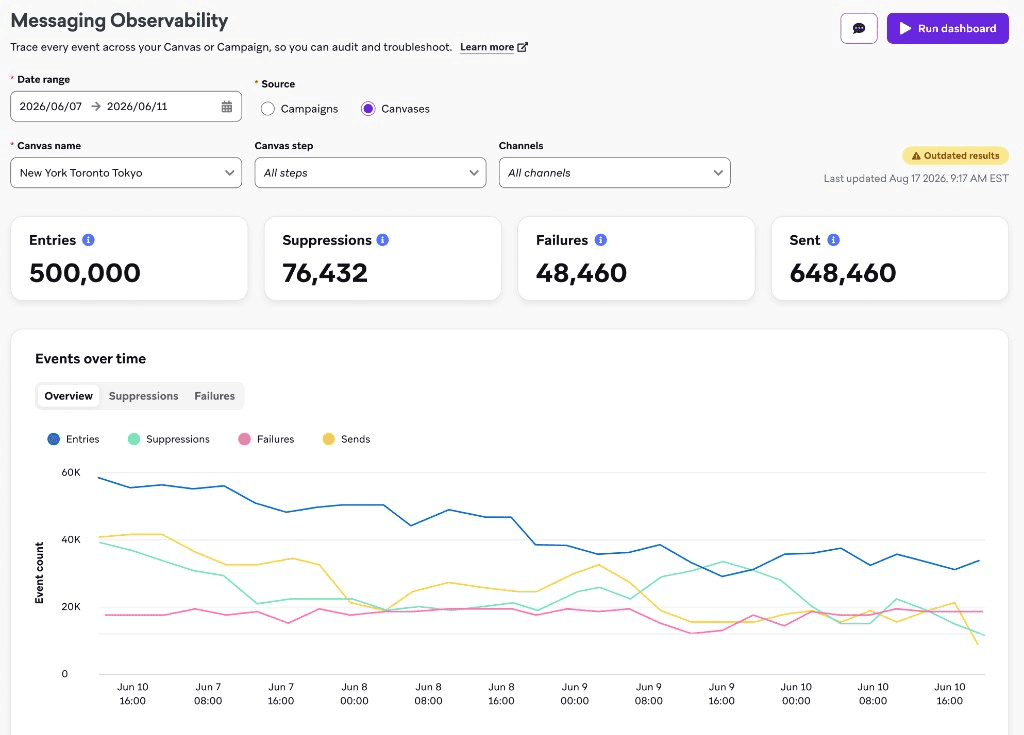
At the top of the page, summary tiles for your selected timeframe show:
- Entries: All eligible Canvas or campaign entries evaluated in the selected time range. These counts may differ slightly from the analytics view because Messaging Observability uses troubleshooting data from different sources.
- Suppressions: Messages Braze intentionally didn’t send after entry, such as for eligibility, frequency capping, or Quiet Hours. For details, see Suppressions.
- Failures: Messages that failed unexpectedly, such as Liquid, webhook, or push errors. For details, see Failures.
- Sent: Messages that successfully left Braze processing. This doesn’t guarantee delivery to the recipient. Delivery depends on the channel, carrier, and device. For details, see Sent and delivered.
Events over time
This time series chart shows an hourly breakdown of events for your selected filters. Use the chart views to compare overview totals or to break out suppressions and failures by outcome. Outcome labels in this chart are normalized dashboard labels, not raw event payload values.
Event log
The Event log lists individual events Braze recorded for each user for your selected filters and time range, primarily suppressions, progressions, and failures. Use it to review specific records, including the timestamp, user ID, Canvas step, event, description, and messaging channel.
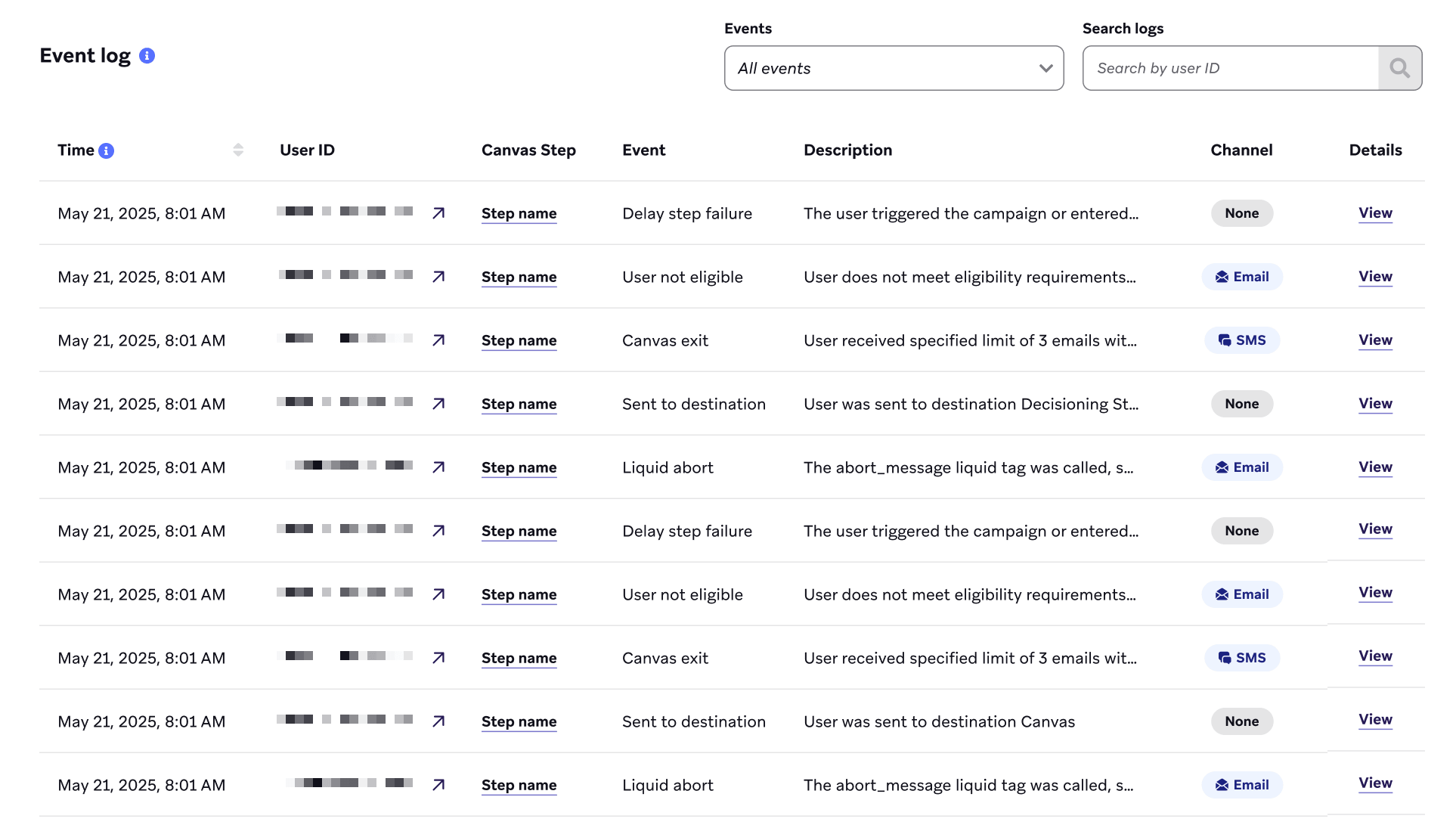
Filter the table to focus on specific records:
- Select event categories or individual events from the Events filter (for example, Suppressions > Frequency capped, or Progressions > Entered step).
- Enter a user ID in the search field to show rows for that user.
When you apply both filters, the table returns rows that match both the selected events and the entered user ID.
Select View on a row to open a side panel with more context about that event. From the panel, you can also select Ask Operator for remediation guidance.
Channel filters apply to events that are tied to a specific messaging channel. Some events are channel-agnostic, so they can still appear in aggregate views even when you apply a channel filter.
Progression events
Progression events describe how users move through a Canvas. They are Canvas-only. Campaign entry appears under Entries as Entered campaign.
Progression event labels in Messaging Observability are human-readable dashboard labels. Counts or naming can differ from other Braze analytics surfaces because these datasets have different representations and processing paths.
| Progression event | Explanation |
|---|---|
| Entered Canvas | The user entered the Canvas. Entry can be scheduled, action-based, or API-triggered. Users enrolled in a control group may also appear under this label. |
| Entered Action Path step | The user entered an Action Paths step and took a path after an action (or the everyone-else path). |
| Entered Agent step | The user entered an Agent step where Context was evaluated. |
| Entered Audience Path step | The user entered an Audience Paths step and took an audience path (or the everyone-else path). |
| Entered Audience Sync step | The user entered an Audience Sync step and audience syncing started. |
| Entered Content Optimizer step | The user entered a Content Optimizer step and a variant was selected. |
| Entered Context step | The user entered a Context step where context variables were set or evaluated. |
| Entered Decision Split step | The user entered a Decision Split step and took a branch. |
| Entered Delay step | The user entered a Delay step and is delaying, advancing immediately (for example, a zero delay), or otherwise progressing through that step. |
| Entered Experiment Path step | The user entered an Experiment Paths step and was assigned to an experiment variant. |
| Entered Feature Flag step | The user entered a Feature Flag step and feature flags are being evaluated. |
| Entered Message step | The user entered a Message step. Later suppressions, failures, or sends for that step appear as separate events. |
| Entered Send to Destination step | The user entered a Send to Destination step. Braze is checking whether they qualify to enter the destination Canvas. |
| Entered User Update step | The user entered a User Update step. User attributes are being updated, or the user is temporarily delayed by User Update rate limiting. |
| Sent to destination | The user was sent to the destination Canvas and moved to the next step in the current Canvas. |
| Not sent to destination | The user didn’t enter the destination Canvas (for example, due to an audience mismatch) and moved to the next step in the current Canvas. |
| Destination not found | The destination Canvas wasn’t found. The user moved to the next step in the current Canvas. |
| Exited Canvas | The user left the Canvas. This happens when:
|
Suppressions
Suppressions are intentional non-sends after entry, driven by settings, eligibility, or delivery controls.
Suppression and failure labels in Messaging Observability are human-readable dashboard labels. In Currents message engagement events, abort information is represented with fields such as abort_type and abort_log. Because these datasets have different representations and processing paths, counts or naming can differ between Currents and Messaging Observability.
Send settings
| Suppression | Explanation |
|---|---|
| Aborted due to priority | The send was aborted because another higher-priority message for this user was already pending, or this message was deprioritized. |
| Banner expired | The Banner expired before it could be dispatched. |
| Content Card expired | The Content Card expired before the user saw it. |
| Content Optimizer variant deactivated | The Content Optimizer variant assignment was deactivated before the send. |
| Frequency capped | The user already received the maximum number of messages allowed per your workspace’s frequency capping rules, so the send was canceled. |
| Inactive campaign | The campaign was stopped while the message was in-flight, so it was aborted. |
| Inactive Canvas | The Canvas was stopped before the user entered the journey. |
| Inactive Canvas step | This can occur in the Canvas if:
|
| Quiet Hours abort | Quiet Hours was enabled for the campaign or Canvas step with the fallback set to Abort message. The user triggered the campaign or entered the Canvas Message step during Quiet Hours, so the message was aborted. However, this doesn’t exit the user from the Canvas. |
| Volume limited | The campaign or Canvas met the set volume limit, so the send was canceled. |
User eligibility
| Suppression | Explanation |
|---|---|
| Duplicate user identifier | Multiple users with a matching identifier (such as external ID, email address, or phone number) were eligible to receive this message. To prevent duplicate sends to the same user, this message was aborted. |
| Exception or exit event | The user was previously eligible to receive the message, but either
|
| User failed pre-check for Message step | Braze runs a first-pass set of basic pre-checks for audience eligibility, re-eligibility, and channel eligibility before full delivery validations for a Canvas Message step. This outcome means the user or message failed one of those checks so the message was aborted for that step. |
| User failed pre-check for triggered message | Braze runs a first-pass set of basic pre-checks for audience eligibility, re-eligibility, and channel eligibility before creating a message to send from this trigger. This outcome means that the user or message failed one of those checks so the message was aborted. |
| User no longer eligible | The user was initially in the target audience, but no longer matched the audience criteria before Braze sent the message or entered the user into the Canvas. The time between the user initially meeting the audience criteria and falling out of audience could be due to delays from:
|
| User not eligible for channel | The user is not eligible to receive this message on the selected channel. Common reasons include missing or invalid channel identifiers, no eligible push tokens, subscription state restrictions, unsupported channel capability, or blocked countries for phone-based channels. |
| User not eligible for step | The user didn’t meet the set delivery validations for the Message step or was part of a suppression list. Depending on the Delivery validations settings, the user may have exited the Canvas or proceeded to the next step. |
| User not re-eligible | The user was eligible to receive the message or enter the Canvas, but the send was canceled because of re-eligibility or re-entry settings. This can happen if the user has already received the campaign or entered the Canvas too recently, if another send for the same campaign is already in progress for this user, or if re-eligibility or re-entry is turned off. |
Failures
Failures are unexpected errors during processing or delivery attempts.
| Failure | Explanation |
|---|---|
| Connected Content failed | Braze tried to send the message, but Connected Content failed after the maximum number of retries (default is five). This count represents the number of messages aborted due to reaching the maximum number of retries, not the total number of failed Connected Content requests. |
| Content Card invalid | The Content Card had errors and was not sent to the user. Some common reasons for this include:
|
| Delay step failure | The Delay step failed, causing the user to exit the Canvas. This failure could happen when:
|
| Liquid abort | The abort_message Liquid tag was called, so the send was canceled. |
| Liquid rendering timeout | It took too long to render the Liquid template. Most likely to occur for Banners, in-app messages, and email. |
| Liquid syntax error | The Liquid template had a parsing error, so the message was canceled. |
| Media URL failure | Braze could not process the media URL in the message. This can happen when the URL is blocked, invalid, times out, returns an invalid HTTP status, or fails SSL validation. |
| Partner delivery error | Braze attempted to send this message to your delivery partner for 24 hours, but the partner returned temporary errors for the entire window. |
| Product recommendation invalid | The product recommendation or catalog selection couldn’t be used for this send. Common reasons include a missing or archived recommendation, incomplete training, or filters that removed all catalog items. |
| Push credentials invalid | The push credentials for this app are missing or invalid, so the send was canceled. Update your credentials in App Settings. |
| Rate limited over 72 hours | The message was throttled for longer than 72 hours due to delivery speed rate limits, so the send was aborted. |
| Subscription group failure | The message could not be sent because of subscription group or messaging service configuration issues. Common reasons include missing sending numbers for SMS or WhatsApp, or unsupported MMS on the configured messaging service. |
| User profile not found | The user either never existed or no longer exists in Braze. Some common cases include:
|
| Webhook failed | The webhook received an unsuccessful response code (non-2xx). Common error codes might be 4XX client errors, 5XX server error or timeout, or 598 Host Unhealthy or requests halted briefly. |
| Other | Failures that don’t fall into the other categories in this table. If you notice a large proportion of Other failures, contact Braze Support for further assistance. |
Frequently asked questions
What does a “pre-check” failure mean?
A “pre-check” refers to a high-speed, bundled validation check that runs at the very beginning of a pipeline stage (such as a message being triggered or the sending of a Canvas Message step). Think of it as an early exit designed for maximum speed. Instead of running many separate, resource-intensive checks (like validating every detail of a user’s profile), Braze bundles several basic validations into one “first pass”.
If a user fails this single bundled check, they are dropped immediately. This bundled approach allows Braze to process massive volumes of messages at high speed and can contribute to faster, more stable performance for your campaigns and Canvases by reducing processing latency for each message.
What does an “Other” failure mean?
These are failures that don’t fall into existing dashboard categories. If you still notice a large proportion of Other failures, contact Braze Support for further assistance.
Why don’t Entries, Suppressions, Failures, and Sent add up to my expected audience size?
This can happen for several reasons:
- Audience criteria: Fewer users than expected may have satisfied the audience criteria (for example, they weren’t in the segment or didn’t have the necessary attributes) when the campaign or Canvas was launched.
- Processing in progress: Messages or Canvas steps may still be actively processing. Users may still be in earlier steps of the Canvas and have not reached any Message steps.
- Progression without a send: Users can generate progression events (such as entering a Delay or Decision Split step) without a corresponding suppression, failure, or send in the same window.
- Data freshness: The dashboard data updates approximately every 15 minutes, but this is not a guarantee. The newest data for this campaign or Canvas may not have reached the dashboard yet.
- Edge cases: There is a small chance you are encountering an edge case that is not captured in this dashboard at this time. If you suspect this is the case, contact Braze Support.
Why can tile or Event log totals be greater than the audience for a campaign or Canvas?
This can occur for the following reasons:
- Multichannel messages: The campaign or Canvas step was configured to send on multiple channels (such as SMS and email). A single user can receive a “sent” outcome for one channel (such as email) and a suppression or failure for another (such as “User not eligible for channel”). In this case, that one user is counted more than once across tiles and the Event log.
- For example, you send a push campaign to 100 users, targeting both iOS and Android. If a user has only an iOS device, they receive the iOS push (“sent”) but also trigger a suppression for the Android push (“User not eligible for channel”).
- Multiple Message steps (Canvas only): Your Canvas may have more than one Message step in a given path. This dashboard aggregates all events, so a single user could be counted multiple times if they pass through multiple steps within the selected time range.
- Test messages: Test sending (which is counted in the dashboard) can make totals higher than the audience size.