Ads That Click to WhatsApp
This page provides a step-by-step guide for setting up and using Ads That Click to WhatsApp, so you and your team can elevate your WhatsApp program.
Ads That Click to WhatsApp are an efficient way to bring both new and existing customers from Meta ads on Facebook, Instagram, or other platforms. Use these ads to promote your products and services while making users aware of your WhatsApp presence.
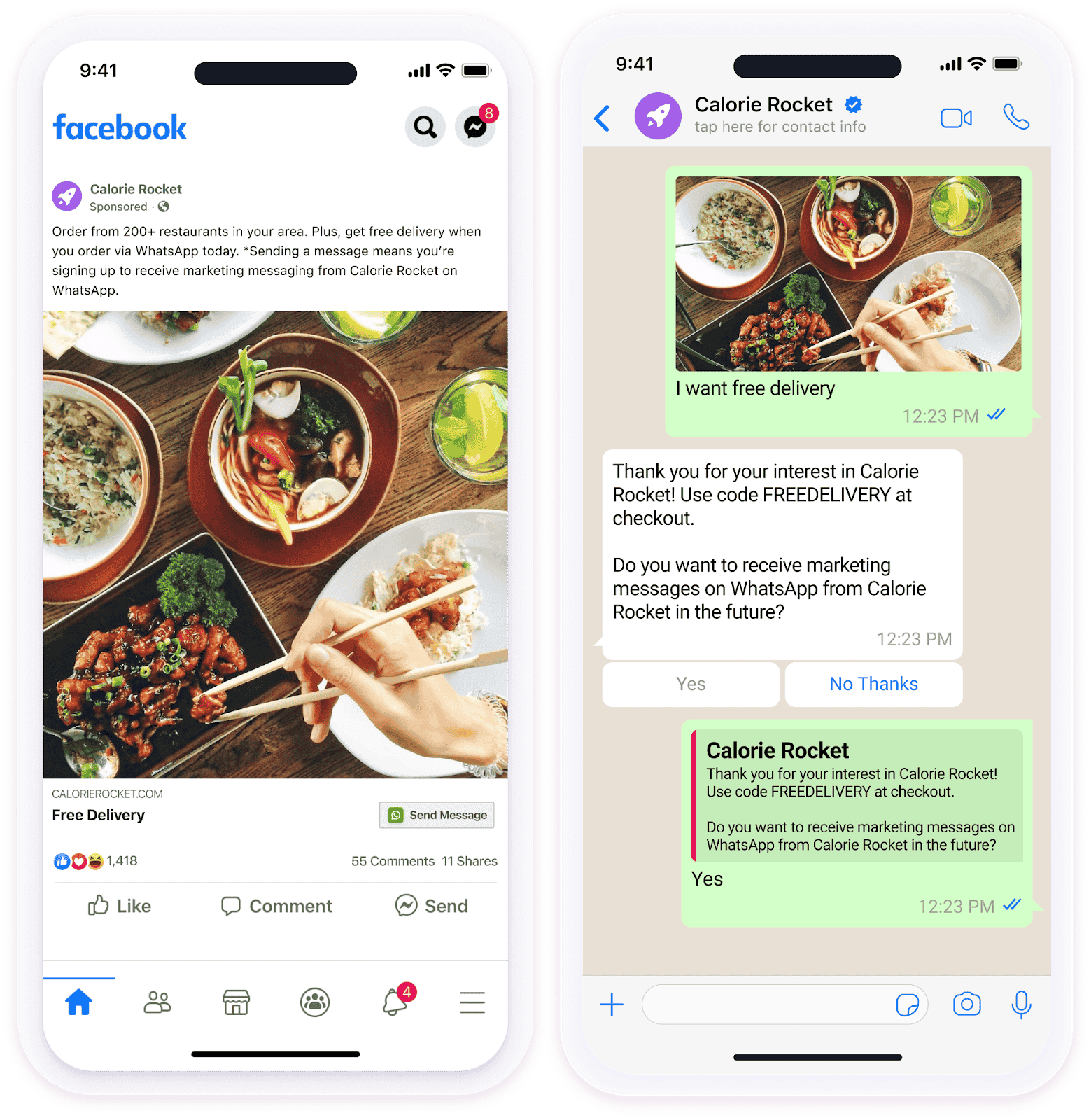
Setting up Ads That Click to WhatsApp
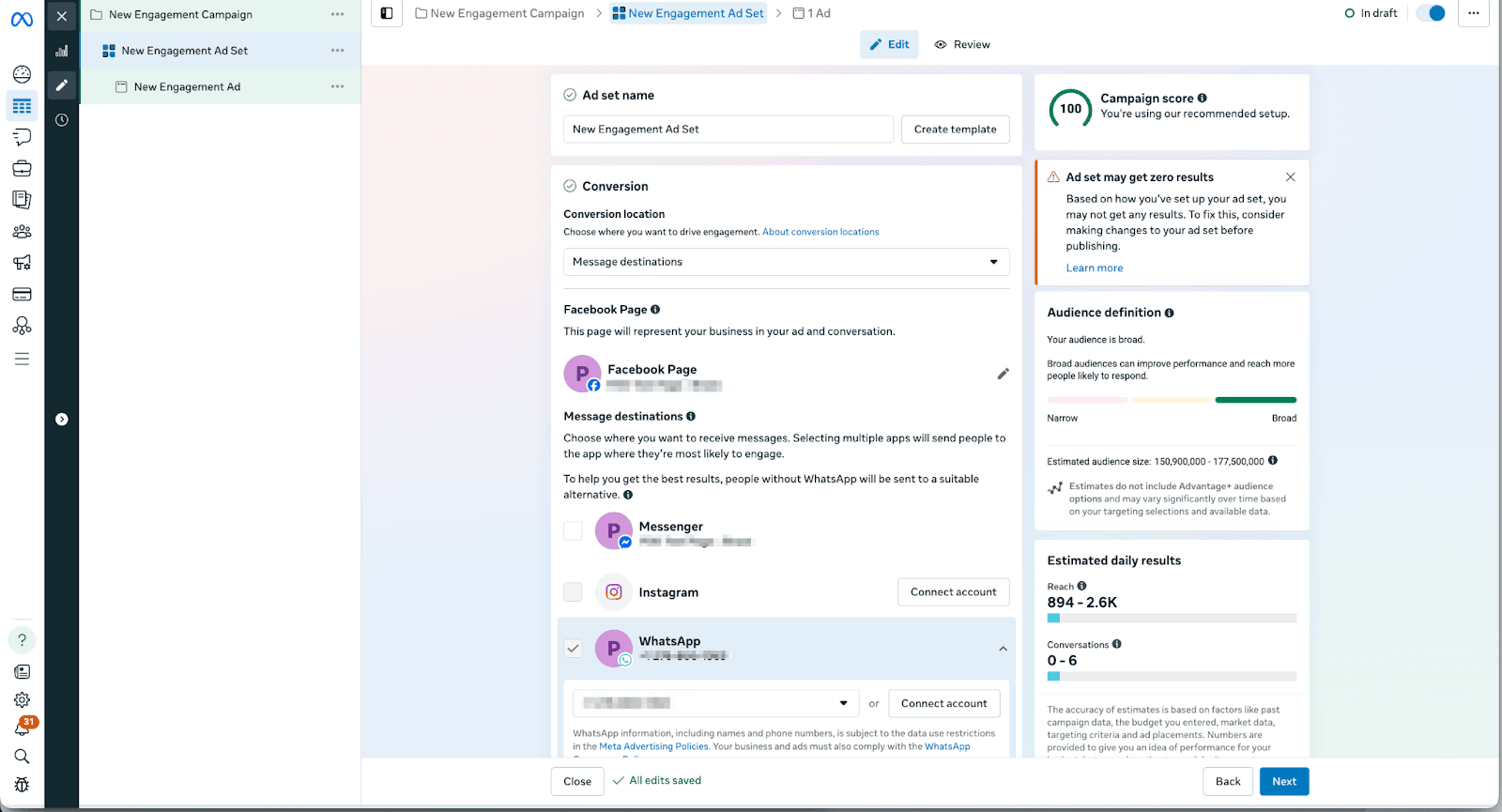
- In the Meta Ads Manager, create an ad on Facebook, Instagram, or other platforms by following the step-by-step guide How to create Ads That Click to WhatsApp. Do not set up automated responses; you will set up responses in Braze instead.
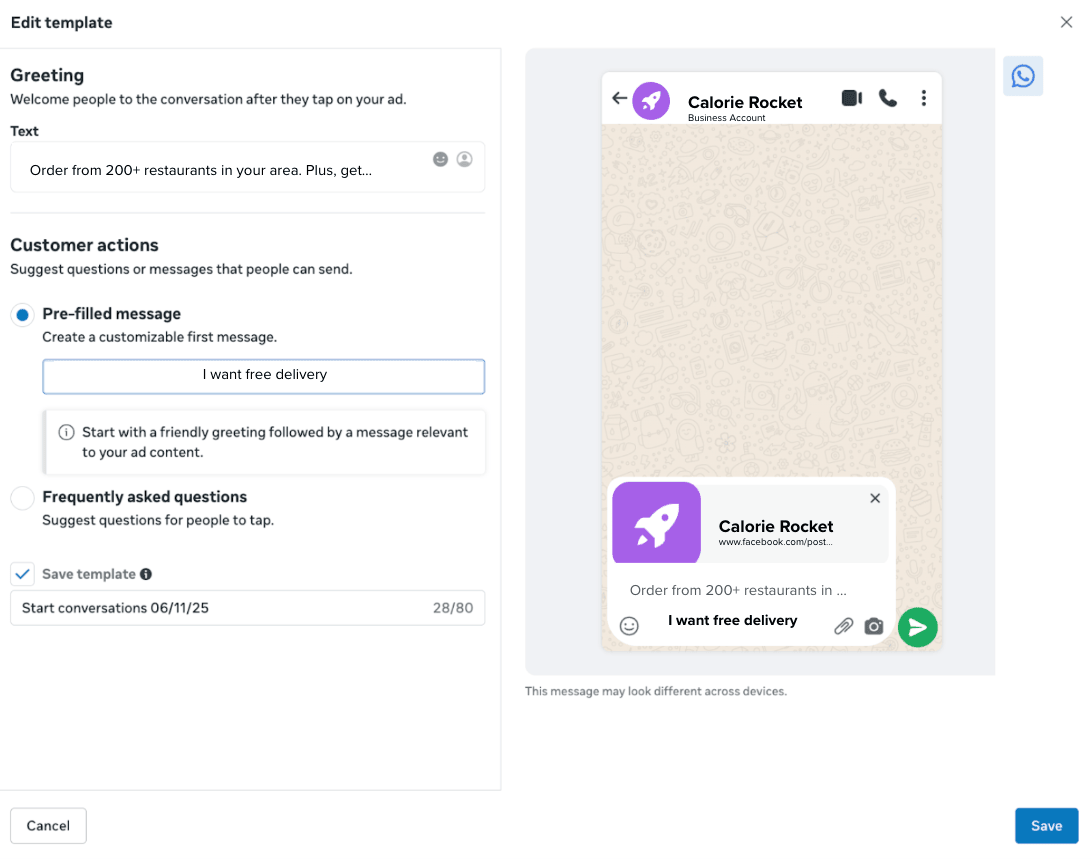
When setting up the pre-filled message, which will be sent by the user to your WhatsApp Business Account, include a specific word or phrase that you’ll use to trigger a response specific to the particular ad. In this example, a food delivery app is using “free delivery” because that is promoted in their ad.

Make it clear in the ad description that clicking the ad will start a conversation with your brand by using phrases like “Chat now on WhatsApp”.
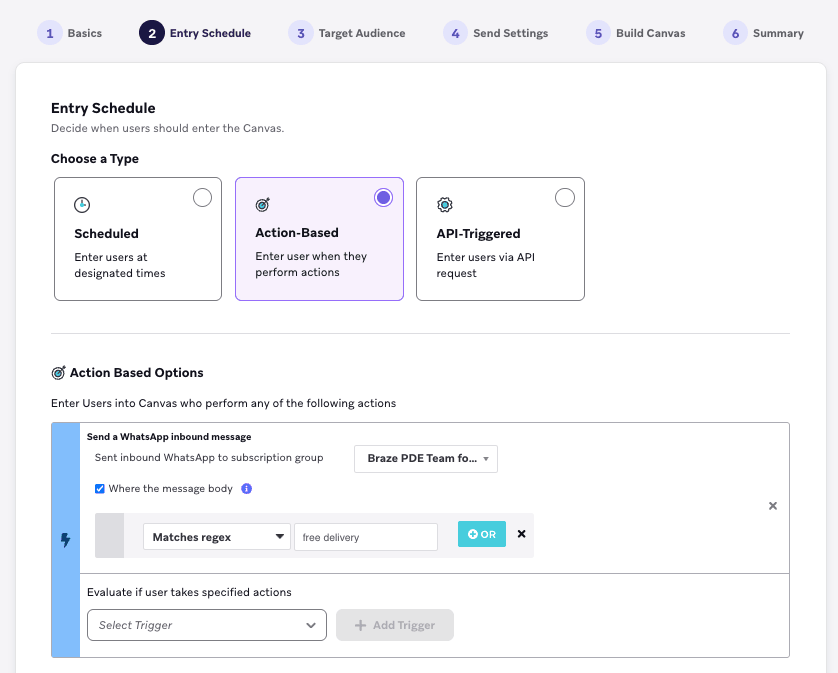
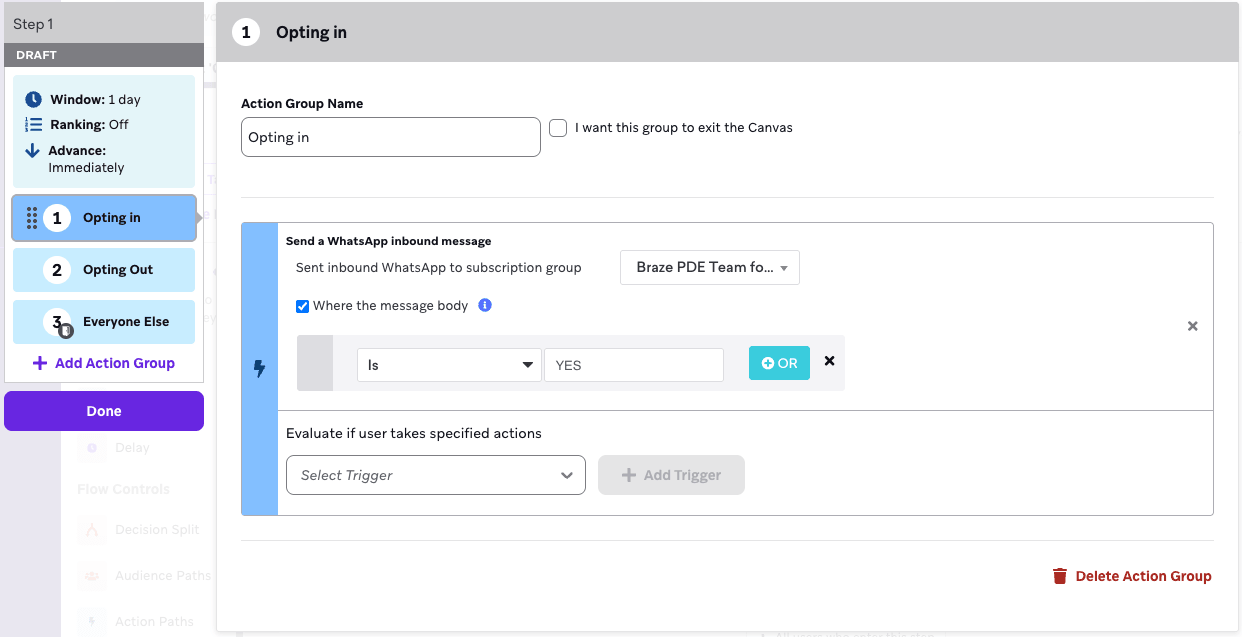
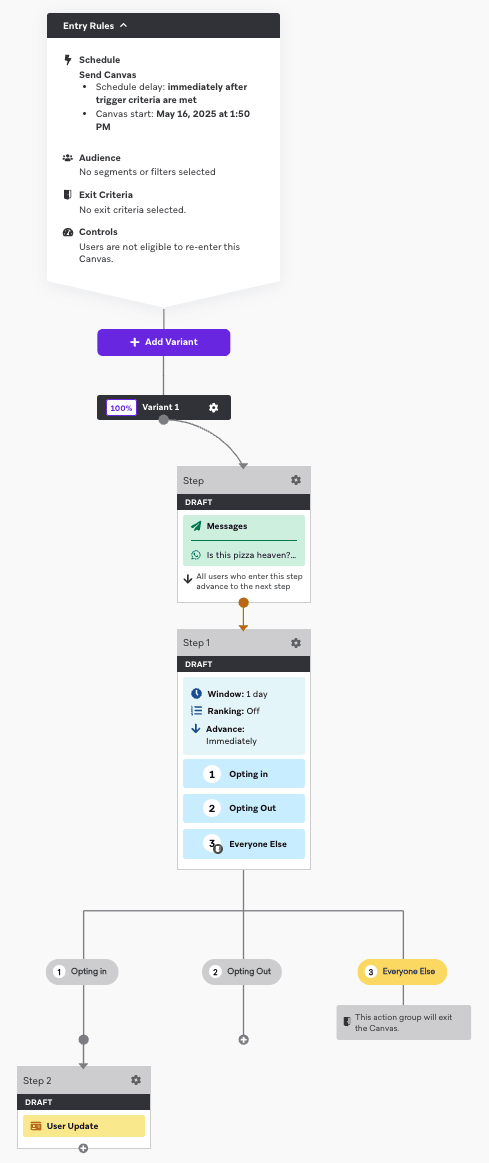
- In Braze, set up an action-based Canvas where the action-based option is Send a WhatsApp inbound message and the message body is “YOUR_TRIGGER_WORD”. In this example, a food delivery app is using “free delivery”.
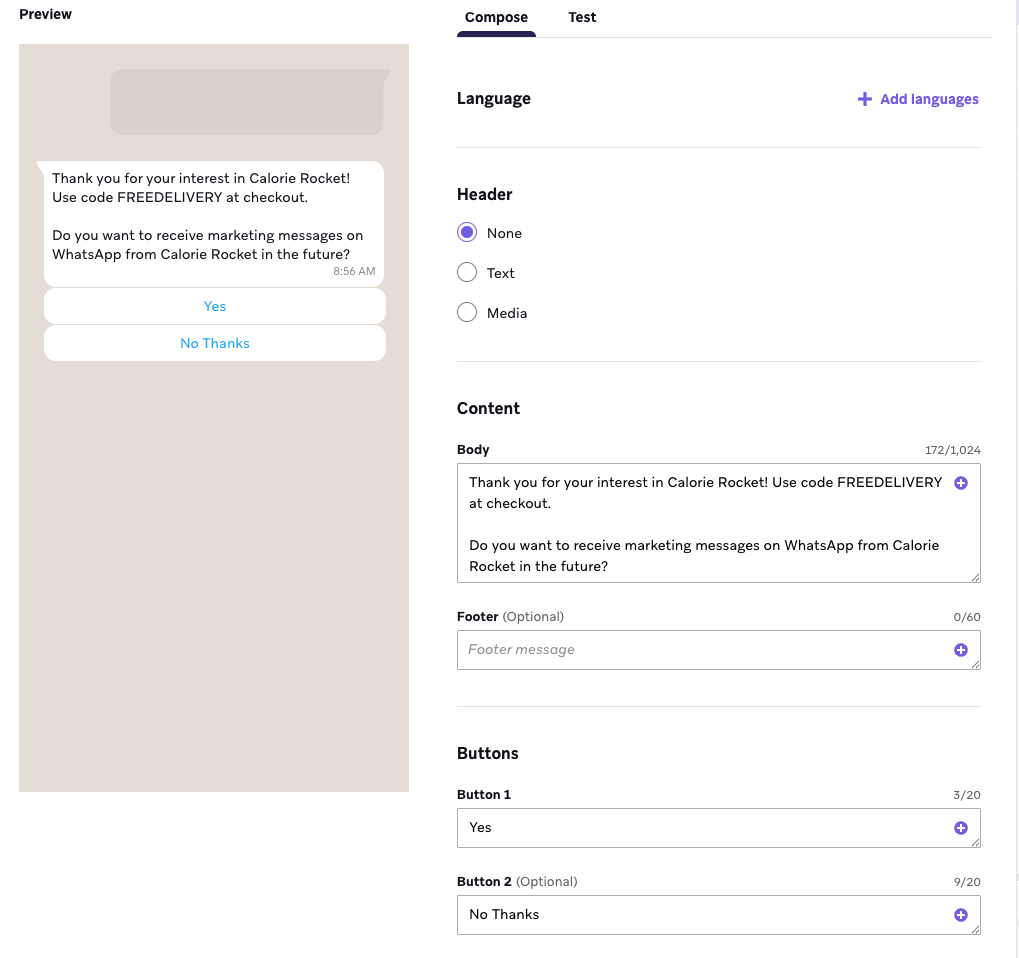
- Set up a response message in the Canvas that sends immediately after the customer enters the Canvas (for example, after no delay). Although clicking the ad technically constitutes opt-in, we recommend setting up your response message to ask the user if they’d like to receive future marketing messages from you on WhatsApp.
Set up your response message with quick replies (such as “Yes” or “No Thanks”) so users can quickly indicate whether they’d like to opt in.
Don’t forget to also provide any discount code, offer, or other information promised in the ad!
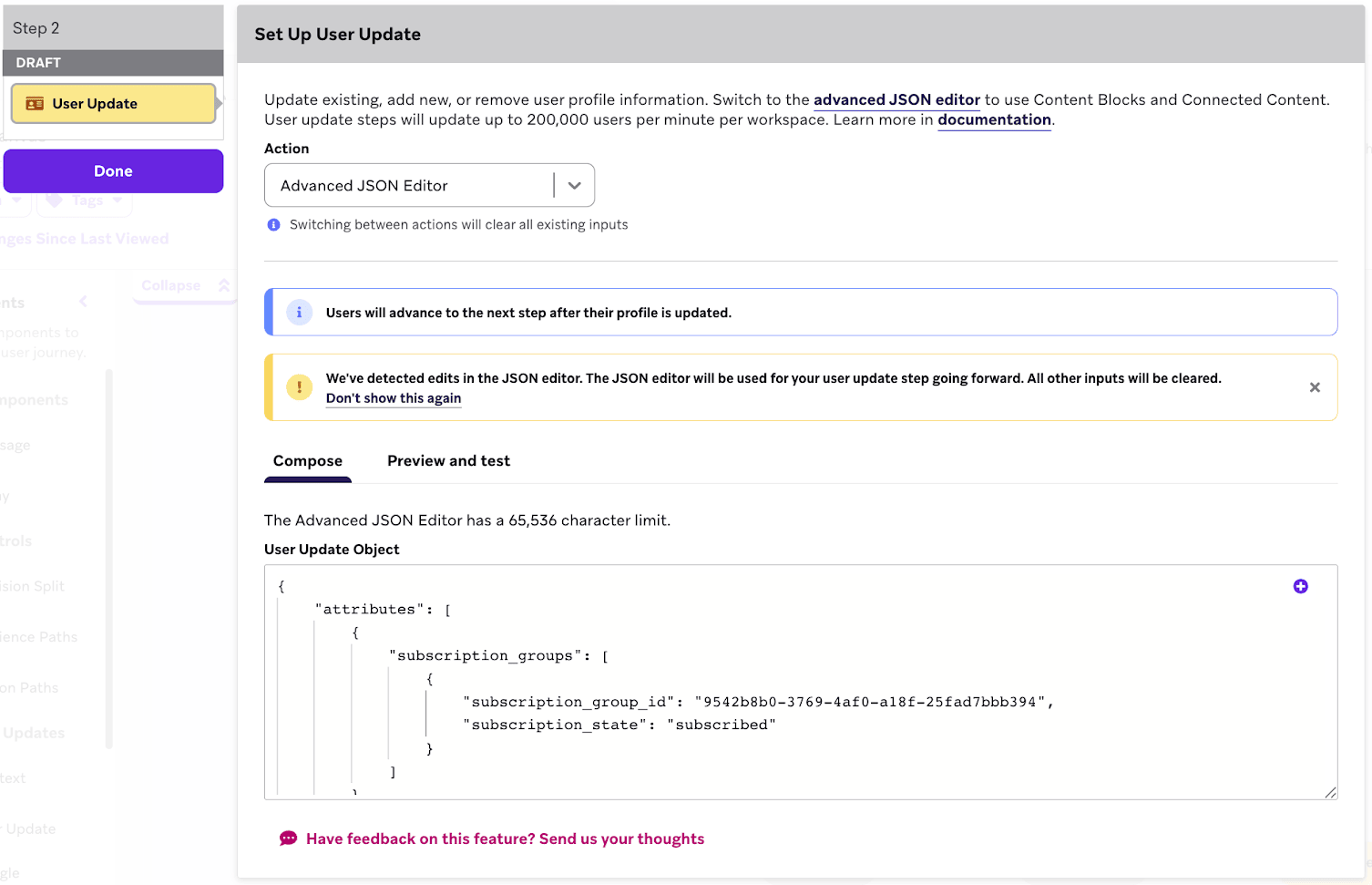
- Opt-in users by updating the subscription status of user profiles with one of the following update methods:
- Create a Braze-to-Braze webhook that updates the subscription status through the REST API.
- Use the advanced JSON editor to update the user profile with the template to update a user’s subscription status to a WhatsApp Canvas.
Considerations
User identification and phone numbers
Clicking an ad opens a WhatsApp conversation with your business, but Meta may not share the user’s phone number with Braze, especially when WhatsApp privacy features (such as usernames and business-scoped user IDs) obscure the number. In that case:
- Braze receives a business-scoped user ID (BSUID) when Meta provides one, and matches or creates a user profile using that identifier.
- Matching a known user profile by phone number alone isn’t always possible from the ad click. Plan segmentation and follow-up journeys around inbound message triggers, subscription status, and any identifiers you already have on the profile.
- If you need a phone number on the profile later, collect it through an opt-in or contact-sharing workflow that Meta supports for your account, not from the ad click itself.
Pricing
Conversations that start from an Ad That Clicks to WhatsApp follow Meta’s free entry point pricing when the following conditions are met:
- If a user messages you through a free entry point, such as an Ad That Clicks to WhatsApp, a 24-hour customer service window opens in which you can send that user any type of message.
- If you respond within the customer service window (within 24 hours), a free entry point opens for 72 hours. Within the 72-hour window, eligible message templates may be free of charge per Meta’s pricing. Starting October 1, 2026, non-templated response messages consume Action Credits.