Agentic Standards
Agentic Standards are rules and rulesets to enforce enterprise policies and guardrails on campaigns and Canvases in Braze. Operator can help you draft rules as you configure a standard. Before a campaign or Canvas launches, you can run an agentic evaluation against your standards to validate brand guidelines, organizational conventions, and technical requirements. For an introduction to Braze Agents, see Braze Agents.
Agentic Standards reduce manual oversight so every message Braze sends is accurate, compliant, and launch-ready.

Agentic Standards for Agent Console are currently in beta. Contact your Braze account manager if you’re interested in participating in this beta.
How it works
Agentic Standards are available in two types: Campaign Standards and Canvas Standards. When you create a standard, you define specific rules grouped into “rulesets” that are evaluated before you launch.
You can choose from pre-built rulesets covering common marketing needs or create custom rules specific to your team. When configured, you can test a standard in the Evaluation preview pane against any existing campaign or Canvas in your workspace. The agentic evaluation provides a detailed report with categories of its findings.
Create an Agentic Standard
Campaign Standards enforce rules on one-time and recurring campaigns. Canvas Standards enforce rules on multi-step customer journeys. Both types use the same Details and preview workflow, but Canvas Standards add a second rules step for per-step checks.
Step 1: Choose the standard type
To create your standard, go to Agent Console > Agentic Standards. Select Create Agentic Standard and choose Campaign Standards from the dropdown menu.
Step 2: Set up details
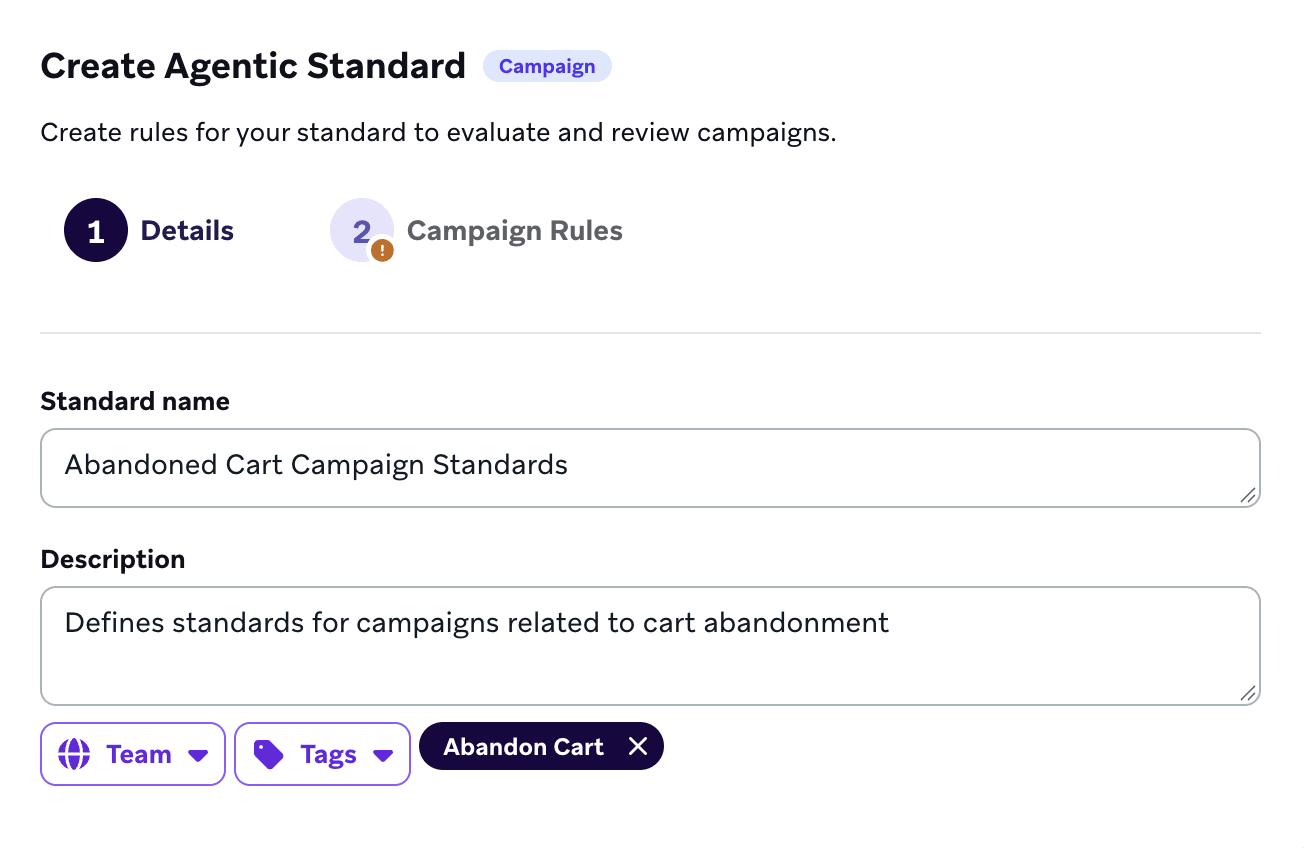
Next, set up the details for your standard:
- Enter a name and description to help your team understand its purpose.
- (Optional) Add tags to filter your standard.
- (Optional) Assign a team to scope which campaigns this standard applies to.
Step 3: Configure campaign rules
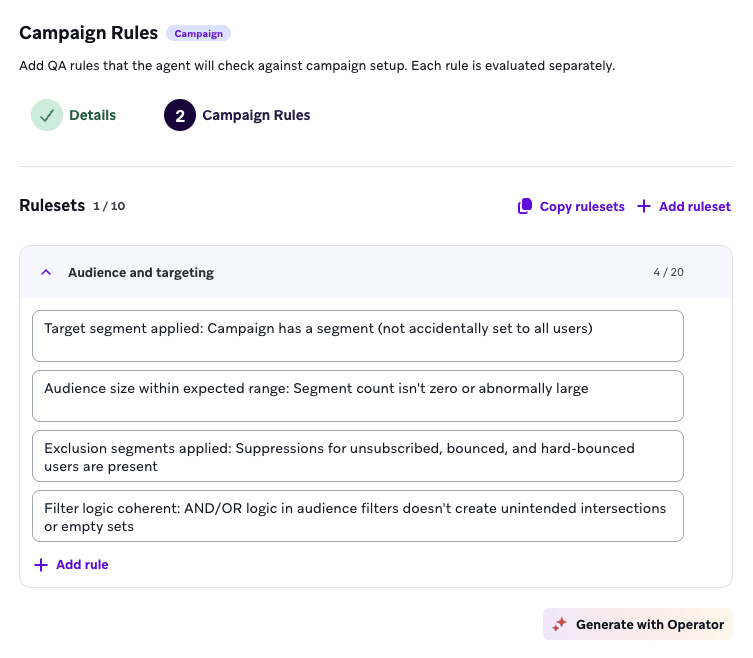
In the Campaign Rules step, define the rules that should be enforced as part of this standard. You can add up to 15 rulesets per standard, and up to 20 rules per ruleset.
You can build your rules by selecting either:
- Generate from file: Upload a PDF, TXT, Markdown, or CSV file containing your existing checklists or policies. Braze uses the Braze Auto model to convert the content into rules and rulesets that Agentic Standards can evaluate.
- Add ruleset: Build rules from scratch.
When you select Add ruleset, these categories appear:
- Campaign setup: Validates naming conventions, tags, and conversion tracking.
- Audience and targeting: Checks segments, exclusions, and audience size.
- Content and copy: Defines requirements for text quality, character limits, and message completeness.
- Links and tracking: Verifies URLs, CTAs, deep links, and UTM parameters.
- Personalization and dynamic content: Defines checks for Liquid logic and fallback values.
- Compliance and deliverability: Defines requirements for legal obligations and sending safeguards.
- Custom rules: Select Create custom ruleset to define unique requirements that don’t fit cleanly into any of the pre-configured categories.

If you aren’t sure how to phrase a rule, select Generate with Operator to have Operator help you draft specific logic based on your requirements.
Step 4: Test your standard
Before using your standard for campaigns in Braze, use the Evaluation preview pane to simulate an agentic evaluation.
- Choose an existing campaign from the dropdown menu to use as a test case.
- Choose to test all rulesets or a specific one.
- Select Simulate response.
Next, review the results. The evaluation runs against the campaign and displays results in the following categories:
- Pass: These rules were met successfully. For example, the evaluation can confirm that your naming conventions match expected patterns.
- Warning: These are non-critical issues that may require attention. For example, if you are testing an email ruleset against a webhook campaign, the agentic evaluation may issue a warning that sender names do not apply.
- Fail: These are critical issues that should be fixed before launch. Examples include scheduled dates that are in the past or missing required organizational tags.
Step 1: Choose the standard type
To create your standard, go to Agent Console > Agentic Standards. Select Create Agentic Standard and choose Canvas Standards from the dropdown menu.
Step 2: Set up details
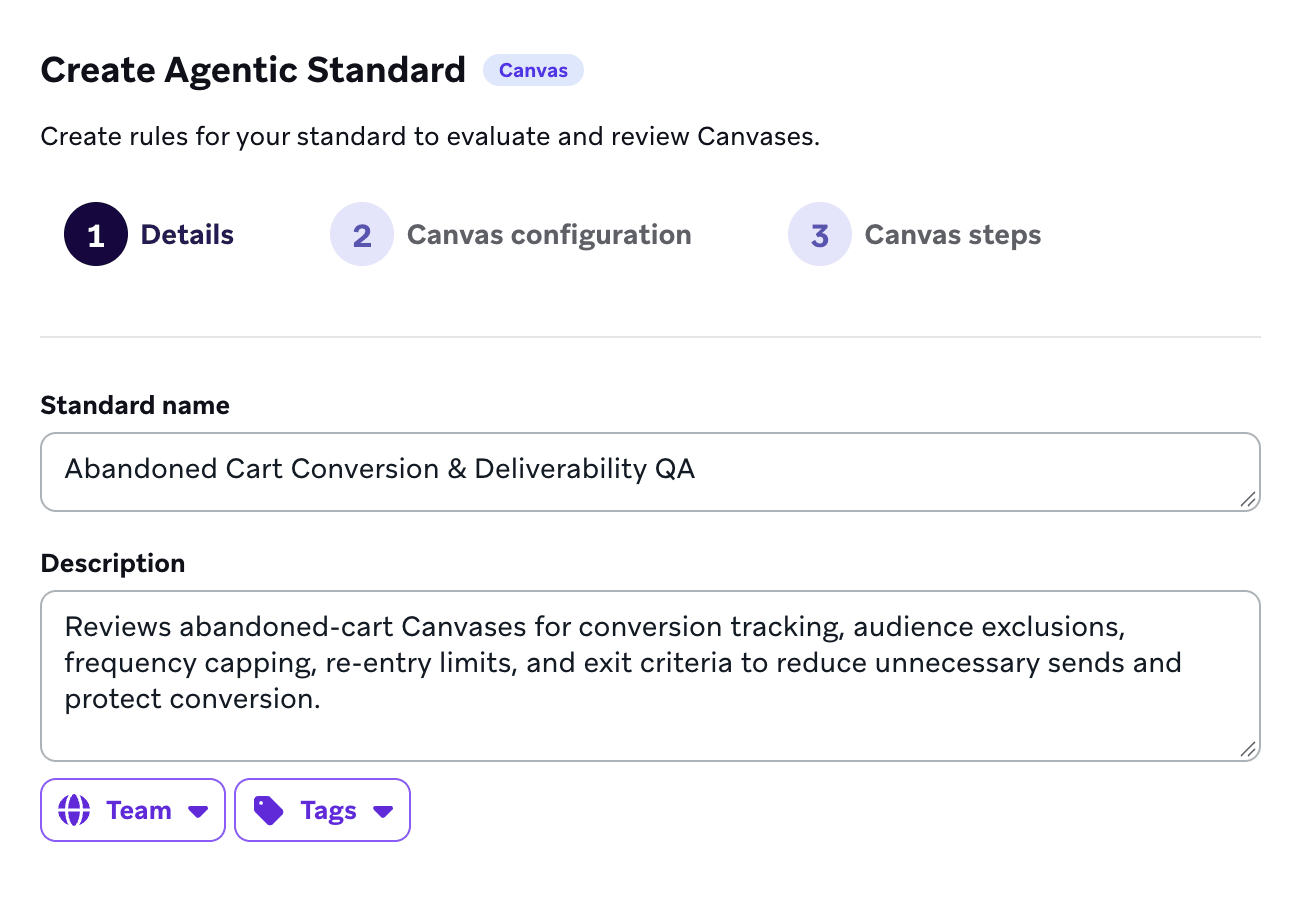
Next, set up the details for your standard:
- Enter a name and description to help your team understand its purpose.
- (Optional) Add tags to filter your standard.
- (Optional) Assign a team to scope which Canvases this standard applies to.
Step 3: Configure Canvas configuration rules
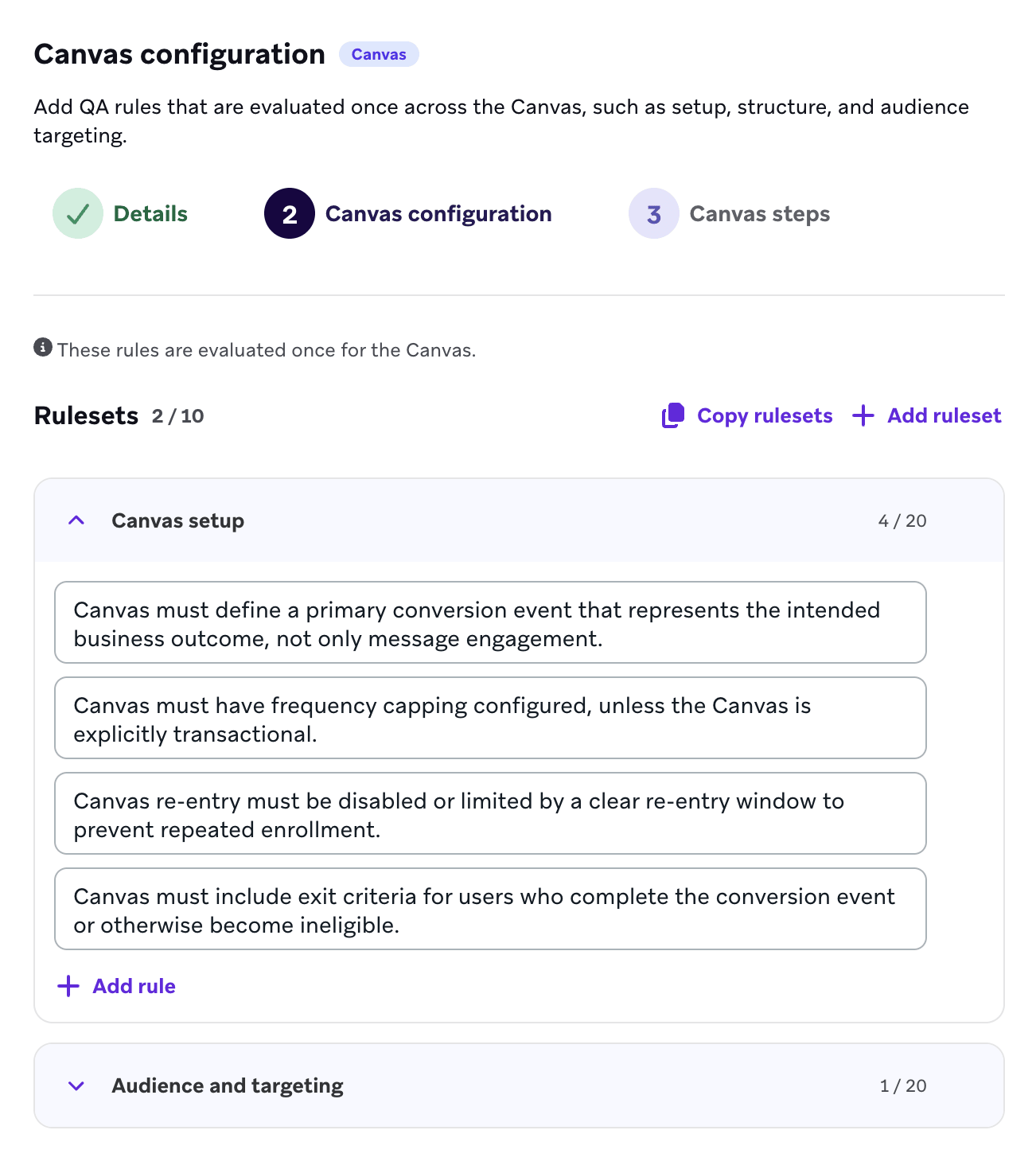
In the Canvas configuration step, define rules that are evaluated once for the whole Canvas. You can add up to 15 rulesets per standard across both rules steps combined, and up to 20 rules per ruleset.
You can build your rules by selecting either:
- Generate from file: Upload a PDF, TXT, Markdown, or CSV file containing your existing checklists or policies. Braze uses the Braze Auto model to convert the content into rules and rulesets that Agentic Standards can evaluate.
- Add ruleset: Build rules from scratch.
When you select Add ruleset, these categories appear:
- Canvas setup: Validates naming conventions, tags, conversion events, entry schedule, and re-entry settings.
- Canvas structure: Validates flow connectivity, branching, delays, and exit criteria.
- Audience and targeting: Checks segments, exclusions, entry limits, and audience size.
- Custom rules: Select Create custom ruleset to define unique requirements that don’t fit cleanly into any of the pre-configured categories.
Step 4: Configure Canvas step rules
In the Canvas steps step, define rules that are evaluated on individual steps in the journey. These rulesets run against every matching step in a Canvas. For example, message-step rulesets run on each message step, and Audience Paths rulesets run on each Audience Paths step.
Select Add ruleset and choose a step type to see the following categories:
- Message and Content Optimizer steps
- Content and copy: Defines requirements for text quality, character limits, and message completeness.
- Links and tracking: Verifies URLs, CTAs, deep links, and UTM parameters.
- Personalization and dynamic content: Defines checks for Liquid logic and fallback values.
- Compliance and deliverability: Defines requirements for legal obligations and sending safeguards.
- Audience Paths
- Path and priority: Validates path labels, narrow-before-broad ordering, and intentional priority.
- Path coverage and gaps: Checks fallback paths, dead ends, and unreachable branches.
- Evaluation timing and delays: Validates lookback windows, delay timing, and re-entry behavior.
- Targeting data quality: Checks attribute values, formats, and missing-value handling.
- Downstream delivery readiness: Validates channel fit, consent requirements, and frequency capping effects.
You can also create custom rules for either step type.
If you aren’t sure how to phrase a rule, select Generate with Operator to have Operator help you draft specific logic based on your requirements.
Step 5: Test your standard
Before using your standard for Canvases in Braze, use the Evaluation preview pane to simulate an agentic evaluation.
- Choose an existing Canvas from the dropdown menu to use as a test case.
- Choose to test all rulesets or a specific one.
- Select Simulate response.
Next, review the results. The evaluation runs against the Canvas and displays results in the following categories:
- Pass: These rules were met successfully. For example, the evaluation can confirm that your naming conventions match expected patterns.
- Warning: These are non-critical issues that may require attention. For example, if you are testing an email ruleset against a Canvas that contains only push notification message steps, the agentic evaluation may issue a warning that sender names do not apply.
- Fail: These are critical issues that should be fixed before launch. Examples include entry schedules that are in the past, missing required organizational tags, or exit criteria that are not configured.
Use Agentic Standards
After you configure a Campaign Standard or Canvas Standard, you can use it to evaluate a campaign or Canvas during the final review process. This confirms your messaging meets all requirements before it is sent to your users or users enter the journey.
Run an evaluation
To run an automated evaluation, go to the Review Summary step of your campaign creation workflow.
- Go to the Agentic Standards section and select your desired standard from the dropdown menu.
- Select Run evaluation.
If you make changes to your campaign after running an initial evaluation, select Re-run evaluation to refresh the results.
To run an automated evaluation, go to the Summary step of your Canvas creation workflow.
- Go to the Agentic Standards section and select your desired standard from the dropdown menu.
- Choose what to evaluate:
- Configuration only: Evaluates Canvas-wide rulesets from the Canvas configuration step.
- Steps only: Evaluates per-step rulesets from the Canvas steps step.
- Run evaluation: Evaluates both configuration and steps.
- Select Run evaluation.
If you make changes to your Canvas after running an initial evaluation, select Re-run evaluation to refresh the results.
You can also evaluate specific steps instead of the entire Canvas. Start a step-scoped run from the Canvas builder while editing a step, or select Go to step from the Summary step and then select Re-run evaluation for those steps. Full results appear on the Summary step.
Review evaluation results
After the evaluation is complete, a summary shows the findings in these categories: Pass, Fail, Warning, and Ignored.
If an evaluation fails due to a rate limiting error, select Try again.
The Fail tab lists rules that were not met. For each failure, the standard provides the:
- Rule: The specific criteria being checked, such as “Spelling & Grammar Check”.
- Reason: An explanation of why the check failed. For example, the evaluation might identify that “personalized” was used instead of the Australian English spelling “personalised”, or that a delay step is shorter than your team’s minimum wait time.
The Pass tab lists all rules that were successfully followed. This confirms that checks like Offensive Language Detection or Naming Convention Validation have been cleared.
The Warning tab lists non-critical issues that may require attention. For example, if you’re testing an email ruleset against a webhook campaign or a Canvas with only in-app message steps, the evaluation may yield a warning that sender names do not apply.
The Ignored tab lists issues you chose to skip for the current evaluation run.
Resolve or ignore issues
For every identified failure or warning, you can decide how to proceed before launching. Select Resolve next to an issue, then select from the following options:
- Mark as fixed: Select this after you have updated your campaign or Canvas configuration, journey structure, or copy based on the evaluation suggestion.
- Ignore this issue: Select this to skip the issue for this run only. This is useful for intentional deviations or edge cases where the evaluation suggestion may not apply.
- Ask BrazeAI Operator: Select this to fix the issue using Operator.
After all critical issues are resolved or ignored, you can proceed to launch your campaign or Canvas.
Best practices
- Start with templates: Use the pre-built rulesets for setup and links and tracking first, as these cover the most common manual errors and give the agentic evaluation the right context.
- Be specific: When writing custom rules, provide clear examples of what “correct” looks like. For example, instead of writing “Check the naming convention,” try “The campaign or Canvas name starts with the current year (for example, 2026_).”
- Test with known outcomes: In Evaluation preview, test against a campaign or Canvas that should pass all rules and one that should fail specific rules. This confirms your rules are evaluated accurately before you rely on them at launch.
- Iterate often: As your brand guidelines or internal processes change, update your Campaign Standard and Canvas Standard rulesets to keep your automated checks relevant.