Multiple WhatsApp Business accounts and phone numbers
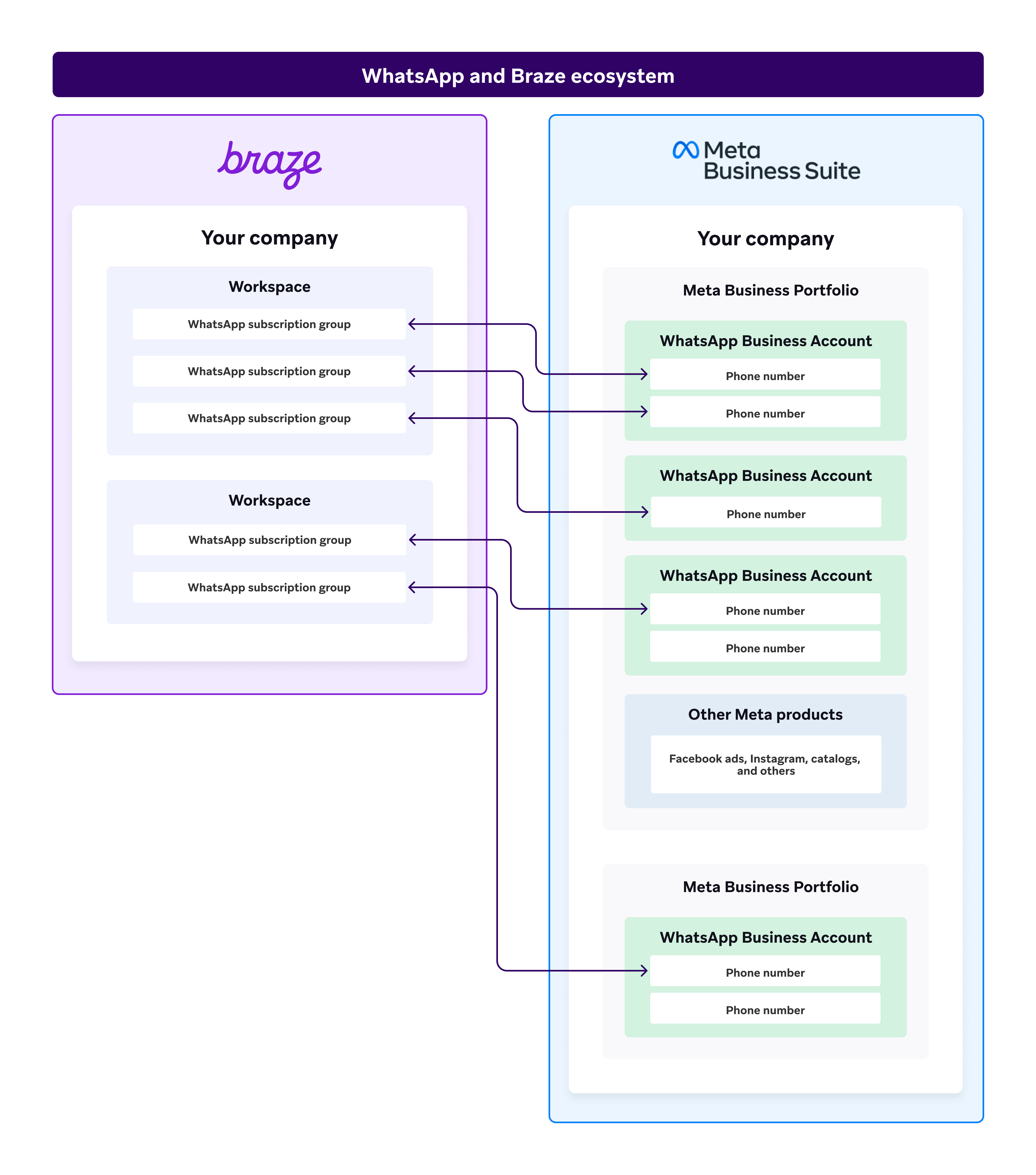
You can add multiple WhatsApp Business accounts and subscription groups (and phone numbers) to each workspace.
Each subscription group is connected to one unique phone number within a workspace, so you can’t connect the same phone number to multiple subscription groups in the same workspace or connect multiple phone numbers to a subscription group.

Meta separates the phone number (WhatsApp account) from templates, billing, and webhooks (Messaging account). For an overview, see WhatsApp accounts and Messaging accounts.
Multiple WhatsApp Business accounts
Having multiple WhatsApp Business accounts is useful if you want to send WhatsApp messages to users in a Braze workspace that has multiple brands. Each connection operates separately in WhatsApp and has its own Messaging account for templates, billing, and related settings.
Business accounts that are nested within the same Meta Business Manager will also share user access permission management and catalogs (not yet supported on Braze).
Adding a WhatsApp Business account
You can add up to 10 WhatsApp Business accounts per workspace. The business accounts can be nested in different Meta Business Managers. To add an account:
- Go to Technology Partners > WhatsApp and select Add WhatsApp Business Account.

- Go through the sign-up workflow. For a detailed step-by-step walkthrough, refer to WhatsApp embedded signup.

Multiple subscription groups and phone numbers
You can add multiple subscription groups under the same WhatsApp Business account. Each subscription group is tied to one sending phone number, and each phone number appears as a separate WhatsApp chat to users.
Phone numbers on the same account can differ in display name, status, and quality rating. Shared scope varies:
- Message templates: Shared by every phone number on the same Messaging account. Not shared across Messaging accounts or providers.
- Messaging limits: Shared at the business portfolio level across providers on a number.
- Throughput: Shared at the phone-number level across providers on that number.
Adding a subscription group and phone number
You can add up to 20 subscription groups (and sending phone numbers) per WhatsApp Business account. To add a subscription group and phone number:
- Go to Technology Partners > WhatsApp and select Add Subscription Group and Number.
- Go through the sign-up workflow.
In the Select your WhatsApp Business Account step, select your existing WhatsApp Business account and add a new phone number. The number must meet Meta’s phone number requirements.
Removing a subscription group and phone number
- Go Audience > Subscriptions and archive the subscription group.
- Go to your Meta Business manager and delete the phone number.