バナー配置の管理
Braze SDKでバナー配置を作成・管理する方法について説明します。配置固有のプロパティへのアクセスやインプレッションの記録についても解説します。一般的な情報については、バナーについてを参照してください。
配置リクエストについて
アプリやWebサイトで配置を作成すると、アプリは各配置に対応するバナーメッセージを取得するため、Brazeにリクエストを送信します。
- 1回の更新リクエストにつき、最大10件の配置をリクエストできます。
- 各配置において、Brazeはユーザーが受け取る資格のある最高優先度のバナーを返します。
- リフレッシュ時に10件を超える配置がリクエストされた場合、最初の10件のみが返され、残りは破棄されます。
例えば、アプリがリフレッシュリクエストで3つの配置をリクエストする場合があります:homepage_promo、cart_abandonment、およびseasonal_offer。各リクエストは、その配置に対して最も関連性の高いバナーを返します。
更新リクエストのレート制限
古いSDKバージョン(SWIFT 13.1.0以前、Android 38.0.0以前、Web 6.1.0以前、React Native 17.0.0以前、Flutter 15.0.0以前)を使用している場合、ユーザーセッションごとにリフレッシュリクエストは1回のみ許可されます。
新しい最小SDKバージョン(SWIFT 13.1.0以上、Android 38.0.0以上、Web 6.1.0以上、React Native 17.0.0以上、Flutter 15.0.0以上)を使用している場合、リフレッシュリクエストは過剰なポーリングを防ぐためトークンバケットアルゴリズムで制御されます。
- 各ユーザーセッションは、5つのリフレッシュトークンから始まります。
- トークンは180秒(3分)ごとに1個補充されます。
requestBannersRefreshを明示的に呼び出すたびにトークンを1つ消費します。新しいセッションの開始時やchangeUserが呼び出された際に自動的に行われるリフレッシュはトークンを消費しません。これは、そのユーザーに対して最後にキャッシュされたバナーを配信するためです。トークンが利用できない状態で更新を試みると、SDKはリクエストを送信せず、トークンが補充されるまでエラーをログに記録します。これはセッション途中やイベントトリガーによる更新において重要です。ダイナミックな更新を実装する場合(例えば、ユーザーが同じページでアクションを完了した後など)、カスタムイベントが記録された後にリフレッシュメソッドを呼び出してください。ただし、ユーザーが別のバナーキャンペーンの対象となる前に、Brazeがイベントを取り込んで処理するのに必要な遅延がある点に注意してください。
プレースメントを作成する
前提条件
バナーのプレースメントを作成するには、次の最小 SDK バージョンが必要です。
ステップ1:Brazeで配置を作成する
まだ作成していない場合は、アプリまたはサイトでバナーを表示できる場所を定義するために使用するバナーの配置をBrazeで作成する必要があります。配置を作成するには、設定 > バナーの配置に移動し、配置を作成を選択します。

配置に名前を付け、配置IDを割り当てます。IDはカードのライフサイクル全体で使用され、後から変更できないため、IDを割り当てる前に他のチームに相談してください。詳細については、配置IDを参照してください。
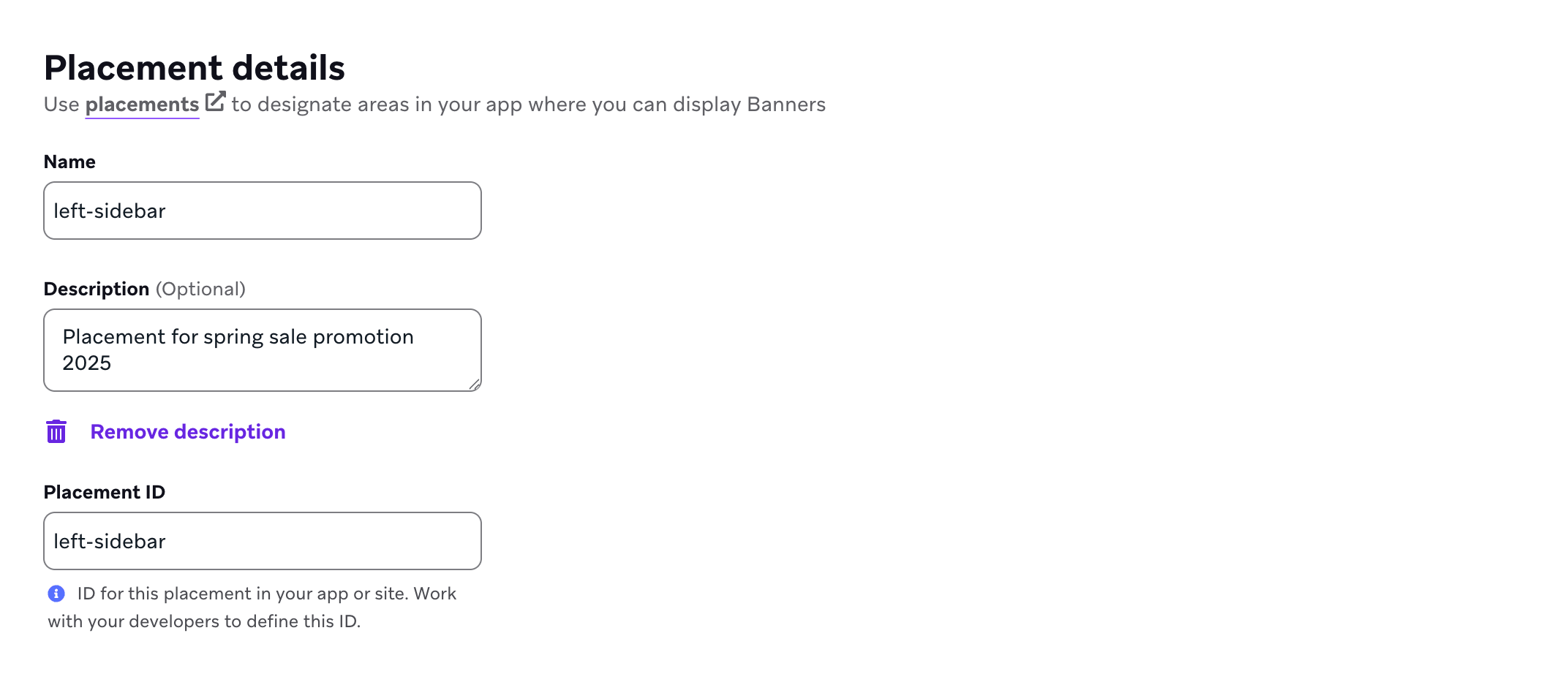

Web のプレースメントでは、オプションでプレースメントにWeb ターゲティングを設定できます。これにより、insertBanner() を自分で呼び出す代わりに、Braze Web SDKがページ上の特定の位置にバナーを自動挿入します。詳しくは、Web ターゲティング:バナーの自動挿入を参照してください。
ステップ 2: アプリでプレースメントを更新する
プレースメントを更新するには、お使いの SDKで requestBannersRefresh() を呼び出します。
requestBannersRefresh() は既存のバナーキャッシュにマージされます。追加、更新、または削除されるのは、渡したプレースメント ID のみです。
- リクエストしたプレースメントに対してサーバーがバナーを返した場合、そのプレースメントのキャッシュ済みバナーは置き換えられます。
- リクエストしたプレースメントに対してサーバーがバナーを返さなかった場合、そのプレースメントはキャッシュから削除されます。
- リクエストしなかったプレースメントのキャッシュ済みバナーは、有効期限が切れるまでキャッシュに残ります。
1 回の更新でリクエストできるプレースメントの数については、プレースメントリクエストについてを参照してください。時間の経過に合わせて異なるプレースメントのセット (たとえば、現在の画面上のプレースメント) を更新しながら、他のプレースメントのバナーをキャッシュに保持できます。
バナーの更新動作には 2 つのパスがあります。
- 明示的な更新: アクティブなセッション中であれば、いつでも更新メソッドを呼び出せます。
- 新しいセッションでの自動更新: 明示的な更新リクエストを少なくとも 1 回行った後、新しい Braze セッションが開始されると (たとえば、
changeUser()の後やセッションタイムアウトの後)、SDKは最後にリクエストしたプレースメント ID を再リクエストできます。
バナーイベントを購読する役割は、プラットフォームによって異なります。
- iOS と Android: Android の
subscribeToBannersEvents()(または Swift のsubscribeToEvents()) はイベントハンドラーを登録します。セッション開始時の自動更新は、購読がアクティブかどうかに依存しません。 - Web: セッション開始時の自動更新は、
subscribeToBannersEvents()(または非推奨のsubscribeToBannersUpdates()) が登録されていることに紐づいています。アクティブな購読がない場合、SDKは新しいセッションで更新を自動的に繰り返しません。
いずれの場合も、SDKが更新し続けるプレースメント ID を把握できるように、アプリのライフサイクルごとに少なくとも 1 回は明示的な更新リクエストを行う必要があります。この最初の呼び出しがなければ、初回起動時にバナーは自動的に取得されません。また、トラッキングされているプレースメント ID はアプリの再起動後にリセットされます。
セッション開始時の自動更新では、レート制限トークンは消費されません。

バナーのダウンロードや表示の遅延を避けるため、できるだけ早くプレースメントを更新してください。
import * as braze from "@braze/web-sdk";
braze.requestBannersRefresh(["global_banner", "navigation_square_banner"]);
AppDelegate.braze?.banners.requestBannersRefresh(placementIds: ["global_banner", "navigation_square_banner"])
ArrayList<String> placementIds = new ArrayList<>();
placementIds.add("global_banner");
placementIds.add("navigation_square_banner");
Braze.getInstance(context).requestBannersRefresh(placementIds);
Braze.getInstance(context).requestBannersRefresh(listOf("global_banner", "navigation_square_banner"))
Braze.requestBannersRefresh(["global_banner", "navigation_square_banner"]);
This feature is not currently supported on Unity.
This feature is not currently supported on Cordova.
braze.requestBannersRefresh(["global_banner", "navigation_square_banner"]);
This feature is not currently supported on Roku.
ステップ 3: 更新をリッスンする
このガイドの SDK メソッドを使用してバナーを挿入する場合、すべての分析イベント (インプレッションやクリックなど) は自動的に処理され、インプレッションはバナーが表示されている場合にのみ記録されます。
subscribeToBannersEvents を使用してバナーイベントをリッスンし、次に requestBannersRefresh を呼び出してプレースメントを取得します。SDKはイベントオブジェクトを渡してハンドラーを呼び出します。event.type で分岐して、イベントの種類ごとに処理します。イベントの値について詳しくは、イベントの購読を参照してください。
Web Braze SDKでバニラ JavaScript を使用している場合は、requestBannersRefresh を呼び出す前にハンドラーを登録してください。
import * as braze from "@braze/web-sdk";
const placementIds = ["global_banner", "navigation_square_banner"];
// - Available in version 7.0.0+
const subscriptionId = braze.subscribeToBannersEvents((event) => {
switch (event.type) {
case braze.ChannelEventType.CACHE_REPLAY:
// Sent once, right away, with the Banners that are already cached.
// Render them now instead of waiting for the network.
console.log("Cached Banners:", Object.keys(event.cacheSnapshot.banners));
break;
case braze.ChannelEventType.CACHE_LOAD:
// The cache changed without a refresh, such as after changeUser().
// The snapshot can be empty, so clear Banners from the previous user.
console.log("Cache reloaded:", Object.keys(event.cacheSnapshot.banners));
break;
case braze.ChannelEventType.DATA_UPDATED:
// A refresh finished, even if nothing changed, or a Banner was dismissed.
console.log("Banners were updated:", event.reason);
break;
case braze.ChannelEventType.ERROR:
switch (event.retryState) {
case braze.RetryState.SDK_WILL_RETRY:
// The SDK is retrying. Keep the current Banners and wait.
break;
case braze.RetryState.INTEGRATOR_MAY_RETRY: {
// The SDK stopped retrying. Try again later, and limit how often you retry.
const delayMs = event.rateLimitedUntil
? Math.max(event.rateLimitedUntil.getTime() - Date.now(), 0)
: 30000;
setTimeout(() => braze.requestBannersRefresh(placementIds), delayMs);
break;
}
case braze.RetryState.DO_NOT_RETRY:
// The failure is final. For example, Banners are disabled for this workspace.
if (event.reason === braze.ChannelErrorReason.FEATURE_DISABLED) {
// Hide the Banner containers.
}
break;
}
break;
}
});
const deprecatedSubscriptionId = braze.subscribeToBannersUpdates((banners) => {
console.log("Banners were updated");
});
// Always refresh after your subscriber function has been registered
braze.requestBannersRefresh(placementIds);
// Remove the subscription when you no longer need it
// braze.removeSubscription(subscriptionId);
Web Braze SDKで React を使用している場合は、useEffect フック内で subscribeToBannersEvents を設定し、リスナーを登録した後に requestBannersRefresh を呼び出してください。
import * as braze from "@braze/web-sdk";
useEffect(() => {
const placementIds = ["global_banner", "navigation_square_banner"];
// - Available in version 7.0.0+
const subscriptionId = braze.subscribeToBannersEvents((event) => {
switch (event.type) {
case braze.ChannelEventType.CACHE_REPLAY:
case braze.ChannelEventType.CACHE_LOAD:
// Cached Banners, sent right away on subscribe or after the cache reloads
console.log("Cached Banners:", Object.keys(event.cacheSnapshot.banners));
break;
case braze.ChannelEventType.DATA_UPDATED:
// A refresh finished, even if nothing changed, or a Banner was dismissed
console.log("Banners were updated:", event.reason);
break;
case braze.ChannelEventType.ERROR:
if (event.retryState === braze.RetryState.INTEGRATOR_MAY_RETRY) {
// The SDK stopped retrying. Try again later, and limit how often you retry.
const delayMs = event.rateLimitedUntil
? Math.max(event.rateLimitedUntil.getTime() - Date.now(), 0)
: 30000;
setTimeout(() => braze.requestBannersRefresh(placementIds), delayMs);
}
break;
}
});
const deprecatedSubscriptionId = braze.subscribeToBannersUpdates((banners) => {
console.log("Banners were updated");
});
// Always refresh after your subscriber function has been registered
braze.requestBannersRefresh(placementIds);
// Cleanup listeners
return () => {
braze.removeSubscription(subscriptionId);
braze.removeSubscription(deprecatedSubscriptionId);
};
}, []);
各イベントが発生するタイミングや、各更新理由、再試行状態、分析アクション、エラー理由の意味については、イベントの購読を参照してください。
event.cacheSnapshot.banners は、各プレースメント ID をその Banner にマッピングするオブジェクトです。最新の requestBannersRefresh 呼び出しのプレースメント ID だけでなく、以前の更新で取得したプレースメントも含まれる場合があります。特定のプレースメントだけが必要な場合は、スナップショットからそのプレースメント ID を読み取り、それ以外はスキップしてください。
Web SDK 7.0.0 以降では subscribeToBannersEvents を使用してください。subscribeToBannersUpdates は以前のパターンで、7.0.0 で非推奨になりました。以前のパターンは現在のバナーのみを配信するため、バナーが変更された理由や更新が失敗したタイミングはわかりません。
バナー更新リスナーは、SDKのメモリ内のバナー状態を反映します。1 回の更新には、最新の requestBannersRefresh 呼び出しのプレースメント ID だけでなく、すでにキャッシュされているプレースメント (たとえば、以前の更新、別の画面、または SDKの自動処理によるもの) が含まれる場合があります。特定のプレースメントだけが必要な場合は、リスナーで各バナーのプレースメント ID を確認し、それ以外はスキップしてください。リスナーを登録したら、Braze から同期したいプレースメントに対して requestBannersRefresh を呼び出します。
// - Available in version 19.0.0+
let placementIds = ["global_banner", "navigation_square_banner"]
let cancellable = brazeClient.braze()?.banners.subscribeToEvents { event in
switch event {
case .cacheReplay(let cacheSnapshot), .cacheLoad(let cacheSnapshot):
cacheSnapshot.banners.forEach { placementId, banner in
print("Received banner: \(banner) with placement ID: \(placementId)")
}
case .dataUpdated(let cacheSnapshot, let reason):
cacheSnapshot.banners.forEach { placementId, banner in
print("Received banner: \(banner) with placement ID: \(placementId)")
}
default:
break
}
}
// Always refresh after your subscriber is registered
brazeClient.braze()?.banners.requestBannersRefresh(placementIds: placementIds)
let placementIds = ["global_banner", "navigation_square_banner"]
let cancellable = brazeClient.braze()?.banners.subscribeToUpdates { banners in
banners.forEach { placementId, banner in
print("Received banner: \(banner) with placement ID: \(placementId)")
}
}
// Always refresh after your subscriber is registered
brazeClient.braze()?.banners.requestBannersRefresh(placementIds: placementIds)
Swift SDK 19.0.0 以降では subscribeToEvents(_:) を使用してください。subscribeToUpdates(_:) は以前のパターンで、19.0.0 で非推奨になりました。
各イベントが発生するタイミングや、各更新理由、再試行状態、分析アクション、エラー理由の意味については、イベントの購読を参照してください。
バナーイベントハンドラーは、SDKのメモリ内のバナー状態を反映します。1 つのイベントには、最新の requestBannersRefresh 呼び出しのプレースメント ID だけでなく、すでにキャッシュされているプレースメント (たとえば、以前の更新、別の画面、または SDKの自動処理によるもの) が含まれる場合があります。特定のプレースメントだけが必要な場合は、ハンドラーで各バナーのプレースメント ID を確認し、それ以外はスキップしてください。サブスクライバーを登録したら、Braze から同期したいプレースメントに対して requestBannersRefresh を呼び出します。
ArrayList<String> placementIds = new ArrayList<>();
placementIds.add("global_banner");
placementIds.add("navigation_square_banner");
// - Available in version 44.0.0+
Braze.getInstance(context).subscribeToBannersEvents(event -> {
if (event instanceof BannersEvent.CacheReplay) {
logBanners(((BannersEvent.CacheReplay) event).getCacheSnapshot());
} else if (event instanceof BannersEvent.CacheLoad) {
logBanners(((BannersEvent.CacheLoad) event).getCacheSnapshot());
} else if (event instanceof BannersEvent.DataUpdated) {
logBanners(((BannersEvent.DataUpdated) event).getCacheSnapshot());
}
});
// Always refresh after your subscriber is registered
Braze.getInstance(context).requestBannersRefresh(placementIds);
Braze.getInstance(context).subscribeToBannersUpdates(event -> {
for (Banner banner : event.getBanners()) {
Log.d(TAG, "Received banner: " + banner.getPlacementId());
}
});
// Always refresh after your subscriber is registered
Braze.getInstance(context).requestBannersRefresh(placementIds);
private void logBanners(BannersCacheSnapshot cacheSnapshot) {
for (Banner banner : cacheSnapshot.getBanners().values()) {
Log.d(TAG, "Received banner: " + banner.getPlacementId());
}
}
val placementIds = listOf("global_banner", "navigation_square_banner")
// - Available in version 44.0.0+
Braze.getInstance(context).subscribeToBannersEvents { event ->
when (event) {
is BannersEvent.CacheReplay -> logBanners(event.cacheSnapshot)
is BannersEvent.CacheLoad -> logBanners(event.cacheSnapshot)
is BannersEvent.DataUpdated -> logBanners(event.cacheSnapshot)
else -> {}
}
}
// Always refresh after your subscriber is registered
Braze.getInstance(context).requestBannersRefresh(placementIds)
Braze.getInstance(context).subscribeToBannersUpdates { event ->
event.banners.forEach { banner ->
Log.d(TAG, "Received banner: ${banner.placementId}")
}
}
// Always refresh after your subscriber is registered
Braze.getInstance(context).requestBannersRefresh(placementIds)
private fun logBanners(cacheSnapshot: BannersCacheSnapshot) {
cacheSnapshot.banners.values.forEach { banner ->
Log.d(TAG, "Received banner: ${banner.placementId}")
}
}
イベントはバックグラウンドスレッドで届きます。ビューを更新する前にメインスレッドに切り替えてください。
Android SDK 44.0.0 以降では subscribeToBannersEvents を使用してください。subscribeToBannersUpdates は以前のパターンで、44.0.0 で非推奨になりました。
各イベントが発生するタイミングや、各更新理由、再試行状態、分析アクション、エラー理由の意味については、イベントの購読を参照してください。
const bannerCardsSubscription = Braze.addListener(
Braze.Events.BANNER_CARDS_UPDATED,
(data) => {
const banners = data.banners;
console.log(
`Received ${banners.length} Banner Cards with placement IDs:`,
banners.map((banner) => banner.placementId)
);
}
);
This feature is not currently supported on Unity.
This feature is not currently supported on Cordova.
StreamSubscription bannerStreamSubscription = braze.subscribeToBanners((List<BrazeBanner> banners) {
for (final banner in banners) {
print("Received banner: " + banner.toString());
}
});
This feature is not currently supported on Roku.
ステップ 4: プレースメント ID を使用して挿入する
バナー用のコンテナ要素を作成します。幅と高さを必ず設定してください。
<div id="global-banner-container" style="width: 100%; height: 450px;"></div>
Web Braze SDKでバニラ JavaScript を使用している場合は、insertBanner メソッドを呼び出して、コンテナ要素の内部 HTML を置き換えます。
import * as braze from "@braze/web-sdk";
braze.initialize("sdk-api-key", {
baseUrl: "sdk-base-url",
allowUserSuppliedJavascript: true, // banners require you to opt-in to user-supplied javascript
});
// - Available in version 7.0.0+
braze.subscribeToBannersEvents((event) => {
const container = document.getElementById("global-banner-container");
switch (event.type) {
case braze.ChannelEventType.CACHE_REPLAY:
case braze.ChannelEventType.CACHE_LOAD:
case braze.ChannelEventType.DATA_UPDATED: {
// get this placement's banner. If it's missing the user did not qualify for one.
const globalBanner = event.cacheSnapshot.banners["global_banner"];
if (!globalBanner) {
container.style.display = "none";
return;
}
// Insert the banner which replaces the innerHTML of that container
braze.insertBanner(globalBanner, container);
// Special handling if the user is part of a Control Variant
container.style.display = globalBanner.isControl ? "none" : "";
break;
}
case braze.ChannelEventType.ERROR:
if (event.reason === braze.ChannelErrorReason.FEATURE_DISABLED) {
// Banners are disabled, so hide the container
container.style.display = "none";
}
break;
}
});
braze.subscribeToBannersUpdates((banners) => {
// get this placement's banner. If it's `null` the user did not qualify for one.
const globalBanner = braze.getBanner("global_banner");
if (!globalBanner) {
return;
}
const container = document.getElementById("global-banner-container");
// Insert the banner which replaces the innerHTML of that container
braze.insertBanner(globalBanner, container);
// Special handling if the user is part of a Control Variant
if (globalBanner.isControl) {
// hide or collapse the container
container.style.display = "none";
}
});
braze.requestBannersRefresh(["global_banner", "navigation_square_banner"]);
Web SDK 7.0.0 以降では subscribeToBannersEvents を使用してください。subscribeToBannersUpdates は以前のパターンで、7.0.0 で非推奨になりました。
Web Braze SDKで React を使用している場合は、ref を指定して insertBanner メソッドを呼び出し、コンテナ要素の内部 HTML を置き換えます。
import { useRef } from 'react';
import * as braze from "@braze/web-sdk";
export default function App() {
const bannerRef = useRef<HTMLDivElement>(null);
useEffect(() => {
const globalBanner = braze.getBanner("global_banner");
if (!globalBanner || globalBanner.isControl) {
// hide the container
} else {
// insert the banner to the container node
braze.insertBanner(globalBanner, bannerRef.current);
}
}, []);
return <div ref={bannerRef}></div>
}
インプレッションをトラッキングするには、isControl の場合も必ず insertBanner を呼び出してください。その後、コンテナを非表示にしたり折りたたんだりできます。
更新後、SDKは、そのプレースメントのキャッシュ済みコンテンツが変更された場合 (追加、削除、または更新) にのみ BannerUIView または BannerView を更新します。変更のない表示中のバナーはそのまま維持されます。changeUser() を呼び出すと、登録されているすべてのバナービューが更新されます。
// To get access to the Banner model object:
let globalBanner: Braze.Banner?
AppDelegate.braze?.banners.getBanner(for: "global_banner", { banner in
self.globalBanner = banner
})
// UIKit implementation:
// If you simply want the Banner view, initialize a `UIView` with the placement ID:
if let braze = AppDelegate.braze {
let bannerUIView = BrazeBannerUI.BannerUIView(
placementId: "global_banner",
braze: braze,
// iOS does not perform automatic resizing or visibility changes.
// Use the `processContentUpdates` parameter to adjust the size and visibility of your Banner according to your use case.
processContentUpdates: { result in
switch result {
case .success(let updates):
if let height = updates.height {
// Adjust the visibility and/or height.
}
case .failure(let error):
// Handle the error.
}
}
)
}
// SwiftUI implementation:
// Similarly, if you want a Banner view in SwiftUI, use the corresponding `BannerView` initializer:
if let braze = AppDelegate.braze {
let bannerView = BrazeBannerUI.BannerView(
placementId: "global_banner",
braze: braze,
// iOS does not perform automatic resizing or visibility changes.
// Use the `processContentUpdates` parameter to adjust the size and visibility of your Banner according to your use case.
processContentUpdates: { result in
switch result {
case .success(let updates):
if let height = updates.height {
// Adjust the visibility and/or height according to your parent controller.
}
case .failure(let error):
// Handle the error.
}
}
)
}
更新後、SDKは、そのプレースメントのキャッシュ済みコンテンツが変更された場合 (追加、削除、または更新) にのみ BannerView を更新します。変更のない表示中のバナーはそのまま維持されます。changeUser() を呼び出すと、引き続き登録されているすべての BannerView が更新されます。
Java コードでバナーを取得するには、次を使用します。
Banner globalBanner = Braze.getInstance(context).getBanner("global_banner");
次の XML を含めることで、Android ビューのレイアウトにバナーを作成できます。
<com.braze.ui.banners.BannerView
android:id="@+id/global_banner_id"
android:layout_width="match_parent"
android:layout_height="wrap_content"
app:placementId="global_banner" />
Android Views を使用している場合は、次の XML を使用します。
<com.braze.ui.banners.BannerView
android:id="@+id/global_banner_id"
android:layout_width="match_parent"
android:layout_height="wrap_content"
app:placementId="global_banner" />
Jetpack Compose を使用するには、アプリモジュールに com.braze:android-sdk-jetpack-compose アーティファクトを追加します。他の Braze Android SDKの依存関係と同じバージョンを使用してください。このモジュールは android-sdk-ui とは別のもので、com.braze.jetpackcompose.banners の下に Banner コンポーザブルを提供します。
一部の Compose UI ライブラリは独自の Banner コンポーザブルを定義しています。Braze の APIを呼び出せるように、com.braze.jetpackcompose.banners.Banner を明示的にインポートしてください。
import com.braze.jetpackcompose.banners.Banner
@Composable
fun myBannerSlot() {
Banner(placementId = "global_banner")
}
オプションで heightCallback を渡すと、バナーのサイズが変更されたときにレンダリングされた高さを dp 単位で受け取れます。リファレンスについては、Banner の KDoc を参照してください。
Jetpack Compose モジュールを追加しない場合は、BannerView を AndroidView でラップします。
import android.view.ViewGroup
import androidx.compose.runtime.Composable
import androidx.compose.ui.viewinterop.AndroidView
import com.braze.ui.banners.BannerView
@Composable
fun myBannerSlot() {
AndroidView(
factory = { context ->
BannerView(context, "global_banner").apply {
layoutParams = ViewGroup.LayoutParams(
ViewGroup.LayoutParams.MATCH_PARENT,
ViewGroup.LayoutParams.WRAP_CONTENT
)
}
},
update = { it.placementId = "global_banner" }
)
}
Kotlin でバナーを取得するには、次を使用します。
val banner = Braze.getInstance(context).getBanner("global_banner")
React Native の New Architecture を使用している場合は、AppDelegate.mm で BrazeBannerView を Fabric コンポーネントとして登録する必要があります。
#ifdef RCT_NEW_ARCH_ENABLED
/// Register the `BrazeBannerView` for use as a Fabric component.
- (NSDictionary<NSString *,Class<RCTComponentViewProtocol>> *)thirdPartyFabricComponents {
NSMutableDictionary * dictionary = [super thirdPartyFabricComponents].mutableCopy;
dictionary[@"BrazeBannerView"] = [BrazeBannerView class];
return dictionary;
}
#endif
最もシンプルな統合方法として、次の JavaScript XML (JSX) スニペットをビュー階層に追加し、プレースメント ID のみを指定します。
<Braze.BrazeBannerView
placementId='global_banner'
/>
React Native でバナーのデータモデルを取得する場合や、ユーザーのキャッシュにそのプレースメントが存在するかどうかを確認する場合は、次を使用します。
const banner = await Braze.getBanner("global_banner");
This feature is not currently supported on Unity.
This feature is not currently supported on Cordova.
最もシンプルな統合方法として、次のウィジェットをビュー階層に追加し、プレースメント ID のみを指定します。
BrazeBannerView(
placementId: "global_banner",
),
To get the Banner's data model in Flutter, use:
getBanner メソッドを使用すると、ユーザーのキャッシュにそのプレースメントが存在するかどうかを確認できます。
braze.getBanner("global_banner").then((banner) {
if (banner == null) {
// Handle null cases.
} else {
print(banner.toString());
}
});
This feature is not currently supported on Roku.
ステップ 5: テストバナーを送信する (オプション)
バナーキャンペーンを開始する前に、テストバナーを送信して統合を検証できます。テストバナーは別のメモリ内キャッシュに保存され、アプリを再起動すると保持されません。追加の設定は不要ですが、テストを表示できるように、テストデバイスがフォアグラウンドのプッシュ通知を受信できる必要があります。
テストバナーは他のバナーと同じですが、次のアプリセッションで削除される点が異なります。
インプレッションを記録する
SDKメソッドを使用してバナーを挿入すると、Brazeは表示中のバナーのインプレッションを自動的に記録します—そのため、インプレッションを手動でトラッキングする必要はありません。
クリックのログ記録
バナーのクリックをログに記録する方法は、バナーのレンダリング方法とクリックハンドラーの配置場所によって異なります。
標準のバナーコンテンツ (自動)
デフォルトの組み込みSDKメソッドでバナーを挿入しており、バナーが標準のエディターコンポーネント (画像、ボタン、テキスト) を使用している場合、クリックは自動的にトラッキングされます。SDKがこれらの要素にクリックリスナーをアタッチするため、追加のコードは必要ありません。
カスタムコードブロック
Brazeダッシュボードでバナーにカスタムコードエディターブロックを使用している場合は、brazeBridge.logClick() を使用して、そのカスタムHTML内からクリックをログに記録する必要があります。SDKはカスタムコード内の要素にリスナーを自動的にアタッチできないため、SDKメソッドでバナーをレンダリングする場合でもこれが必要です。
<button onclick="brazeBridge.logClick()">
Click me
</button>
詳細なリファレンスについては、バナーのカスタムコードとJavaScriptブリッジを参照してください。brazeBridge は、バナーの内部HTMLと親のBraze SDKの間の通信レイヤーを提供します。
カスタムUIの実装 (ヘッドレス)
バナーのHTMLをレンダリングするのではなく、バナーのカスタムプロパティを使用して完全にカスタムなUIを構築する場合は、アプリケーションコードからクリックとインプレッションを手動でログに記録する必要があります。SDKがバナーをレンダリングしないため、カスタムUI要素とのインタラクションを自動的にトラッキングする手段がありません。
メソッドのシグネチャと詳細については、Braze SDKリファレンスドキュメントを参照してください。
インプレッションのログ記録
カスタムUIがバナーを「表示済み」とみなした時点で、プラットフォームのバナーインプレッションメソッドを呼び出します。重複イベントを避けるため、何をインプレッションとしてカウントするかについて堅牢なロジックを構築してください。たとえば、バナーがビューポート (またはそれに相当する領域) に入ったときにのみログを記録し、同じバナーがスクロールで再び表示されたときや、新しい表示イベントなしにコンポーネントが再レンダリングされたときには、再度ログを記録しないようにします。
import * as braze from "@braze/web-sdk";
// Log impression when your custom UI considers the banner viewed (for example, once when it enters viewport)
const banner = braze.getBanner("placement_id_homepage_top");
if (banner) {
braze.logBannerImpressions([banner]);
}
// Log impression when your custom UI considers the banner viewed (for example, once when it enters viewport)
Braze.getInstance(context).logBannerImpression("placement_id_homepage_top")
// Log impression when your custom UI considers the banner viewed (for example, once when it enters viewport)
Braze.getInstance(context).logBannerImpression("placement_id_homepage_top");
// Retrieve a banner and log an impression on it (for example, once when it enters viewport)
braze.banners.getBanner(for: "placement_id_homepage_top") { banner in
banner?.context.logImpression()
}
// Log impression when your custom UI considers the banner viewed (for example, once when it enters viewport)
Braze.logBannerImpression("placement_id_homepage_top");
最新のメソッドシグネチャについては、React Native SDKリポジトリを参照してください。
// Log impression when your custom UI considers the banner viewed (for example, once when it enters viewport)
braze.logBannerImpression("placement_id_homepage_top");
クリックのログ記録
ユーザーがカスタムバナー (または特定のボタン) をタップしたときに、プラットフォームのバナークリックメソッドを呼び出します。クリックが特定のボタンで発生した場合は、分析でクリックを正しくアトリビューションできるように、オプションの buttonId を渡してください。
import * as braze from "@braze/web-sdk";
// Log click
braze.logBannerClick("placement_id_homepage_top", buttonId); // buttonID is optional
// Log click
Braze.getInstance(context).logBannerClick("placement_id_homepage_top", buttonId) // buttonID parameter can be null
// Log click
Braze.getInstance(context).logBannerClick("placement_id_homepage_top", buttonId); // buttonID parameter can be null
// Retrieve a banner and log a click on it
braze.banners.getBanner(for: "placement_id_homepage_top") { banner in
banner?.context.logClick(buttonId: buttonId) // buttonID is optional
}
// Log click
Braze.logBannerClick("placement_id_homepage_top", buttonId); // buttonID is optional
最新のメソッドシグネチャについては、React Native SDKリポジトリを参照してください。
// Log click
braze.logBannerClicked("placement_id_homepage_top", buttonId); // buttonID parameter can be null
却下のログを記録する
バナーの却下は、ユーザーがバナーを能動的に却下したときに、プレースメントからバナーをプログラムで削除する機能です。却下されたバナーは、そのユーザーに対して非表示になります。次回プレースメントのリストが更新されたときに、ユーザーが対象であれば新しいバナーが返されます。
前提条件
バナーの却下をログに記録するために必要な最小SDKバージョンは次のとおりです。
統合
標準のバナー統合 (ドラッグ&ドロップエディター)
バナーがドラッグ&ドロップエディターを使用しており、却下ボタンのコンポーネントが含まれている場合、追加のコードは必要ありません。ユーザーが却下ボタンをクリックすると、メッセージが非表示になり、却下がトリガーされ、分析用の却下イベントが記録されます。
カスタムコードブロック
バナーでカスタムコードエディターブロックを使用している場合は、brazeBridge.closeMessage() を使用して、バナーのHTML内から直接却下をトリガーできます。
<button onclick="brazeBridge.closeMessage()">
Dismiss
</button>
プログラムでバナーを却下する
ドラッグ&ドロップエディターで作成した却下ボタンとともに標準の BrazeBannerView を使用している場合、追加のコードは必要ありません。却下は自動的に処理されます。
カスタムUI統合の場合は、Brazeインスタンスで却下メソッドを直接呼び出すことで、プログラムでバナーを却下し、却下イベントをログに記録できます。却下メソッドは複数回呼び出しても安全です。SDKは同じバナーに対する重複した呼び出しを無視します。
プログラムでバナーを却下するために必要な最小SDKバージョンは次のとおりです。
Banner オブジェクトを braze.dismissBanner() に渡します。Banner オブジェクトは、braze.getAllBanners() から、または subscribeToBannersEvents イベントの cacheSnapshot.banners オブジェクトから取得できます。
import * as braze from "@braze/web-sdk";
const banners = braze.getAllBanners();
const banner = banners["global_banner"];
if (banner) {
braze.dismissBanner(banner);
}
import * as braze from "@braze/web-sdk";
const banners = braze.getAllBanners();
const banner = banners["global_banner"];
if (banner) {
braze.dismissBanner(banner);
}
Braze.getInstance(context).dismissBanner("your-placement-id");
Braze.getInstance(context).dismissBanner("your-placement-id")
dismissBanner() はキャッシュからバナーを削除し、ChannelUpdateReason.CLIENT_ACTION を指定して BannersEvent.DataUpdated を発行するため、カスタムUIを再レンダリングできます。BannerView ウィジェットは BannerDismissedEvent を受信すると非表示になります。BannersEvent.DismissEvent はその却下に関する分析のライフサイクルであり、ビューを非表示にするためのシグナルではありません。
利用可能な場合は、バナーのコンテキストで dismiss() を使用します。このメソッドはべき等であり、onDismiss コールバックを自動的に発火します。コンテキストが利用できない場合は、バナーで dismiss(using:) を直接呼び出します。どちらのメソッドもメインスレッドから呼び出す必要があります。
// Preferred: dismiss via context.
banner.context?.dismiss()
// Fallback: if context is unavailable.
banner.dismiss(using: braze)
Objective-Cでは、これらは [banner.context dismiss] および [banner dismissUsing:braze] として利用できます。
Braze.dismissBanner("your-placement-id");
braze.dismissBanner("your-placement-id");
バナーの却下時にカスタム分析をログに記録する
バナーが却下されたときに、分析のログ記録などのカスタムロジックを実行するには、SDKの却下コールバックを使用します。コールバックは、バナーの placementId、stableKey、trackingId を含むイベントオブジェクトを受け取ります。
特定のバナーが却下されたときにカスタムロジックを実行するには、Banner.subscribeToDismissedEvent() を使用します。バナーを表示する前にイベントを購読してください。
Banner.subscribeToDismissedEvent() にはWeb SDK 6.9.0以降が必要です。それより前のバージョンでは、braze.subscribeToBannersUpdates() を使用し、更新されたバナーマップにバナーが存在しなくなったかどうかを確認して却下を検出します。Web SDK 7.0.0以降では、braze.subscribeToBannersEvents() の DISMISS イベントをリッスンすることもできます。
import * as braze from "@braze/web-sdk";
// - Available in version 7.0.0+
braze.subscribeToBannersEvents((event) => {
if (
event.type !== braze.ChannelEventType.CACHE_REPLAY &&
event.type !== braze.ChannelEventType.CACHE_LOAD &&
event.type !== braze.ChannelEventType.DATA_UPDATED
) {
return;
}
const banner = event.cacheSnapshot.banners["global_banner"];
if (banner) {
banner.subscribeToDismissedEvent(() => {
// Run any custom logic here, such as logging custom analytics
console.log("Banner was dismissed");
});
}
});
braze.subscribeToBannersUpdates((banners) => {
const banner = banners["global_banner"];
if (banner) {
banner.subscribeToDismissedEvent(() => {
// Run any custom logic here, such as logging custom analytics
console.log("Banner was dismissed");
});
}
});
braze.requestBannersRefresh(["global_banner"]);
Web SDK 7.0.0以降では subscribeToBannersEvents を使用してください。subscribeToBannersUpdates は以前のパターンで、7.0.0で非推奨になりました。
import { useEffect } from "react";
import * as braze from "@braze/web-sdk";
useEffect(() => {
// - Available in version 7.0.0+
const subscriptionId = braze.subscribeToBannersEvents((event) => {
if (
event.type !== braze.ChannelEventType.CACHE_REPLAY &&
event.type !== braze.ChannelEventType.CACHE_LOAD &&
event.type !== braze.ChannelEventType.DATA_UPDATED
) {
return;
}
const banner = event.cacheSnapshot.banners["global_banner"];
if (banner) {
banner.subscribeToDismissedEvent(() => {
// Run any custom logic here, such as logging custom analytics
console.log("Banner was dismissed");
});
}
});
const deprecatedSubscriptionId = braze.subscribeToBannersUpdates((banners) => {
const banner = banners["global_banner"];
if (banner) {
banner.subscribeToDismissedEvent(() => {
// Run any custom logic here, such as logging custom analytics
console.log("Banner was dismissed");
});
}
});
braze.requestBannersRefresh(["global_banner"]);
return () => {
braze.removeSubscription(subscriptionId);
braze.removeSubscription(deprecatedSubscriptionId);
};
}, []);
Web SDK 7.0.0以降では subscribeToBannersEvents を使用してください。subscribeToBannersUpdates は以前のパターンで、7.0.0で非推奨になりました。
BannerView にオプションの onDismissCallback プロパティを設定します。
import android.util.Log;
import com.braze.ui.banners.BannerView;
import kotlin.Unit;
// After obtaining your BannerView instance (for example from XML via findViewById, or `new BannerView(context, "global_banner")`)
bannerView.setOnDismissCallback((snapshot) -> {
Log.d(TAG, "placementId: " + snapshot.getPlacementId()
+ ", stableKey: " + snapshot.getStableKey()
+ ", trackingId: " + snapshot.getTrackingId());
// Run any custom logic here, such as logging custom analytics
return Unit.INSTANCE;
});
import android.util.Log
import com.braze.ui.banners.BannerView
// After obtaining your BannerView instance (for example via findViewById or `BannerView(context, "global_banner")`)
bannerView.onDismissCallback = { snapshot ->
Log.d(TAG, "placementId: ${snapshot.placementId}, stableKey: ${snapshot.stableKey}, trackingId: ${snapshot.trackingId}")
// Run any custom logic here, such as logging custom analytics
}
// After initializing your banner view instance using UIKit or SwiftUI
bannerView.onDismiss = { event in
print("Banner dismissed — placementId: \(event.placementId ?? "unknown")")
print(" stableKey: \(event.stableKey ?? "unknown")")
print(" trackingId: \(event.trackingId ?? "unknown")")
// Run any custom logic here, such as logging custom analytics
}
バナーが却下されたときにカスタムロジックを実行するには、Braze.BrazeBannerView に onDismiss プロップを設定します。
import Braze from "@braze/react-native-sdk";
<Braze.BrazeBannerView
placementId="global_banner"
onDismiss={(event) => {
console.log("placementId:", event.placementId, "stableKey:", event.stableKey, "trackingId:", event.trackingId);
// Run any custom logic here, such as logging custom analytics
}}
/>
バナーが却下されたときにカスタムロジックを実行するには、BrazeBannerView に onDismiss パラメーターを設定します。
BrazeBannerView(
placementId: 'global_banner',
onDismiss: (BrazeBannerDismissEvent event) {
print('placementId: ${event.placementId}, stableKey: ${event.stableKey}, trackingId: ${event.trackingId}');
// Run any custom logic here, such as logging custom analytics
},
)
保留中の却下の保存上限
却下イベントは、次回の requestBannersRefresh 呼び出しでBrazeサーバーに同期されるまで、保留中のエントリとしてローカルに保存されます。

同期が成功しないまま大量の却下が蓄積されるまれなケースでは、古い保留中の却下が破棄されることがあります。この場合、以前に却下されたバナーが、次回の同期が正常に完了するまで再表示されることがあります。このリスクを最小限に抑えるには、アプリがネットワーク接続を回復するたびに requestBannersRefresh を呼び出してください。
ディメンションとサイズ
バナーのディメンションとサイズについて知っておくべきことは次のとおりです。
- コンポーザーではさまざまなディメンションでバナーをプレビューできますが、その情報は保存されず、SDKにも送信されません。
- HTMLは、レンダリングされるコンテナーの幅いっぱいに表示されます。
- 固定ディメンションの要素を作成し、そのディメンションをコンポーザーでテストすることをお勧めします。
カスタムプロパティ
バナーキャンペーンのカスタムプロパティを使って、SDKを通じてキーと値のデータを取得し、アプリの動作や外観を変更できます。たとえば、以下のようなことが可能です。
- サードパーティの分析やインテグレーションにメタデータを送信します。
timestampやJSONオブジェクトなどのメタデータを使用して、条件付きロジックをトリガーします。ratioやformatなどの含まれるメタデータに基づいて、バナーの動作をコントロールします。
前提条件
バナーキャンペーンにカスタムプロパティを追加する必要があります。さらに、カスタムプロパティにアクセスするために必要な最小SDKバージョンは以下の通りです。
カスタムプロパティにアクセスする
バナーのカスタムプロパティにアクセスするには、ダッシュボードで定義されたプロパティの型に基づいて、以下のいずれかのメソッドを使用します。キーがその型のプロパティと一致しない場合、またはキーが存在しない場合、メソッドはnullを返します。
// Returns the Banner instance
const banner = braze.getBanner("placement_id_homepage_top");
// banner may be undefined or null
if (banner) {
// Returns the string property
const stringProperty = banner.getStringProperty("color");
// Returns the boolean property
const booleanProperty = banner.getBooleanProperty("expanded");
// Returns the number property
const numberProperty = banner.getNumberProperty("height");
// Returns the timestamp property (as a number)
const timestampProperty = banner.getTimestampProperty("account_start");
// Returns the image URL property as a string of the URL
const imageProperty = banner.getImageProperty("homepage_icon");
// Returns the JSON object property
const jsonObjectProperty = banner.getJsonProperty("footer_settings");
}
// Passes the specified banner to the completion handler
AppDelegate.braze?.banners.getBanner(for: "placement_id_homepage_top") { banner in
// Returns the string property
let stringProperty: String? = banner.stringProperty(key: "color")
// Returns the boolean property
let booleanProperty: Bool? = banner.boolProperty(key: "expanded")
// Returns the number property as a double
let numberProperty: Double? = banner.numberProperty(key: "height")
// Returns the Unix UTC millisecond timestamp property as an integer
let timestampProperty: Int? = banner.timestampProperty(key: "account_start")
// Returns the image property as a String of the image URL
let imageProperty: String? = banner.imageProperty(key: "homepage_icon")
// Returns the JSON object property as a [String: Any] dictionary
let jsonObjectProperty: [String: Any]? = banner.jsonObjectProperty(key: "footer_settings")
}
// Returns the Banner instance
Banner banner = Braze.getInstance(context).getBanner("placement_id_homepage_top");
// banner may be undefined or null
if (banner != null) {
// Returns the string property
String stringProperty = banner.getStringProperty("color");
// Returns the boolean property
Boolean booleanProperty = banner.getBooleanProperty("expanded");
// Returns the number property
Number numberProperty = banner.getNumberProperty("height");
// Returns the timestamp property (as a Long)
Long timestampProperty = banner.getTimestampProperty("account_start");
// Returns the image URL property as a String of the URL
String imageProperty = banner.getImageProperty("homepage_icon");
// Returns the JSON object property as a JSONObject
JSONObject jsonObjectProperty = banner.getJSONProperty("footer_settings");
}
// Returns the Banner instance
val banner: Banner = Braze.getInstance(context).getBanner("placement_id_homepage_top") ?: return
// Returns the string property
val stringProperty: String? = banner.getStringProperty("color")
// Returns the boolean property
val booleanProperty: Boolean? = banner.getBooleanProperty("expanded")
// Returns the number property
val numberProperty: Number? = banner.getNumberProperty("height")
// Returns the timestamp property (as a Long)
val timestampProperty: Long? = banner.getTimestampProperty("account_start")
// Returns the image URL property as a String of the URL
val imageProperty: String? = banner.getImageProperty("homepage_icon")
// Returns the JSON object property as a JSONObject
val jsonObjectProperty: JSONObject? = banner.getJSONProperty("footer_settings")
// Get the Banner instance
const banner = await Braze.getBanner('placement_id_homepage_top');
if (!banner) return;
// Get the string property
const stringProperty = banner.getStringProperty('color');
// Get the boolean property
const booleanProperty = banner.getBooleanProperty('expanded');
// Get the number property
const numberProperty = banner.getNumberProperty('height');
// Get the timestamp property (as a number)
const timestampProperty = banner.getTimestampProperty('account_start');
// Get the image URL property as a string
const imageProperty = banner.getImageProperty('homepage_icon');
// Get the JSON object property
const jsonObjectProperty = banner.getJSONProperty('footer_settings');
// Fetch the banner asynchronously
_braze.getBanner(placementId).then(('placement_id_homepage_top') {
// Get the string property
final String? stringProperty = banner?.getStringProperty('color');
// Get the boolean property
final bool? booleanProperty = banner?.getBooleanProperty('expanded');
// Get the number property
final num? numberProperty = banner?.getNumberProperty('height');
// Get the timestamp property
final int? timestampProperty = banner?.getTimestampProperty('account_start');
// Get the image URL property
final String? imageProperty = banner?.getImageProperty('homepage_icon');
// Get the JSON object property
final Map<String, dynamic>? jsonObjectProperty = banner?.getJSONProperty('footer_settings');
// Use these properties as needed in your UI or logic
});