OneLogin
OneLogin is a cloud identity platform that provides a comprehensive solution for managing user identities. OneLogin integrates with cloud and on-premise applications using SAML 2.0, for Single Sign-On (SSO), user provisioning, multi-factor authentication, and more.
Requirements
Upon setup, you will be asked to provide a sign-on URL and an Assertion Consumer Service (ACS) URL.
| Requirement | Details |
|---|---|
| Assertion Consumer Service (ACS) URL | https://<SUBDOMAIN>.braze.com/auth/saml/callback For European Union domains, the ACS URL is https://<SUBDOMAIN>.braze.eu/auth/saml/callback. |
| Entity ID | braze_dashboard by default. If your IdP requires a company-specific Entity ID, enable Custom Entity ID in Security Settings and use braze_dashboard_<companyID>. |
| Braze Domain | You will need your Braze domain to set up Braze within OneLogin. If your instance is US-01, you will need to input your dashboard URL into the OneLogin dashboard. For example, if your dashboard URL is https://dashboard-01.braze.com, you need to input dashboard-01.braze.com. |
| RelayState API key | To enable IdP login, go to Settings > Setup and Testing > APIs and Identifiers, open the API Keys tab, and create an API key with sso.saml.login permissions. For steps, refer to Setting up your RelayState. |
IdP-initiated login within OneLogin
Step 1: Configure the Braze app
- Log into OneLogin. Click Administration.

- Go to Apps > Add Apps in the top navigation bar. Search for “Braze” and select the Braze app.

- Save the Braze app to your Company.

- When saved, go to Configuration and add your Braze Domain and RelayState API key. If your IdP requires a company-specific Entity ID, also configure the ACS URL (
https://<SUBDOMAIN>.braze.com/auth/saml/callback) and Entity ID from SAML SSO setup.
- Braze expects the SAML assertions in a specific format. Under Parameters the attributes supported by Braze should be pre-populated. Verify that they are correct.

- Copy the Certificate and SAML 2.0 Endpoint (HTTP) needed to set up the Braze dashboard from under the SSO tab.

Step 2: Configure OneLogin within Braze
Once you have set up Braze within your OneLogin, they will provide a target URL (SAML 2.0 Endpoint (HTTP)) and x.509 certificate to input into your Braze account.
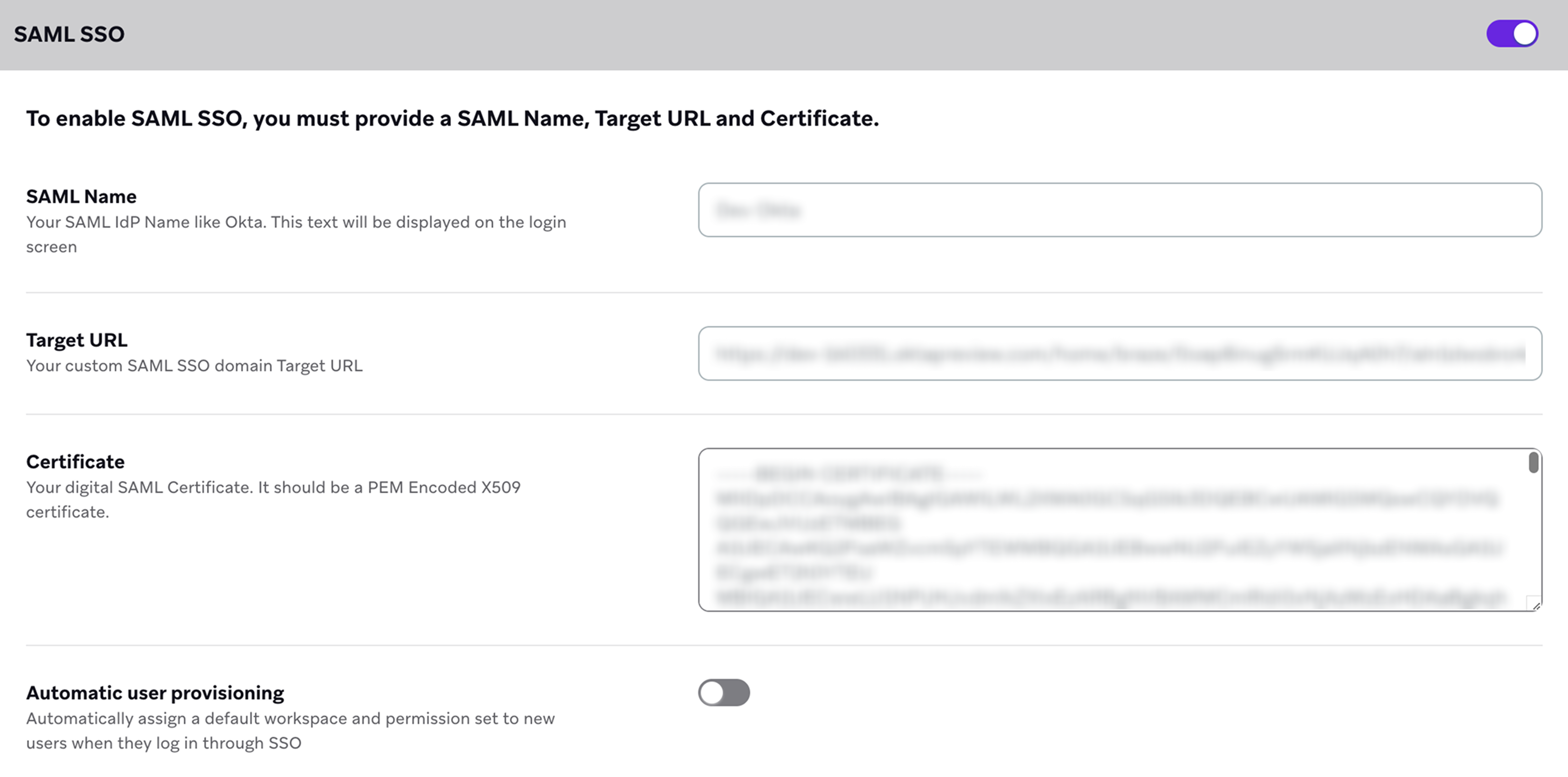
After your account manager has enabled SAML SSO for your account, go to Settings > Company Settings > Admin Settings > Security Settings and toggle the SAML SSO section to ON.
On this page, input the following:
| Requirement | Details |
|---|---|
SAML Name |
This will appear as the button text on the login screen. This is typically your identity provider’s name, like “OneLogin”. |
Target URL |
This is the SAML 2.0 Endpoint (HTTP) URL provided by OneLogin. |
Certificate |
The x.509 PEM encoded certificate is provided by your OneLogin. |
If your IdP requires a company-specific Entity ID, turn on Custom Entity ID in Security Settings, copy the generated value, and paste it into OneLogin’s Entity ID field. See Custom Entity ID in the SAML SSO setup article.

If you want your Braze account users to only sign in with SAML SSO, you can restrict single sign-on authentication from Settings > Company Settings > Admin Settings > Security Settings.
Next steps
After OneLogin SSO is working:
- Enforce SAML SSO-only login if password login should be disabled.
- Set up SAML just-in-time provisioning to auto-create dashboard users on first IdP sign-in.
- Use Obtaining a SAML trace if users encounter login errors.