Campaign and Canvas statuses
Learn about statuses for campaigns and Canvases and how you can use them in the dashboard.
Filtering by status
To filter your campaigns or Canvases by status, select All Statuses, then choose a status.

Changing the status
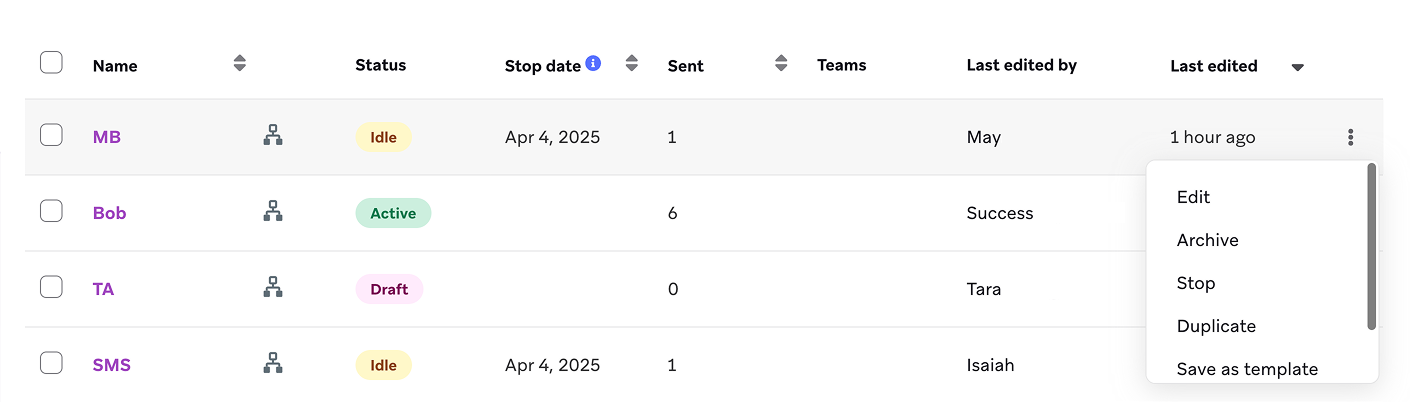
To change the status of a campaign or Canvas, select the menu, then choose a status.
Available statuses
These are the available statuses for campaigns and Canvases:
| Status | Description |
|---|---|
| Active | Active campaigns and Canvases are in the process of sending. By default, you’ll see active campaigns and Canvases on the respective pages. |
| Draft | Drafts of campaigns and Canvases are saved but not launched. To continue editing and begin sending, you can select the draft by going to Messaging in the Braze dashboard and selecting Canvas or Campaigns. |
| Archived | Archived campaigns and Canvases are messages that are no longer being sent. These campaigns and Canvases are also removed from the statistic graphs on the Home and Revenue pages. |
| Stopped | Stopped campaigns and Canvases are paused, but you can still edit them. To resume a Canvas, go to the Summary step of the Canvas builder and select Resume Canvas. For campaigns, select the menu, then Resume. For more information, refer to Stopped Canvas behavior. |
| Idle | When a campaign or Canvas is no longer sending messages, Braze will assign it an idle status to help sort and manage your list of campaigns and Canvases. You can view which campaigns or Canvases will be automatically stopped and the associated stop date. |
Stopped Canvas behavior
When a Canvas is stopped, the following occurs:
- Scheduled messages: Your scheduled messages won’t be sent, regardless of a user’s place in the Canvas. This also includes users who were queued because of rate limiting.
- Email sends: Email sends may not stop immediately, as your email service provider (ESP) may continue processing your existing requests.
- Delay steps: Users in a delay step will remain there as normal, but will exit the Canvas when the set period ends.
- Draft changes: Any draft changes to the Canvas will be discarded when the Canvas is stopped.
When you resume a Canvas
To resume the Canvas, go to the Summary step of the Canvas builder and select Resume Canvas. When you resume a Canvas, users continue through their journey from where they left off:
- Users in delay steps: Users who were waiting in a delay step when the Canvas was stopped continue waiting for the remaining delay period. For example, if a user was 2 hours into a 24-hour delay when the Canvas was stopped for 3 days, they’ll wait 22 more hours after the Canvas is resumed before advancing.
- Users waiting for messages: Any scheduled messages that were pending when the Canvas was stopped are sent as scheduled when you resume the Canvas—as long as the scheduled time hasn’t already passed.
- Users who exited: Users who exited the Canvas during the stopped period (for example, users who were in delay steps and reached the end of their delay) won’t re-enter the Canvas when you resume it.
Local time zone behavior
If your Canvas is configured to Enter users into this Canvas in their local time zone, keep these considerations in mind when stopping and resuming:
- Entry windows: When you resume the Canvas, users enter based on their local time zone as originally configured. Braze continues evaluating entry eligibility according to each user’s time zone.
- Missed entry windows: If the Canvas was stopped during a scheduled entry window for users in certain time zones, those users won’t enter retroactively when the Canvas is resumed. Entry evaluation resumes going forward.
Common scenarios
Scenario 1: Mistake in message content You launch a Canvas but notice a typo in one of the messages. Stop the Canvas, edit the message in draft mode, then resume. Users who haven’t received the message yet get the corrected version. Users who already received it won’t receive it again.
Scenario 2: Targeting issue You realize the Canvas is targeting the wrong segment. Stop the Canvas immediately to prevent more users from entering. Any users currently in delay steps will exit when their delay period ends. You can then create a new Canvas with the correct targeting.
Scenario 3: Extended delay scenario You have a Canvas with a seven-day delay step. You stop the Canvas three days in. Users who were in the delay step continue waiting, but when their delay period ends while the Canvas is still stopped, they exit the Canvas. If you resume the Canvas before their delay ends, they continue through the journey.
Best practices
Monitor your messages by status
You can monitor your messages by status to review the performance details. For example, if you have a series of active campaigns, you can evaluate the performance of each campaign with their engagement metrics and make adjustments as needed. If instead you have a few stopped Canvases, you can consider whether they should be resumed for messaging or archived entirely.

Audit your active messages
By performing audits of your active campaigns and Canvases, you can assess the relevance and performance, and remove or update any outdated campaigns and Canvases to keep your messaging fresh.