인앱 메시지 사용자 지정
Braze SDK의 인앱 메시지를 사용자 지정하는 방법을 알아보세요. 고급 스타일링 기술에 대해서는 키-값 페어를 사용한 메시지 스타일링 사용자 지정 튜토리얼을 확인하세요.
필수 조건
이 기능을 사용하려면 먼저 Web Braze SDK를 통합해야 합니다.
커스텀 스타일
Braze UI 요소는 자연스러운 인앱 메시지 경험을 조성하는 기본 모양과 느낌을 사용하며, 다른 Braze 모바일 플랫폼과의 일관성을 목표로 합니다. Braze 기본 스타일은 Braze SDK 내 CSS에 정의되어 있습니다.
기본 스타일 설정하기
애플리케이션에서 선택한 스타일을 재정의하여 자체 배경 이미지, 글꼴 패밀리, 스타일, 크기, 애니메이션 등으로 표준 인앱 메시지 유형을 사용자 지정할 수 있습니다.
예를 들어, 다음은 인앱 메시지의 헤더가 이탤릭체로 표시되도록 하는 오버라이드 예제입니다:
body .ab-in-app-message .ab-message-header {
font-style: italic;
}
자세한 내용은 JSDocs를 참조하세요.
z-index 사용자 지정하기
기본적으로 인앱 메시지는 z-index: 9001을 사용하여 표시됩니다. 웹사이트가 이보다 높은 값으로 요소를 스타일링하는 경우 inAppMessageZIndex 초기화 옵션을 사용하여 구성할 수 있습니다.
braze.initialize("YOUR-API-KEY", {
baseUrl: "YOUR-API-ENDPOINT",
inAppMessageZIndex: 12000
});

이 기능은 Web Braze SDK v3.3.0 이상에서만 사용할 수 있습니다.
메시지 해제 사용자 지정하기
기본적으로 인앱 메시지가 표시되는 동안 ESC 키를 누르거나 페이지의 회색 배경을 클릭하면 메시지가 해제됩니다. requireExplicitInAppMessageDismissal 초기화 옵션을 true로 설정하면 이 동작을 방지하고, 메시지를 해제하려면 명시적으로 버튼을 클릭해야 합니다.
import * as braze from "@braze/web-sdk";
braze.initialize("YOUR-API-KEY", {
baseUrl: "YOUR-API-ENDPOINT",
requireExplicitInAppMessageDismissal: true
});
표시 타이밍 사용자 지정하기
기본 표시 타이밍을 재정의하려면 braze.automaticallyShowInAppMessages() 호출을 제거하고 braze.subscribeToInAppMessage()에서 메시지를 처리하세요. braze.openSession() 전에 콜백을 등록하면 세션 시작 메시지를 가로채서 각 메시지를 표시할지 또는 지연할지 결정할 수 있습니다.
기본적으로 Braze는 인앱 메시지가 트리거되고 표시 자격이 있을 때 표시합니다. 앱 경험에 다른 동작이 필요한 경우 커스텀 콜백을 사용하여 자체 로직에 따라 메시지를 지연하거나 표시할 수 있습니다.
다음 예제는 트리거된 인앱 메시지를 구독하고, 선택한 메시지를 지연하고, 지연된 메시지를 나중에 표시하는 방법을 보여줍니다:
import * as braze from "@braze/web-sdk";
braze.initialize("YOUR-API-KEY", {
baseUrl: "YOUR-API-ENDPOINT"
});
braze.subscribeToInAppMessage(function (message) {
// Control-group messages should always be "shown" to log analytics.
if (message.isControl || message instanceof braze.ControlMessage) {
braze.showInAppMessage(message);
return;
}
const shouldDefer = true; // Replace with your own display logic
if (shouldDefer) {
braze.deferInAppMessage(message);
return;
}
braze.showInAppMessage(message);
});
braze.openSession();
// Later, when your app is ready to display a deferred message:
const deferredMessage = braze.getDeferredInAppMessage();
if (deferredMessage) {
braze.showInAppMessage(deferredMessage);
}
관련 전달 사용자 지정 가이드는 다음을 참조하세요:
새 탭에서 링크 열기
인앱 메시지 링크를 새 탭에서 열도록 설정하려면 openInAppMessagesInNewTab 옵션을 true로 설정하여 인앱 메시지 클릭 시 모든 링크가 새 탭 또는 새 창에서 열리도록 합니다.
braze.initialize('api-key', { openInAppMessagesInNewTab: true} );
필수 조건
이 기능을 사용하려면 먼저 Android Braze SDK를 통합해야 합니다. 또한 인앱 메시지를 설정해야 합니다.
커스텀 매니저 리스너 설정하기
BrazeInAppMessageManager 리스너는 인앱 메시지의 표시 및 생명주기를 자동으로 처리할 수 있지만, 메시지를 완전히 커스터마이징하려면 커스텀 매니저 리스너를 구현해야 합니다.
Braze SDK에는 커스텀 리스너가 정의되어 있지 않은 경우 사용되는 기본 DefaultHtmlInAppMessageActionListener 클래스가 있으며, 자동으로 적절한 동작을 수행합니다. 커스텀 HTML 인앱 메시지 내에서 사용자가 다양한 버튼과 상호 작용하는 방식을 더 세밀하게 제어해야 하는 경우 커스텀 IHtmlInAppMessageActionListener 클래스를 구현하세요.
이 리스너는 커스텀 HTML로 작성된 메시지와 드래그 앤 드롭(DnD) 에디터로 생성된 메시지 __모두__에 적용됩니다. 기존 IAM에는 적용되지 않습니다. 기존 IAM은 Braze의 내장 SDK 렌더링 메시지 유형(예: 슬라이드업, 모달, 전체 화면)으로, 사전 정의된 레이아웃을 사용하여 원래 인앱 메시지 작성기에서 생성됩니다. 커스텀 HTML 및 DnD IAM과 달리 HTML 동작 리스너 플로우를 거치지 않습니다.
커스텀 IHtmlInAppMessageActionListener를 설정하면 해당 로직이 모든 DnD 메시지의 기본 클릭 동작을 재정의합니다. 마케팅 팀에 이 사항을 반드시 알려주세요. 예상치 못한 방식으로 Campaign에 영향을 줄 수 있습니다.
1단계: 커스텀 매니저 리스너 구현하기
1.1단계: IInAppMessageManagerListener 구현
IInAppMessageManagerListener를 구현하는 클래스를 생성합니다.
IInAppMessageManagerListener의 콜백은 인앱 메시지 생명주기의 다양한 시점에서 호출됩니다. 예를 들어, Braze에서 인앱 메시지를 수신할 때 커스텀 매니저 리스너를 설정하면 beforeInAppMessageDisplayed() 메서드가 호출됩니다. 이 메서드의 구현이 InAppMessageOperation.DISCARD를 반환하면, 인앱 메시지가 호스트 앱에서 처리되며 Braze에서 표시하지 않아야 함을 Braze에 알립니다. InAppMessageOperation.DISPLAY_NOW가 반환되면, Braze는 인앱 메시지를 표시하려고 시도합니다. 인앱 메시지를 커스텀 방식으로 표시하려는 경우 이 메서드를 사용해야 합니다.
IInAppMessageManagerListener에는 메시지 클릭 및 버튼에 대한 위임 메서드도 포함되어 있어, 버튼이나 메시지를 클릭할 때 메시지를 가로채어 추가 처리를 수행하는 등의 사용 사례에 활용할 수 있습니다.
1.2단계: IAM 뷰 생명주기 메서드에 후킹하기(선택 사항)
IInAppMessageManagerListener 인터페이스에는 인앱 메시지 뷰 생명주기의 특정 시점에서 호출되는 인앱 메시지 뷰 메서드가 있습니다. 이러한 메서드는 다음 순서로 호출됩니다:
beforeInAppMessageViewOpened: 인앱 메시지가 활동의 뷰에 추가되기 직전에 호출됩니다. 이 시점에서 인앱 메시지는 아직 사용자에게 표시되지 않습니다.afterInAppMessageViewOpened: 인앱 메시지가 활동의 뷰에 추가된 직후에 호출됩니다. 이 시점에서 인앱 메시지가 사용자에게 표시됩니다.beforeInAppMessageViewClosed: 인앱 메시지가 활동의 뷰에서 제거되기 직전에 호출됩니다. 이 시점에서 인앱 메시지는 여전히 사용자에게 표시됩니다.afterInAppMessageViewClosed: 인앱 메시지가 활동의 뷰에서 제거된 직후에 호출됩니다. 이 시점에서 인앱 메시지는 더 이상 사용자에게 표시되지 않습니다.
afterInAppMessageViewOpened와 beforeInAppMessageViewClosed 사이의 시간이 인앱 메시지 뷰가 화면에 표시되어 사용자에게 보이는 시간입니다.

이러한 메서드를 반드시 구현할 필요는 없습니다. 인앱 메시지 뷰 생명주기를 추적하고 알리기 위해 제공되는 것입니다. 이 메서드 구현을 비워둘 수 있습니다.
IHtmlInAppMessageActionListener를 구현하는 클래스를 생성합니다.
IHtmlInAppMessageActionListener의 콜백은 사용자가 HTML 인앱 메시지 내에서 다음 동작 중 하나를 수행할 때마다 호출됩니다:
- 닫기 버튼 클릭
- 커스텀 이벤트 실행
- HTML 인앱 메시지 내의 URL 클릭
public class CustomHtmlInAppMessageActionListener implements IHtmlInAppMessageActionListener {
private final Context mContext;
public CustomHtmlInAppMessageActionListener(Context context) {
mContext = context;
}
@Override
public void onCloseClicked(IInAppMessage inAppMessage, String url, Bundle queryBundle) {
Toast.makeText(mContext, "HTML In App Message closed", Toast.LENGTH_LONG).show();
BrazeInAppMessageManager.getInstance().hideCurrentlyDisplayingInAppMessage(false);
}
@Override
public boolean onCustomEventFired(IInAppMessage inAppMessage, String url, Bundle queryBundle) {
Toast.makeText(mContext, "Custom event fired. Ignoring.", Toast.LENGTH_LONG).show();
return true;
}
@Override
public boolean onOtherUrlAction(IInAppMessage inAppMessage, String url, Bundle queryBundle) {
Toast.makeText(mContext, "Custom url pressed: " + url + " . Ignoring", Toast.LENGTH_LONG).show();
BrazeInAppMessageManager.getInstance().hideCurrentlyDisplayingInAppMessage(false);
return true;
}
}
class CustomHtmlInAppMessageActionListener(private val mContext: Context) : IHtmlInAppMessageActionListener {
override fun onCloseClicked(inAppMessage: IInAppMessage, url: String, queryBundle: Bundle) {
Toast.makeText(mContext, "HTML In App Message closed", Toast.LENGTH_LONG).show()
BrazeInAppMessageManager.getInstance().hideCurrentlyDisplayingInAppMessage(false)
}
override fun onCustomEventFired(inAppMessage: IInAppMessage, url: String, queryBundle: Bundle): Boolean {
Toast.makeText(mContext, "Custom event fired. Ignoring.", Toast.LENGTH_LONG).show()
return true
}
override fun onOtherUrlAction(inAppMessage: IInAppMessage, url: String, queryBundle: Bundle): Boolean {
Toast.makeText(mContext, "Custom url pressed: $url . Ignoring", Toast.LENGTH_LONG).show()
BrazeInAppMessageManager.getInstance().hideCurrentlyDisplayingInAppMessage(false)
return true
}
}
2단계: Braze에 커스텀 매니저 리스너를 사용하도록 지시하기
IInAppMessageManagerListener를 생성한 후, BrazeInAppMessageManager.getInstance().setCustomInAppMessageManagerListener()를 호출하여 BrazeInAppMessageManager에 기본 리스너 대신 커스텀 IInAppMessageManagerListener를 사용하도록 지시합니다. Braze에 대한 다른 호출보다 먼저 Application.onCreate()에서 이 작업을 수행하여, 인앱 메시지가 표시되기 전에 커스텀 리스너가 설정되도록 합니다.
표시 전 인앱 메시지 변경하기
새 인앱 메시지가 수신될 때 이미 표시 중인 인앱 메시지가 있는 경우, 새 메시지는 스택 맨 위에 배치되어 나중에 표시될 수 있습니다.
그러나 표시 중인 인앱 메시지가 없으면 IInAppMessageManagerListener의 다음 위임 메서드가 호출됩니다:
@Override
public InAppMessageOperation beforeInAppMessageDisplayed(IInAppMessage inAppMessage) {
return InAppMessageOperation.DISPLAY_NOW;
}
override fun beforeInAppMessageDisplayed(inAppMessage: IInAppMessage): InAppMessageOperation {
return InAppMessageOperation.DISPLAY_NOW
}
InAppMessageOperation() 반환 값으로 메시지 표시 시기를 제어할 수 있습니다. 이 메서드의 권장 사용법은 인앱 메시지가 사용자의 앱 경험을 방해할 수 있는 앱의 특정 부분에서 DISPLAY_LATER를 반환하여 메시지를 지연시키는 것입니다.
InAppMessageOperation 반환 값 |
동작 |
|---|---|
DISPLAY_NOW |
메시지가 표시됩니다 |
DISPLAY_LATER |
메시지가 스택으로 반환되어 다음 사용 가능한 기회에 표시됩니다 |
DISCARD |
메시지가 삭제됩니다 |
null |
메시지가 무시됩니다. 이 메서드는 null을 반환하지 않아야 합니다 |
자세한 내용은 InAppMessageOperation을 참조하세요.

인앱 메시지를 DISCARD하고 자체 인앱 메시지 뷰로 대체하는 경우, 인앱 메시지 클릭 수와 노출 횟수를 수동으로 기록해야 합니다.
Android에서는 인앱 메시지에서 logClick 및 logImpression을 호출하고, 몰입형 인앱 메시지에서 logButtonClick을 호출하면 됩니다.
인앱 메시지가 스택에 배치된 후에는 언제든지 BrazeInAppMessageManager.getInstance().requestDisplayInAppMessage()를 호출하여 검색 및 표시를 요청할 수 있습니다. 이 메서드는 스택에서 사용 가능한 다음 인앱 메시지를 표시하도록 Braze에 요청합니다.
IHtmlInAppMessageActionListener를 생성한 후, BrazeInAppMessageManager.getInstance().setCustomHtmlInAppMessageActionListener()를 호출하여 BrazeInAppMessageManager에게 기본 동작 리스너 대신 커스텀 IHtmlInAppMessageActionListener를 사용하도록 지시합니다.
Braze에 대한 다른 호출보다 먼저 Application.onCreate()에서 IHtmlInAppMessageActionListener를 설정하는 것이 좋습니다. 이렇게 하면 인앱 메시지가 표시되기 전에 커스텀 동작 리스너가 설정됩니다:
BrazeInAppMessageManager.getInstance().setCustomHtmlInAppMessageActionListener(new CustomHtmlInAppMessageActionListener(context));
BrazeInAppMessageManager.getInstance().setCustomHtmlInAppMessageActionListener(CustomHtmlInAppMessageActionListener(context))
커스텀 팩토리 설정
커스텀 팩토리 오브젝트를 통해 여러 기본값을 재정의할 수 있습니다. 원하는 결과를 얻기 위해 필요에 따라 Braze SDK에 등록할 수 있습니다. 그러나 팩토리를 재정의하기로 결정한 경우, 기본값에 명시적으로 위임하거나 Braze 기본값이 제공하는 기능을 다시 구현해야 할 가능성이 높습니다. 다음 코드 스니펫은 IInAppMessageViewFactory 및 IInAppMessageViewWrapperFactory 인터페이스의 커스텀 구현을 제공하는 방법을 보여줍니다.
인앱 메시지 유형
class BrazeDemoApplication : Application(){
override fun onCreate() {
super.onCreate()
registerActivityLifecycleCallbacks(BrazeActivityLifecycleCallbackListener(true, true))
BrazeInAppMessageManager.getInstance().setCustomInAppMessageViewWrapperFactory(CustomInAppMessageViewWrapperFactory())
BrazeInAppMessageManager.getInstance().setCustomInAppMessageViewFactory(CustomInAppMessageViewFactory())
}
}
인앱 메시지 유형
public class BrazeDemoApplication extends Application {
@Override
public void onCreate{
super.onCreate();
registerActivityLifecycleCallbacks(new BrazeActivityLifecycleCallbackListener(true, true));
BrazeInAppMessageManager.getInstance().setCustomInAppMessageViewWrapperFactory(new CustomInAppMessageViewWrapperFactory());
BrazeInAppMessageManager.getInstance().setCustomInAppMessageViewFactory(new CustomInAppMessageViewFactory());
}
}
Braze 인앱 메시지 유형은 대부분의 커스텀 사용 사례를 충분히 다룰 수 있을 만큼 다양합니다. 그러나 기본 유형을 사용하는 대신 인앱 메시지의 시각적 모양을 완전히 정의하고 싶다면, Braze에서 커스텀 뷰 팩토리를 설정하여 이를 구현할 수 있습니다.
BrazeInAppMessageManager는 기본적으로 DefaultInAppMessageViewWrapper를 사용하여 인앱 메시지 모델을 기존 활동 뷰 계층 구조에 자동으로 배치합니다. 인앱 메시지가 뷰 계층 구조에 배치되는 방식을 커스터마이징해야 하는 경우 커스텀 IInAppMessageViewWrapperFactory를 사용해야 합니다.
인앱 메시지에는 사전 설정된 애니메이션 동작이 있습니다. Slideup 메시지는 화면으로 슬라이드되고, full 및 modal 메시지는 페이드 인/아웃됩니다. 인앱 메시지에 커스텀 애니메이션 동작을 정의하려면, Braze에서 커스텀 애니메이션 팩토리를 설정하면 됩니다.
1단계: 팩토리 구현
IInAppMessageViewFactory를 구현하는 클래스를 생성합니다:
public class CustomInAppMessageViewFactory implements IInAppMessageViewFactory {
@Override
public View createInAppMessageView(Activity activity, IInAppMessage inAppMessage) {
// Uses a custom view for slideups, modals, and full in-app messages.
// HTML in-app messages and any other types will use the Braze default in-app message view factories
switch (inAppMessage.getMessageType()) {
case SLIDEUP:
case MODAL:
case FULL:
// Use a custom view of your choosing
return createMyCustomInAppMessageView();
default:
// Use the default in-app message factories
final IInAppMessageViewFactory defaultInAppMessageViewFactory = BrazeInAppMessageManager.getInstance().getDefaultInAppMessageViewFactory(inAppMessage);
return defaultInAppMessageViewFactory.createInAppMessageView(activity, inAppMessage);
}
}
}
class CustomInAppMessageViewFactory : IInAppMessageViewFactory {
override fun createInAppMessageView(activity: Activity, inAppMessage: IInAppMessage): View {
// Uses a custom view for slideups, modals, and full in-app messages.
// HTML in-app messages and any other types will use the Braze default in-app message view factories
when (inAppMessage.messageType) {
MessageType.SLIDEUP, MessageType.MODAL, MessageType.FULL ->
// Use a custom view of your choosing
return createMyCustomInAppMessageView()
else -> {
// Use the default in-app message factories
val defaultInAppMessageViewFactory = BrazeInAppMessageManager.getInstance().getDefaultInAppMessageViewFactory(inAppMessage)
return defaultInAppMessageViewFactory!!.createInAppMessageView(activity, inAppMessage)
}
}
}
}
IInAppMessageViewWrapperFactory를 구현하고 IInAppMessageViewWrapper를 반환하는 클래스를 생성합니다.
이 팩토리는 인앱 메시지 뷰가 생성된 직후에 호출됩니다. 커스텀 IInAppMessageViewWrapper를 구현하는 가장 쉬운 방법은 기본 DefaultInAppMessageViewWrapper를 확장하는 것입니다:
public class CustomInAppMessageViewWrapper extends DefaultInAppMessageViewWrapper {
public CustomInAppMessageViewWrapper(View inAppMessageView,
IInAppMessage inAppMessage,
IInAppMessageViewLifecycleListener inAppMessageViewLifecycleListener,
BrazeConfigurationProvider brazeConfigurationProvider,
Animation openingAnimation,
Animation closingAnimation, View clickableInAppMessageView) {
super(inAppMessageView,
inAppMessage,
inAppMessageViewLifecycleListener,
brazeConfigurationProvider,
openingAnimation,
closingAnimation,
clickableInAppMessageView);
}
@Override
public void open(@NonNull Activity activity) {
super.open(activity);
Toast.makeText(activity.getApplicationContext(), "Opened in-app message", Toast.LENGTH_SHORT).show();
}
@Override
public void close() {
super.close();
Toast.makeText(mInAppMessageView.getContext().getApplicationContext(), "Closed in-app message", Toast.LENGTH_SHORT).show();
}
}
class CustomInAppMessageViewWrapper(inAppMessageView: View,
inAppMessage: IInAppMessage,
inAppMessageViewLifecycleListener: IInAppMessageViewLifecycleListener,
brazeConfigurationProvider: BrazeConfigurationProvider,
openingAnimation: Animation,
closingAnimation: Animation, clickableInAppMessageView: View) :
DefaultInAppMessageViewWrapper(inAppMessageView,
inAppMessage,
inAppMessageViewLifecycleListener,
brazeConfigurationProvider,
openingAnimation,
closingAnimation,
clickableInAppMessageView) {
override fun open(activity: Activity) {
super.open(activity)
Toast.makeText(activity.applicationContext, "Opened in-app message", Toast.LENGTH_SHORT).show()
}
override fun close() {
super.close()
Toast.makeText(mInAppMessageView.context.applicationContext, "Closed in-app message", Toast.LENGTH_SHORT).show()
}
}
IInAppMessageAnimationFactory를 구현하는 클래스를 생성합니다:
public class CustomInAppMessageAnimationFactory implements IInAppMessageAnimationFactory {
@Override
public Animation getOpeningAnimation(IInAppMessage inAppMessage) {
Animation animation = new AlphaAnimation(0, 1);
animation.setInterpolator(new AccelerateInterpolator());
animation.setDuration(2000L);
return animation;
}
@Override
public Animation getClosingAnimation(IInAppMessage inAppMessage) {
Animation animation = new AlphaAnimation(1, 0);
animation.setInterpolator(new DecelerateInterpolator());
animation.setDuration(2000L);
return animation;
}
}
class CustomInAppMessageAnimationFactory : IInAppMessageAnimationFactory {
override fun getOpeningAnimation(inAppMessage: IInAppMessage): Animation {
val animation: Animation = AlphaAnimation(0, 1)
animation.interpolator = AccelerateInterpolator()
animation.duration = 2000L
return animation
}
override fun getClosingAnimation(inAppMessage: IInAppMessage): Animation {
val animation: Animation = AlphaAnimation(1, 0)
animation.interpolator = DecelerateInterpolator()
animation.duration = 2000L
return animation
}
}
2단계: Braze에게 팩토리를 사용하도록 지시하기
IInAppMessageViewFactory를 생성한 후, BrazeInAppMessageManager.getInstance().setCustomInAppMessageViewFactory()를 호출하여 BrazeInAppMessageManager에 기본 뷰 팩토리 대신 커스텀 IInAppMessageViewFactory를 사용하도록 지시합니다.
Braze에 대한 다른 호출보다 먼저 Application.onCreate()에서 IInAppMessageViewFactory를 설정하는 것이 좋습니다. 이렇게 하면 인앱 메시지가 표시되기 전에 커스텀 뷰 팩토리가 설정됩니다.
작동 방식
slideup 인앱 메시지 뷰는 IInAppMessageView를 구현합니다. full 및 modal 유형 메시지 뷰는 IInAppMessageImmersiveView를 구현합니다. 이러한 클래스 중 하나를 구현하면 Braze가 적절한 위치에 커스텀 뷰에 클릭 리스너를 추가할 수 있습니다. 모든 Braze 뷰 클래스는 Android의 View 클래스를 확장합니다.
IInAppMessageView를 구현하면 커스텀 뷰의 특정 부분을 클릭 가능한 영역으로 정의할 수 있습니다. IInAppMessageImmersiveView를 구현하면 메시지 버튼 뷰와 닫기 버튼 뷰를 정의할 수 있습니다.
IInAppMessageViewWrapper를 생성한 후, BrazeInAppMessageManager.getInstance().setCustomInAppMessageViewWrapperFactory()를 호출하여 BrazeInAppMessageManager에게 기본 뷰 래퍼 팩토리 대신 커스텀 IInAppMessageViewWrapperFactory를 사용하도록 지시합니다.
Braze에 대한 다른 호출보다 먼저 Application.onCreate()에서 IInAppMessageViewWrapperFactory를 설정하는 것이 좋습니다. 이렇게 하면 인앱 메시지가 표시되기 전에 커스텀 뷰 래퍼 팩토리가 설정됩니다:
BrazeInAppMessageManager.getInstance().setCustomInAppMessageViewWrapperFactory(new CustomInAppMessageViewWrapper());
BrazeInAppMessageManager.getInstance().setCustomInAppMessageViewWrapperFactory(CustomInAppMessageViewWrapper())
IInAppMessageAnimationFactory를 생성한 후, BrazeInAppMessageManager.getInstance().setCustomInAppMessageAnimationFactory()를 호출하여 BrazeInAppMessageManager에 기본 애니메이션 팩토리 대신 커스텀 IInAppMessageAnimationFactory를 사용하도록 지시합니다.
Braze에 대한 다른 호출보다 먼저 Application.onCreate()에서 IInAppMessageAnimationFactory를 설정하는 것이 좋습니다. 이렇게 하면 인앱 메시지가 표시되기 전에 커스텀 애니메이션 팩토리가 설정됩니다.
커스텀 스타일
Braze UI 요소는 Android 표준 UI 가이드라인에 맞는 기본 모양과 느낌으로 제공되어 매끄러운 경험을 제공합니다. 이 참조 문서에서는 Android 또는 FireOS 애플리케이션의 커스텀 인앱 메시징 스타일을 다룹니다.
기본 스타일 설정
기본 스타일은 Braze SDK의 styles.xml 파일에서 확인할 수 있습니다:
<style name="Braze"/>
<style name="Braze.InAppMessage"/>
<style name="Braze.InAppMessage.Header">
<item name="android:layout_height">wrap_content</item>
<item name="android:layout_width">match_parent</item>
<item name="android:padding">0.0dp</item>
<item name="android:background">@android:color/transparent</item>
<item name="android:textColor">@color/com_braze_inappmessage_header_text</item>
<item name="android:textSize">20.0sp</item>
<item name="android:lineSpacingMultiplier">1.3</item>
<item name="android:gravity">center</item>
<item name="android:textStyle">bold</item>
<item name="android:layout_centerHorizontal">true</item>
</style>
원하는 경우 이러한 스타일을 재정의하여 앱에 더 적합한 모양과 느낌을 만들 수 있습니다.
스타일을 재정의하려면 프로젝트의 styles.xml 파일에 전체 스타일을 복사한 후 수정합니다. 모든 속성이 올바르게 설정되려면 전체 스타일을 로컬 styles.xml 파일에 복사해야 합니다. 이러한 커스텀 스타일은 레이아웃 전체를 변경하는 것이 아니라 개별 UI 요소를 변경하기 위한 것입니다. 레이아웃 수준의 변경은 커스텀 뷰로 처리해야 합니다.
XML을 수정하지 않고도 Braze Campaign에서 직접 일부 색상을 커스터마이징할 수 있습니다. Braze 대시보드에서 설정한 색상은 다른 곳에서 설정한 색상보다 우선 적용된다는 점을 기억하세요.
폰트 커스터마이징
res/font 디렉토리에서 서체를 찾아 커스텀 폰트를 설정할 수 있습니다. 이를 사용하려면 메시지 텍스트, 헤더 및 버튼 텍스트의 스타일을 재정의하고 fontFamily 속성을 사용하여 Braze에 커스텀 폰트 패밀리를 사용하도록 지시하세요.
예를 들어 인앱 메시지 버튼 텍스트의 폰트를 업데이트하려면 Braze.InAppMessage.Button 스타일을 재정의하고 커스텀 폰트 패밀리를 참조합니다. 속성 값은 res/font 디렉토리에 있는 폰트 패밀리를 가리켜야 합니다.
다음은 마지막 줄에서 커스텀 폰트 패밀리(my_custom_font_family)를 참조하는 축약된 예제입니다:
<style name="Braze.InAppMessage.Button">
<item name="android:layout_height">wrap_content</item>
...
<item name="android:paddingBottom">15.0dp</item>
<item name="android:fontFamily">@font/my_custom_font_family</item>
<item name="fontFamily">@font/my_custom_font_family</item>
</style>
버튼 텍스트의 Braze.InAppMessage.Button 스타일 외에도, 메시지 텍스트의 스타일은 Braze.InAppMessage.Message이고 메시지 헤더의 스타일은 Braze.InAppMessage.Header입니다. 가능한 모든 인앱 메시지 텍스트에 커스텀 폰트 패밀리를 사용하려면, 모든 인앱 메시지의 상위 스타일인 Braze.InAppMessage 스타일에서 폰트 패밀리를 설정하면 됩니다.
다른 커스텀 스타일과 마찬가지로, 모든 속성이 올바르게 설정되려면 전체 스타일을 로컬 styles.xml 파일에 복사해야 합니다.
메시지 해제
슬라이드업 메시지를 스와이프하여 해제하기
기본적으로 슬라이드업 인앱 메시지는 스와이프 제스처로 해제할 수 있습니다. 스와이프 방향은 슬라이드업 위치에 따라 다릅니다:
- 왼쪽 또는 오른쪽 스와이프: 위치에 관계없이 슬라이드업을 해제합니다.
- 하단에서 슬라이드업: 위에서 아래로 스와이프하면 메시지가 해제됩니다. 아래에서 위로 스와이프하면 해제되지 않습니다.
- 상단에서 슬라이드업: 아래에서 위로 스와이프하면 메시지가 해제됩니다. 위에서 아래로 스와이프하면 해제되지 않습니다.
이 스와이프 동작은 기본 DefaultInAppMessageViewWrapper에 내장되어 있으며 슬라이드업 인앱 메시지에만 적용됩니다. 모달 및 전체 화면 인앱 메시지는 스와이프 해제를 지원하지 않습니다. 이 동작을 커스터마이징하려면 커스텀 뷰 래퍼 팩토리를 구현할 수 있습니다.
슬라이드업 메시지 외부를 탭해도 기본적으로 해제되지 않습니다. 이 동작은 외부 탭 해제를 구성할 수 있는 모달 메시지와 다릅니다. 슬라이드업의 경우 스와이프 제스처 또는 닫기 버튼을 사용하여 메시지를 해제하세요.
뒤로 버튼 해제 비활성화
기본적으로 하드웨어 뒤로 버튼은 Braze 인앱 메시지를 해제합니다. 이 동작은 BrazeInAppMessageManager.setBackButtonDismissesInAppMessageView()를 통해 메시지별로 비활성화할 수 있습니다.
다음 예제에서 disable_back_button은 인앱 메시지에 설정된 커스텀 키-값 페어로, 뒤로 버튼으로 메시지를 해제할 수 있는지 여부를 나타냅니다:
BrazeInAppMessageManager.getInstance().setCustomInAppMessageManagerListener(new DefaultInAppMessageManagerListener() {
@Override
public void beforeInAppMessageViewOpened(View inAppMessageView, IInAppMessage inAppMessage) {
super.beforeInAppMessageViewOpened(inAppMessageView, inAppMessage);
final Map<String, String> extras = inAppMessage.getExtras();
if (extras != null && extras.containsKey("disable_back_button")) {
BrazeInAppMessageManager.getInstance().setBackButtonDismissesInAppMessageView(false);
}
}
@Override
public void afterInAppMessageViewClosed(IInAppMessage inAppMessage) {
super.afterInAppMessageViewClosed(inAppMessage);
BrazeInAppMessageManager.getInstance().setBackButtonDismissesInAppMessageView(true);
}
});
BrazeInAppMessageManager.getInstance().setCustomInAppMessageManagerListener(object : DefaultInAppMessageManagerListener() {
override fun beforeInAppMessageViewOpened(inAppMessageView: View, inAppMessage: IInAppMessage) {
super.beforeInAppMessageViewOpened(inAppMessageView, inAppMessage)
val extras = inAppMessage.extras
if (extras != null && extras.containsKey("disable_back_button")) {
BrazeInAppMessageManager.getInstance().setBackButtonDismissesInAppMessageView(false)
}
}
override fun afterInAppMessageViewClosed(inAppMessage: IInAppMessage) {
super.afterInAppMessageViewClosed(inAppMessage)
BrazeInAppMessageManager.getInstance().setBackButtonDismissesInAppMessageView(true)
}
})
이 기능을 비활성화하면 호스트 활동의 하드웨어 뒤로 버튼 기본 동작이 대신 사용됩니다. 이 경우 표시된 인앱 메시지 대신 뒤로 버튼으로 애플리케이션이 닫힐 수 있습니다.
외부 탭 해제 활성화
기본적으로 외부 탭을 사용한 모달 해제는 false로 설정되어 있습니다. 이 값을 true로 설정하면 사용자가 인앱 메시지 외부를 탭할 때 모달 인앱 메시지가 해제됩니다. 이 동작은 다음을 호출하여 토글할 수 있습니다:
BrazeInAppMessageManager.getInstance().setClickOutsideModalViewDismissInAppMessageView(true)
방향 커스터마이징
인앱 메시지의 고정 방향을 설정하려면 먼저 커스텀 인앱 메시지 매니저 리스너를 설정합니다. 그런 다음 beforeInAppMessageDisplayed() 위임 메서드에서 IInAppMessage 오브젝트의 방향을 업데이트합니다:
public InAppMessageOperation beforeInAppMessageDisplayed(IInAppMessage inAppMessage) {
// Set the orientation to portrait
inAppMessage.setOrientation(Orientation.PORTRAIT);
return InAppMessageOperation.DISPLAY_NOW;
}
override fun beforeInAppMessageDisplayed(inAppMessage: IInAppMessage): InAppMessageOperation {
// Set the orientation to portrait
inAppMessage.orientation = Orientation.PORTRAIT
return InAppMessageOperation.DISPLAY_NOW
}
태블릿 기기의 경우 인앱 메시지는 실제 화면 방향과 관계없이 사용자가 선호하는 방향 스타일로 표시됩니다.
다크 테마 비활성화
기본적으로 IInAppMessageManagerListener의 beforeInAppMessageDisplayed()는 시스템 설정을 확인하고 다음 코드를 사용하여 메시지에 다크 테마 스타일링을 조건부로 활성화합니다:
@Override
public InAppMessageOperation beforeInAppMessageDisplayed(IInAppMessage inAppMessage) {
if (inAppMessage instanceof IInAppMessageThemeable && ViewUtils.isDeviceInNightMode(BrazeInAppMessageManager.getInstance().getApplicationContext())) {
((IInAppMessageThemeable) inAppMessage).enableDarkTheme();
}
return InAppMessageOperation.DISPLAY_NOW;
}
override fun beforeInAppMessageDisplayed(inAppMessage: IInAppMessage): InAppMessageOperation {
if (inAppMessage is IInAppMessageThemeable && ViewUtils.isDeviceInNightMode(BrazeInAppMessageManager.getInstance().applicationContext!!)) {
(inAppMessage as IInAppMessageThemeable).enableDarkTheme()
}
return InAppMessageOperation.DISPLAY_NOW
}
이를 변경하려면 표시 전 프로세스의 어느 단계에서든 enableDarkTheme을 호출하여 자체 조건 로직을 구현할 수 있습니다.
Google Play 리뷰 프롬프트 커스터마이징
Google이 설정한 제한 사항으로 인해 현재 Braze에서는 커스텀 Google Play 리뷰 프롬프트를 지원하지 않습니다. 일부 사용자는 이러한 프롬프트를 성공적으로 통합할 수 있었지만, Google Play 할당량으로 인해 성공률이 낮은 경우도 있습니다. 위험을 감수하고 통합하시기 바랍니다. Google Play 인앱 리뷰 프롬프트에 대한 설명서를 참조하세요.
필수 조건
이 기능을 사용하려면 먼저 Swift Braze SDK를 통합해야 합니다.
UI 델리게이트 설정(필수)
인앱 메시지의 표시를 사용자 지정하고 다양한 생명주기 이벤트에 반응하려면 BrazeInAppMessageUIDelegate를 설정해야 합니다. 이것은 트리거된 인앱 메시지 페이로드를 수신 및 처리하고, 표시 생명주기 이벤트를 수신하며, 표시 타이밍을 제어하는 데 사용되는 델리게이트 프로토콜입니다. BrazeInAppMessageUIDelegate를 사용하려면 다음이 필요합니다:
- 기본
BrazeInAppMessageUI구현을inAppMessagePresenter로 사용합니다. - 프로젝트에
BrazeUI라이브러리를 포함합니다.
1단계: BrazeInAppMessageUIDelegate 프로토콜 구현
먼저 BrazeInAppMessageUIDelegate 프로토콜과 원하는 해당 메서드를 구현합니다. 다음 예제에서는 이 프로토콜이 애플리케이션의 AppDelegate 클래스에서 구현됩니다.
extension AppDelegate: BrazeInAppMessageUIDelegate {
// Implement your protocol methods here.
}
@interface AppDelegate () <BrazeInAppMessageUIDelegate>
@end
@implementation AppDelegate
// Implement your protocol methods here.
@end
2단계: delegate 객체 할당
이 인앱 메시지 UI를 inAppMessagePresenter로 할당하기 전에 BrazeInAppMessageUI 인스턴스에 delegate 객체를 할당합니다.
let inAppMessageUI = BrazeInAppMessageUI()
inAppMessageUI.delegate = self
AppDelegate.braze?.inAppMessagePresenter = inAppMessageUI
BrazeInAppMessageUI *inAppMessageUI = [[BrazeInAppMessageUI alloc] init];
inAppMessageUI.delegate = self;
AppDelegate.braze.inAppMessagePresenter = inAppMessageUI;
일부 델리게이트 메서드는 파라미터가 언어 런타임과 호환되지 않기 때문에 Objective-C에서 사용할 수 없습니다.
클릭 시 동작
각 Braze.InAppMessage 객체에는 클릭 시 동작을 정의하는 ClickAction이 포함되어 있습니다.
클릭 액션 유형
Braze.InAppMessage의 clickAction 속성정보는 기본값으로 .none이 설정되어 있지만, 다음 값 중 하나로 설정할 수 있습니다:
ClickAction |
클릭 시 동작 |
|---|---|
.url(URL, useWebView: Bool) |
지정된 URL을 외부 브라우저에서 엽니다. useWebView가 true로 설정된 경우 웹 뷰에서 엽니다. |
.none |
클릭하면 메시지가 닫힙니다. |
버튼이 포함된 인앱 메시지의 경우, 버튼 텍스트를 추가하기 전에 클릭 액션이 추가되면 메시지 clickAction이 최종 페이로드에도 포함됩니다.
클릭 시 동작 사용자 지정
이 동작을 사용자 지정하려면 다음 샘플을 참조하여 clickAction 속성정보를 수정할 수 있습니다:
func inAppMessage(
_ ui: BrazeInAppMessageUI,
prepareWith context: inout BrazeInAppMessageUI.PresentationContext
) {
if let newUrl = URL(string: "{your-url}") {
context.message.clickAction = .url(newUrl, useWebView: true)
}
}
inAppMessage(_:prepareWith:) 메서드는 Objective-C에서 사용할 수 없습니다.
커스텀 동작 처리
다음 BrazeInAppMessageUIDelegate 델리게이트 메서드는 사용자가 인앱 메시지를 클릭할 때 호출됩니다. 이 콜백은 인앱 메시지 버튼 및 HTML 인앱 메시지 버튼(링크)에 대한 사용자 시작 클릭에 대해 트리거되며, 이러한 상호작용에 대해 버튼 ID가 선택적 매개변수로 제공됩니다. 이 콜백은 brazeBridge.logClick()을 통해 트리거된 프로그래밍 방식의 클릭에는 호출되지 않습니다.
func inAppMessage(
_ ui: BrazeInAppMessageUI,
shouldProcess clickAction: Braze.InAppMessage.ClickAction,
buttonId: String?,
message: Braze.InAppMessage,
view: InAppMessageView
) -> Bool
- (BOOL)inAppMessage:(BrazeInAppMessageUI *)ui
shouldProcess:(enum BRZInAppMessageRawClickAction)clickAction
url:(NSURL *)uri
buttonId:(NSString *)buttonId
message:(BRZInAppMessageRaw *)message
view:(UIView *)view;
이 메서드는 Braze가 클릭 액션을 계속 실행해야 하는지를 나타내는 부울 값을 반환합니다.
func inAppMessage(
_ ui: BrazeInAppMessageUI, shouldProcess clickAction: Braze.InAppMessage.ClickAction,
buttonId: String?, message: Braze.InAppMessage, view: InAppMessageView
) -> Bool {
guard let buttonId,
let idInt = Int(buttonId)
else { return true }
var button: BrazeKit.Braze.InAppMessage.Button? = nil
switch message {
case .modal(let modal):
button = modal.buttons[idInt]
case .modalImage(let modalImage):
button = modalImage.buttons[idInt]
case .full(let full):
button = full.buttons[idInt]
case .fullImage(let fullImage):
button = fullImage.buttons[idInt]
default:
break
}
print(button?.id)
print(button?.text)
print(button?.clickAction)
return true
}
- (BOOL)inAppMessage:(BrazeInAppMessageUI *)ui
shouldProcess:(enum BRZInAppMessageRawClickAction)clickAction
url:(NSURL *)uri
buttonId:(NSString *)buttonId
message:(BRZInAppMessageRaw *)message
view:(UIView *)view {
NSInteger buttonInt = [buttonId integerValue];
if (message.type == BRZInAppMessageRawTypeFull || message.type == BRZInAppMessageRawTypeModal) {
BRZInAppMessageRawButton *button = message.buttons[buttonInt];
NSLog(@"%ld", (long)button.identifier);
NSLog(@"%@", button.text);
NSLog(@"%ld", (long)button.clickAction);
}
return YES;
}
스와이프로 슬라이드업 메시지 닫기
기본적으로 슬라이드업 인앱 메시지는 스와이프 제스처로 닫을 수 있습니다. 스와이프 방향은 슬라이드업 위치에 따라 다릅니다:
- 왼쪽 또는 오른쪽 스와이프: 위치에 관계없이 슬라이드업을 닫습니다.
- 하단에서 슬라이드업: 위에서 아래로 스와이프하면 메시지가 닫힙니다. 아래에서 위로 스와이프하면 닫히지 않습니다.
- 상단에서 슬라이드업: 아래에서 위로 스와이프하면 메시지가 닫힙니다. 위에서 아래로 스와이프하면 닫히지 않습니다.
이 스와이프 동작은 기본 BrazeInAppMessageUI SlideupView에 내장되어 있으며, 슬라이드업 인앱 메시지에만 적용됩니다. Modal 및 전체 화면 인앱 메시지는 스와이프로 닫기를 지원하지 않습니다. 스와이프 동작을 포함한 슬라이드업 뷰를 추가로 사용자 지정하려면 SlideupView.Attributes를 수정하거나 서브클래싱을 통해 커스텀 뷰를 제공할 수 있습니다.
슬라이드업 메시지 바깥 영역을 탭해도 메시지가 닫히지 않습니다. Modal 또는 전체 화면 인앱 메시지의 경우, 다음 섹션에서 설명하는 dismissOnBackgroundTap 속성을 사용하여 바깥 영역 탭으로 닫기를 활성화할 수 있습니다.
Modal 닫기 사용자 지정
외부 탭 닫기를 활성화하려면 사용자 지정하려는 인앱 메시지 유형의 Attributes 구조체에서 dismissOnBackgroundTap 속성을 수정할 수 있습니다.
예를 들어, Modal 이미지 인앱 메시지에 대해 이 기능을 활성화하려면 다음과 같이 설정할 수 있습니다:
BrazeInAppMessageUI.ModalImageView.Attributes.defaults.dismissOnBackgroundTap = true
Attributes를 통한 사용자 지정은 Objective-C에서 사용할 수 없습니다.
기본값은 false입니다. 이 값은 사용자가 인앱 메시지 외부를 탭했을 때 Modal 인앱 메시지가 닫힐지 여부를 결정합니다.
DismissModalOnOutsideTap |
설명 |
|---|---|
true |
Modal 인앱 메시지가 외부 탭 시 닫힙니다. |
false |
기본값, Modal 인앱 메시지가 외부 탭 시 닫히지 않습니다. |
인앱 메시지 사용자 지정에 대한 자세한 내용은 이 문서를 참조하세요.
메시지 방향 사용자 지정
인앱 메시지의 방향을 사용자 지정할 수 있습니다. 모든 메시지에 대해 새로운 기본 방향을 설정하거나, 단일 메시지에 대해 커스텀 방향을 설정할 수 있습니다.
모든 인앱 메시지의 기본 방향을 선택하려면 inAppMessage(_:prepareWith:) 메서드를 사용하여 PresentationContext의 preferredOrientation 속성을 설정합니다.
예를 들어, 세로 모드를 기본 방향으로 설정하려면:
func inAppMessage(
_ ui: BrazeInAppMessageUI,
prepareWith context: inout BrazeInAppMessageUI.PresentationContext
) {
context.preferredOrientation = .portrait
}
- (void)inAppMessage:(BrazeInAppMessageUI *)ui
prepareWith:(BrazeInAppMessageUIPresentationContextRaw *)context {
context.preferredOrientation = BRZInAppMessageRawOrientationPortrait;
}
단일 메시지의 방향을 설정하려면 Braze.InAppMessage의 orientation 속성을 수정합니다:
// Set inAppMessage orientation to support any configuration
inAppMessage.orientation = .any
// Set inAppMessage orientation to only display in portrait
inAppMessage.orientation = .portrait
// Set inAppMessage orientation to only display in landscape
inAppMessage.orientation = .landscape
// Set inAppMessage orientation to support any configuration
inAppMessage.orientation = BRZInAppMessageRawOrientationAny;
// Set inAppMessage orientation to only display in portrait
inAppMessage.orientation = BRZInAppMessageRawOrientationPortrait;
// Set inAppMessage orientation to only display in landscape
inAppMessage.orientation = BRZInAppMessageRawOrientationLandscape;
인앱 메시지가 표시된 후 메시지가 계속 표시되는 동안 기기 방향이 변경되면, 메시지의 orientation 구성에서 지원하는 경우 메시지가 기기와 함께 회전합니다.
메시지가 표시되려면 기기 방향이 인앱 메시지의 orientation 속성에서도 지원되어야 합니다. 또한 preferredOrientation 설정은 Xcode에서 타겟 설정의 Deployment Info 섹션에 있는 앱의 지원되는 인터페이스 방향에 포함된 경우에만 적용됩니다.
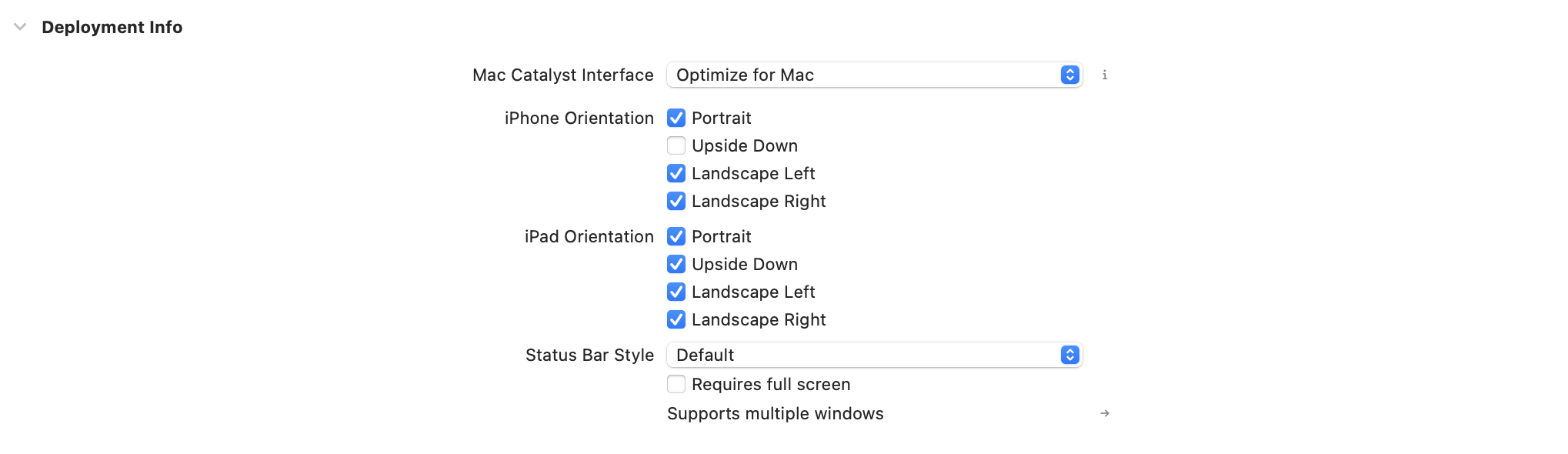
방향은 메시지 표시에만 적용됩니다. 기기 방향이 변경되면 메시지 뷰는 지원하는 방향 중 하나를 채택합니다. 소형 기기(iPhone, iPod Touch)에서 Modal 또는 전체 화면 인앱 메시지에 가로 방향을 설정하면 콘텐츠가 잘릴 수 있습니다.
표시 타이밍 사용자 지정
사용자 경험의 특정 시점에서 사용 가능한 인앱 메시지가 표시되는지 여부를 제어할 수 있습니다. 전체 화면 게임 중이거나 로딩 화면에서와 같이 인앱 메시지가 나타나지 않기를 원하는 상황이 있다면, 대기 중인 인앱 메시지를 지연하거나 삭제할 수 있습니다. 인앱 메시지의 타이밍을 제어하려면 inAppMessage(_:displayChoiceForMessage:) 델리게이트 메서드를 사용하여 BrazeInAppMessageUI.DisplayChoice 속성정보를 설정합니다.
func inAppMessage(
_ ui: BrazeInAppMessageUI,
displayChoiceForMessage message: Braze.InAppMessage
) -> BrazeInAppMessageUI.DisplayChoice
- (enum BRZInAppMessageUIDisplayChoice)inAppMessage:(BrazeInAppMessageUI *)ui displayChoiceForMessage:(BRZInAppMessageRaw *)message
다음 값 중 하나를 반환하도록 BrazeInAppMessageUI.DisplayChoice를 구성합니다.
| 표시 선택 | 동작 |
|---|---|
.now |
메시지가 즉시 표시됩니다. 이것이 기본값입니다. |
.reenqueue |
메시지가 표시되지 않으며 스택 맨 위로 다시 배치됩니다. |
.later |
메시지가 표시되지 않으며 스택 맨 위로 다시 배치됩니다. (더 이상 사용되지 않으며, .reenqueue를 사용하세요) |
.discard |
메시지가 삭제되며 표시되지 않습니다. |
상태 표시줄 숨기기
Full, FullImage, HTML 인앱 메시지의 경우 SDK는 기본적으로 상태 표시줄을 숨깁니다. 다른 유형의 인앱 메시지에서는 상태 표시줄이 변경되지 않습니다. 이 동작을 설정하려면 inAppMessage(_:prepareWith:) 델리게이트 메서드를 사용하여 PresentationContext의 statusBarHideBehavior 속성을 설정합니다. 이 필드는 다음 값 중 하나를 사용합니다.
| 상태 표시줄 숨기기 동작 | 설명 |
|---|---|
.auto |
메시지 뷰가 상태 표시줄의 숨김 상태를 결정합니다. |
.hidden |
항상 상태 표시줄을 숨깁니다. |
.visible |
항상 상태 표시줄을 표시합니다. |
다크 모드 비활성화
사용자 기기에서 다크 모드가 활성화되어 있을 때 인앱 메시지가 다크 모드 스타일을 적용하지 않도록 하려면, inAppMessage(_:prepareWith:) 델리게이트 메서드 메서드를 구현하세요. 이 메서드에 전달되는 PresentationContext에는 표시할 InAppMessage 객체에 대한 참조가 포함되어 있습니다. 각 InAppMessage에는 dark 및 light 모드 테마가 포함된 themes 속성정보가 있습니다. themes.dark 속성정보를 nil로 설정하면 Braze가 자동으로 라이트 테마를 사용하여 인앱 메시지를 표시합니다.
버튼이 있는 인앱 메시지 유형에는 buttons 속성정보에 추가적인 themes 객체가 있습니다. 버튼이 다크 모드 스타일을 적용하지 않도록 하려면, map(_:)을 사용하여 light 테마만 있고 dark 테마가 없는 새 버튼 배열을 생성할 수 있습니다.
func inAppMessage(
_ ui: BrazeInAppMessageUI,
prepareWith context: inout BrazeInAppMessageUI.PresentationContext
) {
switch context.message {
case .slideup:
guard var slideup = context.message.slideup else { return }
slideup.themes.dark = nil
context.message.slideup = slideup
case .modal:
guard var modal = context.message.modal else { return }
modal.themes.dark = nil
modal.buttons = modal.buttons.map {
var newButton = $0
newButton.themes = .init(themes: ["light": $0.themes.light])
return newButton
}
context.message.modal = modal
case .modalImage:
guard var modalImage = context.message.modalImage else { return }
modalImage.themes.dark = nil
modalImage.buttons = modalImage.buttons.map {
var newButton = $0
newButton.themes = .init(themes: ["light": $0.themes.light])
return newButton
}
context.message.modalImage = modalImage
case .full:
guard var full = context.message.full else { return }
full.themes.dark = nil
full.buttons = full.buttons.map {
var newButton = $0
newButton.themes = .init(themes: ["light": $0.themes.light])
return newButton
}
context.message.full = full
case .fullImage:
guard var fullImage = context.message.fullImage else { return }
fullImage.themes.dark = nil
fullImage.buttons = fullImage.buttons.map {
var newButton = $0
newButton.themes = .init(themes: ["light": $0.themes.light])
return newButton
}
context.message.fullImage = fullImage
default:
break
}
}
- (void)inAppMessage:(BrazeInAppMessageUI *)ui
prepareWith:(BrazeInAppMessageUIPresentationContextRaw *)context {
switch (context.message.type) {
case BRZInAppMessageRawTypeSlideup: {
NSMutableDictionary *updatedThemes = [context.message.themes mutableCopy];
[updatedThemes removeObjectForKey:@"dark"];
context.message.themes = updatedThemes;
break;
}
case BRZInAppMessageRawTypeModal:
case BRZInAppMessageRawTypeFull:
{
NSMutableDictionary *updatedThemes = [context.message.themes mutableCopy];
[updatedThemes removeObjectForKey:@"dark"];
context.message.themes = updatedThemes;
NSMutableArray *updatedButtons = [NSMutableArray arrayWithCapacity:context.message.buttons.count];
for (BRZInAppMessageRawButton *button in context.message.buttons) {
BRZInAppMessageRawButtonTheme *lightTheme = BRZInAppMessageRawButtonTheme.defaultLight;
BRZInAppMessageRawButton *newButton = [button mutableCopy];
newButton.textColor = lightTheme.textColor;
newButton.backgroundColor = lightTheme.backgroundColor;
newButton.borderColor = lightTheme.borderColor;
[updatedButtons addObject:newButton];
}
context.message.buttons = updatedButtons;
break;
}
default:
break;
}
}
앱 스토어 리뷰 프롬프트 사용자 지정
인앱 메시지를 Campaign에서 사용하여 사용자에게 앱 스토어 리뷰를 요청할 수 있습니다.
1단계: 인앱 메시지 델리게이트 설정
먼저 앱에서 BrazeInAppMessageUIDelegate를 설정합니다.
2단계: 기본 앱 스토어 리뷰 메시지 비활성화
다음으로 inAppMessage(_:displayChoiceForMessage:) 델리게이트 메서드를 구현하여 기본 앱 스토어 리뷰 메시지를 비활성화합니다.
func inAppMessage(_ ui: BrazeInAppMessageUI, displayChoiceForMessage message: Braze.InAppMessage) -> BrazeInAppMessageUI.DisplayChoice {
if message.extras["AppStore Review"] != nil,
let messageUrl = message.clickAction.url {
UIApplication.shared.open(messageUrl, options: [:], completionHandler: nil)
return .discard
} else {
return .now
}
}
- (enum BRZInAppMessageUIDisplayChoice)inAppMessage:(BrazeInAppMessageUI *)ui
displayChoiceForMessage:(BRZInAppMessageRaw *)message {
if (message.extras != nil && message.extras[@"AppStore Review"] != nil) {
[[UIApplication sharedApplication] openURL:message.url options:@{} completionHandler:nil];
return BRZInAppMessageUIDisplayChoiceDiscard;
} else {
return BRZInAppMessageUIDisplayChoiceNow;
}
}
3단계: 딥링크 생성
scene:openURLContexts: 핸들러에서 다음 코드를 추가하여 {YOUR-APP-SCHEME}:app-store-review 딥링크를 처리합니다. SKStoreReviewController를 사용하려면 StoreKit을 임포트해야 합니다.
func scene(_ scene: UIScene, openURLContexts URLContexts: Set<UIOpenURLContext>) {
guard let url = URLContexts.first?.url else { return }
let urlString = url.absoluteString.removingPercentEncoding
if (urlString == "{YOUR-APP-SCHEME}:app-store-review") {
SKStoreReviewController.requestReview()
return;
}
// Other deep link handling code…
}
- (void)scene:(UIScene *)scene openURLContexts:(NSSet<UIOpenURLContext *> *)URLContexts {
NSURL *url = URLContexts.allObjects.firstObject.URL;
NSString *urlString = url.absoluteString.stringByRemovingPercentEncoding;
if ([urlString isEqualToString:@"{YOUR-APP-SCHEME}:app-store-review"]) {
[SKStoreReviewController requestReview];
return;
}
// Other deep link handling code…
}
4단계: 커스텀 클릭 동작 설정
다음으로, 아래 내용을 포함하는 인앱 메시징 Campaign을 생성합니다.
- 키-값 페어
"AppStore Review" : "true" - 딥링크
{YOUR-APP-SCHEME}:app-store-review를 사용하여 클릭 동작을 “앱으로 딥링크”로 설정합니다.
Apple은 각 사용자당 연간 최대 3회까지 앱 스토어 리뷰 프롬프트를 제한하므로, Campaign을 사용자당 연간 3회로 빈도 제한해야 합니다.
사용자가 앱 스토어 리뷰 프롬프트를 끌 수 있습니다. 따라서 커스텀 리뷰 프롬프트에서 네이티브 앱 스토어 리뷰 프롬프트가 표시될 것이라고 약속하거나 리뷰를 직접 요청해서는 안 됩니다.
필수 조건
이 기능을 사용하려면 먼저 React Native Braze SDK를 통합해야 합니다.
로깅 메서드
BrazeInAppMessage 인스턴스를 전달하여 분석을 기록하고 동작을 수행하는 데 이러한 메서드를 사용할 수 있습니다.
| 메서드 | 설명 |
|---|---|
logInAppMessageClicked(inAppMessage) |
제공된 인앱 메시지 데이터에 대한 클릭을 기록합니다. |
logInAppMessageImpression(inAppMessage) |
제공된 인앱 메시지 데이터에 대한 노출 횟수를 기록합니다. |
logInAppMessageButtonClicked(inAppMessage, buttonId) |
제공된 인앱 메시지 데이터 및 버튼 ID에 대한 버튼 클릭을 기록합니다. |
hideCurrentInAppMessage() |
현재 표시된 인앱 메시지를 해제합니다. |
performInAppMessageAction(inAppMessage) |
인앱 메시지에 대한 동작을 수행합니다. |
performInAppMessageButtonAction(inAppMessage, buttonId) |
인앱 메시지 버튼에 대한 동작을 수행합니다. |
메시지 데이터 처리하기
대부분의 경우 Braze.addListener 메서드를 사용하여 이벤트 리스너를 등록해 인앱 메시지에서 오는 데이터를 처리할 수 있습니다.
또한 인앱 메시지가 트리거될 때 SDK가 inAppMessageReceived 이벤트를 게시하도록 Braze.subscribeToInAppMessage 메서드를 호출하여 JavaScript 레이어에서 인앱 메시지 데이터에 접근할 수 있습니다. 이 메서드에 콜백을 전달하여 인앱 메시지가 트리거되고 리스너에서 수신될 때 자체 코드를 실행하세요.
메시지 데이터 처리 방법을 커스텀하려면 다음 구현 예시를 참조하세요:
기본 동작을 개선하거나 네이티브 iOS 또는 Android 코드를 커스텀할 수 없는 경우, 기본 UI를 비활성화하면서 Braze에서 인앱 메시지 이벤트를 계속 수신하는 것을 권장합니다. 기본 UI를 비활성화하려면 Braze.subscribeToInAppMessage 메서드에 false를 전달하고 인앱 메시지 데이터를 사용하여 JavaScript로 자체 메시지를 작성하세요. 기본 UI를 비활성화하도록 선택하면 메시지에 대한 분석을 수동으로 기록해야 합니다.
import Braze from "@braze/react-native-sdk";
// Option 1: Listen for the event directly via `Braze.addListener`.
//
// You may use this method to accomplish the same thing if you don't
// wish to make any changes to the default Braze UI.
Braze.addListener(Braze.Events.IN_APP_MESSAGE_RECEIVED, (event) => {
console.log(event.inAppMessage);
});
// Option 2: Call `subscribeToInAppMessage`.
//
// Pass in `false` to disable the automatic display of in-app messages.
Braze.subscribeToInAppMessage(false, (event) => {
console.log(event.inAppMessage);
// Use `event.inAppMessage` to construct your own custom message UI.
});
빌트인 UI를 사용하여 인앱 메시지를 표시할지 여부를 결정하는 고급 로직을 포함하려면 네이티브 레이어를 통해 인앱 메시지를 구현하세요.
이 옵션은 고급 커스텀 옵션이므로, 기본 Braze 구현을 재정의하면 JavaScript 리스너에 인앱 메시지 이벤트를 전송하는 로직도 무효화됩니다. 인앱 메시지 데이터에 접근하기에서 설명한 대로 Braze.subscribeToInAppMessage 또는 Braze.addListener를 계속 사용하려면 이벤트 게시를 직접 처리해야 합니다.
커스텀 매니저 리스너에 대한 Android 문서에서 설명한 대로 IInAppMessageManagerListener를 구현합니다. beforeInAppMessageDisplayed 구현에서 inAppMessage 데이터에 접근하여 JavaScript 레이어로 전송하고, 반환 값에 따라 네이티브 메시지의 표시 여부를 결정할 수 있습니다.
이러한 값에 대한 자세한 내용은 Android 설명서를 참조하세요.
// In-app messaging
@Override
public InAppMessageOperation beforeInAppMessageDisplayed(IInAppMessage inAppMessage) {
WritableMap parameters = new WritableNativeMap();
parameters.putString("inAppMessage", inAppMessage.forJsonPut().toString());
getReactNativeHost()
.getReactInstanceManager()
.getCurrentReactContext()
.getJSModule(DeviceEventManagerModule.RCTDeviceEventEmitter.class)
.emit("inAppMessageReceived", parameters);
// Note: return InAppMessageOperation.DISCARD if you would like
// to prevent the Braze SDK from displaying the message natively.
return InAppMessageOperation.DISPLAY_NOW;
}
기본 UI 델리게이트 재정의
기본적으로 BrazeInAppMessageUI는 braze 인스턴스를 초기화할 때 생성 및 할당됩니다. BrazeInAppMessageUI는 BrazeInAppMessagePresenter 프로토콜의 구현이며, 수신된 인앱 메시지 처리를 커스텀하는 데 사용할 수 있는 delegate 속성이 함께 제공됩니다.
-
iOS 인앱 메시지 UI 튜토리얼에서 설명한 대로
BrazeInAppMessageUIDelegate델리게이트를 구현합니다. -
inAppMessage(_:displayChoiceForMessage:)델리게이트 메서드에서inAppMessage데이터에 접근하여 JavaScript 레이어로 전송하고, 반환 값에 따라 네이티브 메시지를 표시할지 여부를 결정할 수 있습니다.
이러한 값에 대한 자세한 내용은 iOS 설명서를 참조하세요.
- (enum BRZInAppMessageUIDisplayChoice)inAppMessage:(BrazeInAppMessageUI *)ui
displayChoiceForMessage:(BRZInAppMessageRaw *)message {
// Convert the message to a JavaScript representation.
NSData *inAppMessageData = [message json];
NSString *inAppMessageString = [[NSString alloc] initWithData:inAppMessageData encoding:NSUTF8StringEncoding];
NSDictionary *arguments = @{
@"inAppMessage" : inAppMessageString
};
// Send to JavaScript.
[self sendEventWithName:@"inAppMessageReceived" body:arguments];
// Note: Return `BRZInAppMessageUIDisplayChoiceDiscard` if you would like
// to prevent the Braze SDK from displaying the message natively.
return BRZInAppMessageUIDisplayChoiceNow;
}
이 델리게이트를 사용하려면 braze 인스턴스를 초기화한 후 brazeInAppMessagePresenter.delegate에 할당하세요.
BrazeUI는 Objective-C 또는 Swift에서만 가져올 수 있습니다. Objective-C++를 사용하는 경우 별도의 파일에서 처리해야 합니다.
@import BrazeUI;
- (BOOL)application:(UIApplication *)application didFinishLaunchingWithOptions:(NSDictionary *)launchOptions {
BRZConfiguration *configuration = [[BRZConfiguration alloc] initWithApiKey:apiKey endpoint:endpoint];
Braze *braze = [BrazeReactBridge initBraze:configuration];
((BrazeInAppMessageUI *)braze.inAppMessagePresenter).delegate = [[CustomDelegate alloc] init];
AppDelegate.braze = braze;
}
기본 네이티브 UI 재정의
네이티브 iOS 레이어에서 인앱 메시지 프레젠테이션을 완전히 커스텀하려면, BrazeInAppMessagePresenter 프로토콜을 준수하고 아래 샘플에 따라 커스텀 프레젠터를 할당하세요:
BRZConfiguration *configuration = [[BRZConfiguration alloc] initWithApiKey:apiKey endpoint:endpoint];
Braze *braze = [BrazeReactBridge initBraze:configuration];
braze.inAppMessagePresenter = [[MyCustomPresenter alloc] init];
AppDelegate.braze = braze;
표시 동작 사용자 지정
런타임에 다음을 통해 인앱 메시지의 표시 동작을 변경할 수 있습니다.
// Sets in-app messages to display immediately when triggered.
Appboy.AppboyBinding.SetInAppMessageDisplayAction(BrazeUnityInAppMessageDisplayActionType.IAM_DISPLAY_NOW);
// Sets in-app messages to display at a later time and be saved in a stack.
Appboy.AppboyBinding.SetInAppMessageDisplayAction(BrazeUnityInAppMessageDisplayActionType.IAM_DISPLAY_LATER);
// Sets in-app messages to be discarded after being triggered.
Appboy.AppboyBinding.SetInAppMessageDisplayAction(BrazeUnityInAppMessageDisplayActionType.IAM_DISCARD);
커스텀 리스너 설정
사용자가 인앱 메시지와 상호작용하는 방식을 더 세밀하게 제어해야 하는 경우, BrazeInAppMessageListener를 사용하여 Appboy.AppboyBinding.inAppMessageListener에 할당하세요. 사용하지 않으려는 델리게이트는 null로 남겨두면 됩니다.
BrazeInAppMessageListener listener = new BrazeInAppMessageListener() {
BeforeInAppMessageDisplayed = BeforeInAppMessageDisplayed,
OnInAppMessageButtonClicked = OnInAppMessageButtonClicked,
OnInAppMessageClicked = OnInAppMessageClicked,
OnInAppMessageHTMLClicked = OnInAppMessageHTMLClicked,
OnInAppMessageDismissed = OnInAppMessageDismissed,
};
Appboy.AppboyBinding.inAppMessageListener = listener;
public void BeforeInAppMessageDisplayed(IInAppMessage inAppMessage) {
// Executed before an in-app message is displayed.
}
public void OnInAppMessageButtonClicked(IInAppMessage inAppMessage, InAppMessageButton inAppMessageButton) {
// Executed whenever an in-app message button is clicked.
}
public void OnInAppMessageClicked(IInAppMessage inAppMessage) {
// Executed whenever an in-app message is clicked.
}
public void OnInAppMessageHTMLClicked(IInAppMessage inAppMessage, Uri uri) {
// Executed whenever an HTML in-app message is clicked.
}
public void OnInAppMessageDismissed(IInAppMessage inAppMessage) {
// Executed whenever an in-app message is dismissed without a click.
}