Set up orchestration
Decisioning agents need to connect to a customer engagement platform (CEP) to orchestrate communications after they have ingested customer data and personalized at a 1:1 level. This article covers what you need to prepare and how to configure the integration for each supported CEP.
What is orchestration?
Orchestration is the connection between Decisioning Studio Pro and your customer engagement platform (CEP). After your decisioning agent determines the optimal action for each customer, orchestration carries out those decisions by triggering personalized communications through your CEP.
Think of it this way:
- Decisioning Studio Pro decides what to send and when to send it
- Your CEP handles how to send it
Choose your CEP
The first step is to choose which CEP to use with Decisioning Studio Pro. Your choice affects setup complexity and available features.
Supported CEPs
| CEP | Integration type | Setup complexity |
|---|---|---|
| Braze | Native API integration (recommended) | Low |
| Salesforce Marketing Cloud | API events + Journey Builder | Medium |
| Other CEPs | Custom (recommendation file) | High |

If you’re already using Braze as your CEP, use the native Braze integration for the smoothest setup experience.
Prerequisites
Before setting up orchestration, gather the following items based on your chosen CEP.
| Requirement | Description |
|---|---|
| REST API key | A new API key with permissions for user data, messages, campaigns, Canvas, segments, and templates. |
| Braze dashboard URL | Your Braze instance URL (for example, https://dashboard-01.braze.com). |
| App ID | The API key associated with the app you want to track (found in Settings > App Settings). |
| Email display name and address | The sender information to use for your campaigns (found in Settings > Email Preferences). |
| Base templates | The message templates your agent uses for orchestration. You create API-triggered campaigns for each template. |
| Test user ID | A user ID for testing the integration before launch. |
| Requirement | Description |
|---|---|
| App package credentials | Client ID, Client Secret, Authentication Base URI, REST Base URI, and SOAP Base URI from an installed package with server-to-server API integration. |
| API permissions | Scopes for channels, assets, automations, journeys, contacts, data extensions, and tracking events. |
| Data extensions | You need data extensions for subscriber data, engagement data, and recommendations. |
| Email templates | The templates you want Decisioning Studio Pro to use, with template IDs for each. |
| Journey Builder access | Access to create and activate multi-step journeys with API event entry sources. |
If you’re using a CEP other than Braze or Salesforce Marketing Cloud, Decisioning Studio Pro can integrate through a recommendation file approach:
| Item | Description |
|---|---|
| Data ingestion capability | Your CEP must be able to ingest recommendation files (typically CSV or JSON) containing personalized decisions for each customer. |
| Dynamic content support | Your campaigns must support populating fields dynamically based on recommendation data. |
| Custom engineering resources | Your team needs to build the integration to read recommendation files and trigger communications. |
Plan your campaigns
Before setting up orchestration, consider the following details:
Base templates
A base template is any message template that your decisioning agent might use. Consider:
- How many templates? Your agent can work with one template or multiple. If multiple, the agent can personalize which template each customer receives.
- What channels? Email, push, SMS, or a combination. Each channel may require separate templates and campaigns.
- What dynamic elements? Identify which parts of your message the agent personalizes (such as subject lines, CTAs, offers, timing). These become API trigger properties or dynamic placeholders.
Re-eligibility settings
Your campaigns should allow users to receive messages multiple times:
- For testing, you send the same campaign to the same user repeatedly
- In production, the agent may determine the same campaign is optimal for a user on consecutive days

While setting up re-eligibility for testing, Decisioning Studio Pro agents are designed to respect frequency caps and do not send the same campaign to a user more than once per day in production.
API trigger properties
For Braze integrations, plan which dimensions your agent optimizes. These become API trigger properties that pass dynamic values into your campaigns:
| Example dimension | API trigger property |
|---|---|
| Subject line | {{api_trigger_properties.${subject_line}}} |
| Call to action | {{api_trigger_properties.${cta_message}}} |
| Offer | {{api_trigger_properties.${offer_id}}} |
| Discount amount | {{api_trigger_properties.${discount}}} |
Integration setup
Select your CEP from this list to get started with the integration setup.
Set up Braze integration
Follow these steps to integrate a Decisioning Studio Pro agent with orchestration in Braze (the Braze services team is available to help):
Step 1: Create an API key
Go to Settings > API Keys, then create a new key with the following permissions:
| Permission | Purpose | Required? |
|---|---|---|
/users/track |
Updates custom attributes on user profiles, in addition to creating temporary user profiles when using test sends. | ✓ |
/users/delete |
Deletes temporary user profiles that were created while using test sends. | Only for test sends |
/users/export/segment |
Updates the available audience communications every morning by exporting the list of users from each selected segment. | ✓ |
/users/export/ids |
Retrieves a list of identifiers when targeting users using an external_id instead of a segment. Since Decisioning Studio doesn’t accept Personally Identifiable Information (PII), you’ll need to ensure your fields_to_export parameter returns only non-PII fields. |
|
Only if using external_ids |
||
/messages/send |
Sends recommended variants at the recommended time using API Campaigns that are configured for Decisioning Studio’s experimenter. | ✓ |
/campaigns/list |
Retrieves the list of active campaigns and extracts available email content for experimentation. | ✓ |
/campaigns/data_series |
Exports aggregated campaign data to enable reporting, validation, and troubleshooting in Decisioning Studio, so you can compare reporting values and analyze baseline performance. While not required, this permission is recommended. |
|
/campaigns/details |
Retrieves HTML content, subject line, and image resources from existing Campaigns for experimentation. | ✓ |
/canvas/list |
Retrieves the list of active Canvases to extract available email content for experimentation. | ✓ |
/canvas/data_series |
Exports aggregated canvas data for reporting and validation, especially when BAU is orchestrated via Canvas. While not required, this permission is recommended. |
|
/canvas/details |
Retrieves HTML content, subject line, and image resources from existing Canvases for experimentation. | ✓ |
/segments/list |
Retrieves all existing segments as potential target audiences for the Decisioning Studio experimenter. | ✓ |
/segments/data_series |
Exports segment size information, which is shown in Decisioning Studio when selecting an audience. | ✓ |
/segments/details |
Retrieves segment details such as entry and exit criteria to help understand changes in audience size or performance. | |
/templates/email/create |
Creates copies of selected base HTML templates with dynamic placeholders (Braze liquid tags) for experimentation, avoiding changes to the originals. | ✓ |
/templates/email/update |
Pushes updates to Decisioning Studio-created template copies when experimentation criteria change, such as call-to-actions. | ✓ |
/templates/email/info |
Retrieves information about Decisioning Studio-created templates in your Braze instance. | ✓ |
/templates/email/list |
Validates that templates were successfully copied over to your Braze instance. | ✓ |
Step 2: Set up API-triggered campaigns
Set up an API-triggered campaign for each base template with API trigger properties for all optimized dimensions.
A base template is any template that the Decisioning Agent might use for orchestrating messages. A Decisioning Agent might have 1 base template or multiple, in which case choosing the right base template for each customer is one of the decisions the agent personalizes.
Step 3: Configure re-eligibility
Ensure all API-triggered campaigns allow users to become re-eligible within 15 minutes.
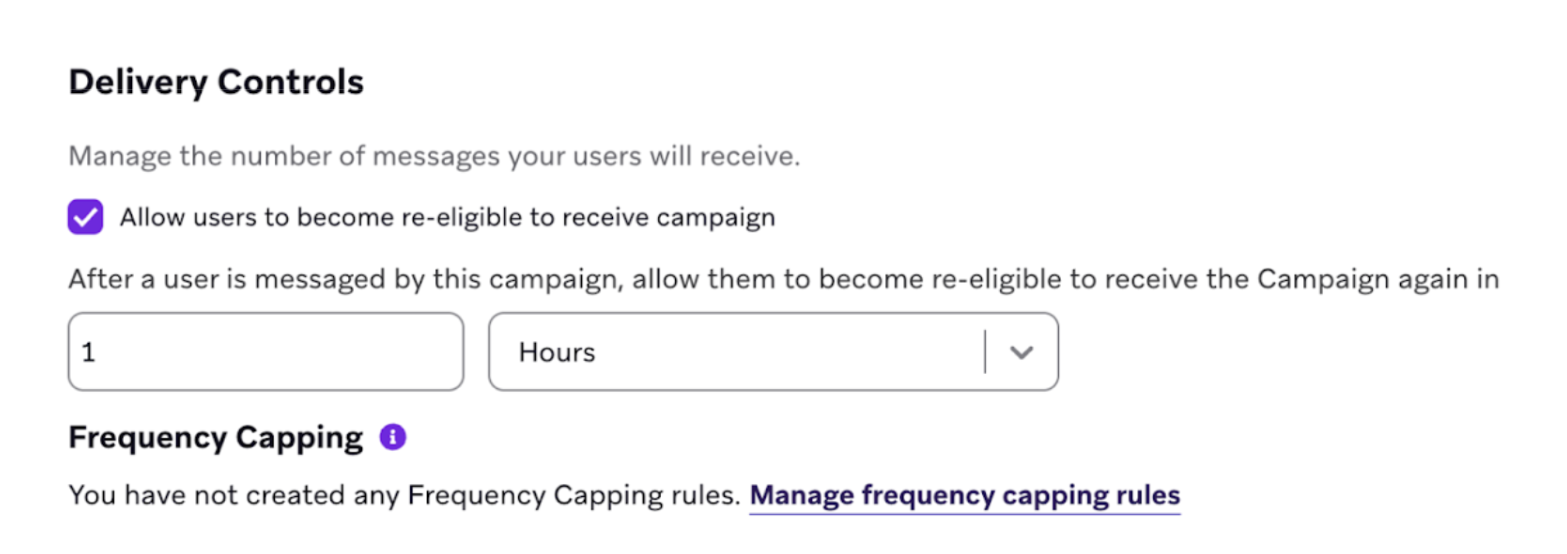
While the Decisioning Studio Pro agent never sends the same campaign more than once a day, you want the ability to send the same campaigns multiple times in a day for testing purposes.
Step 4: Add dynamic placeholders
These serve as dynamic placeholders for decisions that the Decisioning Studio Pro agent is optimizing.
Example 1: Email Campaign
Suppose the Decisioning Studio Pro agent is optimizing an email campaign. This might be configured like this:
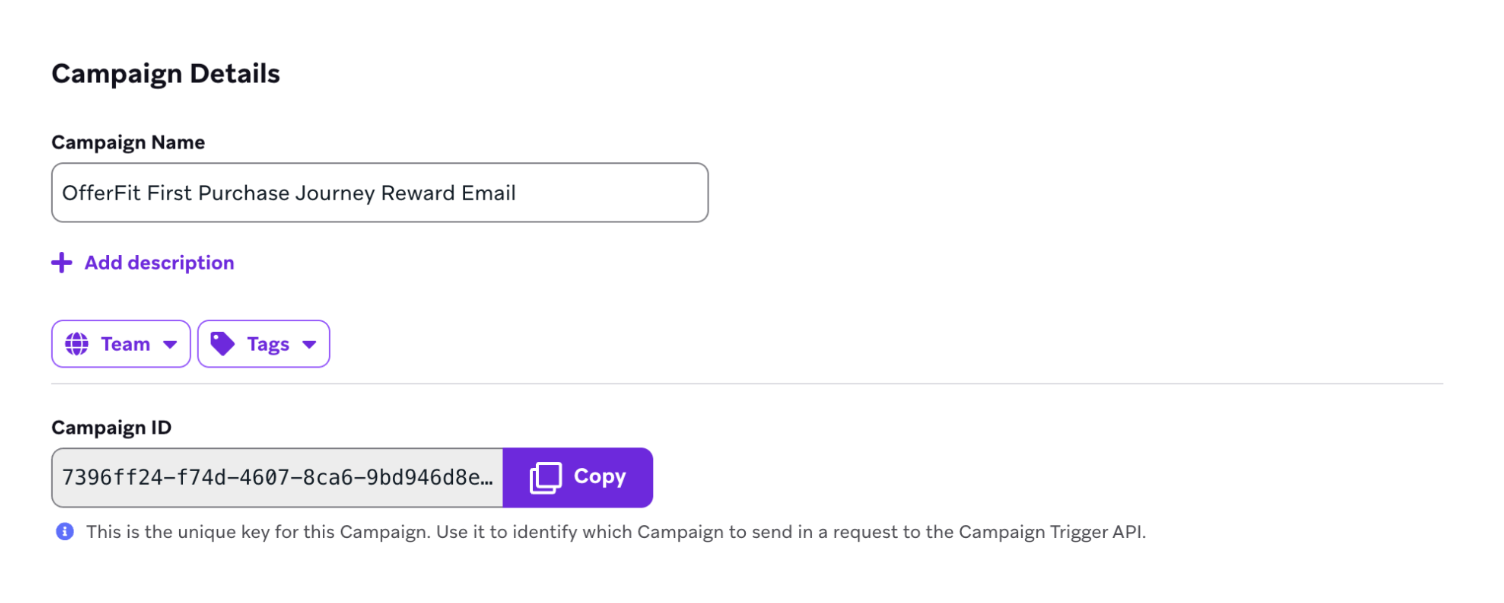
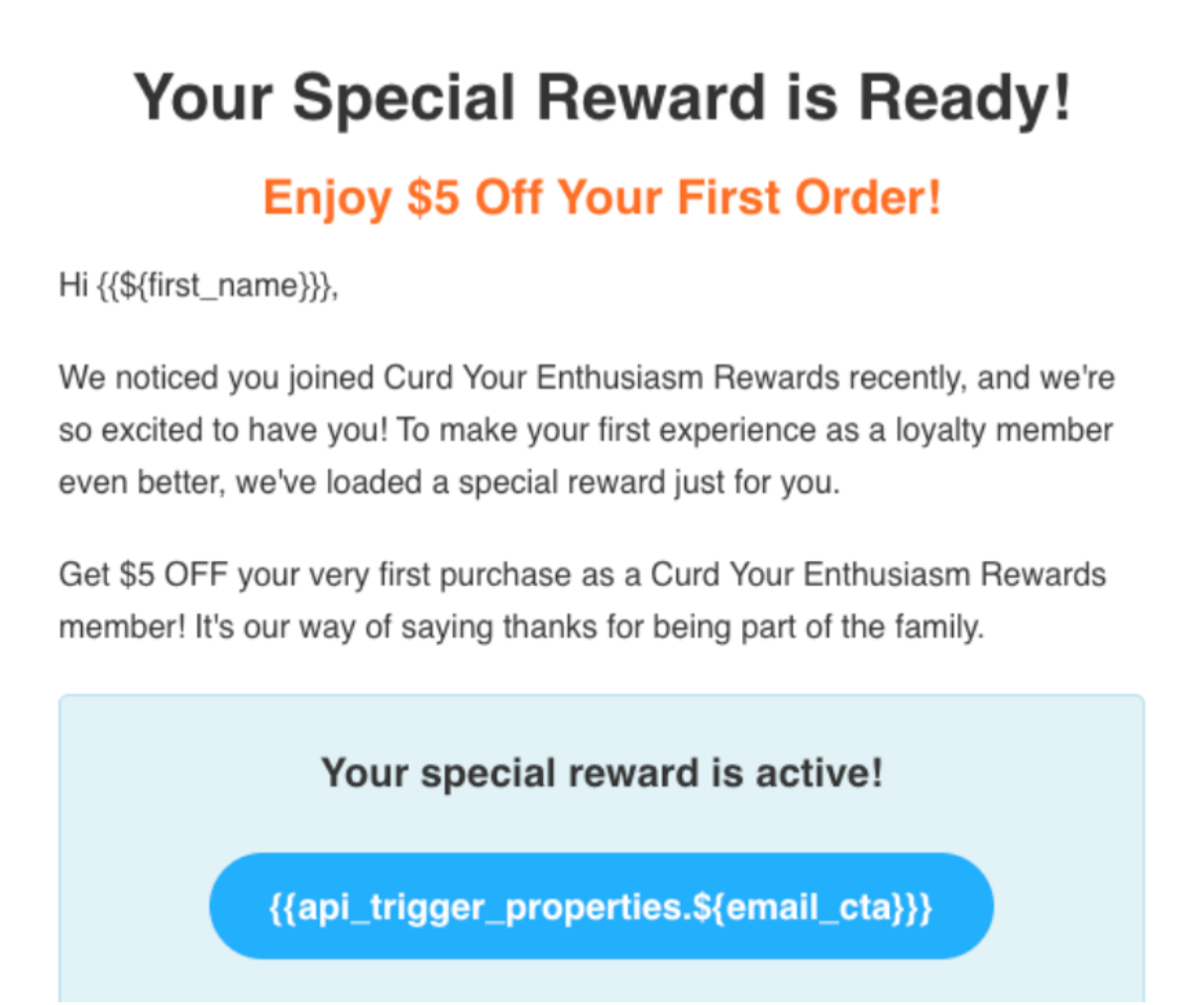
Supposing the agent is optimizing for choice of templates and Call to Action (CTA) message, then an API-triggered campaign should be created for each template, and the CTA section of one template might look like:
Example 2: Push campaign
Suppose a Decisioning Studio Pro agent is optimizing the message of a Push campaign. This might be configured like this:
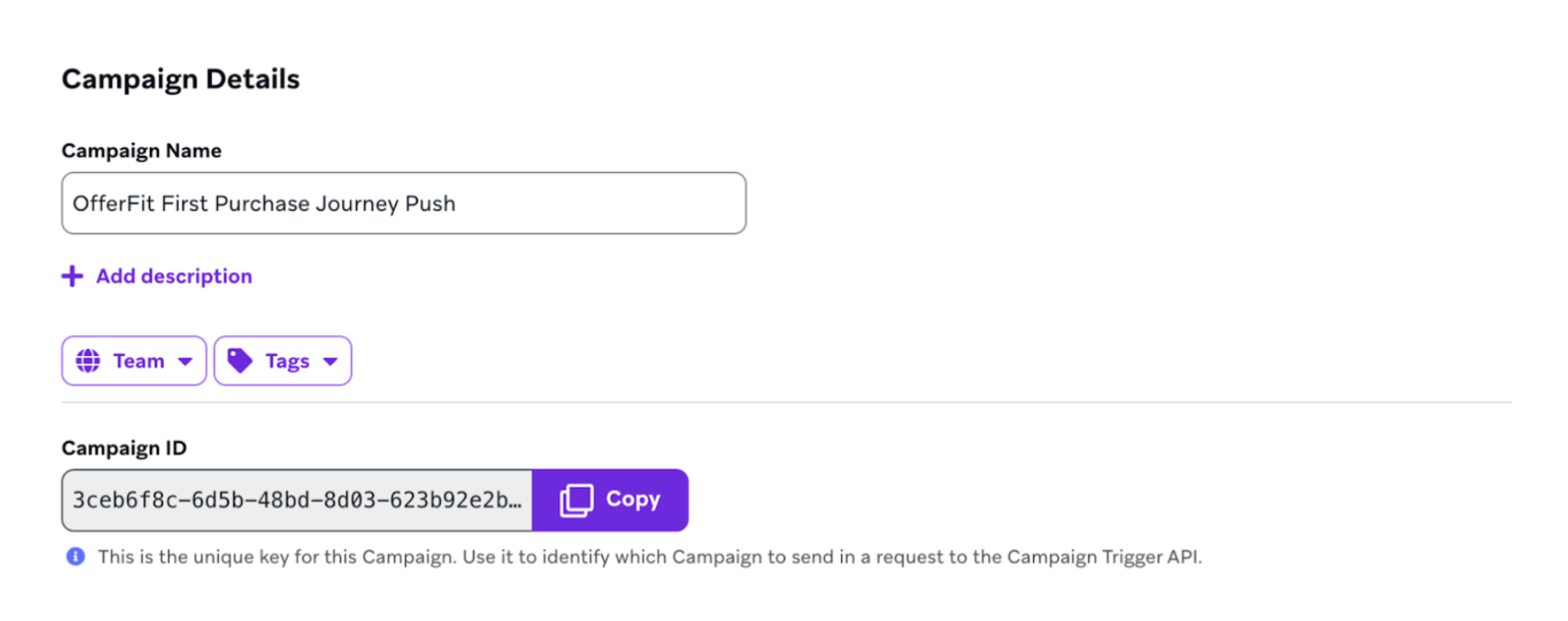
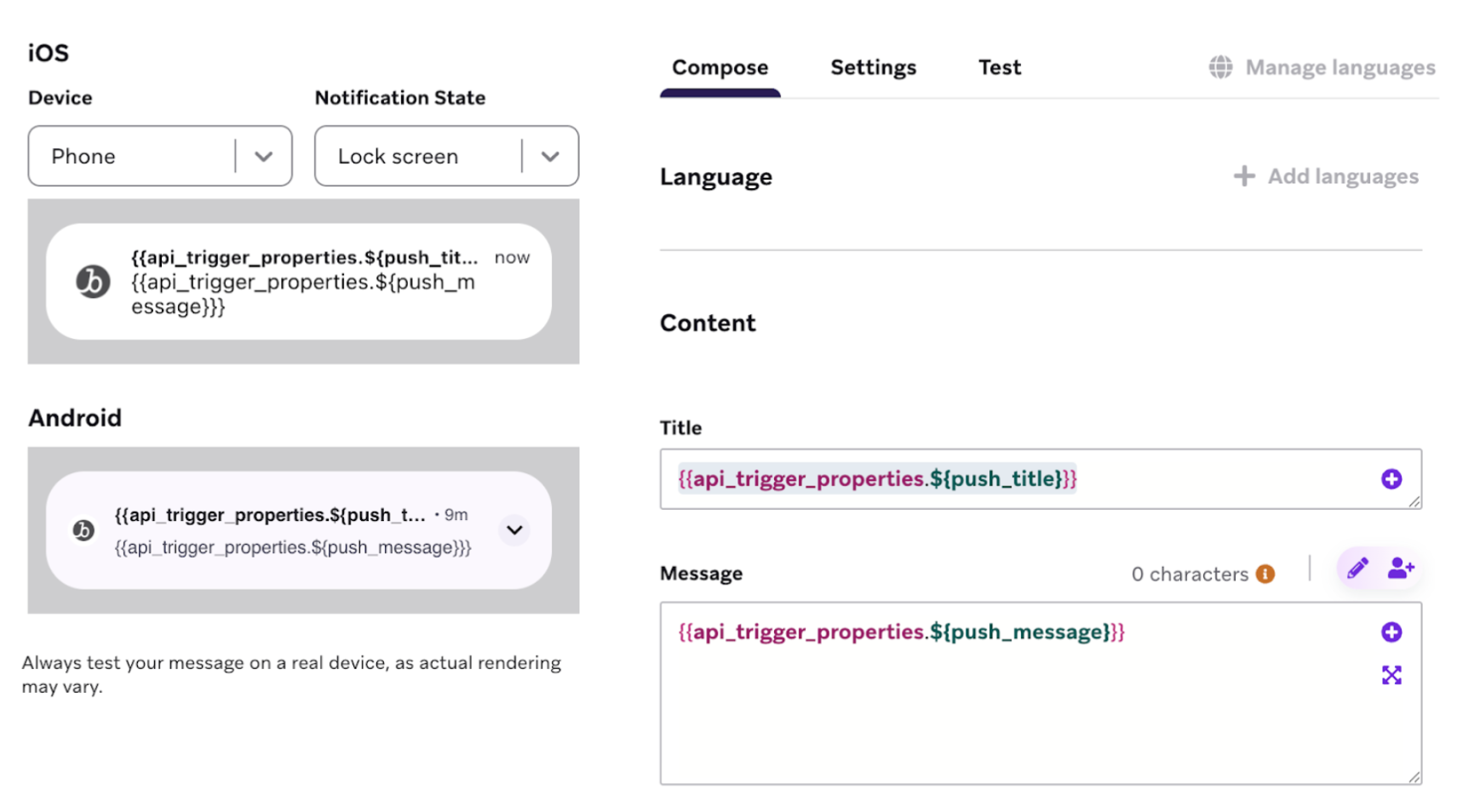
Resulting in the following message:
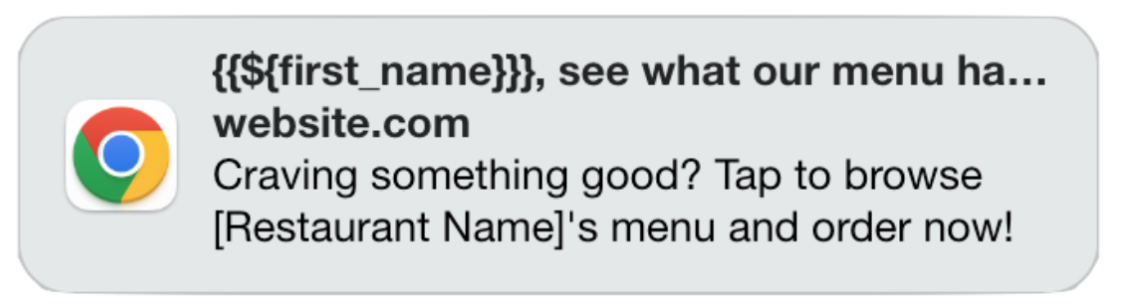
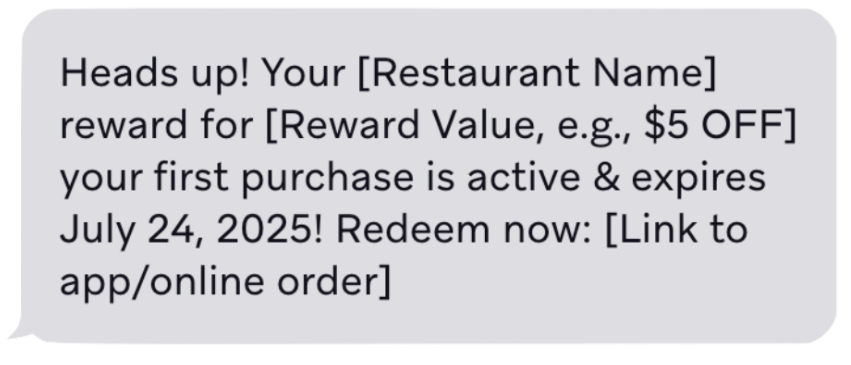
Example 3: SMS Campaign
Suppose that the Decisioning Studio Pro agent is optimizing for fields in an SMS campaign. This might be configured like this:
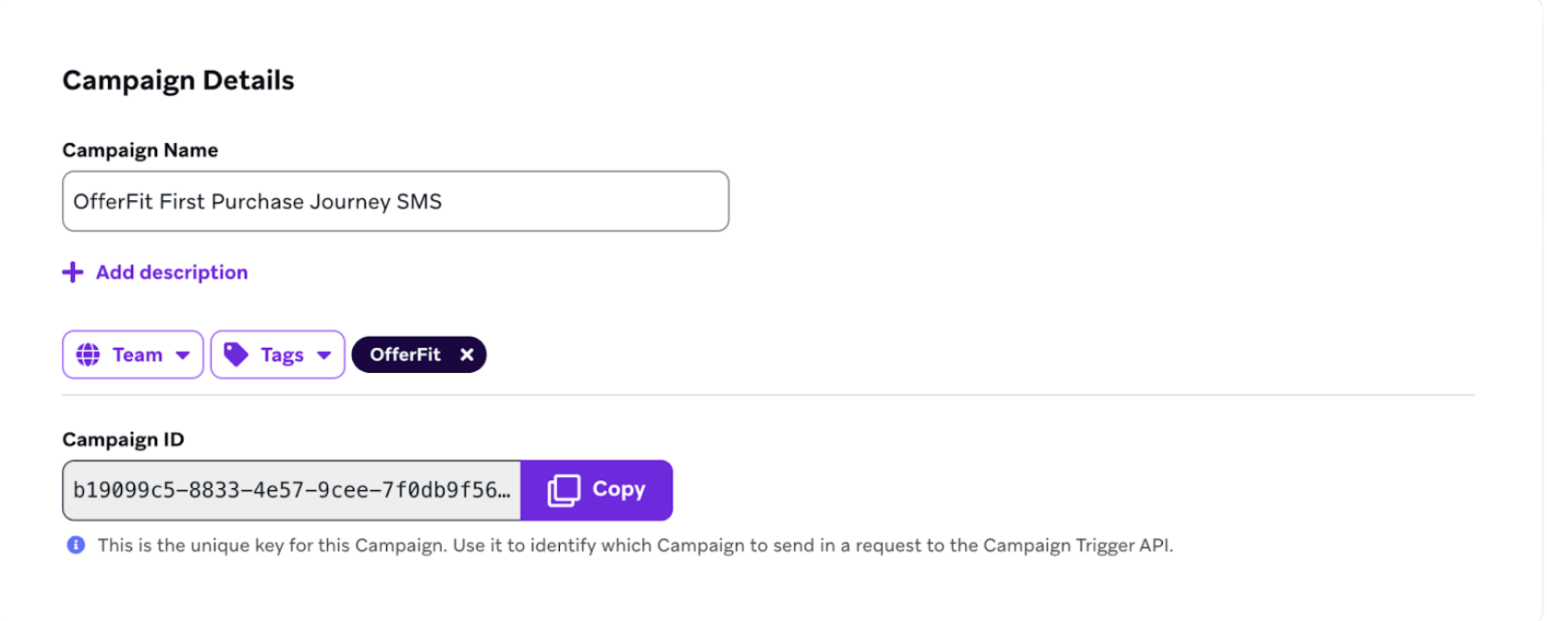
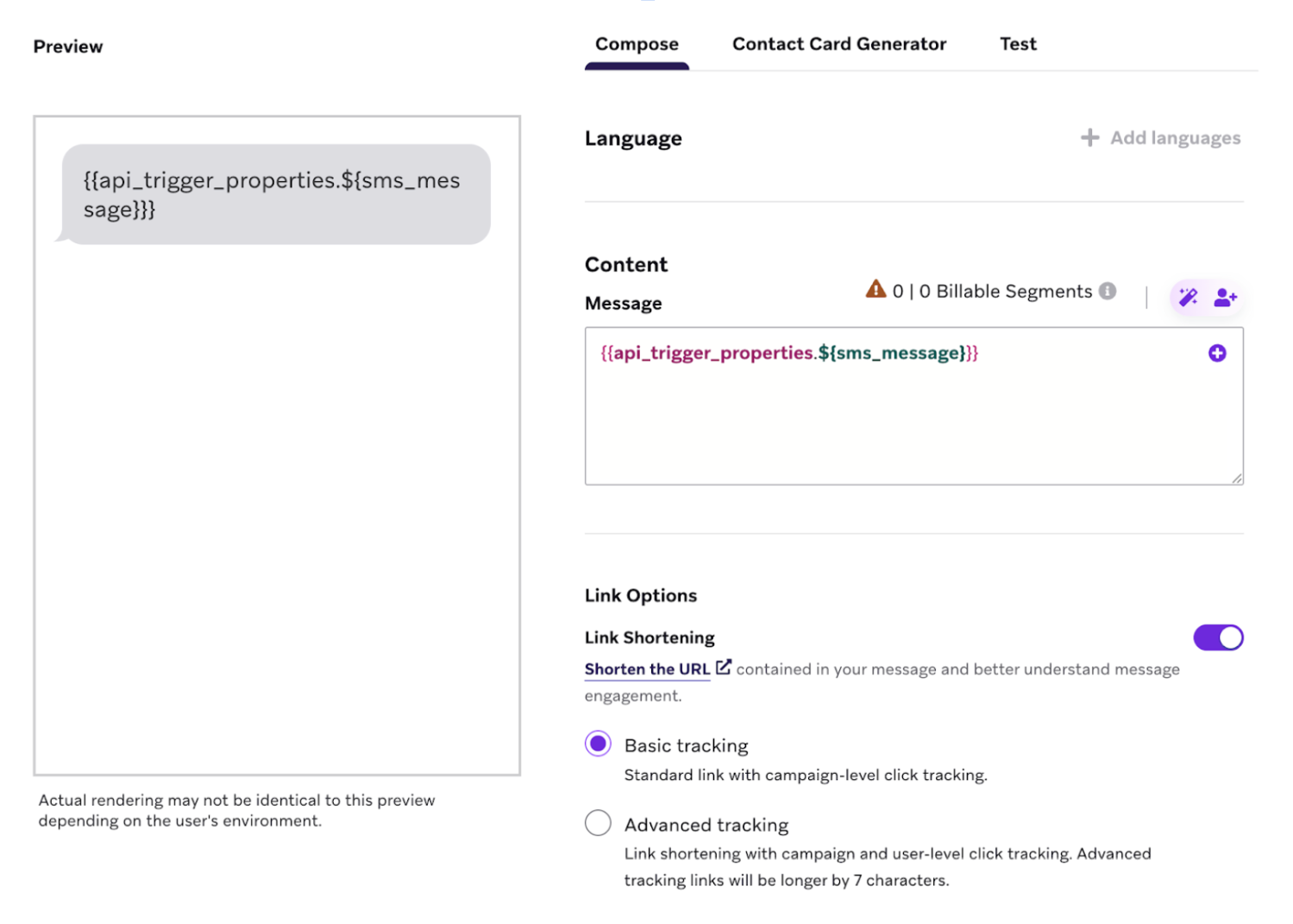
Resulting in the following message:
Set up SFMC integration
Decisioning Studio Pro supports native integration with Salesforce Marketing Cloud. Decisioning Studio Pro triggers API events into a journey with data required to populate dynamic elements.

For your configuration, API IDs must be entered in uppercase. This includes journey IDs, campaign IDs, and any other identifiers. If API IDs are entered in lowercase but your SFMC data contains uppercase UUIDs, the event filters do not match and reporting metrics do not populate correctly.
Set up other CEP integrations
Decisioning Studio Pro can integrate with any customer engagement platform. However, this may require some custom engineering work from your team, since Decisioning Studio Pro cannot trigger communications directly.
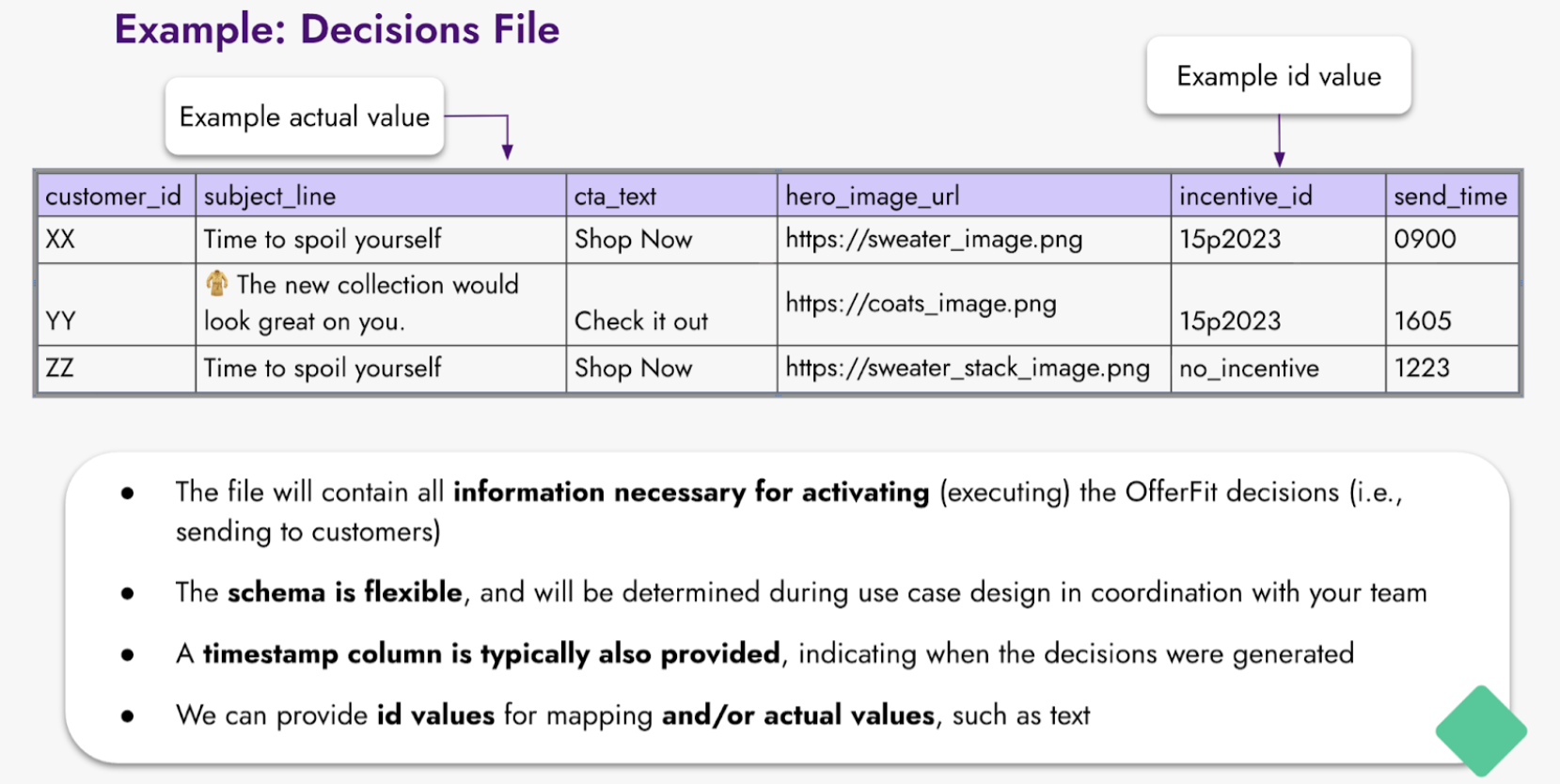
In this scenario, the agent delivers a “recommendation file.” This file contains rows for each customer, with columns that indicate all of the personalized decisions for that customer.
For example, the following recommendation file:
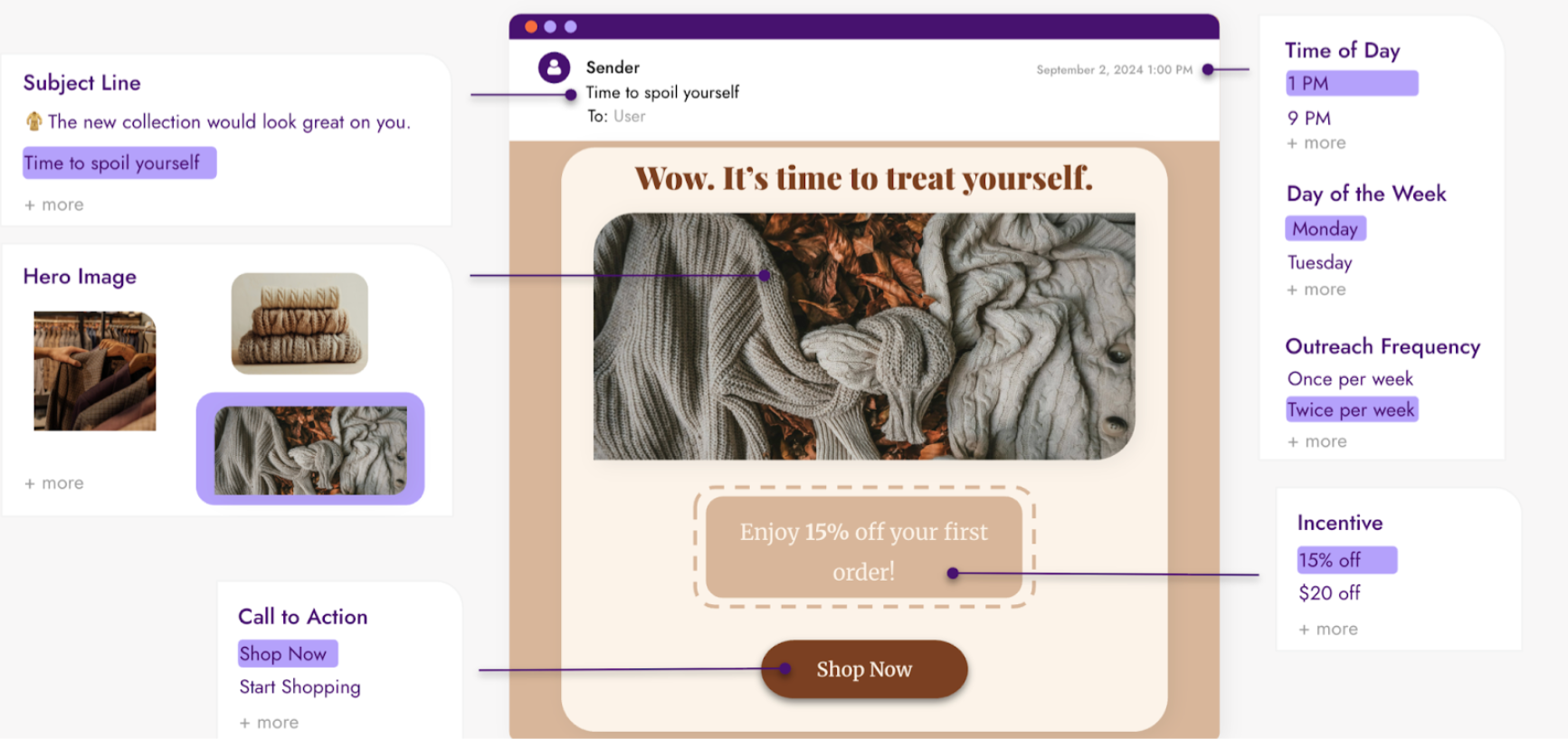
Might be used to optimize an email campaign that looks like the following:
Best practices
Keep these best practices in mind as you prepare for orchestration:
- Begin with a narrow scope: Use one channel and one or two templates at first. You can expand later as you learn what works.
- Test thoroughly: Before launching, test your integration with a small set of users to verify that dynamic content populates correctly.
- Document your setup: Keep track of campaign IDs, template IDs, API keys, and other identifiers. You need these to reference in the Decisioning Studio Pro portal.
- Coordinate with your team: Orchestration setup can involve marketing, engineering, and data teams. Ensure everyone understands their role in the process.
- Plan for feedback data: Orchestration sends messages and collects the engagement and conversion data that helps your agent learn. See Prepare your data for more details.
Next steps
After setting up orchestration, proceed to design your agent: