Shopify overview
Shopify is a leading global commerce company providing trusted tools to start, grow, market, and manage a business of any size. Shopify makes commerce better for everyone with a platform and services engineered for reliability while delivering a better shopping experience for consumers everywhere.
The Braze integration with Shopify provides a powerful solution for eCommerce businesses looking to enhance their customer engagement and drive personalized marketing efforts. This integration seamlessly connects Shopify’s robust eCommerce capabilities with our advanced customer engagement platform, enabling you to deliver targeted, relevant, and timely messages to your users based on real-time shopping behaviors and transactional data.
Requirements
| Requirement | Description |
|---|---|
| Shopify store | You have an active Shopify store. |
| Shopify store owner or staff member permissions |
|
How to integrate
Braze offers two integration options for Shopify merchants that are designed to meet the diverse needs of eCommerce businesses: Standard integration and Custom integration.
The standard integration is tailored for Shopify online stores, providing a seamless and straightforward setup process. This option allows you to quickly connect your Shopify store to Braze, empowering you to leverage powerful customer engagement tools without extensive technical expertise. With this integration option, you can sync customer data, automate personalized messaging, and enhance your marketing efforts through comprehensive Braze features.
To use the standard Shopify integration, refer to Shopify standard integration setup.
The custom integration offers a more flexible and composable solution if you use Shopify Hydrogen or support a headless store. This option empowers you to implement Braze SDKs directly into your Shopify environment, enabling deeper integration and tailored functionalities. Whether you’re looking to create unique customer experiences or optimize specific workflows, the custom integration provides the tools necessary to fully leverage Braze’s capabilities in a headless setup.
To use the custom Shopify integration, refer to Shopify custom integration setup.
How the integration works
If you’ve already set up and turned on historical backfill in your configuration settings, the initial data sync begins immediately.
If you plan to integrate with a custom external ID (for either the standard integration or the custom integration), you will be required to add your custom external ID as a Shopify customer metafield to all existing Shopify customer profiles and then perform the historical backfill.
Following the initial data sync, Braze continuously tracks new data and updates, directly from Shopify and Braze SDKs.

If you’re an existing Braze customer with active campaigns or Canvases, review Shopify historical backfill for important information. To see what specific customer data is being backfilled, refer to Shopify features.
User and data syncing
After the integration is live, Braze gathers user data from two key sources through the Shopify integration:
- Shopify Web Pixel API and app embeds: This powers the Braze Web SDK and Javascript SDK to support on-site tracking, identity management, eCommerce behavioral data, and power messaging channels like in-app messages.
- Shopify webhooks: eCommerce behavioral data, product syncing, and subscriber collection
During integration onboarding, you need to select when the Braze SDKs initialize and load your Shopify site:
- Upon site visit (such as session start)
- What it does: Tracks anonymous users—such as guest shoppers—to access more data for deeper personalization
- Upon account signup (such as account login)
- What it does: Prevents anonymous user tracking for a more conservative, privacy-oriented approach, so user activity is tracked after the user signs into their account
- Website visits (sessions) count towards your Monthly Active User (MAU) allotments.
- The Braze Web SDK and JavaScript SDK versions automatically set to v6.8.0. You can upgrade your SDK version at any time from the integration settings.
Braze uses the Shopify integration to support multiple identifiers that track your users from their guest shopping experience until they become an identified users:
| Braze identifier | Description |
|---|---|
Braze device_id |
A randomly generated ID stored in the browser that tracks anonymous user activity through Braze SDKs. |
| Cart token user alias | An alias that Braze creates to track cart update events. This token is created by using Shopify cart token. |
| Checkout token user alias | An alias that Braze creates when the user starts the checkout process. This token is created by using the Shopify checkout token. If a customer uses Shop Pay as an accelerated checkout option, Shopify may bypass certain standard checkout events and prevent Braze from receiving the data needed to add the checkout token alias. |
| Shopify customer ID alias | The Shopify customer ID is assigned as an alias when the external ID is assigned during account login or when an order is placed. |
Braze external_id |
A unique identifier that helps track customers across devices and platforms. This maintains a consistent user experience and improves analytics by preventing multiple profiles when users switch devices or reinstall the app. The Shopify integration supports the following external_id types:
external_id to your users by calling the changeUser method within the SDKs when:
For more information on what happens when you assign an external_id to an anonymous profile, refer to User profile lifecycle.Braze will also leverage the external_id to attribute downstream eCommerce behavioral data from Shopify webhooks. |
The integration requires Braze SDKs and Shopify services to work together to appropriately track and attribute Shopify data to the right users in near-real time. To find more details on the data tracked through the integration, see Shopify data.
- If you’re testing the integration, we advise you to use incognito mode or clear your cookies to reset the Braze
device_idand mimic the behavior of an anonymous user. - Even though a Shopify customer ID is generated when an email is entered into the Shopify newsletter footer or during the checkout process before an order is placed, that customer ID isn’t accessible through Shopify Web Pixels. Because of this, Braze can’t use the
changeUsermethod in these two situations.
Syncing Shopify email and SMS marketing opt-ins
If you enable subscriber collection in your configuration settings, you need to assign a subscription group for each store you connect to Braze. This means your customers are categorized as either “subscribed” or “unsubscribed” to your store’s subscription group. This applies to email, SMS, and WhatsApp opt-ins.
The Shopify marketing opt-in status for email, SMS, and WhatsApp marketing can be updated in the following ways:
- Manual update: You can manually change a user’s email, SMS, or WhatsApp marketing opt-in status on your Shopify admin page.
- Shopify newsletter footer: If a user enters their email in the Shopify default newsletter footer, their opt-in status is updated.
- Checkout: User consent is captured at checkout when users select the marketing checkbox and proceed with checkout by selecting Pay now on the one-page checkout or Continue to shipping on the three-page checkout.
The email marketing opt-in status from Shopify doesn’t change a user’s global email subscription state in Braze. The default subscription state when a user profile is created is “subscribed.” Remember to use the subscription group as part of your campaign or Canvas entry criteria.
This table shows which Shopify marketing opt-in states correlate with the statuses within your Braze subscription group.
| Shopify marketing opt-in state | Braze subscription group state |
|---|---|
| Email is subscribed | Subscribed |
| Email is unsubscribed | Unsubscribed |
| Email is pending confirmation | Unsubscribed |
| Email is invalid | Unsubscribed |
| SMS subscribed | Subscribed |
| SMS unsubscribed | Unsubscribed |
| WhatsApp subscribed | Subscribed |
| WhatsApp unsubscribed | Unsubscribed |
| WhatsApp pending, or no consent recorded | Not changed |
SMS double opt-in
Use SMS double opt-in to send your branded confirmation text through Braze instead of Shopify’s confirmation email. To turn on SMS double opt-in, do the following:
- On your Shopify admin page, go to Settings > Notifications > Customer notifications.
- Turn off marketing double opt-in for SMS.
- If Shopify’s double opt-in stays on, Shopify sends its own pending status or an email confirmation, and shoppers don’t receive the Braze SMS confirmation.
- Set checkout SMS to single opt-in.
- In your Braze SMS settings, select Use Braze SMS double opt-in.
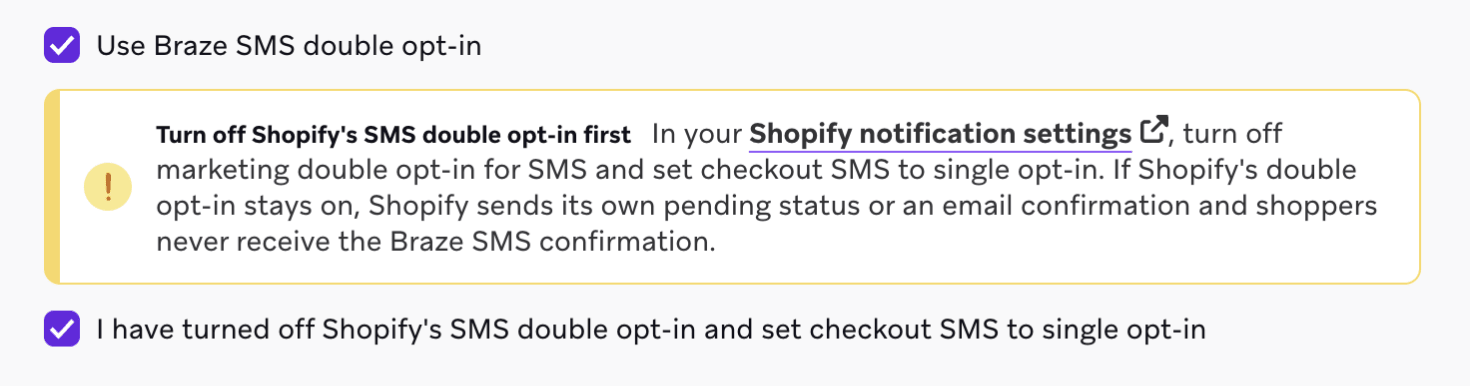
When a shopper subscribes to SMS at checkout or through a form, the following happens:
- Shopify sends the subscribe to Braze.
- Braze sets the shopper to pending and sends your confirmation text.
- The shopper replies with your confirmation keyword and becomes subscribed.
- If they don’t reply before the confirmation window ends, they stay pending.
For more information on Braze SMS double opt-in, see SMS double opt-in.
WhatsApp marketing opt-ins
Shopify stores WhatsApp marketing consent on the customer’s default phone number. Merchants collect WhatsApp marketing consent the same ways as SMS consent:
- At checkout
- On the customer’s profile on your Shopify admin page
- Through a customer import
- Through the Shopify API
At checkout, Shopify shows either the SMS checkbox or the WhatsApp checkbox for a region, depending on your checkout settings.
To sync WhatsApp opt-ins, select Collect WhatsApp subscribers in the Manage users step and select the WhatsApp subscription groups to sync to. Your workspace needs a connected WhatsApp Business Account to have WhatsApp subscription groups. To connect one, go to Technology Partners > WhatsApp.
Keep the following in mind:
- Braze only syncs the WhatsApp consent that Shopify records. An SMS or email opt-in doesn’t subscribe a customer to WhatsApp.
- You’re responsible for the consent you collect. Consent set on your Shopify admin page or through a customer import is synced as it’s set, so make sure it meets Meta’s opt-in requirements.
- A customer who opts in at checkout hasn’t messaged your WhatsApp number, so there’s no open conversation window. If you send a confirmation or welcome message, use a Meta-approved template. For more information, see WhatsApp opt-in flows.
- WhatsApp currently doesn’t deliver marketing template messages to United States phone numbers. Customers with a US number still sync, but your marketing messages to them aren’t delivered. For more information, see Per-user marketing template message limits.
- Customers whose phone number isn’t in international format, such as
+14155551234, aren’t synced because they couldn’t receive WhatsApp messages. - There’s no double opt-in for WhatsApp. The Use Braze SMS double opt-in setting doesn’t apply to WhatsApp opt-ins.
Sign-up forms
Shopify newsletter footer
Users who enter their email address into the Shopify newsletter footer will experience one of these workflows:
Users who haven’t logged into their account
- Braze receives an inbound Shopify webhook whenever a customer is created or updated.
- Braze creates a user profile containing the email address and Shopify customer ID alias that are associated with that user.
- The Braze SDK updates the anonymous profile with the email address.
This might result in a duplicate profile until the user identifies themselves by creating their account, logging into their account, or placing an order. Braze offers bulk merging tools to help you automate the reconciliation of duplicate profiles. Refer to Duplicate users for more details.
Users who have already logged into their account
Braze will create a user profile containing the email address and Shopify customer ID alias that are associated with that user. Braze won’t update the logged-in user’s email address, because we assume that Shopify has already provided this information.
Braze sign-up forms
Braze provides two types of sign-up form templates:
- Email sign-up forms: Create these using the drag-and-drop editor.
- Traditional editor email capture form: A more straightforward form for capturing email addresses.
When you use these sign-up form templates, Braze automatically updates the global email subscription status on the user profile. For more details on how the global email subscription state is handled, including information on on email validation, refer to documentation for each form template type.
- Make sure to include entry criteria in your campaign or Canvas that includes both the global email subscription status and the subscription group that are connected to your Shopify store. This will help ensure that you are targeting the right audience.
- Braze collects visitor information, such as email addresses and phone numbers, through in-browser messages. This information is then sent to the Shopify Visitor API but doesn’t create a customer profile in Shopify. For more details, refer to Visitor API.
Third-party sign-up forms
If you’re using a third-party platform or Shopify plugin for your sign-up forms, you need to work with your developers to integrate Braze SDK code to capture the email address and global email subscription status from form submissions. To learn more, review Shopify standard integration setup and Shopify custom integration setup.
Product syncing
Braze supports the ability to sync your Shopify store’s products into a Braze catalog. For more details refer to Shopify product syncs.
Data subject requests
As part of the Braze platform’s Shopify integration, Braze automatically receives Shopify’s compliance webhooks. However, because customers are the data controllers of their End Users’ data, customers must carry out any actions required to address Data Subject Requests received with respect to End User data in Braze (including End User data received via the Shopify integration). Please see our Data Protection Technical Assistance documentation for more details.