Shopify Markets
This article covers the Shopify Markets integration, including what’s in scope, how it works, and how to use your markets data in your messaging.
How the integration works
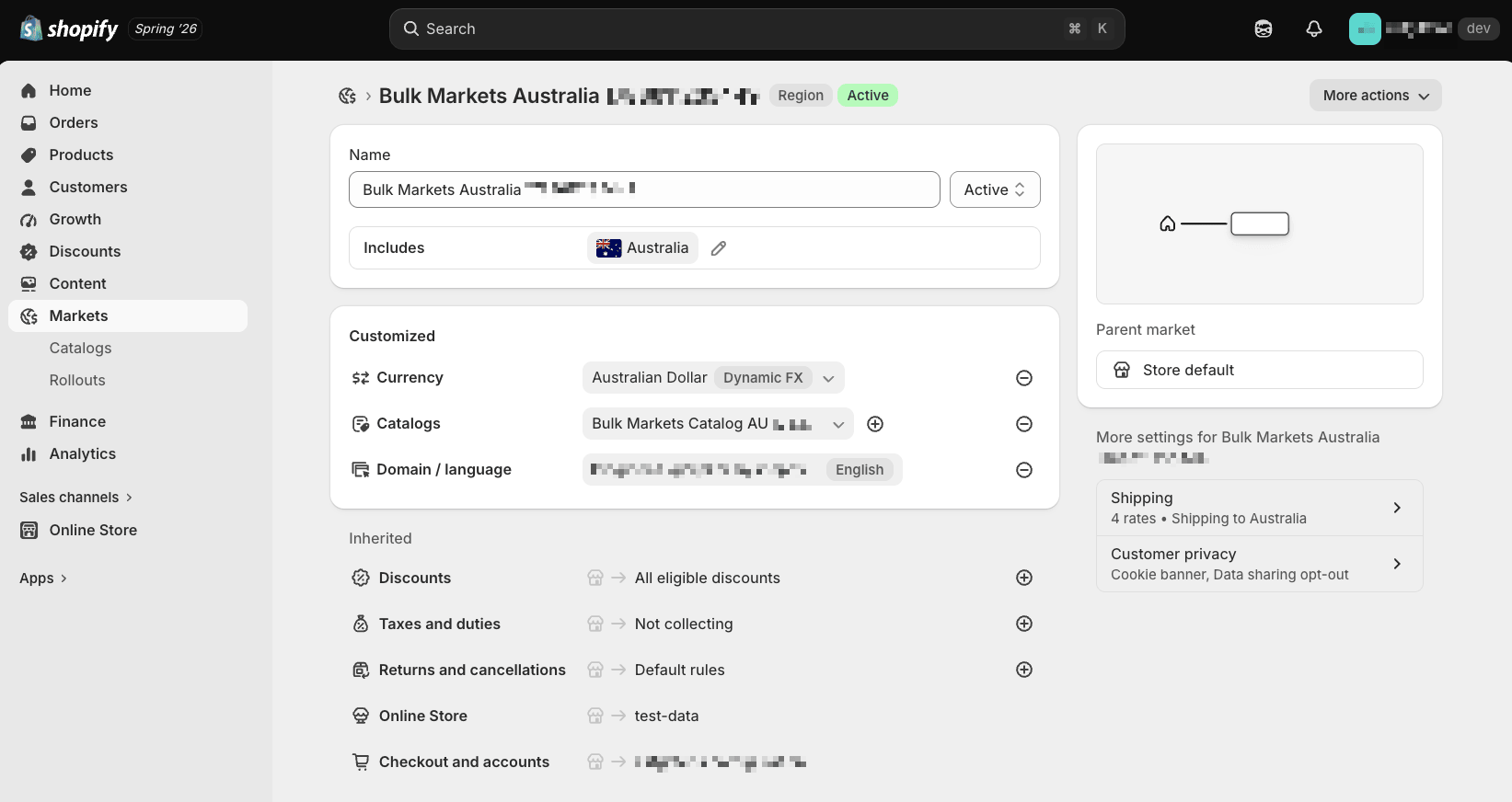
Shopify Markets extends your existing Shopify integration. Connect your default storefront through the standard or custom (SDK) integration path, then select the markets you want Braze to sync from your store’s configured markets. Existing integrations can add markets without disrupting catalogs, subscription groups, or events. For step-by-step instructions, see Shopify Markets setup.
Shopify Markets provides these capabilities:
- Market-aware profiles: The integration captures each user’s Shopify locale along with Braze’s standard country and language attributes, so you can segment and trigger by market with no custom setup.
- Localized catalogs: Market-specific product data syncs daily, including prices and currency, along with translated titles, descriptions, and product URLs.
- Market-aware personalization: Use the
{% shopify_market %}Liquid tag to personalize with catalog products from each user’s market, including Shopify’s translated content. You can also reference market details, such as presentment currency, from supported Shopify events likeecommerce.order_placed. - Default store fallback: When a user doesn’t belong to one of your connected markets, Braze uses your default store settings and products, so every user receives a complete, accurate message.
For examples, see Use Markets user data and Tutorial: Show products and prices per market.
Supported Shopify market types
You can select up to 25 active single-country or multi-country markets. Each country can belong to only one selected market.
Sub-region markets, retail markets, B2B markets, and channel markets aren’t supported.
What each market needs
Each selected market needs a market catalog with active products. Braze reads the following from that catalog:
| Data | Description |
|---|---|
| Prices | Set in the market catalog, in that market’s specified currency. Shopify’s “Use local currencies” setting isn’t supported. |
| Translations | Adapted translations made through the Shopify Translate & Adapt app, such as product title and variant title. Braze currently doesn’t support specific market language settings. |
Considerations
General
- One connected store: You can connect only one Markets-enabled Shopify store to a Braze workspace at a time.
- Locale scope: Locales pull in translated product titles and descriptions based on what you configured using the Shopify Translate & Adapt app, and locale-specific URLs. Price, currency, and other shared catalog fields stay the same across locales within a market. By default, Braze uses each market’s default language, the primary locale Shopify assigns to that market. If you turn on expanded locale support, Braze syncs additional locales configured for that market.
Market catalog
- New market views in your original Shopify catalog: Markets doesn’t create separate catalogs. Instead, Braze shows them as part of your original Shopify catalog. Markets data is added as new catalog rows to your Shopify catalog.
- Catalog selections: Up to 30 catalog selections.
- Refresh timing: Market catalog product data refreshes once daily.
- Market prices and localized content: Market rows include the market’s price and
compare_at_price, including localized product and variant titles and product URLs when translations are set up through the Shopify Translate & Adapt app. - Price drop: Supported for market catalogs. A price change in a market catalog triggers on that market’s price rather than your default store price. Because market catalog product data refreshes once daily, price drops are detected daily rather than when the price changes in Shopify.
- Back-in-stock: Back-in-stock is supported for products in your default store catalog. Market rows don’t trigger back-in-stock notifications. Back in stock looks at the total available inventory for a product variant across all Shopify locations, so stock added at a retail location can trigger a notification.
Shopify Markets setup
If you already have an active Shopify integration
Markets adds to your current integration. You don’t need to disconnect it or rebuild your setup.
- Your subscription groups become your store-wide groups and continue to receive every opt-in, including any additional groups you assigned.
- Your existing subscribers stay in the groups they’re already in. If you add country groups later, Braze doesn’t add existing subscribers to them.
- Your catalog continues syncing. Market rows are added to it rather than to a new catalog, and your existing selections continue working against your default rows.
- Your default store appears alongside your selected markets, letting you assign subscription groups and build catalog selections for it the same way.
If your store is already connected, start with Step 2 to learn more about each configuration and how it works.
Step 1: Connect your Shopify Markets-enabled store
- Connect your store using either the Shopify standard integration or Shopify custom integration path. After your store is connected, configure Shopify Markets in the setup composer.
- Complete the OAuth flow and confirm Braze requests the markets scopes in the OAuth:
read_marketsread_publicationsread_locales
- After authorization succeeds and the setup composer opens, select Begin Setup.
- Turn on the Braze SDKs.
Step 2: Select your market user data
- In Track Shopify Data, select Sync Shopify Markets data.
- Select Select Markets to pick your market, and make sure you’ve selected to track behavioral events and user attributes.
- (Optional) Turn on historical backfill
Markets user data
To support Shopify Markets, Braze syncs additional data beyond the integration’s standard events and attributes.
User profile attributes
| Attribute | Data type | Description | Data source |
|---|---|---|---|
shopify_locale |
Custom attribute | The customer’s locale, such as en or fr-CA. The Braze web pixel sets it from the shopper’s browser language, and each order they place updates it to the locale they checked out in. The historical backfill also imports it from the Shopify customer record. Customer edits in Shopify don’t change it. |
Web pixel, order webhooks, historical backfill |
browser_language |
Standard attribute | The language set in the customer’s browser. | Braze SDKs |
country |
Standard attribute | The customer’s country. | Braze SDKs |
Order event properties
| Property | Description | Data source |
|---|---|---|
country |
Two-letter country code for the customer. | The customer’s default_address in Shopify, or the order’s shipping_address if no default address is set |
presentment_currency |
The currency the customer paid in, which can differ from your store currency. | Shopify order presentment currency |
market_handle |
Handle of the market matching the customer’s country. Empty when no configured market matches. | Braze, from your market configuration |
These properties are added to:
- eCommerce recommended events:
ecommerce.order_placed,ecommerce.order_cancelled,ecommerce.order_refunded - Custom events:
shopify_paid_order,shopify_fulfilled_order,shopify_partially_fulfilled_order
How these market event properties work
| Property | How it works |
|---|---|
market_handle |
market_handle is the handle you gave the market in Shopify, such as france. The same handle prefixes market row IDs in your catalog, such as france_46714756268231. It’s empty when you haven’t configured markets, or when the order’s country doesn’t match a market you configured, so check for an empty value before using it in Liquid or a segment filter. |
country |
country comes from the customer’s default address, and uses the shipping_address if the default doesn’t exist. For example, a customer in France who sends an order to Japan still carries the France market. |
| Event properties | Event properties are a snapshot of the moment the event happened and don’t change afterward. If a customer updates their default address later, new events use their new country while past events keep the country they were recorded with. |
Currency
When Shopify Markets reporting is enabled, native Shopify checkout, order, and refund webhook events carry two sets of values:
- Your store currency in the existing price and total fields, unchanged
- The
presentment_currencyobject holding the amounts the customer saw and paid
Those events can also include related market properties such as country and market_handle.
Use presentment_currency when you’re showing a customer what they paid, such as an order confirmation or a checkout reminder. Use the store currency values when you’re comparing revenue across markets, since they’re already in a single currency.
Cart events from the Shopify pixel don’t include presentment_currency. Custom checkout and purchase events you send through a CDP such as Segment also omit it. To keep market currency in your messages and reporting, include an equivalent object in your custom event payload, or keep the native Shopify events enabled for the event types you need.
Localized product information
Supported Shopify events carry product and variant titles in your default store language. Braze doesn’t translate event payloads.
Translated titles, descriptions, and product URLs live on your market catalog rows. To show localized product information in a message, search for the product in your catalog using the product or variant ID from the event.
Step 3: Manage users
- Select your
external_idtype from the dropdown. - Turn on email, SMS, and WhatsApp opt-ins from Shopify, which allows Braze to sync email, SMS, and WhatsApp subscription states from Shopify. You have two options:
- Use the integration: Braze syncs email, SMS, and WhatsApp states. Select the subscription groups they sync to. WhatsApp groups are only available when your workspace has a connected WhatsApp Business Account.
- Build your own: For more control over state management, build a custom integration using the Braze subscription group endpoints.
- Select the subscription groups that Shopify consent syncs to:
- Store-wide groups (required): Select at least one group for each channel you turn on. Every opt-in Braze receives from Shopify is recorded here.
- Country groups (optional): Assign one or more groups to any country in your synced markets. Opt-ins are also recorded here when Braze can determine the customer’s country.
How opt-ins and opt-outs work
In Shopify, each customer has one email consent state, one SMS consent state, and one WhatsApp consent state. When customers opt in, they subscribe to your brand, not to a country or a list.
Braze records each opt-in in your store-wide groups. If you set up country groups and Braze can tell which country the customer is in, the opt-in is also recorded in that country’s groups.
If you don’t set up country groups, opt-ins go to your store-wide groups only, which matches how Shopify handles consent today.
How Braze determines country
| Channel | Country determination |
|---|---|
| Uses the customer’s Shopify locale first; if unavailable, uses the country attribute on their Braze profile. | |
| SMS | Uses the phone number’s country, as determined by E.164 country routing patterns. |
| Uses the phone number’s country, the same as SMS. |
A locale identifies a country only when it includes a region, such as fr-FR. A locale of fr on its own doesn’t.
For SMS and WhatsApp, the country comes from the phone number. The shopper must be added to a subscription group that can send messages to that number.
What happens when someone opts in
| Country status | Store-wide groups | Country groups |
|---|---|---|
| Determined, and configured in your markets | Subscribed | Subscribed to that country’s groups |
| Can’t be determined | Subscribed | Not subscribed |
| Determined, but not configured in your markets | Subscribed | Not subscribed |
Subscription group membership is based on consent events from Shopify. If a shopper’s country or locale changes, their group membership doesn’t change. Braze updates it only when Shopify sends a new consent event, such as if consent is collected again from the shopper on Shopify after the country or locale has changed.

Country groups control consent, not language. A country can have more than one language. English and French customers in Canada, en-CA and fr-CA, belong to the same country group. Use shopify_locale inside your messages to specify the language.
What happens when someone opts out
An opt-out in Shopify removes the user from every subscription group assigned to your Shopify integration. This is the same whether they opted out through a market site or through their Shopify account page.
Subscription groups in your workspace that aren’t assigned to the integration aren’t affected.
Opt-ins from countries you haven’t configured
If a customer opts in from a country that isn’t part of your configured markets, whether you never added it or you removed that market, they subscribe to your store-wide groups. They aren’t added to any country group.
Configuring markets doesn’t restrict who can be messaged. If you can’t message a country for legal or regulatory reasons, exclude those users with a segment filter or route them to a separate subscription group.

Build that segment as an allowlist of the countries you serve, not a blocklist of the ones you don’t. Users whose country couldn’t be determined have no country value, so a blocklist won’t catch them.
For SMS, each subscription group’s country permissions still control delivery. A user whose country isn’t permitted on the group won’t receive messages from it.
Users aren’t added to country groups later
If Braze can’t determine a customer’s country when they opt in, they’re added to your store-wide groups only. If their country becomes known later, they aren’t automatically added to that country’s groups.
When you turn on Markets in an existing integrated store, your existing subscription groups become your store-wide groups. Existing subscribers remain subscribed to these groups and aren’t automatically added to new country groups.
To add them yourself, build a segment for those users and subscribe them using a Canvas User Update step.
Counting subscribers across groups
One opt-in can add a user to more than one subscription group, so adding group totals together counts the same person multiple times. Use a segment when you need a count of unique subscribers.
How it works
- A customer subscribes to SMS at checkout or through a form.
- Shopify sends the subscribe to Braze.
- Braze sets the user to pending and sends your confirmation text.
- The customer replies with your confirmation keyword and becomes subscribed.
- If they don’t reply before the confirmation window ends, they stay pending.
For more information, see Double opt-in.
Step 4: Sync products
- To sync products within your market, select Sync Shopify products and variants to Braze.
- Assign the Braze catalog ID and configure any additional settings.
Your catalog includes a per-market view for your store’s default products. For each product published to your market, Braze adds a market row to your existing catalog, on top of the standard Shopify catalog fields already supported. It may take a few minutes for these to sync if you turn on Shopify Markets on an existing integration.
On market rows, these fields have market-specific values:
| Field | Description |
|---|---|
id |
A composite ID prefixed with the market handle, such as france_46714756268231. Default rows keep their original item IDs. |
market_handle |
The handle you gave the market in Shopify, such as france. |
locale |
The market’s locale, which determines the language of translated content. |
price |
Market-specific price from the market’s contextual pricing, after any price list adjustments are applied. |
compare_at_price |
Market-specific compare-at price after adjustments. Braze returns 0 when no compare-at price resolves for that market, including when the market’s price list is set to nullify compare-at prices. |
product_title and variant_title |
Translated titles, when translations are set up through the Shopify Translate & Adapt app. |
product_url |
The product’s URL for that market. |

inventory_quantity isn’t included on market rows. It appears on default rows only, where it reflects the total available inventory for a product variant across all Shopify locations.
When you use compare_at_price in Liquid, check for “0” before you display it or calculate a discount. A market without a compare-at price renders a price of zero or an incorrect discount.
Step 5: Activate channels
- (Optional) Select whether to enable in-browser messaging.
- Select Finish Setup.
Use Markets user data
After these attributes and properties are on user profiles, you can use them to target users by market and to personalize messages.
Target by market in segmentation
Filter by country, browser language, or shopify_locale in segments and in campaign or Canvas entry criteria—for example, users in France, or a Canvas path by shopify_locale.
You can also use Shopify Market segment filters, which target by the market associated with a shopper’s order activity. To reach shoppers associated with your default market only, build a segment that excludes users in each non-default market you sync—for example, everyone who has placed an order except where the market equals Mexico.
For catalog product selections by market handle (including when market_handle is default for default product rows), see Tutorial: Show products and prices per market.
Trigger and personalize with Liquid
Reference market data in your messages with these Liquid variables.
From the user profile
| Attribute | Liquid |
|---|---|
| The customer’s language | {{custom_attribute.${shopify_locale}}} |
| The customer’s country | {{${country}}} |
From order events
| Event property | Liquid |
|---|---|
| The order’s country | {{event_properties.${country}}} |
| The order’s market | {{event_properties.${market_handle}}} |
| The currency the customer paid in | {{event_properties.${metadata}.presentment_currency.code}} |
| The order total in that currency | {{event_properties.${metadata}.presentment_currency.<total_value>}} |
Show prices in the customer’s currency
Always pair an amount with its currency code. An amount rendered on its own is the most common mistake in multi-market messaging, because “129.95” means something different in each market.
Use the order total for order-level messages, such as a confirmation, and the product price for product-level content, such as a cart or a recommendation.
Thanks for your order! Your total: {{event_properties.${metadata}.presentment_currency.code}}
{{event_properties.${metadata}.presentment_currency.<total field>}}
Because these properties travel with the event, the message stays accurate for each customer’s market without extra setup.
Check for empty values
Two values won’t always be there, and both render incorrectly when they’re missing.
market_handle is empty when the customer’s country doesn’t match a configured market. Check before you branch on it:
{% if event_properties.${market_handle} != blank %}
...
{% endif %}
compare_at_price returns 0 when no compare-at price resolves for that market. Check for 0 before you display it or calculate a discount, or a customer sees a struck-through price of zero.
Show localized product information
Product names in events are in your default store language. To show translated titles, descriptions, or product URLs, look the product up in your catalog using the product or variant ID from the event. For an example, see Tutorial: Show products and prices per market.
Trigger messages from order activity
Market properties are included with supported Shopify events, so a campaign or Canvas triggered by an order can use them without extra setup. These events include country, presentment_currency, and market_handle.
| Event type | Events |
|---|---|
| eCommerce recommended events | ecommerce.order_placed, ecommerce.order_cancelled, ecommerce.order_refunded |
| Custom events | shopify_paid_order, shopify_fulfilled_order, shopify_partially_fulfilled_order |
presentment_currency is included with supported checkout, order, and refund events, so a checkout reminder or order confirmation can show the amount a customer saw. Cart events don’t carry presentment_currency, country, or market_handle. For details, see Currency.
Markets reporting
Existing Shopify customers must use ecommerce.order_placed revenue to view Markets reporting. For new customers, this is enabled by default. If you have questions, contact your account team.
When Markets is enabled, Braze breaks down revenue and message performance by country.
Revenue by country
Your revenue report includes a country breakdown alongside the app breakdown for both lifetime and a selected time range.
Each order is attributed to one country, and its full revenue goes to that country. The country is selected from the order first, and then the shopper’s profile. Orders where neither is available appear under Unknown.
Revenue is shown in USD, the same as the rest of the revenue report. To see what a shopper actually paid, use presentment_currency on the order event.
Performance by country
Campaign and Canvas analytics include a Performance by country table showing how a message performed in each country. Each row is a country and currency combination. Currency and total revenue come from the order’s presentment_currency.
| Column | What it shows |
|---|---|
| Country | Each country attributed to the campaign or Canvas. Orders without a country appear as Unknown. |
| Currency | The presentment currency for that country’s revenue. |
| Total Revenue | Revenue attributed to that country, shown in the presentment currency. |
| Total Purchases | Purchases attributed to that country. |
The Total row sums Total Purchases only. Total Revenue is blank in the total row because rows can use different currencies and aren’t summed together.
You can also break down campaign and Canvas performance by country in Report Builder using Countries (Shopify Markets) as a row or drilldown.
Remove a market
Removing a market stops Braze from syncing new data for its countries. It doesn’t delete data you already have.
Subscription groups
Removing a market updates your Markets configuration. It doesn’t delete subscription groups from your workspace or remove users who are already subscribed to country groups.
What changes in your setup
- Countries from the removed market no longer appear in the Markets UI.
- Braze removes those countries’ subscription group assignments from your integration configuration.
What stays the same
- Country subscription groups remain in your workspace and stay available for targeting, but Shopify no longer syncs opt-outs to them. Users who opt out in Shopify may still appear subscribed in those country groups unless you update their subscription status another way—for example, through the subscription group endpoints or an opt-out workflow in Braze.
- Users already subscribed to a removed market’s country groups stay subscribed.
Future consent sync
- New opt-ins from shoppers in removed countries sync to your store-wide groups only, the same as opt-ins from countries you haven’t configured.
- Braze no longer syncs new opt-ins or opt-outs to the removed countries’ country groups.
- Store-wide subscription groups continue to receive consent updates.
User data
- Attributes already on a user’s profile, including
shopify_localeandcountry, don’t change. - The
market_handlewithin new order events is no longer available. - Shopify Market segment filters for removed markets is no longer available.
- Liquid referencing a removed market is no longer available.
Catalogs
- Market rows for that market stop refreshing and are removed from your catalog.
- Catalog selections built on those market rows stop returning products. Update or remove them before your next send.
- Your default rows, and any selections built on them, aren’t affected.
Tutorial: Show products and prices per market
Use a markets-aware catalog to build a single message that shows each user the products and prices for their own market.
- Create a selection that uses markets data.
- Reference the selection in a message with Liquid.
You can use a fixed market when a message targets one specific market.
Step 1: Create a selection using markets data
Selections are curated product sets you reference in messages. For Shopify catalogs with synced markets, the Filter settings section includes a Market scope area that scopes product data to one market or personalizes it per user.
- Go to your Shopify catalog and open the Selections tab.
- Select Create Selection, then name the selection, add an optional description, and set a results limit.
- In Filter settings, under Market scope, select how the selection resolves market-specific products in the Market dropdown:
- Personalized: Each recipient sees products and prices from the market that matches their profile’s
countryattribute. - A synced market: Select a market by name to pin the selection to that market’s products and prices. Use this when a message targets a single market only.
- Personalized: Each recipient sees products and prices from the market that matches their profile’s
- Finish any additional filter criteria, then save the selection.
- In Preview for user, select a user to see what the selection returns for that profile. Selections that use Personalized can only be previewed after you select a user.
| Target | Filter |
|---|---|
| A specific market | market_handle = au |
| Default products only | market_handle = default |
If you don’t specify a market, Braze uses your default products.
Step 2: Add market-aware catalog selections to messages
To serve every user the products from their own market in a single message, create one selection with this filter:
| Selection name | Field | Operator | Value |
|---|---|---|---|
market_products |
market_handle |
equals | {{shopify_market.handle}} |
default_products |
market_handle |
equals | default |
At send time, Braze swaps {{shopify_market.handle}} for each user’s market, so market_products gives everyone the right products. default_products is the fallback for users with no matching market.
Reference your selection in your message with the {% shopify_market %} tag:
{% shopify_market %}
{% if shopify_market.handle %}
{% catalog_selection_items <your_catalog_name> <your_market-catalog_selection_name> %}
{% for item in items %}
{{ item.product_title }} — {{ item.price }}
{% endfor %}
{% else %}
{% catalog_selection_items <your_catalog_name> <your_default-catalog_selection_name> %}
{% for item in items %}
{{ item.product_title }} — {{ item.price }}
{% endfor %}
{% endif %}
- Place
{% shopify_market %}before{% catalog_selection_items %}so the user’s market is set before the selection runs. - Swap
<your_catalog_name>for your catalog, and use your own selection names if they differ. - The
{{shopify_market.handle}}check routes users with no matching market todefault_products, so they still receive products instead of an empty message. - When you use
compare_at_pricein Liquid, check for “0” before displaying it or calculating a discount. A market without a compare-at price renders a price of zero or produces an incorrect discount.
Preview as a user in your market to confirm the message shows that market’s products, prices, and translated titles.