Fullstory
Fullstory’s behavioral data platform helps technology leaders make better, more informed decisions. By injecting digital behavioral data into their analytics stack, Fullstory’s patented technology unlocks the power of quality behavioral data at scale–transforming every digital visit into actionable insights.
This integration is maintained by Fullstory
About this integration
You can leverage Fullstory insights in Braze to build moment-to-moment pictures of a user’s website or app experience to deliver hyper-contextual messaging. Fullstory’s Session Summary API makes it possible to capture detailed metadata on a user’s browsing behavior for use in Braze messaging, which is particularly powerful when leveraged in a multi-step messaging journey like a Canvas.
The real-time value of Fullstory’s session summary data is best leveraged through Connected Content. By using Connected Content in a Canvas Context step, you can store Fullstory’s data throughout a user’s Canvas journey for use in any subsequent Canvas steps. This also avoids the need to write this data to a Braze user profile through custom events or attributes.
In the following example, Canvas Context data is leveraged in an Agent AI Canvas step to generate the optimal message to encourage a user to pick back up an abandoned cart. However, you can leverage the data to personalize the message directly, to determine the user’s journey with audience paths, or to determine the copy or assets used in subsequent messaging steps.
Prerequisites
Before you start, you need the following:
| Requirement | Description |
|---|---|
| A Fullstory Session API Authorization Token | See Step 1 below. |
| A Braze Connected Content Authorization Token enabled | See the note below on Early Access. |
| A Braze Canvas Context step | See the note below on Early Access. |
| Enabled Braze AI Agent step | See the note below on Early Access. |
Braze Agents, Canvas Context, and Connected Content Authorization Tokens are all in Early Access. If you’re interested in leveraging this solution, speak to your Braze CSM about enabling these tools.
Integrate Fullstory
Step 1: Set up Fullstory for Session Summary API enablement
Step 1.1: Retrieve the authentication token for the Session Summary API endpoint
To create a Fullstory API key:
- In Fullstory, go to Settings > API Keys.
- Select the Standard permission level.
- Copy the key value immediately, as it appears only once.
Step 1.2: Create a session summary profile ID
Following Fullstory’s guidance, create a session summary profile using the dedicated endpoint. This is where you define what sort of data you want the session summary response to provide to Braze.
In the response to this request, Fullstory provides a session profile ID. This profile ID is a key component of the Connected Content request body used in the following use case.
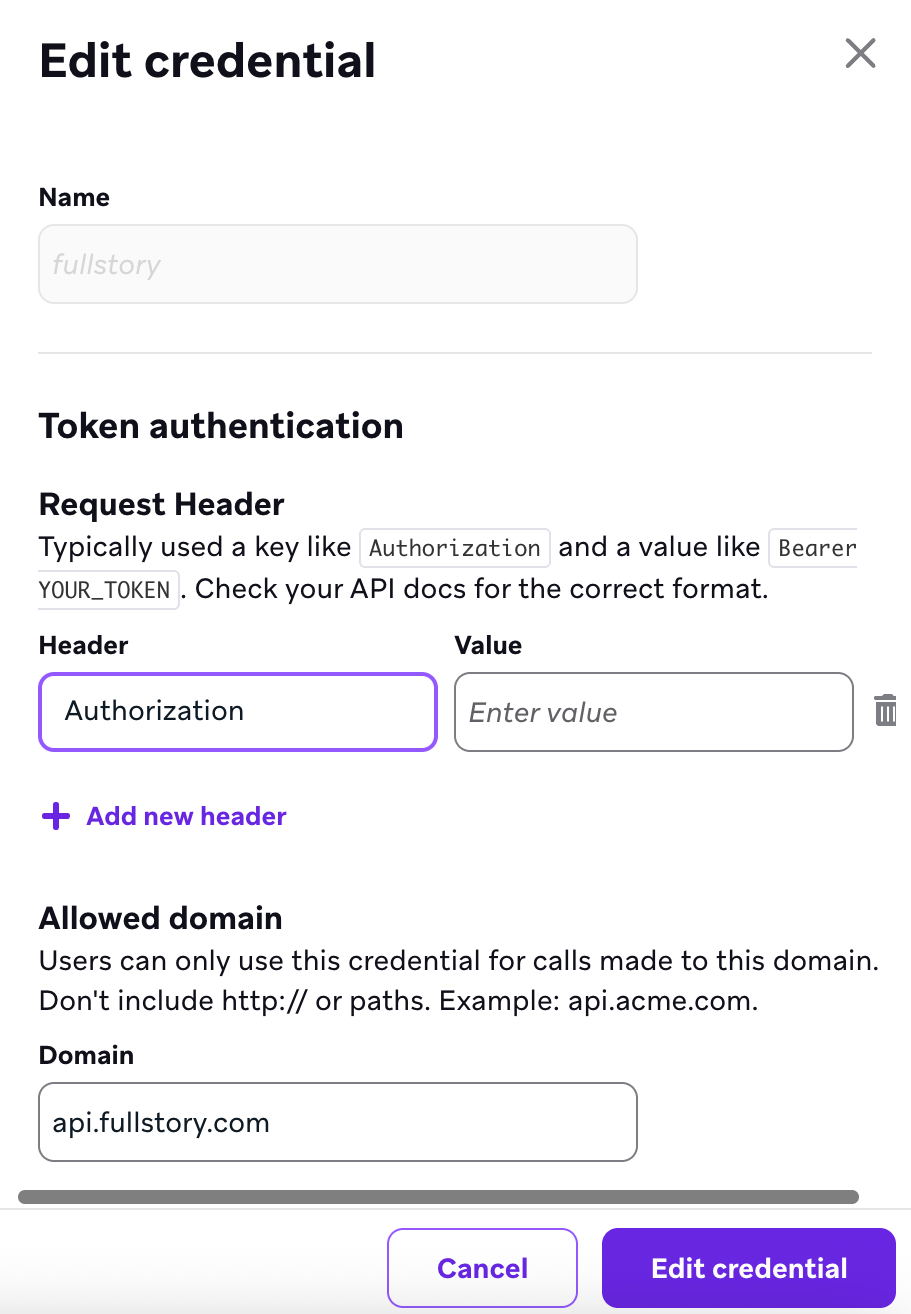
Step 2: Create the Connected Content token authentication
- In Braze, go to Settings > Workspace Settings > Connected Content > Add Credential > Token Authentication.
- Name the authentication
fullstory. - Add the header key “Authorization”. Supply the header value Fullstory provided in the previous step.
- Under Allowed Domain, enter api.fullstory.com.
Use cases
Create dynamic message journeys
Using Fullstory’s Activation Streams, you can trigger Braze Canvases immediately after key user interactions. The power of this integration lies in the unique client_session_id (accessible via {{canvas_entry_properties.${client_session_id}}}), which the system passes automatically from Fullstory to Braze. This ID acts as a key, allowing Braze to fetch the complete Session Summary of exactly what the user experienced.
By leveraging Canvas Context steps and Connected Content, you can use this ID to make an API request to Fullstory, retrieve the session data, and store it as a variable for use later in the journey.
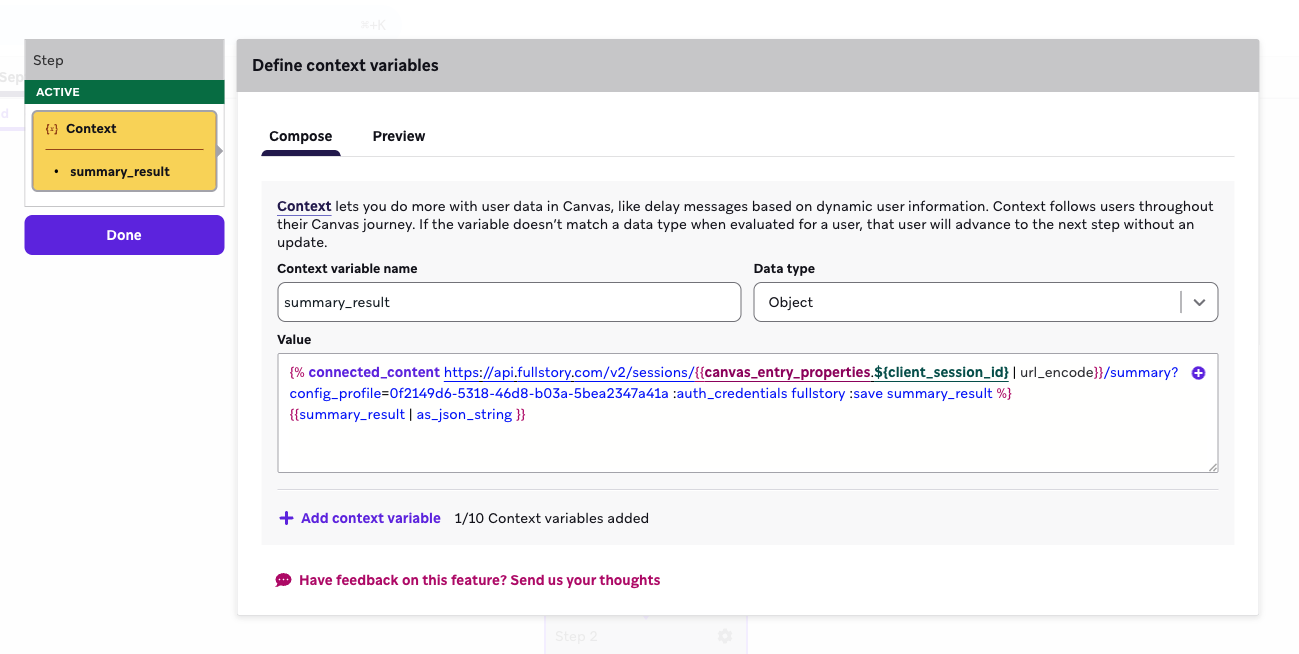
With the authorization token created earlier, use the following request structure to pull the session summary data.
1
2
{% connected_content https://api.fullstory.com/v2/sessions/{{canvas_entry_properties.${client_session_id} | url_encode}}/summary?config_profile=[YOUR-FULLSTORY-PROFILE-ID] :auth_credentials fullstory :save summary_result %}
{{summary_result | as_json_string }}
The response is stored as the Liquid tag {{context.${summary_result}.response}}. Use this Context tag in subsequent Canvas steps.
At this stage, the Canvas can access the response to the Connected Content call, which contains the entire message payload for a user’s session.
Example payload from Session Summary API
1
2
3
4
5
6
7
8
9
10
11
12
13
14
15
16
17
18
19
20
21
22
23
24
25
26
27
28
29
30
31
32
33
34
35
36
37
38
39
40
41
42
43
44
45
46
47
48
49
50
51
52
53
54
{
    "response": {
        "primary_goal": "User attempted to update payment method.",
        "issues_encountered": [
            "Received 'invalid card number' error twice.",
            "Clicked 'Submit' button multiple times with apparent frustration (based on event patterns)."
        ],
        "final_action": "Navigated away from payment page to dashboard.",
        "reason_for_termination_suggestion": "Could not update payment method successfully.",
        "help_pages_visited": [
            "/help/payment-errors"
        ]
    },
    "response_schema": {
        "type": "OBJECT",
        "properties": {
            "primary_goal": {
                "type": "STRING",
                "description": "A summary of the user's main objective during the session."
            },
            "issues_encountered": {
                "type": "ARRAY",
                "description": "A list of problems or errors the user faced.",
                "items": {
                    "type": "STRING",
                    "description": "A description of a single issue."
                }
            },
            "final_action": {
                "type": "STRING",
                "description": "The last significant action the user took before the session ended."
            },
            "reason_for_termination_suggestion": {
                "type": "STRING",
                "description": "A suggested reason for why the user ended their session."
            },
            "help_pages_visited": {
                "type": "ARRAY",
                "description": "A list of URLs for help or documentation pages the user visited.",
                "items": {
                    "type": "STRING",
                    "description": "The URL of a help page."
                }
            }
        },
        "required": [
            "primary_goal",
            "issues_encountered",
            "final_action",
            "reason_for_termination_suggestion",
            "help_pages_visited"
        ]
    }
}
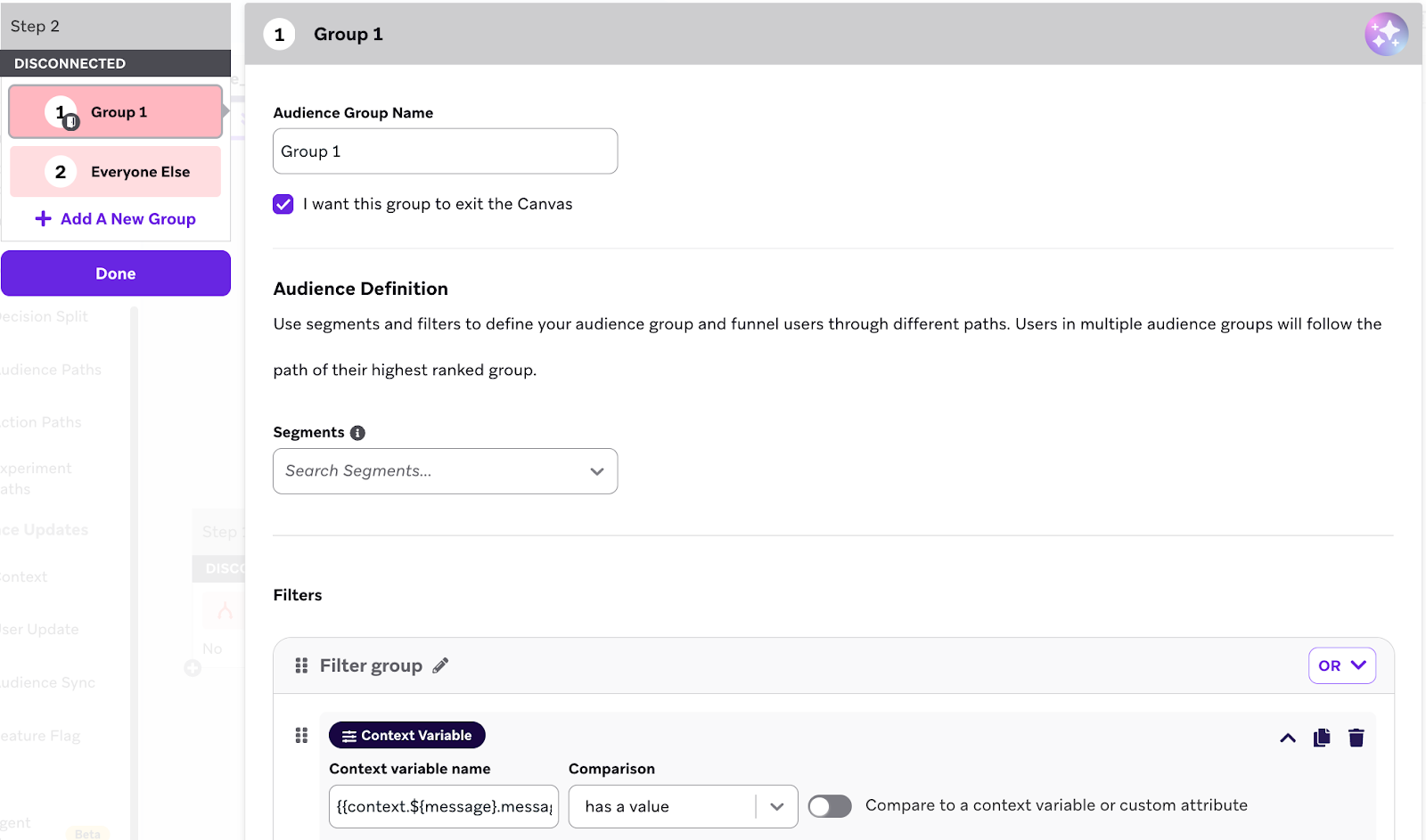
You can leverage any of the data available in the object above using the context Liquid tag later in the user’s Canvas journey. The following steps show how you can use this data in an Agent step.
To avoid unexpected behavior, include an Audience Path step after the Context step, which can drop users out of the context if their Context tag is empty, indicating the Connected Content call failed or otherwise returned no information.
Produce appropriate copy
By creating an Agent step in a Canvas triggered by Fullstory, and including the Context step outlined above, you can reference Fullstory’s session summary data in the agent.
In this example, you use this data to allow the Braze agent to generate appropriate message copy for use in a Content Card, which can encourage the user to return to their abandoned basket.
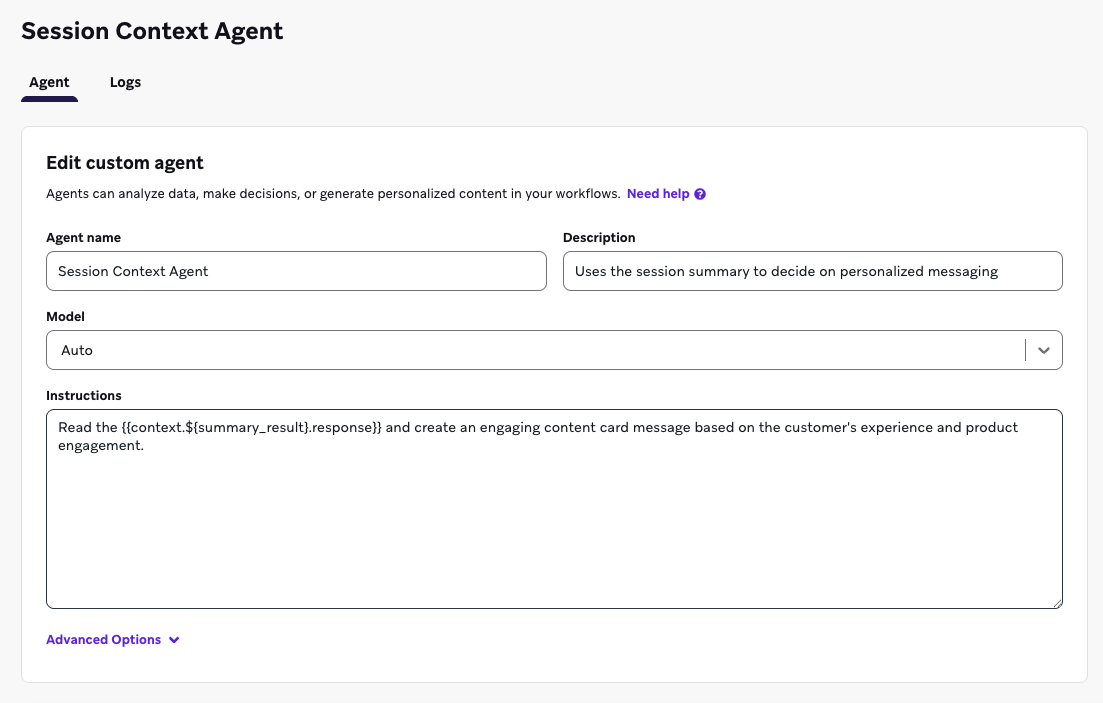
Use the same name for the Context Liquid tag created in this step as the context Liquid tag used in the AI Agent step created earlier.
The prompt required for your use case varies. For best practices on creating effective agent prompts, see Writing Instructions.
In your Canvas, select an AI Agent step, then select the Session Context agent from the dropdown. Save the output as a variable, in this case “message”, which you can place into message copy by using the Liquid tag {{context.${message}.message}}.
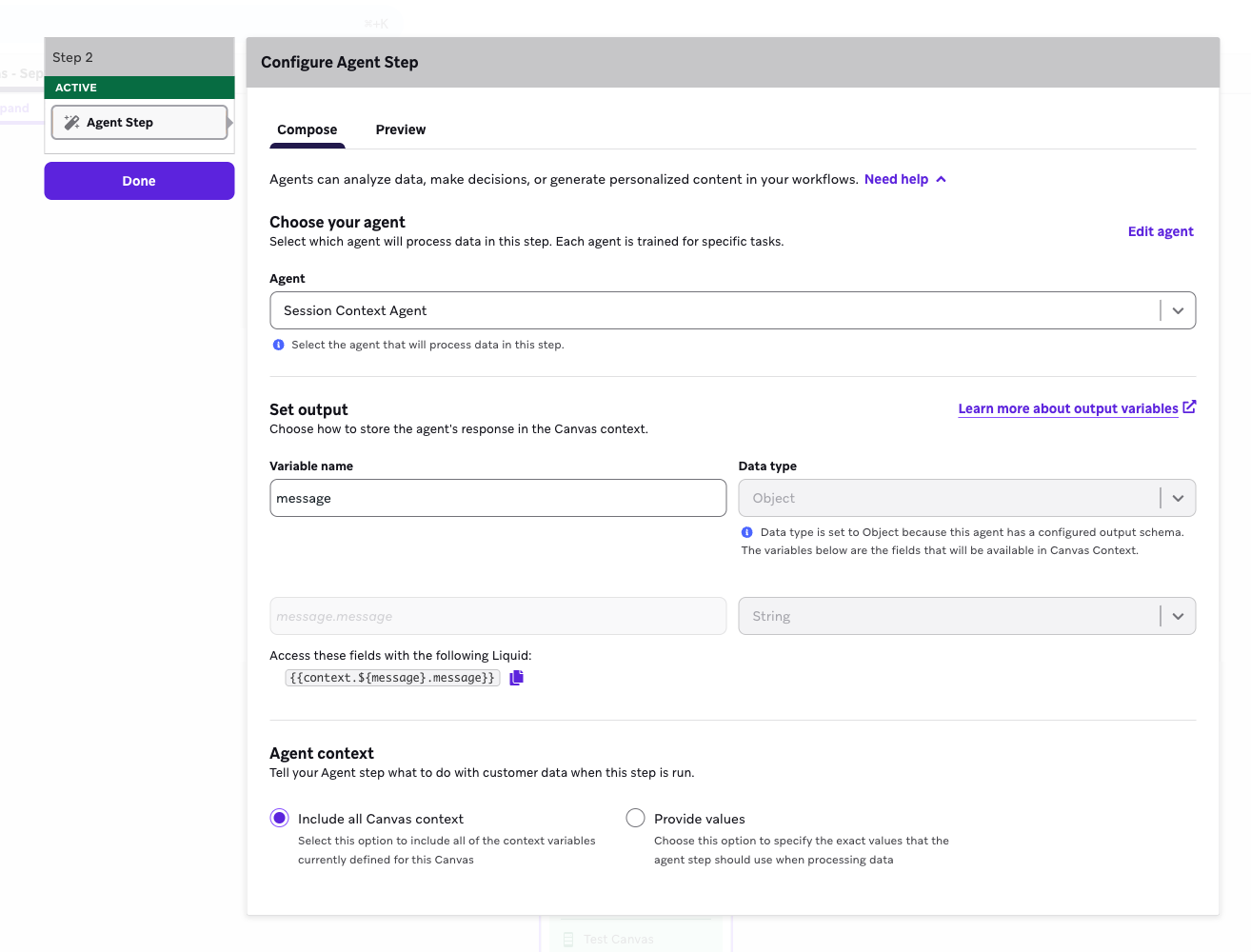
Create a Message step that leverages the AI Agent-created copy. Use the Liquid tag in this step.
Fullstory’s Session Summary API may return sensitive identifiable user data. To ensure compliance while handling PII (personally identifiable information), confirm your Fullstory data capture rules exclude PII before leveraging this use case.
 Edit this page on GitHub