Canva
Canva is a graphic design platform and tool that allows you to create visual content for social media posts, presentations, videos, and more.
About the integration
The Braze and Canva integration allows you to push assets from Canva directly into the Braze media library.
Integration
Step 1: Install the Braze App in Canva
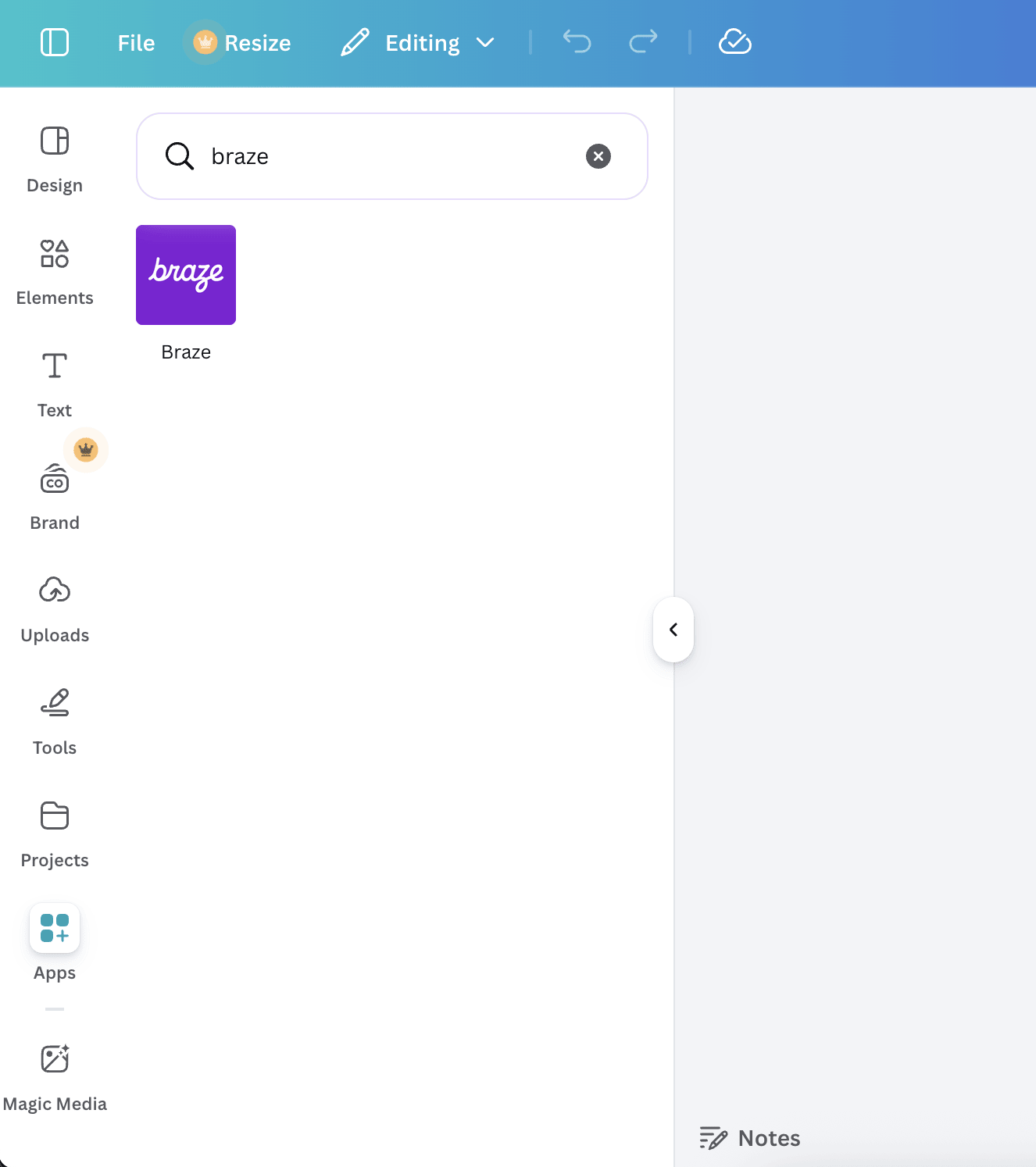
You can find the Braze App in the Canva Apps Marketplace.
After installing the app, it’s available within a design, under the Apps menu.
Step 2: Authorize your Braze account
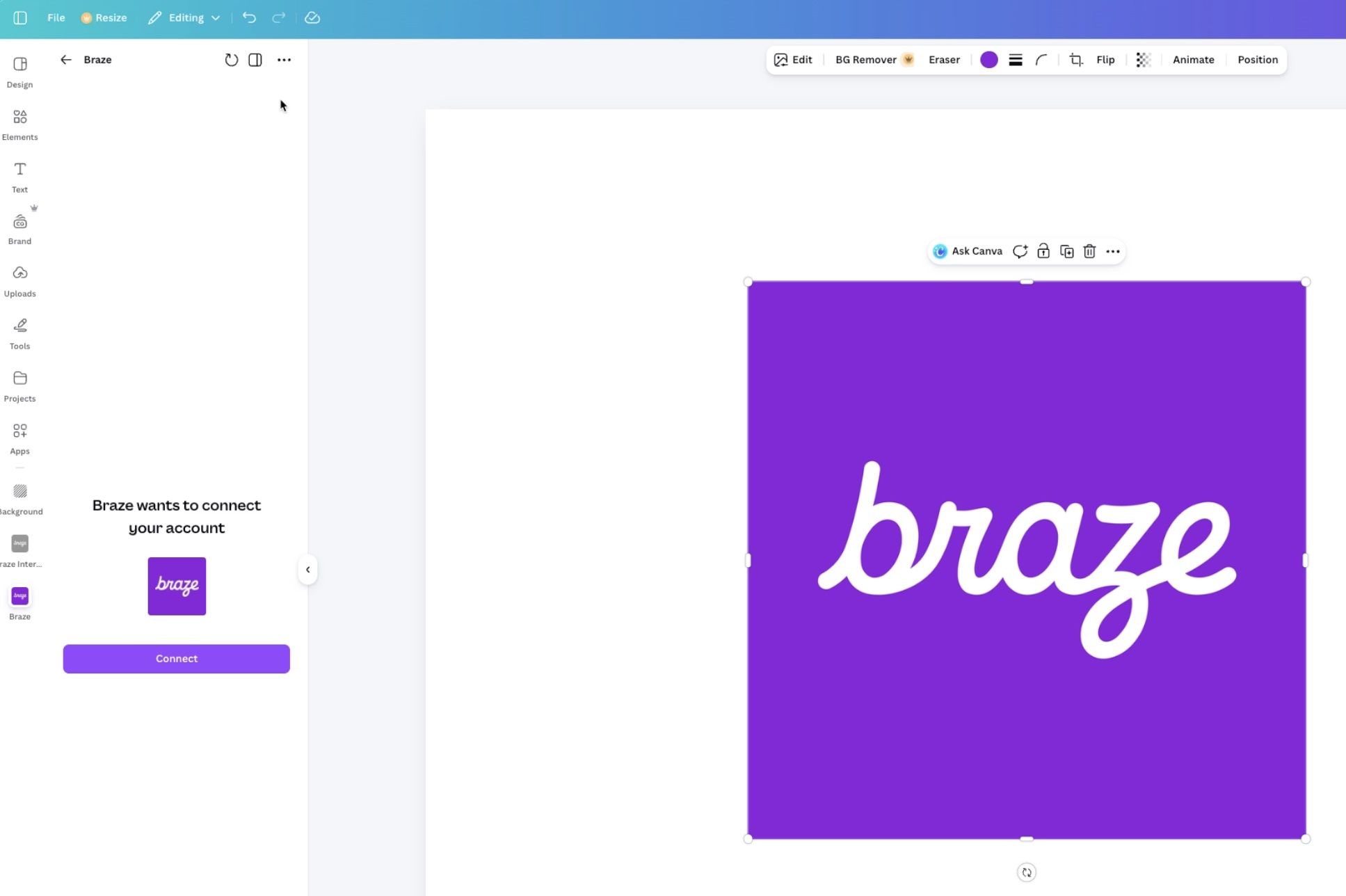
Launch the Braze app, and select Connect to begin the authorization flow. This grants Canva access to list the Braze workspaces you have access to, as well as permission to create new Media Library assets on your behalf.
Step 3: Export the image to Braze
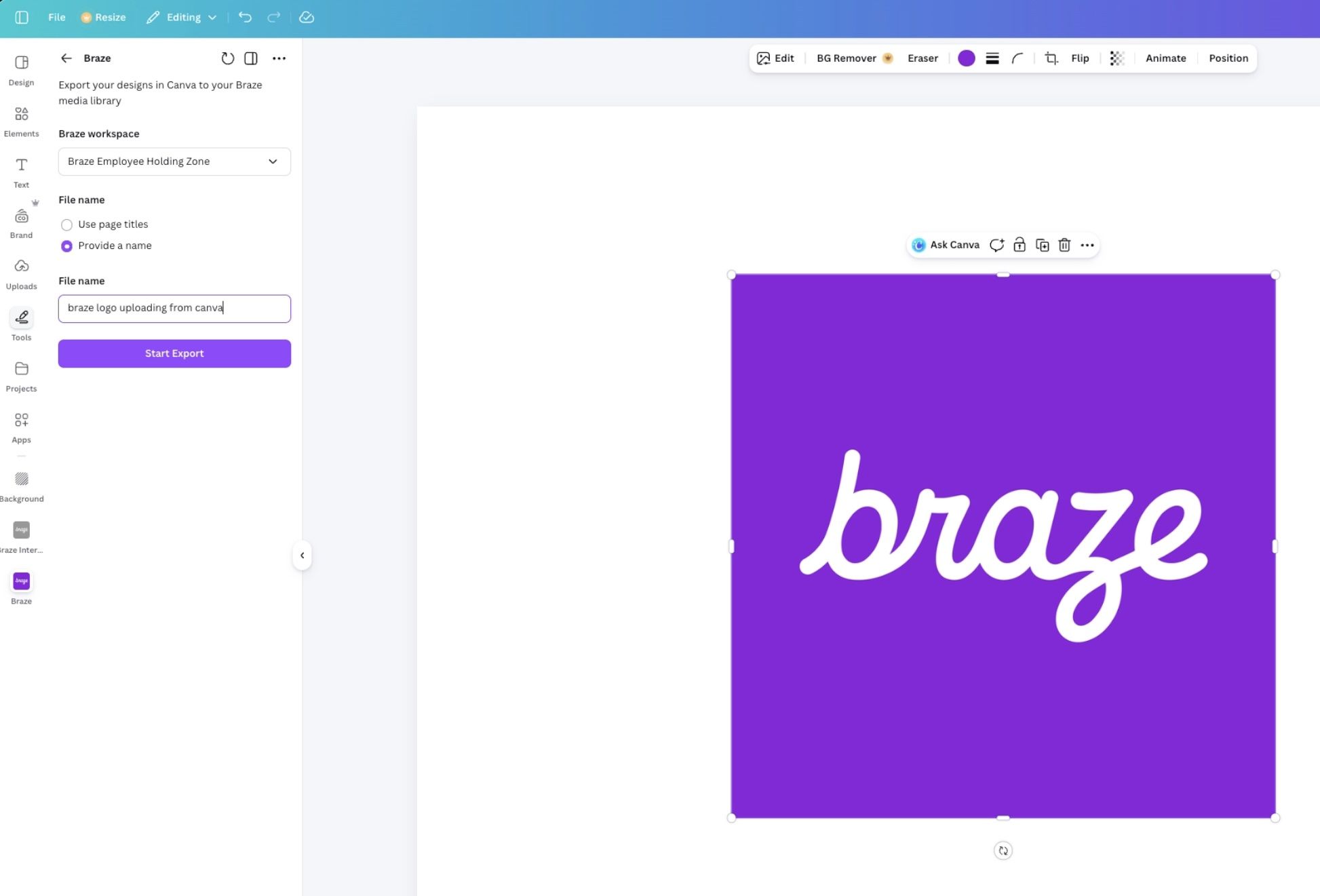
When you’re ready to export your Canva design to Braze, choose your desired destination workspace, optionally provide a filename, and select Start Export.
Step 4: Result
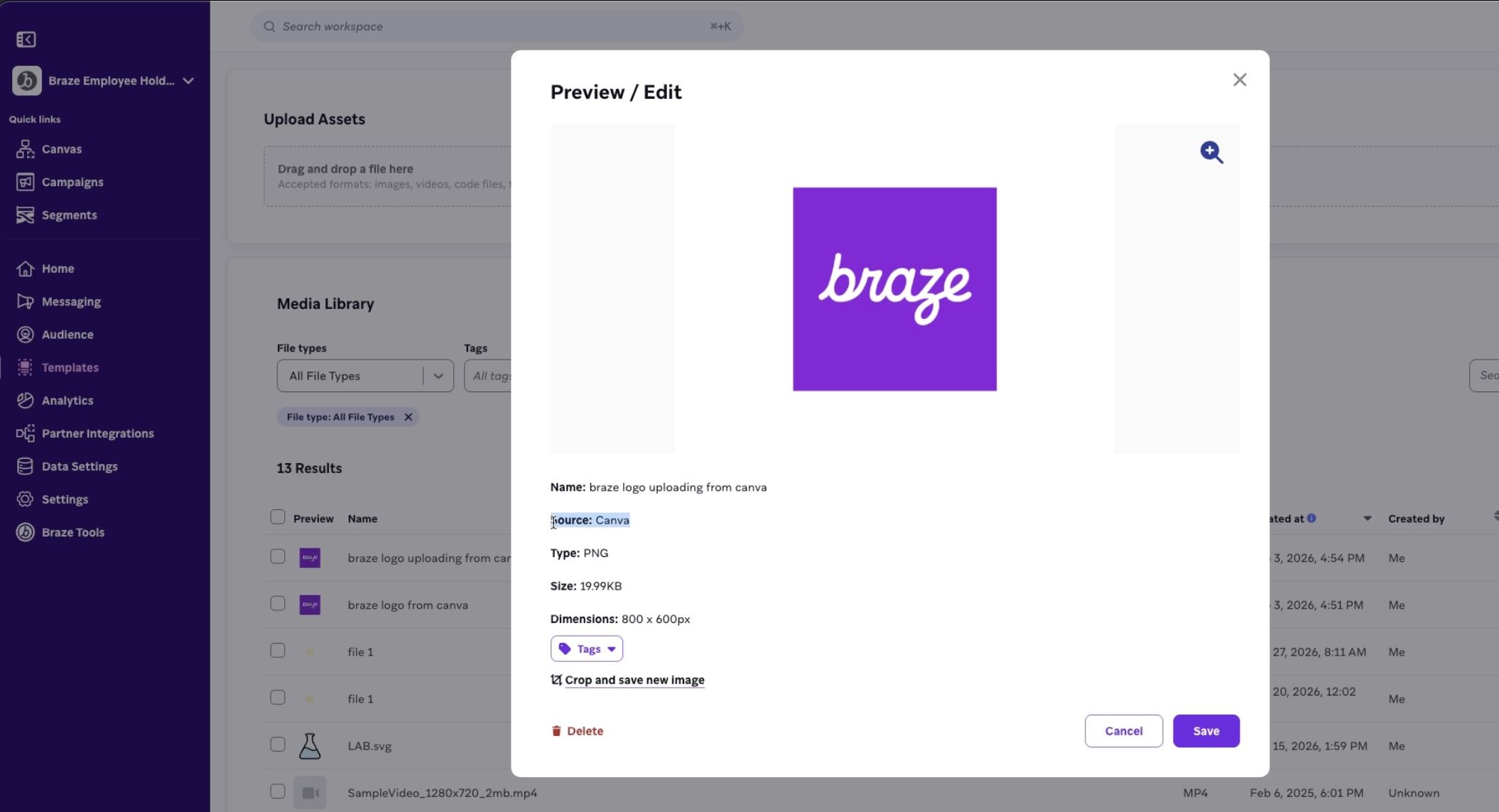
When your export completes, your new asset is available in the Media Library, with a source of “Canva”.
 Edit this page on GitHub