Linkrunner
Linkrunner is a mobile attribution and analytics platform that helps you track and analyze your user acquisition campaigns.
This integration is maintained by Linkrunner.
About the integration
The Braze and Linkrunner integration lets you import attribution data to better understand which campaigns are driving user acquisition and engagement.
Prerequisites
The following is required before you begin:
| Requirement | Description |
|---|---|
| Linkrunner account | A Linkrunner account is required to take advantage of this partnership. |
| iOS or Android app | This integration supports iOS and Android apps. Depending on your platform, code snippets may be required in your application. |
| Linkrunner SDK | You must install the Linkrunner SDK. |
| Braze SDK | You must integrate the Braze SDK. |
Integration
Step 1: Map user IDs
If you use the Braze SDK changeUser function, pass the same user ID in the userData parameter of the Linkrunner SDK signup function.
If you don’t use changeUser, pass the brazeDeviceId in the userData parameter of the Linkrunner SDK signup function. Get the brazeDeviceId from the Braze SDK.
1
2
3
4
5
6
7
val userData = UserDataRequest(
    id = "123", // Your user ID
    // ...other user fields
    brazeDeviceId = "BRAZE_DEVICE_ID", // Braze device ID from the Braze SDK (Required if you are not using the changeUser function)
)

LinkRunner.getInstance().signup(userData = userData)
1
2
3
4
5
6
7
let userData = UserData(
    id: "123", // Your user ID
    // ...other user fields
    brazeDeviceId: "BRAZE_DEVICE_ID" // Braze Device ID from the Braze SDK (Required if you are not using the changeUser function)
)

try await LinkrunnerSDK.shared.signup(userData: userData)
Step 2: Create API key in Braze
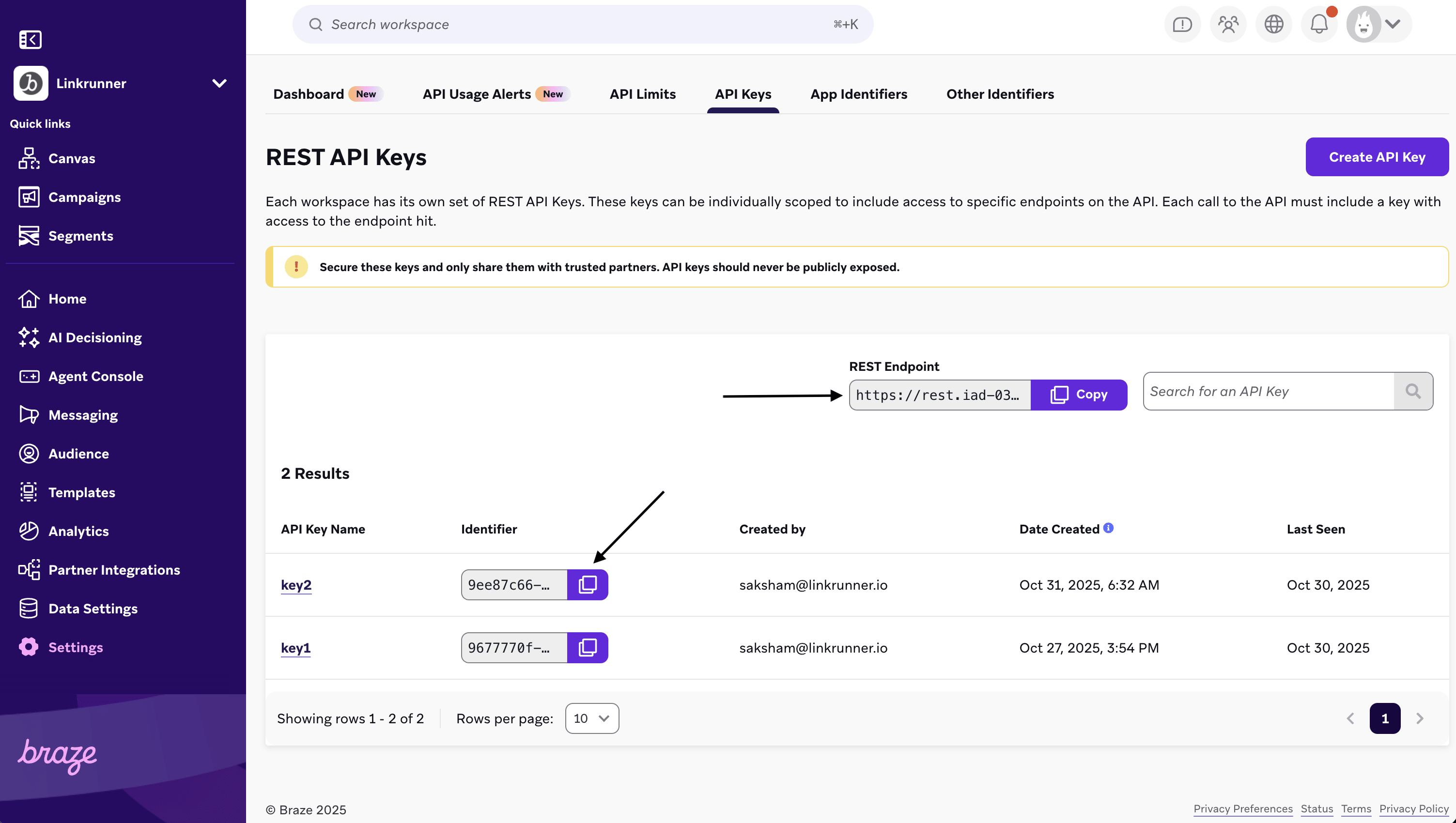
In your Braze dashboard, go to Settings > Setup and Testing > APIs and Identifiers > API Keys.
- Select Create API Key.
- Under User Data, select the following permissions:
users.trackusers.export.ids
- Save the API key.
- Copy the API key and REST endpoint.
Step 3: Configure Braze in Linkrunner’s dashboard
- In Linkrunner, go to Integrations in the left-hand panel.
- Under Analytics, select Configure for Braze.
- Enter the API key and REST endpoint you copied in Step 2.
For more information, see Linkrunner’s documentation.
Step 4: View user attribution data
Linkrunner sends lr_campaign and lr_ad_network as custom attributes. View this data in the Custom Attributes section of the user profile in the Braze dashboard.
Facebook and X (formerly Twitter) attribution data
Attribution data for Facebook and X (formerly Twitter) campaigns is not available through our partners. These media sources do not permit their partners to share attribution data with third parties, and, therefore, our partners cannot send that data to Braze.
 Edit this page on GitHub