Google Cloud Storage
Google Cloud Storage is massively scalable object storage for unstructured data offered by Google as part of the Cloud Computing product suite.
If you’re switching between cloud storage providers, reach out to your Braze customer success manager for further assistance on setting up and validating your new integration.
The Braze and Google Cloud Storage integration allows you to stream Currents data to Google Cloud Storage. You can later use an ETL process (Extract, Transform, Load) to transfer your data to other locations, such as Google BigQuery.
Prerequisites
| Requirement | Description |
|---|---|
| Google Cloud Storage account | A Google Cloud Storage account is required to take advantage of this partnership. |
| Currents | In order to export data back into Google Cloud Storage, you need to have Braze Currents set up for your account. |
Integration
To integrate with Google Cloud Storage, you must set up the appropriate credentials that allow Braze to get information about the storage buckets being written to (storage.buckets.get) and create objects within that bucket (storage.objects.create).
This can be done using the following instructions, which will walk you through creating a role and service account that will generate a private key to use in your Currents integration.
Step 1: Create role
Create a new role in your Google Cloud Platform Console by navigating to IAM & admin > Roles > + Create Role.

Give the role a name, then select +Add Permissions and choose the following:
storage.objects.createstorage.objects.deletestorage.objects.liststorage.objects.getstorage.buckets.get
The storage.objects.delete permission is optional. It allows Braze to clean up incomplete files.
In rare circumstances, Google Cloud may terminate connections early, resulting in Braze writing incomplete files to Google Cloud Storage. In most cases, Braze will retry and create a new file with the correct data, leaving the old file in Google Cloud Storage.
When you’re finished, select Create.

Step 2: Create a new service account
Step 2.1: Create the service account
Create a new service account in your Google Cloud Platform Console by navigating to IAM & admin > Service Accounts and selecting Create Service Account.

Next, give the service account a name and grant it access to your newly created custom role.

Step 2.2: Create a key
At the bottom of the page, use the Create Key button to create a JSON private key to use in Braze. After the key is created, it will download onto your machine.

Step 3: Set up Currents in Braze
In Braze, navigate to Currents > + Create Current > Google Cloud Storage Data Export and provide your integration name and contact email.
Next, upload your JSON private key under GCS JSON Credentials and provide your CGS bucket name and GCS prefix (optional).
It’s important to keep your credentials file up to date; if your connector’s credentials expire, the connector will stop sending events. If this persists for more than 5 days, the connector’s events will be dropped, and data will be permanently lost.

Finally, scroll to the bottom of the page and select which message engagement events or customer behavior events you would like to export. When completed, launch your Current.
Step 4: Set up Google Cloud Storage exports
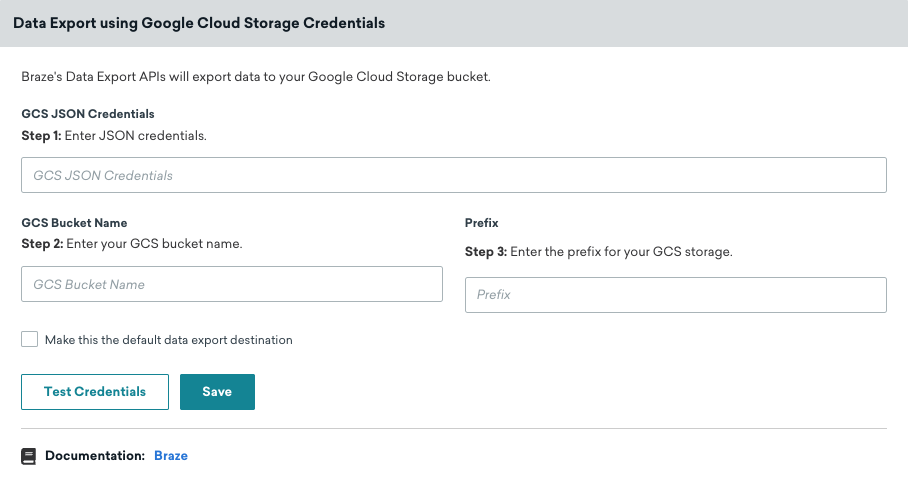
To set up Google Cloud Storage (GCS) exports, go to Technology Partners > Google Cloud Storage, enter your GCS credentials, and select Make this the default data export destination.
Keep in mind that the organization and contents of any exported files will be identical across AWS S3, Microsoft Azure, and Google Cloud Storage integrations.
Be sure to input the full JSON value that’s generated by Google Cloud.

Step 5: Test your service account credentials (optional)
Your Google Cloud IAM service account must have the following permissions:
storage.objects.createstorage.objects.deletestorage.objects.liststorage.objects.getstorage.buckets.get
To verify these permissions in the Braze dashboard, go to the Google Cloud Storage page, then select Test Credentials.
Export behavior
Users that have integrated a cloud data storage solution, and are trying to export APIs, dashboard reports, or CSV reports will experience the following:
- All API exports will not return a download URL in the response body and must be retrieved through data storage.
- All dashboard reports and CSV reports will be sent to the users email for download (no storage permissions required) and backed up on Data Storage.
Troubleshooting
Google Cloud Storage Credentials are invalid
If you receive the following error when attempting enter your credentials:
1
Google Cloud Storage Credentials are invalid. Please ensure that your credentials string, bucket name, and prefix are valid. You do not have read permission.
Ensure that your Google Cloud IAM service account has the following permissions:
storage.objects.createstorage.objects.deletestorage.objects.liststorage.objects.getstorage.buckets.get
After verifying, you can test your credentials in the Braze dashboard.
 Edit this page on GitHub