DOTS.ECO
DOTS.ECO lets you reward users with real-world environmental impact through trackable digital certificates. Each certificate can include metadata like a shareable certificate URL and image URL, so users can view (and revisit) their proof of impact.
This integration is maintained by DOTS.ECO.
About this integration
Braze and DOTS.ECO connect customer engagement journeys to real-world impact rewards. From a Braze Canvas or campaign step, you can trigger a DOTS.ECO certificate creation request using Connected Content. DOTS.ECO returns certificate metadata (such as certificate_url and certificate_image_url) that you can store on the user profile as custom attributes and reuse across channels like in-app messages, Content Cards, and push notifications.
Use cases
- Trigger an impact certificate when a user completes a key event (purchase, level completion, subscription, referral).
- Show a personalized certificate image in an in-app message after the Connected Content step succeeds.
- Add a “View your certificate” Content Card with the certificate URL for later access.
- Store certificate metadata (such as
certificate_url,certificate_image_url,certificate_header, andgreeting) as custom attributes for reuse in future messaging. - Assign certificates using a remote user ID so users can claim and view their impact later.
- Run A/B tests on impact messaging (different copy/images) while keeping the same DOTS.ECO user update flow.
Prerequisites
Before you begin, you need the following:
| Prerequisite | Description |
|---|---|
| DOTS.ECO account | DOTS.ECO account access. |
| DOTS.ECO credentials | The request in this article requires a DOTS.ECO app token, API key, and allocation ID. To retrieve these, contact your DOTS.ECO customer success manager. |
| Braze REST API key | A Braze REST API key with users.track permissions. Create this key in the Braze dashboard under Settings > API Keys. |
| Braze REST endpoint | Your REST endpoint URL. |
Integrating DOTS.ECO
Step 1: Create a Canvas and add a User Update step
In the Braze dashboard, create a new Canvas that triggers when a user completes a key event (such as a purchase, subscription, or milestone).
Add a User Update step right after the entry step. This step will be used to call the DOTS.ECO API via Connected Content and store the returned certificate data on the user profile.
Use this step to call the DOTS.ECO API via Connected Content and store the returned certificate data on the user profile.
Step 2: Compose advanced JSON: Make a POST request to DOTS.ECO using Connected Content
In the User Update step, switch to the Advanced JSON Editor and use Connected Content to make a POST request to the DOTS.ECO certificate API.
Use the capture tag and a Connected Content request to call DOTS.ECO’s certificate endpoint. Then, save the response to the user profile as custom attributes.
Connected Content and User Update example
1
2
3
4
5
6
7
8
9
10
11
12
13
14
15
16
17
18
19
20
21
22
23
24
25
26
27
{% capture post_body %}
{
  "remote_user_email": "{{${email_address} | default: '[email protected]'}}",
  "app_token": "YOUR_DOTS.ECO_APP_TOKEN",
  "impact_qty": 1,
  "remote_user_id": "{{${user_id} | default: ${braze_id}}}",
  "allocation_id": "YOUR_DOTS.ECO_ALLOCATION_ID"
}
{% endcapture %}

{% connected_content https://impact.dots.eco/api/v1/certificate/add?format=sdk
  :method post
  :headers { "auth-token": "YOUR_DOTS.ECO_AUTH_TOKEN" }
  :body {{post_body}}
  :content_type application/json
  :save result
%}

{
  "attributes": [
    {
      "certificate_image_url": "{{result.certificate_image_url}}",
      "certificate_url": "{{result.certificate_url}}",
      "certificate_id": "{{result.certificate_id}}"
    }
  ]
}
Send the request to https://impact.dots.eco/api/v1/certificate/add?format=sdk.
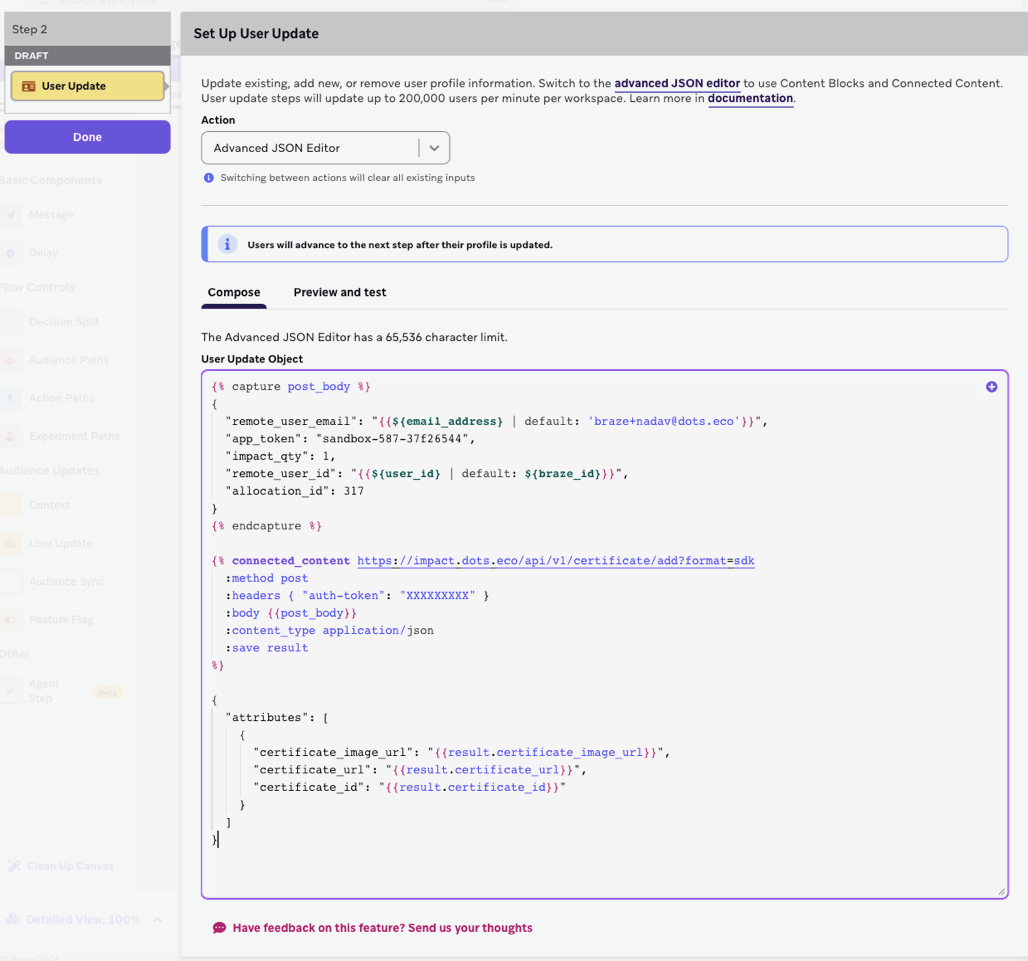
This integration uses Connected Content inside a Canvas User Update step to call the DOTS.ECO API. Test requests with an API client (for example, Postman) first to validate your token and payload.
Step 3: Display the certificate in messages
When the certificate attributes are stored on the user profile, they can be referenced in downstream Canvas message steps.
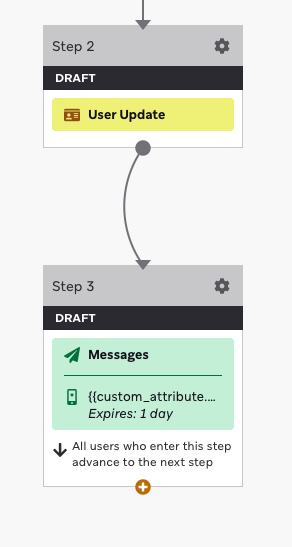
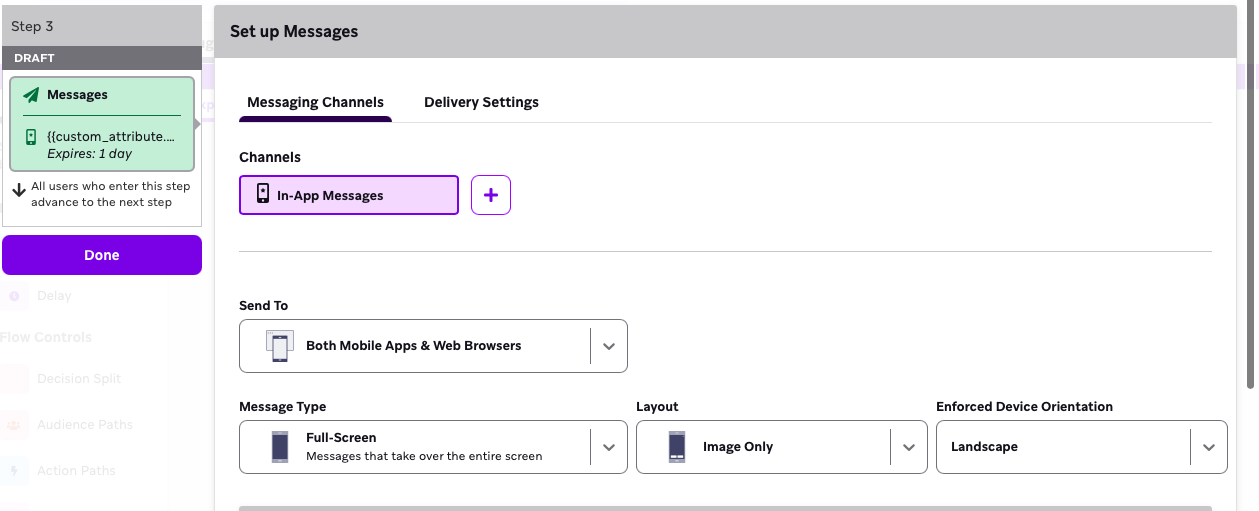
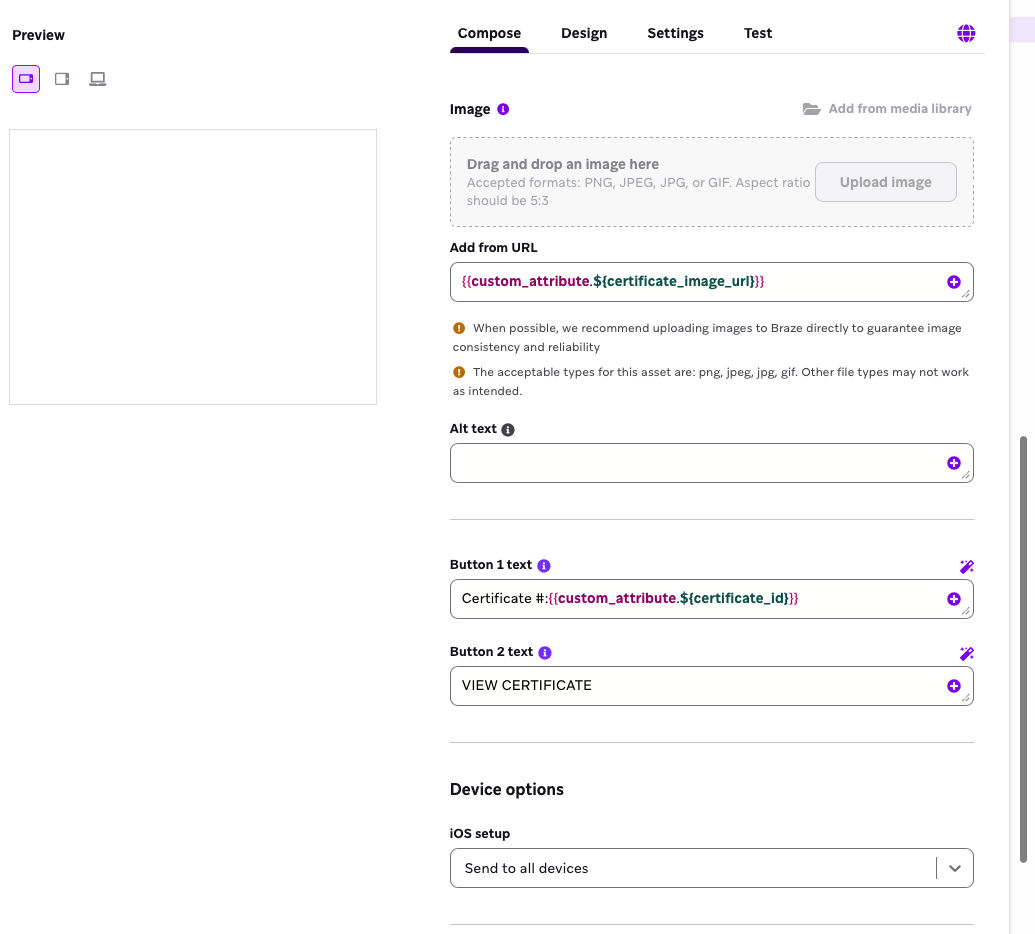
For example:
- Show the certificate image in an in-app message using
{{custom_attribute.${certificate_image_url}}} - Link to the hosted certificate using
{{custom_attribute.${certificate_url}}}
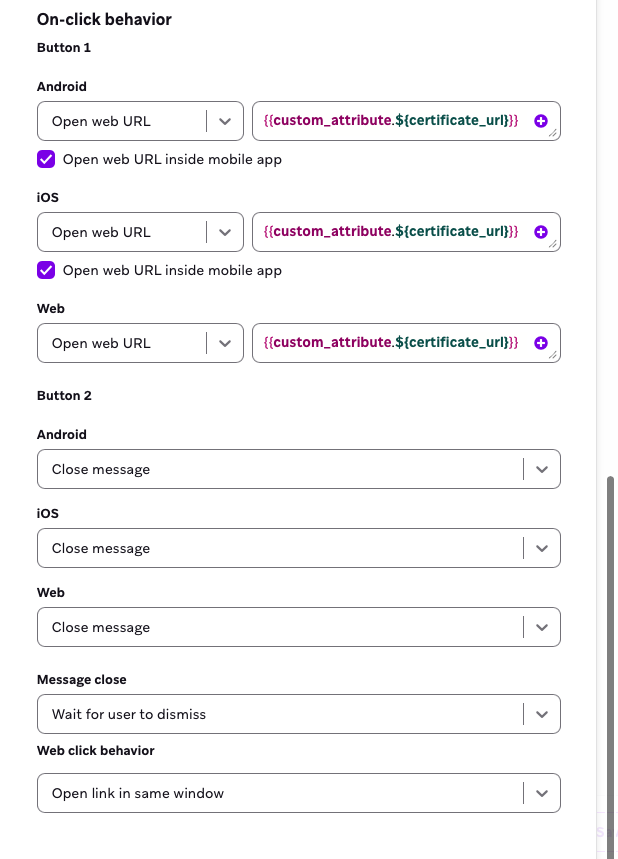
This lets you personalize in-app messages, Content Cards, or push notifications with impact confirmation.
Troubleshooting
Review Connected Content errors in the Braze dashboard under Settings > Message Activity Log.
- Connected Content returns empty: Confirm
:save resultis set and that you’re referencing the expected response fields. - Attributes aren’t showing in the Message step:
- Confirm the custom attribute names in Braze exactly match the attributes you set in the User Update step.
- In the User Update step, use the Preview and test tab to confirm the attributes populate. Then, send a test to a user and confirm the attributes are saved on their user profile.
422error (unprocessable entity): Confirm your app token and impact quantity are valid.401error: Confirm the auth token is present and correct.- No image preview in the Message step: Select Send Test to User in the User Update step, then preview the message using that same user.
 Edit this page on GitHub