Dixa
Dixa is a customer service platform designed to enhance support experiences by unifying communication channels such as chat, email, phone, and social media into a single interface. It helps businesses improve customer satisfaction and efficiency through intelligent routing, automation, and real-time performance insights.
The Braze and Dixa integration offers a better view on all your users by providing customer service agents with real-time Braze data.
Prerequisites
Before you start, you’ll need the following:
| Requirements | Description |
|---|---|
| A Dixa account | A Dixa admin account is required to take advantage of this partnership. |
| A Braze REST API key | A Braze REST API key with users.export.ids and email.status permissions.This can be created in the Braze dashboard from Settings > API Keys. |
| A Braze REST endpoint | Your REST endpoint URL. Your endpoint will depend on the Braze URL for your instance. |
Use cases
Surface Braze data into the customer service agent view while communicating with your users on different communication channels, such as email, messenger, or chat. Additionally, use Braze Data Transformation to send data from Dixa to Braze to pause marketing while solving a user’s problem, or use Dixa’s satisfaction surveys for segmentation.
Integration
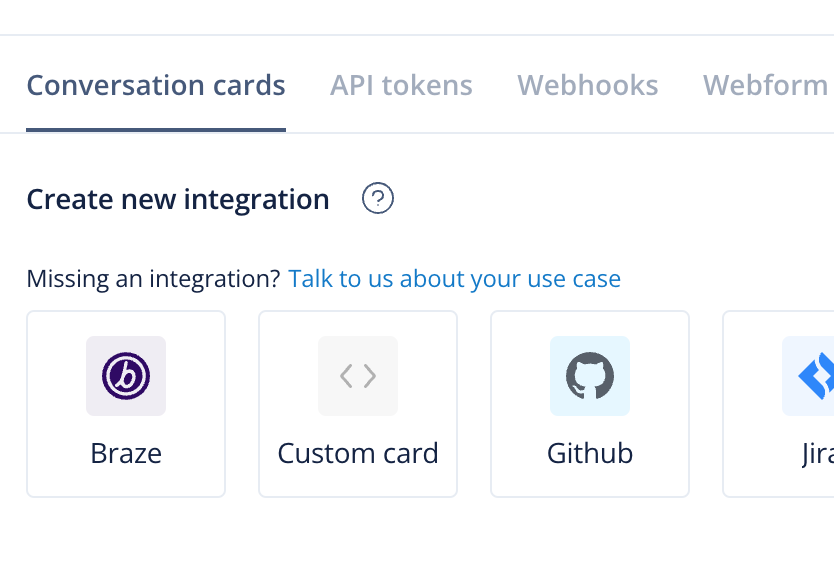
You must be a Dixa administrator to configure integrations within Dixa. For the Braze integration, in Dixa, go to Settings > Integrations > Braze.
Step 1: Create the integration in Dixa
On the Create Braze widget page, fill in the following required fields to create the integration:
- Widget name: This is the name of the integration that will later be used in the conversation sidebar as the title.
- API URL: This is the Braze REST API endpoint URL for your instance.
- API Key: This is the Braze API key you created in the prerequisites.
Step 2: Configure the integration
Next, configure the Braze and Dixa integration. Choose from the following options to adjust the view of the Braze widget in the conversation sidebar.
Show the widget in the conversation sidebar
This setting shows or hides the whole integration within the conversation sidebar in Dixa.
If you’re actively configuring the integration, we recommend turning this off while you fill in the required fields. When you’re finished configuring, you can turn it on again and Dixa agents can use the integration.
Display customer details
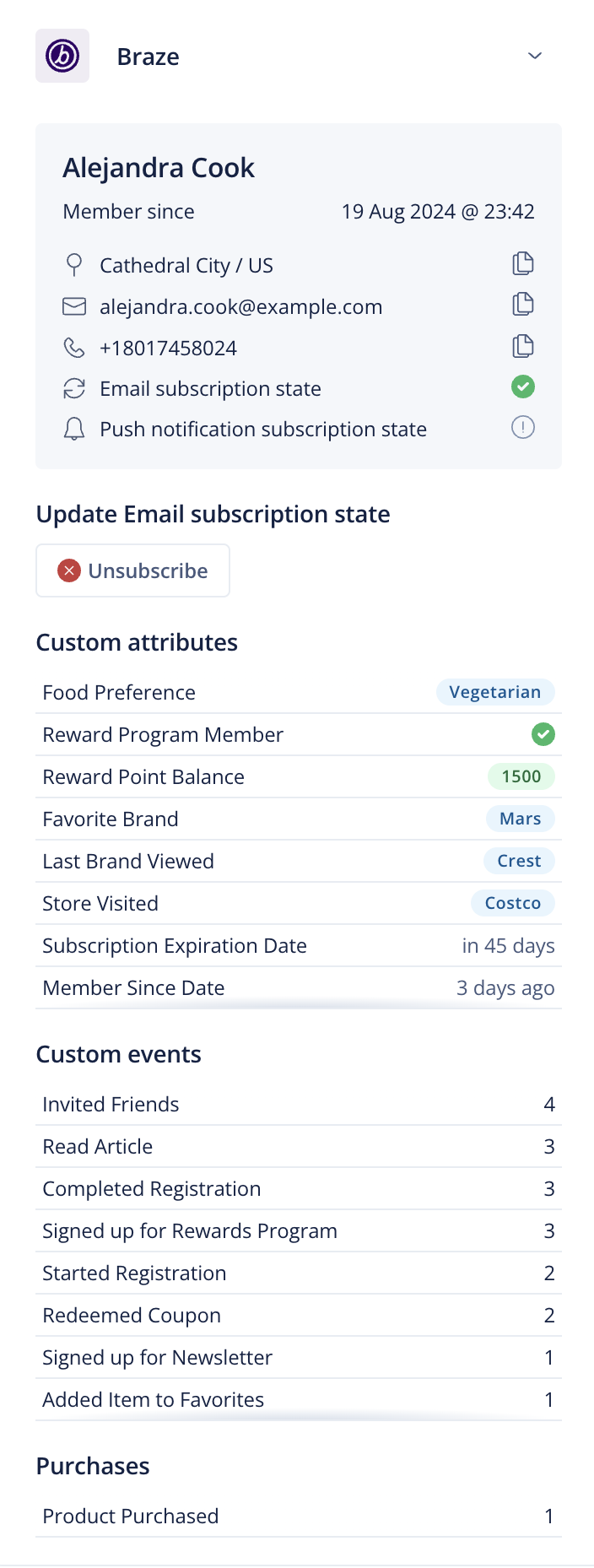
Choose to show or hide the user’s details. The details contain data about location, email, phone number, email subscription state, push notification subscription state, and the duration of the membership in Braze.
Display the button to change the email subscription state
The buttons are based on one of the three subscription states from Braze: subscribed, opted-in, and unsubscribed. If a user is subscribed, the agent can choose to opt-in or unsubscribe. When a user is opted-in or unsubscribed, the agent can only switch between the two.
Display a list of custom attributes
Choose to show or hide the user’s custom Braze attributes.
Display a list of custom events
Choose to show or hide the user’s custom Braze events.
Display a list of purchases
Choose to show or hide a list of products the user purchased. Here, you can see how many times the user purchased the product. To view the first and last purchase date, hover over the item.
Example integration
The following shows an example of the integration:
Data transformation tool
Dixa uses webhooks to send data to Braze. You must be a Dixa administrator to configure webhooks.
Track conversations in Dixa
The first step is to create a data transformation in Braze.
- Go to Data Settings > Data Transformations > Create transformation.
- Select Start from scratch, select destination POST: Track Users, and select Create transformation.
- In the transformation editor, copy the code example from Example transformation tool in this section and insert it in the Transformation code field. Select Save, copy the Webhook URL, and open Dixa.
- In Dixa, go to Settings > Integrations > Webhooks > + Outbound webhook.
- On the webhook settings page, paste the URL from Braze and toggle the events you want to track. Conversation created is a good starting point to track customers’ conversations.
- Select Save to finish the Dixa setup.
Example transformation tool
// Transforming the provided payload to match Braze /users/track endpoint specifications.
// Extracting necessary details from the payload
const requester = payload.data.conversation.requester;
const event = payload.data.conversation;
// Defining user attributes based on the provided payload, prioritizing email if available.
const userAttributes = {
email: requester.email, // Prioritizing email over external_id and user_alias
_update_existing_only: false, // Set to false to create or update user profiles when identified by email
organization: payload.organization.name, // Including an additional attribute for demonstration
};
// Defining event attributes based on the provided payload.
const eventAttributes = {
email: requester.email, // Prioritizing email over external_id and user_alias
name: payload.event_fqn, // The name of the event
time: event.created_at, // ISO 8601 datetime format
properties: { // Including additional event properties
event_version: payload.event_version,
conversation_status: event.status,
conversation_channel: event.channel
},
_update_existing_only: false // Set to false to create or update user profiles when identified by email
};
// Constructing the final object to match Braze /users/track endpoint schema
const brazecall = {
attributes: [userAttributes], // Wrapping userAttributes in an array as per specifications
events: [eventAttributes] // Wrapping eventAttributes in an array as per specifications
};
// Returning the transformed data
return brazecall;
Use CSAT score in Braze
- Go to Data Settings > Data Transformations > Create transformation.
- Select Start from scratch, select destination POST: Track Users, and select Create transformation.
- In the transformation editor, copy the code example from Track CSAT score in this section and insert it in the Transformation code field. Select Save, copy the Webhook URL, and open Dixa.
- In Dixa, go to Settings > Integrations > Webhooks > + Outbound webhook.
- On the webhook settings page, paste the URL from Braze and toggle the events you want to track. Conversation created is a good starting point to track customers’ conversations.
- Select Save to finish the Dixa setup.
Track CSAT score
const body = payload?.data;
// values from your webhook
const score = body.score; // number
const comment = body.comment; // string
const type = body.type; // string
const ratedAt = body.event_timestamp; // ISO 8601 string
const contactemail = body.conversation.requester.email;
// ALWAYS identify by email
const email = contactemail;
if (!email) {
// Can't identify a user without email
return { attributes: [] };
}
let brazecall = {
"attributes": [
{
// Using the Dixa user email as the external_id to identify the user in Braze
"email": contactemail,
"_update_existing_only": true,
// Your new custom object attribute
"last_csat": {
"score": score,
"comment": comment,
"type": type,
"rated_at": ratedAt
}
}
]
};
return brazecall;