콘텐츠 카드
애플리케이션에서 사용할 수 있는 다양한 데이터 모델과 카드별 속성정보를 포함하여 Braze SDK의 Content Cards에 대해 알아보세요.


전제 조건
Content Cards를 사용하려면 먼저 앱에 Braze 웹 SDK를 통합해야 합니다. 추가 설정은 필요하지 않습니다. 자체 UI를 구축하려면 Content Cards 커스터마이징 가이드를 참조하세요.
일부 광고 차단기 및 브라우저 개인정보 보호 확장 프로그램은 Braze 웹 SDK 스크립트 또는 관련 네트워크 요청을 차단하여 Content Cards가 로드되지 않을 수 있습니다. CDN 통합 방법을 사용 중인 경우 NPM 통합 방법으로 전환하는 것을 고려하세요. 이 방법은 SDK 라이브러리를 웹사이트에 로컬로 저장하므로 일부 광고 차단기 관련 문제를 방지할 수 있습니다.
표준 피드 UI
포함된 Content Cards UI를 사용하려면, 웹사이트에서 피드를 표시할 위치를 지정해야 합니다.
이 예시에서는 Content Cards 피드를 배치할 <div id="feed"></div>가 있습니다. 피드를 숨기거나, 표시하거나, 토글(현재 상태에 따라 숨기거나 표시)할 수 있도록 세 개의 버튼을 사용합니다.
<button id="toggle" type="button">Toggle Cards Feed</button>
<button id="hide" type="button">Hide Cards Feed</button>
<button id="show" type="button">Show Cards Feed</button>
<nav>
<h1>Your Personalized Feed</h1>
<div id="feed"></div>
</nav>
<script>
const toggle = document.getElementById("toggle");
const hide = document.getElementById("hide");
const show = document.getElementById("show");
const feed = document.getElementById("feed");
toggle.onclick = function(){
braze.toggleContentCards(feed);
}
hide.onclick = function(){
braze.hideContentCards();
}
show.onclick = function(){
braze.showContentCards(feed);
}
</script>
toggleContentCards(parentNode, filterFunction) 및 showContentCards(parentNode, filterFunction) 메서드를 사용할 때 인수가 제공되지 않으면, 모든 Content Cards가 페이지의 고정 위치 사이드바에 표시됩니다. 그렇지 않으면 피드가 지정된 parentNode 옵션에 배치됩니다.
| 매개변수 | 설명 |
|---|---|
parentNode |
Content Cards를 렌더링할 HTML 노드입니다. 상위 노드에 이미 Braze Content Cards 뷰가 직접 하위 요소로 존재하는 경우, 기존 Content Cards가 대체됩니다. 예를 들어 document.querySelector(".my-container")를 전달해야 합니다. |
filterFunction |
이 뷰에 표시되는 카드에 대한 필터 또는 정렬 함수입니다. {pinned, date} 기준으로 정렬된 Card 객체 배열과 함께 호출됩니다. 이 사용자에게 렌더링할 정렬된 Card 객체 배열을 반환해야 합니다. 생략하면 모든 카드가 표시됩니다. |
Content Cards 토글에 대한 자세한 내용은 SDK 참조 문서를 확인하세요.
웹에서 콘텐츠 카드 테스트하기
브라우저의 개발자 도구를 사용하여 Content Cards 통합을 테스트할 수 있습니다.
- 콘텐츠 카드 Campaign을 만들고 테스트 사용자를 타겟팅합니다.
- Web SDK 통합이 적용된 웹사이트에 로그인합니다.
- 브라우저 콘솔을 엽니다. Chrome의 경우, 페이지를 마우스 오른쪽 버튼으로 클릭하고 검사를 선택한 다음 콘솔 탭을 선택합니다.
- 콘솔에서 다음 명령을 실행합니다:
window.braze.getCachedContentCards()window.braze.toggleContentCards()
카드 유형 및 속성정보
Content Cards 데이터 모델은 웹 SDK에서 사용할 수 있으며 다음과 같은 Content Cards 유형을 제공합니다: ImageOnly, CaptionedImage, ClassicCard. 각 유형은 기본 모델 Card에서 공통 속성정보를 상속하며 다음과 같은 추가 속성정보를 가집니다.
기본 카드 모델
모든 Content Cards는 다음과 같은 공통 속성정보를 가집니다:
| 속성정보 | 설명 |
|---|---|
expiresAt |
카드 만료 시간의 UNIX 타임스탬프입니다. |
extras |
(선택 사항) 값 문자열을 가진 문자열 객체 형식의 키-값 페어 데이터입니다. |
id |
(선택 사항) 카드의 ID입니다. 분석 목적으로 이벤트와 함께 Braze에 보고됩니다. |
pinned |
이 속성정보는 카드가 대시보드에서 “고정”으로 설정되었는지를 나타냅니다. |
updated |
이 카드가 마지막으로 수정된 UNIX 타임스탬프입니다. |
viewed |
이 속성정보는 사용자가 카드를 조회했는지 여부를 나타냅니다. |
isControl |
이 속성정보는 카드가 A/B 테스트 내에서 “대조군” 그룹인 경우 true입니다. |
이미지 전용
ImageOnly 카드는 클릭 가능한 전체 크기 이미지입니다.
| 속성정보 | 설명 |
|---|---|
aspectRatio |
카드 이미지의 종횡비이며 이미지 로딩이 완료되기 전의 힌트 역할을 합니다. 특정 상황에서는 이 속성정보가 제공되지 않을 수 있습니다. |
categories |
이 속성정보는 순전히 커스텀 구현에서의 정리 용도이며, 대시보드 작성기에서 설정할 수 있습니다. |
clicked |
이 속성정보는 이 카드가 이 기기에서 클릭된 적이 있는지를 나타냅니다. |
created |
Braze에서 카드가 생성된 시간의 UNIX 타임스탬프입니다. |
dismissed |
이 속성정보는 이 카드가 해제되었는지를 나타냅니다. |
dismissible |
이 속성정보는 사용자가 카드를 해제하여 보기에서 제거할 수 있는지를 나타냅니다. |
imageUrl |
카드 이미지의 URL입니다. |
linkText |
URL의 표시 텍스트입니다. |
url |
카드를 클릭한 후 열릴 URL입니다. |
캡션 이미지
CaptionedImage 카드는 설명 텍스트가 포함된 클릭 가능한 전체 크기 이미지입니다.
| 속성정보 | 설명 |
|---|---|
aspectRatio |
카드 이미지의 종횡비이며 이미지 로딩이 완료되기 전의 힌트 역할을 합니다. 특정 상황에서는 이 속성정보가 제공되지 않을 수 있습니다. |
categories |
이 속성정보는 순전히 커스텀 구현에서의 정리 용도이며, 대시보드 작성기에서 설정할 수 있습니다. |
clicked |
이 속성정보는 이 카드가 이 기기에서 클릭된 적이 있는지를 나타냅니다. |
created |
Braze에서 카드가 생성된 시간의 UNIX 타임스탬프입니다. |
dismissed |
이 속성정보는 이 카드가 해제되었는지를 나타냅니다. |
dismissible |
이 속성정보는 사용자가 카드를 해제하여 보기에서 제거할 수 있는지를 나타냅니다. |
imageUrl |
카드 이미지의 URL입니다. |
linkText |
URL의 표시 텍스트입니다. |
title |
이 카드의 제목 텍스트입니다. |
url |
카드를 클릭한 후 열릴 URL입니다. |
클래식
ClassicCard 모델은 텍스트 없이 이미지만 포함하거나, 이미지가 포함된 텍스트를 표시할 수 있습니다.
| 속성정보 | 설명 |
|---|---|
aspectRatio |
카드 이미지의 종횡비이며 이미지 로딩이 완료되기 전의 힌트 역할을 합니다. 특정 상황에서는 이 속성정보가 제공되지 않을 수 있습니다. |
categories |
이 속성정보는 순전히 커스텀 구현에서의 정리 용도이며, 대시보드 작성기에서 설정할 수 있습니다. |
clicked |
이 속성정보는 이 카드가 이 기기에서 클릭된 적이 있는지를 나타냅니다. |
created |
Braze에서 카드가 생성된 시간의 UNIX 타임스탬프입니다. |
description |
이 카드의 본문 텍스트입니다. |
dismissed |
이 속성정보는 이 카드가 해제되었는지를 나타냅니다. |
dismissible |
이 속성정보는 사용자가 카드를 해제하여 보기에서 제거할 수 있는지를 나타냅니다. |
imageUrl |
카드 이미지의 URL입니다. |
linkText |
URL의 표시 텍스트입니다. |
title |
이 카드의 제목 텍스트입니다. |
url |
카드를 클릭한 후 열릴 URL입니다. |
이미지 형식
Content Cards 이미지(GIF 포함)는 표준 HTML <img> 태그를 사용하여 렌더링됩니다. GIF 지원은 사용자의 브라우저 기능에 따라 달라지며 최소 웹 SDK 버전이 필요하지 않습니다. 모든 최신 브라우저는 GIF 재생을 기본적으로 지원합니다.
대조군
기본 Content Cards 피드를 사용하는 경우, 노출 횟수와 클릭이 자동으로 추적됩니다.
Content Cards에 커스텀 통합을 사용하는 경우, 대조 카드가 표시되었을 때 노출 횟수를 기록해야 합니다. 이 과정에서 A/B 테스트의 노출 횟수를 기록할 때 대조 카드를 반드시 처리해야 합니다. 이 카드는 비어 있으며 사용자에게 표시되지 않지만, 비대조 카드와의 성과를 비교하려면 노출 횟수를 기록해야 합니다.
콘텐츠 카드가 A/B 테스트의 대조군에 속하는지 확인하려면 card.isControl 속성정보(웹 SDK v4.5.0 이상)를 확인하거나, 카드가 ControlCard 인스턴스인지 확인합니다(card instanceof braze.ControlCard).
카드 메서드
기본 피드 메서드
Braze 기본 피드 UI를 사용하여 Content Cards를 표시할 때 이 메서드를 사용합니다:
| 메서드 | 설명 |
|---|---|
showContentCards |
기본 Content Cards 피드를 표시합니다. 제공된 parentNode HTML 요소에 카드를 렌더링하며, 요소가 지정되지 않은 경우 고정 위치 사이드바로 표시합니다. 표시 전에 카드를 정렬하거나 필터링하기 위한 선택적 filterFunction을 허용합니다. |
hideContentCards |
현재 표시 중인 기본 Content Cards 피드를 숨깁니다. |
toggleContentCards |
기본 Content Cards 피드가 숨겨져 있으면 표시하고, 표시 중이면 숨깁니다. 여러 Content Cards 피드를 동시에 표시해야 하는 경우, 대신 showContentCards와 hideContentCards를 사용하세요. |
커스텀 피드 메서드
자체 Content Cards UI를 구축할 때 이 메서드를 사용합니다:
| 메서드 | 설명 |
|---|---|
subscribeToContentCardsEvents |
캐시 리플레이, 새로고침 완료, 오류 등 현재 사용자의 각 Content Cards 이벤트와 함께 호출되는 콜백 함수를 등록합니다. 커스텀 피드에서 카드 데이터를 수신하는 기본 방법으로 사용합니다. 초기 세션의 이벤트를 수신하려면 openSession() 전에 호출해야 합니다. 이벤트 목록은 콘텐츠 카드 만들기를 참조하세요. 더 이상 사용되지 않는 subscribeToContentCardsUpdates를 대체합니다. |
getCachedContentCards |
가장 최근 Content Cards 새로고침에서 현재 사용 가능한 모든 카드를 반환합니다. 활성 세션 중 사용자가 페이지로 돌아올 때처럼, 새로운 서버 요청을 기다리지 않고 페이지 로드 시 즉시 카드를 표시하는 데 사용합니다. |
requestContentCardsRefresh |
Braze 서버에서 Content Cards의 즉각적인 새로고침을 요청합니다. 기본적으로 카드는 세션 시작 시와 기본 피드가 다시 열릴 때 새로고침됩니다. 특정 사용자 액션 이후 등 다른 시점에 강제 새로고침하려면 이 메서드를 사용하세요. 사용량 제한에 유의하세요. |
logContentCardImpressions |
카드 배열에 대한 노출 이벤트를 기록합니다. 카드가 렌더링되어 사용자에게 표시될 때 이 메서드를 호출하세요. 기본 피드 외부에서는 노출이 자동으로 추적되지 않으므로, 커스텀 UI를 사용할 때 정확한 Campaign 보고를 위해 필수입니다. |
logContentCardClick |
단일 카드에 대한 클릭 이벤트를 기록합니다. 사용자가 커스텀 UI에서 카드와 상호작용할 때 이 메서드를 호출하세요. 기본 피드 외부에서는 클릭이 자동으로 추적되지 않으므로, 정확한 Campaign 보고를 위해 필수입니다. |
handleBrazeAction |
카드의 URL을 처리하고 Braze 액션(brazeActions:// URL) 및 표준 URL 탐색을 포함하여 구성된 클릭 시 동작을 실행합니다. Braze 대시보드에서 구성된 클릭 시 동작이 실행되도록 카드 클릭 핸들러에서 이 메서드를 호출하세요. |
dismissCard |
프로그래밍 방식으로 카드를 해제하여 사용자의 피드에서 제거합니다. 커스텀 UI에서 사용자가 카드를 해제할 수 있도록 하려면 이 메서드를 사용하세요. |
자세한 내용은 SDK 참조 설명서를 참조하세요.
모범 사례
올바른 순서로 메서드 호출하기
커스텀 피드의 경우, Content Cards는 subscribeToContentCardsEvents()(또는 더 이상 사용되지 않는 subscribeToContentCardsUpdates())를 openSession() 전에 호출해야만 세션 시작 시에 새로고침됩니다. Braze 메서드를 다음 순서로 호출하세요:
import * as braze from "@braze/web-sdk";
// Step 1: Initialize the SDK
braze.initialize("YOUR-API-KEY", { baseUrl: "YOUR-SDK-ENDPOINT" });
// Step 2: Subscribe to card updates
// - Available in version 7.0.0+
braze.subscribeToContentCardsEvents((event) => {
switch (event.type) {
case braze.ChannelEventType.CACHE_REPLAY:
case braze.ChannelEventType.CACHE_LOAD:
case braze.ChannelEventType.DATA_UPDATED:
renderCards(event.cacheSnapshot.contentCards.cards);
break;
}
});
braze.subscribeToContentCardsUpdates((updates) => {
const cards = updates.cards;
renderCards(cards);
});
// Step 3: Identify the user
braze.changeUser("USER_ID");
// Step 4: Start the session
braze.openSession();
웹 SDK 7.0.0 이상에서는 subscribeToContentCardsEvents를 사용합니다. subscribeToContentCardsUpdates는 이전 패턴으로, 7.0.0부터 더 이상 사용되지 않습니다.
캐시된 카드를 사용하여 페이지 로드 간에 콘텐츠 유지하기
더 이상 사용되지 않는 subscribeToContentCardsUpdates() 메서드는 새로운 업데이트가 있을 때만(예: 세션 시작 시) 콜백을 호출하므로, 사용자가 세션 중에 페이지를 새로고침하면 커스텀 피드에서 카드가 사라질 수 있습니다. subscribeToContentCardsEvents()는 이 문제를 해결합니다. 구독하는 즉시 캐시된 카드와 함께 CACHE_REPLAY 이벤트를 전송하므로, 매번 페이지 로드 시 로컬 캐시에서 커스텀 피드가 렌더링됩니다:
import * as braze from "@braze/web-sdk";
function renderCards(cards) {
const container = document.getElementById("content-cards");
container.textContent = "";
const displayedCards = [];
cards.forEach(card => {
if (card instanceof braze.ClassicCard || card instanceof braze.CaptionedImage) {
const cardElement = document.createElement("div");
const h3 = document.createElement("h3");
h3.textContent = card.title || "";
cardElement.appendChild(h3);
const p = document.createElement("p");
p.textContent = card.description || "";
cardElement.appendChild(p);
if (card.imageUrl) {
const img = document.createElement("img");
img.src = card.imageUrl;
img.alt = card.title || "";
cardElement.appendChild(img);
}
if (card.url) {
cardElement.addEventListener("click", () => {
braze.logContentCardClick(card);
braze.handleBrazeAction(card.url);
});
}
container.appendChild(cardElement);
displayedCards.push(card);
}
});
if (displayedCards.length > 0) {
braze.logContentCardImpressions(displayedCards);
}
}
// - Available in version 7.0.0+
braze.subscribeToContentCardsEvents((event) => {
switch (event.type) {
case braze.ChannelEventType.CACHE_REPLAY:
// Display cached cards immediately
renderCards(event.cacheSnapshot.contentCards.cards);
break;
case braze.ChannelEventType.CACHE_LOAD:
case braze.ChannelEventType.DATA_UPDATED:
// Display cards after the cache reloads or a refresh finishes
renderCards(event.cacheSnapshot.contentCards.cards);
break;
}
});
// Display cached cards immediately
const cached = braze.getCachedContentCards();
if (cached && cached.cards.length > 0) {
renderCards(cached.cards);
}
// Subscribe to future updates
braze.subscribeToContentCardsUpdates((updates) => {
renderCards(updates.cards);
});
웹 SDK 7.0.0 이상에서는 subscribeToContentCardsEvents가 CACHE_REPLAY 이벤트로 캐시된 카드를 즉시 전달하므로, getCachedContentCards() 호출이 필요하지 않습니다. subscribeToContentCardsUpdates는 7.0.0부터 더 이상 사용되지 않습니다.
구독 외부에서 캐시된 카드가 필요한 경우 getCachedContentCards()를 호출하세요.
커스텀 피드에 대한 분석 로깅
커스텀 UI를 사용할 때 노출 횟수, 클릭 및 해제는 자동으로 추적되지 않습니다. 각 이벤트를 수동으로 로깅해야 합니다:
- 노출 횟수: 카드가 사용자에게 표시될 때 카드 객체 배열을 사용하여
logContentCardImpressions([card1, card2, ...])를 호출합니다. - 클릭: 사용자가 카드와 상호작용할 때
logContentCardClick(card)를 호출합니다. - 클릭 시 동작:
handleBrazeAction(card.url)을 호출하여 카드에 구성된 클릭 시 동작(URL로 이동하거나 커스텀 이벤트를 로깅하는 등)을 실행합니다.

logContentCardClick()에 전달되는 인수는 원본 Braze Card 객체여야 합니다. 카드 데이터를 변환하거나 재구성하는 경우(예: 직렬화 및 역직렬화), 클릭이 로깅되지 않으며 “card must be a Card object.”라는 오류가 표시됩니다.
Google Tag Manager 사용하기
Google Tag Manager는 Braze CDN(웹 SDK 버전)을 웹사이트 코드에 직접 주입하는 방식으로 작동합니다. 이를 통해 Content Cards 구현을 제외하고는 Google Tag Manager 없이 SDK를 통합한 것과 동일하게 모든 SDK 메서드를 사용할 수 있습니다.
Content Cards 설정하기
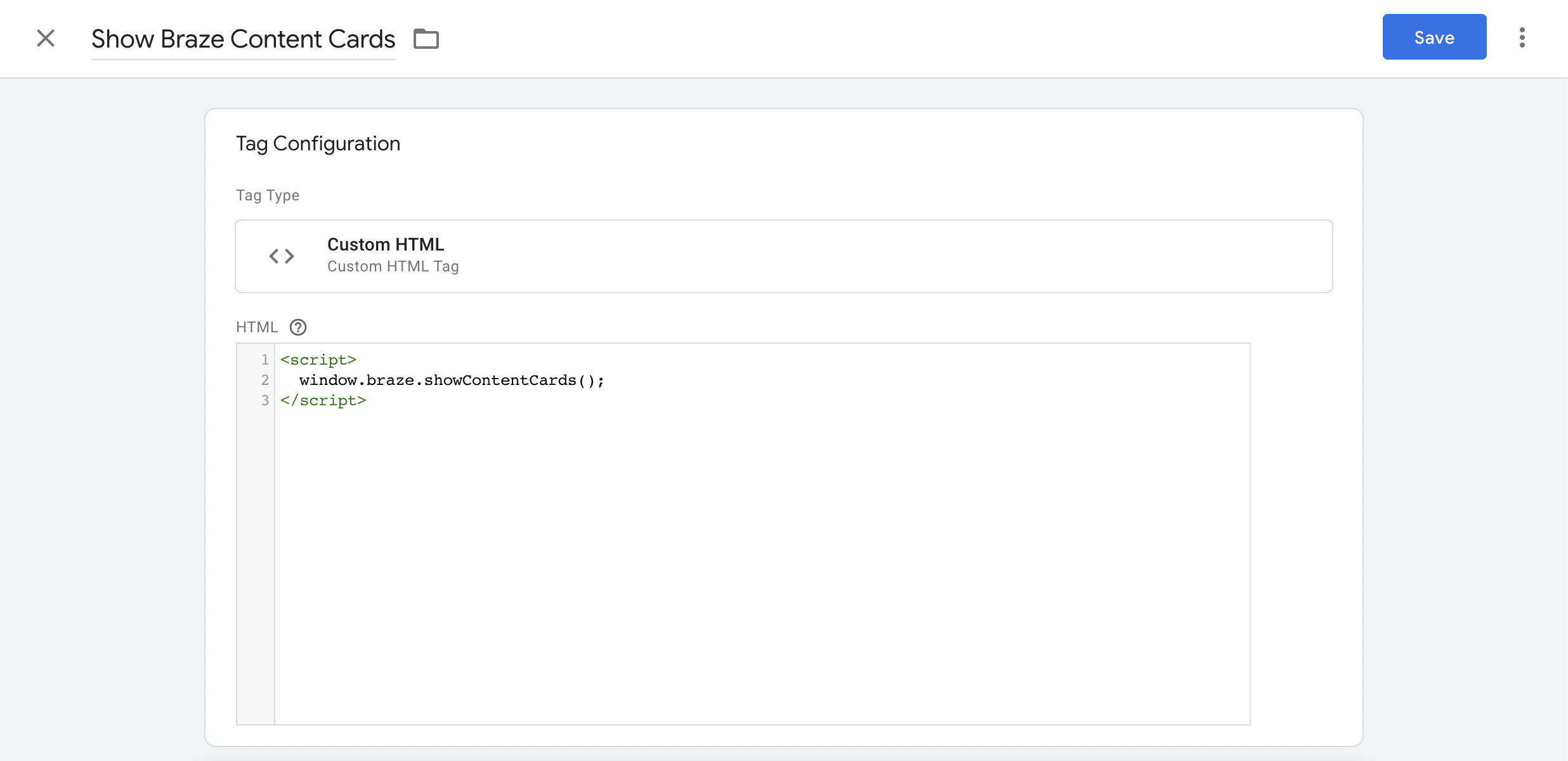
Content Cards 피드의 표준 통합을 위해 Google Tag Manager에서 커스텀 HTML 태그를 사용할 수 있습니다. 커스텀 HTML 태그에 다음 내용을 추가하면 표준 Content Cards 피드가 활성화됩니다:
<script>
window.braze.showContentCards();
</script>
Content Cards와 피드의 외관을 더 자유롭게 커스터마이징하려면 Content Cards를 네이티브 웹사이트에 직접 통합할 수 있습니다. 이를 위한 두 가지 접근 방식이 있습니다: 표준 피드 UI를 사용하거나 커스텀 피드 UI를 만드는 것입니다.
템플릿 업그레이드하기
최신 버전의 Braze 웹 SDK로 업그레이드하려면 Google Tag Manager 대시보드에서 다음 세 단계를 수행합니다:
- 태그 템플릿 업데이트
워크스페이스 내 Templates 페이지로 이동합니다. 업데이트가 가능한 경우 아이콘이 표시됩니다.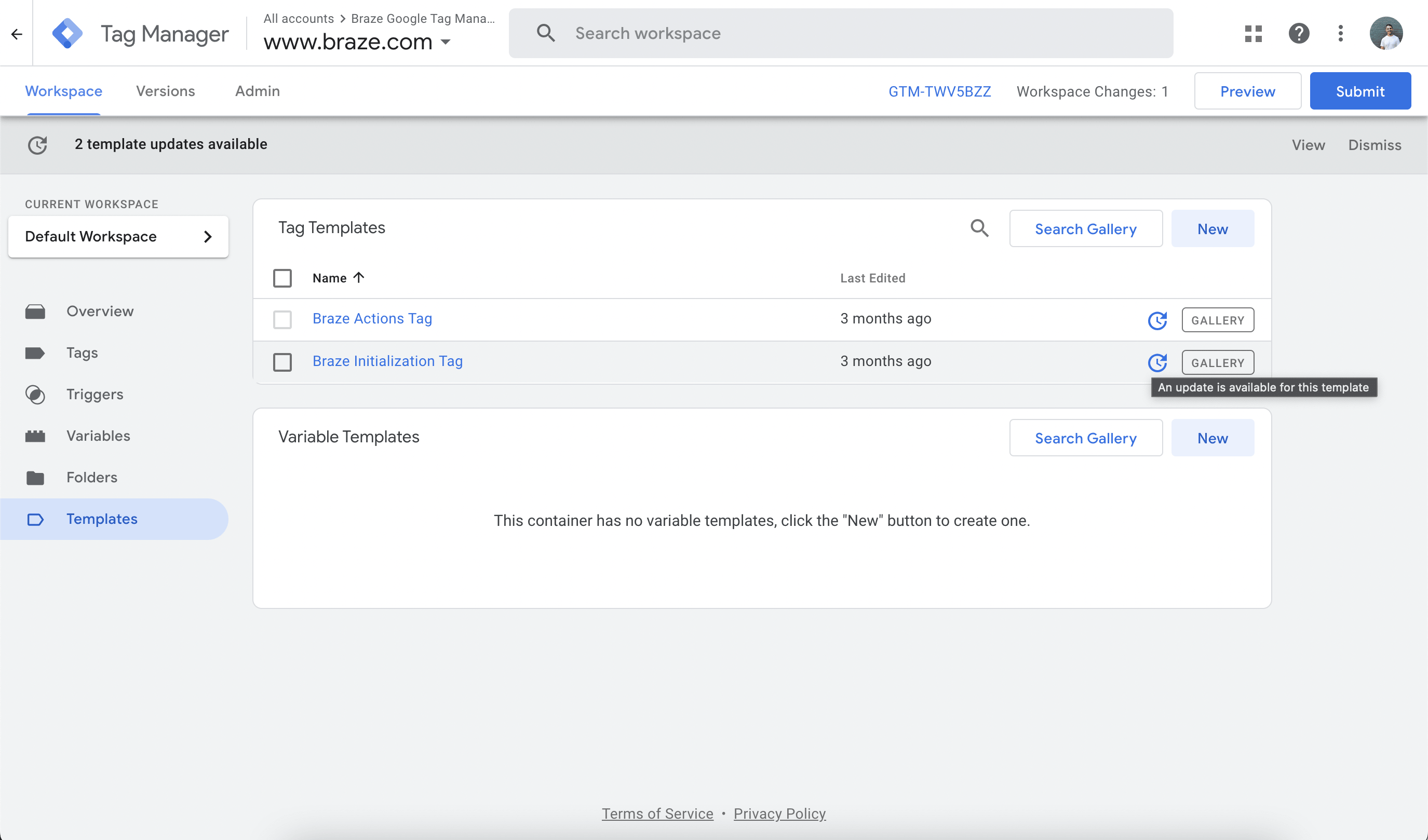
해당 아이콘을 클릭하고 변경 사항을 검토한 후 Accept Update를 클릭합니다.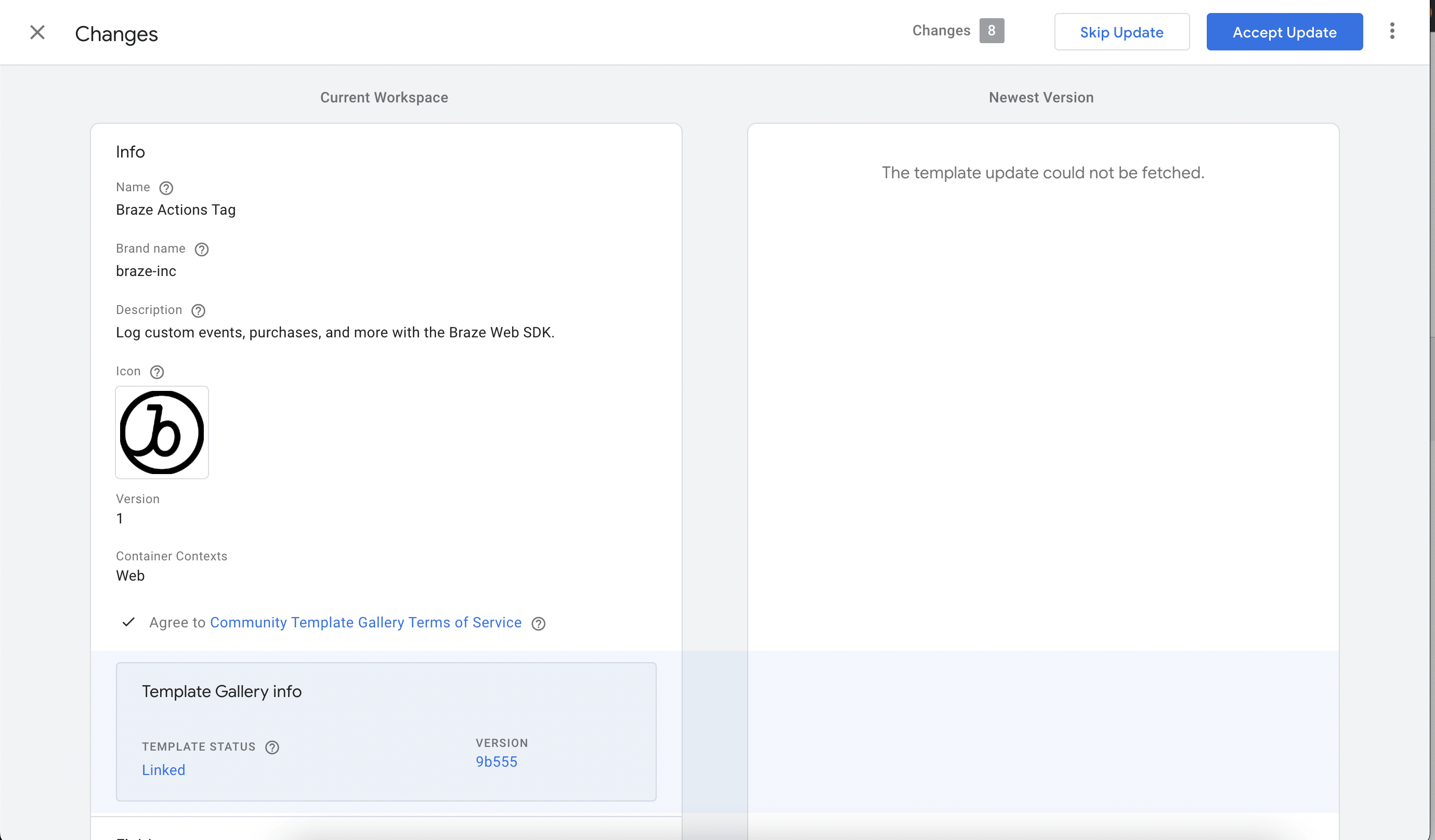
- 버전 번호 업데이트
태그 템플릿이 업데이트되면 Braze 초기화 태그를 편집하고 SDK 버전을 최신major.minor버전으로 업데이트합니다. 예를 들어, 최신 버전이4.1.2인 경우4.1을 입력합니다. SDK 버전 목록은 체인지로그에서 확인할 수 있습니다.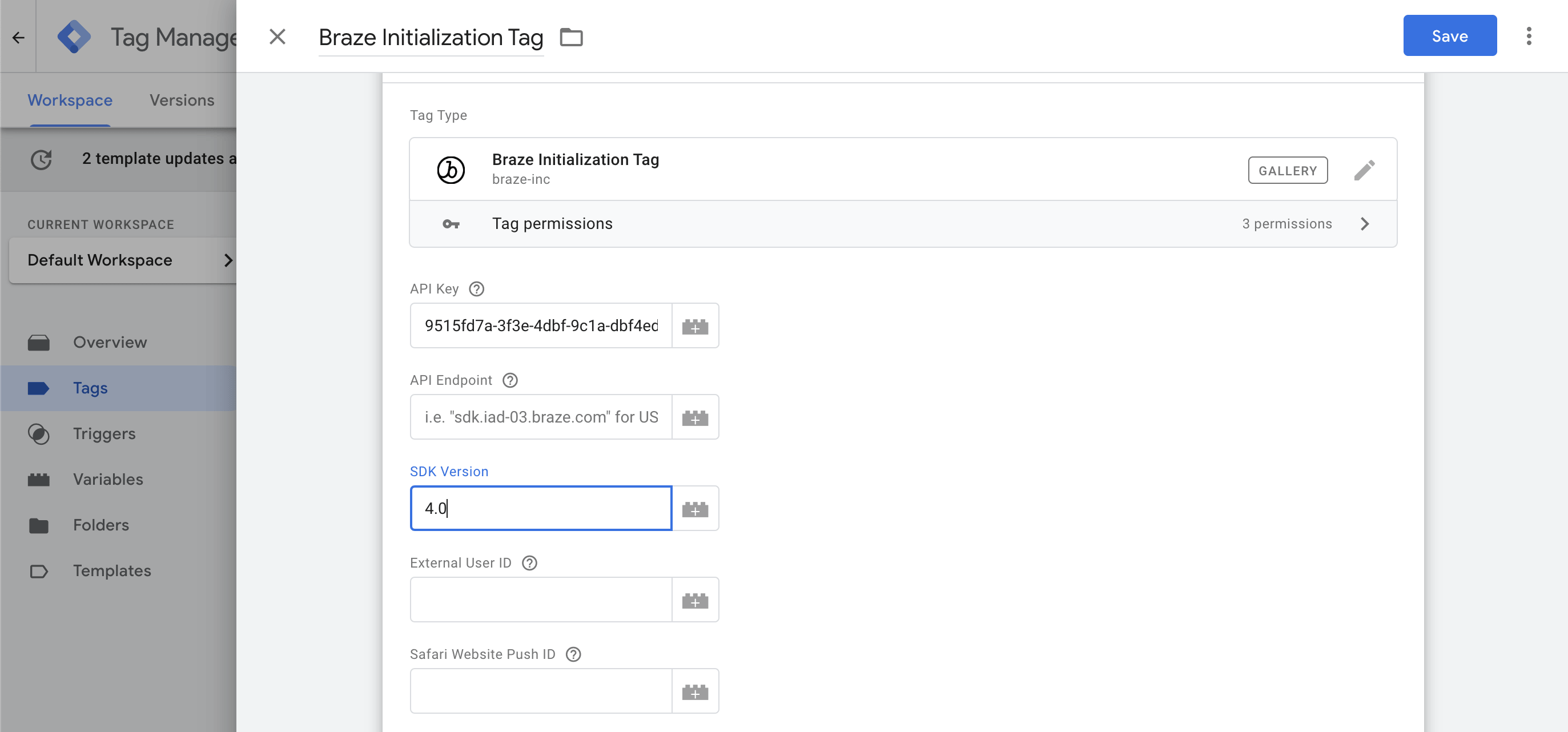
- QA 및 배포
태그 컨테이너에 업데이트를 배포하기 전에 Google Tag Manager의 디버깅 툴을 사용하여 새 SDK 버전이 올바르게 작동하는지 확인합니다.
문제 해결
태그 디버깅 활성화
각 Braze 태그 템플릿에는 선택 사항인 GTM Tag Debugging 체크박스가 있으며, 이를 사용하여 웹 페이지의 JavaScript 콘솔에 디버그 메시지를 기록할 수 있습니다.
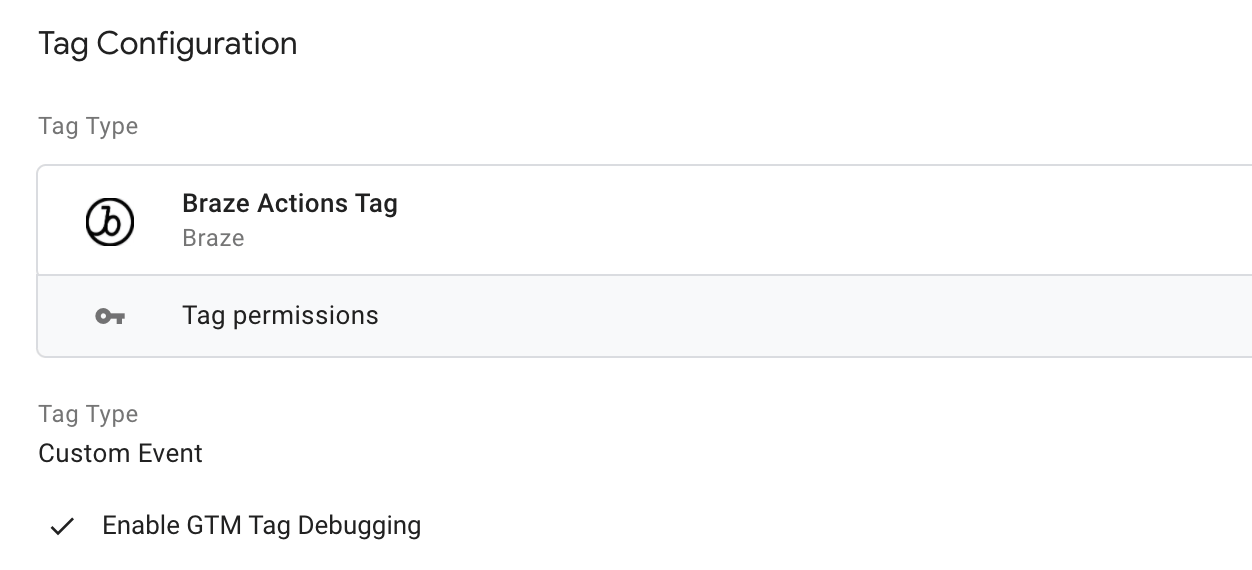
디버그 모드 진입
Google Tag Manager 통합을 디버깅하는 또 다른 방법은 Google의 미리보기 모드 기능을 사용하는 것입니다.
이 기능을 사용하면 웹 페이지의 데이터 레이어에서 트리거된 각 Braze 태그로 전송되는 값을 식별하고, 어떤 태그가 트리거되었는지 또는 트리거되지 않았는지 확인할 수 있습니다.
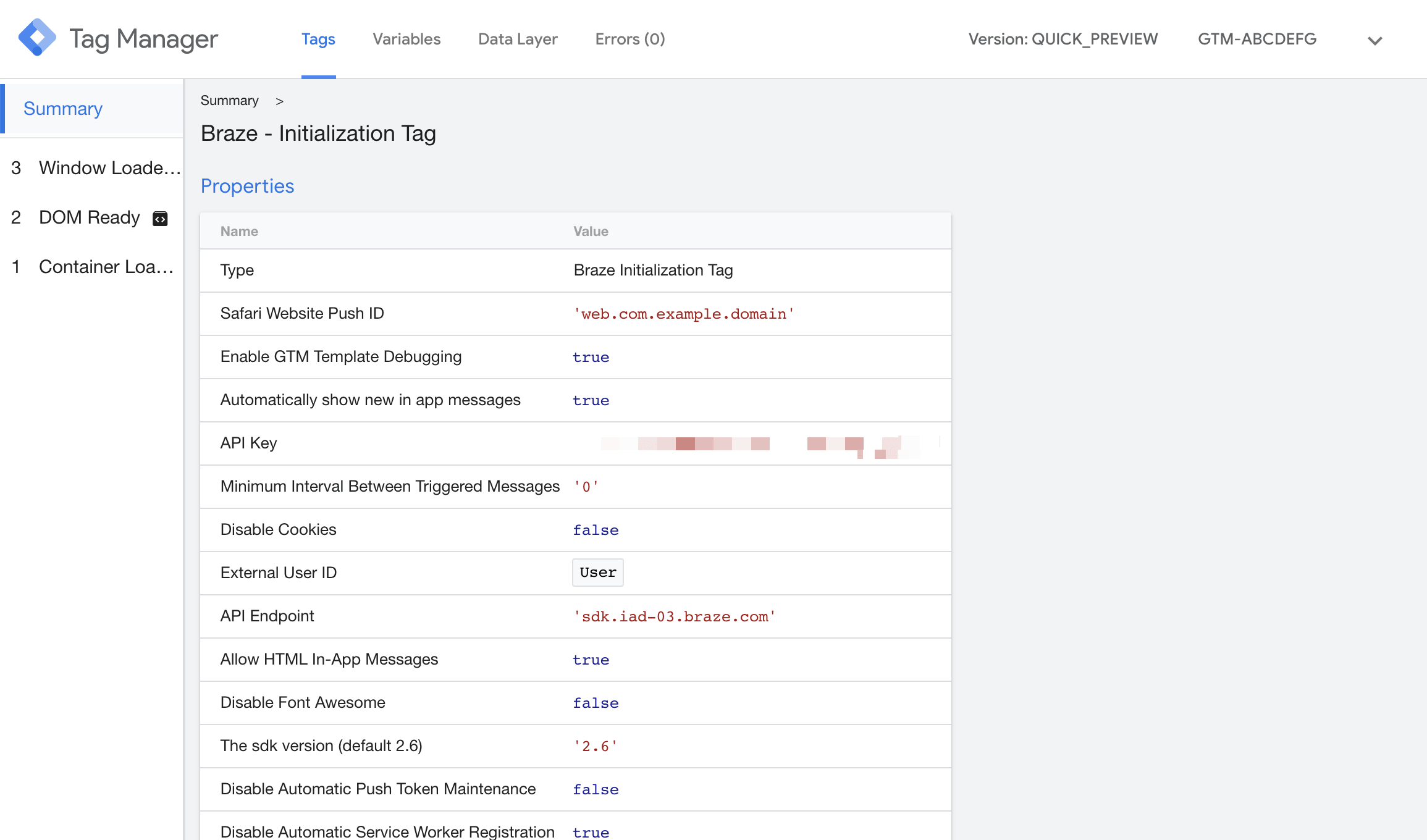
커스텀 이벤트에 대한 태그 순서 확인
커스텀 이벤트 또는 기타 액션이 Braze에 기록되지 않는 경우, 일반적인 원인은 액션 태그(예: Custom Event 또는 Purchase)가 Braze Initialization 태그가 완료되기 전에 실행되는 경합 조건입니다. 이를 해결하려면 GTM에서 태그 시퀀싱을 구성합니다:
- 올바르게 기록되지 않는 액션 태그를 엽니다.
- Advanced Settings > Tag Sequencing에서 A tag that fires before [this tag]를 선택합니다.
- Braze Initialization 태그를 설정 태그로 선택합니다.
이렇게 하면 액션 태그가 Braze로 데이터를 전송하기 전에 SDK가 완전히 초기화됩니다.
상세 로깅 활성화
문제 해결을 위해 상세 로그를 캡처하려면 Google Tag Manager 통합에서 상세 로깅을 활성화할 수 있습니다. 이 로그는 브라우저의 개발자 도구의 Console 탭에 표시됩니다.
Google Tag Manager 통합에서 Braze 초기화 태그로 이동하여 Enable Web SDK Logging을 선택합니다.
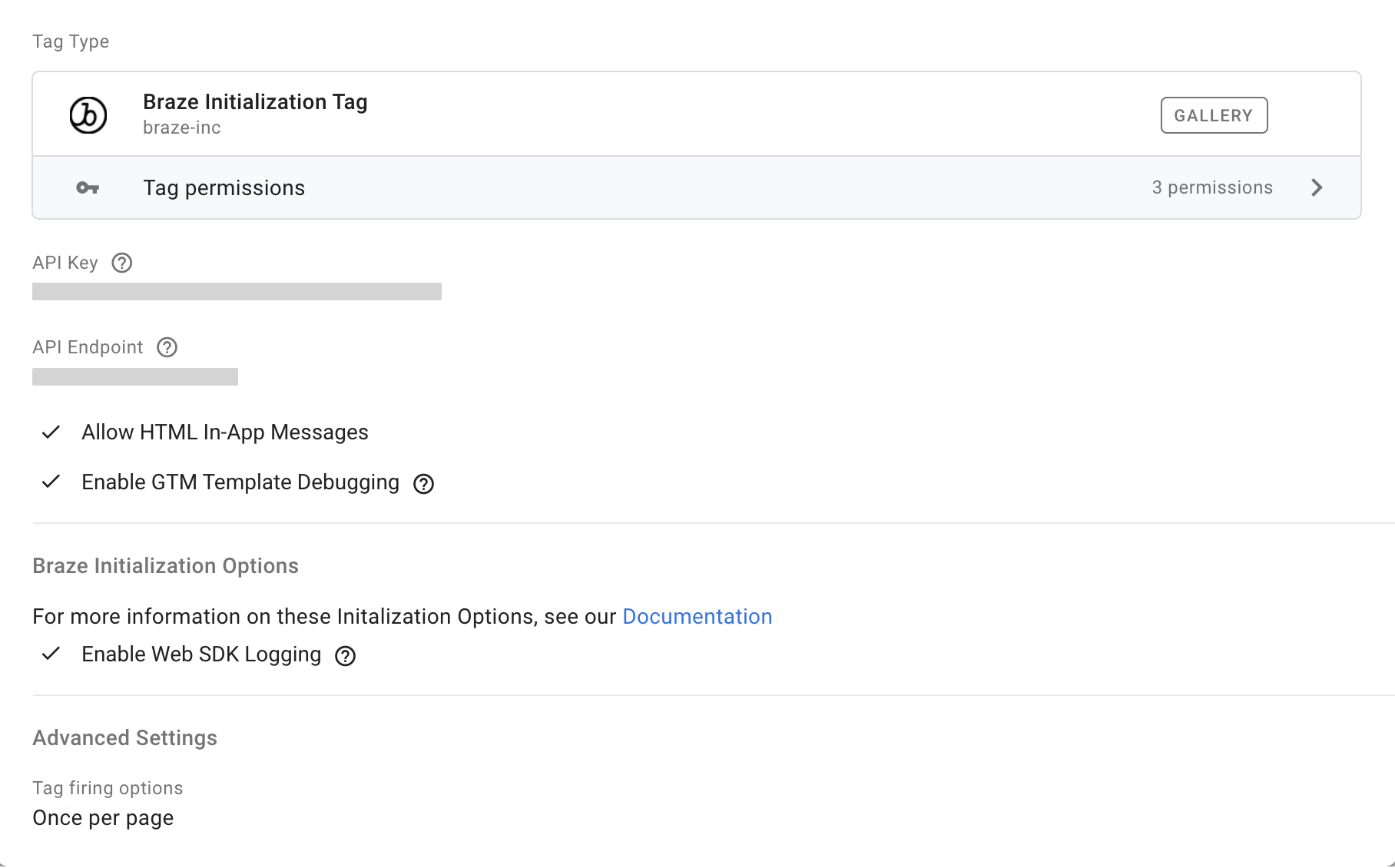
전제 조건
Braze Content Cards를 사용하려면 먼저 앱에 Braze Android SDK를 통합해야 합니다. 그러나 추가 설정은 필요하지 않습니다.
Google 프래그먼트
Android에서 Content Cards 피드는 Braze Android UI 프로젝트에서 사용할 수 있는 프래그먼트로 구현됩니다. ContentCardsFragment 클래스는 Content Cards의 콘텐츠를 자동으로 새로고침하고 표시하며 사용 분석을 기록합니다. 사용자의 ContentCards에 표시될 수 있는 카드는 Braze 대시보드에서 생성됩니다.
액티비티에 프래그먼트를 추가하는 방법은 Google의 프래그먼트 설명서를 참조하세요.
카드 유형 및 속성정보
Content Cards 데이터 모델은 Android SDK에서 사용할 수 있으며 다음과 같은 고유한 Content Cards 유형을 제공합니다. 각 유형은 기본 모델을 공유하므로 기본 모델에서 공통 속성정보를 상속받을 수 있으며, 각 유형만의 고유한 속성정보도 가지고 있습니다. 전체 참조 설명서는 com.braze.models.cards를 참조하세요.
기본 카드 모델
기본 카드 모델은 모든 카드에 대한 기본 동작을 제공합니다.
| 속성정보 | 설명 |
|---|---|
getId() |
Braze에서 설정한 카드 ID를 반환합니다. |
getViewed() |
사용자가 카드를 읽었는지 읽지 않았는지를 나타내는 불리언을 반환합니다. |
getExtras() |
이 카드의 키-값 추가 항목 맵을 반환합니다. |
getCreated() |
Braze에서 카드가 생성된 시간의 unix 타임스탬프를 반환합니다. |
isPinned |
카드가 고정되어 있는지를 나타내는 불리언을 반환합니다. |
getOpenUriInWebView() |
이 카드의 URI를 Braze WebView에서 열어야 하는지 여부를 나타내는 불리언을 반환합니다. |
getExpiredAt() |
카드의 만료 날짜를 가져옵니다. |
isRemoved() |
최종사용자가 이 카드를 해제했는지를 나타내는 불리언을 반환합니다. |
isDismissibleByUser() |
사용자가 카드를 해제할 수 있는지를 나타내는 불리언을 반환합니다. |
isClicked() |
이 카드의 클릭 상태를 나타내는 불리언을 반환합니다. |
isDismissed |
카드가 해제되었는지를 나타내는 불리언을 반환합니다. 카드를 해제됨으로 표시하려면 true로 설정합니다. 이미 해제됨으로 표시된 카드는 다시 해제됨으로 표시할 수 없습니다. |
isControl() |
이 카드가 컨트롤 카드이며 렌더링되지 않아야 하는지를 나타내는 불리언을 반환합니다. |
이미지 전용
이미지 전용 카드는 클릭 가능한 전체 크기 이미지입니다.
| 속성정보 | 설명 |
|---|---|
getImageUrl() |
카드 이미지의 URL을 반환합니다. |
getUrl() |
카드를 클릭한 후 열리는 URL을 반환합니다. HTTP(s) URL 또는 프로토콜 URL일 수 있습니다. |
getDomain() |
속성정보 URL의 링크 텍스트를 반환합니다. |
캡션 이미지
캡션 이미지 카드는 설명 텍스트가 함께 제공되는 클릭 가능한 전체 크기 이미지입니다.
| 속성정보 | 설명 |
|---|---|
getImageUrl() |
카드 이미지의 URL을 반환합니다. |
getTitle() |
카드의 제목 텍스트를 반환합니다. |
getDescription() |
카드의 본문 텍스트를 반환합니다. |
getUrl() |
카드를 클릭한 후 열리는 URL을 반환합니다. HTTP(s) URL 또는 프로토콜 URL일 수 있습니다. |
getDomain() |
속성정보 URL의 링크 텍스트를 반환합니다. |
클래식
이미지가 포함되지 않은 클래식 카드는 텍스트 공지 카드가 됩니다. 이미지가 포함된 경우 짧은 뉴스 카드를 받게 됩니다.
| 속성정보 | 설명 |
|---|---|
getTitle() |
카드의 제목 텍스트를 반환합니다. |
getDescription() |
카드의 본문 텍스트를 반환합니다. |
getUrl() |
카드를 클릭한 후 열리는 URL을 반환합니다. HTTP(s) URL 또는 프로토콜 URL일 수 있습니다. |
getDomain() |
속성정보 URL의 링크 텍스트를 반환합니다. |
getImageUrl() |
카드 이미지의 URL을 반환합니다. 클래식 짧은 뉴스 카드에만 적용됩니다. |
isDismissed |
카드가 해제되었는지를 나타내는 불리언을 반환합니다. 카드를 해제됨으로 표시하려면 true로 설정합니다. 이미 해제됨으로 표시된 카드는 다시 해제됨으로 표시할 수 없습니다. |
카드 메서드
모든 Card 데이터 모델 객체는 Braze 서버에 사용자 이벤트를 기록하기 위한 다음 분석 메서드를 제공합니다.
| 메서드 | 설명 |
|---|---|
logImpression() |
특정 카드에 대한 노출을 Braze에 수동으로 기록합니다. |
logClick() |
특정 카드에 대한 클릭을 Braze에 수동으로 기록합니다. |
전제 조건
Content Cards를 사용하려면 먼저 앱에 Braze Swift SDK를 연동해야 합니다. 추가 설정은 필요하지 않습니다.
뷰 컨트롤러 컨텍스트
기본 Content Cards UI는 Braze SDK의 BrazeUI 라이브러리에서 통합할 수 있습니다. braze 인스턴스를 사용하여 Content Cards 뷰 컨트롤러를 생성합니다. Content Cards UI 라이프사이클을 가로채고 반응하려면, BrazeContentCardUI.ViewController의 델리게이트로 BrazeContentCardUIViewControllerDelegate를 구현합니다.
Swift SDK의 BrazeUI 라이브러리는 내비게이션과 모달 두 가지 기본 뷰 컨트롤러 컨텍스트를 제공합니다. 즉, 앱이나 사이트에 몇 줄의 코드를 추가하여 이러한 컨텍스트에서 Content Cards를 통합할 수 있습니다. 두 뷰 모두 커스터마이징 가이드에 설명된 대로 커스터마이징 및 스타일링 옵션을 제공합니다. 더 많은 커스터마이징 옵션을 위해 표준 Braze 뷰 컨트롤러 대신 커스텀 Content Cards 뷰 컨트롤러를 만들 수도 있습니다—예시는 Content Cards UI 튜토리얼을 참조하세요.

커스텀 UI에서 대조군 배리언트 Content Cards를 처리하려면, Braze.ContentCard.Control 객체를 전달한 다음, 다른 Content Cards 유형과 마찬가지로 logImpression 메서드를 호출합니다. 이 객체는 사용자가 대조군 카드를 보았을 시점을 분석에 알리기 위해 암묵적으로 대조군 노출을 기록합니다.
내비게이션
내비게이션 컨트롤러는 내비게이션 인터페이스에서 하나 이상의 하위 뷰 컨트롤러를 관리하는 뷰 컨트롤러입니다. 다음은 BrazeContentCardUI.ViewController 인스턴스를 내비게이션 컨트롤러로 푸시하는 예시입니다:
func pushViewController() {
guard let braze = AppDelegate.braze else { return }
let contentCardsController = BrazeContentCardUI.ViewController(braze: braze)
// Implement and set `BrazeContentCardUIViewControllerDelegate` if you wish to intercept click actions.
contentCardsController.delegate = self
self.navigationController?.pushViewController(contentCardsController, animated: true)
}
- (void)pushViewController {
BRZContentCardUIViewController *contentCardsController = [[BRZContentCardUIViewController alloc] initWithBraze:self.braze];
// Implement and set `BrazeContentCardUIViewControllerDelegate` if you wish to intercept click actions.
[contentCardsController setDelegate:self];
[self.navigationController pushViewController:contentCardsController animated:YES];
}
모달
모달 프레젠테이션을 사용하면 중요한 정보를 사용자에게 요청하는 등 앱의 워크플로우에 일시적인 중단을 만들 수 있습니다. 이 모달 뷰에는 상단에 내비게이션 바가 있고 바 측면에 Done 버튼이 있습니다. 다음은 BrazeContentCard.ViewController 인스턴스를 모달 컨트롤러로 푸시하는 예시입니다:
func presentModalViewController() {
guard let braze = AppDelegate.braze else { return }
let contentCardsModal = BrazeContentCardUI.ModalViewController(braze: braze)
// Implement and set `BrazeContentCardUIViewControllerDelegate` if you wish to intercept click actions.
contentCardsModal.viewController.delegate = self
self.navigationController?.present(contentCardsModal, animated: true, completion: nil)
}
- (void)presentModalViewController {
BRZContentCardUIModalViewController *contentCardsModal = [[BRZContentCardUIModalViewController alloc] initWithBraze:AppDelegate.braze];
// Implement and set `BrazeContentCardUIViewControllerDelegate` if you wish to intercept click actions.
[contentCardsModal.viewController setDelegate:self];
[self.navigationController presentViewController:contentCardsModal animated:YES completion:nil];
}
BrazeUI 뷰 컨트롤러의 사용 예시는 예제 앱에서 관련 Content Cards UI 샘플을 확인하세요.
기본 카드 모델
Content Cards 데이터 모델은 Braze Swift SDK의 BrazeKit 모듈에서 사용할 수 있습니다. 이 모듈에는 Braze.ContentCard 유형의 구현인 다음 Content Cards 유형이 포함되어 있습니다. Content Cards 속성정보와 사용법의 전체 목록은 ContentCard 클래스를 참조하세요.
- 이미지 전용
- 캡션 이미지
- 클래식
- 클래식 이미지
- 컨트롤
Content Cards 데이터 모델에 접근하려면 braze 인스턴스에서 contentCards.cards를 호출합니다. 카드 데이터 구독에 대한 자세한 내용은 분석 로깅을 참조하세요.
contentCards.cards, contentCards.unviewedCards 또는 contentCards.lastUpdate를 읽으면 SDK가 초기화 후 작업을 완료할 때까지 호출 스레드가 차단됩니다. 메인 스레드 또는 지연 시간에 민감한 컨텍스트에서는 비차단 대안인 getCachedContentCards(_:), getUnviewedCards(_:) 또는 getLastUpdate(_:)를 대신 사용하세요.
카드 메서드
각 카드는 카드의 상태를 관리하기 위한 다양한 메서드를 포함하는 Context 객체로 초기화됩니다. 특정 카드 객체의 해당 상태 속성정보를 수정하려면 이러한 메서드를 호출합니다.
| 메서드 | 설명 |
|---|---|
card.context?.logImpression() |
콘텐츠 카드 노출 횟수 이벤트를 기록합니다. |
card.context?.logClick() |
콘텐츠 카드 클릭 이벤트를 기록합니다. |
card.context?.processClickAction() |
지정된 ClickAction 입력을 처리합니다. |
card.context?.logDismissed() |
콘텐츠 카드 해제 이벤트를 기록합니다. |
card.context?.logError() |
콘텐츠 카드와 관련된 오류를 기록합니다. |
card.context?.loadImage() |
URL에서 지정된 콘텐츠 카드 이미지를 로드합니다. 콘텐츠 카드에 이미지가 없는 경우 이 메서드는 nil일 수 있습니다. |
자세한 내용은 Context 클래스 설명서를 참조하세요.
필수 조건
이 기능을 사용하려면 먼저 Cordova Braze SDK를 통합해야 합니다.
카드 피드
Braze SDK에는 기본 카드 피드가 포함되어 있습니다. 기본 카드 피드를 표시하려면 launchContentCards() 메서드를 사용할 수 있습니다. 이 메서드는 사용자의 Content Cards에 대한 모든 분석 추적, 해제 및 렌더링을 처리합니다.
Content Cards
이러한 추가 메서드를 사용하여 앱 내에서 커스텀 Content Cards 피드를 구축할 수 있습니다:
| 메서드 | 설명 |
|---|---|
requestContentCardsRefresh() |
Braze SDK 서버에서 최신 Content Cards를 요청하는 백그라운드 요청을 보냅니다. |
getContentCardsFromServer(successCallback, errorCallback) |
Braze SDK에서 Content Cards를 검색합니다. 서버에서 최신 Content Cards를 요청하고 완료 시 카드 목록을 반환합니다. |
getContentCardsFromCache(successCallback, errorCallback) |
Braze SDK에서 Content Cards를 검색합니다. 마지막 새로고침 시 업데이트된 로컬 캐시에서 최신 카드 목록을 반환합니다. |
logContentCardClicked(cardId) |
지정된 Content Card ID에 대한 클릭을 기록합니다. |
logContentCardImpression(cardId) |
지정된 Content Card ID에 대한 노출 횟수를 기록합니다. |
logContentCardDismissed(cardId) |
지정된 Content Card ID에 대한 해제를 기록합니다. |
Flutter 콘텐츠 카드에 대하여
Braze SDK에는 Content Cards를 시작할 수 있는 기본 카드 피드가 포함되어 있습니다. 카드 피드를 표시하려면 braze.launchContentCards() 메서드를 사용할 수 있습니다. Braze SDK에 포함된 기본 카드 피드는 사용자의 Content Cards에 대한 모든 분석 추적, 해제 및 렌더링을 처리합니다.
사전 준비 사항
이 기능을 사용하려면 먼저 Flutter Braze SDK를 통합해야 합니다.
카드 메서드
플러그인 공개 인터페이스에서 사용할 수 있는 다음 메서드를 사용하여 앱 내에서 커스텀 Content Cards 피드를 구축할 수 있습니다:
| 메서드 | 설명 |
|---|---|
braze.requestContentCardsRefresh() |
Braze SDK 서버에서 최신 Content Cards를 요청합니다. |
braze.logContentCardClicked(contentCard) |
주어진 Content Card 오브젝트에 대해 클릭을 기록합니다. |
braze.logContentCardImpression(contentCard) |
주어진 Content Card 오브젝트에 대해 노출 횟수를 기록합니다. |
braze.logContentCardDismissed(contentCard) |
주어진 Content Card 오브젝트에 대한 해제를 기록합니다. |
콘텐츠 카드 데이터 수신
Flutter 앱에서 콘텐츠 카드 데이터를 수신하기 위해 BrazePlugin은 Dart Streams를 사용한 콘텐츠 카드 데이터 전송을 지원합니다.
BrazeContentCard 오브젝트는 description, title, image, url, extras 등을 포함하여 네이티브 모델 오브젝트에서 사용할 수 있는 필드의 하위 집합을 지원합니다.
Dart 레이어에서 콘텐츠 카드 데이터 수신
Dart 레이어에서 콘텐츠 카드 데이터를 수신하려면 아래 코드를 사용하여 StreamSubscription을 생성하고 braze.subscribeToContentCards()를 호출합니다. 스트림 구독이 더 이상 필요하지 않으면 cancel()을 호출하세요.
// Create stream subscription
StreamSubscription contentCardsStreamSubscription;
contentCardsStreamSubscription = braze.subscribeToContentCards((List<BrazeContentCard> contentCards) {
// Handle Content Cards
}
// Cancel stream subscription
contentCardsStreamSubscription.cancel();
예제는 Braze Flutter SDK 샘플 애플리케이션의 main.dart를 참조하세요.
네이티브 iOS 레이어에서 콘텐츠 카드 데이터 전달
콘텐츠 카드 데이터는 Android 및 iOS 네이티브 레이어 모두에서 자동으로 전달됩니다. 추가 설정은 필요하지 않습니다.
Flutter SDK 17.1.0 이하를 사용하는 경우, iOS 네이티브 레이어에서 콘텐츠 카드 데이터를 전달하려면 수동 설정이 필요합니다. 애플리케이션에 BrazePlugin.processContentCards(contentCards)를 호출하는 contentCards.subscribeToUpdates 콜백이 포함되어 있을 수 있습니다. Flutter SDK 18.0.0으로 마이그레이션하려면 BrazePlugin.processContentCards(_:) 호출을 제거하세요. 데이터 전달은 이제 자동으로 처리됩니다.
예제는 Braze Flutter SDK 샘플 애플리케이션의 AppDelegate.swift를 참조하세요.
콘텐츠 카드에 대한 콜백 재생
콜백을 사용할 수 있기 전에 트리거된 콘텐츠 카드를 저장하고 콜백이 설정된 후에 재생하려면 BrazePlugin을 초기화할 때 customConfigs 맵에 다음 항목을 추가합니다:
BrazePlugin braze = new BrazePlugin(customConfigs: {replayCallbacksConfigKey: true});
React Native Content Cards 정보
Braze SDK에는 Content Cards를 시작할 수 있는 기본 카드 피드가 포함되어 있습니다. 카드 피드를 표시하려면 Braze.launchContentCards() 메서드를 사용할 수 있습니다. Braze SDK에 포함된 기본 카드 피드는 사용자의 Content Cards에 대한 모든 분석 추적, 해제 및 렌더링을 처리합니다.
필수 조건
이 기능을 사용하려면 먼저 React Native Braze SDK를 통합해야 합니다.
카드 메서드
자체 UI를 구축하려면 사용 가능한 카드 목록을 가져오고 카드 업데이트를 수신 대기할 수 있습니다.
// Set initial cards
const [cards, setCards] = useState([]);
// Listen for updates as a result of card refreshes, such as:
// a new session, a manual refresh with `requestContentCardsRefresh()`, or after the timeout period
Braze.addListener(Braze.Events.CONTENT_CARDS_UPDATED, async (update) => {
setCards(update.cards);
});
// Manually trigger a refresh of cards
Braze.requestContentCardsRefresh();
카드를 표시할 자체 UI를 구축하려는 경우 해당 카드에 대한 분석을 수신하려면 logContentCardImpression을 호출해야 합니다. 여기에는 control 카드도 포함되며, 사용자에게 표시되지 않더라도 추적해야 합니다.
이러한 추가 메서드를 사용하여 앱 내에서 커스텀 Content Cards 피드를 구축할 수 있습니다.
| 메서드 | 설명 |
|---|---|
launchContentCards() |
Content Cards UI 요소를 실행합니다. |
requestContentCardsRefresh() |
Braze SDK 서버에서 최신 Content Cards를 요청합니다. 결과 카드 목록은 이전에 등록된 각 콘텐츠 카드 이벤트 리스너로 전달됩니다. |
getCachedContentCards() |
캐시에서 가장 최근의 Content Cards 배열을 반환합니다. |
logContentCardClicked(cardId) |
지정된 Content Card ID에 대한 클릭을 기록합니다. 이 메서드는 분석에만 사용됩니다. 클릭 동작을 실행하려면 processContentCardClickAction(cardId)도 추가로 호출하세요. |
logContentCardImpression(cardId) |
지정된 Content Card ID에 대한 노출을 기록합니다. |
logContentCardDismissed(cardId) |
지정된 Content Card ID에 대한 해제를 기록합니다. |
processContentCardClickAction(cardId) |
특정 카드의 동작을 수행합니다. |
카드 유형 및 속성정보
Content Cards 데이터 모델은 React Native SDK에서 사용할 수 있으며 다음과 같은 Content Cards 카드 유형을 제공합니다: 이미지 전용, 캡션 이미지, 클래식. 특정 카드의 대조군에 속하는 사용자에게 반환되는 특별한 대조 카드 유형도 있습니다. 각 유형은 고유한 속성정보 외에도 기본 모델에서 공통 속성정보를 상속받습니다.
기본 카드 모델
기본 카드 모델은 모든 카드에 대한 기초적인 동작을 제공합니다.
| 속성정보 | 설명 |
|---|---|
id |
Braze에서 설정한 카드의 ID입니다. |
created |
Braze에서 카드가 생성된 시간의 unix 타임스탬프입니다. |
expiresAt |
카드 만료 시간의 unix 타임스탬프입니다. 값이 0보다 작으면 카드가 만료되지 않는다는 의미입니다. |
viewed |
사용자가 카드를 읽었는지 또는 읽지 않았는지 여부입니다. 이는 분석을 기록하지 않습니다. |
clicked |
사용자가 카드를 클릭했는지 여부입니다. |
pinned |
카드가 고정되어 있는지 여부입니다. |
dismissed |
사용자가 이 카드를 해제했는지 여부입니다. 이미 해제된 카드를 해제된 것으로 표시하면 아무 작업도 수행되지 않습니다. |
dismissible |
사용자가 카드를 해제할 수 있는지 여부입니다. |
url |
(선택 사항) 카드 클릭 동작과 연결된 URL 문자열입니다. |
openURLInWebView |
이 카드의 URL을 Braze WebView에서 열어야 하는지 여부입니다. |
isControl |
이 카드가 대조 카드인지 여부입니다. 대조 카드는 사용자에게 표시되지 않아야 합니다. |
extras |
이 카드의 키-값 추가 항목 맵입니다. |
기본 카드에 대한 전체 참조는 Android 및 iOS 설명서를 참조하세요.
이미지 전용
이미지 전용 카드는 클릭 가능한 전체 크기 이미지입니다.
| 속성정보 | 설명 |
|---|---|
type |
Content Card 유형, IMAGE_ONLY. |
image |
카드 이미지의 URL입니다. |
imageAspectRatio |
카드 이미지의 종횡비입니다. 이미지 로드가 완료되기 전에 힌트 역할을 합니다. 특정 상황에서는 속성정보가 제공되지 않을 수 있습니다. |
이미지 전용 카드에 대한 전체 참조는 Android 및 iOS 설명서를 참조하세요.
캡션 이미지
캡션 이미지 카드는 클릭 가능한 전체 크기 이미지로, 설명 텍스트가 함께 제공됩니다.
| 속성정보 | 설명 |
|---|---|
type |
Content Card 유형, CAPTIONED. |
image |
카드 이미지의 URL입니다. |
imageAspectRatio |
카드 이미지의 종횡비입니다. 이미지 로드가 완료되기 전에 힌트 역할을 합니다. 특정 상황에서는 속성정보가 제공되지 않을 수 있습니다. |
title |
카드의 제목 텍스트입니다. |
cardDescription |
카드의 설명 텍스트입니다. |
domain |
(선택 사항) 속성정보 URL의 링크 텍스트(예: "braze.com/resources/"). 카드의 UI에 표시되어 카드를 클릭할 때의 동작과 방향을 나타낼 수 있습니다. |
캡션 이미지 카드에 대한 전체 참조는 Android 및 iOS 설명서를 참조하세요.
클래식
클래식 카드에는 텍스트 앞에 제목, 설명, 이미지(선택 사항)가 있습니다.
| 속성정보 | 설명 |
|---|---|
type |
Content Card 유형, CLASSIC. |
image |
(선택 사항) 카드 이미지의 URL입니다. |
title |
카드의 제목 텍스트입니다. |
cardDescription |
카드의 설명 텍스트입니다. |
domain |
(선택 사항) 속성정보 URL의 링크 텍스트(예: "braze.com/resources/"). 카드의 UI에 표시되어 카드를 클릭할 때의 동작과 방향을 나타낼 수 있습니다. |
클래식(텍스트 알림) Content Card에 대한 전체 참조는 Android 및 iOS 설명서를 참조하세요. 클래식 이미지(짧은 뉴스) 카드에 대해서는 Android 및 iOS 설명서를 참조하세요.
대조
대조 카드에는 몇 가지 중요한 차이점이 있는 모든 기본 속성정보가 포함됩니다. 특히 다음 사항이 중요합니다.
isControl속성정보는true로 보장됩니다.extras속성정보는 비어 있음이 보장됩니다.
전제 조건
Content Cards를 사용하려면 먼저 앱에 Braze Swift SDK를 통합하세요. 그런 다음 tvOS 앱 설정 단계를 완료합니다.
Content Cards는 Swift SDK를 사용한 헤드리스 UI를 통해 지원되며, tvOS용 기본 UI나 뷰가 포함되어 있지 않으므로 커스텀 UI를 직접 구현하세요.
tvOS 앱 설정
1단계: 새 iOS 앱 만들기
Braze에서 설정 > 앱 설정을 선택한 다음 앱 추가를 선택합니다. tvOS 앱의 이름을 입력하고 iOS—tvOS가 아님—를 선택한 다음 앱 추가를 선택합니다.
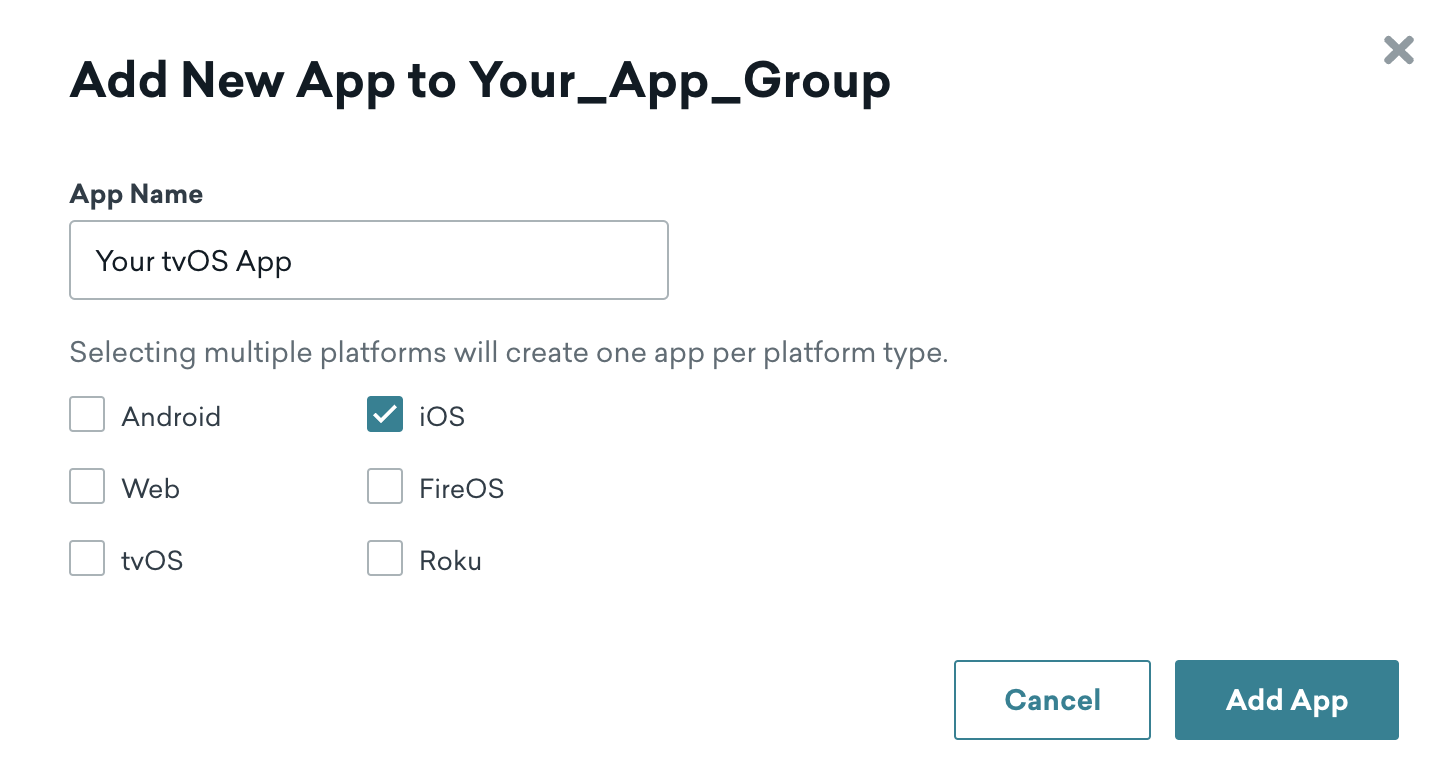
tvOS 체크박스를 선택하면 tvOS용 Content Cards를 커스터마이징할 수 없습니다.
2단계: 앱의 API 키 가져오기
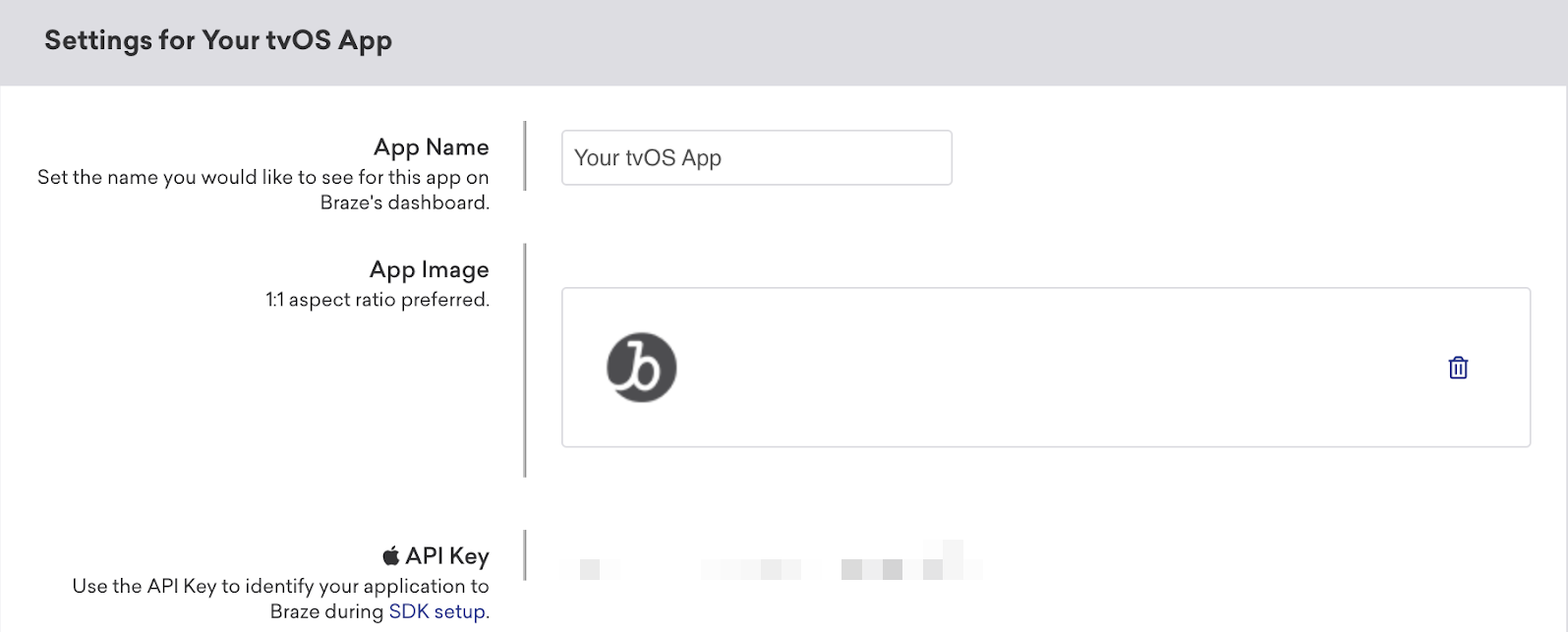
앱 설정에서 새 tvOS 앱을 선택한 다음 앱의 API 키를 확인합니다. 이 키를 사용하여 Xcode에서 앱을 구성합니다.
3단계: BrazeKit 통합
앱의 API 키를 사용하여 Xcode의 tvOS 프로젝트에 Braze Swift SDK를 통합합니다. Braze Swift SDK에서 BrazeKit만 통합하면 됩니다.
4단계: 커스텀 UI 만들기
Braze는 tvOS에서 콘텐츠 카드에 대한 기본 UI를 제공하지 않으므로 직접 커스터마이징해야 합니다. 전체 안내는 단계별 튜토리얼을 참조하세요: tvOS용 콘텐츠 카드 커스터마이징. 샘플 프로젝트는 Braze Swift SDK 샘플을 참조하세요.
필수 조건
이 기능을 사용하려면 먼저 Unity Braze SDK를 통합해야 합니다.
기본적으로 콘텐츠 카드 표시
다음 호출을 사용하여 Content Cards의 기본 UI를 표시할 수 있습니다:
Appboy.AppboyBinding.DisplayContentCards();
Unity에서 콘텐츠 카드 데이터 수신
수신 Content Cards에 대한 알림을 받도록 Unity 게임 오브젝트를 등록할 수 있습니다. Braze 설정 에디터에서 게임 오브젝트 리스너를 설정하는 것을 권장합니다.
런타임에 게임 오브젝트 리스너를 구성해야 하는 경우 AppboyBinding.ConfigureListener()를 사용하고 BrazeUnityMessageType.CONTENT_CARDS_UPDATED를 지정합니다.
iOS의 게임 오브젝트 리스너에서 데이터 수신을 시작하려면 추가적으로 AppboyBinding.RequestContentCardsRefresh()를 호출해야 합니다.
콘텐츠 카드 파싱
콘텐츠 카드 게임 오브젝트 콜백에서 수신되는 string 메시지는 편의를 위해 미리 제공된 ContentCard 모델 오브젝트로 파싱할 수 있습니다.
콘텐츠 카드를 파싱하려면 JSON 파싱이 필요하며, 자세한 내용은 다음 예시를 참조하세요:
콘텐츠 카드 콜백 예시
void ExampleCallback(string message) {
try {
JSONClass json = (JSONClass)JSON.Parse(message);
// Content Card data is contained in the `mContentCards` field of the top level object.
if (json["mContentCards"] != null) {
JSONArray jsonArray = (JSONArray)JSON.Parse(json["mContentCards"].ToString());
Debug.Log(String.Format("Parsed content cards array with {0} cards", jsonArray.Count));
// Iterate over the card array to parse individual cards.
for (int i = 0; i < jsonArray.Count; i++) {
JSONClass cardJson = jsonArray[i].AsObject;
try {
ContentCard card = new ContentCard(cardJson);
Debug.Log(String.Format("Created card object for card: {0}", card));
// Example of logging Content Card analytics on the ContentCard object
card.LogImpression();
card.LogClick();
} catch {
Debug.Log(String.Format("Unable to create and log analytics for card {0}", cardJson));
}
}
}
} catch {
throw new ArgumentException("Could not parse content card JSON message.");
}
}
콘텐츠 카드 새로 고침
Braze에서 Content Cards를 새로 고치려면 다음 메서드 중 하나를 호출합니다:
// results in a network request to Braze
AppboyBinding.RequestContentCardsRefresh()
AppboyBinding.RequestContentCardsRefreshFromCache()
분석
Braze에서 직접 표시하지 않는 Content Cards의 경우 클릭 수와 노출 횟수를 수동으로 기록해야 합니다.
특정 카드의 클릭 및 노출 횟수를 기록하려면 ContentCard에서 LogClick() 및 LogImpression()을 사용합니다.
.NET MAUI Content Cards에 대하여
Braze .NET MAUI(구 Xamarin) SDK에는 Content Cards를 시작하는 데 도움이 되는 기본 카드 피드가 포함되어 있습니다. Braze SDK에 포함된 기본 카드 피드는 사용자의 Content Cards에 대한 모든 분석 추적, 해제 및 렌더링을 처리합니다.
필수 조건
이 기능을 사용하기 전에 .NET MAUI Braze SDK를 통합해야 합니다.
카드 유형 및 속성정보
Braze .NET MAUI SDK에는 기본 모델을 공유하는 세 가지 고유한 Content Cards 카드 유형이 있습니다: 배너, 캡션 이미지, 클래식. 각 유형은 기본 모델에서 공통 속성정보를 상속하며 다음과 같은 추가 속성정보가 있습니다.
기본 카드 모델
| 속성정보 | 설명 |
|---|---|
idString |
Braze에서 설정한 카드의 ID입니다. |
created |
Braze에서 카드가 생성된 시간의 UNIX 타임스탬프입니다. |
expiresAt |
카드 만료 시간의 UNIX 타임스탬프입니다. 값이 0보다 작으면 카드가 만료되지 않는다는 의미입니다. |
viewed |
사용자가 카드를 읽었는지 또는 읽지 않았는지 여부입니다. 이는 분석을 기록하지 않습니다. |
clicked |
사용자가 카드를 클릭했는지 여부입니다. |
pinned |
카드가 고정되어 있는지 여부입니다. |
dismissed |
사용자가 이 카드를 해제했는지 여부입니다. 이미 해제된 카드를 해제된 것으로 표시하면 아무 작업도 수행되지 않습니다. |
dismissible |
사용자가 카드를 해제할 수 있는지 여부입니다. |
urlString |
(선택 사항) 카드 클릭 동작과 관련된 URL 문자열입니다. |
openUrlInWebView |
이 카드의 URL이 Braze WebView에서 열려야 하는지 여부입니다. |
isControlCard |
이 카드가 제어 카드인지 여부입니다. 제어 카드는 사용자에게 표시되지 않아야 합니다. |
extras |
이 카드의 키-값 추가 항목 맵입니다. |
isTest |
이 카드가 테스트 카드인지 여부입니다. |
기본 카드에 대한 전체 참조는 Android 및 iOS 설명서를 참조하세요.
배너
배너 카드는 클릭 가능한 전체 크기 이미지입니다.
| 속성정보 | 설명 |
|---|---|
image |
카드 이미지의 URL입니다. |
imageAspectRatio |
카드 이미지의 종횡비입니다. 이미지 로드가 완료되기 전에 힌트 역할을 합니다. 특정 상황에서는 이 속성정보가 제공되지 않을 수 있습니다. |
배너 카드에 대한 전체 참조는 Android 및 iOS 설명서(현재 이미지 전용으로 이름이 변경됨)를 참조하세요.
캡션 이미지
캡션 이미지 카드는 클릭 가능한 전체 크기 이미지로, 설명 텍스트가 함께 제공됩니다.
| 속성정보 | 설명 |
|---|---|
image |
카드 이미지의 URL입니다. |
imageAspectRatio |
카드 이미지의 종횡비입니다. 이미지 로드가 완료되기 전에 힌트 역할을 합니다. 특정 상황에서는 이 속성정보가 제공되지 않을 수 있습니다. |
title |
카드의 제목 텍스트입니다. |
cardDescription |
카드의 설명 텍스트입니다. |
domain |
(선택 사항) 속성정보 URL의 링크 텍스트(예: "braze.com/resources/"). 카드의 UI에 표시되어 카드를 클릭할 때의 동작과 방향을 나타낼 수 있습니다. |
캡션 이미지 카드에 대한 전체 참조는 Android 및 iOS 설명서를 참조하세요.
클래식
클래식 카드에는 텍스트 앞에 제목, 설명, 이미지(선택 사항)가 있습니다.
| 속성정보 | 설명 |
|---|---|
image |
(선택 사항) 카드 이미지의 URL입니다. |
title |
카드의 제목 텍스트입니다. |
cardDescription |
카드의 설명 텍스트입니다. |
domain |
(선택 사항) 속성정보 URL의 링크 텍스트(예: "braze.com/resources/"). 카드의 UI에 표시되어 카드를 클릭할 때의 동작과 방향을 나타낼 수 있습니다. |
클래식(텍스트 알림) Content Card에 대한 전체 참조는 Android 및 iOS 설명서를 참조하세요. 클래식 이미지(짧은 뉴스) 카드에 대한 전체 참조는 Android 및 iOS 설명서를 참조하세요.
카드 메서드
이러한 추가 메서드를 사용하여 앱 내에서 커스텀 Content Cards 피드를 구축할 수 있습니다.
| 메서드 | 설명 |
|---|---|
requestContentCardsRefresh() |
Braze SDK 서버에서 최신 Content Cards를 요청합니다. |
getContentCards() |
Braze SDK에서 Content Cards를 검색합니다. 서버에서 최신 카드 목록을 반환합니다. |
logContentCardClicked(cardId) |
지정된 Content Card ID에 대한 클릭을 기록합니다. 이 메서드는 분석에만 사용됩니다. |
logContentCardImpression(cardId) |
지정된 Content Card ID에 대한 노출을 기록합니다. |
logContentCardDismissed(cardId) |
지정된 Content Card ID에 대한 해제를 기록합니다. |