WhatsApp Template Builder
The WhatsApp Template Builder lets you create and submit WhatsApp message templates directly in Braze—no need to switch between Braze and the Meta Business Manager. After Meta approves your template, use it in as many campaigns and Canvases as you’d like.
The WhatsApp Template Builder is currently in early access. Contact your Braze account manager for access.
Prerequisites
Before creating a WhatsApp template in Braze, complete the WhatsApp setup.
WhatsApp carousel templates
Before creating carousel templates, you need:
- An active WhatsApp Business Account (WABA) connected to Braze
- Appropriate subscription groups configured within your WABA
- Media assets (images or videos) ready for upload
- Braze permissions for non-admin users
- For users to create new templates in the Template Builder:
- “View WhatsApp Message Templates”
- “Edit WhatsApp Message Templates”
- For users to compose campaigns or Canvases with carousel templates:
- “View WhatsApp Message Templates”
- For users to create new templates in the Template Builder:
- An understanding of Liquid templating (optional, for dynamic content)
All phone numbers and subscription groups within the same WhatsApp Business Account (WABA) share templates. If you have multiple subscription groups within one WABA, they can all access the same carousel templates; however, templates are not shared across different WABAs.
Create a template
Step 1: Go to WhatsApp Templates
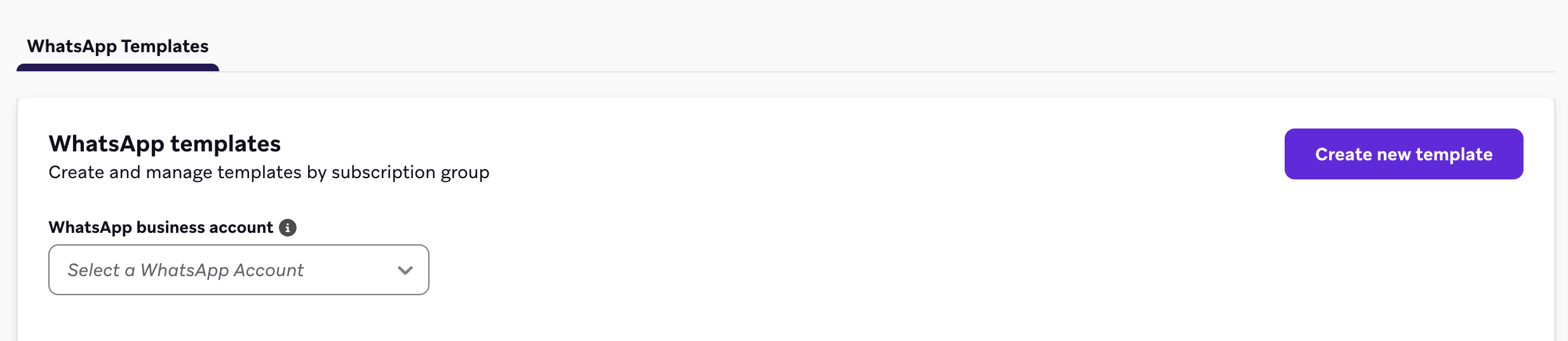
Go to Templates > WhatsApp Templates, then select Create new template.
Step 2: Configure template settings
Fill in the following fields:
| Field | Description |
|---|---|
| Account | The WhatsApp Business Account (WABA) you’d like to submit the template to. All subscription groups and phone numbers within a WABA will share template access. |
| Language | The language for this template. WhatsApp requires a separate template for each language. |
| Template name | A unique name for your template. Template names can only contain lowercase letters, numbers, and underscores. |
Step 3: Choose a layout
Under Layout, select the template type:
- Default: A standard WhatsApp message. This is the layout covered in this article.
- Carousel: A message with horizontally scrollable cards. For more information, see Carousel templates.
Step 4: Build your template
Header (optional)
Add a header to appear above the message body. You can choose:
- Text: A short text header.
- Media: An image, video, or document (URL only). Braze stores the media reference and submits a sample to Meta for approval.
- None: No header
Body
Enter the main content of your message and personalize the body as needed by using Liquid or generic variables:
- Use Liquid tags (for example,
{{${first_name}}}). Braze saves your Liquid and surfaces it when you use the template in a campaign or Canvas composer. - Use generic variables, such as numbered placeholders (for example,
{{1}}), if you prefer to add personalization later when building your message.
You can add personalization wherever the + plus button appears. Not all fields support personalization.
Footer (optional)
Add a short footer to appear below the message body.
Buttons (optional)
Add up to 10 buttons to your template. Button types have different categories and specifications.
| Button type | Category | Specifications |
|---|---|---|
| Quick reply | Quick reply buttons |
|
| Phone number | Call to Action buttons |
|
| Visit website | Call to Action buttons |
|
| Copy offer code | Call to Action buttons |
|

Step 5: Preview your template
Before submitting, preview how your message will appear to recipients:
- Preview as a user: See a generic preview of the message.
- Preview as a specific user: Select a user profile to preview how the template will render with that user’s data.
Step 6: Submit for review
Select Submit to send your template to Meta for review, which typically takes a few minutes but can take up to 24 hours. The template appears on your WhatsApp templates page when it’s submitted, and the status updates when you refresh the WhatsApp templates page.
Supported template categories
Only Marketing templates are currently supported in the WhatsApp Template Builder.
Use an approved template in a campaign
After Meta approves your template, you can use it in a WhatsApp campaign or Canvas.
- Go to Campaigns and select Create Campaign > WhatsApp.
- In the message composer, select your approved template.
- Braze automatically populates the template’s content—including any media and Liquid you entered during template creation—so you don’t have to re-enter it.
- Update any variable content or personalization as needed. Fields locked by Meta (shown in gray) cannot be edited. To change locked content, you must edit and resubmit the template for approval.
- Use the Test tab to preview the message, update body variables, and confirm the message looks as expected before launch.
For more information about building WhatsApp campaigns, see Create a WhatsApp message.
Frequently asked questions
How long does Meta template review take?
Reviews typically complete within five minutes, but can take up to 24 hours.
Can I edit a template after it’s been approved?
Any changes to locked content (body copy or other Meta-controlled fields) require resubmitting the template for approval, which must be done from the WhatsApp Business Manager. You can update content and personalization when building your campaign or Canvas.
What happens to templates I submitted before the Template Builder was available?
Templates created in Meta Business Manager are still available to use in Braze. The Template Builder is an additional way to create and manage templates without leaving the Braze dashboard.
Why can’t I add personalization to every field?
Meta restricts which parts of a template can be personalized. The + plus button only appears in fields that support variable content.
 Edit this page on GitHub