KakaoTalk reporting
This reference article provides an overview of the different KakaoTalk reporting metrics and analytics options provided in the Braze dashboard.
Viewing analytics
Once you’ve launched your campaign, you can return to the details page for that campaign to view key metrics. Navigate to the Campaigns page and select your campaign to open the details page. For KakaoTalk messages sent in Canvas, refer to Canvas analytics.
Looking for definitions for the terms and metrics listed in your report? Refer to our
From the Campaign Analytics tab, you can view your reports in a series of panels. You may see more or less than those listed in the sections below, but each has its own useful purpose.
Time range
By default, the time range for Campaign Analytics will display the last 90 days from the current time. This means that if the campaign was launched more than 90 days ago, the analytics will display as “0” for the given time range. To view all analytics for older campaigns, adjust the reporting time range.
Campaign details
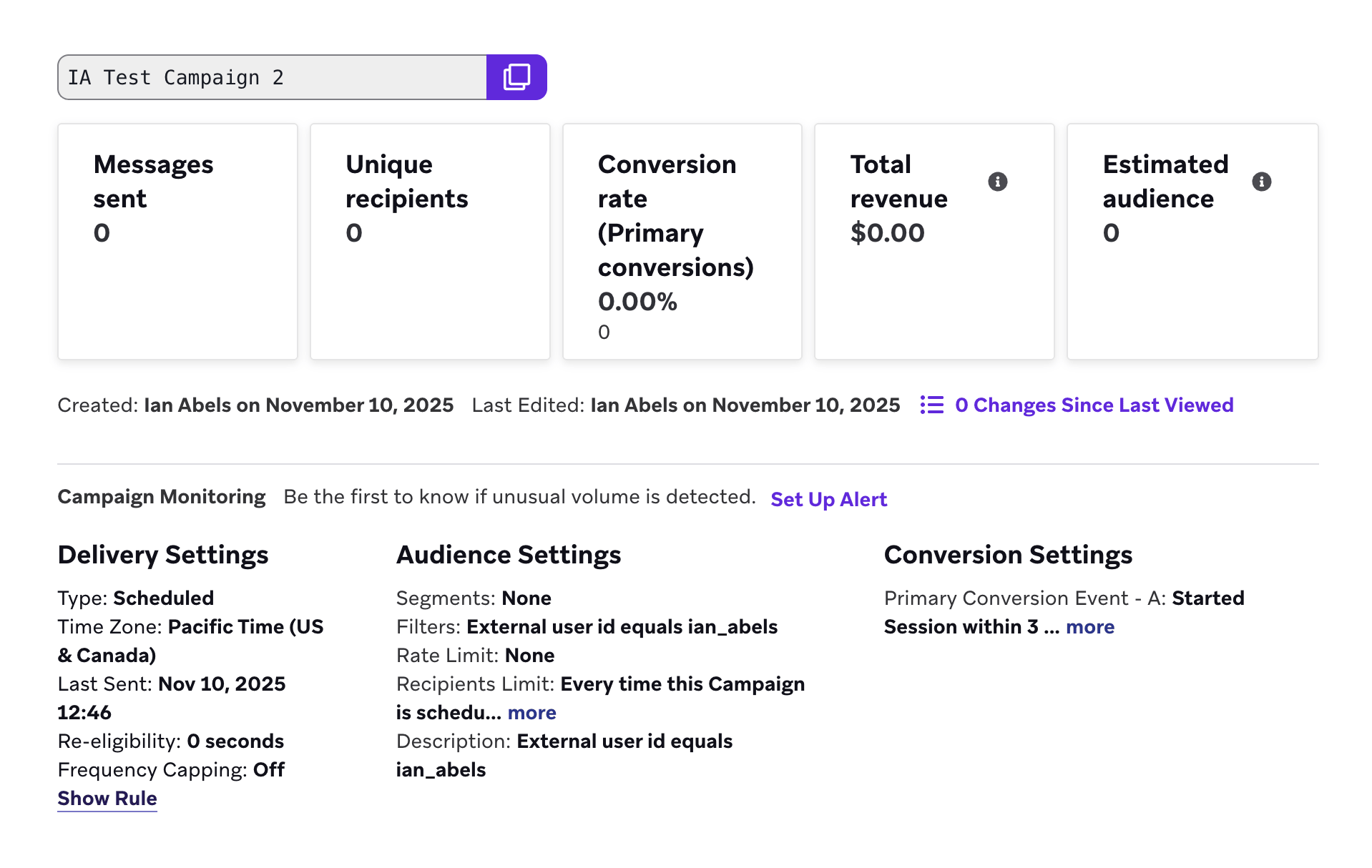
The Campaign Details panel shows a high-level overview of the entire performance for your KakaoTalk message.
Review this panel to see overall metrics such as the number of messages sent to the number of recipients, the primary conversion rate, and the total revenue generated by this message. You can also review delivery, audience, and conversion settings from this page.
Changes Since Last Viewed
The number of updates to the campaign from other members of your team is tracked by the Changes Since Last Viewed metric on the campaign overview page. Select Changes Since Last Viewed to view a changelog of updates to the campaign’s name, schedule, tags, message, audience, approval status, or team access configuration. For each update, you can see who performed the update and when. You can use this changelog to audit changes to your campaign.
KakaoTalk Performance
The KakaoTalk Performance panel outlines how well your message has performed across various dimensions. The metrics in this panel vary depending on your chosen messaging channel, and whether or not you are running a multivariate test. You can click on the Preview icon to view your message for each variant or channel.
If you want to simplify your view, click Add/Remove Columns and clear any metrics as desired. By default, all metrics are displayed.
KakaoTalk metrics
Here are some key KakaoTalk metrics you may see in your analytics. For more details, see the Report Metrics Glossary.
| Term | Definition |
|---|---|
| Audience | Audience is the percentage of users who received a particular message. (Number of recipients in variant) / (Unique Recipients) |
| Unique Recipients | Unique Recipients is the number of unique daily recipients, or users who received a new message in a day. For this count to increment for a user more than once, the user must receive a new message on a different day. This number is based on the user_id. For more details, see Unique Recipients in the Report Metrics Glossary. |
| Sends | The total number of messages sent in a campaign. This doesn’t mean the message was received or delivered to a device, only that the message was sent. |
| Total Clicks | The total number of times that the KakaoTalk messages sent were clicked by users. |
| Errors | Errors is the number of errors returned by the KakaoTalk provider (incremented during the sending process). |
| Revenue | Revenue is the revenue in dollars from campaign recipients within the set primary conversion window. |
| Primary Conversions | Primary Conversions is the number of times a defined event occurred after interacting with or viewing a received message from a Braze campaign. This defined event is determined by you when building the campaign. |
Historical performance
The Historical Performance panel allows you to view the metrics from the Message Performance panel as a graph over time. Use the filters at the top of the panel to modify the stats and channels shown in the graph. The time range of this graph will always mirror the time range specified at the top of the page.
To get a day-by-day breakdown, click the hamburger menu and select Download CSV to receive a CSV export of the report.

Conversion event details
The Conversion Event Details panel shows you the performance of your conversion events for your campaign. For more information, refer to Conversion Events.

Conversion correlation
The Conversion Correlation panel gives you insight into what user attributes and behaviors help or hurt the outcomes you set for campaigns. For more information, refer to Conversion correlation.

Report Builder
You can also use Report Builder to build custom reports for your KakaoTalk campaigns. When creating a report, you can filter to include only KakaoTalk campaigns by selecting KakaoTalk under Channels, or by filtering by any tags you’ve applied to your KakaoTalk campaigns.
Retention report
Retention reports show you the rates at which your users have performed a selected retention event over time periods in a specific campaign or Canvas. For more information, refer to Retention reports.
Funnel report
Funnel reporting offers a visual report that allows you to analyze the journeys your customers take after receiving a campaign or Canvas. If your campaign or Canvas uses a control group or multiple variants, you will be able to understand how the different variants have impacted the conversion funnel at a more granular level and optimize based on this data.
For more information, refer to Funnel reports.
 Edit this page on GitHub