Create a KakaoTalk message
Use the KakaoTalk messaging channel to directly reach users through the KakaoTalk platform. Create a personalized user experience by using Liquid and other dynamic content to build an environment that fosters and enhances a rich user experience with your brand.
To set up your KakaoTalk messaging channel, refer to Set up KakaoTalk.
Step 1: Choose where to build your message
KakaoTalk is supported in both campaigns and Canvas. Campaigns are best suited for single messaging campaigns, while Canvases enable you to orchestrate multi-step, multi-channel user journeys.
- Go to Messaging > Campaigns and select Create Campaign.
- Select KakaoTalk for a single channel campaign, or Multichannel Campaign for a multiple-channel campaign.
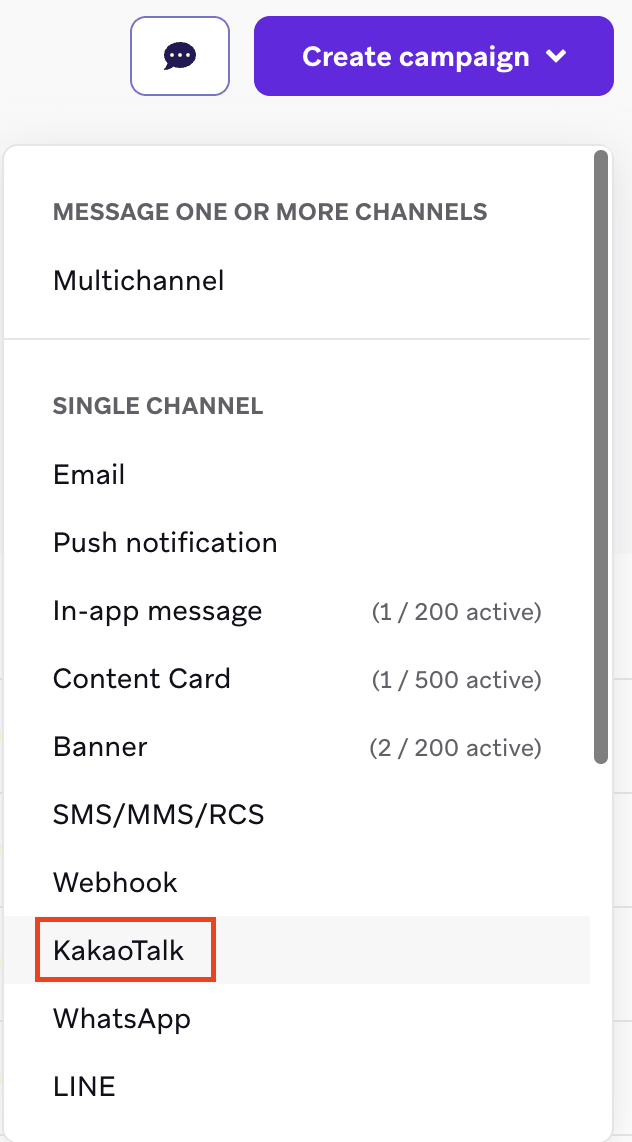
- You can add additional variants to your campaign, allowing you to choose different message types and layouts. For more information, refer to Multivariate and A/B testing.
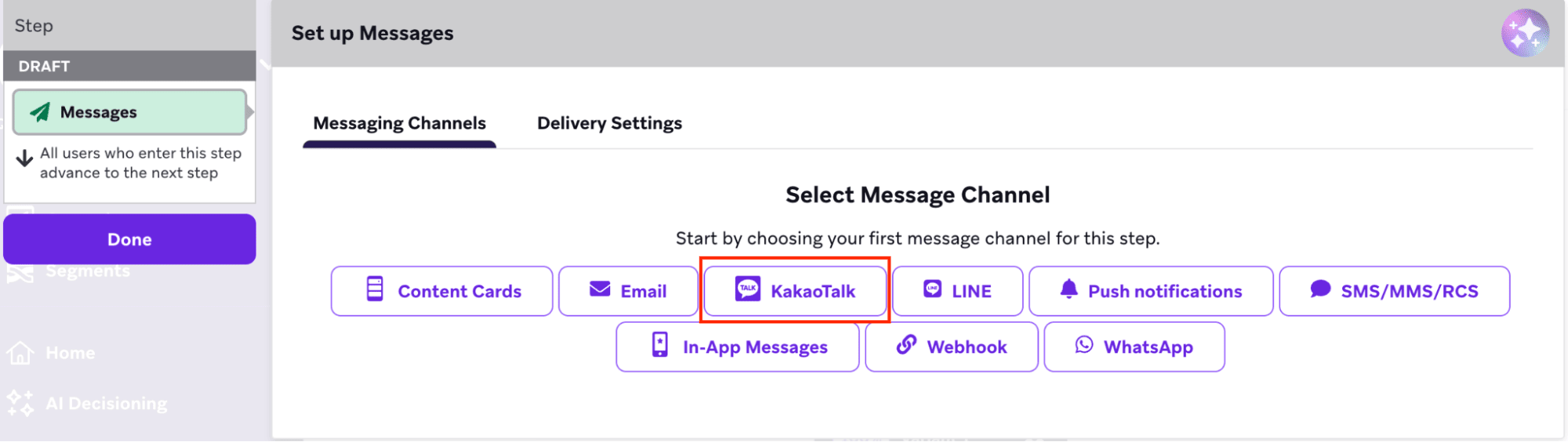
- Create your Canvas.
- Add a Message step in the Canvas builder and select KakaoTalk.
Step 2: Compose your KakaoTalk message
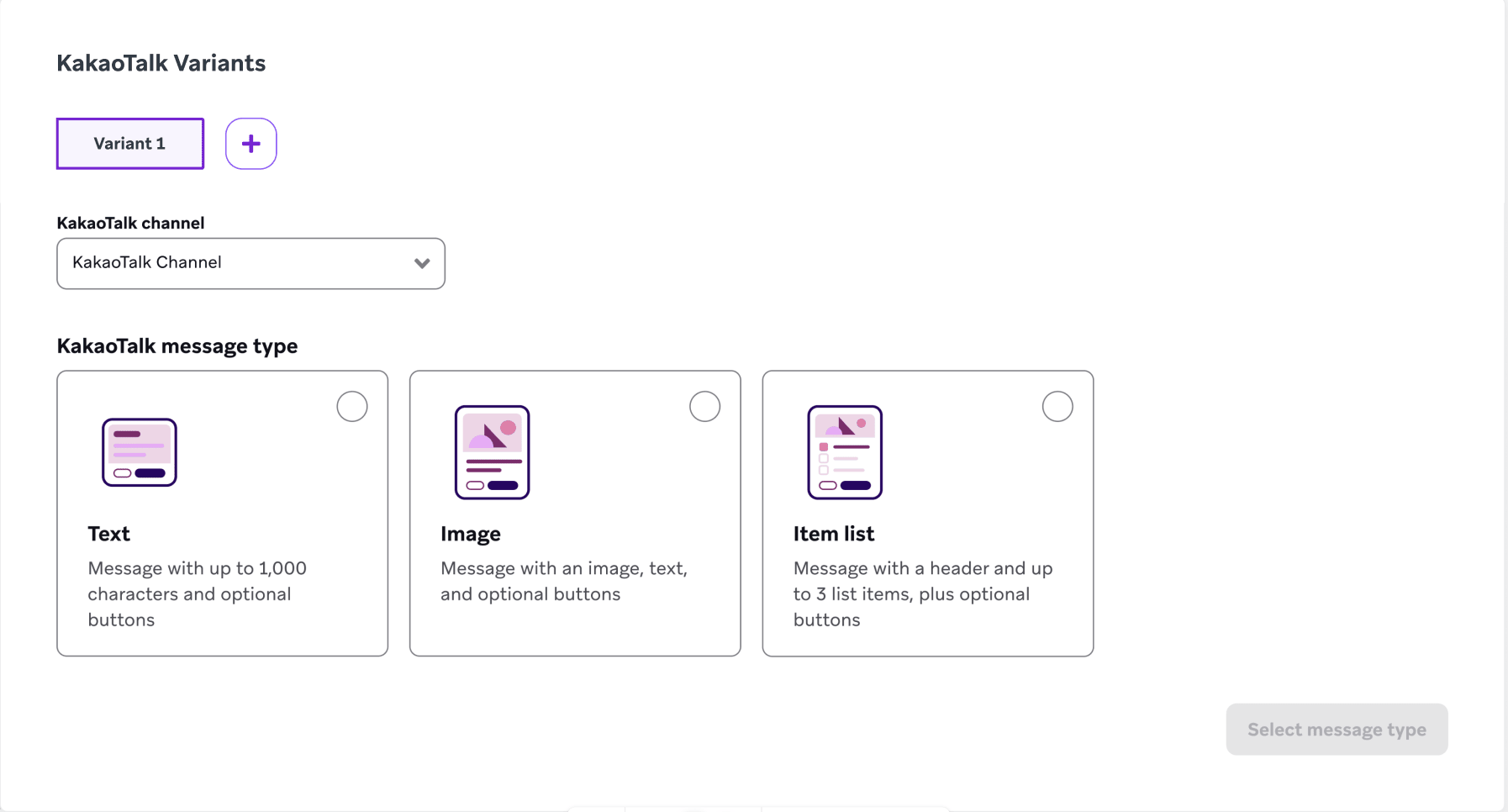
- Select the KakaoTalk channel dropdown, which populates a list of KakaoTalk channels you have set up through the Technology Partners page, and select the KakaoTalk channel to use to send the message.
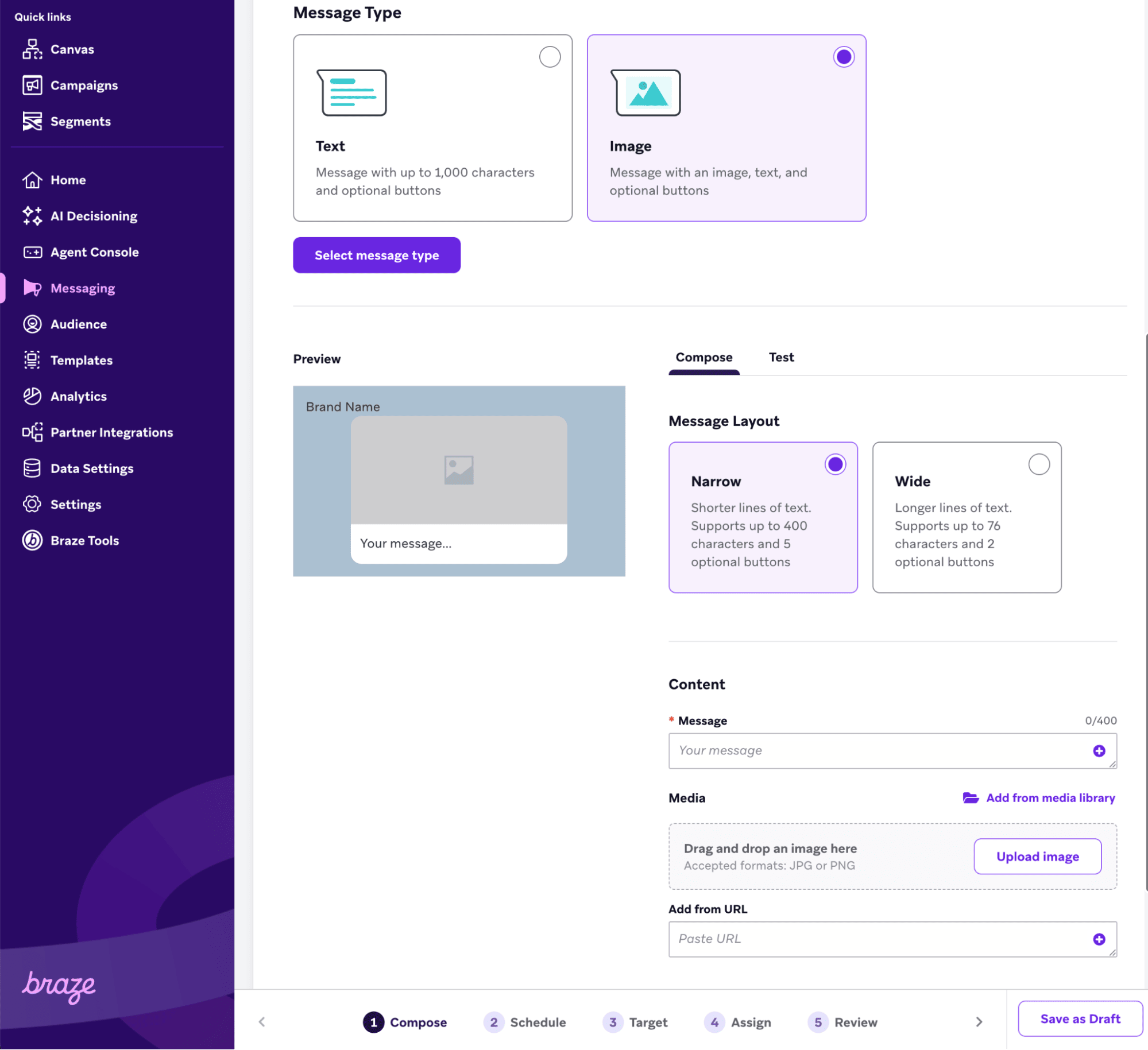
- Select the message type to send:
- Text
- Image
- List item
- Narrow
- Wide
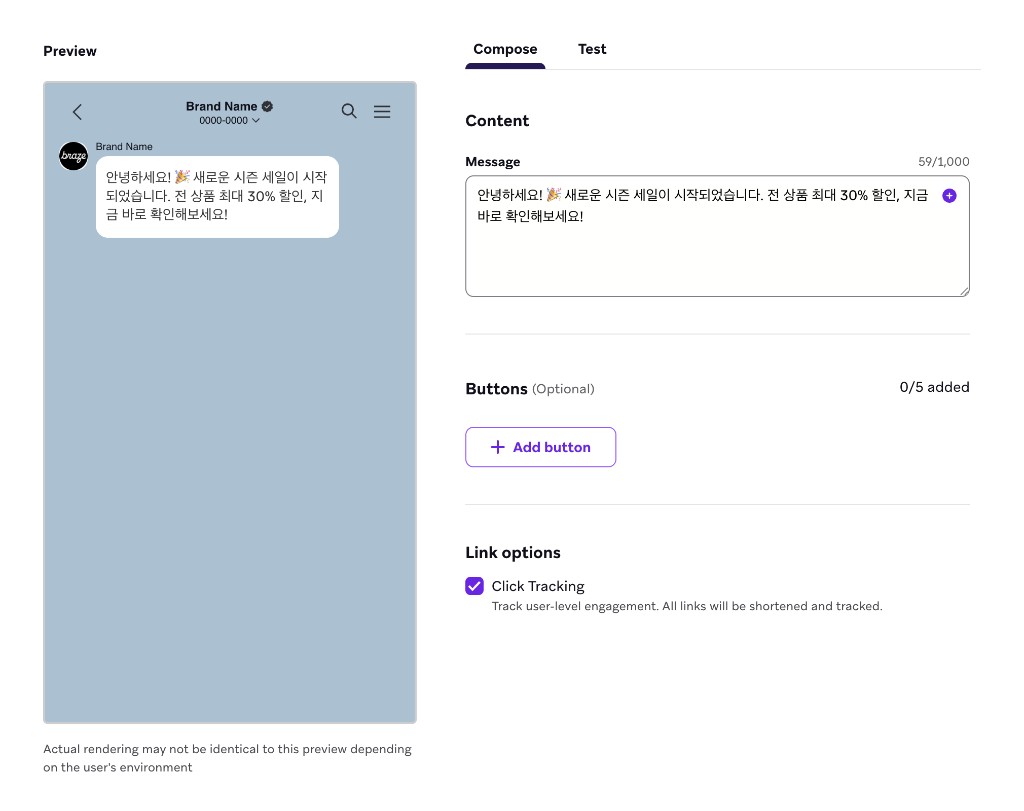
A KakaoTalk text message is the simplest form of communication: a standard text message.
Specifications
| Area | Specifications |
|---|---|
| Content | Text content, including emojis and Liquid personalization |
| Text capacity | Up to 1,000 characters |
| Buttons | Up to 5 optional buttons. Currently, this can only be used to open a URL on click. |
An image is a message that combines a visual element with supporting text. Braze automatically handles the upload of the image to KakaoTalk servers.
General specifications
| Area | Specifications |
|---|---|
| Content | One image and supporting text |
| Accepted file formats | JPEG or PNG |
| Recommended width | 500px |
| File size | Up to 500kb |
| Aspect ratio | Must be between 2:1 (wide) and 3:4 (tall) |
Narrow and wide image messages each have different character count and button considerations.
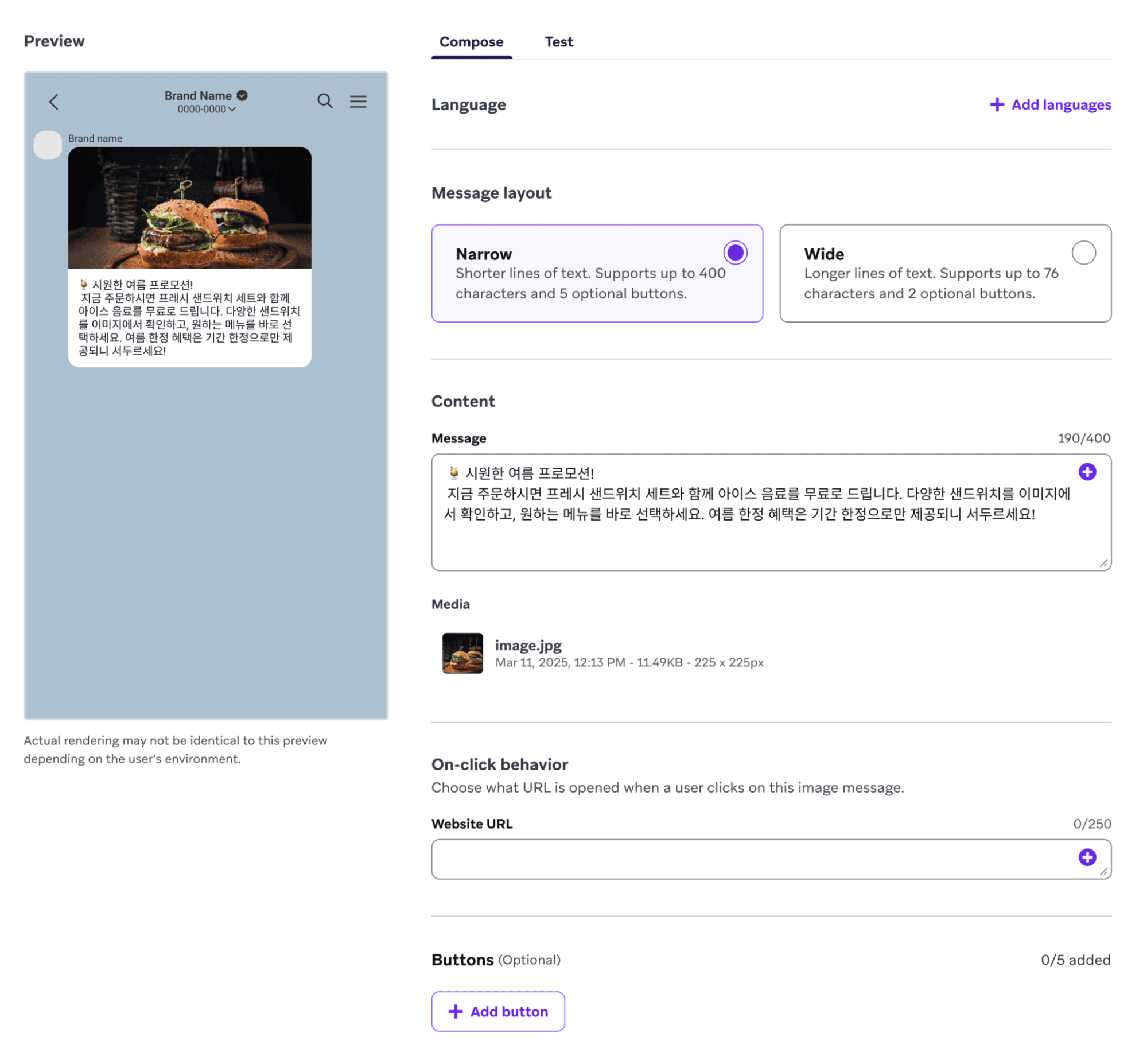
Narrow image
A narrow image message features a slightly taller, narrow image and more extensive text and button options.
Specifications
| Area | Specifications |
|---|---|
| Content | One image and supporting text |
| Text capacity | Up to 500 characters |
| Buttons | Up to 5 optional buttons |
| Image source | Images can be added using the Braze media library or a direct URL |
| Customization | You can specify the on-click behavior for the image |
Wide image
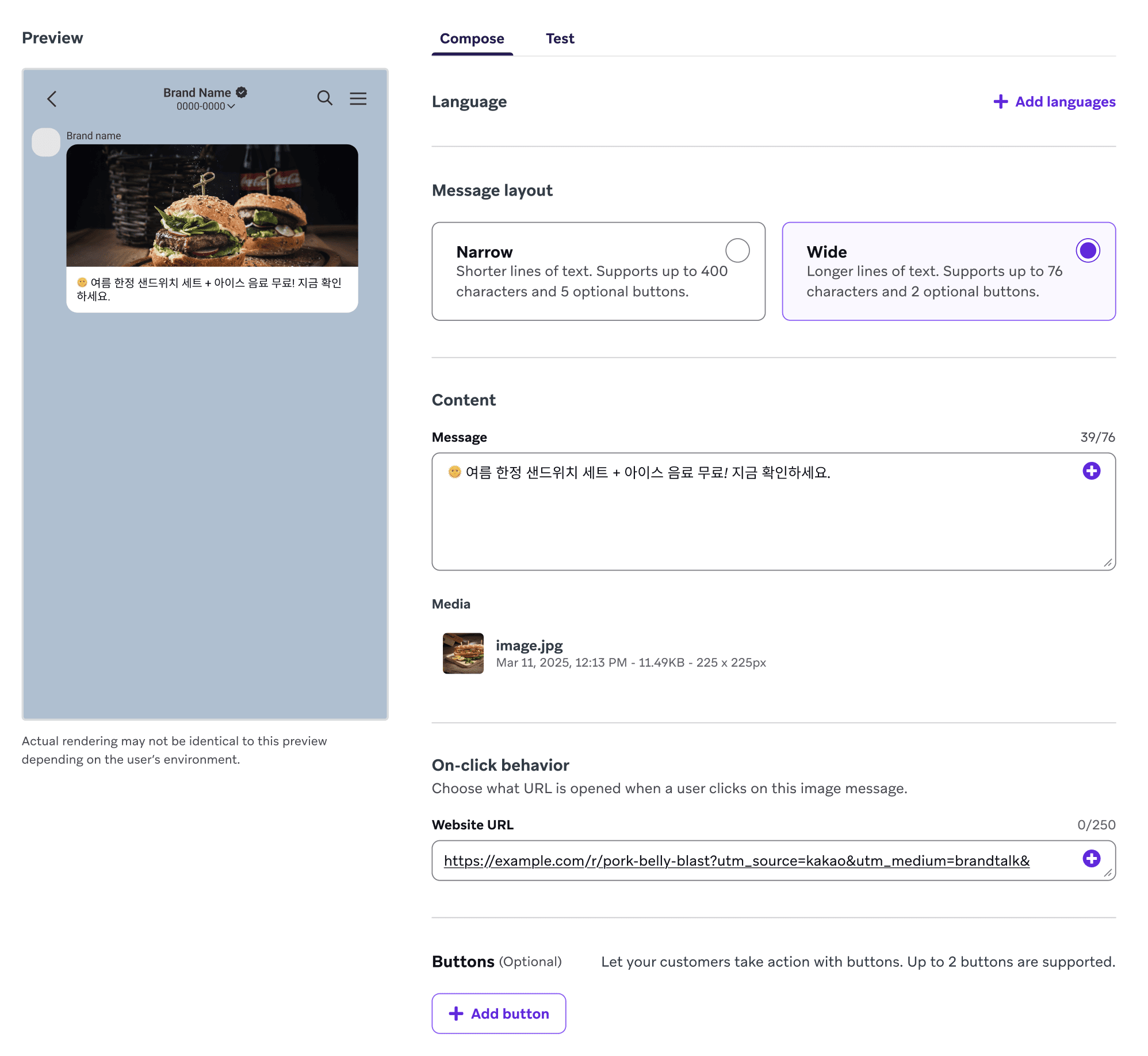
A wide image message features a prominent wide image suitable for high-impact visual communication, with minimal supporting text.
Specifications
| Area | Specifications |
|---|---|
| Content | One image and supporting text |
| Text capacity | Up to 76 characters |
| Buttons | Up to 2 optional buttons |
| Image source | Images can be added using the Braze media library or a direct URL |
| Customization | You can specify the on-click behavior of the image |
Add images
You can add images through the Braze Media Library or by pasting in a URL that hosts a JPEG or PNG file. You can also specify the on-click behavior of the image to redirect users who click it to a specific URL.
Braze automatically handles all of the image upload requirements of KakaoTalk, meaning that you do not need to upload images to KakaoTalk providers before sending messages. Just upload images and send the message directly from Braze!
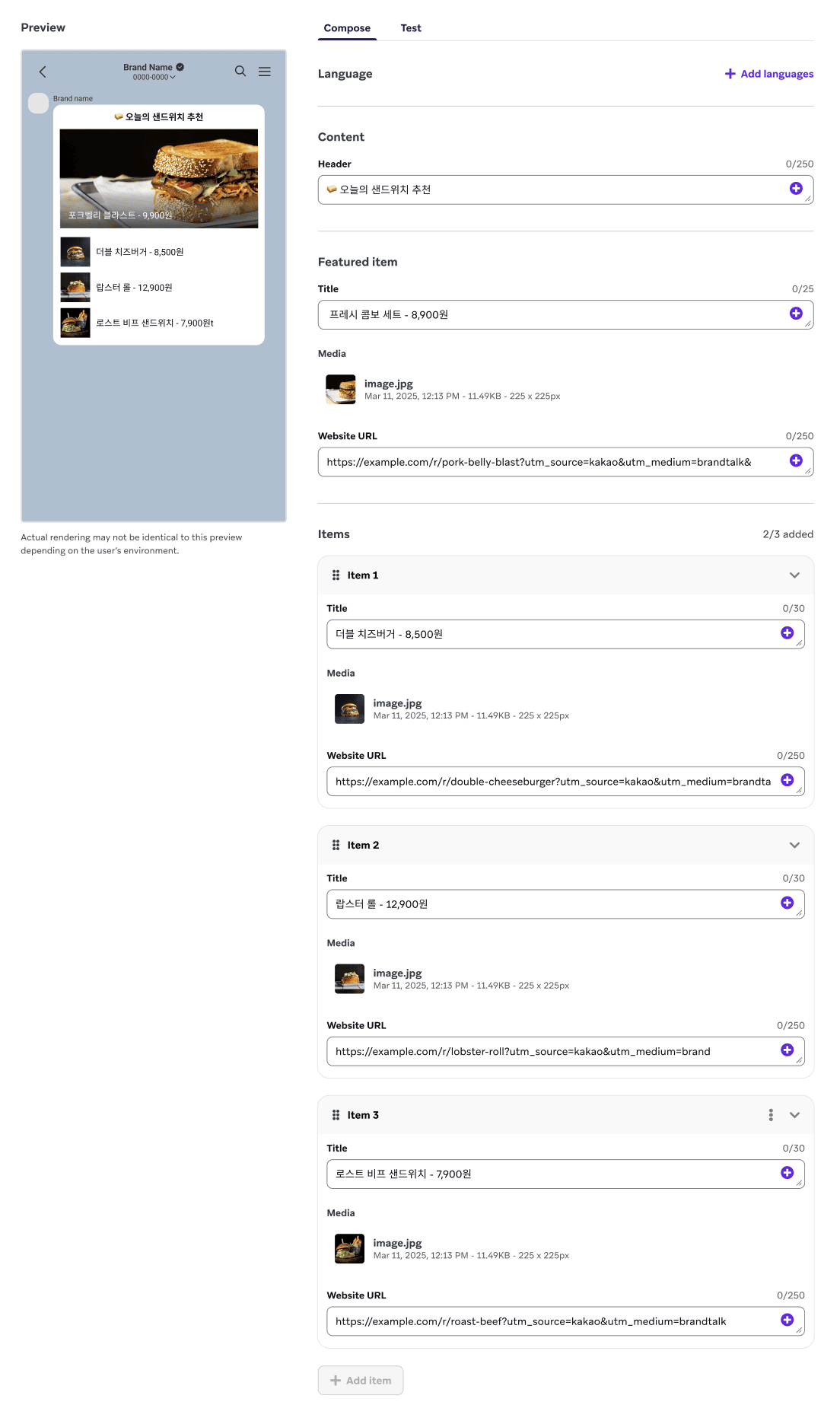
A KakaoTalk Item List message is designed to present a list of content items in a clear, vertical format.
List item messages consist of a header, an item list section, and an optional button area.
Specifications
| Area | Specifications |
|---|---|
| Item count | Requires at least 2 or 3 items |
| Buttons | Up to 5 optional buttons |
| Header | Up to 250 characters |
| Item title | Up to 25 characters |
| Website URL (per item) | Up to 250 characters |
Step 3: Set up click tracking
When KakaoTalk click tracking is turned on, Braze automatically shortens your URLs, adds tracking mechanisms, and records clicks in real time. This data empowers you to create more targeted segmentation and retargeting strategies, such as segmenting users based on click behavior and triggering messages in response to specific clicks.
Click tracking is supported for text, image, and list item messages. It supports links within buttons and image on-click actions. You can also personalize URLs using Liquid and custom domains.
To enable click tracking, check Click Tracking in the Link options section of the composer. URLs will be shortened using the default Braze domain (https://brz.ai) or the custom domain specified for the subscription group, and personalized for the user.
For full details on click tracking, custom domains, Liquid personalization in URLs, reporting, and retargeting, refer to KakaoTalk click tracking.
Retargeting users
You can retarget users who have clicked a URL in a KakaoTalk message by using the following segmentation filters and triggers:
- Action-based triggers
- Interact with Campaign
- Interact with Step
- Segmentation filters
- Clicked/Opened Campaign
- Clicked/Opened Campaign or Canvas with Tag
- Clicked/Opened Step
Step 4: Preview and test your KakaoTalk message
The message preview automatically updates as you compose your KakaoTalk message. When you’re ready to test, go to the Test tab to send a test message to content test groups or individual users, or to preview the message as an existing or custom user directly in Braze.
After selecting your test users, select Send Test. A notification will indicate the results of your test send. For CJ OliveNetworks, you’ll receive a “C100” response. If you see a different error, consult the CJ KakaoTalk user documentation.
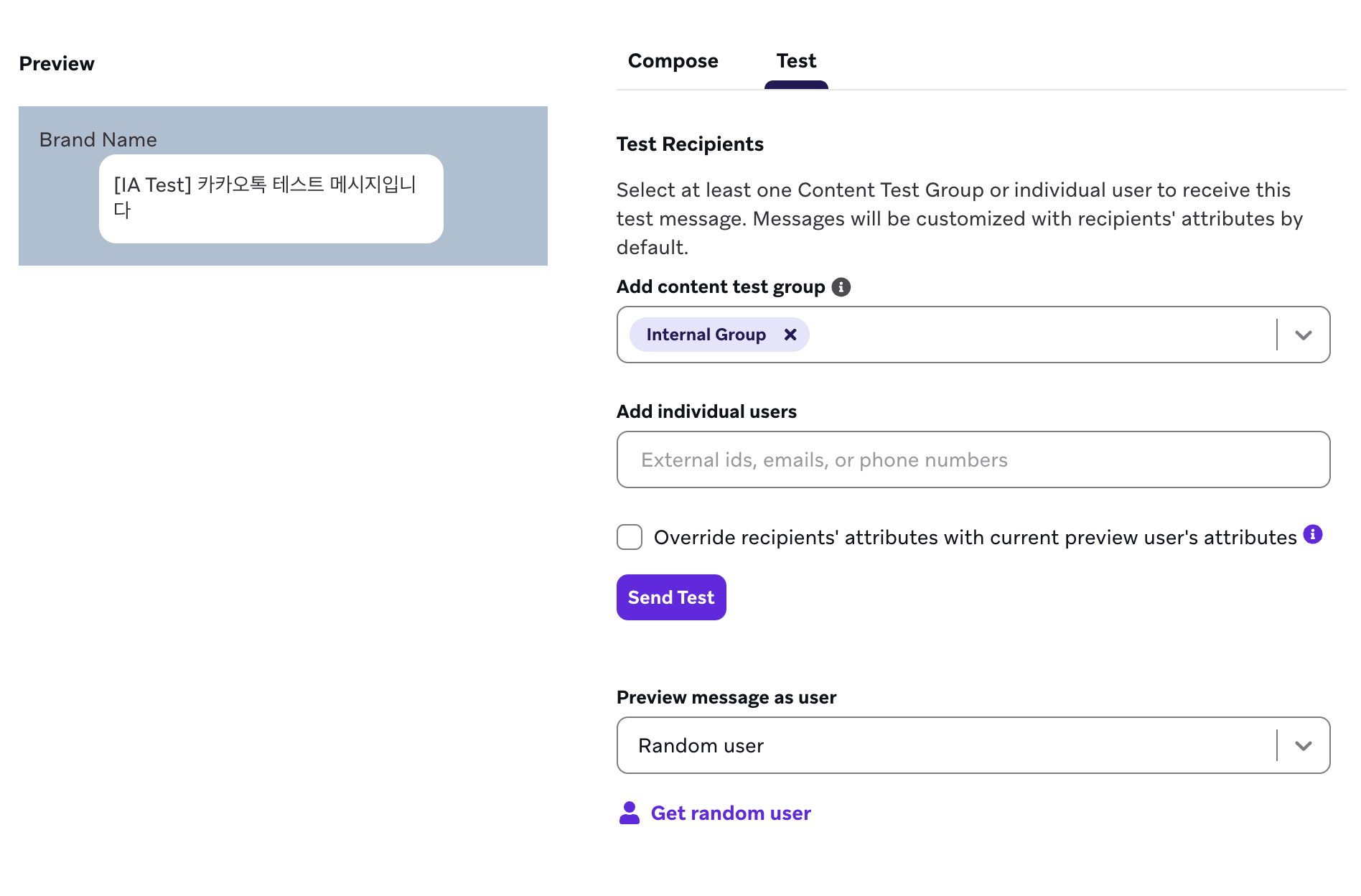
To preview and send a test message to an existing user, you must have “View PII” permissions. You can preview and send a test message to a custom user without those permissions.
To review the results of a send or troubleshoot issues, go to Settings > Message Activity Log. For more information, refer to Message Activity Log.
Step 5: Build the remainder of your campaign or Canvas
Refer to the following sections for details on how best to use our tools to build KakaoTalk messages.
Choose delivery schedule or trigger
KakaoTalk messages can be delivered based on a scheduled time, an action, or an API trigger. For more about scheduling and trigger options, refer to Schedule your campaign or Entry schedule types (for your Canvas).
You can specify delivery controls, such as allowing users to become re-eligible to receive the campaign, or turn on frequency capping rules. For action-based delivery, you can also set the campaign’s duration and Quiet Hours.
Choose users to target
Target users by selecting segments or filters to narrow down your audience. For now, KakaoTalk can only message friends of the channel. We recommend setting a custom attribute to indicate channel friends, so you can properly segment your users and avoid sending KakaoTalk messages to users who can’t receive them.
Choose conversion events
Braze allows you to track how often users perform specific actions, conversion events after receiving a campaign. You have the option of allowing up to a 30-day window during which a conversion is counted if the user takes the specified action.
Conversion events help you measure the success of your campaign. For example, if you’re trying to drive users to use your app, set the conversion event to Starts Session.
You can also set custom conversion events based on your specific use case. Get creative and think about how you want to measure your campaign’s success.
Step 6: Review and deploy
After you’ve finished building the last of your campaign or Canvas, review its details, test it, and send!
 Edit this page on GitHub