Content Optimizer agent step
The Content Optimizer agent step lets you configure and test multiple versions of content components within a single step. It helps you experiment with content variations and automatically optimizes toward the best-performing combinations over time. For an introduction, see Content Optimizer.
Content Optimizer is currently in beta. For help getting started, contact your customer success manager.
Creating a Content Optimizer step
For best results, use the Content Optimizer agent in Canvases where users enter the step gradually over time. If all users enter the step at once, the agent won’t have time to learn from early results.
Step 1: Add a step
Drag and drop the Content Optimizer component from the sidebar, or select the plus button at the bottom of a step and select Content Optimizer.
Step 2: Create your base message
The base message is the starting point for your step. Variants for each content component are dynamically inserted based on the combinations defined in the Content Optimizer Settings tab.
During the beta period, email is the only supported channel.
From the Messaging Channels tab, select Email and create your base email message. Refer to our dedicated Email section for help.
The Content Optimizer agent uses the send settings (such as the email domain and reply-to address) specified in this variant to send all messages. You can either start with a new design or select an existing template for this message. At this step, consider which components of the message you want to optimize for. You will define these in step 4.
Supported components to optimize include:
- Subject
- Body Header
- Body Content
- Primary CTA
Step 3: Specify delivery settings
In the Delivery Settings tab, you can specify if the step should use Intelligent Timing or delivery validations. For more details, refer to Edit delivery settings in Message step.
Step 4: Add content components and variants
Content components are the individual elements of your message that you want to test, such as different subject lines, headlines, body text, or primary calls to action. These components allow you to generate multiple versions of a message and automatically optimize based on performance over time.
You can add up to three content components per step and up to five variants per component, for a total of 125 unique content combinations.
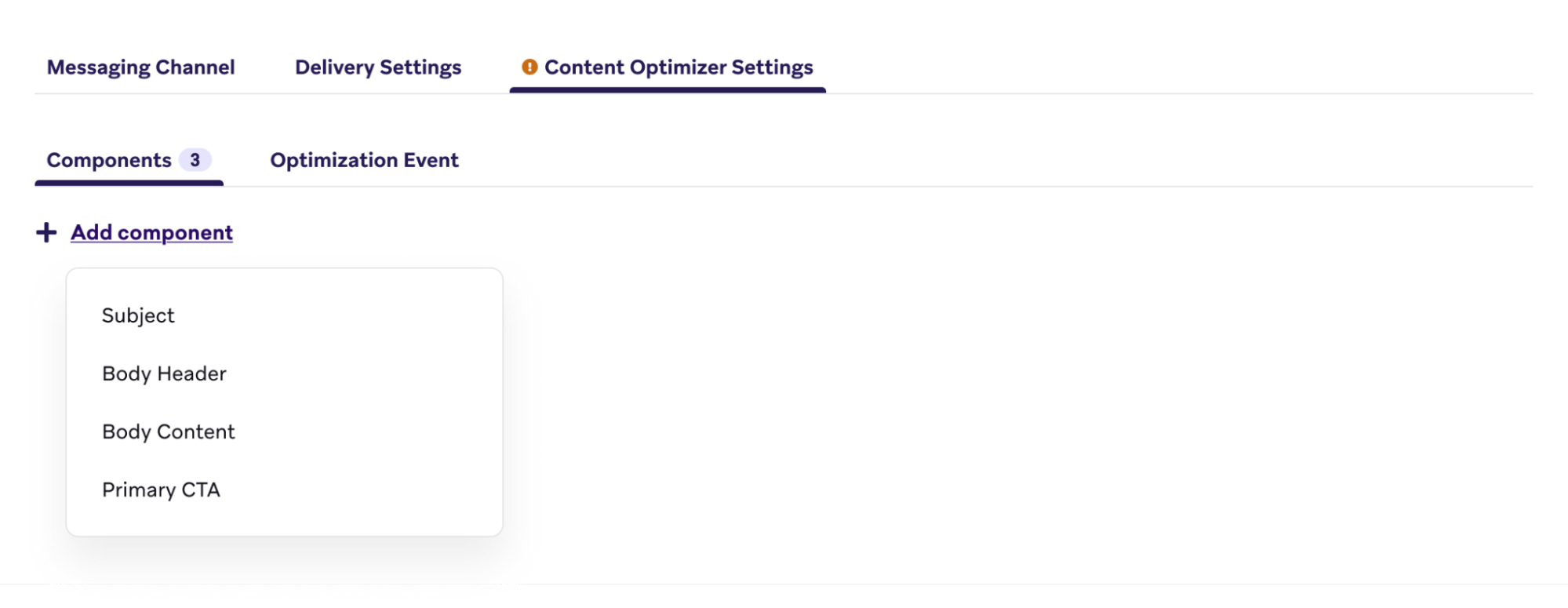
Step 4.1: Configure content components
To configure components:
- Go to the Content Optimizer Settings tab.
- Choose which components you want to optimize. Supported options:
- Subject
- Body Header
- Body Content
- Primary CTA
- For each selected component, define a set of alternative versions of that content (variants). Use clear, distinct variants that differ in tone, structure, or content. This helps Content Optimizer identify top performers more effectively. You can:
- Write your own variants manually.
- Use AI-generated suggestions to explore new options quickly.
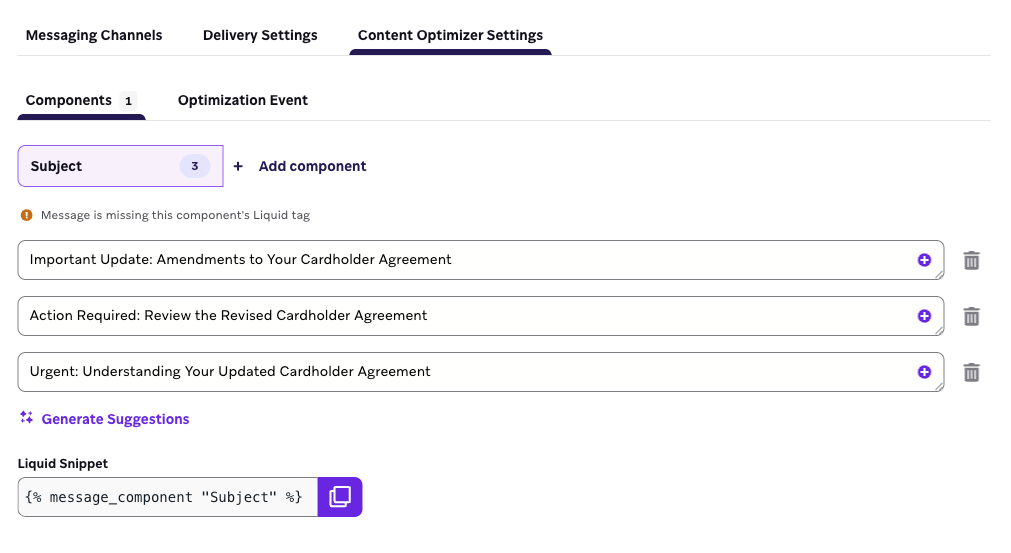
Step 4.2: Add Liquid to your message
After defining at least two variants for each component, copy the associated Liquid tag for each one and paste it into the corresponding location in your base message.
- For example, if you’re optimizing the subject line, paste the
{% message_component "Subject" %}tag in the subject field of the email composer. - You can also include component tags inside longer text to test just a portion of the component. For example:
Hey there, {% message_component "Subject" %}.
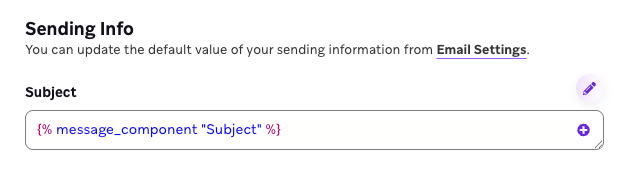
If you don’t add a Liquid tag for a selected content component, you’ll see a warning on the Content Optimizer Settings tab and an error on the Messaging Channels tab. The Canvas can’t be launched until all selected components are properly added to your base message.
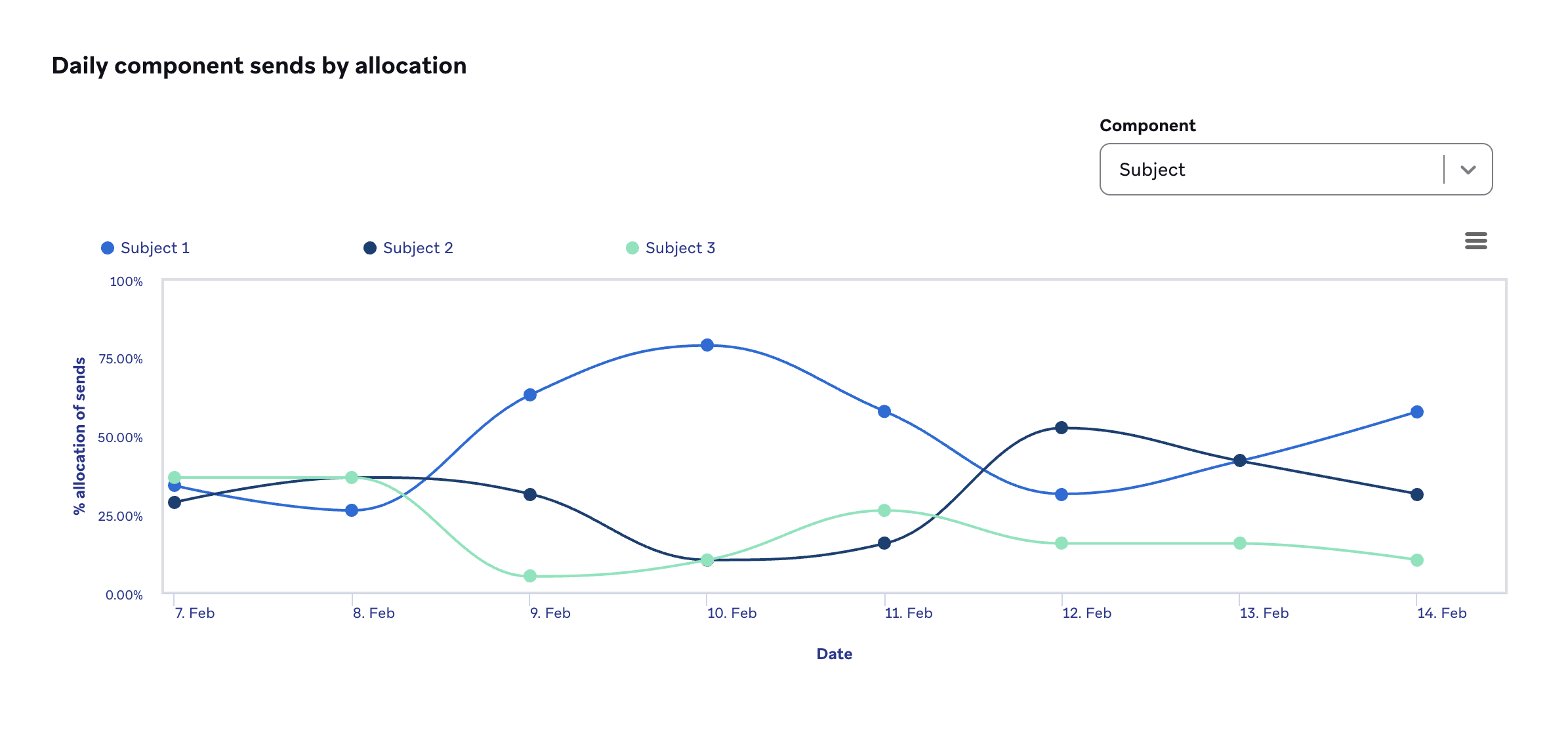
As the Canvas runs, the agent mixes and matches variants across components to generate different content combinations. Over time, higher-performing combinations are prioritized for delivery, helping you improve performance without manual intervention.
Liquid reference
| Component | Liquid snippet |
|---|---|
| Subject | {% message_component "Subject" %} |
| Body Header | {% message_component "Body Header" %} |
| Body Content | {% message_component "Body Content" %} |
| Primary CTA | {% message_component "Primary CTA" %} |
Step 5: Select optimization event
The optimization event determines how the Content Optimizer agent evaluates performance and allocates traffic to content combinations over time.
For email, you can optimize for one of the following events. The agent uses opens and clicks that are registered within 7 days of sending a message to shift delivery toward higher-performing content combinations.
| Event | Description | Use cases |
|---|---|---|
| Opens | Optimizes for combinations that get recipients to open the email. | Testing subject lines or aiming to increase visibility |
| Clicks | Optimizes for combinations that drive engagement with links. Does not include bot clicks or Braze-recognized unsubscribe clicks. | Driving traffic, engagement, or conversion from links |
Your selected optimization event applies to all content components in this step.
Best practices
- In general, we recommend testing more than one component for the Content Optimizer step.
- If you’re optimizing for clicks, include subject lines in your tests, as stronger subject lines can contribute to increased opens and create more opportunities for clicks.
- If you’re optimizing for opens, keep your testing focused on the subject line.
Analytics
To review performance, open the step-level analytics panel to see metrics by content variant and overall combination performance. The Content Optimizer step uses the same analytics as the Message step.
Troubleshooting
| Issue | Description | Fix |
|---|---|---|
| Missing Liquid tags | If you add a content component (such as Subject or CTA) but don’t insert the corresponding Liquid tag into your base message, you’ll see: - A warning on the Content Optimizer Settings tab - An error on the Messaging Channels tab |
Copy the Liquid snippet shown under each component in the Content Optimizer Settings tab and paste it into the appropriate part of your message. |
| Orphaned Liquid tags | If you delete a content component but leave its Liquid tag in the base message, the message may not render as expected when sent. | Remove any unused message_component tags from your base message before launching. |
 Edit this page on GitHub