Get started with BrazeAI Operator
Learn how to access and use BrazeAI OperatorTM, your AI assistant built into the dashboard, including its features and best practices.
Access Operator
Open Operator from any page in the Braze dashboard.
- Select BrazeAI OperatorTM next to your user profile.
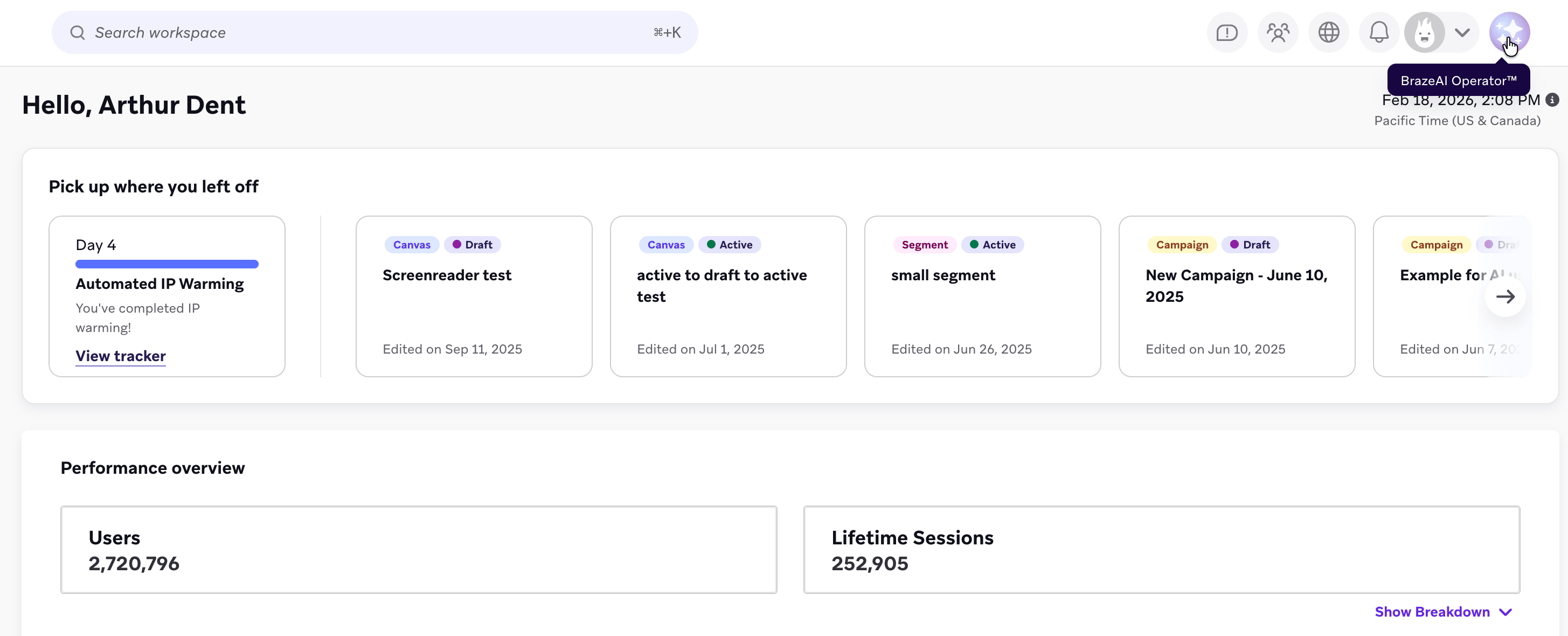
- The Operator chat panel will open on the right-hand side of the screen.
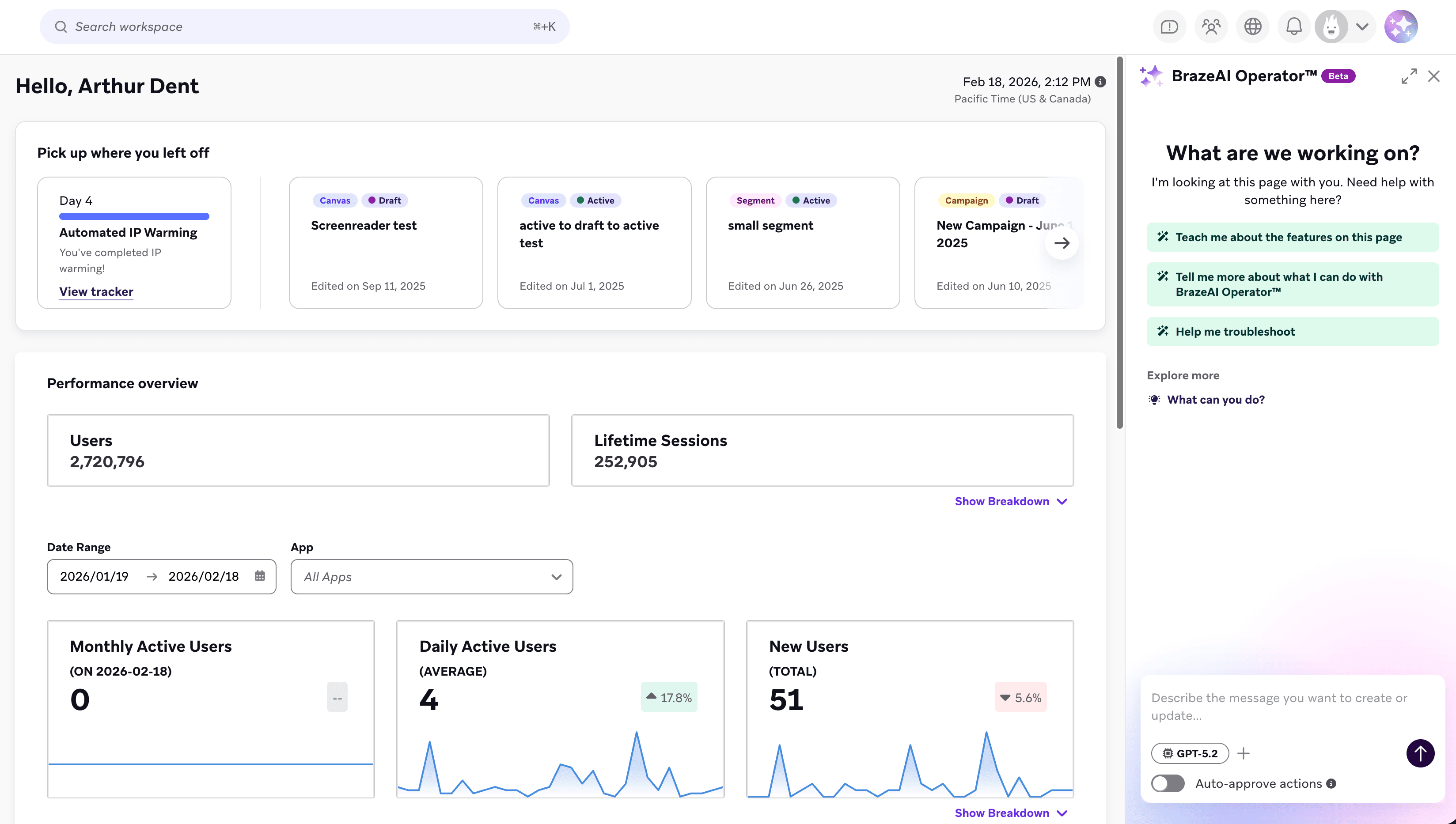
Maximize to expand the panel for easier reading, or minimize to keep Operator available while working.
Use Operator
Describe what you are trying to accomplish using natural language. Prompts can range from simple questions to complex requests:
- Simple: Why isn’t my Liquid rendering?
- Complex: How can I make the
abort_messagetag of my message include the user attribute that caused the abort?
Operator can provide step-by-step instructions, links to Braze documentation, and plain-language explanations. Clear and specific questions lead to more helpful responses. Operator uses GPT-5.2, which offers strong reasoning and is suited for complex, multi-step tasks.
Best practices
Treat Operator as a conversation, not a search engine. Short, natural prompts work best.
- Be specific: Instead of “Tell me about Canvas”, try “How do I use Action Paths in Canvas?”.
- Ask follow-up questions: If the first response doesn’t address your need, ask for clarification or additional details.
- Use page-aware context: Operator understands your location in Braze. Open Operator while viewing the relevant page for the most accurate results.
Customize your experience
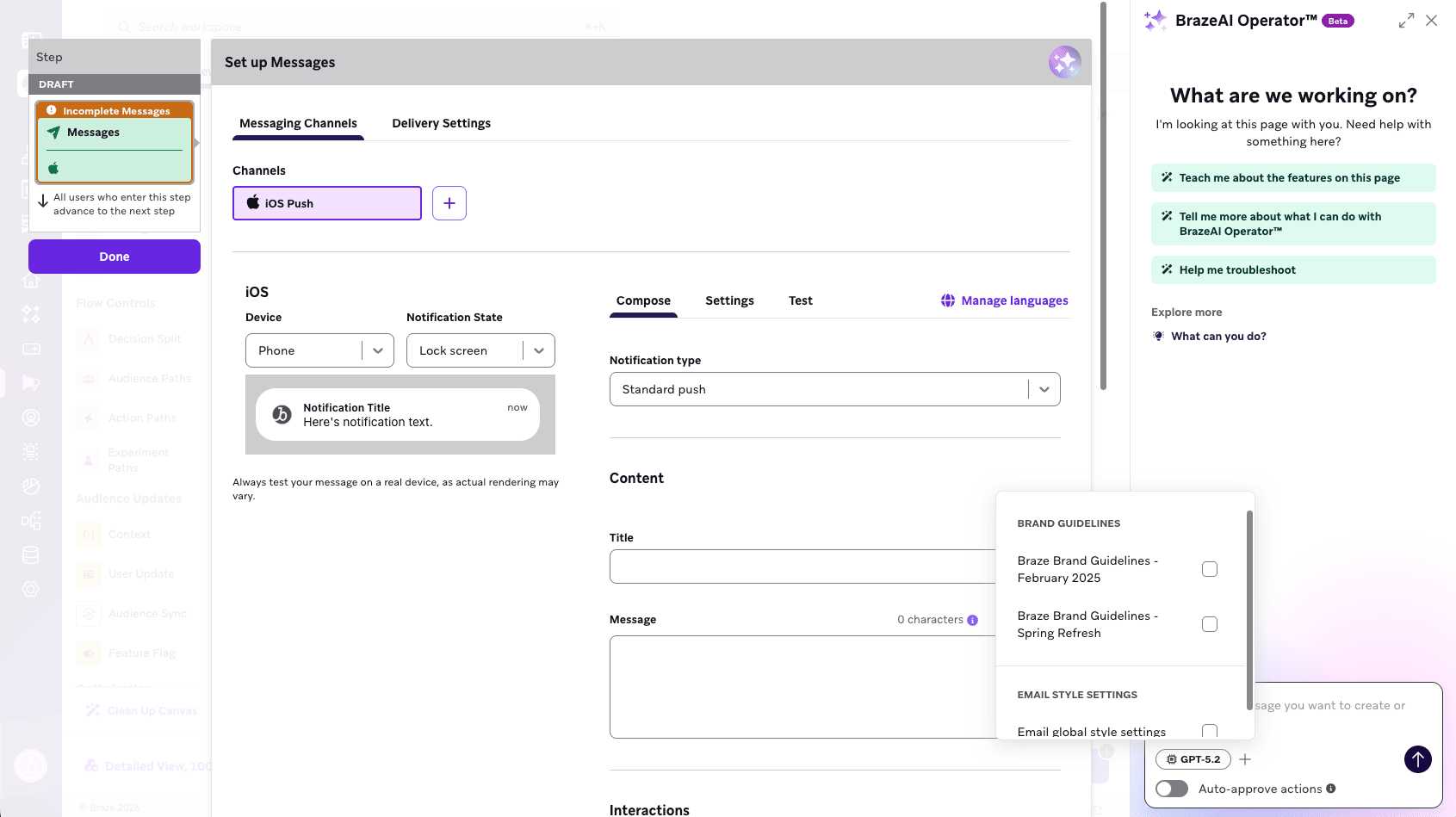
Apply brand guidelines
Add brand guidelines as context to Operator queries so responses match your brand’s voice, tone, and personality. Operator uses the brand guidelines configured in your workspace, which helps ensure consistent messaging when it suggests copy or explains features.
To set up brand guidelines, go to Settings > Brand Guidelines. For more, see Brand Guidelines.
Leverage page-aware context
Operator automatically understands your location in Braze and tailors responses based on that context. For example, when you open Operator while building a Canvas, it can suggest relevant steps or provide guidance about Canvas features without you having to explain where you are in your workflow.
This context-awareness means you can ask shorter, more natural questions like “How do I add a delay?” instead of “How do I add a delay step in a Canvas workflow?”
Work with Operator responses
Get started with suggested prompts
When you open Operator, suggested prompts appear based on common tasks and your current page. Select one to get started quickly, or type your own custom question.
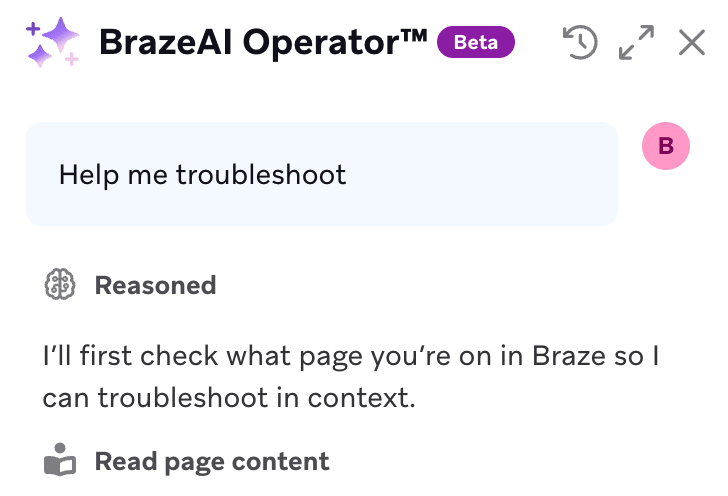
Understand how Operator thinks
Operator shows its reasoning steps in collapsible sections labeled Reasoned. Select the dropdown to expand these sections and see how Operator determined an answer. This is helpful when you want to understand the logic behind a suggestion or verify the approach.
Take action with Operator
Operator can propose and execute changes directly in the Braze dashboard, such as filling in form fields, updating settings, or generating content. Each proposed change is presented as an action card for you to review and approve before it takes effect. For more on how this works, see Reviewing actions.
Manage your session
Stop a response
While Operator is generating a response, the Send button becomes a Stop button. Select Stop to end the response early if you realize you need to rephrase your question or if the response is going in the wrong direction.
Clear your history
To start fresh or remove sensitive information from the conversation, select Clear chat history. This removes all current content and resets the conversation context.
Provide feedback
At the bottom of each response, use the thumbs up or thumbs down buttons to provide quick feedback. Your feedback helps improve Operator’s answers over time.
Next steps
- Reviewing actions - Learn how to review and approve Operator’s proposed changes
- Troubleshooting - Common issues and solutions
 Edit this page on GitHub