Reports and insights
Learn how to view BrazeAI Decisioning Studio™ reports in Braze, so you can understand how AI-powered decisions impact your campaigns. From performance metrics to data health and system changes, these reports help you understand results, troubleshoot issues, and make informed decisions with confidence.
Prerequisites
Before you can view Decisioning Studio reports in the Braze, you must:
- Have an active contract for Braze and BrazeAI Decisioning Studio™.
- Contact your CSM to enable BrazeAI Decisioning Studio™ for you on your behalf.
- Have a live BrazeAI Decisioning Studio™ agent.
View reports
To view metrics for a Decisioning Studio agent in Braze, go to AI Decisioning > BrazeAI Decisioning Studio™, then select an agent.
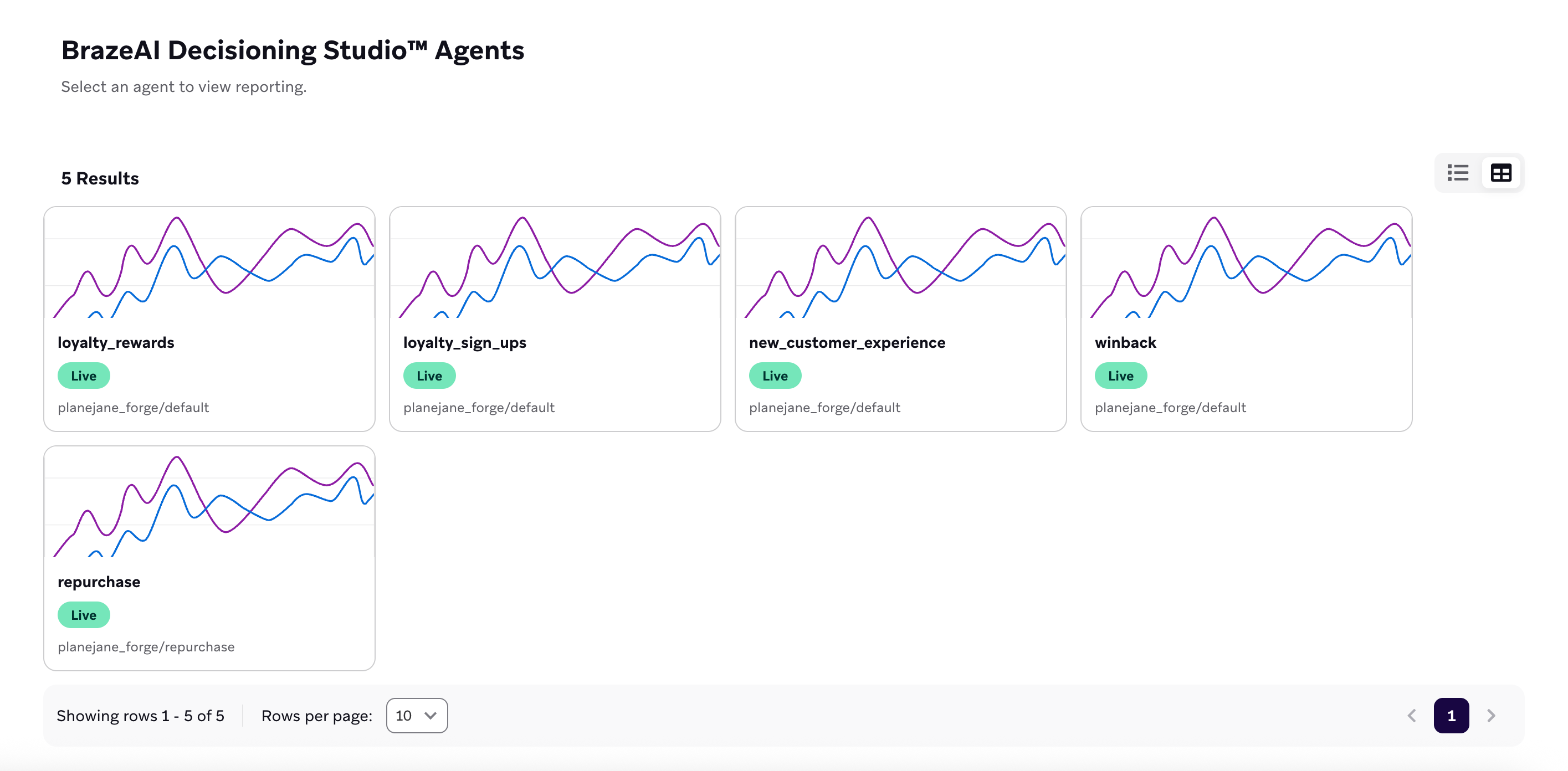
Here, you can view reports like performance, insights, diagnostics, and timelines. For more details, see Available reports.
Change report dates
After opening a report, you can change the date range by selecting a new start and end date from the calendar dropdown.
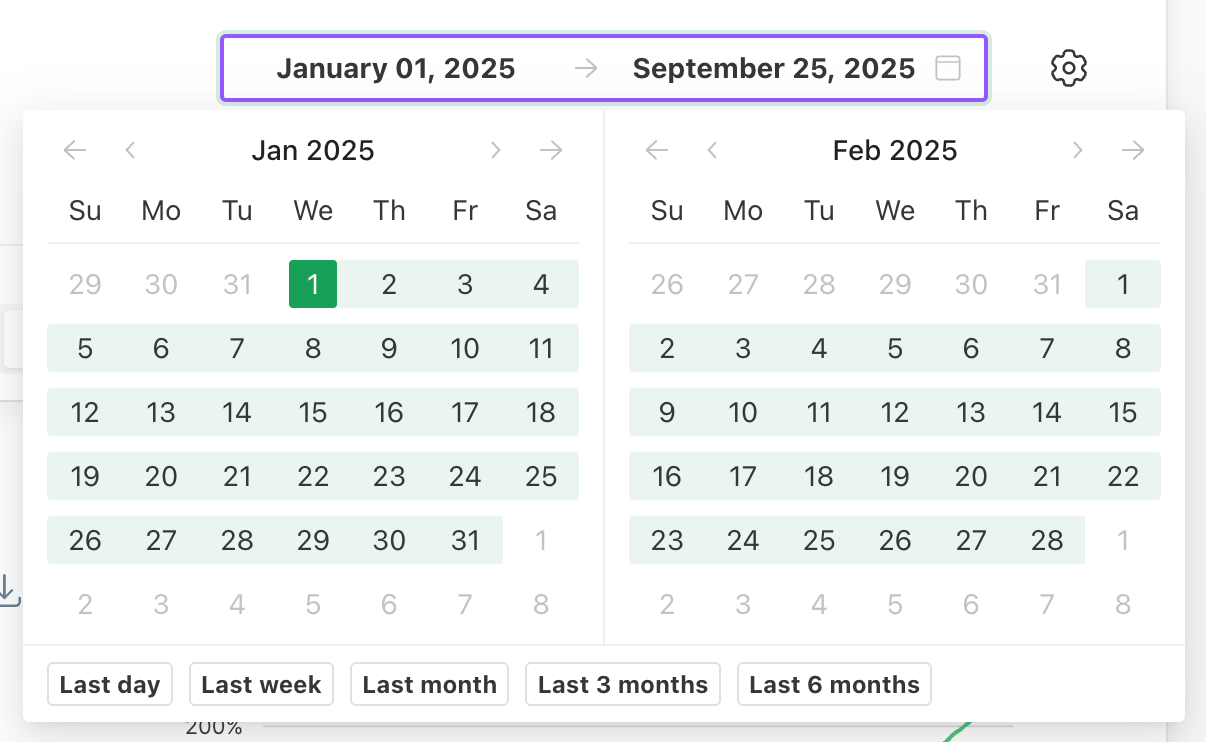
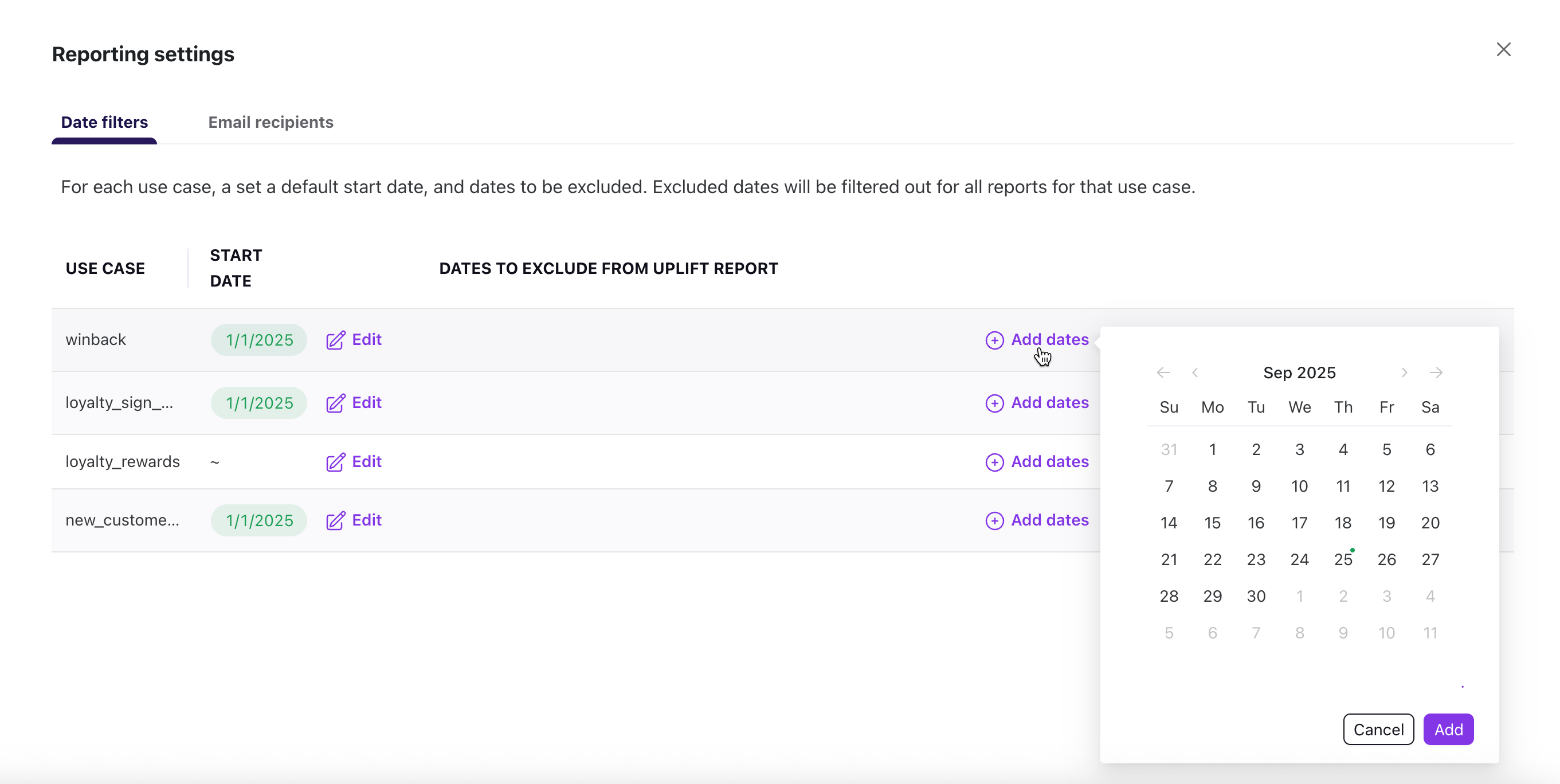
You can also set a default start date or choose dates to always exclude. Excluded dates will be filtered out of all reports for that agent.
To set or exclude dates, select Settings, then change your default date or exclude dates as needed.
Available reports
- Performance: High-level agent metrics that compare treatment groups to control groups, with Trending and Driver Tree views.
- Insights: How recommendation options in your action bank are generated, including agent preferences and SHAPs reports.
- Diagnostics: Outbound and inbound data health, including recommendation volume and data feed monitoring.
- Timeline: A visual record of key events (agent runs, configuration changes, guardrail updates) alongside performance metrics.
 Edit this page on GitHub