BrazeAI Decisioning Studio™ Go
Locate key information in Braze to begin integrating with BrazeAI Decisioning Studio™ Go.
Essentials
Creating a REST API key in Braze
To create a new REST API key:
- In the Braze dashboard, go to Settings > APIs and Identifiers > API Keys.
- Select Create API Key.
- Enter a name for your API key. An example is “DecisioningStudioGoEmail”.
- Select the permissions based on the following categories:
- User Data: select
users.track,users.delete,users.export.ids,users.export.segment - Messages: select
messages.send - Campaigns: select all listed permissions
- Canvas: select all listed permissions
- Segments: select all listed permissions
- Templates: select all listed permissions
- User Data: select
- Select Create API key.
- Then, copy the API key and paste it into your BrazeAI Decisioning Studio™ Go portal.
Locating your Braze email display name
To find your Braze email display name:
- In the Braze dashboard, go to Settings > Email Preferences.
- Locate the display name to be used with BrazeAI Decisioning Studio™ Go.
- Copy and paste the From Display Name into the BrazeAI Decisioning Studio™ Go portal as the Email Display Name.
- Copy and paste the associated email address into your BrazeAI Decisioning Studio™ Go portal as the From email address, which combines the local part and the domain.
Locating your user ID
To find your user ID:
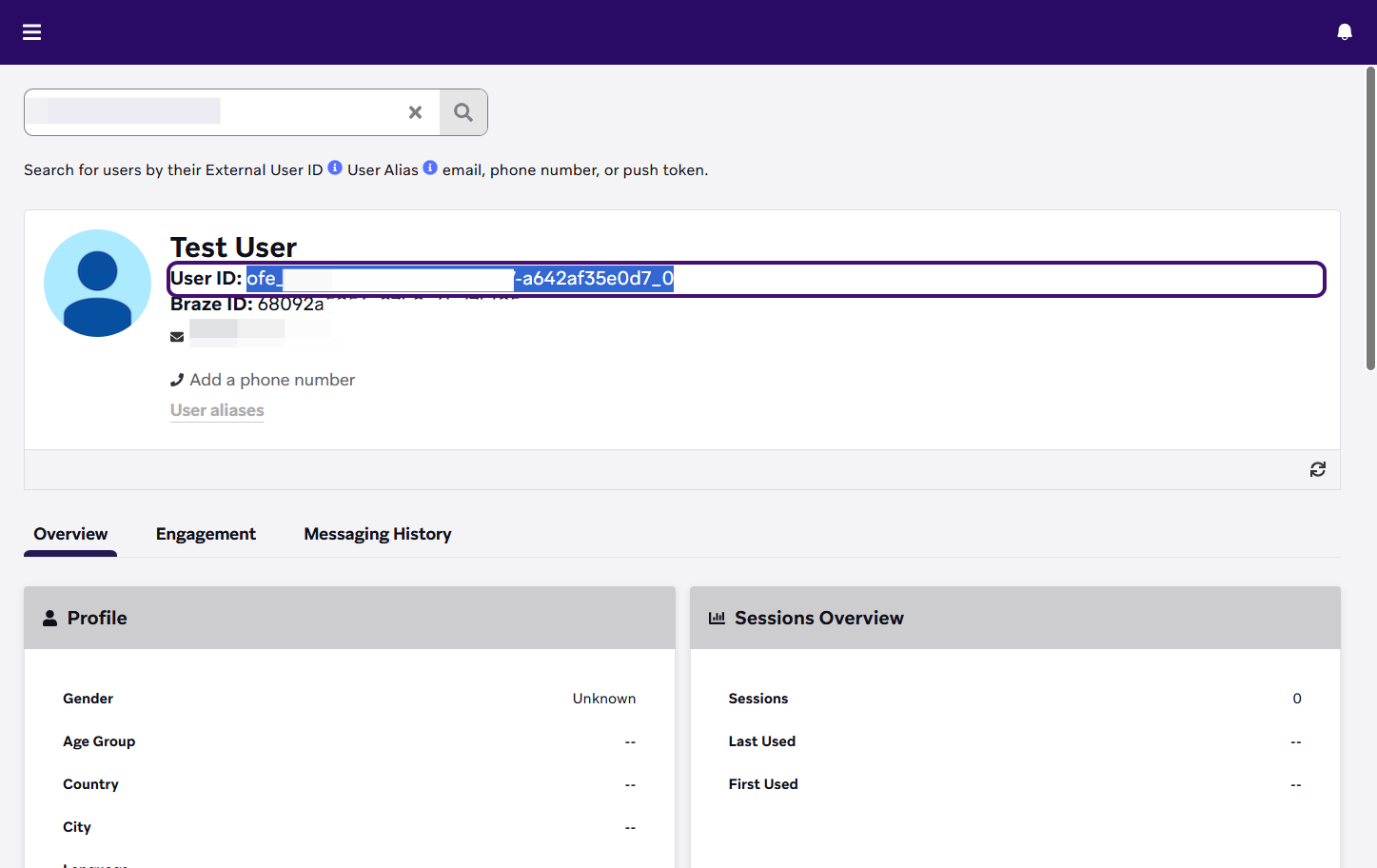
- In the Braze dashboard, go to Audience > Search Users.
- Search for the user by their external user ID, user alias, email, phone number, or push token.
- Copy the user ID to reference in your setup.
Finding your Braze URL
To identify your Braze URL:
- Go to the Braze dashboard.
- In your browser window, your Braze URL is starts with
https://and ends withbraze.com. An example Braze URL ishttps://dashboard-01.braze.com.
Finding your Braze API key
Braze offers app IDs (referred to as API keys in the Braze dashboard) that you can use for tracking purposes, such as to associate activity with a specific app in your workspace. If you use app IDs, BrazeAI Decisioning Studio™ Go supports associating an app ID with each experimenter.
If you do not use app IDs, you can enter any string of characters as a placeholder.
- In the Braze dashboard, go to Settings > App Settings.
- Go to the app you want to track.
- Copy and paste the API Key into your BrazeAI Decisioning Studio™ Go portal.
Setting up Klaviyo API keys
You must set up an API key to use Klaviyo for BrazeAI Decisioning Studio™ Go.
- In Klaviyo, go to Settings > API keys.
- Select Create Private API Key.
- Enter a name for the API key. An example is “Decisioning Studio Experimenters”.
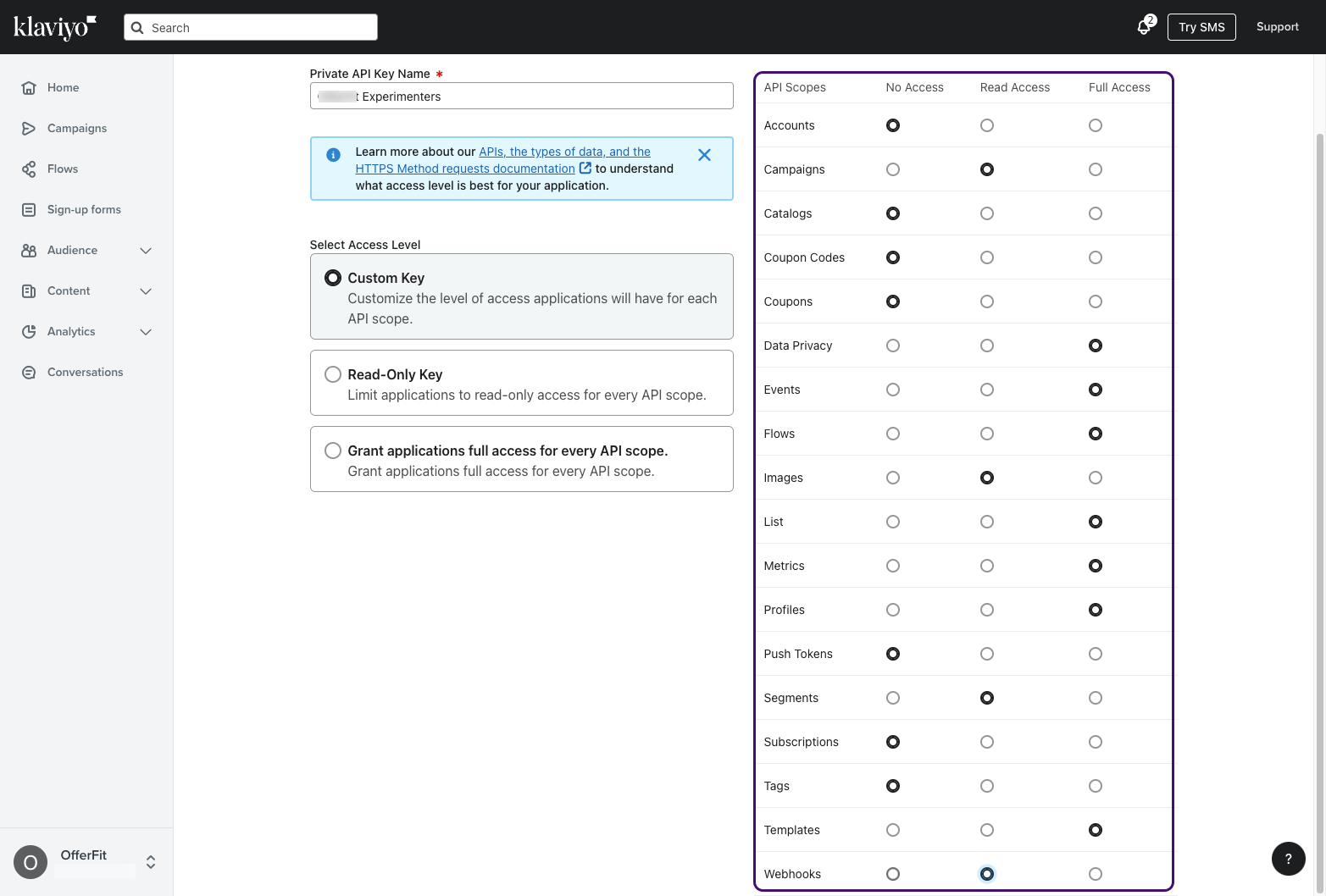
- Select the following permissions for the API key:
- Campaigns: Read Access
- Data Privacy: Full Access
- Events: Full Access
- Flows: Full Access
- Images: Read Access
- List: Full Access
- Metrics: Full Access
- Profiles: Full Access
- Segments: Read Access
- Templates: Full Access
- Webhooks: Read Access
- Select Create.
- Copy this API key and paste it into the BrazeAI Decisioning Studio™ Go portal where prompted.
Setting up an SFMC app package
To use Salesforce Marketing Cloud for BrazeAI Decisioning Studio™ Go, you must set up an app package in Salesforce Marketing Cloud.
- Go to your Marketing Cloud home page.
- Open the menu in the global header and select Setup.
- Go to Apps under Platform Tools in the side panel navigation, then select Installed Packages.
- Select New to create an app package.
- Give the app package a name and description.

- Select Add Component.
- For the Component Type, select API Integration. Then, select Next.
- For the Integration Type, select Server-to-server. Then, select Next.
- Then, select the following recommended scopes for your app package only:
- Channels > Email > Read, Write, Send
- Channels > OTT > Read
- Channels > Push > Read
- Channels > SMS > Read
- Channels > Social > Read
- Channels > Web > Read
- Assets > Documents and Images > Read, Write
- Assets > Saved Content > Read, Write
- Automation > Automations > Read, Write, Execute
- Automation > Journeys > Read, Write, Execute, Activate/Stop/Pause/Send/Schedule
- Contacts > Audiences > Read
- Contacts > List and Subscribers > Read, Write
- Cross Cloud Platform > Market Audience > View
- Cross Cloud Platform > Market Audience Member > View
- Cross Cloud Platform > Marketing Cloud Connect > Read
- Data > Data Extensions > Read, Write
- Data > File Locations > Read
- Data > Tracking Events > Read, Write
- Event notifications > Callbacks > Read
- Event notifications > Subscriptions > Read
Show image of recommended scopes

- Select Save.
- Copy and paste the following fields into the BrazeAI Decisioning Studio™ Go portal: Client Id, Client Secret, Authentication Base URI, REST Base URI, SOAP Base URI.
 Edit this page on GitHub