Braze permissions
Learn how to create permission sets, create roles, edit user permissions, and export user permissions, so you can ensure your users only access the workspaces and features they need most.
Creating a permission set
Use permission sets to bundle permissions related to specific subject areas or actions. You can apply permissions sets to dashboard users who need the same access across different workspaces. To create a permission set, go to Settings > Permission Settings, then select Create permission set. For a description of each permission, see List of permissions.
Creating a role
Roles allow for more structure by bundling together your individual custom permissions with workspace access controls. This is especially useful if you have many brands or regional workspaces in one dashboard. With roles, you can add dashboard users to the right workspaces and directly grant them the associated permissions. For a description of each permission, see List of permissions.
| Role Name | Workspace | Permissions |
|---|---|---|
| Marketer - Fashion Brands | [DEV] Fashion Brand, [QA] Fashion Brand, [PROD] Fashion Brand | “View Campaigns”, “Edit Campaigns”, “Archive Campaigns”, “View Canvases”, “Edit Canvases”, “Archive Canvases”, “View Content Blocks”, “Edit Content Blocks”, “Archive Content Blocks”, “Launch Content Blocks”, “View Feature Flags”, “Edit Feature Flags”, “Archive Feature Flags”, “View Segments”, “Edit Segments”, “View Banner Templates”, “Edit Banner Templates”, “View Email Templates”, “Edit Email Templates”, “View Media Library Assets”, “Edit Media Library Assets”, “Delete Media Library Assets”, “View Locations”, “Edit Locations”, “Archive Locations”, “View Promotion Codes”, “Edit Promotion Codes”, “Export Promotion Codes”, “View Preference Centers”, “Edit Preference Centers”. |
| Marketer - Skincare Brands | [DEV] Skincare Brand, [QA] Skincare Brand, [PROD] Skincare Brand | “View Campaigns”, “Edit Campaigns”, “Archive Campaigns”, “View Canvases”, “Edit Canvases”, “Archive Canvases”, “View Content Blocks”, “Edit Content Blocks”, “Archive Content Blocks”, “Launch Content Blocks”, “View Feature Flags”, “Edit Feature Flags”, “Archive Feature Flags”, “View Segments”, “Edit Segments”, “View Banner Templates”, “Edit Banner Templates”, “View Email Templates”, “Edit Email Templates”, “View Media Library Assets”, “Edit Media Library Assets”, “Delete Media Library Assets”, “View Locations”, “Edit Locations”, “Archive Locations”, “View Promotion Codes”, “Edit Promotion Codes”, “Export Promotion Codes”, “View Preference Centers”, “Edit Preference Centers”. |
| User Management - All Brands | [DEV] Fashion Brand, [QA] Fashion Brand, [PROD] Fashion Brand, [DEV] Skincare Brand, [QA] Skincare Brand, [PROD] Skincare Brand | “View Dashboard Users”, “Edit Dashboard Users”, “View Teams”, “Edit Teams”, “Archive Teams” |
How do permission sets and roles differ from Teams?
You can use Teams, permission sets, and user roles to manage company user access and responsibilities within Braze. Each feature encompasses a different collection of permissions and access-controls.
Key differences
At a high level, each feature has a different scope:
- Permission sets control what company users can do across all workspaces.
- Roles control what company users can do in specific workspaces.
- Teams control the audiences that company users can reach with their messages.
| Feature | What you can do | Scope of access |
|---|---|---|
| Permission sets | Bundle permissions related to specific subject areas or actions (such as for “Developers” and “Marketers”), then apply them to company users who need the same permissions across different workspaces. | Company wide |
| Roles | Bundle individual custom permissions and workspace-access controls (such as “Marketer - Fashion Brands”, where the user has certain permissions associated with their role as a marketer and is limited to the “Fashion Brands” workspaces). Then assign a role to company users to directly grant them the associated permissions and workspace access. Users with this level of access are typically managers in more tightly controlled setups with many brands or regional workspaces in one dashboard. |
Specific workspaces |
| Teams | Limit company user access to resources based on the audience (such as customer base location, language, and custom attributes). Users with this level of access typically are responsible for a specific scope within the brand that they’re working on, such as building language-specific content for a multilingual brand. |
Specific dashboard |
Considerations for adding user permissions to Teams
You may encounter difficulties when trying to save permissions in the Braze dashboard, particularly when adding or removing users from a workspace, or adding them to a Team. The Save/Update Users button may become greyed out if the permissions for the user are identical to those they already have at the workspace level. This restriction exists because there is no benefit to having a Team if all users possess the same permissions as the entire workspace.
To successfully add a user to a Team while maintaining the same permissions, don’t assign any permissions at the workspace level. Instead, assign permissions exclusively at the team level.
Limited users
Limited users have specific permissions that allow them to manage certain aspects of the Braze dashboard while having restrictions compared to company admins and workspace admins.
| Scope | Description |
|---|---|
| Permissions | Limited users can edit the permissions of other limited users if they have the “View Dashboard Users” and “Edit Dashboard Users” permissions. They can also create new limited users and modify their permission sets. However, they can’t create or manage company admin accounts. |
| Role limitations | If a limited user has all permissions except “Workspace Admin”, they will still have access to all other permissions typically granted to an workspace admin. |
| Visibility of permissions | If a limited user has “View Dashboard Users” and “Edit Dashboard Users” permissions for one workspace (such as Dev) but not for another (such as Prod), they won’t see the Prod workspace permissions in their dashboard users detail page. |
Comparing limited users
| Limited user type | Description |
|---|---|
| Workspace Admin | Workspace Admins have permissions specific to managing Workspaces but do not have the same authority as Company Admins. Limited Users can inherit permissions similar to those of Workspace Admins if they have the necessary permissions checked. |
| Admin (Company Admin) | Company Admins have broader permissions, including the ability to delete dashboard users. However, they cannot delete their own accounts and must contact another Company Admin for that action. |
| View-only access | To access parts of the dashboard, such as the Campaigns page, users must have view permissions assigned to them. |
Limited access error
Users may encounter messages like “You need “View Landing Pages” permissions to access this page”. In such cases, the user and account admin should verify that the required permissions are granted. If they are, try resolving the issue by disabling and then re-enabling the user’s permissions.
It isn’t possible to merge or import user permissions from one dashboard user to another.
Editing a user’s permissions
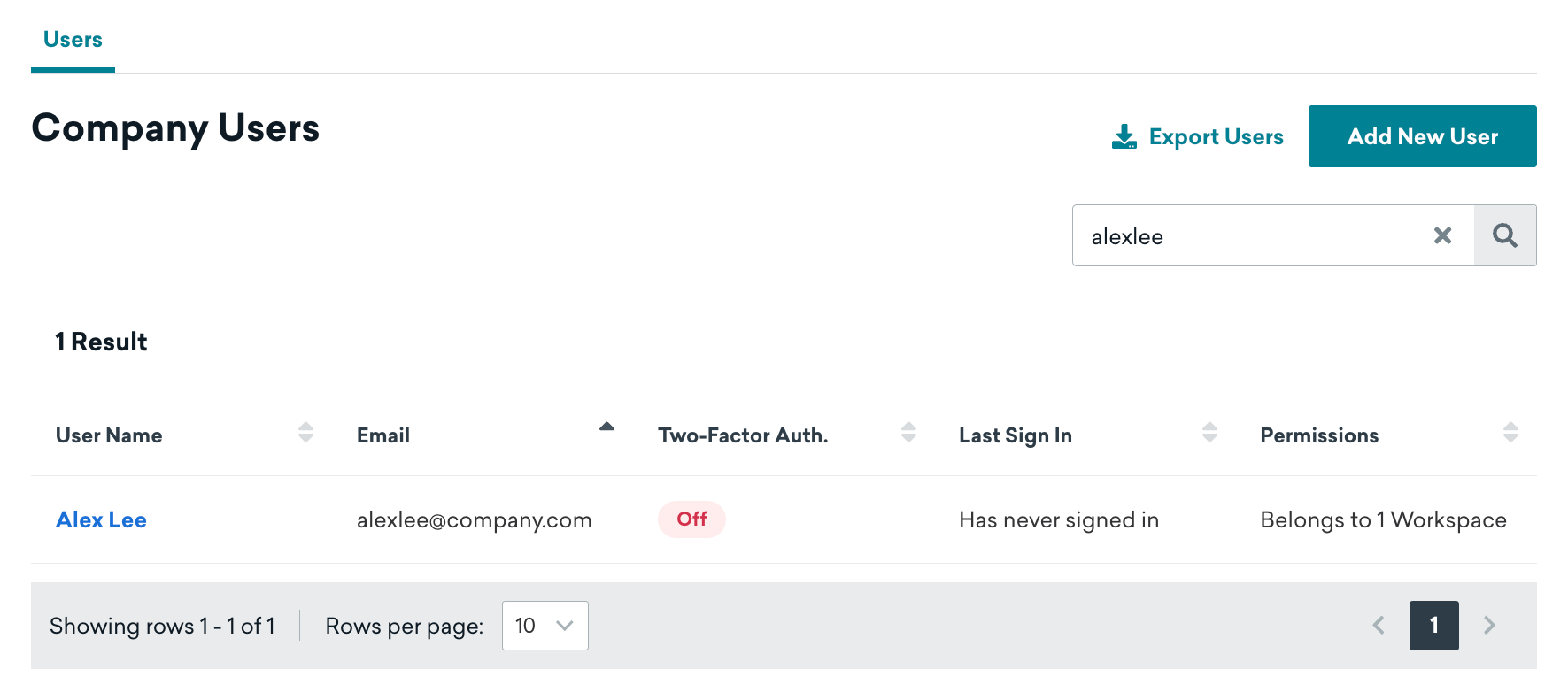
To edit a user’s current admin, company, or workspace permissions, go to Settings > Company Users, then select their name.
Admin
Admins have access to all features and the ability to modify any company setting. They can:
- Change approval settings
- Add, edit, delete, suspend, or unsuspend other Braze users
- Export Braze users as a CSV
To grant or remove admin privileges, select This user is an admin, then select Update user.
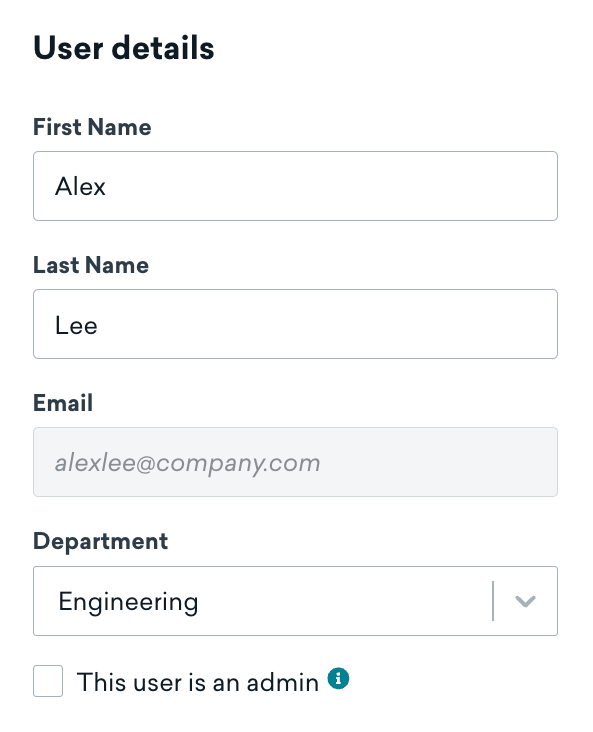
If you remove admin privileges from a user, they won’t be able to access Braze until you assign them at least one company-level or workspace-level permission.
Company
To manage the following company-level permissions for a user, check or uncheck the box next to that permission. When you’re finished, select Update user.
| Permission name | Description |
|---|---|
| Manage company settings | Allows users to modify permission settings and sender verification. . |
| Create and delete workspaces | Allows users to create and delete workspaces. |
Workspace
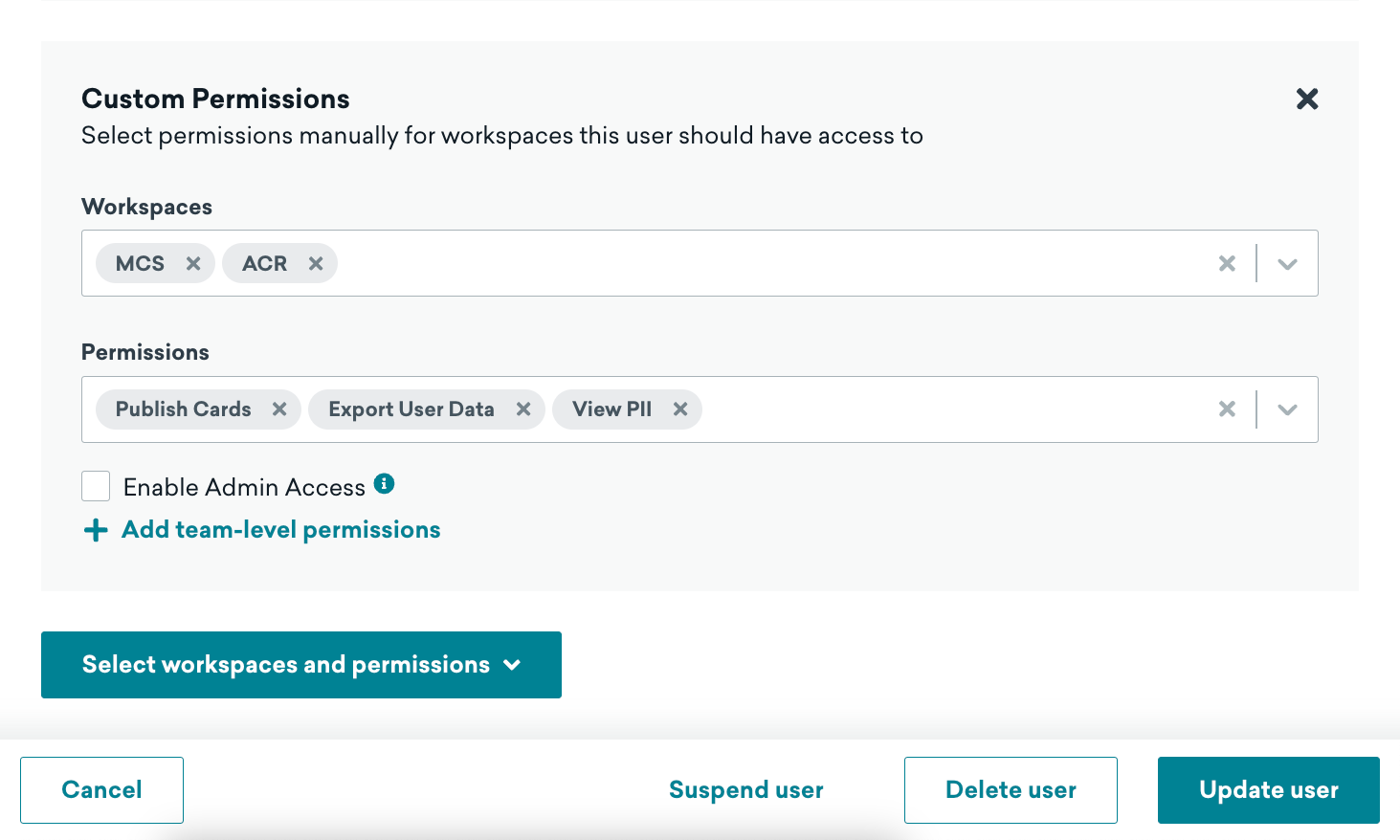
You can give a user different permissions for each workspace they belong to in Braze. To manage their workspace-level permissions, select Select workspaces and permissions, then choose their permissions manually or assign a permission set or role you previously created. If you need to give a user different permissions for different workspaces, repeat this process as many times as needed. For a description of each permission, see List of permissions.
Under Workspaces, choose one or more workspaces from the dropdown. Then, under Permissions, choose one or more permissions from the dropdown. They will be assigned these permissions only for the workspaces you have selected. Optionally, you can select Enable Admin Access if you’d like to give them full permissions for this workspace instead.
When you’re finished, select Update user.
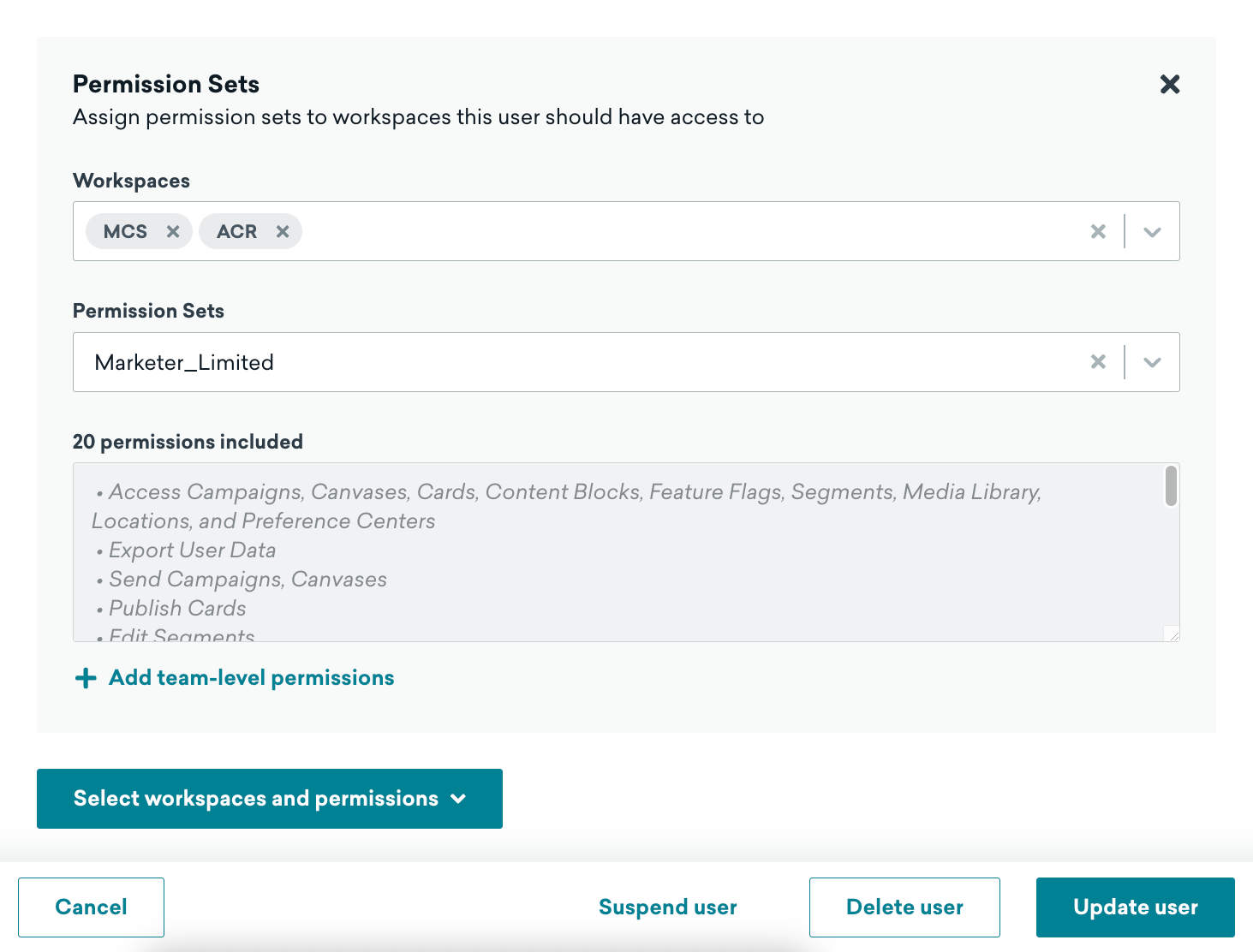
Under Workspaces, choose one or more workspaces from the dropdown. Then, under Permission Sets, choose one permission set. They will be assigned these permissions only for the workspaces you have selected.
When you’re finished, select Update user.
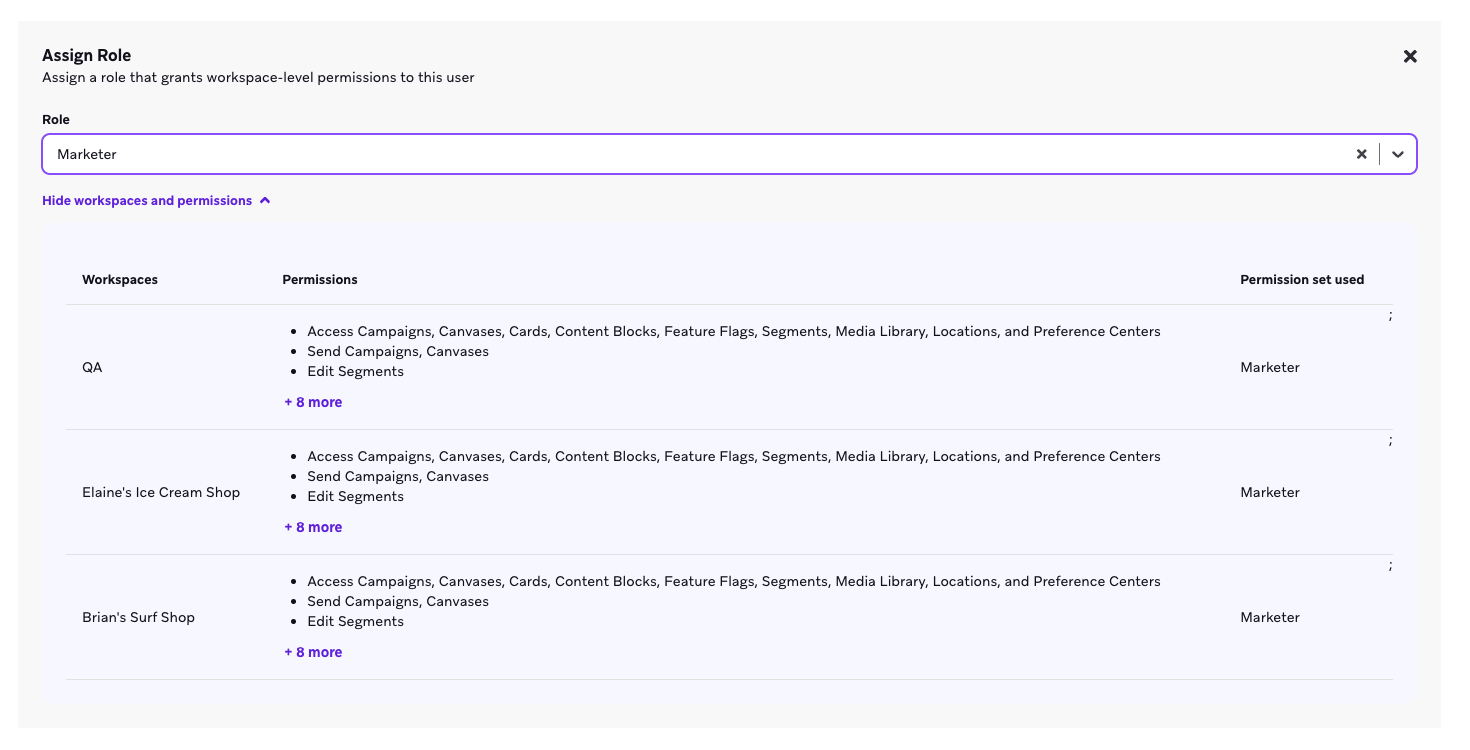
Under Workspaces, choose one or more workspaces from the dropdown. Then, under Role, choose one role. They will be assigned these permissions only for the workspaces you have selected.
When you’re finished, select Update user.
Exporting user permissions
To download a list of your users and their permissions, go to Settings > Company Users, then select Export Users. A CSV file will be sent to your email address shortly.

List of permissions
| Permission | Definition |
|---|---|
| View Billing Details | View billing details |
| View Custom Attributes Marked as PII | View custom attributes marked as PII |
| View PII | View PII |
| View User Profiles PII Compliant | Access user search and view user profiles with redacted PII |
| View Usage Data | View usage data |
| Merge Duplicate Users | Combine duplicate users into one user. Duplicates are removed after merging. |
| Preview Duplicate Users | Preview which user profiles are duplicates |
| View Canvas Templates | View Canvas templates |
| Archive Canvas Templates | Move Canvas templates to archive |
| Launch Content Blocks | Launch Content Blocks |
| Launch Preference Centers | Launch preference centers |
| Export User Data | Download users from the dashboard |
| Edit Currents Integrations | Create, update, and delete Currents integrations |
| View Currents Integration | View Currents integrations |
| View Campaigns | View campaigns |
| Edit Campaigns | Create and update campaigns |
| Archive Campaigns | Move campaigns to archive |
| Send Campaigns | Start, stop, pause, or resume campaigns |
| Send Canvases | Start, stop, pause, or resume Canvases |
| View Frequency Capping Rules | View Frequency Capping Rules |
| Edit Frequency Capping Rules | Create and update Frequency Capping Rules |
| View Canvases | View Canvases |
| Edit Canvases | Create and update Canvases |
| Archive Canvases | Move Canvases to archive |
| View Content Blocks | View Content Blocks |
| Edit Content Blocks | Create and update Content Blocks |
| Archive Content Blocks | Move Content Blocks to archive |
| View Feature Flags | View feature flags |
| Edit Feature Flags | Create and update feature flags |
| Archive Feature Flags | Move feature flags to archive |
| View WhatsApp Message Templates | Allows users to view WhatsApp message templates. |
| Edit WhatsApp Message Templates | Allows users to create WhatsApp message templates in the template builder. This feature is currently in early access. |
| View Segments | View segments . Users must have the “View Segments” permission to have the “Edit Segments” or “Archive Segments” permission. |
| Archive Segments | Archive and un-archive segments. Users with the “Archive Segments” permission must also be granted the “View Segments” permission. |
| Edit Segments | Create and update Segments. Users with the “Edit Segments” permission must also be granted the “View Segments permission”. |
| View Global Control Group | View Global Control Group setup page |
| Edit Global Control Group | Create and save changes to the Global Control Group. Users with the “Edit Global Control Group” permission must also be granted permissions for “Edit Campaigns” and “Edit Canvases”. Users with the “Edit Global Control Group” permission are also granted the “View Global Control Group” permission. |
| View Banner Templates | View banner templates |
| Edit Banner Templates | Create and update banner templates |
| Archive Banner Templates | Move banner templates to archive |
| View Email Templates | View email templates |
| Edit Email Templates | Create and update email templates |
| Archive Email Templates | Move email templates to archive |
| View Link Templates | View link templates |
| Edit Link Templates | Create and update link templates |
| Publish Landing Pages | Make a draft landing page active |
| Edit Landing Page Drafts | Create and save landing page drafts |
| View Landing Pages | View landing pages |
| Edit Landing Page Templates | Create and update landing page templates |
| View Landing Page Templates | View landing page templates |
| Archive Landing Page Template | Move landing page templates to archive |
| View Media Library Assets | View media library assets |
| Edit Media Library Assets | Create and update media library assets |
| Delete Media Library Assets | Permanently delete media library assets |
| View Locations | View locations |
| Edit Locations | Create and edit locations |
| Archive Locations | Move locations to archive |
| View Promotion Codes | View promo codes |
| Edit Promotion Codes | Create and update promo codes |
| Export Promotion Codes | Download a list of promo codes from the dashboard |
| View Preference Centers | View preference centers |
| Edit Preference Centers | Create and update preference centers |
| Launch Preference Centers | Make a draft Preference Center active or update an existing one |
| View API Keys | View API keys |
| Edit API Keys | Create and update API keys |
| View Internal Groups | View internal groups |
| Edit Internal Groups | Create and update internal groups |
| View Message Activity Log | View message activity logs |
| View Event User Log | View event user logs |
| View API identifiers | View API identifiers and other identifiers |
| View API Usage Dashboard | View the API usage dashboard |
| View API Limits | View API rate limits |
| View API Usage Alerts | View API usage alerts |
| Edit API Usage Alerts | Create and update API usage alerts |
| Edit SDK Debugger | Create and download SDK Debugger sessions |
| View SDK Debugger | View SDK Debugger or debugging sessions |
| View App Settings | View App Settings page |
| Edit App Settings | Create, edit, and update apps within app settings |
| View Catalogs | View catalogs and selections |
| Edit Catalogs | Create and update catalogs and selections |
| Export Catalogs | Download catalogs from the dashboard |
| Delete Catalogs | Permanently delete catalogs |
| View Dashboard Users | View Company Users |
| Edit Dashboard Users | Create and update company users |
| View Email Settings | View Email Preferences |
| Edit Email Settings | Enable and update Email Preferences |
| Edit Identifier Field-Level Encryption | Enable and update Field-Level Encryption settings |
| View Custom Attributes | View custom attributes and usage report |
| Edit Custom Attributes | Create and update custom attributes |
| Blocklist Custom Attributes | Add custom attributes to a blocklist that restricts use in the dashboard |
| Delete Custom Attributes | Permanently delete custom attributes |
| Export Custom Attributes | Download custom attributes from the dashboard |
| View Custom Events | View custom events and usage report, and add custom events to the daily analytics report email |
| Edit Custom Events | Create and update custom events |
| Blocklist Custom Events | Add custom events to a blocklist that restricts use in the dashboard |
| Delete Custom Events | Permanently delete custom events |
| Export Custom Events | Download custom events from the dashboard |
| Edit Custom Event Property Segmentation | Enable and disable segmentation for custom event properties |
| View Products | View products |
| Edit Products | Create and update products |
| Blocklist Products | Add products to a blocklist that restricts use in the dashboard |
| Edit Purchase Property Segmentation | Enable and disable segmentation for purchase event properties |
| Edit Technology Partners | Create and update technology partners |
| Edit Cloud Data Ingestion | Create, update, and delete sources and syncs |
| View Multi Language Settings | View multi-language settings |
| Create Multi Language Locale Settings | Create and update multi-language locale settings |
| Delete Multi Language Locale Settings | Permanently delete multi-language locale settings |
| Edit Subscriptions | Create and update subscription groups |
| View Tags | View tags |
| Edit Tags | Create and update tags |
| Delete Tags | Permanently delete tags |
| View Teams | View Teams |
| Edit Teams | Create and update teams |
| Archive Teams | Move teams to archive |
| View Data Transformation | View data transformations |
| Edit Data Transformation | Create and update data transformations |
| Launch Campaigns | Start, stop, pause, or resume existing campaigns |
| Launch Canvases | Start, stop, pause, or resume existing Canvases |
| Edit Canvas Templates | Create and update Canvas templates |
| Approve Campaigns | Approve or deny campaigns. The approval workflow for campaigns must be turned on for this permission to apply. This setting is currently in early access. Contact your account manager if you’re interested in participating in the early access. |
| Approve Canvases | Approve or deny Canvases. The approval workflow for Canvases must be turned on for this permission to apply. This setting is currently in early access. Contact your account manager if you’re interested in participating in the early access. |
| View Placements | View Banner placement |
| Edit Placements | View Banner placements without making changes |
| Archive Placements | Move Banner placements to archive |
| View Push Settings | View Push settings |
| Edit Push Settings | Create and update Push settings |
| Edit Reports | Create and update reports |
| View Import Users | View CSV user imports |
| Import Users | Upload users to the dashboard |
| Edit User Data | Create and update user data |
| View Merge Users | View a list of user merge records |
| View User Deletion Records | View user deletion records |
| Delete Users From Dashboard | Permanently delete users from the dashboard individually or in bulk. |
| View Custom AI Agents | Allows users to view custom AI agents. |
| Edit Custom AI Agents | Allows users to create and update custom AI agents. |
| Archive Custom AI Agents | Allows users to archive custom AI agents. |
Braze is introducing granular permissions, a more flexible way to manage user access. Refer to Migrating to granular permissions to learn about the migration process, including how legacy permissions map to granular permissions.
Creating a permission set
Use permission sets to bundle permissions related to specific subject areas or actions. You can apply permission sets to dashboard users who need the same access across different workspaces. To create a permission set, go to Settings > Permission Settings, then select Create permission set. For a description of each permission, see List of permissions.
Creating a role
Roles allow for more structure by bundling together your individual custom permissions with workspace access controls. This is especially useful if you have many brands or regional workspaces in one dashboard. With roles, you can add dashboard users to the right workspaces and directly grant them the associated permissions. For a description of each permission, see List of permissions.
| Role Name | Workspace | Permissions |
|---|---|---|
| Marketer - Fashion Brands | [DEV] Fashion Brand, [QA] Fashion Brand, [PROD] Fashion Brand | “Access Campaigns, Canvases, Cards, Feature Flags, Segments, Media Library, and Preference Center” “Manage Media Library Assets” |
| Marketer - Skincare Brands | [DEV] Skincare Brand, [QA] Skincare Brand, [PROD] Skincare Brand | “Access Campaigns, Canvases, Cards, Feature Flags, Segments, Media Library, and Preference Centers” “Manage Media Library Assets” |
| User Management - All Brands | [DEV] Fashion Brand, [QA] Fashion Brand, [PROD] Fashion Brand, [DEV] Skincare Brand, [QA] Skincare Brand, [PROD] Skincare Brand | “Manage Dashboard Users” “Manage Teams” |
How do permission sets and roles differ from Teams?
You can use Teams, permission sets, and user roles to manage company user access and responsibilities within Braze. Each feature encompasses a different collection of permissions and access-controls.
Key differences
At a high level, each feature has a different scope:
- Permission sets control what company users can do across all workspaces.
- Roles control what company users can do in specific workspaces.
- Teams control the audiences that company users can reach with their messages.
| Feature | What you can do | Scope of access |
|---|---|---|
| Permission sets | Bundle permissions related to specific subject areas or actions (such as for “Developers” and “Marketers”), then apply them to company users who need the same permissions across different workspaces. | Company wide |
| Roles | Bundle individual custom permissions and workspace-access controls (such as “Marketer - Fashion Brands”, where the user has certain permissions associated with their role as a marketer and is limited to the “Fashion Brands” workspaces). Then assign a role to company users to directly grant them the associated permissions and workspace access. Users with this level of access are typically managers in more tightly controlled setups with many brands or regional workspaces in one dashboard. |
Specific workspaces |
| Teams | Limit company user access to resources based on the audience (such as customer base location, language, and custom attributes). Users with this level of access typically are responsible for a specific scope within the brand that they’re working on, such as building language-specific content for a multilingual brand. |
Specific dashboard |
Considerations for adding user permissions to Teams
You may encounter difficulties when trying to save permissions in the Braze dashboard, particularly when adding or removing users from a workspace, or adding them to a Team. The Save/Update Users button may become greyed out if the permissions for the user are identical to those they already have at the workspace level. This restriction exists because there is no benefit to having a Team if all users possess the same permissions as the entire workspace.
To successfully add a user to a Team while maintaining the same permissions, don’t assign any permissions at the workspace level. Instead, assign permissions exclusively at the team level.
Limited users
Limited users have specific permissions that allow them to manage certain aspects of the Braze dashboard while having restrictions compared to company admins and workspace admins.
| Permissions | Limited users can edit the permissions of other limited users if they have the “Manage Dashboard Users” permission checked. They can also create new limited users and modify their permission sets. However, they can’t create or manage company admin accounts. |
| Role limitations | If a limited user has all permissions except “App Group Admin”, they will still have access to all other permissions typically granted to an workspace admin. |
| Visibility of permissions | If a limited user has “Manage Dashboard Users” checked for one app group (such as Dev) but not for another (such as Prod), they won’t see the Prod app group permissions in their “Manage Users” profile. |
Comparing limited users
| Limited user type | Description |
|---|---|
| App group admin | App Group Admins have permissions specific to managing app groups but do not have the same authority as Company Admins. Limited Users can inherit permissions similar to those of App Group Admins if they have the necessary permissions checked. |
| Company admin | Company Admins have broader permissions, including the ability to delete dashboard users. However, they cannot delete their own accounts and must contact another Company Admin for that action. |
| Basic read-only permission | To access certain parts of the dashboard, such as the Technology Partners page, users must have a basic read-only permission. This includes having “Manage External Integrations” enabled, along with permissions for Access Campaigns, Canvases, Cards, Segments, and Media Library. |
Limited access error
Users may encounter messages like “Limited Access. You do not have permissions to access this Page.” In such cases, the account admin should check if they can resolve the issue by disabling and re-enabling the user’s permissions.
It isn’t possible to merge or import user permissions from one dashboard user to another.
Editing a user’s permissions
To edit a user’s current admin, company, or workspace permissions, go to Settings > Company Users, then select their name.
Admin
Admins have access to all features and the ability to modify any company setting. They can:
- Change approval settings
- Add, edit, delete, suspend, or unsuspend other Braze users
- Export Braze users as a CSV
To grant or remove admin privileges, select This user is an admin, then select Update user.
If you remove admin privileges from a user, they won’t be able to access Braze until you assign them at least one company-level or workspace-level permission.
Company
To manage the following company-level permissions for a user, check or uncheck the box next to that permission. When you’re finished, select Update user.
| Permission name | Description |
|---|---|
| Manage company settings | Allows users to modify any company setting. |
| Create and delete workspaces | Allows users to create and delete workspaces. |
Workspace
You can give a user different permissions for each workspace they belong to in Braze. To manage their workspace-level permissions, select Select workspaces and permissions, then choose their permissions manually to select or assign a permission set you previously created.
If you need to give a user different permissions for different workspaces, repeat this process as many times as needed. For a description of each permission, see List of permissions.
Under Workspaces, choose one or more workspaces from the dropdown. Then, under Permissions, choose one or more permissions from the dropdown. Braze assigns these permissions only for the workspaces you have selected. Optionally, you can select Enable Admin Access if you’d like to give them full permissions for this workspace instead.
When you’re finished, select Update user.
Under Workspaces, choose one or more workspaces from the dropdown. Then, under Permission Sets, choose one permission set. Braze assigns these permissions only for the workspaces you have selected.
When you’re finished, select Update user.
Exporting user permissions
To download a list of your users and their permissions, go to Settings > Company Users, then select Export Users. A CSV file will be sent to your email address shortly.
List of permissions
As of April 2024, to create or update promotion code lists, Braze users need the “Access Campaigns, Canvases, Cards, Segments, Media Library” permission.
| Level | Name | Definition |
|---|---|---|
| Admin | Admin | Allows users to access all available features. This is the default setting for all new users. Can update company settings (company name and time zone), which limited users cannot do. |
| Company | Create and delete workspaces | Allows users to create and delete workspaces. |
| Company | Manage company settings | Allows users to modify any company setting. |
| Workspace | Access Campaigns, Canvases, Cards, Content Blocks, Feature Flags, Segments, Media Library, Locations, Promotion Codes, and Preference Centers | Allows users to view campaign and Canvas performance metrics, create and duplicate drafts of campaigns and Canvases, edit campaign and Canvas drafts and templates, view drafts of segments, templates and media, create templates, upload media, create or update promotion code lists, view engagement reports, and view global message settings in the dashboard. However, users with this permission cannot pause or edit existing live content. |
| Workspace | Access Dev Console | Allows full access to the following settings and logs: |
| Workspace | Approve and Deny Campaigns | Allows users to approve or deny campaigns. The approval workflow for campaigns must be turned on for this permission to apply. This setting is currently in early access. Contact your account manager if you’re interested in participating in the early access. |
| Workspace | Approve and Deny Canvases | Allows users to approve or deny Canvases. The approval workflow for Canvases must be turned on for this permission to apply. |
| Workspace | Edit Currents Integrations | Allows users to modify a Currents connection, including credentials. By default, users assigned the “External Integrations” permission are also assigned this permission. |
| Workspace | Edit Segments | Allows users to create and edit segments. You can still create campaigns with existing segments and filters without this permission. You need this permission to generate a segment from users in a CSV or retarget the group of users in the CSV. |
| Workspace | Export User Data | Allows users to export their user data from segments, campaigns, and Canvases. This permission includes sensitive user information like names, email addresses, and other collected personally identifiable information (PII). To export CSVs from the dashboard, you must have this permission and the “View PII” permission. |
| Workspace | Import and Update User Data | Allows users to import CSV and update files of app users as well as view the User Import page. This also allows you to edit the subscription status of a user and their subscription group opt-in/opt-out rules. |
| Workspace | Launch and Manage Content Blocks | Allows users to launch and manage Content Blocks. |
| Workspace | Launch Preference Centers | Allows users to launch preference centers. |
| Workspace | Manage Apps | Allows users to edit App Settings. |
| Workspace | Manage Catalogs Dashboard Permission | Allows users to create and manage catalogs. |
| Workspace | Manage Dashboard Users | Allows non-admins the ability to view, edit, and manage the Company Users page, and manage the dashboard users in their workspace by modifying the permissions of any user, including themselves. Users with this permission can’t delete users (only administrators can delete users). This corresponds to the legacy permission MANAGE_DEVELOPERS_AND_PERMISSIONS. |
| Workspace | Manage Email Settings | Allows users to save email configuration changes (Settings > Email Preferences). |
| Workspace | Manage Events, Attributes, Purchases | Allows users to edit custom attributes (users without this capability can still view custom attributes), edit and view properties of custom events, and edit and view properties of products under Data Settings. |
| Workspace | Manage External Integrations | Allows access to all tabs under Technology Partners, ability to sync Braze with other platforms, and access to manage Cloud Data Ingestion. |
| Workspace | Manage Feature Flags | Allows users to create or edit feature flags. |
| Workspace | Manage Media Library Assets | Allows users to add, edit, and delete media library assets. |
| Workspace | Manage Subscription Groups | Allows users to create and manage subscription groups. |
| Workspace | Manage Tags | Allows users to edit or delete tags (under Tag Management). You do not need this permission to add tags to campaigns or segments. |
| Workspace | Manage Teams | Allows users to manage Internal Teams. The ability to select this permission depends on your contract with Braze. This corresponds to the legacy permission MANAGE_TERRITORIES. |
| Workspace | Manage Transformations | Allows users to create and manage Data Transformations. |
| Workspace | Send Campaigns, Canvases | Allows users to edit, archive, and stop campaigns and Canvases, create campaigns, and launch Canvases. |
| Workspace | View Billing Details | Allows users to view subscriptions and billing. |
| Workspace | View Currents Integration | Allows users to view all information about a Currents connection, excluding credentials. By default, users assigned the “Access Campaigns, Canvases, Cards, Content Blocks, Feature Flags, Segments, Media Library, Locations, Promotion Codes, and Preference Centers” permission are also assigned this permission. |
| Workspace | View Custom Attributes Marked as PII | Allows non-admin users to view custom attributes that contain sensitive information and are marked as personally identifiable information (PII). |
| Workspace | View PII | Allows users to view personally identifiable information (PII) fields as defined by your company within the dashboard. Users can also view PII fields in the Preview as a User tab of message previews. You need this permission to use Query Builder, because it allows direct access to some customer data. To export CSVs from the dashboard, users need both this permission and the “Export User Data” permission. |
| Workspace | View User Profiles PII Compliant | Allows users to view user profiles that contain fields your company has defined as personally identifiable information (PII), but redacts the PII fields. You need this permission to use the user search tool. |
| Workspace | View Transformations | Allows users to view Braze Data Transformations. |
| Workspace | View Usage Data | Allows users to view app usage, including the channel performance dashboards. |
| Workspace | Merge Duplicate Users | Allows users to merge duplicate user profiles. |
| Workspace | Preview Duplicate Users | Allows users to preview which user profiles are duplicated. |
| Workspace | Create and Edit Canvas Templates | Allows users to create and edit Canvas templates. |
| Workspace | View Canvas Templates | Allows users to view Canvas templates. |
| Workspace | Archive Canvas Templates | Allows users to archive Canvas templates. |
| Workspace | Manage Custom Event Property Segmentation | Allows users to create segments based on event property recency and frequency. |
| Workspace | Publish Landing Pages | Allows users to publish landing pages. |
| Workspace | Create Landing Page Drafts | Allows users to create and save landing page drafts. |
| Workspace | Access Landing Pages | Allows users to access the Landing Pages page. |
| Workspace | Create and Edit Landing Page Templates | Allows users to create and edit landing page templates. |
| Workspace | View Landing Page Templates | Allows users to view landing page templates. |
| Workspace | Archive Landing Page Templates | Allows users to archive landing page templates. |
| Workspace | View Custom AI Agents | Allows users to view custom AI agents. This feature is currently in beta. |
| Workspace | Create Custom AI Agents | Allows users to create custom AI agents. This feature is currently in beta. |
| Workspace | Edit Custom AI Agents | Allows users to edit custom AI agents. This feature is currently in beta. |
 Edit this page on GitHub