Manage Banner placements
Learn how to create and manage Banner placements in the Braze SDK, including accessing their unique properties and logging impressions. For more general information, see About Banners.
About placement requests
When you create placements in your app or website, your app sends a request to Braze to fetch Banner messages for each placement.
- You can request up to 10 placements per refresh request.
- For each placement, Braze returns the highest-priority Banner the user is eligible to receive.
- If more than 10 placements are requested in a refresh, only the first 10 are returned; the rest are dropped.
For example, an app might request three placements in a refresh request: homepage_promo, cart_abandonment, and seasonal_offer. Each request returns the most relevant Banner for that placement.
Rate limiting for refresh requests
If you’re on older SDK versions (before Swift 13.1.0, Android 38.0.0, Web 6.1.0, React Native 17.0.0, and Flutter 15.0.0), only one refresh request is permitted per user session.
If you’re on newer minimum SDK versions (Swift 13.1.0+, Android 38.0.0+, Web 6.1.0+, React Native 17.0.0+, and Flutter 15.0.0+), refresh requests are controlled by a token bucket algorithm to prevent excessive polling:
- Each user session begins with five refresh tokens.
- Tokens refill at a rate of one token every 180 seconds (3 minutes).
Each explicit call to requestBannersRefresh consumes one token. The automatic refresh that occurs at the start of a new session or when changeUser is called does not consume a token, as this refresh is a publishing of the last cached Banner for that user. If you attempt a refresh when no tokens are available, the SDK doesn’t make the request and logs an error until a token refills. This is important for mid-session and event-triggered updates. To implement dynamic updates (for example, after a user completes an action on the same page), call the refresh method after the custom event is logged, but note the necessary delay for Braze to ingest and process the event before the user qualifies for a different Banner campaign.
Create a placement
Prerequisites
These are the minimum SDK versions needed to create Banner placements:
Step 1: Create placements in Braze
If you haven’t already, you’ll need to create Banner placements in Braze that are used to define the locations in your app or site can display Banners. To create a placement, go to Settings > Banners Placements, then select Create Placement.

Give your placement a name and assign a Placement ID. Be sure you consult other teams before assigning an ID, as it’ll be used throughout the card’s lifecycle and shouldn’t be changed later. For more information, see Placement IDs.
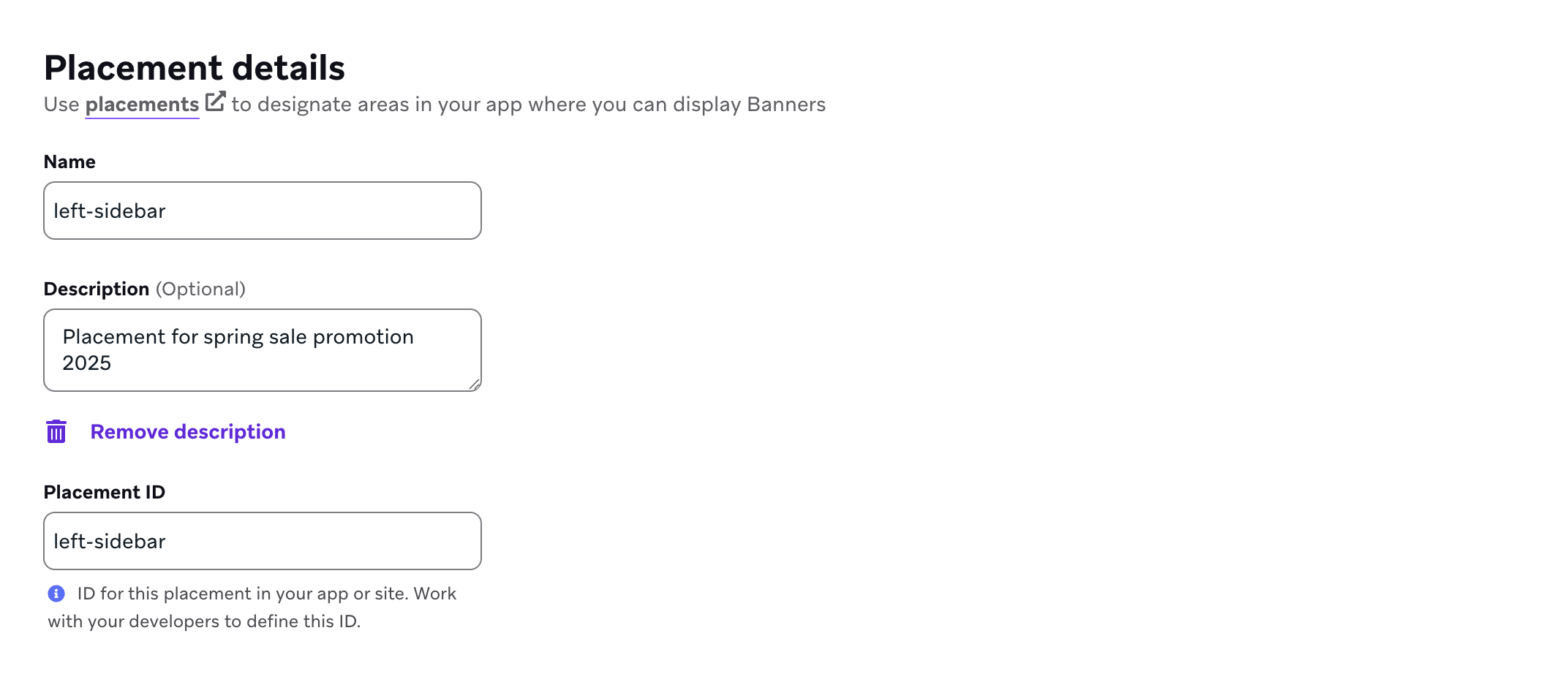

For web placements, you can optionally configure Web Targeting on the placement to have the Braze Web SDK automatically insert Banners at a specific spot on the page, instead of calling insertBanner() yourself. See Web Targeting: auto-inserting Banners.
Step 2: Refresh placements in your app
To refresh placements, call requestBannersRefresh() for your SDK.
requestBannersRefresh() merges into the existing Banner cache. Only the placement IDs you pass in are added, updated, or removed:
- If the server returns a Banner for a requested placement, the cached Banner for that placement is replaced.
- If the server returns no Banner for a requested placement, that placement is dropped from the cache.
- Cached Banners for placements you didn’t request stay in the cache until expiration.
For how many placements you can request per refresh, see About placement requests. You can refresh different sets of placements over time (for example, placements on the current screen) and keep Banners for other placements in the cache.
Banner refresh behavior has two paths:
- Explicit refresh: You can call the refresh method at any point during an active session.
- Automatic refresh on a new session: After you make at least one explicit refresh request, the SDK can re-request the most recently requested placement IDs when a new Braze session starts (for example, after
changeUser()or after a session timeout).
The role of subscribing to Banner events differs by platform:
- iOS and Android:
subscribeToBannersEvents()on Android (orsubscribeToEvents()on Swift) registers an event handler. The automatic session-start refresh is not dependent on the subscription being active. - Web: The automatic session-start refresh is tied to
subscribeToBannersEvents()(or the deprecatedsubscribeToBannersUpdates()) being registered. Without an active subscription, the SDK does not automatically repeat the refresh on a new session.
In all cases, you must make at least one explicit refresh request per app lifecycle so the SDK knows which placement IDs to keep updated. Banners are not fetched automatically on first launch without that initial call, and the tracked placement IDs reset after the app restarts.
Automatic session-start refreshes do not consume a rate limiting token.

Refresh placements as soon as possible to avoid delays in downloading or displaying Banners.
import * as braze from "@braze/web-sdk";
braze.requestBannersRefresh(["global_banner", "navigation_square_banner"]);
AppDelegate.braze?.banners.requestBannersRefresh(placementIds: ["global_banner", "navigation_square_banner"])
ArrayList<String> placementIds = new ArrayList<>();
placementIds.add("global_banner");
placementIds.add("navigation_square_banner");
Braze.getInstance(context).requestBannersRefresh(placementIds);
Braze.getInstance(context).requestBannersRefresh(listOf("global_banner", "navigation_square_banner"))
Braze.requestBannersRefresh(["global_banner", "navigation_square_banner"]);
This feature is not currently supported on Unity.
This feature is not currently supported on Cordova.
braze.requestBannersRefresh(["global_banner", "navigation_square_banner"]);
This feature is not currently supported on Roku.
Step 3: Listen for updates
If you insert Banners using the SDK methods in this guide, all analytics events (such as impressions and clicks) are handled automatically, and impressions are only logged when the banner is in view.
Use subscribeToBannersEvents to listen for Banner events, and then call requestBannersRefresh to fetch placements. The SDK calls your handler with an event object. Switch on event.type to handle each kind of event. For more information about the event values, see Event subscriptions.
If you’re using vanilla JavaScript with the Web Braze SDK, register your handler before you call requestBannersRefresh.
import * as braze from "@braze/web-sdk";
const placementIds = ["global_banner", "navigation_square_banner"];
// - Available in version 7.0.0+
const subscriptionId = braze.subscribeToBannersEvents((event) => {
switch (event.type) {
case braze.ChannelEventType.CACHE_REPLAY:
// Sent once, right away, with the Banners that are already cached.
// Render them now instead of waiting for the network.
console.log("Cached Banners:", Object.keys(event.cacheSnapshot.banners));
break;
case braze.ChannelEventType.CACHE_LOAD:
// The cache changed without a refresh, such as after changeUser().
// The snapshot can be empty, so clear Banners from the previous user.
console.log("Cache reloaded:", Object.keys(event.cacheSnapshot.banners));
break;
case braze.ChannelEventType.DATA_UPDATED:
// A refresh finished, even if nothing changed, or a Banner was dismissed.
console.log("Banners were updated:", event.reason);
break;
case braze.ChannelEventType.ERROR:
switch (event.retryState) {
case braze.RetryState.SDK_WILL_RETRY:
// The SDK is retrying. Keep the current Banners and wait.
break;
case braze.RetryState.INTEGRATOR_MAY_RETRY: {
// The SDK stopped retrying. Try again later, and limit how often you retry.
const delayMs = event.rateLimitedUntil
? Math.max(event.rateLimitedUntil.getTime() - Date.now(), 0)
: 30000;
setTimeout(() => braze.requestBannersRefresh(placementIds), delayMs);
break;
}
case braze.RetryState.DO_NOT_RETRY:
// The failure is final. For example, Banners are disabled for this workspace.
if (event.reason === braze.ChannelErrorReason.FEATURE_DISABLED) {
// Hide the Banner containers.
}
break;
}
break;
}
});
const deprecatedSubscriptionId = braze.subscribeToBannersUpdates((banners) => {
console.log("Banners were updated");
});
// Always refresh after your subscriber function has been registered
braze.requestBannersRefresh(placementIds);
// Remove the subscription when you no longer need it
// braze.removeSubscription(subscriptionId);
If you’re using React with the Web Braze SDK, set up subscribeToBannersEvents inside a useEffect hook and call requestBannersRefresh after registering your listener.
import * as braze from "@braze/web-sdk";
useEffect(() => {
const placementIds = ["global_banner", "navigation_square_banner"];
// - Available in version 7.0.0+
const subscriptionId = braze.subscribeToBannersEvents((event) => {
switch (event.type) {
case braze.ChannelEventType.CACHE_REPLAY:
case braze.ChannelEventType.CACHE_LOAD:
// Cached Banners, sent right away on subscribe or after the cache reloads
console.log("Cached Banners:", Object.keys(event.cacheSnapshot.banners));
break;
case braze.ChannelEventType.DATA_UPDATED:
// A refresh finished, even if nothing changed, or a Banner was dismissed
console.log("Banners were updated:", event.reason);
break;
case braze.ChannelEventType.ERROR:
if (event.retryState === braze.RetryState.INTEGRATOR_MAY_RETRY) {
// The SDK stopped retrying. Try again later, and limit how often you retry.
const delayMs = event.rateLimitedUntil
? Math.max(event.rateLimitedUntil.getTime() - Date.now(), 0)
: 30000;
setTimeout(() => braze.requestBannersRefresh(placementIds), delayMs);
}
break;
}
});
const deprecatedSubscriptionId = braze.subscribeToBannersUpdates((banners) => {
console.log("Banners were updated");
});
// Always refresh after your subscriber function has been registered
braze.requestBannersRefresh(placementIds);
// Cleanup listeners
return () => {
braze.removeSubscription(subscriptionId);
braze.removeSubscription(deprecatedSubscriptionId);
};
}, []);
For when each event fires, and what each update reason, retry state, analytics action, and error reason means, see Event subscriptions.
event.cacheSnapshot.banners is an object that maps each placement ID to its Banner. It can include placements from earlier refreshes, not only the placement IDs from your most recent requestBannersRefresh call. If you care only about certain placements, read those placement IDs from the snapshot and skip the rest.
Use subscribeToBannersEvents on Web SDK 7.0.0 and later. subscribeToBannersUpdates is the earlier pattern, deprecated as of 7.0.0. The earlier pattern only delivers the current Banners, so it can’t tell you why the Banners changed or when a refresh failed.
Your banner update listener reflects the SDK’s in-memory banner state. A single update can include placements that were already cached (for example, from an earlier refresh, another screen, or automatic SDK work), not only the placement IDs from your most recent requestBannersRefresh call. If you care only about certain placements, check each banner’s placement ID in your listener and skip the rest. When you’ve registered your listener, call requestBannersRefresh for the placements you want to sync from Braze.
// - Available in version 19.0.0+
let placementIds = ["global_banner", "navigation_square_banner"]
let cancellable = brazeClient.braze()?.banners.subscribeToEvents { event in
switch event {
case .cacheReplay(let cacheSnapshot), .cacheLoad(let cacheSnapshot):
cacheSnapshot.banners.forEach { placementId, banner in
print("Received banner: \(banner) with placement ID: \(placementId)")
}
case .dataUpdated(let cacheSnapshot, let reason):
cacheSnapshot.banners.forEach { placementId, banner in
print("Received banner: \(banner) with placement ID: \(placementId)")
}
default:
break
}
}
// Always refresh after your subscriber is registered
brazeClient.braze()?.banners.requestBannersRefresh(placementIds: placementIds)
let placementIds = ["global_banner", "navigation_square_banner"]
let cancellable = brazeClient.braze()?.banners.subscribeToUpdates { banners in
banners.forEach { placementId, banner in
print("Received banner: \(banner) with placement ID: \(placementId)")
}
}
// Always refresh after your subscriber is registered
brazeClient.braze()?.banners.requestBannersRefresh(placementIds: placementIds)
Use subscribeToEvents(_:) on Swift SDK 19.0.0 and later. subscribeToUpdates(_:) is the earlier pattern, deprecated as of 19.0.0.
For when each event fires, and what each update reason, retry state, analytics action, and error reason means, see Event subscriptions.
Your banner event handler reflects the SDK’s in-memory banner state. A single event can include placements that were already cached (for example, from an earlier refresh, another screen, or automatic SDK work), not only the placement IDs from your most recent requestBannersRefresh call. If you care only about certain placements, check each banner’s placement ID in your handler and skip the rest. When you’ve registered your subscriber, call requestBannersRefresh for the placements you want to sync from Braze.
ArrayList<String> placementIds = new ArrayList<>();
placementIds.add("global_banner");
placementIds.add("navigation_square_banner");
// - Available in version 44.0.0+
Braze.getInstance(context).subscribeToBannersEvents(event -> {
if (event instanceof BannersEvent.CacheReplay) {
logBanners(((BannersEvent.CacheReplay) event).getCacheSnapshot());
} else if (event instanceof BannersEvent.CacheLoad) {
logBanners(((BannersEvent.CacheLoad) event).getCacheSnapshot());
} else if (event instanceof BannersEvent.DataUpdated) {
logBanners(((BannersEvent.DataUpdated) event).getCacheSnapshot());
}
});
// Always refresh after your subscriber is registered
Braze.getInstance(context).requestBannersRefresh(placementIds);
Braze.getInstance(context).subscribeToBannersUpdates(event -> {
for (Banner banner : event.getBanners()) {
Log.d(TAG, "Received banner: " + banner.getPlacementId());
}
});
// Always refresh after your subscriber is registered
Braze.getInstance(context).requestBannersRefresh(placementIds);
private void logBanners(BannersCacheSnapshot cacheSnapshot) {
for (Banner banner : cacheSnapshot.getBanners().values()) {
Log.d(TAG, "Received banner: " + banner.getPlacementId());
}
}
val placementIds = listOf("global_banner", "navigation_square_banner")
// - Available in version 44.0.0+
Braze.getInstance(context).subscribeToBannersEvents { event ->
when (event) {
is BannersEvent.CacheReplay -> logBanners(event.cacheSnapshot)
is BannersEvent.CacheLoad -> logBanners(event.cacheSnapshot)
is BannersEvent.DataUpdated -> logBanners(event.cacheSnapshot)
else -> {}
}
}
// Always refresh after your subscriber is registered
Braze.getInstance(context).requestBannersRefresh(placementIds)
Braze.getInstance(context).subscribeToBannersUpdates { event ->
event.banners.forEach { banner ->
Log.d(TAG, "Received banner: ${banner.placementId}")
}
}
// Always refresh after your subscriber is registered
Braze.getInstance(context).requestBannersRefresh(placementIds)
private fun logBanners(cacheSnapshot: BannersCacheSnapshot) {
cacheSnapshot.banners.values.forEach { banner ->
Log.d(TAG, "Received banner: ${banner.placementId}")
}
}
Events arrive on a background thread. Switch to the main thread before updating views.
Use subscribeToBannersEvents on Android SDK 44.0.0 and later. subscribeToBannersUpdates is the earlier pattern, deprecated as of 44.0.0.
For when each event fires, and what each update reason, retry state, analytics action, and error reason means, see Event subscriptions.
const bannerCardsSubscription = Braze.addListener(
Braze.Events.BANNER_CARDS_UPDATED,
(data) => {
const banners = data.banners;
console.log(
`Received ${banners.length} Banner Cards with placement IDs:`,
banners.map((banner) => banner.placementId)
);
}
);
This feature is not currently supported on Unity.
This feature is not currently supported on Cordova.
StreamSubscription bannerStreamSubscription = braze.subscribeToBanners((List<BrazeBanner> banners) {
for (final banner in banners) {
print("Received banner: " + banner.toString());
}
});
This feature is not currently supported on Roku.
Step 4: Insert using the placement ID
Create a container element for the Banner. Be sure to set its width and height.
<div id="global-banner-container" style="width: 100%; height: 450px;"></div>
If you’re using vanilla JavaScript with the Web Braze SDK, call the insertBanner method to replace the inner HTML of the container element.
import * as braze from "@braze/web-sdk";
braze.initialize("sdk-api-key", {
baseUrl: "sdk-base-url",
allowUserSuppliedJavascript: true, // banners require you to opt-in to user-supplied javascript
});
// - Available in version 7.0.0+
braze.subscribeToBannersEvents((event) => {
const container = document.getElementById("global-banner-container");
switch (event.type) {
case braze.ChannelEventType.CACHE_REPLAY:
case braze.ChannelEventType.CACHE_LOAD:
case braze.ChannelEventType.DATA_UPDATED: {
// get this placement's banner. If it's missing the user did not qualify for one.
const globalBanner = event.cacheSnapshot.banners["global_banner"];
if (!globalBanner) {
container.style.display = "none";
return;
}
// Insert the banner which replaces the innerHTML of that container
braze.insertBanner(globalBanner, container);
// Special handling if the user is part of a Control Variant
container.style.display = globalBanner.isControl ? "none" : "";
break;
}
case braze.ChannelEventType.ERROR:
if (event.reason === braze.ChannelErrorReason.FEATURE_DISABLED) {
// Banners are disabled, so hide the container
container.style.display = "none";
}
break;
}
});
braze.subscribeToBannersUpdates((banners) => {
// get this placement's banner. If it's `null` the user did not qualify for one.
const globalBanner = braze.getBanner("global_banner");
if (!globalBanner) {
return;
}
const container = document.getElementById("global-banner-container");
// Insert the banner which replaces the innerHTML of that container
braze.insertBanner(globalBanner, container);
// Special handling if the user is part of a Control Variant
if (globalBanner.isControl) {
// hide or collapse the container
container.style.display = "none";
}
});
braze.requestBannersRefresh(["global_banner", "navigation_square_banner"]);
Use subscribeToBannersEvents on Web SDK 7.0.0 and later. subscribeToBannersUpdates is the earlier pattern, deprecated as of 7.0.0.
If you’re using React with the Web Braze SDK, call the insertBanner method with a ref to replace the inner HTML of the container element.
import { useRef } from 'react';
import * as braze from "@braze/web-sdk";
export default function App() {
const bannerRef = useRef<HTMLDivElement>(null);
useEffect(() => {
const globalBanner = braze.getBanner("global_banner");
if (!globalBanner || globalBanner.isControl) {
// hide the container
} else {
// insert the banner to the container node
braze.insertBanner(globalBanner, bannerRef.current);
}
}, []);
return <div ref={bannerRef}></div>
}
To track impressions, be sure to call insertBanner for isControl. You can then hide or collapse your container afterwards.
After a refresh, the SDK updates a BannerUIView or BannerView only when that placement’s cached content changes (added, removed, or updated). Unchanged displayed Banners stay as-is. Calling changeUser() updates every registered Banner view.
// To get access to the Banner model object:
let globalBanner: Braze.Banner?
AppDelegate.braze?.banners.getBanner(for: "global_banner", { banner in
self.globalBanner = banner
})
// UIKit implementation:
// If you simply want the Banner view, initialize a `UIView` with the placement ID:
if let braze = AppDelegate.braze {
let bannerUIView = BrazeBannerUI.BannerUIView(
placementId: "global_banner",
braze: braze,
// iOS does not perform automatic resizing or visibility changes.
// Use the `processContentUpdates` parameter to adjust the size and visibility of your Banner according to your use case.
processContentUpdates: { result in
switch result {
case .success(let updates):
if let height = updates.height {
// Adjust the visibility and/or height.
}
case .failure(let error):
// Handle the error.
}
}
)
}
// SwiftUI implementation:
// Similarly, if you want a Banner view in SwiftUI, use the corresponding `BannerView` initializer:
if let braze = AppDelegate.braze {
let bannerView = BrazeBannerUI.BannerView(
placementId: "global_banner",
braze: braze,
// iOS does not perform automatic resizing or visibility changes.
// Use the `processContentUpdates` parameter to adjust the size and visibility of your Banner according to your use case.
processContentUpdates: { result in
switch result {
case .success(let updates):
if let height = updates.height {
// Adjust the visibility and/or height according to your parent controller.
}
case .failure(let error):
// Handle the error.
}
}
)
}
After a refresh, the SDK updates a BannerView only when that placement’s cached content changes (added, removed, or updated). Unchanged displayed Banners stay as-is. Calling changeUser() still updates every registered BannerView.
To get the Banner in Java code, use:
Banner globalBanner = Braze.getInstance(context).getBanner("global_banner");
You can create Banners in your Android views layout by including this XML:
<com.braze.ui.banners.BannerView
android:id="@+id/global_banner_id"
android:layout_width="match_parent"
android:layout_height="wrap_content"
app:placementId="global_banner" />
If you’re using Android Views, use this XML:
<com.braze.ui.banners.BannerView
android:id="@+id/global_banner_id"
android:layout_width="match_parent"
android:layout_height="wrap_content"
app:placementId="global_banner" />
To use Jetpack Compose, add the com.braze:android-sdk-jetpack-compose artifact to your app module. Use the same version as your other Braze Android SDK dependencies. This module is separate from android-sdk-ui and ships the Banner composable under com.braze.jetpackcompose.banners.
Some Compose UI libraries define their own Banner composable. Import com.braze.jetpackcompose.banners.Banner explicitly so you call Braze’s API.
import com.braze.jetpackcompose.banners.Banner
@Composable
fun myBannerSlot() {
Banner(placementId = "global_banner")
}
Optionally pass heightCallback to receive the rendered height in dp when the banner size changes. For reference, see the KDoc for Banner.
If you don’t add the Jetpack Compose module, wrap BannerView in AndroidView:
import android.view.ViewGroup
import androidx.compose.runtime.Composable
import androidx.compose.ui.viewinterop.AndroidView
import com.braze.ui.banners.BannerView
@Composable
fun myBannerSlot() {
AndroidView(
factory = { context ->
BannerView(context, "global_banner").apply {
layoutParams = ViewGroup.LayoutParams(
ViewGroup.LayoutParams.MATCH_PARENT,
ViewGroup.LayoutParams.WRAP_CONTENT
)
}
},
update = { it.placementId = "global_banner" }
)
}
To get the Banner in Kotlin, use:
val banner = Braze.getInstance(context).getBanner("global_banner")
If you’re using React Native’s New Architecture, you need to register BrazeBannerView as a Fabric component in your AppDelegate.mm.
#ifdef RCT_NEW_ARCH_ENABLED
/// Register the `BrazeBannerView` for use as a Fabric component.
- (NSDictionary<NSString *,Class<RCTComponentViewProtocol>> *)thirdPartyFabricComponents {
NSMutableDictionary * dictionary = [super thirdPartyFabricComponents].mutableCopy;
dictionary[@"BrazeBannerView"] = [BrazeBannerView class];
return dictionary;
}
#endif
For the simplest integration, add the following JavaScript XML (JSX) snippet into your view hierarchy, providing just the placement ID.
<Braze.BrazeBannerView
placementId='global_banner'
/>
To get the Banner’s data model in React Native, or to check for the presence of that placement in your user’s cache, use:
const banner = await Braze.getBanner("global_banner");
This feature is not currently supported on Unity.
This feature is not currently supported on Cordova.
For the simplest integration, add the following widget into your view hierarchy, providing just the placement ID.
BrazeBannerView(
placementId: "global_banner",
),
To get the Banner's data model in Flutter, use:
You can use the getBanner method to check for the presence of that placement in your user’s cache.
braze.getBanner("global_banner").then((banner) {
if (banner == null) {
// Handle null cases.
} else {
print(banner.toString());
}
});
This feature is not currently supported on Roku.
Step 5: Send a test Banner (optional)
Before you launch a Banner campaign, you can send a test Banner to verify your integration. Test Banners are stored in a separate in-memory cache and don’t persist across app restarts. While no extra setup is needed, your test device must be capable of receiving foreground push notifications so it can display the test.
Test Banners are like any other banners, except they’re removed at the next app session.
Log impressions
Braze automatically logs impressions for Banners that are in view when you use SDK methods to insert a Banner—so no need to track impressions manually.
Logging clicks
The method used to log Banner clicks depends on how your Banner is rendered and where your click handler is located.
Standard Banner content (automatic)
If you’re using default, built-in SDK methods to insert Banners, and your Banner uses standard editor components (images, buttons, text), clicks are tracked automatically. The SDK attaches click listeners to these elements, and no additional code is needed.
Custom Code Blocks
If your Banner uses the Custom Code editor block in the Braze dashboard, you must use brazeBridge.logClick() to log clicks from within that custom HTML. This applies even when using SDK methods to render the Banner, because the SDK cannot automatically attach listeners to elements inside your custom code.
<button onclick="brazeBridge.logClick()">
Click me
</button>
For the full reference, see Custom code and JavaScript bridge for Banners. The brazeBridge provides a communication layer between the Banner’s internal HTML and the parent Braze SDK.
Custom UI implementations (headless)
If you’re building a fully custom UI using the Banner’s custom properties rather than rendering the Banner HTML, you must manually log clicks and impressions from your application code. Because the SDK is not rendering the Banner, it has no way to automatically track interactions with your custom UI elements.
For method signatures and full details, see the Braze SDK reference documentation.
Logging impressions
Call the platform’s Banner impression method when your custom UI considers the Banner “viewed.” Build robust logic for what counts as an impression to avoid duplicate events—for example, log only when the Banner enters the viewport (or equivalent), and do not log again when the same Banner is scrolled back into view or when your component re-renders without a new view event.
import * as braze from "@braze/web-sdk";
// Log impression when your custom UI considers the banner viewed (for example, once when it enters viewport)
const banner = braze.getBanner("placement_id_homepage_top");
if (banner) {
braze.logBannerImpressions([banner]);
}
// Log impression when your custom UI considers the banner viewed (for example, once when it enters viewport)
Braze.getInstance(context).logBannerImpression("placement_id_homepage_top")
// Log impression when your custom UI considers the banner viewed (for example, once when it enters viewport)
Braze.getInstance(context).logBannerImpression("placement_id_homepage_top");
// Retrieve a banner and log an impression on it (for example, once when it enters viewport)
braze.banners.getBanner(for: "placement_id_homepage_top") { banner in
banner?.context.logImpression()
}
// Log impression when your custom UI considers the banner viewed (for example, once when it enters viewport)
Braze.logBannerImpression("placement_id_homepage_top");
See the React Native SDK repository for the latest method signatures.
// Log impression when your custom UI considers the banner viewed (for example, once when it enters viewport)
braze.logBannerImpression("placement_id_homepage_top");
Logging clicks
Call the platform’s Banner click method when the user taps your custom Banner (or a specific button). Pass the optional buttonId when the click is on a specific button so analytics can attribute the click correctly.
import * as braze from "@braze/web-sdk";
// Log click
braze.logBannerClick("placement_id_homepage_top", buttonId); // buttonID is optional
// Log click
Braze.getInstance(context).logBannerClick("placement_id_homepage_top", buttonId) // buttonID parameter can be null
// Log click
Braze.getInstance(context).logBannerClick("placement_id_homepage_top", buttonId); // buttonID parameter can be null
// Retrieve a banner and log a click on it
braze.banners.getBanner(for: "placement_id_homepage_top") { banner in
banner?.context.logClick(buttonId: buttonId) // buttonID is optional
}
// Log click
Braze.logBannerClick("placement_id_homepage_top", buttonId); // buttonID is optional
See the React Native SDK repository for the latest method signatures.
// Log click
braze.logBannerClicked("placement_id_homepage_top", buttonId); // buttonID parameter can be null
Log dismissals
Banner dismissals programmatically remove a Banner from a placement when a user actively dismisses it. When dismissed, the Banner is suppressed for that user. The next time the list of placements is refreshed, a new banner is returned if the user is eligible for one.
Prerequisites
These are the minimum SDK versions required to log Banner dismissals:
Integrations
Standard Banner integrations (drag-and-drop editor)
If your Banner uses the drag-and-drop editor and includes a dismiss button component, no additional code is required. When a user clicks the dismiss button, the message is hidden, triggers a dismissal, and then records a dismissal event for analytics.
Custom Code Blocks
If your Banner uses the Custom Code editor block, you can trigger a dismissal directly from within the Banner’s HTML using brazeBridge.closeMessage().
<button onclick="brazeBridge.closeMessage()">
Dismiss
</button>
Dismiss a banner programmatically
If you’re using the standard BrazeBannerView with the dismiss button created in the drag-and-drop editor, no additional code is required; dismissal is handled automatically.
For custom UI integrations, you can call the dismiss method directly on your Braze instance to programmatically dismiss a banner and log a dismissal event. The dismiss method is safe to call multiple times—the SDK ignores duplicate calls for the same banner.
These are the minimum SDK versions required to dismiss a banner programmatically:
Pass the Banner object to braze.dismissBanner(). You can get the Banner object from braze.getAllBanners() or from the cacheSnapshot.banners object of a subscribeToBannersEvents event.
import * as braze from "@braze/web-sdk";
const banners = braze.getAllBanners();
const banner = banners["global_banner"];
if (banner) {
braze.dismissBanner(banner);
}
import * as braze from "@braze/web-sdk";
const banners = braze.getAllBanners();
const banner = banners["global_banner"];
if (banner) {
braze.dismissBanner(banner);
}
Braze.getInstance(context).dismissBanner("your-placement-id");
Braze.getInstance(context).dismissBanner("your-placement-id")
dismissBanner() removes the Banner from cache and publishes BannersEvent.DataUpdated with ChannelUpdateReason.CLIENT_ACTION so custom UIs can re-render. BannerView widgets hide when they receive BannerDismissedEvent. BannersEvent.DismissEvent is the analytics lifecycle for that dismissal, not a signal to hide the view.
Use dismiss() on the banner’s context when available. This method is idempotent and fires the onDismiss callback automatically. If the context is unavailable, call dismiss(using:) directly on the banner. Both methods must be called from the main thread.
// Preferred: dismiss via context.
banner.context?.dismiss()
// Fallback: if context is unavailable.
banner.dismiss(using: braze)
In Objective-C, these are available as [banner.context dismiss] and [banner dismissUsing:braze].
Braze.dismissBanner("your-placement-id");
braze.dismissBanner("your-placement-id");
Log custom analytics on banner dismissal
To run custom logic when a banner is dismissed—such as logging analytics—use the dismiss callback for your SDK. The callback receives an event object with the banner’s placementId, stableKey, and trackingId.
Use Banner.subscribeToDismissedEvent() to run custom logic when a specific banner is dismissed. Subscribe to the event before displaying the banner.
Banner.subscribeToDismissedEvent() requires Web SDK 6.9.0 or later. On earlier versions, use braze.subscribeToBannersUpdates() and detect dismissal by checking whether the banner is no longer present in the updated banners map. On Web SDK 7.0.0 or later, you can also listen for the DISMISS event from braze.subscribeToBannersEvents().
import * as braze from "@braze/web-sdk";
// - Available in version 7.0.0+
braze.subscribeToBannersEvents((event) => {
if (
event.type !== braze.ChannelEventType.CACHE_REPLAY &&
event.type !== braze.ChannelEventType.CACHE_LOAD &&
event.type !== braze.ChannelEventType.DATA_UPDATED
) {
return;
}
const banner = event.cacheSnapshot.banners["global_banner"];
if (banner) {
banner.subscribeToDismissedEvent(() => {
// Run any custom logic here, such as logging custom analytics
console.log("Banner was dismissed");
});
}
});
braze.subscribeToBannersUpdates((banners) => {
const banner = banners["global_banner"];
if (banner) {
banner.subscribeToDismissedEvent(() => {
// Run any custom logic here, such as logging custom analytics
console.log("Banner was dismissed");
});
}
});
braze.requestBannersRefresh(["global_banner"]);
Use subscribeToBannersEvents on Web SDK 7.0.0 and later. subscribeToBannersUpdates is the earlier pattern, deprecated as of 7.0.0.
import { useEffect } from "react";
import * as braze from "@braze/web-sdk";
useEffect(() => {
// - Available in version 7.0.0+
const subscriptionId = braze.subscribeToBannersEvents((event) => {
if (
event.type !== braze.ChannelEventType.CACHE_REPLAY &&
event.type !== braze.ChannelEventType.CACHE_LOAD &&
event.type !== braze.ChannelEventType.DATA_UPDATED
) {
return;
}
const banner = event.cacheSnapshot.banners["global_banner"];
if (banner) {
banner.subscribeToDismissedEvent(() => {
// Run any custom logic here, such as logging custom analytics
console.log("Banner was dismissed");
});
}
});
const deprecatedSubscriptionId = braze.subscribeToBannersUpdates((banners) => {
const banner = banners["global_banner"];
if (banner) {
banner.subscribeToDismissedEvent(() => {
// Run any custom logic here, such as logging custom analytics
console.log("Banner was dismissed");
});
}
});
braze.requestBannersRefresh(["global_banner"]);
return () => {
braze.removeSubscription(subscriptionId);
braze.removeSubscription(deprecatedSubscriptionId);
};
}, []);
Use subscribeToBannersEvents on Web SDK 7.0.0 and later. subscribeToBannersUpdates is the earlier pattern, deprecated as of 7.0.0.
Set the optional onDismissCallback property on BannerView.
import android.util.Log;
import com.braze.ui.banners.BannerView;
import kotlin.Unit;
// After obtaining your BannerView instance (for example from XML via findViewById, or `new BannerView(context, "global_banner")`)
bannerView.setOnDismissCallback((snapshot) -> {
Log.d(TAG, "placementId: " + snapshot.getPlacementId()
+ ", stableKey: " + snapshot.getStableKey()
+ ", trackingId: " + snapshot.getTrackingId());
// Run any custom logic here, such as logging custom analytics
return Unit.INSTANCE;
});
import android.util.Log
import com.braze.ui.banners.BannerView
// After obtaining your BannerView instance (for example via findViewById or `BannerView(context, "global_banner")`)
bannerView.onDismissCallback = { snapshot ->
Log.d(TAG, "placementId: ${snapshot.placementId}, stableKey: ${snapshot.stableKey}, trackingId: ${snapshot.trackingId}")
// Run any custom logic here, such as logging custom analytics
}
// After initializing your banner view instance using UIKit or SwiftUI
bannerView.onDismiss = { event in
print("Banner dismissed — placementId: \(event.placementId ?? "unknown")")
print(" stableKey: \(event.stableKey ?? "unknown")")
print(" trackingId: \(event.trackingId ?? "unknown")")
// Run any custom logic here, such as logging custom analytics
}
Set the onDismiss prop on Braze.BrazeBannerView to run custom logic when a banner is dismissed.
import Braze from "@braze/react-native-sdk";
<Braze.BrazeBannerView
placementId="global_banner"
onDismiss={(event) => {
console.log("placementId:", event.placementId, "stableKey:", event.stableKey, "trackingId:", event.trackingId);
// Run any custom logic here, such as logging custom analytics
}}
/>
Set the onDismiss parameter on BrazeBannerView to run custom logic when a banner is dismissed.
BrazeBannerView(
placementId: 'global_banner',
onDismiss: (BrazeBannerDismissEvent event) {
print('placementId: ${event.placementId}, stableKey: ${event.stableKey}, trackingId: ${event.trackingId}');
// Run any custom logic here, such as logging custom analytics
},
)
Pending dismissal storage cap
Dismissal events are stored locally as pending entries until they can be synced to the Braze server on the next requestBannersRefresh call.

In rare cases where a large number of dismissals accumulate without a successful sync, older pending dismissals may be dropped. If this occurs, previously-dismissed Banners may reappear until the next successful sync completes. To minimize this risk, call requestBannersRefresh whenever your app regains network connectivity.
Dimensions and sizing
Here’s what you need to know about Banner dimensions and sizing:
- While the composer allows you to preview Banners in different dimensions, that information isn’t saved or sent to the SDK.
- The HTML will take up the full width of the container it’s rendered in.
- We recommend making a fixed dimension element and testing those dimensions in composer.
Custom properties
You can use custom properties from your Banner campaign to retrieve key–value data through the SDK and modify your app’s behavior or appearance. For example, you could:
- Send metadata for your third-party analytics or integrations.
- Use metadata such as a
timestampor JSON object to trigger conditional logic. - Control the behavior of a Banner based on included metadata like
ratioorformat.
Prerequisites
You must add custom properties to your Banner campaign. Additionally, these are the minimum SDK versions required to access custom properties:
Access custom properties
To access a banner’s custom properties, use one of the following methods based on the property’s type defined in the dashboard. If the key doesn’t match a property of that type or does not exist, the method returns null.
// Returns the Banner instance
const banner = braze.getBanner("placement_id_homepage_top");
// banner may be undefined or null
if (banner) {
// Returns the string property
const stringProperty = banner.getStringProperty("color");
// Returns the boolean property
const booleanProperty = banner.getBooleanProperty("expanded");
// Returns the number property
const numberProperty = banner.getNumberProperty("height");
// Returns the timestamp property (as a number)
const timestampProperty = banner.getTimestampProperty("account_start");
// Returns the image URL property as a string of the URL
const imageProperty = banner.getImageProperty("homepage_icon");
// Returns the JSON object property
const jsonObjectProperty = banner.getJsonProperty("footer_settings");
}
// Passes the specified banner to the completion handler
AppDelegate.braze?.banners.getBanner(for: "placement_id_homepage_top") { banner in
// Returns the string property
let stringProperty: String? = banner.stringProperty(key: "color")
// Returns the boolean property
let booleanProperty: Bool? = banner.boolProperty(key: "expanded")
// Returns the number property as a double
let numberProperty: Double? = banner.numberProperty(key: "height")
// Returns the Unix UTC millisecond timestamp property as an integer
let timestampProperty: Int? = banner.timestampProperty(key: "account_start")
// Returns the image property as a String of the image URL
let imageProperty: String? = banner.imageProperty(key: "homepage_icon")
// Returns the JSON object property as a [String: Any] dictionary
let jsonObjectProperty: [String: Any]? = banner.jsonObjectProperty(key: "footer_settings")
}
// Returns the Banner instance
Banner banner = Braze.getInstance(context).getBanner("placement_id_homepage_top");
// banner may be undefined or null
if (banner != null) {
// Returns the string property
String stringProperty = banner.getStringProperty("color");
// Returns the boolean property
Boolean booleanProperty = banner.getBooleanProperty("expanded");
// Returns the number property
Number numberProperty = banner.getNumberProperty("height");
// Returns the timestamp property (as a Long)
Long timestampProperty = banner.getTimestampProperty("account_start");
// Returns the image URL property as a String of the URL
String imageProperty = banner.getImageProperty("homepage_icon");
// Returns the JSON object property as a JSONObject
JSONObject jsonObjectProperty = banner.getJSONProperty("footer_settings");
}
// Returns the Banner instance
val banner: Banner = Braze.getInstance(context).getBanner("placement_id_homepage_top") ?: return
// Returns the string property
val stringProperty: String? = banner.getStringProperty("color")
// Returns the boolean property
val booleanProperty: Boolean? = banner.getBooleanProperty("expanded")
// Returns the number property
val numberProperty: Number? = banner.getNumberProperty("height")
// Returns the timestamp property (as a Long)
val timestampProperty: Long? = banner.getTimestampProperty("account_start")
// Returns the image URL property as a String of the URL
val imageProperty: String? = banner.getImageProperty("homepage_icon")
// Returns the JSON object property as a JSONObject
val jsonObjectProperty: JSONObject? = banner.getJSONProperty("footer_settings")
// Get the Banner instance
const banner = await Braze.getBanner('placement_id_homepage_top');
if (!banner) return;
// Get the string property
const stringProperty = banner.getStringProperty('color');
// Get the boolean property
const booleanProperty = banner.getBooleanProperty('expanded');
// Get the number property
const numberProperty = banner.getNumberProperty('height');
// Get the timestamp property (as a number)
const timestampProperty = banner.getTimestampProperty('account_start');
// Get the image URL property as a string
const imageProperty = banner.getImageProperty('homepage_icon');
// Get the JSON object property
const jsonObjectProperty = banner.getJSONProperty('footer_settings');
// Fetch the banner asynchronously
_braze.getBanner(placementId).then(('placement_id_homepage_top') {
// Get the string property
final String? stringProperty = banner?.getStringProperty('color');
// Get the boolean property
final bool? booleanProperty = banner?.getBooleanProperty('expanded');
// Get the number property
final num? numberProperty = banner?.getNumberProperty('height');
// Get the timestamp property
final int? timestampProperty = banner?.getTimestampProperty('account_start');
// Get the image URL property
final String? imageProperty = banner?.getImageProperty('homepage_icon');
// Get the JSON object property
final Map<String, dynamic>? jsonObjectProperty = banner?.getJSONProperty('footer_settings');
// Use these properties as needed in your UI or logic
});